Overview
There are four main types of data that the EFM ABB Totalflow driver is capable of getting from an ABB Totalflow device. These are:
- Application-Array-Register (AAR) data
- Alarm Data
- Event Data
- History Data
AARs are polled at a specified interval based on a poll rate and then made available via the OPC-UA interface.
Alarms, events, and history are made available to MQTT Transmission to be published as immutable Record objects to an MQTT server. Typically these would be received by the MQTT Engine and MQTT Recorder modules running on a central Ignition Gateway and inserted into a database for later use or to be made available to other third party systems.
Common Exchange File (CFX) can also be used for these record data.
The quickstart will guide you through setting up the EFM ABB Totalflow driver module and configuring the device connection to:
- connect to the Totalflow device
- auto-discover applications running on the device,
- generate default Array-Register Templates for all TUBE application enumerations based on information obtained from respective INI file(s),
- generate default poll group that contains entries for all instantiated TUBE applications
- poll default poll group
It will also describe how to use the default Array-Register templates to generate custom templates and poll groups and how to view Alarm, Event, and Periodic and Daily History data
Prerequisites
- Knowledge of Ignition and Cirrus Link Module Installation process
- Knowledge of MQTT Engine and MQTT Transmission configurations
- Installation of MQTT Engine, MQTT Transmission and MQTT Recorder (v4.0.x if using Ignition 8.1.x)
- Installation of latest compatible ABB Totalflow Driver
Definitions
| Module | Parameter | Definition |
|---|
| EFM ABB Totalflow Settings | Array-Register Definitions (Global) | The global Array-Register definitions made available to the EFM ABB Totalflow module. They are uploaded to the Ignition instance either as individual INI files or as ZIP archives that contain INI files. Note that INI files are text files that are read by PCCU or WinCCU to determine how to display data within an application. These global Array-Register definitions can be referenced by the configurations of the individual ABB Totalflow devices that they apply to. A single Ignition Gateway may contain multiple global Array-Register definitions files that are used to configure Array-Register Templates (i.e. templates that contain array, register, access type, data type, and register name info) for available application types (enumerations) |
| EFM ABB Totalflow Settings | Totalflow Applications Definitions (Global) | The global Totalflow Applications Definitions are uploaded to the Ignition instance as individual CSV files and contain the following information about Totalflow applications: - Enumeration number
- Name
- Type
- An optional flag (SU) that indicates that this is a 'Selectable Unit' application
- Part number(s)
|
| EFM ABB Totalflow Settings | | The periodic mapping files are used for building up EFM Periodic and Daily History records. They map various record fields to database column names so that user can adjust those column names to match requirements. Periodic mappings also allow to exclude certain record fields to be used. They are uploaded to the Ignition instance in the form of specifically formatted CSV files |
| OPC UA Device Connection | Totalflow Applications | This is a list of applications (fields include respective name, slot number, enumeration, revision and type) that are currently installed on a Totalflow device. This list is obtained either by 'auto-discovery' process that takes place on configuration/restart or by importing specifically formatted CSV file |
| OPC UA Device Connection | Totalflow Applications Definitions (Device) | These are a subset of the global Totalflow Applications Definition files that apply to a specific device |
| OPC UA Device Connection | Array-Register Definitions (Device) | These are a subset of the global Array-Register definition files that apply to a specific device |
| OPC UA Device Connection | Array-Register Templates | Array-Register templates are logical groupings of AARs. Generally, Array-Register templates would be created so that instances of them can be used by specifying a poll group with application slot number |
| OPC UA Device Connection | Poll Groups | Poll groups use Array-Register templates in conjunction with application slot number to create a specific groups of register sets (i.e. sets of consecutive array registers) to be polled at a specified poll rate |
Configuration Steps
There are 12 basic steps to getting all of the data available from an ABB Totalflow into Ignition
From the EFM ABB Totalflow Settings, define/upload the global Array-Register definitions available for all Totalflow devices in this Ignition instance
From the EFM ABB Totalflow Settings, define/upload the global Totalflow applications definitions available for all Totalflow devices in this Ignition instance.
- From the EFM ABB Totalflow Settings, define/upload the EFM Mappings for all Totalflow devices in this Ignition Instance
- From the OPC UA Device Connections, create the base device connection to the ABB Totalflow unit.
- Once the device is created, you should see it is listed in the devices section with a status of either 'Auto-discovery' or 'Connected' on success, or "Not Connected" or "Security Failed" on failure. If device is configured with the 'Enable auto-discovery' option turned on, wait for auto-discovery to complete. When auto-discovery is completed, the device status changes from 'Auto-discovery' to 'Connected'.
- Navigate to the 'Totalflow Applications' configuration panel. If 'Auto-discovery' is enabled, that applications are there. If this configuration option is disabled, manually import the application information.
- Navigate to the 'Totalflow Applications Definitions' configuration panel. If 'Add All Totalflow Applications Definitions' is enabled, verify that all global applications definitions are added to this device definition. If this configuration option is disabled, manually add global applications definitions that apply.
- Navigate to the 'Array-Register Definitions' configuration panel. If 'Add All Array-Register Definitions' is enabled, verify that all global Array-Register definitions are added to this device definition. If this configuration option id disabled, manually add global Array-Register definitions that apply.
Navigate to the 'Array-Register Templates' configuration panel. If 'Auto-Generate Templates and Poll Group' is enabled, verify the default templates are added to this device definition. If this configuration option is disabled, manually import the templates that apply.
- Navigate to the 'Poll Groups' configuration panel. If 'Auto-Generate Templates and Poll Group' is enabled, verify the default poll groups are added to this device definition. If this configuration option is disabled, manually import the poll groups that apply.
- Go to device configuration and disable all three options under the 'Auto Setup' category. Disabling 'auto-discovery' allows faster transition from connection establishment to polling. Disabling 'Auto-generate Templates and Poll Group' will allow you to delete default templates and poll groups without the driver trying to regenerate them.
- Navigate to the 'Poll Groups' configuration panel and follow the 'Edit Poll Group Contents' link for the 'Default Poll Group'. Check the 'Enabled' box for each default poll group entry and click the 'Save' buttons twice: one time to save poll group entries, and another time to save poll groups. The device status will shortly change from 'Connected' to 'Polling'.
Viewing Device Application-Array-Register (AAR) Data
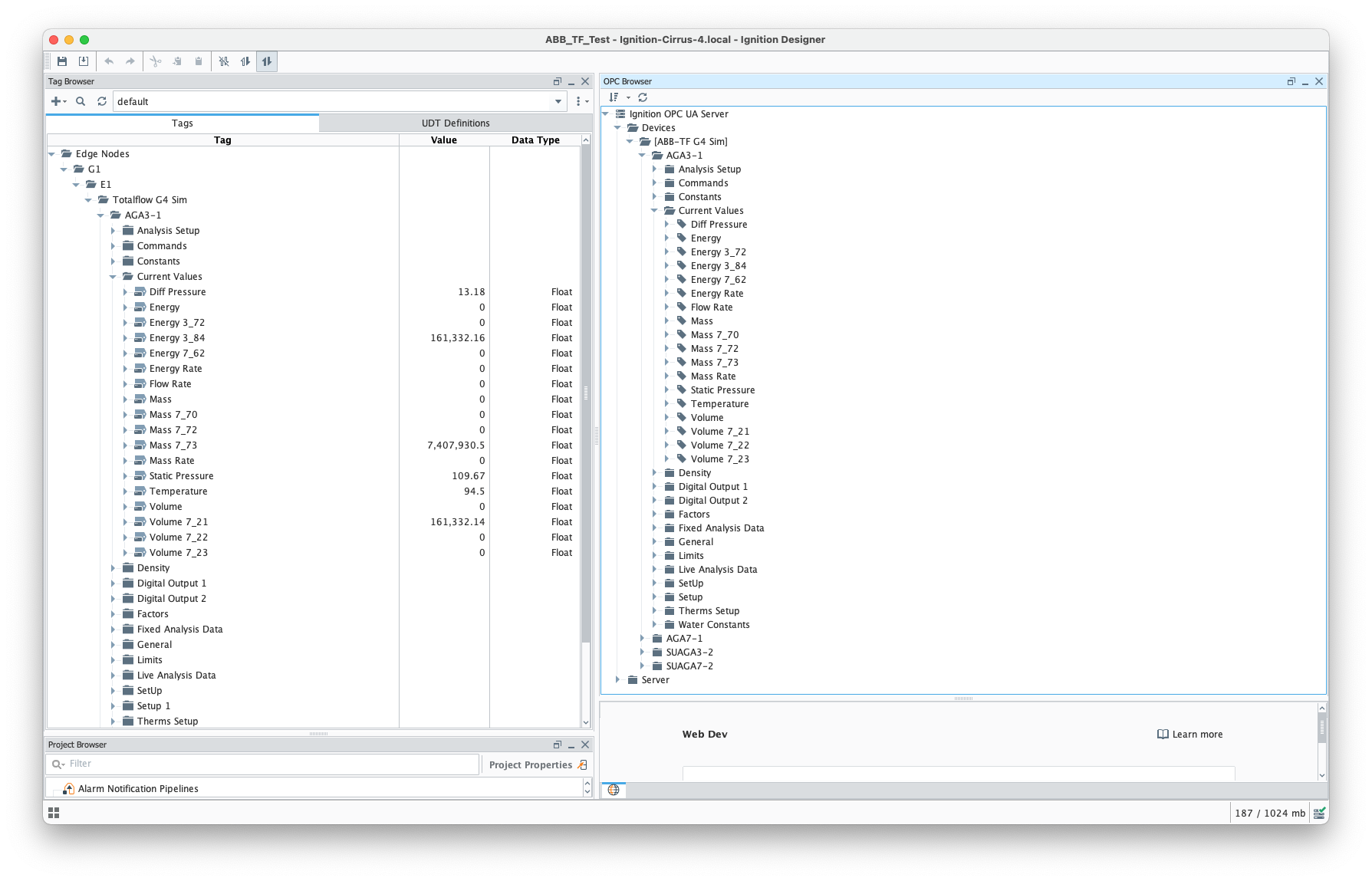
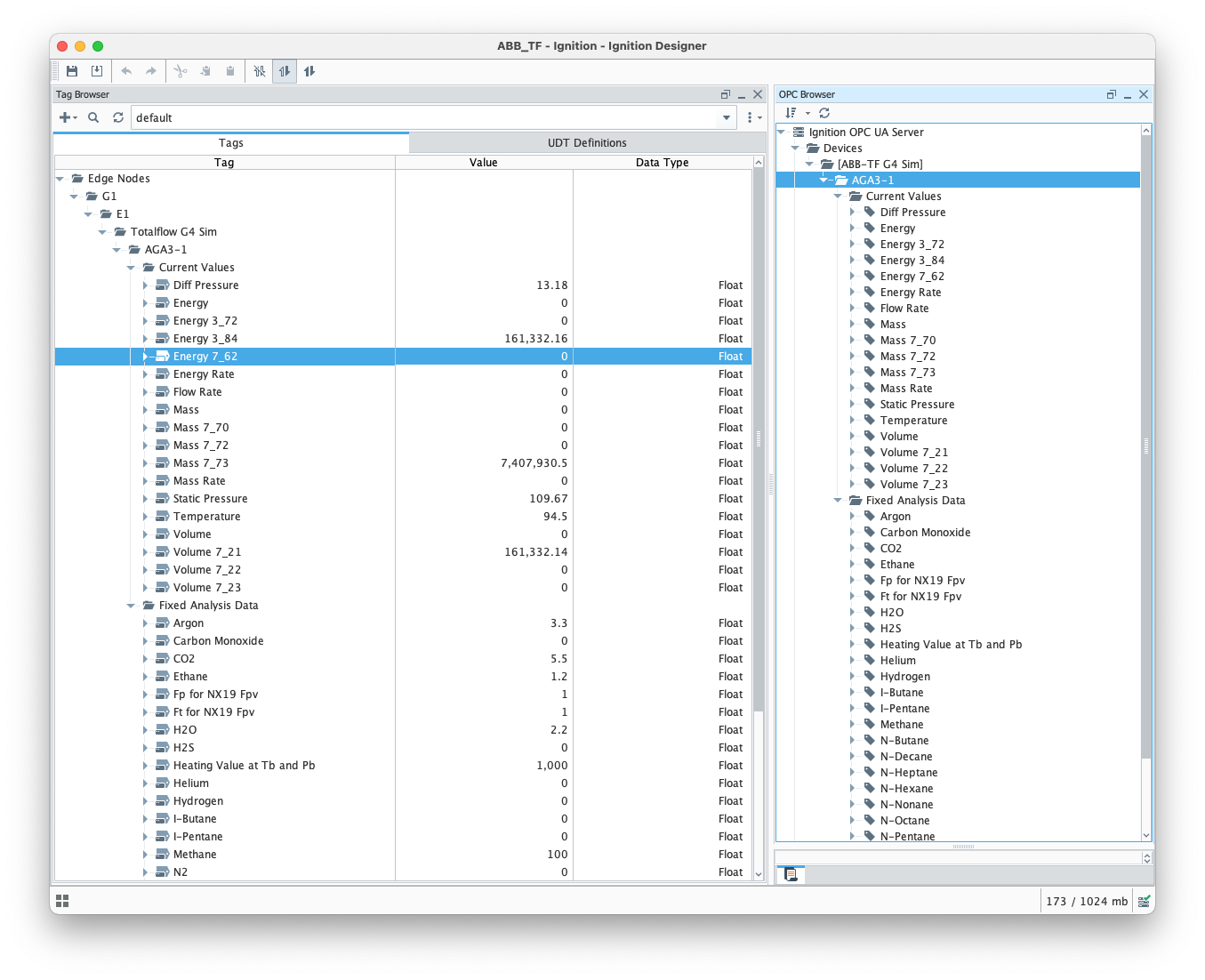
At this point, the ABB Totalflow device should be fully configured. To view data in Ignition launch Ignition Designer and open the OPC Tag Browser as shown below. You should see the tags being polled from the ABB Totalflow device as shown below. You can use these tags as any standard OPC tags in Ignition.
Customizing Array-Register Templates and Poll Groups
This section will describe how to use default Array-Register templates to generate custom templates and poll groups.
For the purpose of this exercise, lets assume that we only want to poll the AGA3-1 application, and we are interested in 'Current Values' and 'Fixed Analysis' data points only. Here is how to do it:
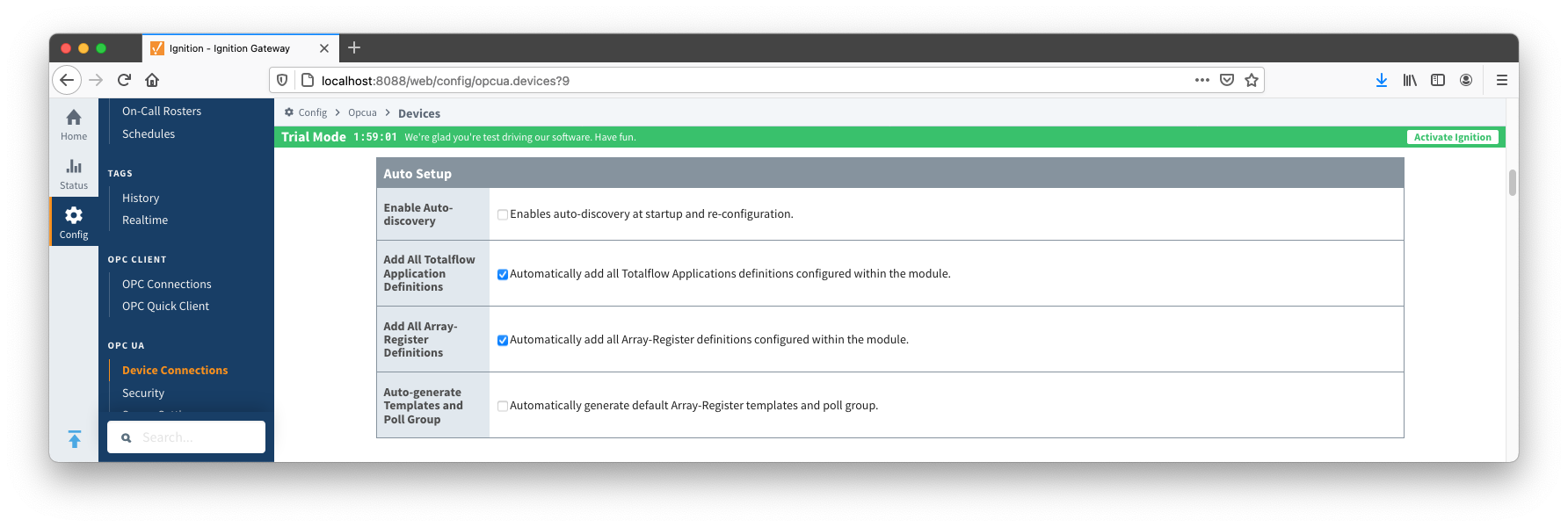
- Navigate to to the Auto Setup section of the device configuration and disable 'Auto-discovery' and 'Auto-generate Templates and Poll Group' as shown below.
- Go to the 'Poll Group' configuration panel and delete the 'Default Poll Group'
- Go 'Array-Register Templates' configuration panel and delete the following default templates:
- Dflt. AGA7 Tube App
- Dflt. SU Gas Orifice Tube App
- Dflt. SU Turbine Tube App
- Click the 'Edit Array-Register Template Contents' link of the 'Dflt. AGA3 Tube App' template
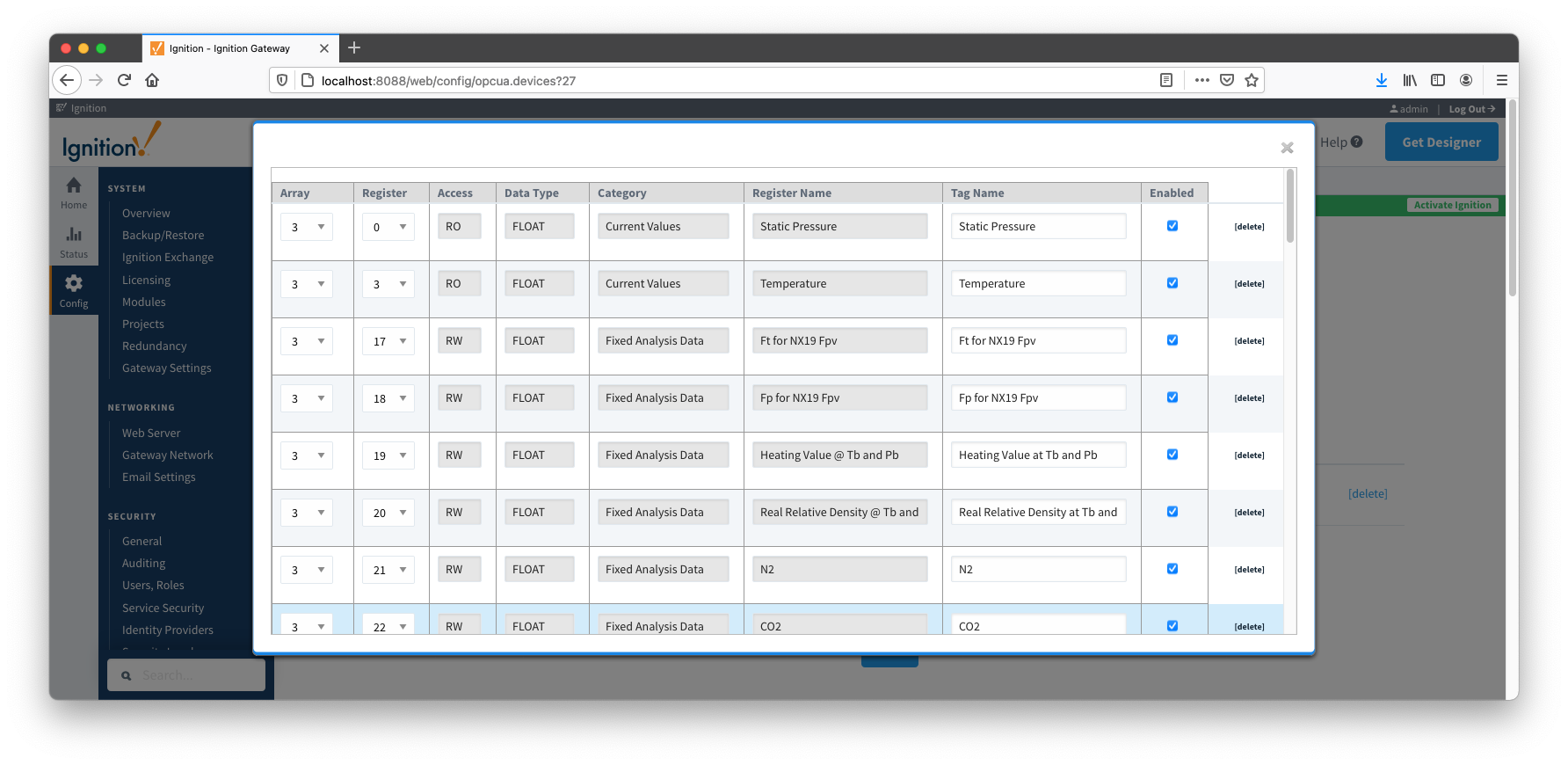
- Edit Array-Register template entries by removing all unwanted entries. In other words, keep an entry only if its category is set to 'Current Values' and 'Fixed Analysis Data'
- Save updated template entries
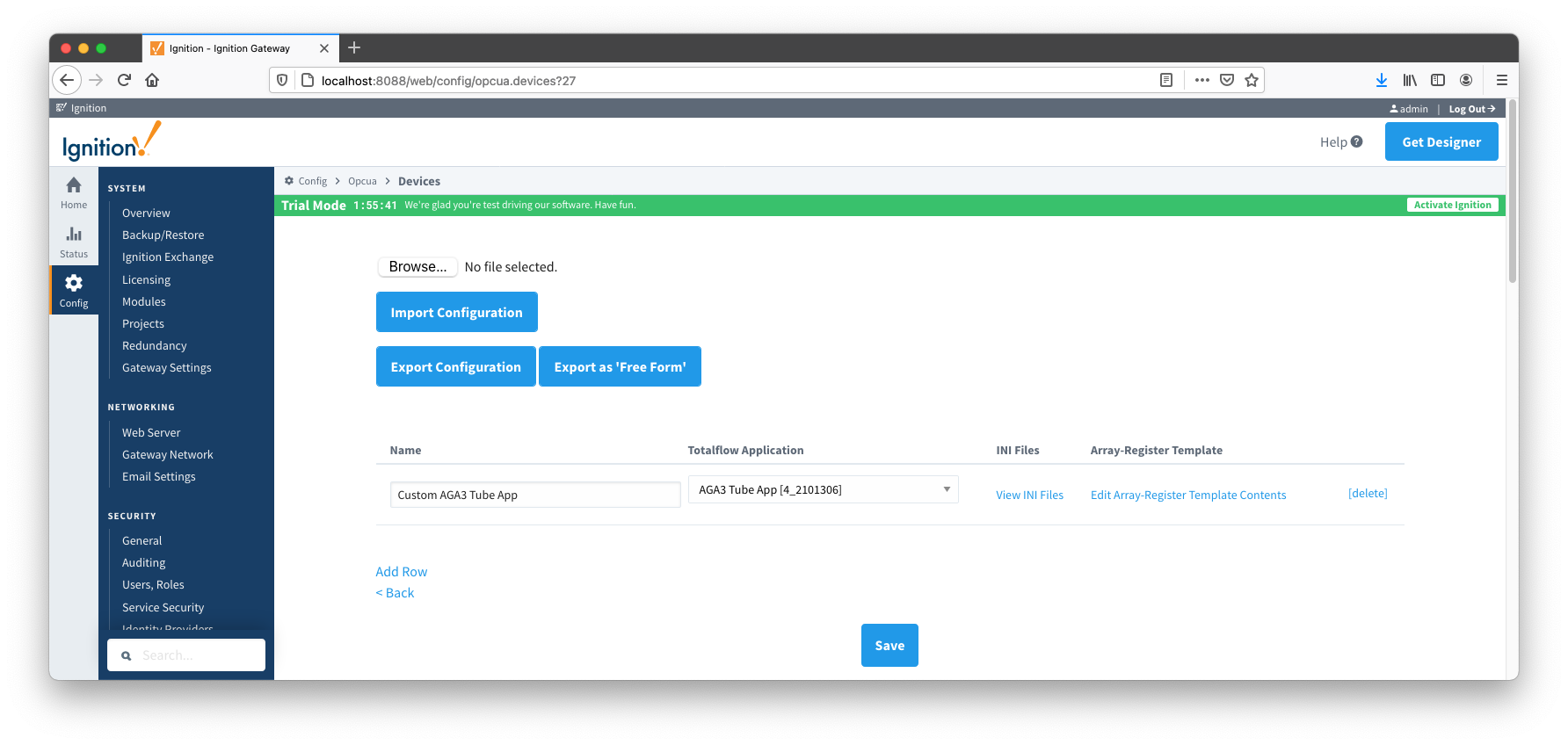
- Rename the 'Dflt. AGA3 Tube App' to 'Custom AGA3 Tube App' and save the template. The 'Array-Register Templates' configuration panel now should look as shown below:
- Go to the 'Poll Group' configuration panel and add a poll group to point to the custom template as shown below:
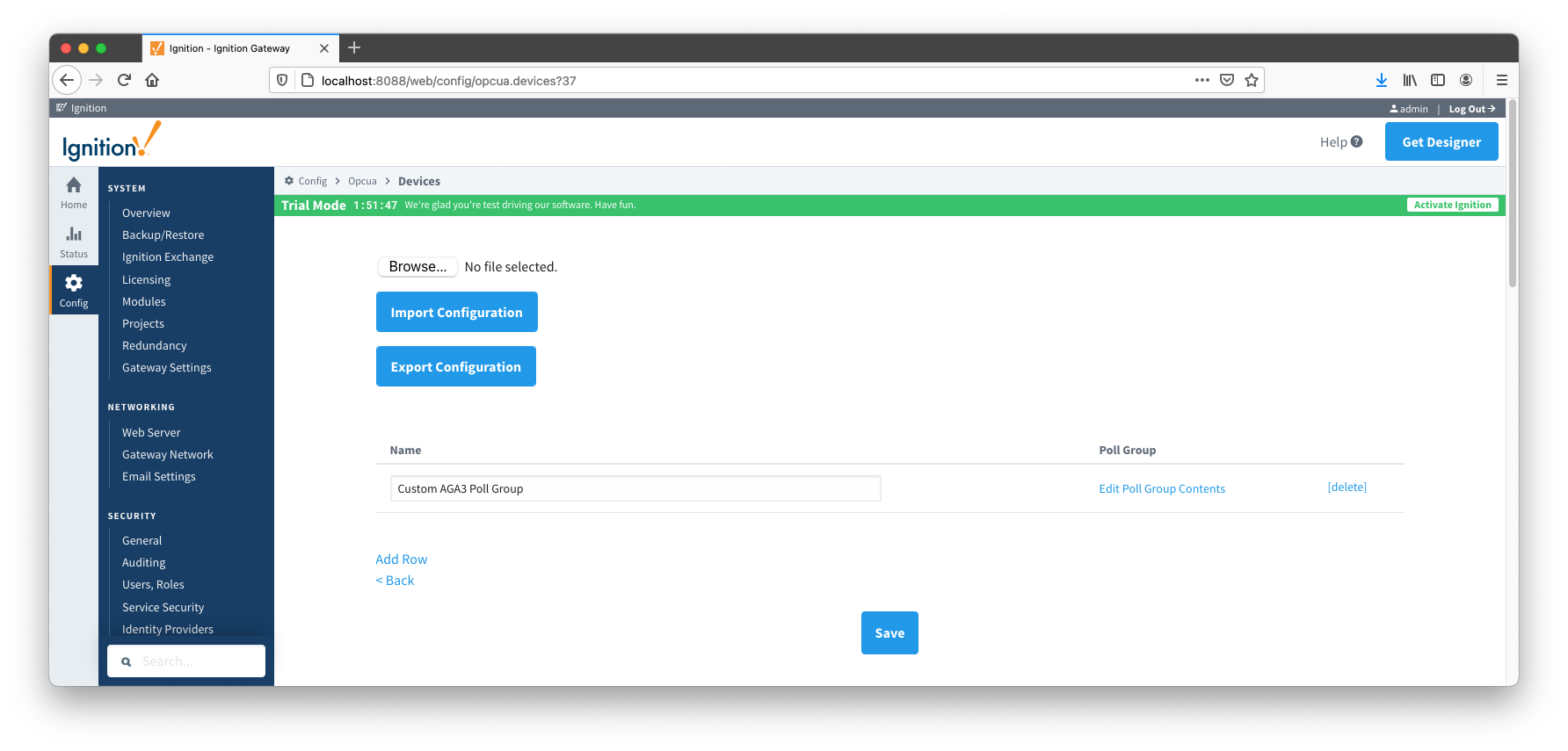
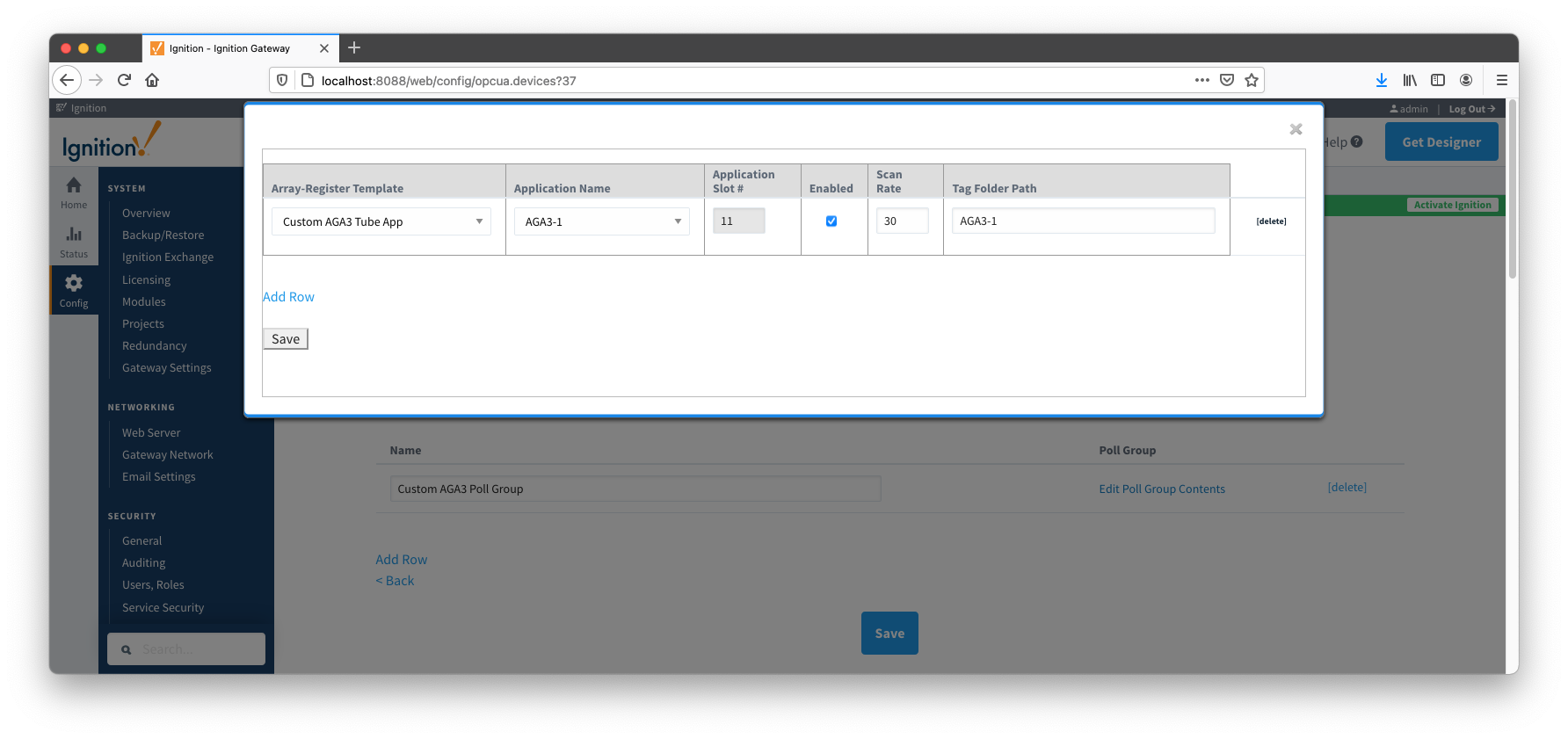
- Save poll group configuration and the device status should change from 'Connected' to "Polling"
- At this point, custom Array-Register template and poll group can be exported as CSV files so that they can be reused
- Open Ignition Designer and view the tags created:
View Record Data
Record data can be viewed in a couple of ways:
- Using Common File Exchange (CFX)
- Publishing as an immutable record object
Using Common File Exchange (CFX)
If using Common File Exchange (CFX), the record data will be stored/maintained in CFX.MD5 files on the local Ignition instance. See the ABB Totalflow Device Connection configuration for more details.
These files can be transferred from the Edge device using any method you choose such as FTP but can also be published using the MQTT Transmission File Publishing option.
To do this, you will need to configure an MQTT Transmission File Record and set the CFX File Transfer parameter to point to that File Record and the CFX files can then be automatically published. See the Creating and Publishing Common Exchange File CFX tutorial for details.
Publish as an immutable record object
To publish and view record data which includes ABB Totalflow alarms, events, and history data you must have MQTT Transmission installed on the instance with the EFM ABB Totalflow driver.
In addition, the following must be set up:
At the Central Gateway:
At the Edge Gateway:
OR
When all of these conditions are met, alarm, event, and/or history data will be collected, published, and stored via MQTT Recorder in the configured database.
How does the ABB Totalflow driver select which files to parse from the supplied INI file?
The Array-Register definition archive file may contain lots of INI files - for example, the Array-Register Definitions zip file above contains 1477 files.
So it worth explaining how the ABB Totalflow driver selects which files to parse to create Array_Regsiter Templates. When global Array-Register definitions are applied to a device connection, the driver uses application revision information obtained during the 'auto-discovery' process and selects INI file names that match application revision and variant numbers. As an example, below is application information obtained during the auto-discovery:
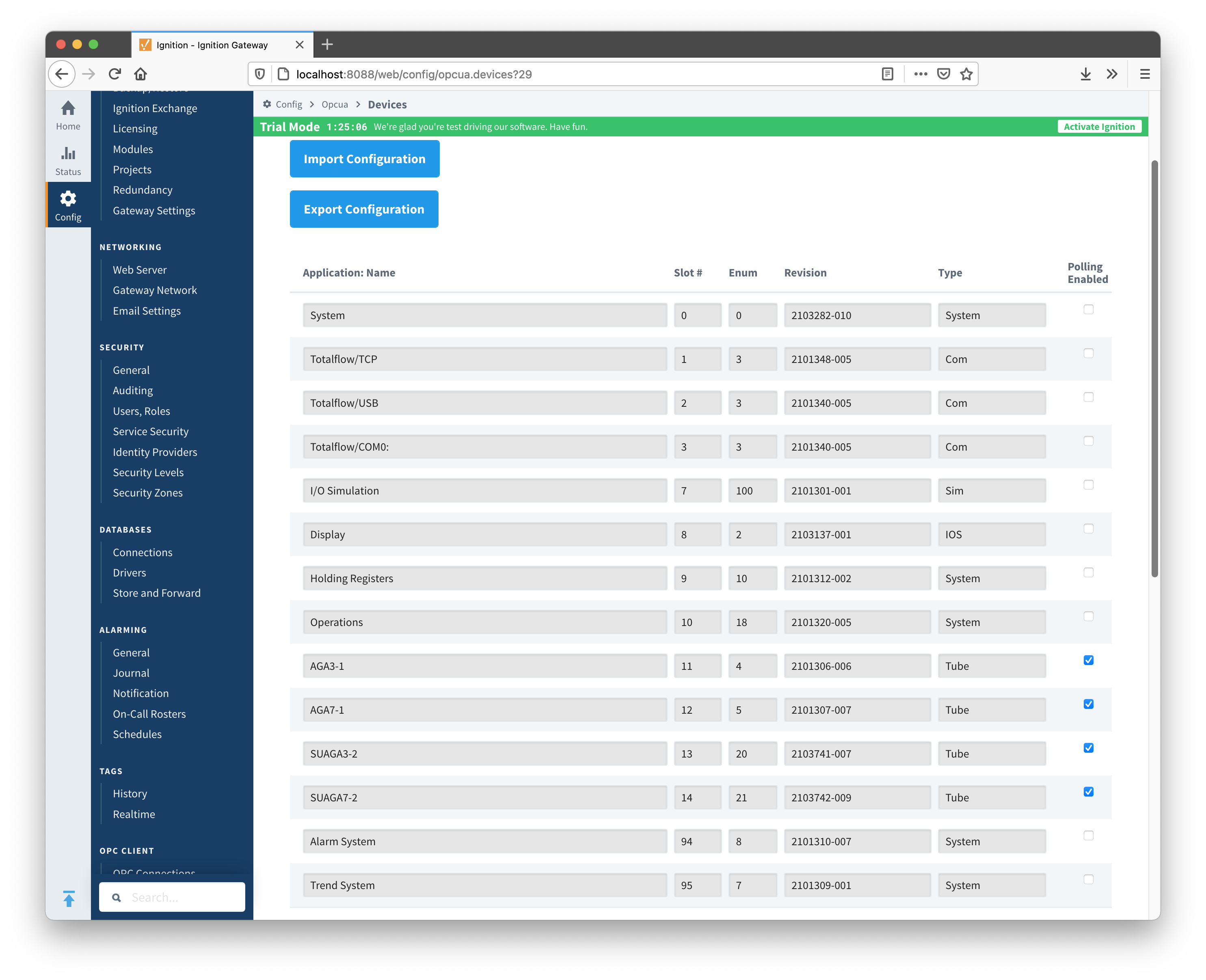
Note that since the revision number for the AGA3-1 meter application is 2101306-006, the INI parser will look for the 2101306-006.ini file in submitted ZIP archive.
If no direct match is found, it will look for the another possible match based on the revision number (i.e. 2101306) and revision variant (i.e. 005 and lower).
A user can check what INI files were picked by the driver as a source of Array-Register definitions. This information can be obtained form default Array-Register template generated by the driver by following the 'View INI Files' link as shown below: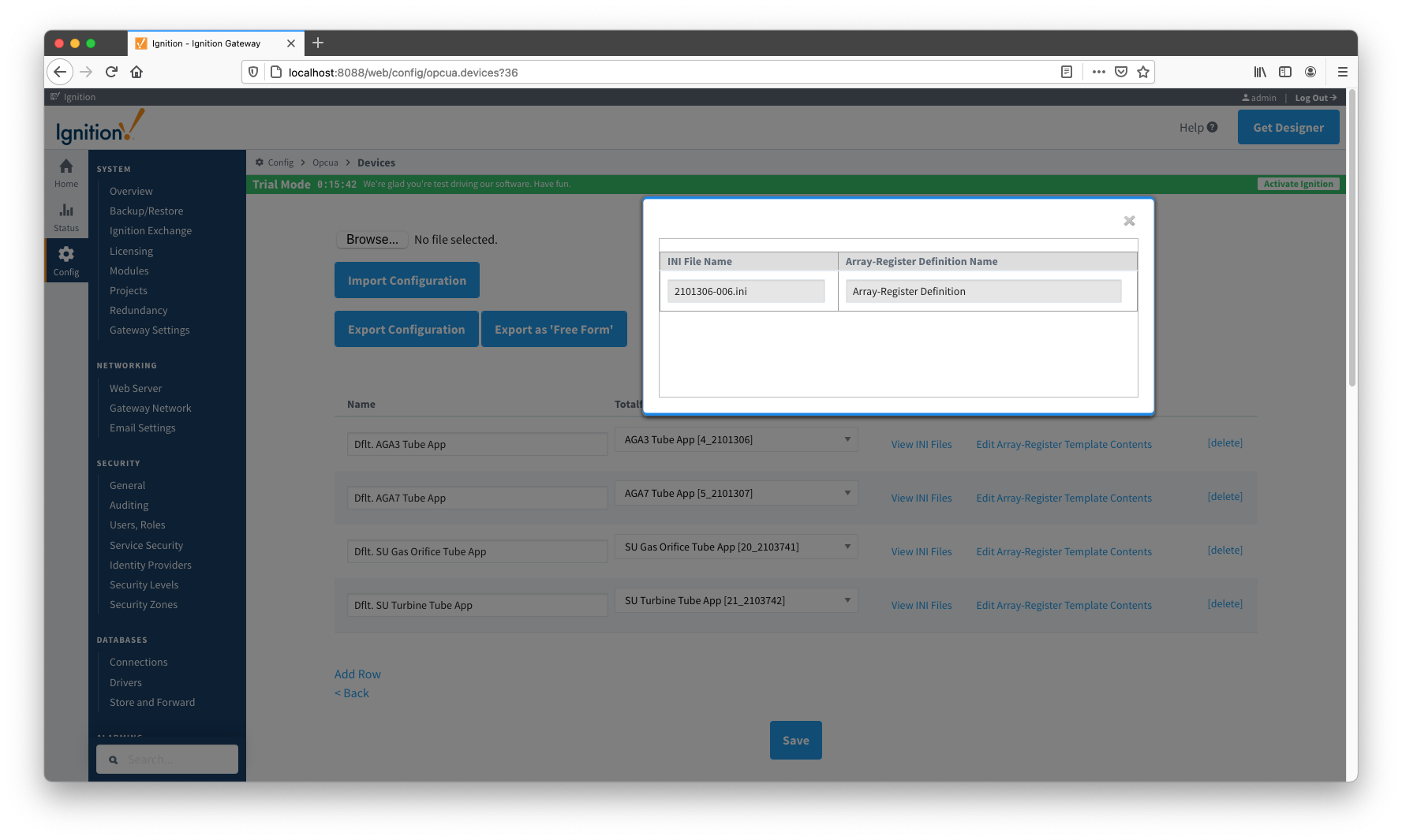
Below is an example that shows a portion the 2101306-006.ini file for the AGA3 Tube Application:
[Live Analysis Data] ExtHlp 5000 Help 1171 #Columns=2,Description=300,Value=100
dsc:Last Update from THERMS;cmd:4.5.1;typ:S;rwa:1;
dsc:Last Update from Other Source;cmd:4.2.2;typ:D;rwa:1;
dsc:Heating Value Live @ Tb and Pb;cmd:4.3.45;typ:F;
dsc:Real Relative Density Live @ Tb and Pb;cmd:4.3.44;typ:F;
dsc:N2 Live;cmd:4.3.46;typ:F;
dsc:CO2 Live;cmd:4.3.47;typ:F;
dsc:Methane Live;cmd:4.3.51;typ:F;
dsc:H2S Live;cmd:4.3.48;typ:F;
dsc:H2O Live;cmd:4.3.49;typ:F;
dsc:Helium Live;cmd:4.3.50;typ:F;
dsc:Ethane Live;cmd:4.3.52;typ:F;
dsc:Propane Live;cmd:4.3.53;typ:F;
dsc:N-Butane Live;cmd:4.3.54;typ:F;
dsc:I-Butane Live;cmd:4.3.55;typ:F;
dsc:N-Pentane Live;cmd:4.3.56;typ:F;
dsc:I-Pentane Live;cmd:4.3.57;typ:F;
dsc:N-Hexane Live;cmd:4.3.58;typ:F;
dsc:N-Heptane Live;cmd:4.3.59;typ:F;
dsc:N-Octane Live;cmd:4.3.60;typ:F;
dsc:N-Nonane Live;cmd:4.3.61;typ:F;
dsc:N-Decane Live;cmd:4.3.62;typ:F;
dsc:Oxygen Live;cmd:4.3.63;typ:F;
dsc:Carbon Monoxide Live;cmd:4.3.64;typ:F;
dsc:Hydrogen Live;cmd:4.3.65;typ:F;
dsc:Argon Live;cmd:4.3.66;typ:F;
The ABB Totalflow driver parses selected INI file and uses the info (Array-Register definitions) to generate Array-Register templates as shown below.
Note how highlighted (bold) lines shown above correlate to Array-Register Templates shown below.
Let's look at the 'dsc:N2 Live;cmd:4.3.46;typ:F;' line in more detail. The point description (i.e. N2 Live) is being used as a tag name. The 'typ:F' is the data type (i.e. floating point). Finally, the '4.3.46' defines the AAR (i.e. application, array, and register).
As a result, a default Array-Register Template is generated by the driver for a specific application enumeration, and it contains all Array-Register points found in appropriate INI files.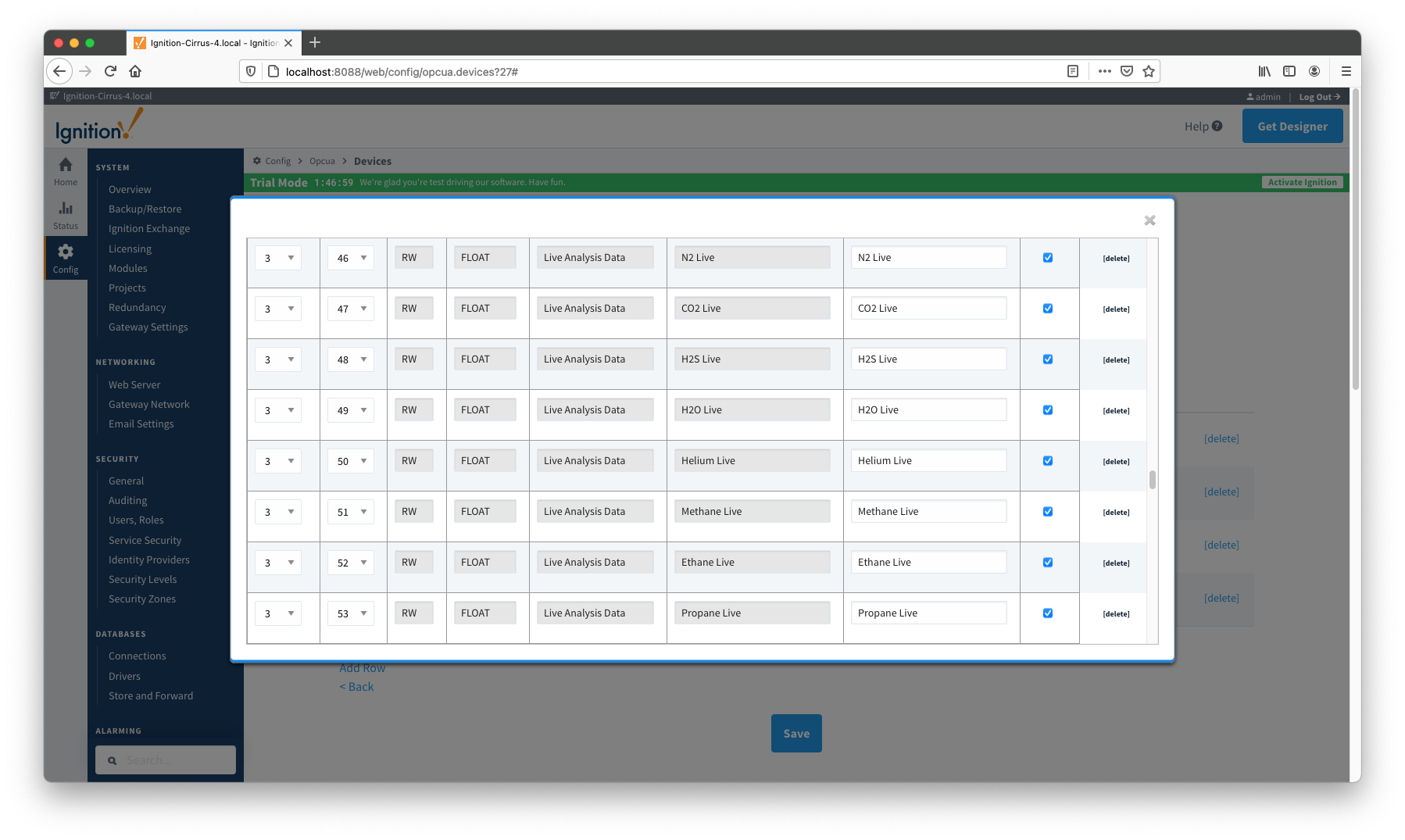
Additional Resources
- Inductive Automation's Ignition download with free trial
- Cirrus Link Solutions Modules for Ignition
- Support questions
- Sales questions
- About Cirrus Link
Overview
There are four main types of data that the EFM ABB Totalflow driver is capable of getting from an ABB Totalflow device. These are:
- Application-Array-Register (AAR) data
- Alarm Data
- Event Data
- History Data
AARs are polled at a specified interval based on a poll rate and then made available via the OPC-UA interface. Alarms, events, and history are made available to MQTT Transmission to be published as immutable Record objects to an MQTT server. Typically these would be received by the MQTT Engine and MQTT Recorder modules running on a central Ignition Gateway and inserted into a database for later use or to be made available to other third party systems.
The quickstart will guide you through setting up the EFM ABB Totalflow driver module and configuring the device connection to:
- connect to the Totalflow device
- auto-discover applications running on the device,
- generate default Array-Register Templates for all TUBE application enumerations based on information obtained from respective INI file(s),
- generate default poll group that contains entries for all instantiated TUBE applications
- poll default poll group
It will also describe how to use the default Array-Register templates to generate custom templates and poll groups and how to view Alarm, Event, and Periodic and Daily History data
Prerequisites
- Knowledge of Ignition and Cirrus Link Module Installation process
- Knowledge of MQTT Engine and MQTT Transmission configurations
- Installation of MQTT Engine, MQTT Transmission and MQTT Recorder (v4.0.x if using Ignition 8.1.x)
- Installation of latest compatible ABB Totalflow Driver
Definitions
| Module | Parameter | Definition |
|---|
| EFM ABB Totalflow Settings | Array-Register Definitions (Global) | The global Array-Register definitions made available to the EFM ABB Totalflow module. They are uploaded to the Ignition instance either as individual INI files or as ZIP archives that contain INI files. Note that INI files are text files that are read by PCCU or WinCCU to determine how to display data within an application. These global Array-Register definitions can be referenced by the configurations of the individual ABB Totalflow devices that they apply to. A single Ignition Gateway may contain multiple global Array-Register definitions files that are used to configure Array-Register Templates (i.e. templates that contain array, register, access type, data type, and register name info) for available application types (enumerations) |
| EFM ABB Totalflow Settings | Totalflow Applications Definitions (Global) | The global Totalflow Applications Definitions are uploaded to the Ignition instance as individual CSV files and contain the following information about Totalflow applications: - Enumeration number
- Name
- Type
- An optional flag (SU) that indicates that this is a 'Selectable Unit' application
- Part number(s)
|
| EFM ABB Totalflow Settings | | The periodic mapping files are used for building up EFM Periodic and Daily History records. They map various record fields to database column names so that user can adjust those column names to match requirements. Periodic mappings also allow to exclude certain record fields to be used. They are uploaded to the Ignition instance in the form of specifically formatted CSV files |
| OPC UA Device Connection | Totalflow Applications | This is a list of applications (fields include respective name, slot number, enumeration, revision and type) that are currently installed on a Totalflow device. This list is obtained either by 'auto-discovery' process that takes place on configuration/restart or by importing specifically formatted CSV file |
| OPC UA Device Connection | Totalflow Applications Definitions (Device) | These are a subset of the global Totalflow Applications Definition files that apply to a specific device |
| OPC UA Device Connection | Array-Register Definitions (Device) | These are a subset of the global Array-Register definition files that apply to a specific device |
| OPC UA Device Connection | Array-Register Templates | Array-Register templates are logical groupings of AARs. Generally, Array-Register templates would be created so that instances of them can be used by specifying a poll group with application slot number |
| OPC UA Device Connection | Poll Groups | Poll groups use Array-Register templates in conjunction with application slot number to create a specific groups of register sets (i.e. sets of consecutive array registers) to be polled at a specified poll rate |
Configuration Steps
There are 12 basic steps to getting all of the data available from an ABB Totalflow into Ignition
From the EFM ABB Totalflow Settings, define/upload the global Array-Register definitions available for all Totalflow devices in this Ignition instance
From the EFM ABB Totalflow Settings, define/upload the global Totalflow applications definitions available for all Totalflow devices in this Ignition instance.
- From the EFM ABB Totalflow Settings, define/upload the EFM Mappings for all Totalflow devices in this Ignition Instance
- From the OPC UA Device Connections, create the base device connection to the ABB Totalflow unit.
- Once the device is created, you should see it is listed in the devices section with a status of either 'Auto-discovery' or 'Connected' on success, or "Not Connected" or "Security Failed" on failure. If device is configured with the 'Enable auto-discovery' option turned on, wait for auto-discovery to complete. When auto-discovery is completed, the device status changes from 'Auto-discovery' to 'Connected'.
- Navigate to the 'Totalflow Applications' configuration panel. If 'Auto-discovery' is enabled, that applications are there. If this configuration option is disabled, manually import the application information.
- Navigate to the 'Totalflow Applications Definitions' configuration panel. If 'Add All Totalflow Applications Definitions' is enabled, verify that all global applications definitions are added to this device definition. If this configuration option is disabled, manually add global applications definitions that apply.
- Navigate to the 'Array-Register Definitions' configuration panel. If 'Add All Array-Register Definitions' is enabled, verify that all global Array-Register definitions are added to this device definition. If this configuration option id disabled, manually add global Array-Register definitions that apply.
Navigate to the 'Array-Register Templates' configuration panel. If 'Auto-Generate Templates and Poll Group' is enabled, verify the default templates are added to this device definition. If this configuration option is disabled, manually import the templates that apply.
- Navigate to the 'Poll Groups' configuration panel. If 'Auto-Generate Templates and Poll Group' is enabled, verify the default poll groups are added to this device definition. If this configuration option is disabled, manually import the poll groups that apply.
- Go to device configuration and disable all three options under the 'Auto Setup' category. Disabling 'auto-discovery' allows faster transition from connection establishment to polling. Disabling 'Auto-generate Templates and Poll Group' will allow you to delete default templates and poll groups without the driver trying to regenerate them.
- Navigate to the 'Poll Groups' configuration panel and follow the 'Edit Poll Group Contents' link for the 'Default Poll Group'. Check the 'Enabled' box for each default poll group entry and click the 'Save' buttons twice: one time to save poll group entries, and another time to save poll groups. The device status will shortly change from 'Connected' to 'Polling'.
Viewing Device Application-Array-Register (AAR) Data
At this point, the ABB Totalflow device should be fully configured. To view data in Ignition launch Ignition Designer and open the OPC Tag Browser as shown below. You should see the tags being polled from the ABB Totalflow device as shown below. You can use these tags as any standard OPC tags in Ignition.
Customizing Array-Register Templates and Poll Groups
This section will describe how to use default Array-Register templates to generate custom templates and poll groups.
For the purpose of this exercise, lets assume that we only want to poll the AGA3-1 application, and we are interested in 'Current Values' and 'Fixed Analysis' data points only. Here is how to do it:
- Navigate to to the Auto Setup section of the device configuration and disable 'Auto-discovery' and 'Auto-generate Templates and Poll Group' as shown below.
- Go to the 'Poll Group' configuration panel and delete the 'Default Poll Group'
- Go 'Array-Register Templates' configuration panel and delete the following default templates:
- Dflt. AGA7 Tube App
- Dflt. SU Gas Orifice Tube App
- Dflt. SU Turbine Tube App
- Click the 'Edit Array-Register Template Contents' link of the 'Dflt. AGA3 Tube App' template
- Edit Array-Register template entries by removing all unwanted entries. In other words, keep an entry only if its category is set to 'Current Values' and 'Fixed Analysis Data'
- Save updated template entries
- Rename the 'Dflt. AGA3 Tube App' to 'Custom AGA3 Tube App' and save the template. The 'Array-Register Templates' configuration panel now should look as shown below:
- Go to the 'Poll Group' configuration panel and add a poll group to point to the custom template as shown below:
- Save poll group configuration and the device status should change from 'Connected' to "Polling"
- At this point, custom Array-Register template and poll group can be exported as CSV files so that they can be reused
- Open Ignition Designer and view the tags created:
View Alarm, Event, Periodic and Daily History Data
To view record data which includes ABB Totalflow alarms, events, and history data you must have MQTT Transmission installed on the instance with the EFM ABB Totalflow driver.
In addition, the following must be set up:
At the Central Gateway:
At the Edge Gateway:
- Configure MQTT Transmission
- Add/update the Transmitter configuration and/or the Tag folders so that an Edge Node is reporting with a Group ID, Edge Node ID, and Device ID (for example: G1, E1, D1)
- Add/update the Server configuration to point to the MQTT server
- From Ignition Designer, use the MQTT Transmission 'Refresh' Mechanism to make sure it is connected and reporting.
- Configure EFM ABB Totalflow ROC module
- The Alarm, Event, and/or History poll rates in the Emerson ROC driver device configuration must be greater than zero depending on which data you wish to collect
OR
When all of these conditions are met, alarm, event, and/or history data will be collected, published, and stored via MQTT Recorder in the configured database.
How does the ABB Totalflow driver select which files to parse from the supplied INI file?
The Array-Register definition archive file may contain lots of INI files - for example, the Array-Register Definitions zip file above contains 1477 files.
So it worth explaining how the ABB Totalflow driver selects which files to parse to create Array_Regsiter Templates. When global Array-Register definitions are applied to a device connection, the driver uses application revision information obtained during the 'auto-discovery' process and selects INI file names that match application revision and variant numbers. As an example, below is application information obtained during the auto-discovery:
Note that since the revision number for the AGA3-1 meter application is 2101306-006, the INI parser will look for the 2101306-006.ini file in submitted ZIP archive.
If no direct match is found, it will look for the another possible match based on the revision number (i.e. 2101306) and revision variant (i.e. 005 and lower).
A user can check what INI files were picked by the driver as a source of Array-Register definitions. This information can be obtained form default Array-Register template generated by the driver by following the 'View INI Files' link as shown below:
Below is an example that shows a portion the 2101306-006.ini file for the AGA3 Tube Application:
[Live Analysis Data] ExtHlp 5000 Help 1171 #Columns=2,Description=300,Value=100
dsc:Last Update from THERMS;cmd:4.5.1;typ:S;rwa:1;
dsc:Last Update from Other Source;cmd:4.2.2;typ:D;rwa:1;
dsc:Heating Value Live @ Tb and Pb;cmd:4.3.45;typ:F;
dsc:Real Relative Density Live @ Tb and Pb;cmd:4.3.44;typ:F;
dsc:N2 Live;cmd:4.3.46;typ:F;
dsc:CO2 Live;cmd:4.3.47;typ:F;
dsc:Methane Live;cmd:4.3.51;typ:F;
dsc:H2S Live;cmd:4.3.48;typ:F;
dsc:H2O Live;cmd:4.3.49;typ:F;
dsc:Helium Live;cmd:4.3.50;typ:F;
dsc:Ethane Live;cmd:4.3.52;typ:F;
dsc:Propane Live;cmd:4.3.53;typ:F;
dsc:N-Butane Live;cmd:4.3.54;typ:F;
dsc:I-Butane Live;cmd:4.3.55;typ:F;
dsc:N-Pentane Live;cmd:4.3.56;typ:F;
dsc:I-Pentane Live;cmd:4.3.57;typ:F;
dsc:N-Hexane Live;cmd:4.3.58;typ:F;
dsc:N-Heptane Live;cmd:4.3.59;typ:F;
dsc:N-Octane Live;cmd:4.3.60;typ:F;
dsc:N-Nonane Live;cmd:4.3.61;typ:F;
dsc:N-Decane Live;cmd:4.3.62;typ:F;
dsc:Oxygen Live;cmd:4.3.63;typ:F;
dsc:Carbon Monoxide Live;cmd:4.3.64;typ:F;
dsc:Hydrogen Live;cmd:4.3.65;typ:F;
dsc:Argon Live;cmd:4.3.66;typ:F;
The ABB Totalflow driver parses selected INI file and uses the info (Array-Register definitions) to generate Array-Register templates as shown below.
Note how highlighted (bold) lines shown above correlate to Array-Register Templates shown below.
Let's look at the 'dsc:N2 Live;cmd:4.3.46;typ:F;' line in more detail. The point description (i.e. N2 Live) is being used as a tag name. The 'typ:F' is the data type (i.e. floating point). Finally, the '4.3.46' defines the AAR (i.e. application, array, and register).
As a result, a default Array-Register Template is generated by the driver for a specific application enumeration, and it contains all Array-Register points found in appropriate INI files.
Additional Resources
- Inductive Automation's Ignition download with free trial
- Cirrus Link Solutions Modules for Ignition
- Support questions
- Sales questions
- About Cirrus Link