IMPORTANT NOTE
This is only supported in the current NIGHTLY version of Azure Injector (as of Mar 3, 2021). This will be made standard in the 4.0.7 release of Azure Injector.
Prerequisites
...
Now click the 'Edit' button to the right of the 'Default type'. This will open a new screen to edit the default type. Then select the 'Variables' tab at the top as shown below.
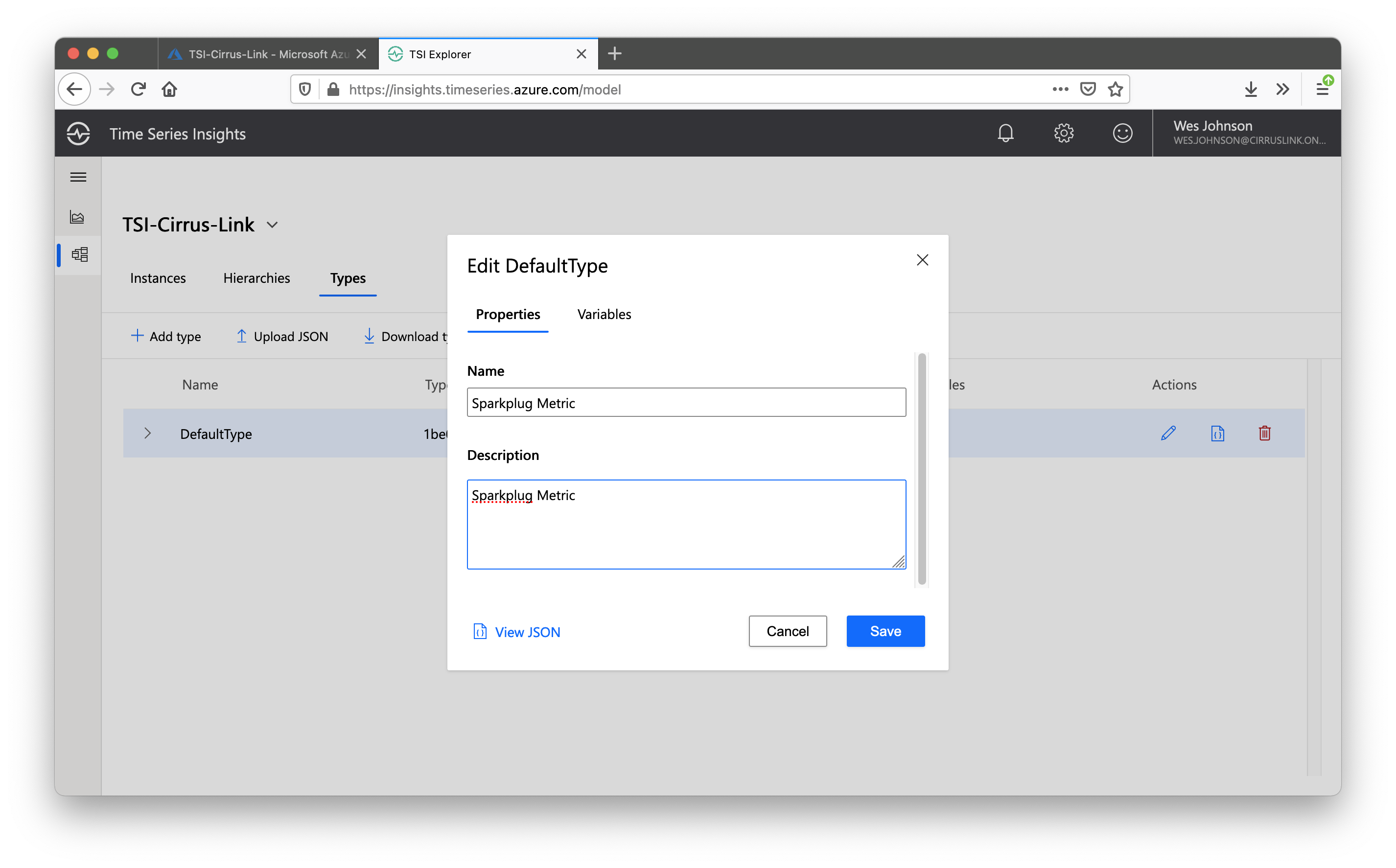 Image Removed
Change the Name and Description both to 'Sparkplug Metric' for the default type on the properties tab as shown above. Then click the 'Variables' tag. You should now see something similar to the following.
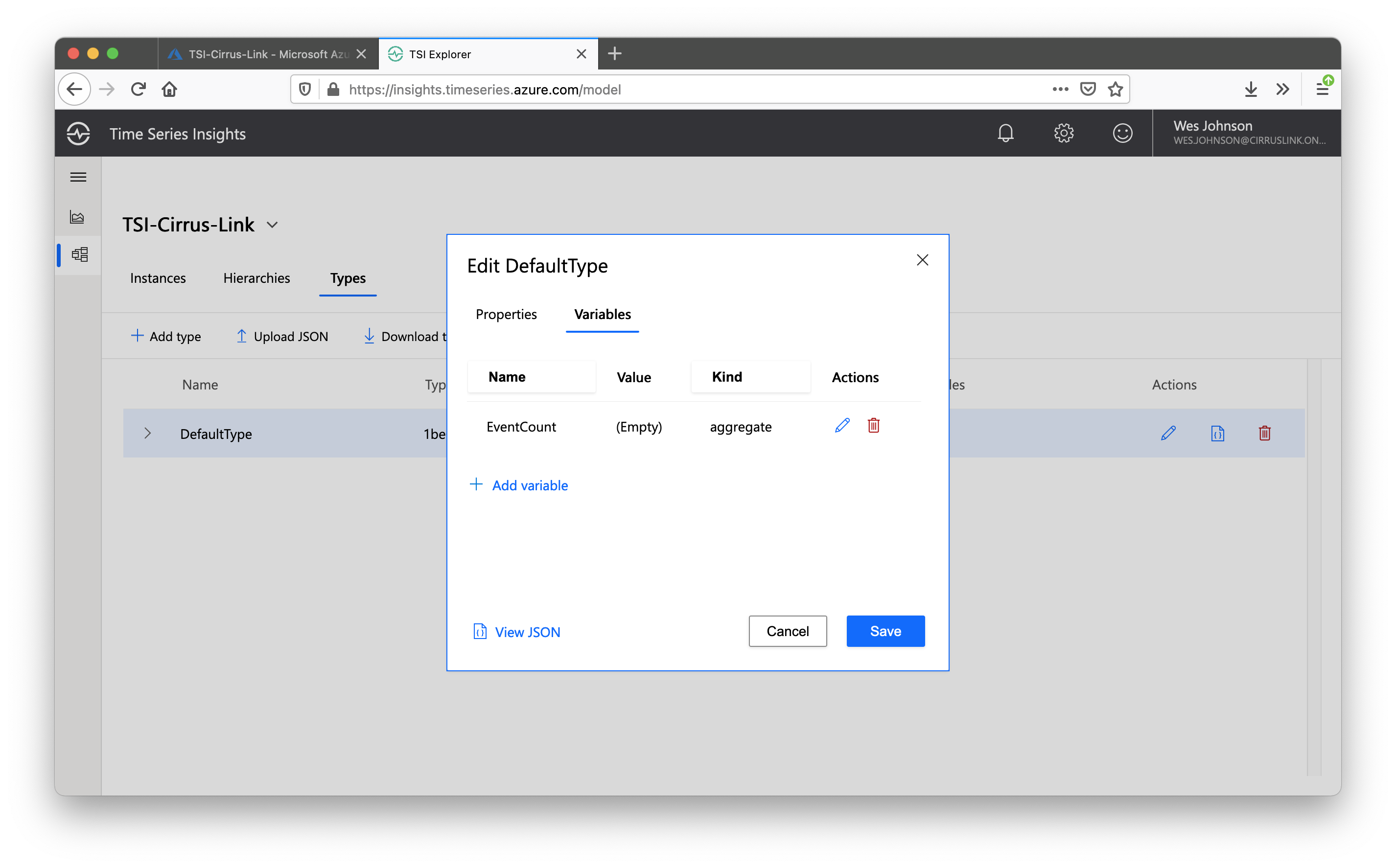 Image Added
Select the '+ Add variable' button. This will open the following window
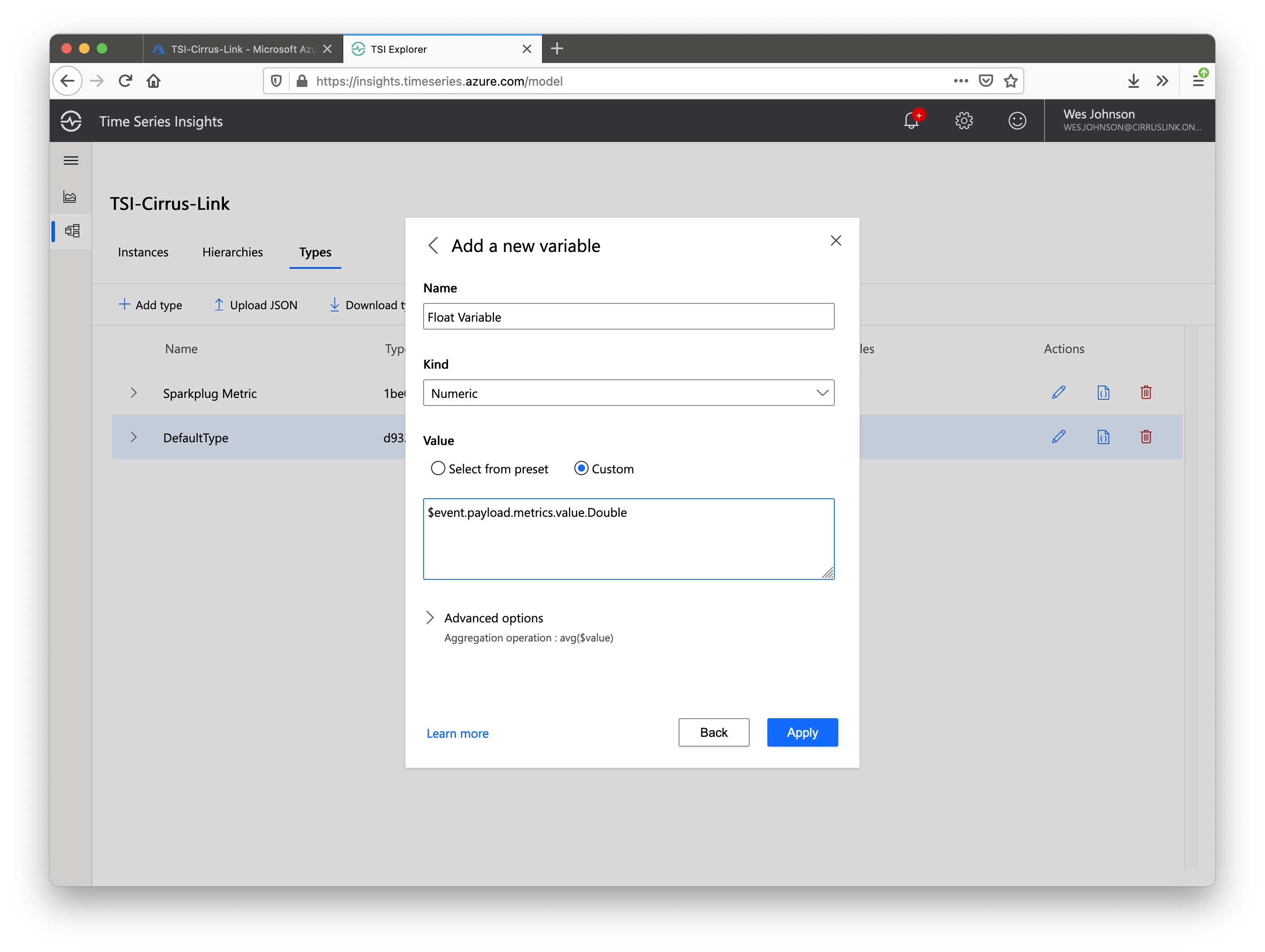 Image Added
Set the 'Name' to 'Float Value', the Kind' to 'Numeric', and the 'Value' to Custom and '$event.payload.metrics.value.Double' as shown above. When finished click 'Apply' and 'Save'.
| Info |
|---|
Before TSI can receive data from IoT Hub there must be an enabled 'Built-in-Endpoint' in the IoT Hub 'Message Routing' configuration. If it has previously been deleted, you can create one that looks as follows: 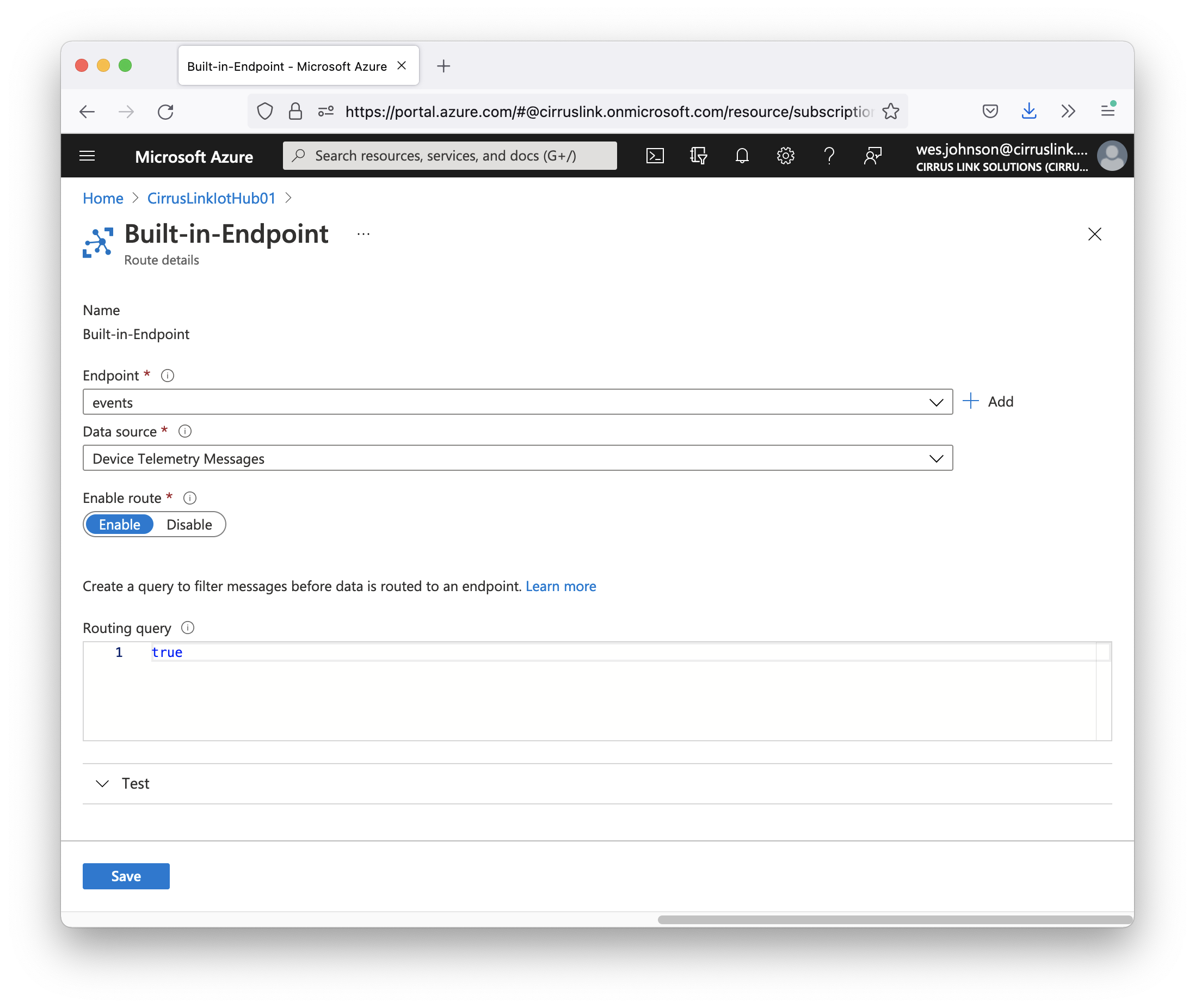 Image Added Image Added
|
At this point, the Time Series Insights Environment is ready to receive data.Image Removed
Step 3: Pushing Data to Time Series Insights using Azure Injector
With the work that was done in the prerequisite tutorials there isn't much more to do to get data flowing into Time Series Insights. The first setting to change is in the IoT Hub configuration of Azure Injector. Browse to the Ignition Gateway Web UI and edit the IoT Hub setting as shown below.
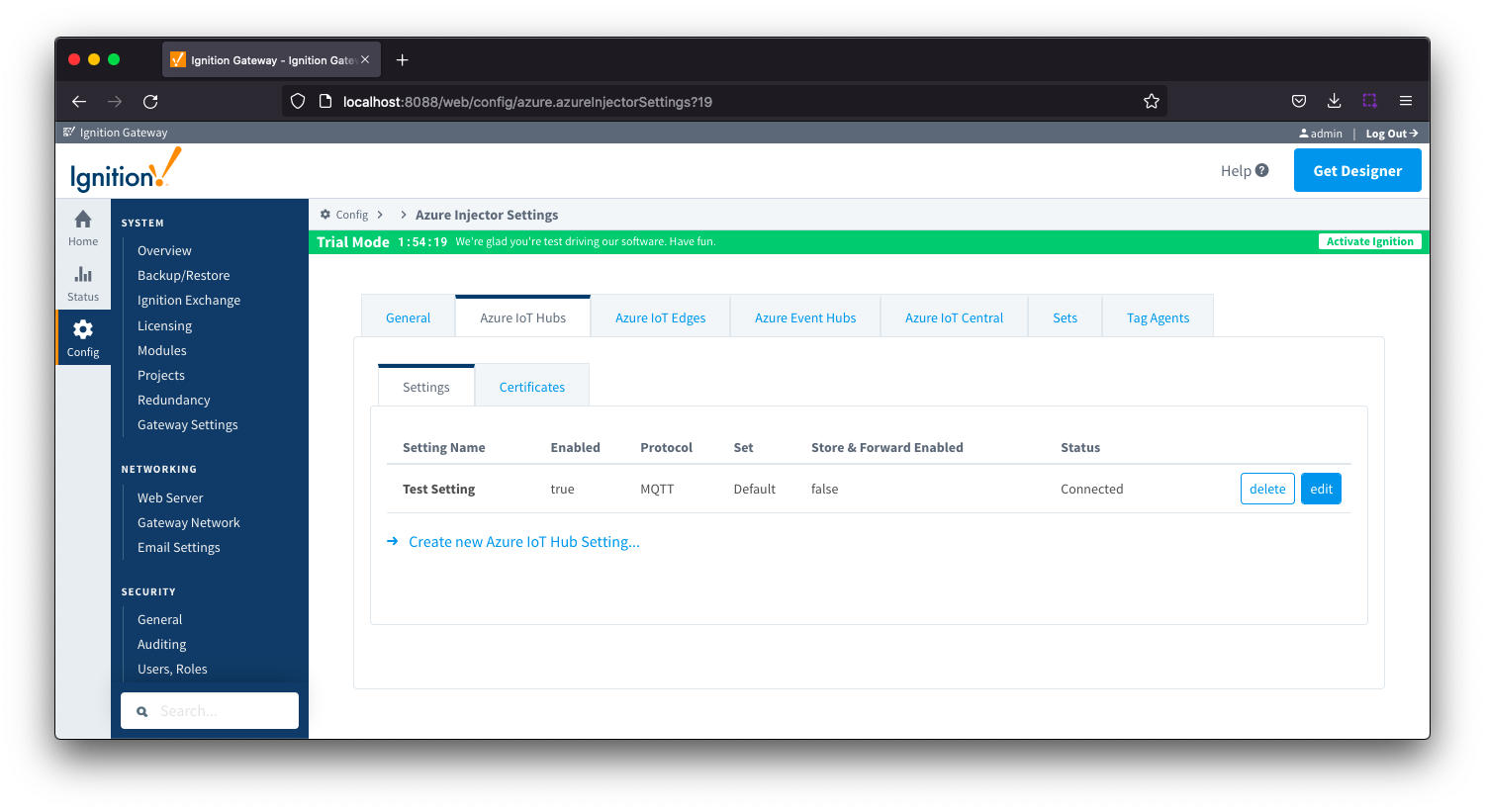 Image Added
Once on the edit screen, scroll all the way to the bottom of the configuration and select 'STRING_AZURE_COMPAT'. This will ensure that the timestamp that gets used in Time Series Insights will be the 'tag change event time' rather than the time that the data arrives at Time Series Insights.
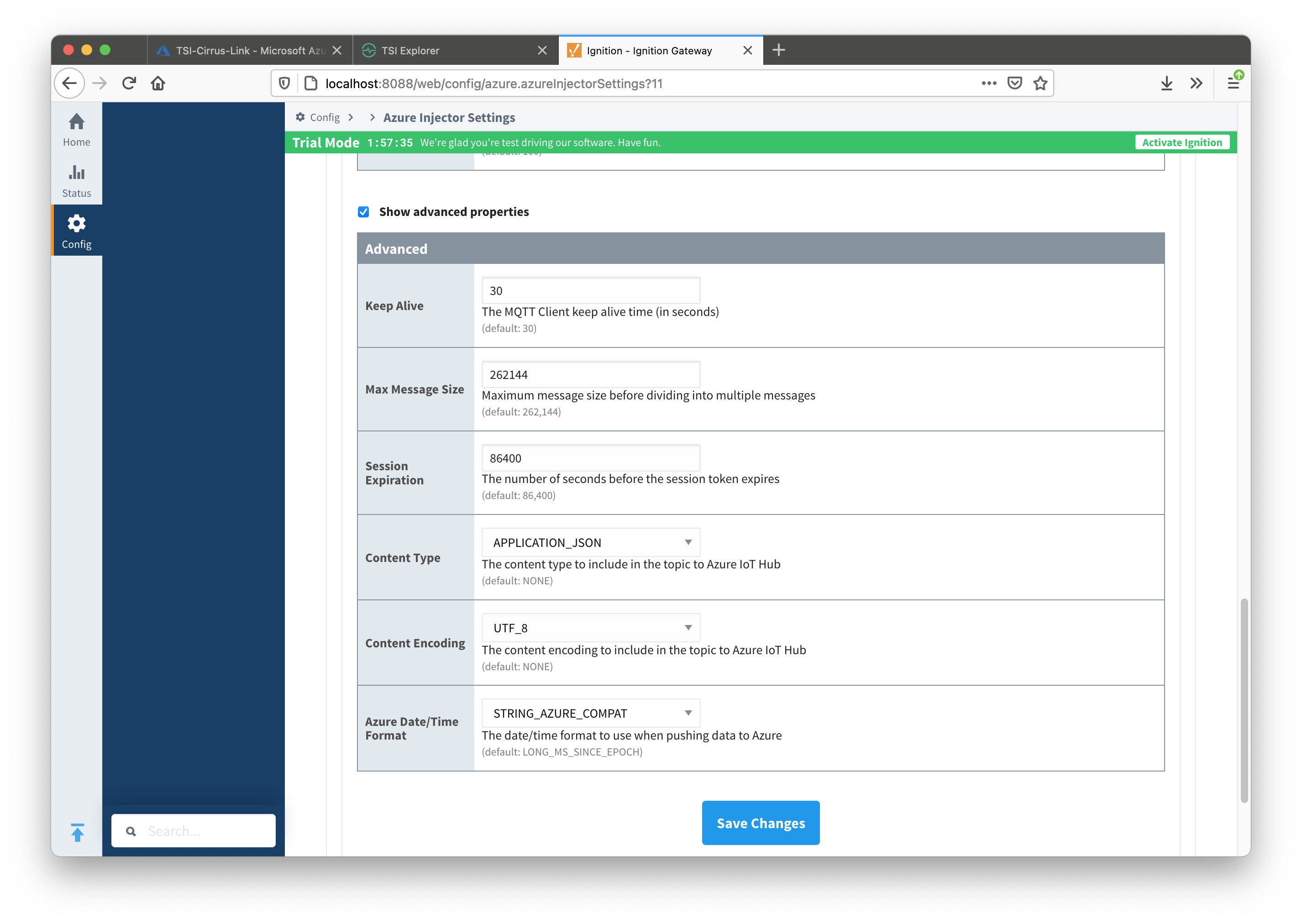 Image Added
Now in Ignition Designer, create a Gateway timer script as shown below. This is a simple script that will automatically change the value of the Float001 tag every second. Also, for copy and paste convienence, the code is below as well.
| Code Block |
|---|
|
fullTagPath = "[default]Edge Nodes/Tutorial Group/Tutorial Edge Node/Tutorial Device/Float001"
value = system.tag.read(fullTagPath).value
value += 1
if value == 101:
  value = 0

system.tag.write(fullTagPath, value) |
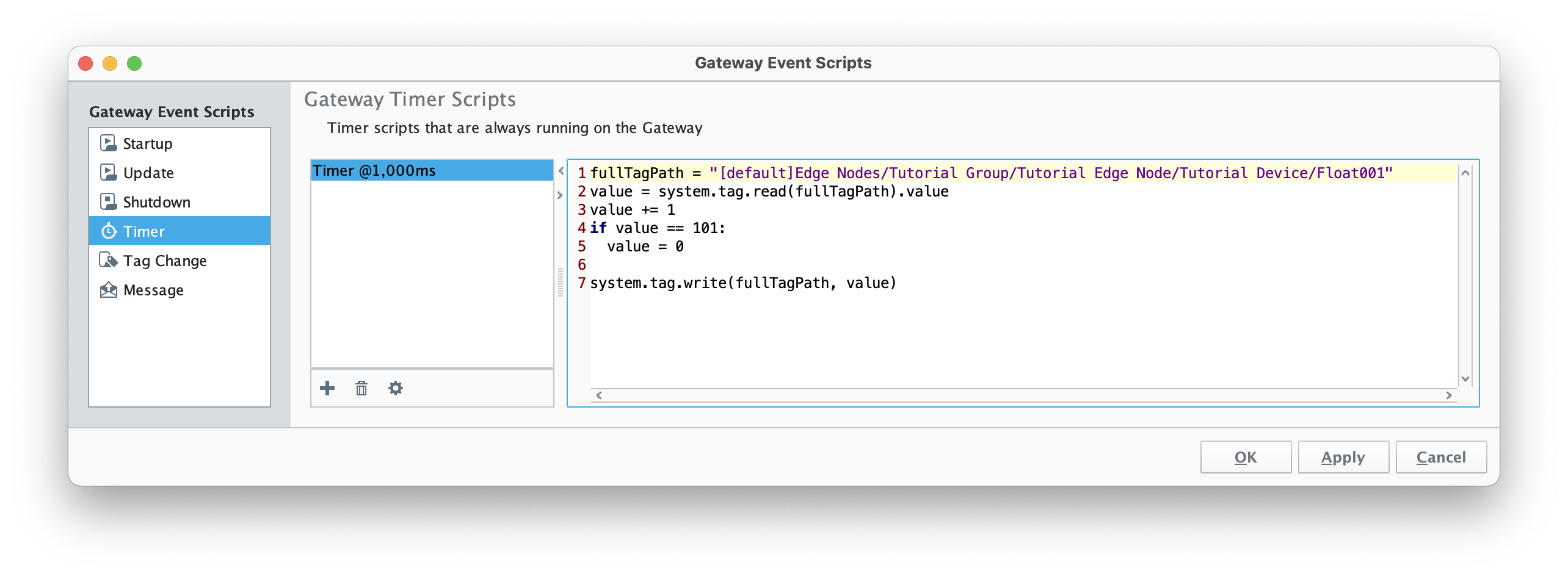 Image Added
After creating the script, save and publish it. When complete, you should see the '[default]Edge Nodes/Tutorial Group/Tutorial Edge Node/Tutorial Device/Float001' tag incrementing every second.
At this point, data should be flowing from Azure Injector, to IoT Hub, to your new Time Series Insights Environment.
Step 4: Viewing Data in Time Series Insights
In the Time Series Insights Dashboard, select the 'Analyze' option from the upper left navigation menu as shown below.
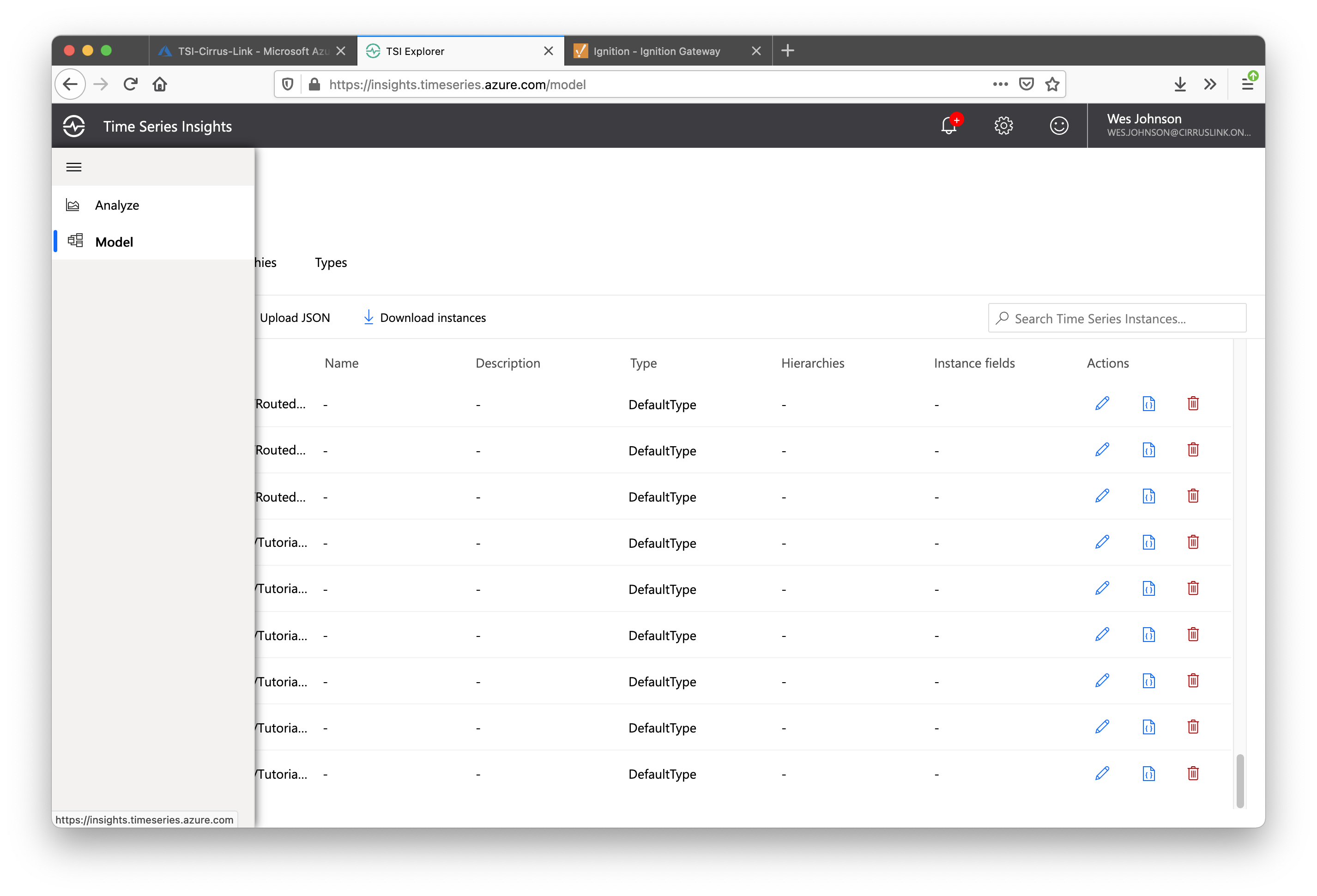 Image Added
After selecting the Analyze screen, you should see something similar to what is shown below. Because data should now be being routed to your Time Series Insights Environment you should also have time series instances in your environment similar to those shown below.
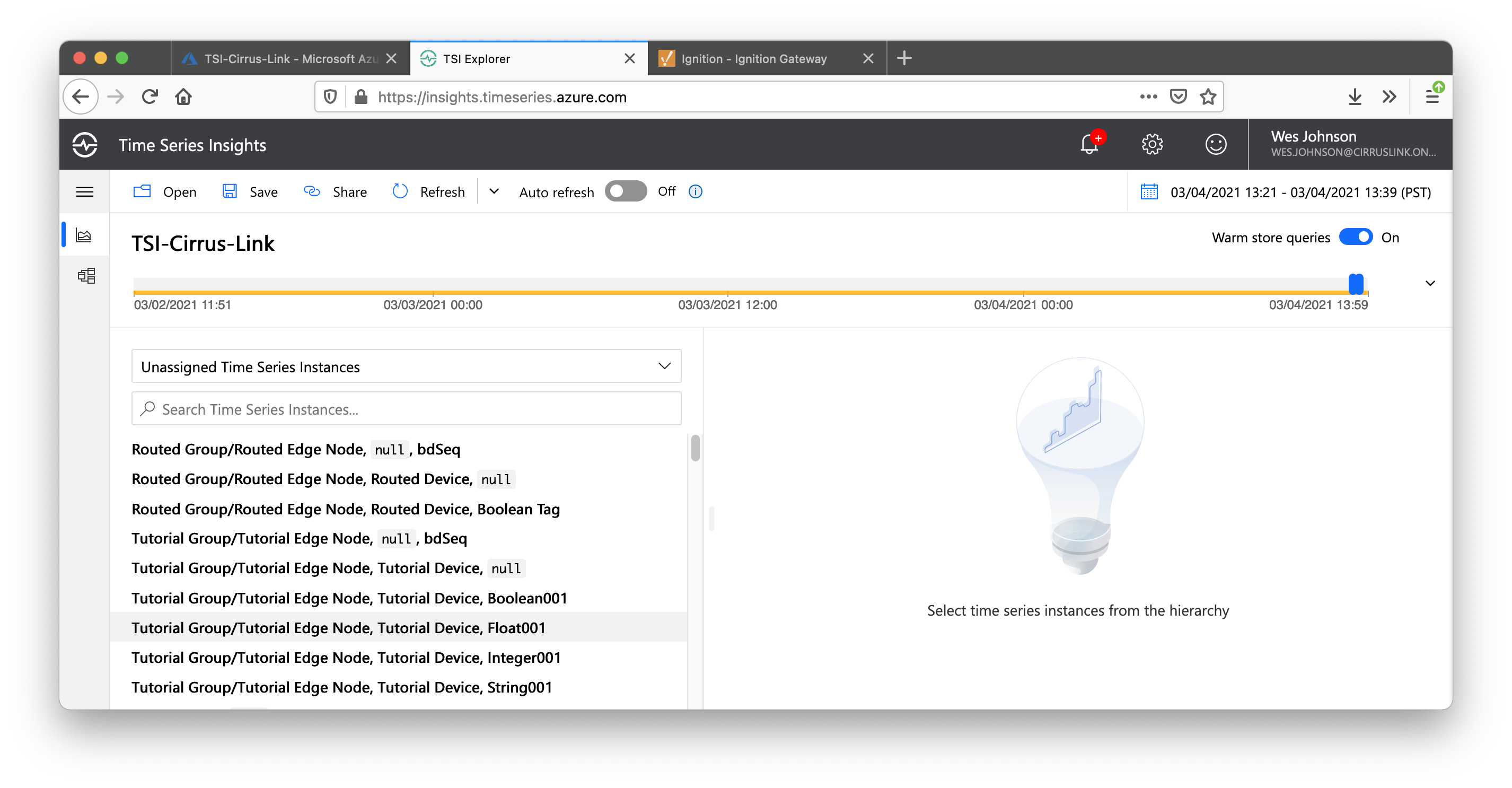 Image Added
Click on Tutorial Group 'Float001' tag as shown below. This will open a dialog box. Select 'Float Value' and click 'Add' also shown below.
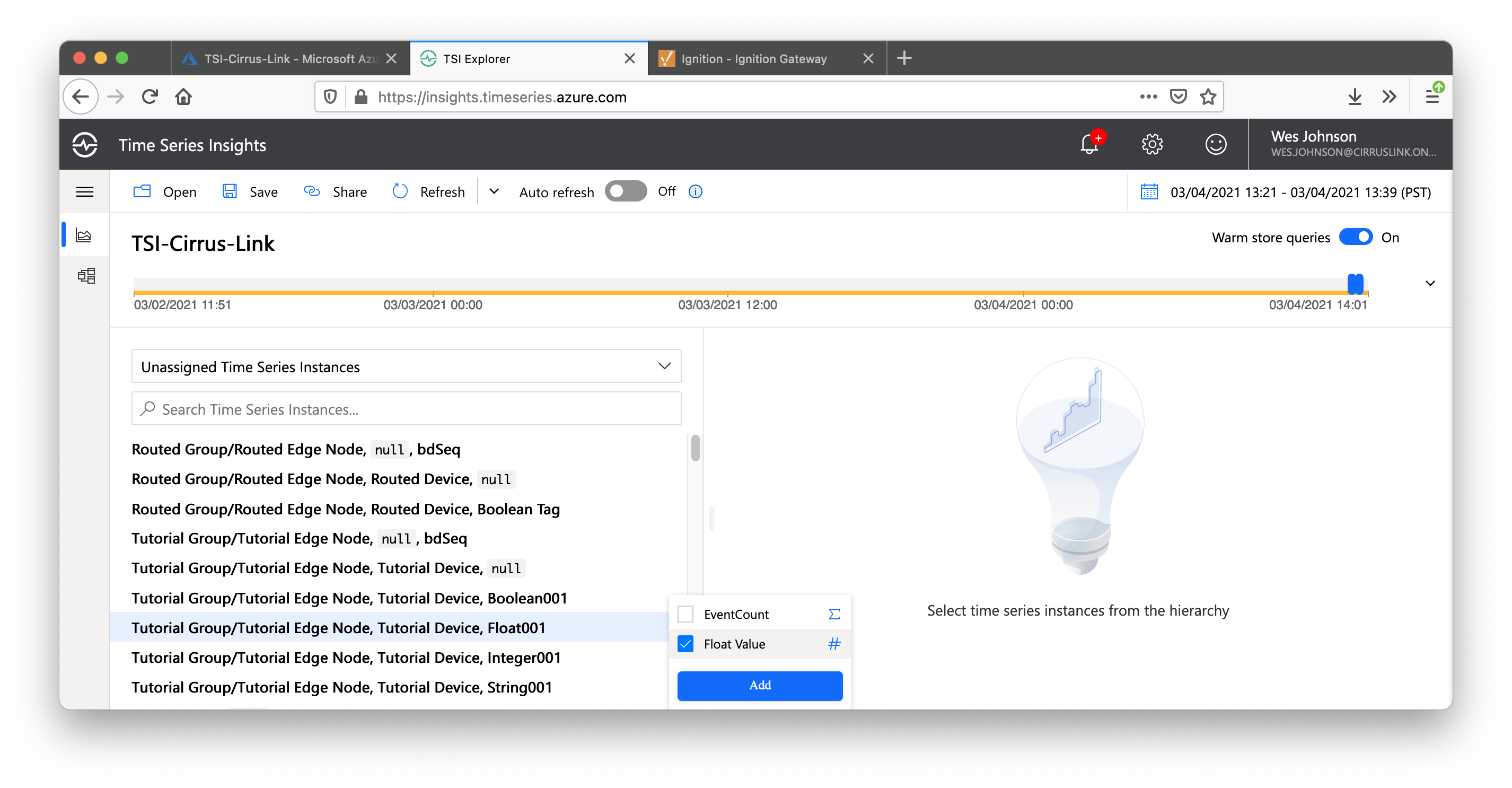 Image Added
After doing so, you should see your time series data in the chart as shown below.
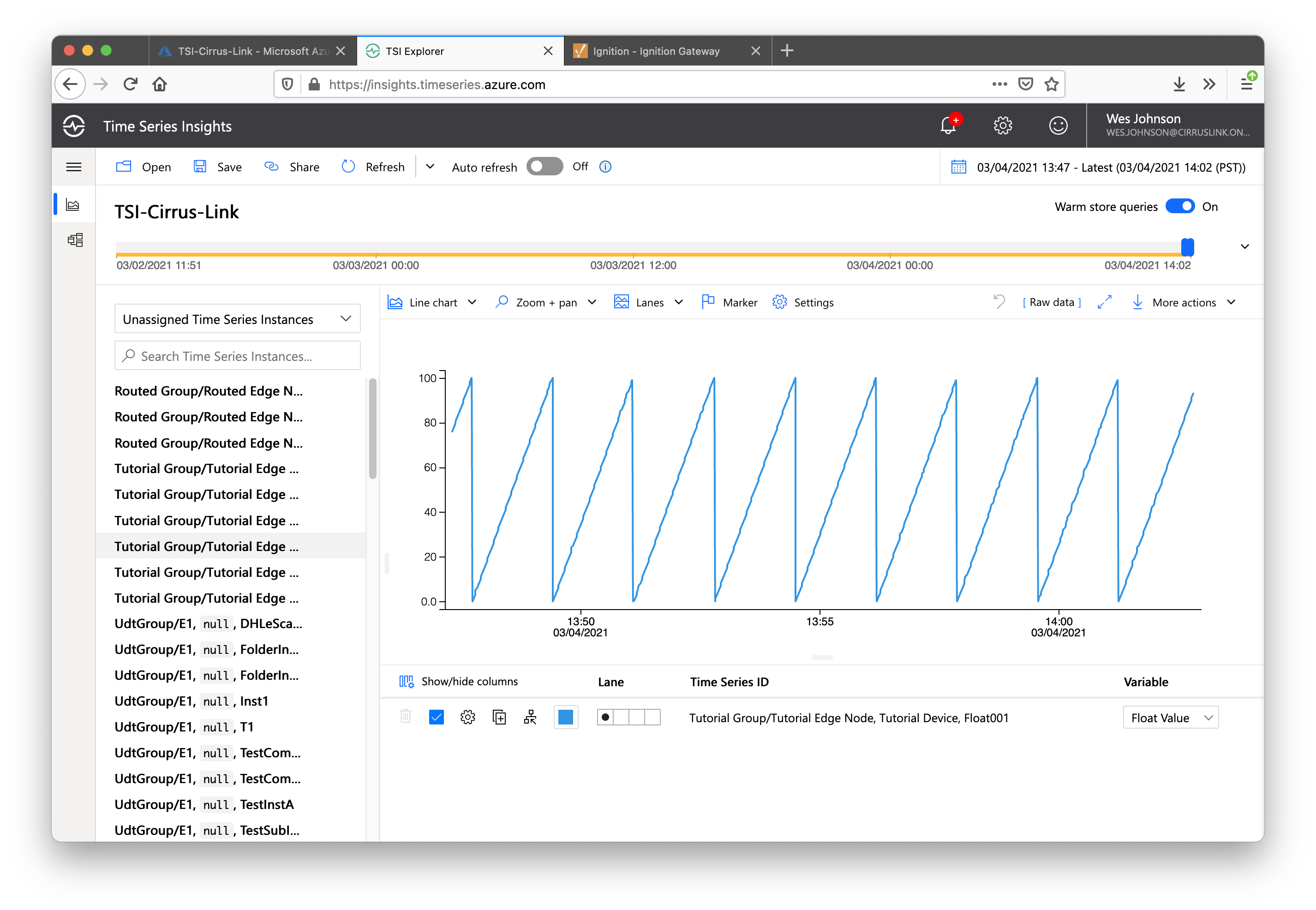 Image Added
Additional Resources
- Additional Azure Injector Tutorials
- Azure Time Series Insights Ingestion Overview
- Azure Time Series Insights Model Overview
- Inductive Automation's Ignition download with free trial
- Azure Injector download with free trial
- Questions about this tutorial?
- Sales questions
- About Cirrus Link