


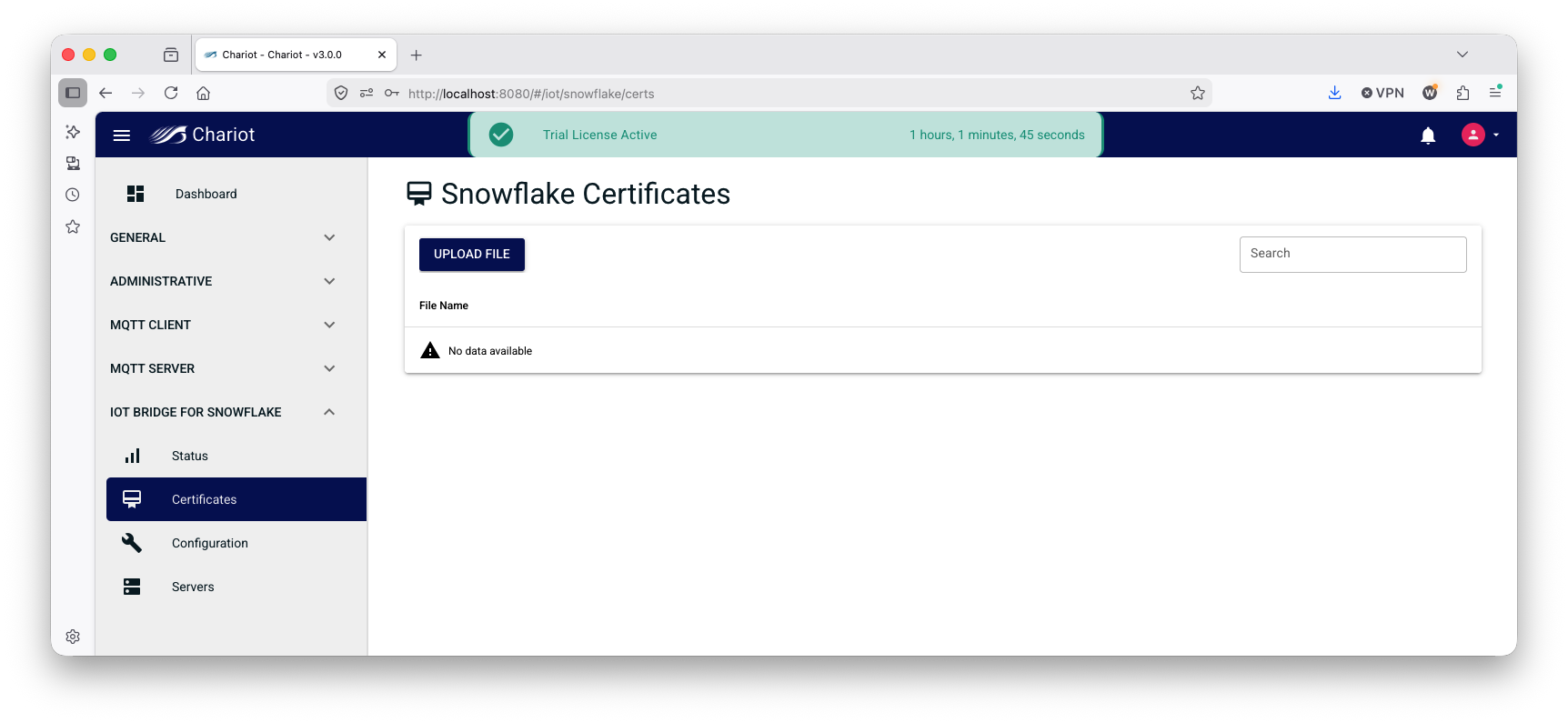
IoT Bridge for Snowflake requires certificates to establish a connection to Snowflake. Private key files can be uploaded on the 'IoT Bridge for Snowflake → Certificates' page as shown below:
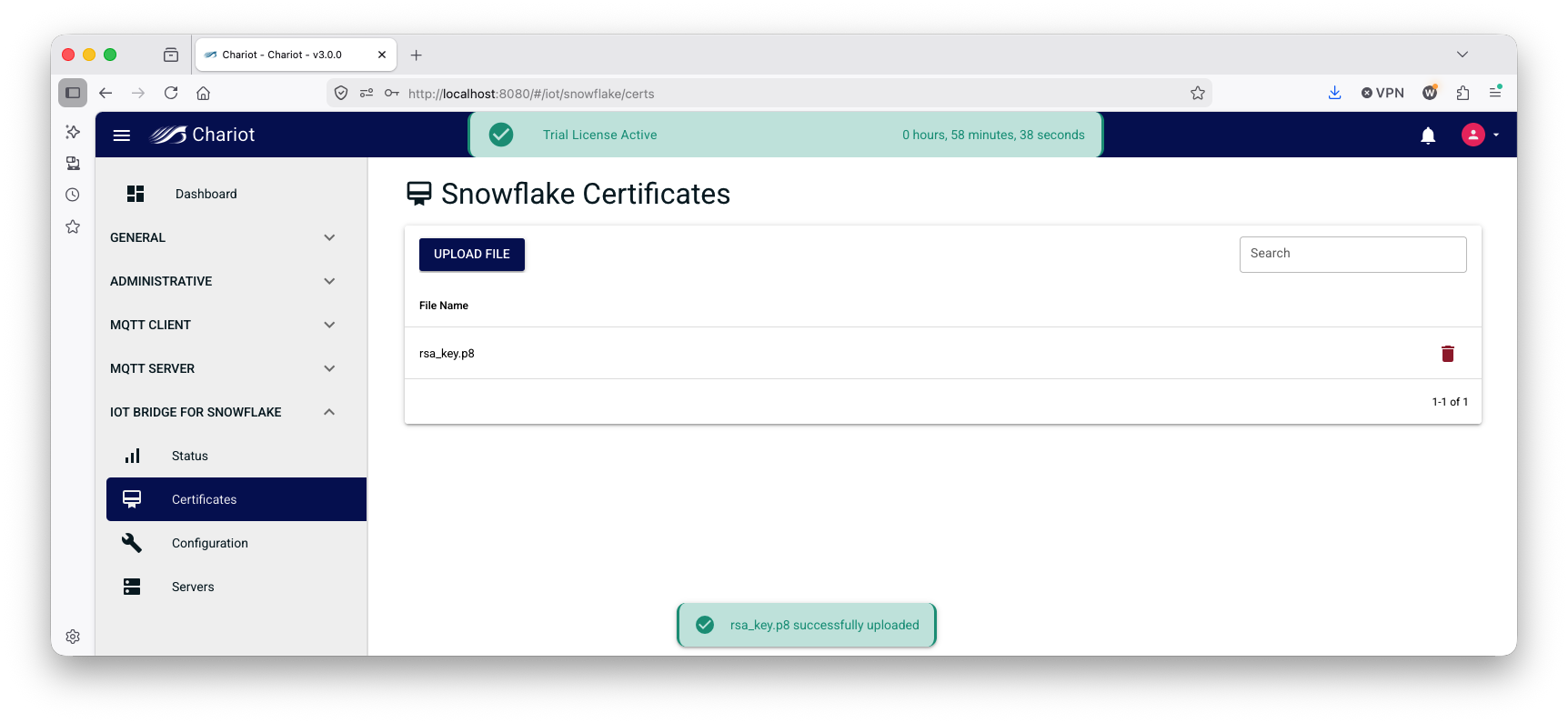
To upload a private key file, simply click 'UPLOAD FILE', select the file, and it will appear in the certificates page as shown below:
The configuration of the connection to Snowflake and the properties around how IoT Bridge functions are in the 'IoT Bridge for Snowflake → Configuration' section as shown below.
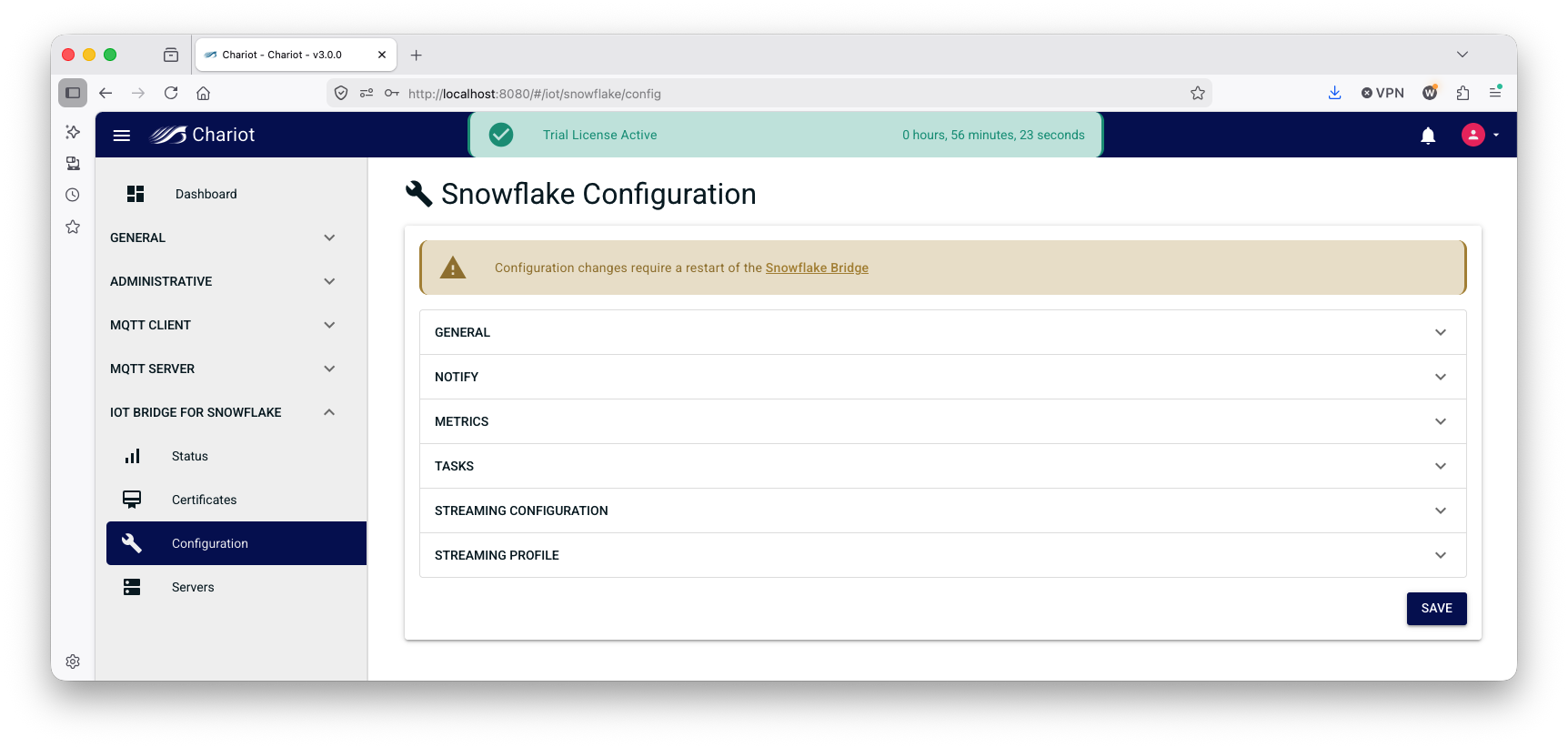
Each of the configuration properties is described below.
- General
- Snowflake Sparkplug MQTT Application Enabled
- Enable the Snowflake Sparkplug MQTT Application which will allow IoT Bridge for Snowflake to process Sparkplug B messages
- Snowflake Raw MQTT Application Enabled
- Enable Snowflake Raw MQTT Application which will allow IoT Bridge for Snowflake to process non-Sparkplug MQTT messages
- Primary Host
- Region
- Schema Version
- Sequence Reordering Timeout (in ms)
- Snowflake Sparkplug MQTT Application Enabled
- Notify
- Notify Database Name
- Notify Warehouse Name
- Notify Schema Name
- Metrics
- Metrics Enabled
- Enable Performance Metrics
- Metrics Sparkplug Group ID
- Metrics Bridge Info Sparkplug Edge Node ID
- Metrics Edge Node Info Sparkplug Edge Node ID
- Metrics MQTT Client Info Edge Node ID
- Tasks
- Tasks Enabled
- Birth Thread Count
- NBirth Retries
- Keep Alive (in seconds)
- NBirth Delay (in ms)
- Data Delay (in ms)
- Streaming Configuration
- Topic Based Insert
- Channel Scheme
- Channel Name
- Channel Scheme Prefix
- Sparkplug Table Name
- MQTT Table Name
- Max MQTT Streaming Channel
- Max Sparkplug Insert Batch Size
- Max MQTT Insert Batch Size
- Ingest Task Period (in seconds)
- MQTT Ingest Task Period (in seconds)
- Streaming Profile
- User
- URL
- Account
- Private Key
- Port
- Host
- Schema
- Scheme
- Database
- Connect String
- SSL
- Warehouse
- Role
Overview
Content Tools