


IoT Bridge for Snowflake v1.x and v2.x Compatibility
The IoT Bridge for Snowflake v3.0.0 is now shipped as a component of Chariot. If you are using an older version of IoT Bridge for Snowflake, you will need to continue to refer to documentation here.
Prerequisites
- Install IoT Bridge for Snowflake
- Before being able to access the Virtual Machine you must have completed the installation process here.
Install an MQTT Server configured with a real signed TLS certificate. Note Chariot MQTT Server ships with IoT Bridge for Snowflake and can also run in trial mode.
If you choose not to use Chariot MQTT Server, any Sparkplug compliant MQTT Server will work.
Summary
IoT Bridge for Snowflake (IBSNOW) is an application that connects to an MQTT Server (such as Chariot MQTT Server or MQTT Distributor) and consumes MQTT Sparkplug messages from Edge devices.
When these messages are formatted as Sparkplug Templates, as defined in the Sparkplug Specification, the templates are used to create the data in Snowflake automatically with no additional coding or configuration.
If the messages do not use templates, they will be stored in a database table as unprocessed messages and additional work will be required to use this data in Snowflake.
Then multiple instances of these Templates generate the Assets and start to populate with real time data sent on change only, thus significantly reducing the amount of data being sent to the cloud. For further details on Snowflake, refer to the documentation here. For further details on Eclipse Sparkplug, refer to the Eclipse Sparkplug resources.
This Quickstart document covers how IoT Bridge can be used to consume MQTT Sparkplug data and create and update data in Snowflake. This will show how to configure IoT Bridge as well as show how to use Inductive Automation's Ignition platform along with Cirrus Link's MQTT modules to publish device data to an MQTT Server. This data will ultimately be consumed by IoT Bridge to create and update the Snowflake components. This tutorial will use the Chariot MQTT Server implementation which ships with IoT Bridge for Snowflake. However, IBSNOW does work with any MQTT v3.1.1 compliant MQTT Server.
It is also important to note that Ignition in conjunction with Cirrus Link's MQTT Transmission module converts Ignition User Defined Types (UDTs) to Sparkplug Templates. This is done automatically by the MQTT Transmission module. So, much of this document will refer to UDTs rather than Sparkplug Templates since that is what they are in Ignition. More information on Inductive Automation's Ignition platform can be found here. Additional information on Cirrus Link's MQTT Transmission module can be found here.
Snowflake Setup
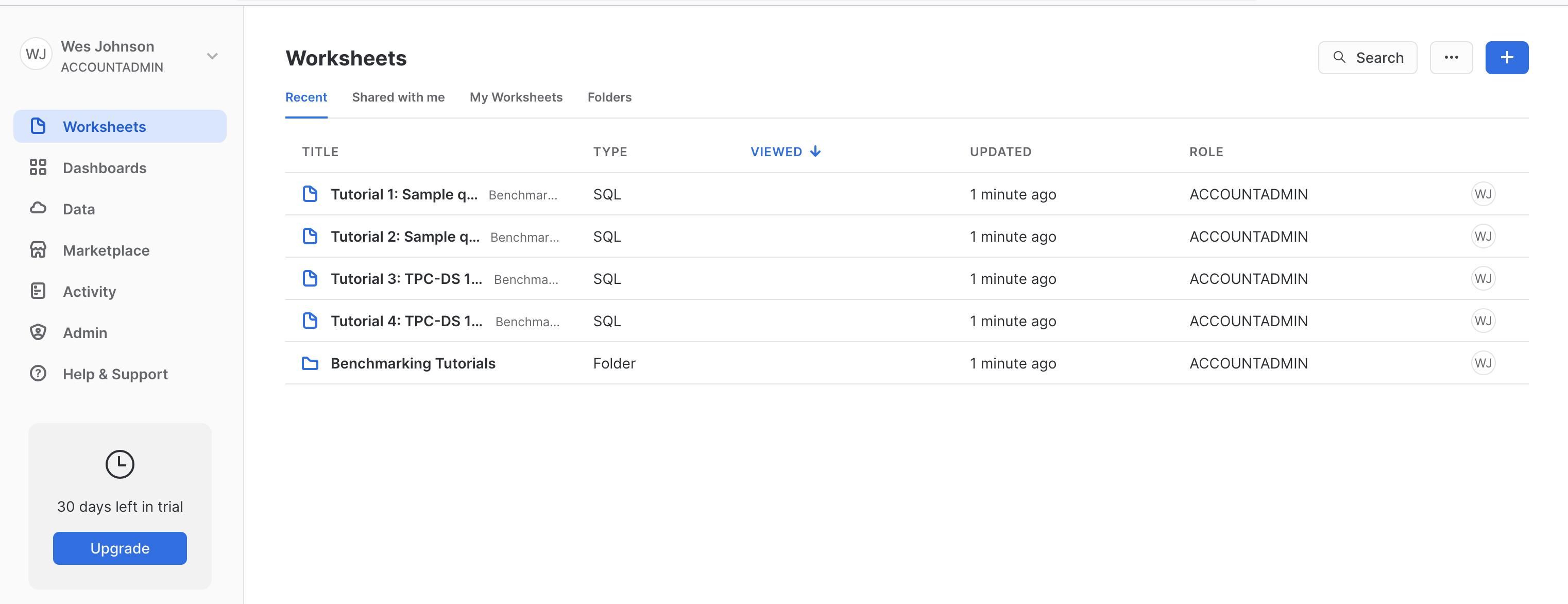
If you don't have a Snowflake account, open a Web Browser and go to https://www.snowflake.com. Follow the instructions there to start a free trial. After creating an account, log in to Snowflake via the Web Console. You should see something like what is shown below.
IoT Bridge Setup Assistant
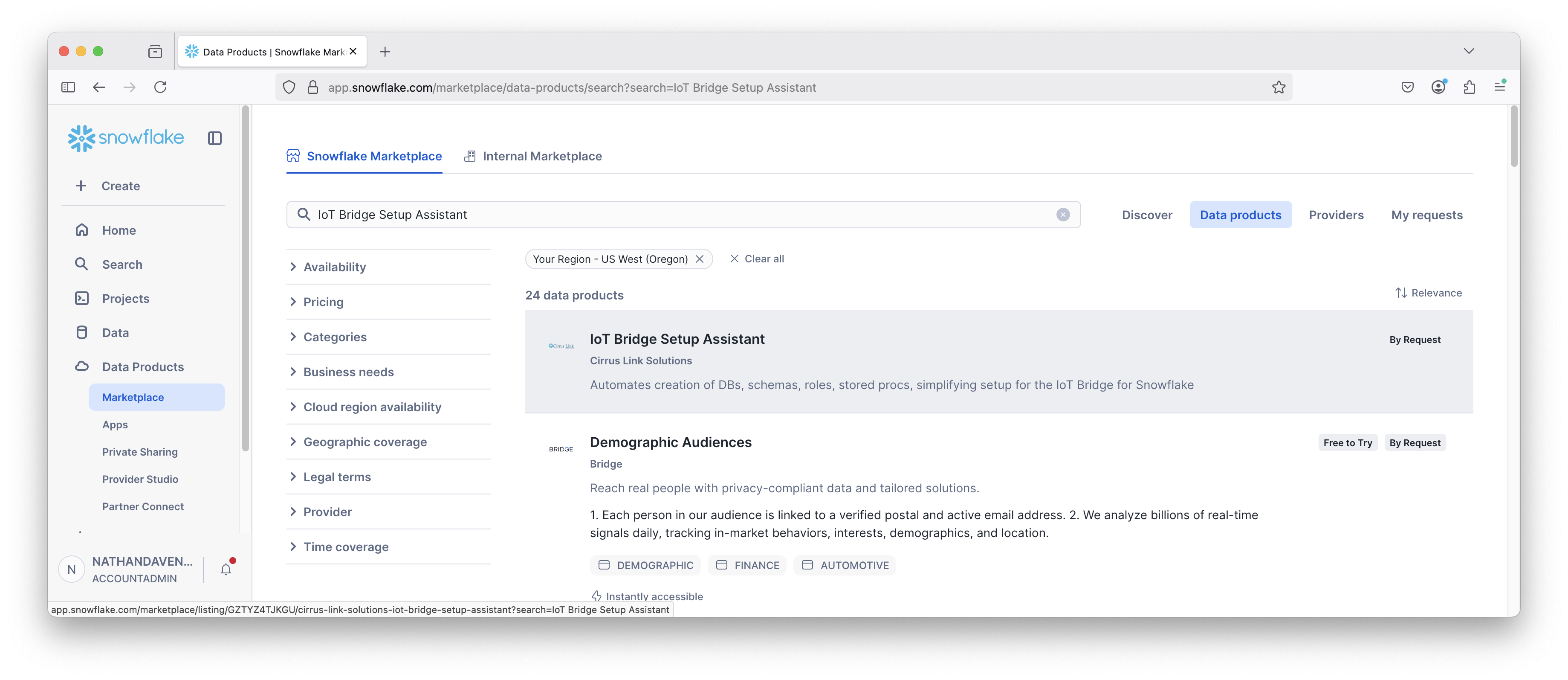
Find the IoT Bridge Setup Assistant Snowflake application in the Snowflake Marketplace.
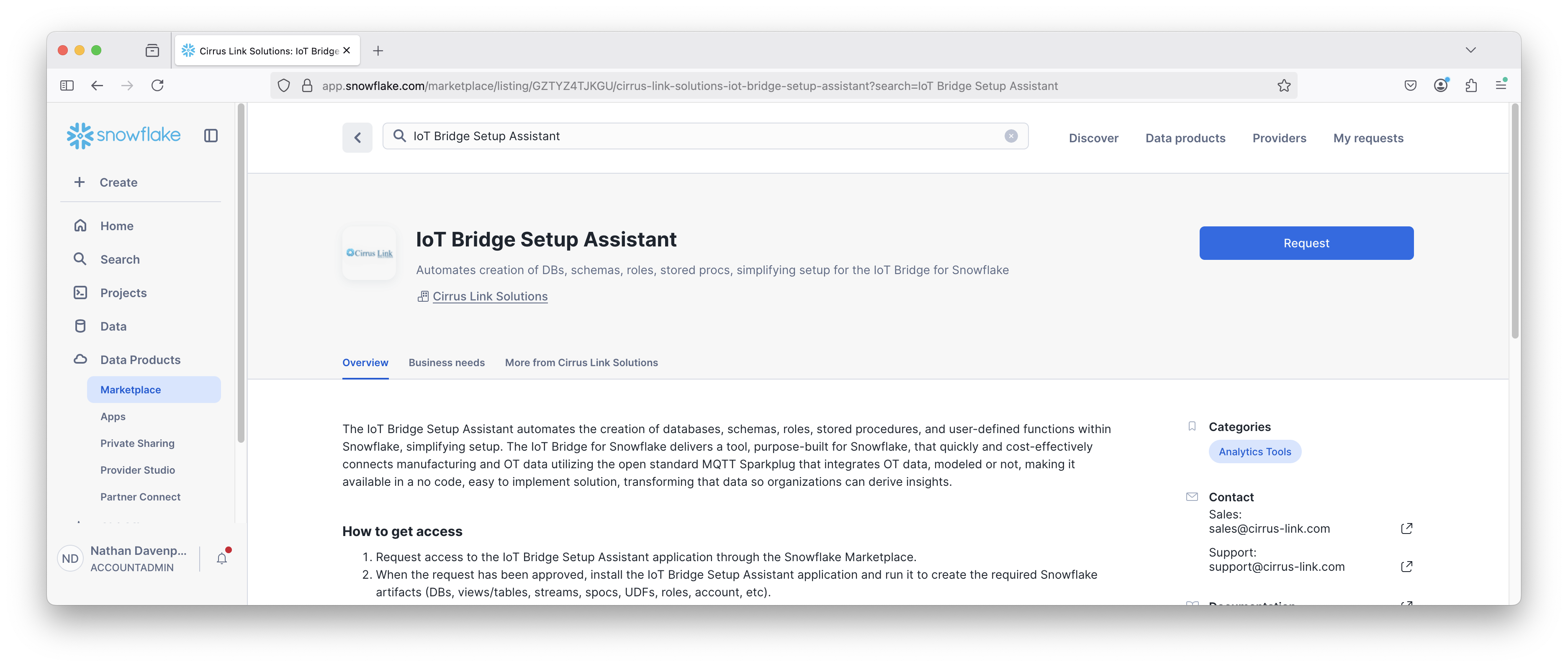
Click into the offering and click the Request button to submit a request for the IoT Bridge Setup Assistant application.
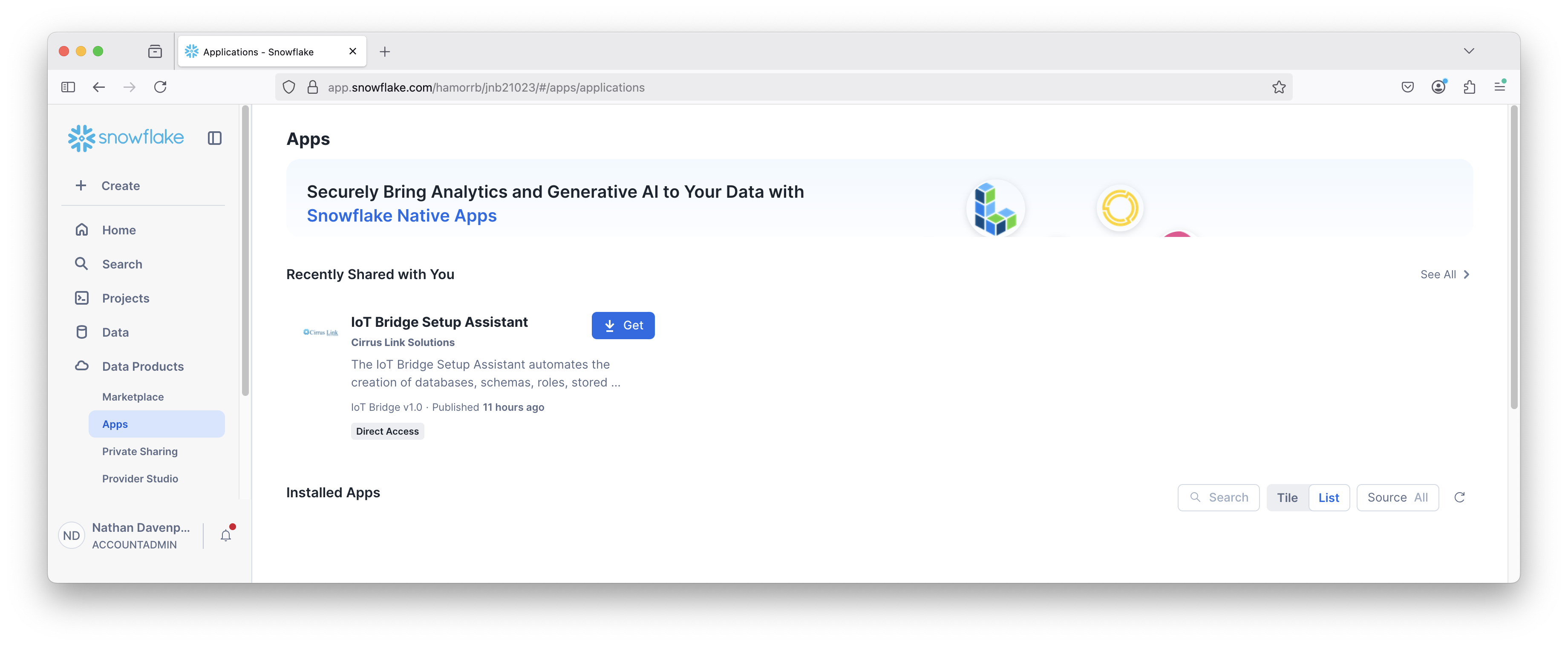
Cirrus Link will typically approved the request within 24 hours. Once the request has been fulfilled, the IoT Bridge Setup Assistant application will be visible in Data Products → Apps. Click the 'Get' button download and install the application.
After completing this step, the IoT Bridge Setup Assistant is installed as shown below.
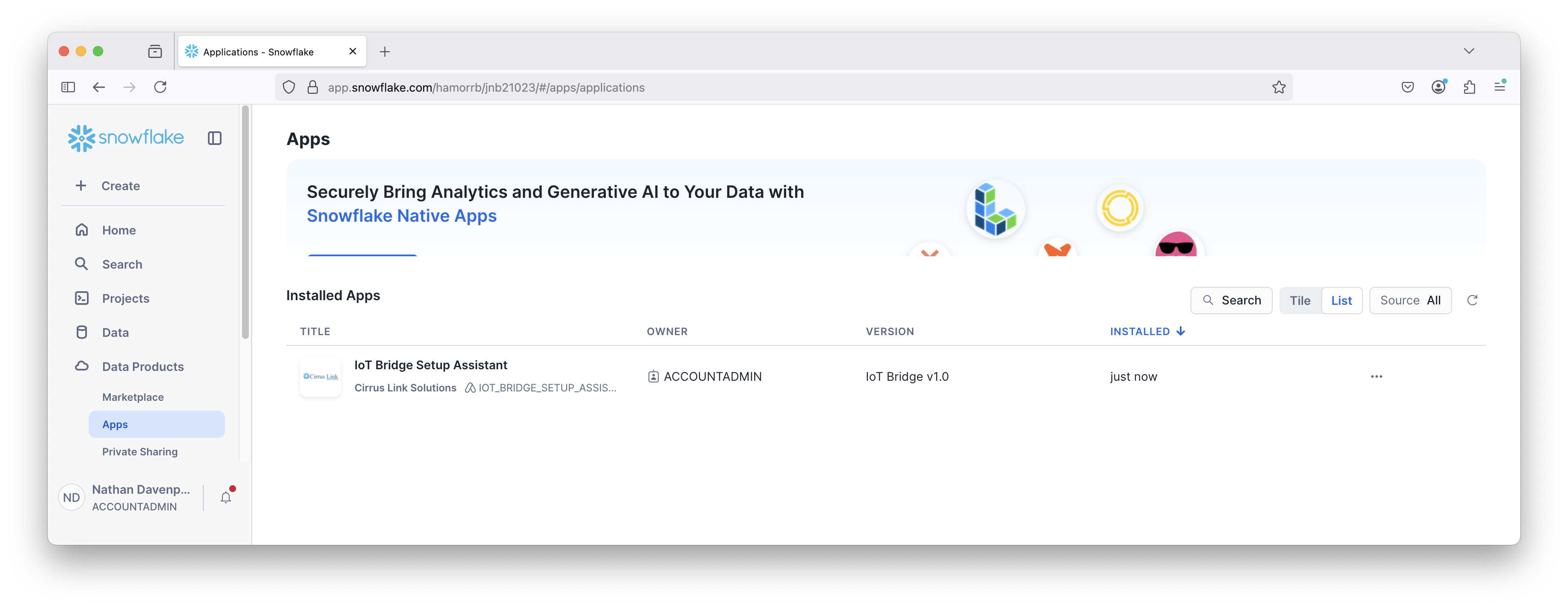
The IoT Bridge Setup Assistant application will aid in creating and configuring all required Snowflake databases, stored procedures, user defined functions, roles, warehouses, etc. To run the application, simply click on the installed IoT Bridge Setup Assistant application and follow the steps shown.
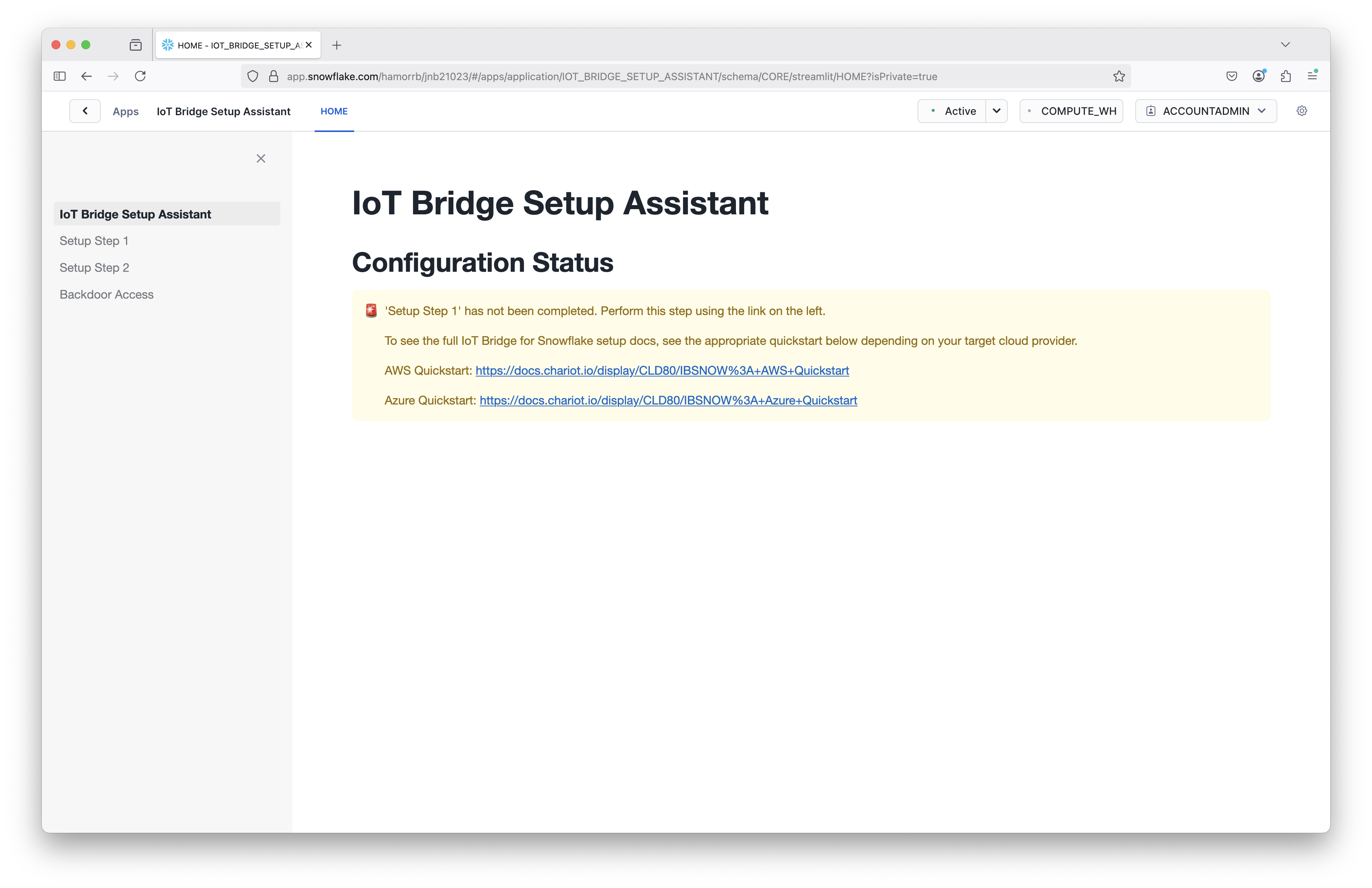
Navigate to 'Setup Step 1' to accept default configuration as it defined or customize the configuration as desired. Note the cl_bridge_reader_warehouse must already exist and the cl_bridge_snowflake_user_public_key must contain the public key created following the steps below.
Generate an unencrypted key pair and copy the public key contents into the cl_bridge_snowflake_user_public_key text area. This will be used for authentication by the IoT Bridge for Snowflake application to push data to Snowflake via the Snowflake Streaming API.
See this document for details on how to generate this unencrypted key pair: https://docs.snowflake.com/en/user-guide/key-pair-auth. The IoT Bridge Setup Assistant will create the required IoT Ingest user and assign the public key provided to this user.
Note: The step "Configuring the Snowflake Client to User Key Pair Authentication" in the linked tutorial can be skipped.
The generated key MUST NOT be encrypted
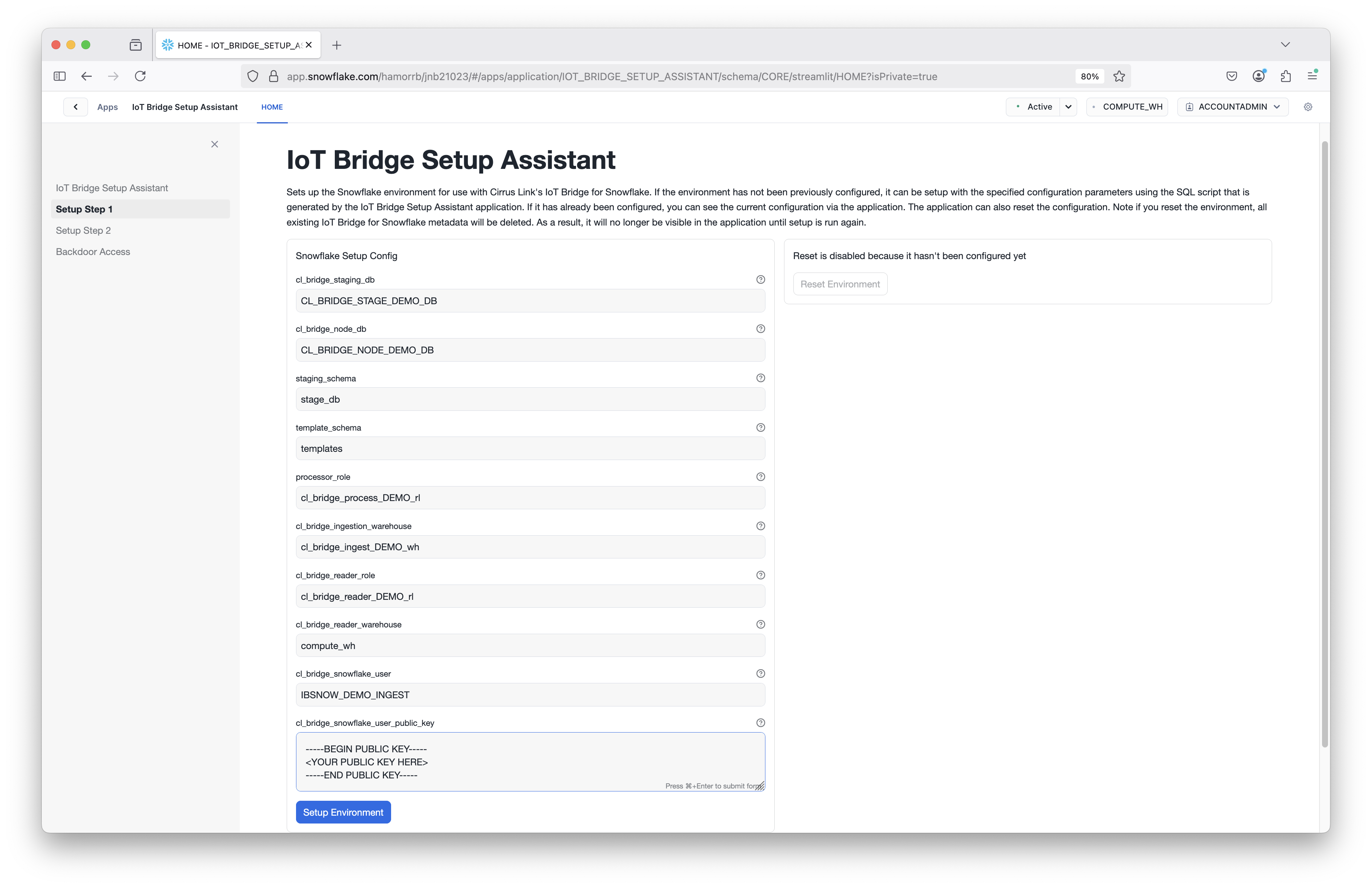
When 'Setup Step 1' configuration is finalized, click the 'Setup Environment' button and wait for the step to complete. Once complete, navigate to 'Setup Step 2'. This step will output a custom Snowflake SQL script with the configuration provided in Step 1 and this script will create all required Snowflake artifacts when executed. To run this script, follow the instructions in 'Setup Step 2'.
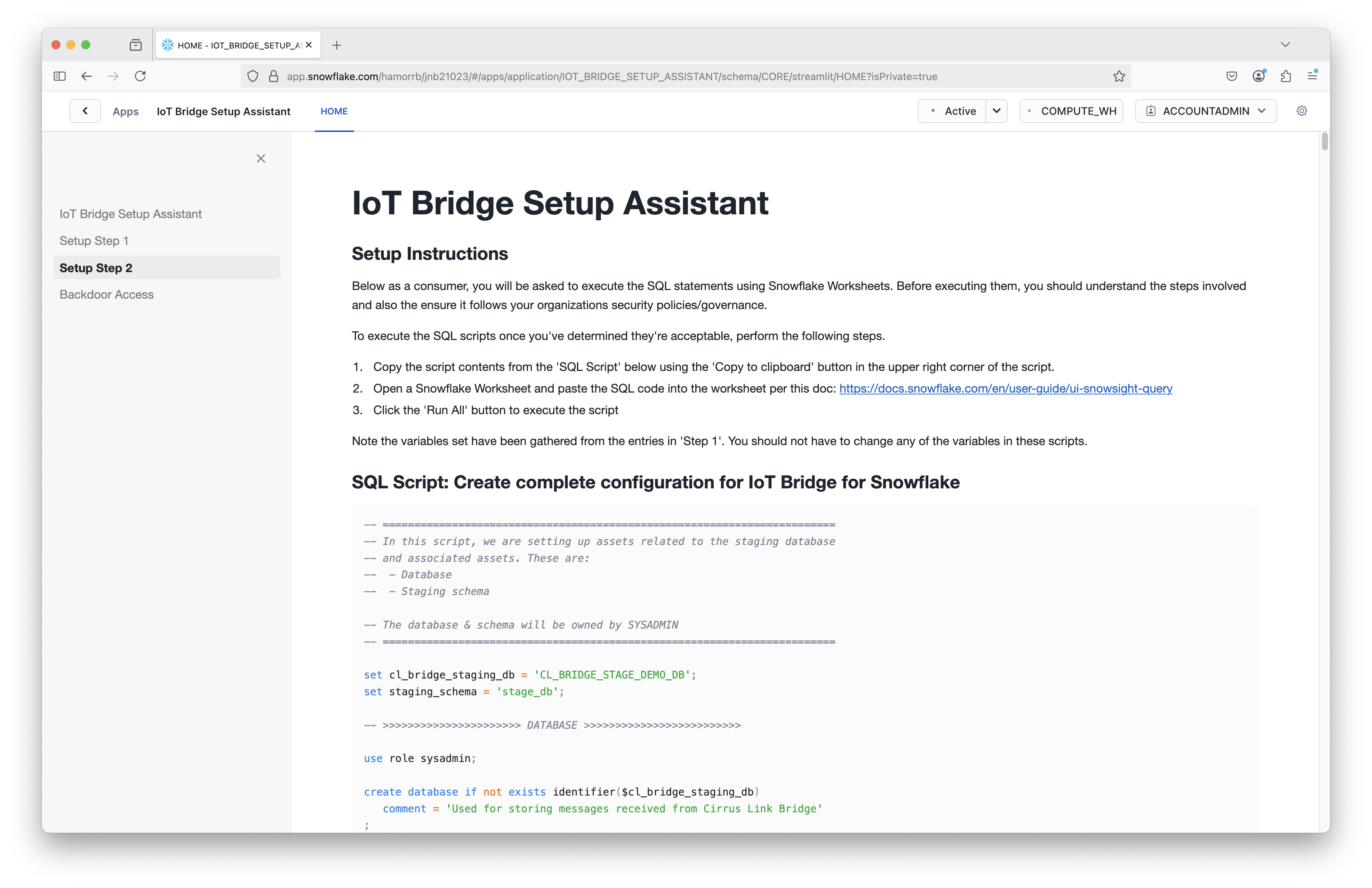
Once Step 2 is complete by running the script generated in this step in a worksheet, the application will display the following message.
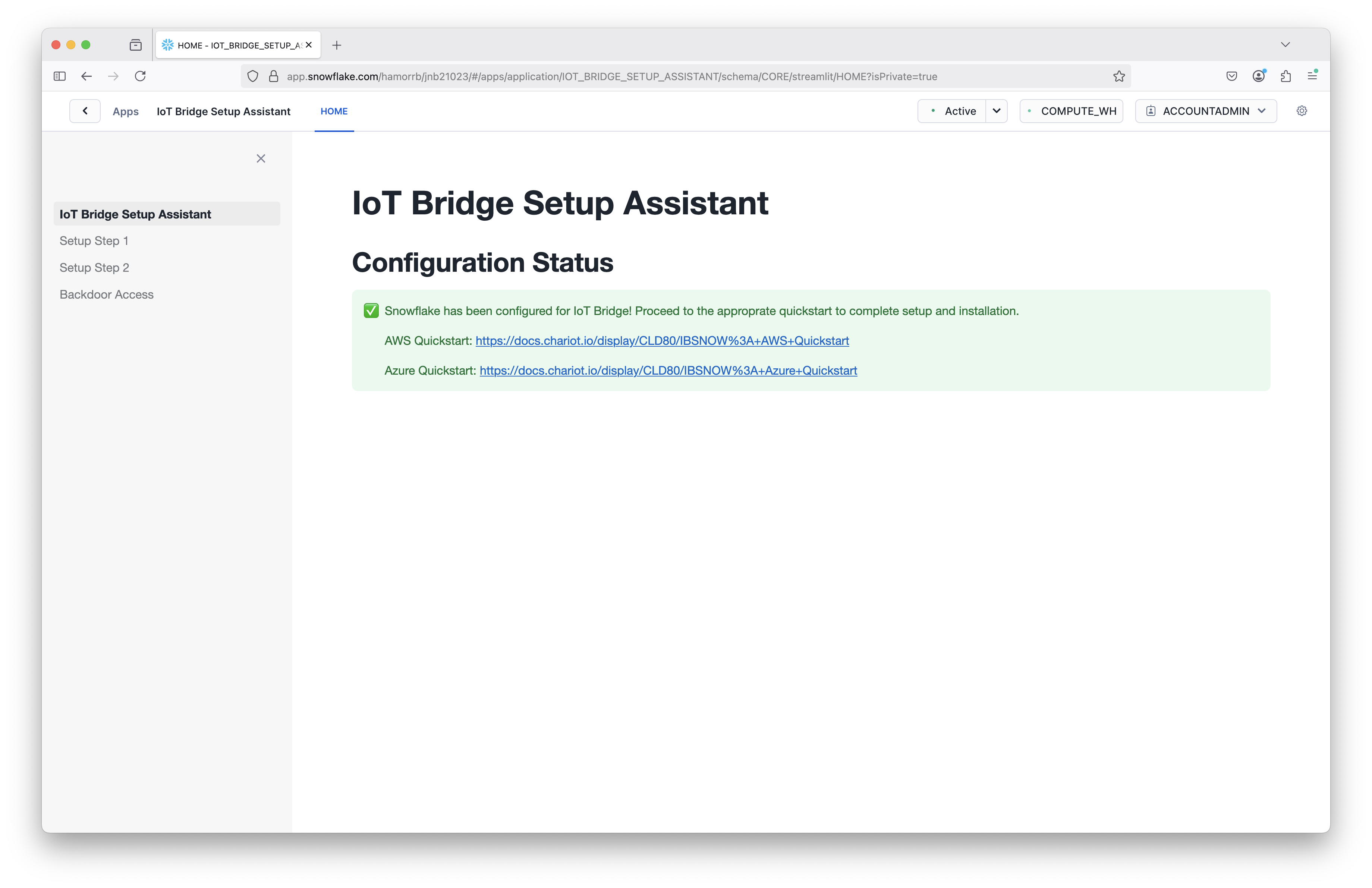
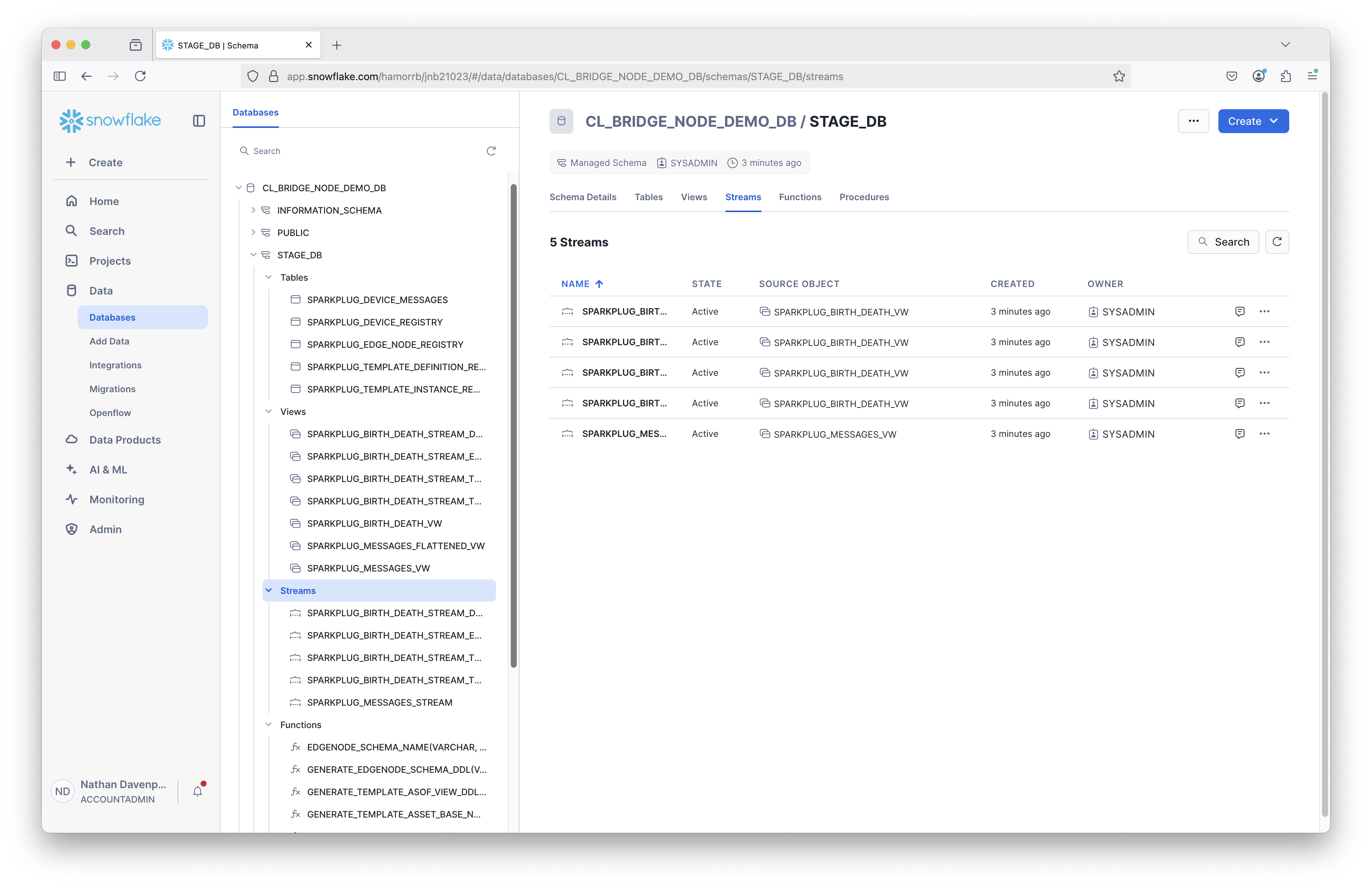
Confirm your Snowflake resources (databases, stored procedures, user defined functions, roles, warehouses, etc) have been successfully created by the script execution.
IoT Bridge Setup
Log into the Chariot Web UI and navigate to 'Certificates' under IOT Bridge for Snowflake as shown below:
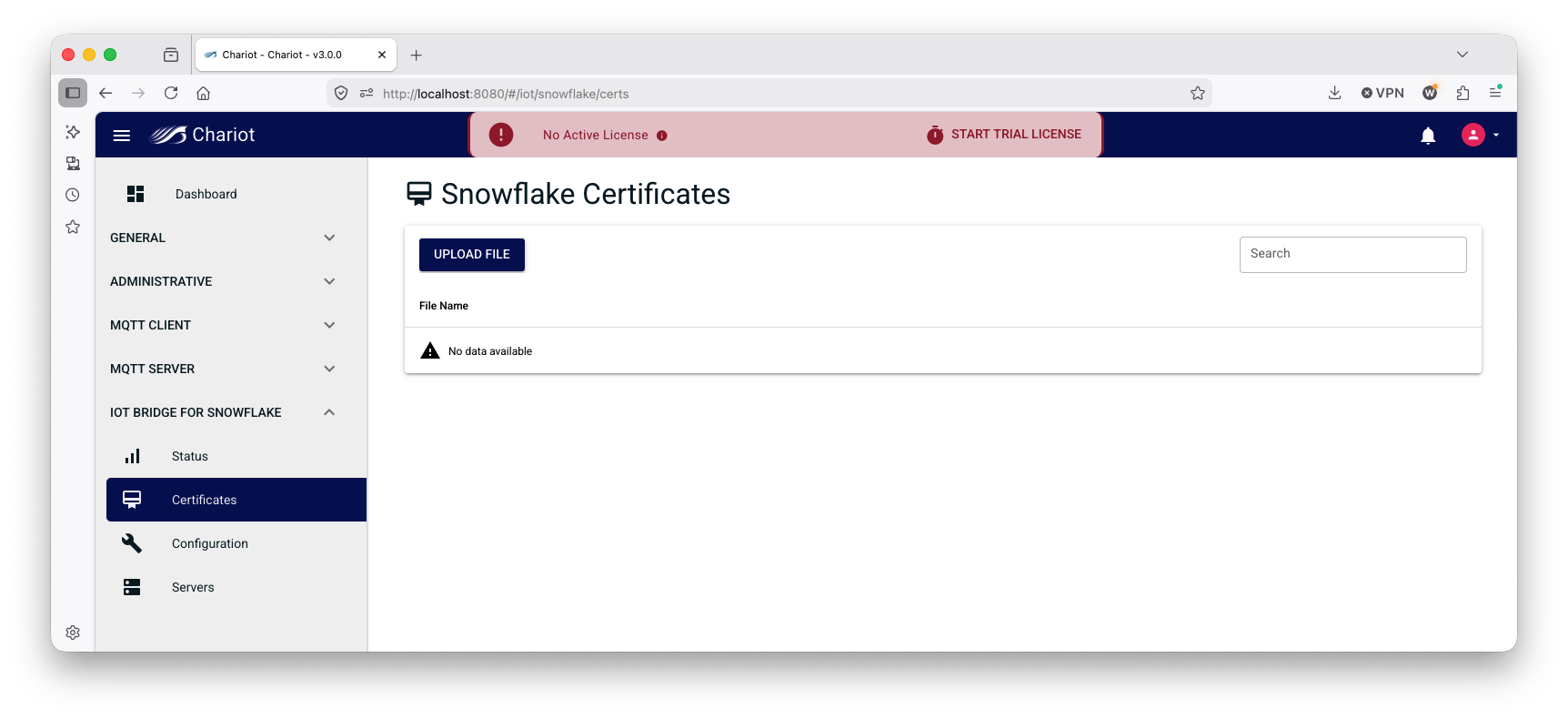
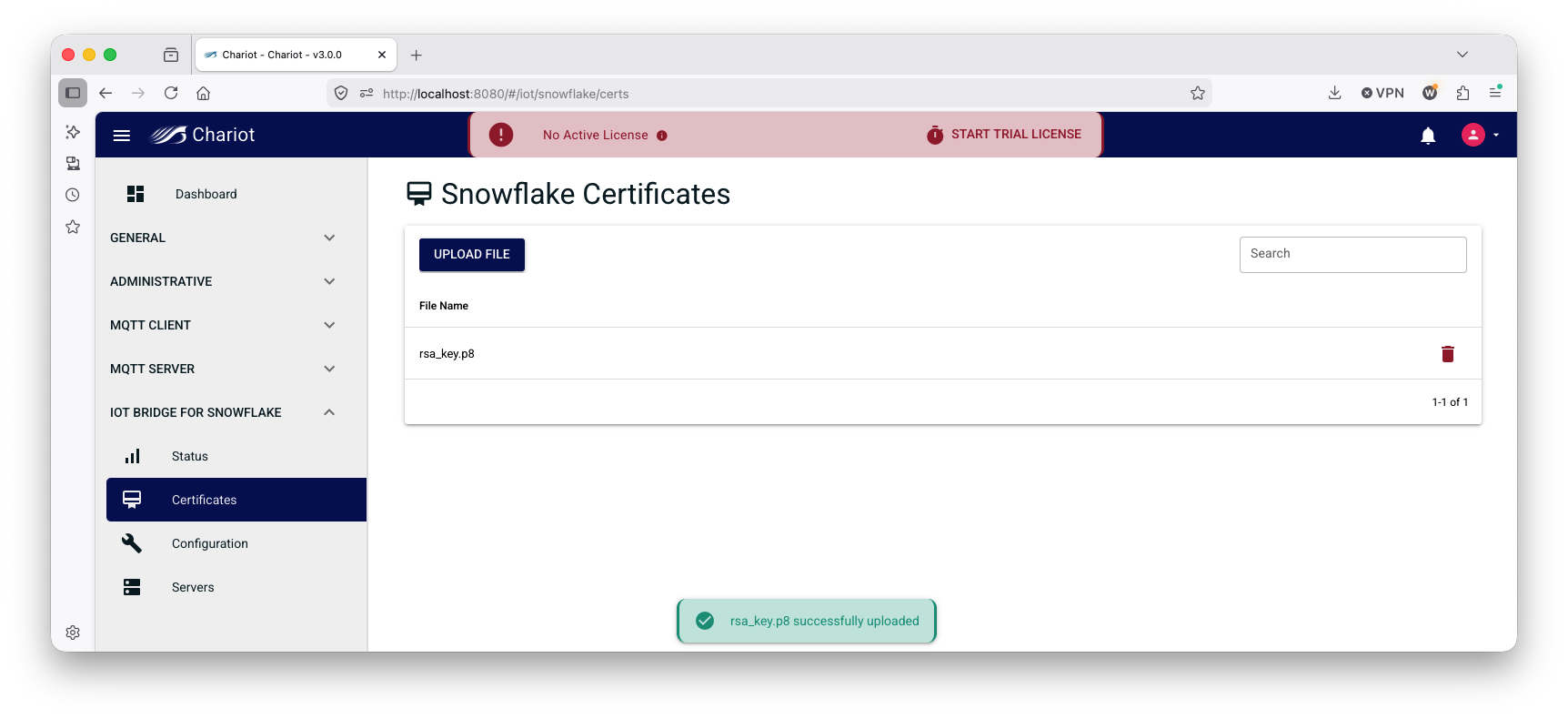
Click 'UPLOAD FILE' and upload the private key previously generated (rsa_key.p8). Confirm it is uploaded as shown below:
Now navigate to 'Servers' under IOT Bridge for Snowflake as shown below:
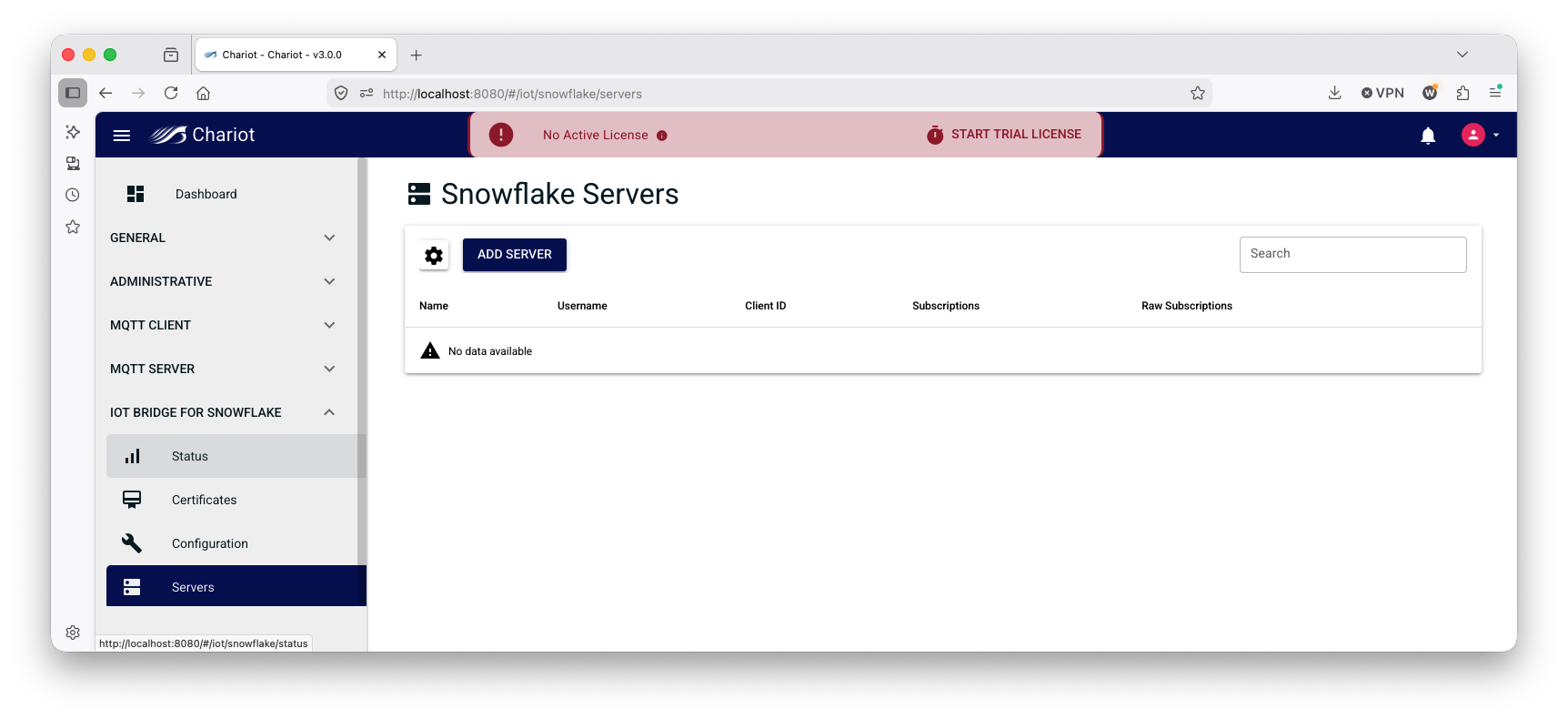 Now click 'Add Server' which will bring up the following dialog:
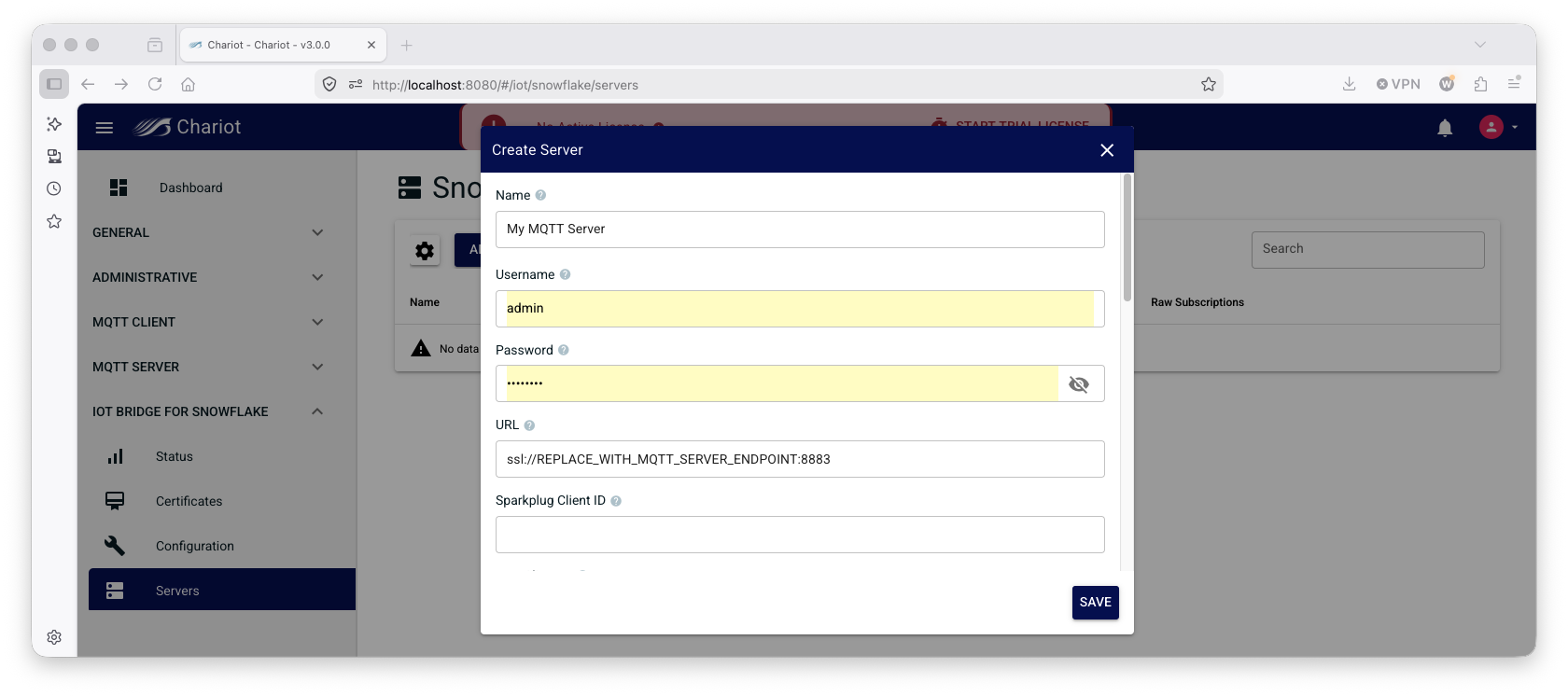
Change the following fields leaving all others default:
- Name = Chariot MQTT Server
- Username = admin
- Password = changeme
- If you have changed the password of the Chariot MQTT Server username, use whatever you set it to
- URL = tcp://localhost:1883
- Note we're using a local non-secure connection for this tutorial. If this were a production system connecting to a remote MQTT Server, TLS should be used.
- Sparkplug Client ID = IBSNOW-testing-client
- Verify Hostname = false
Save the configuration and confirm a new Server appears in the list as shown below:
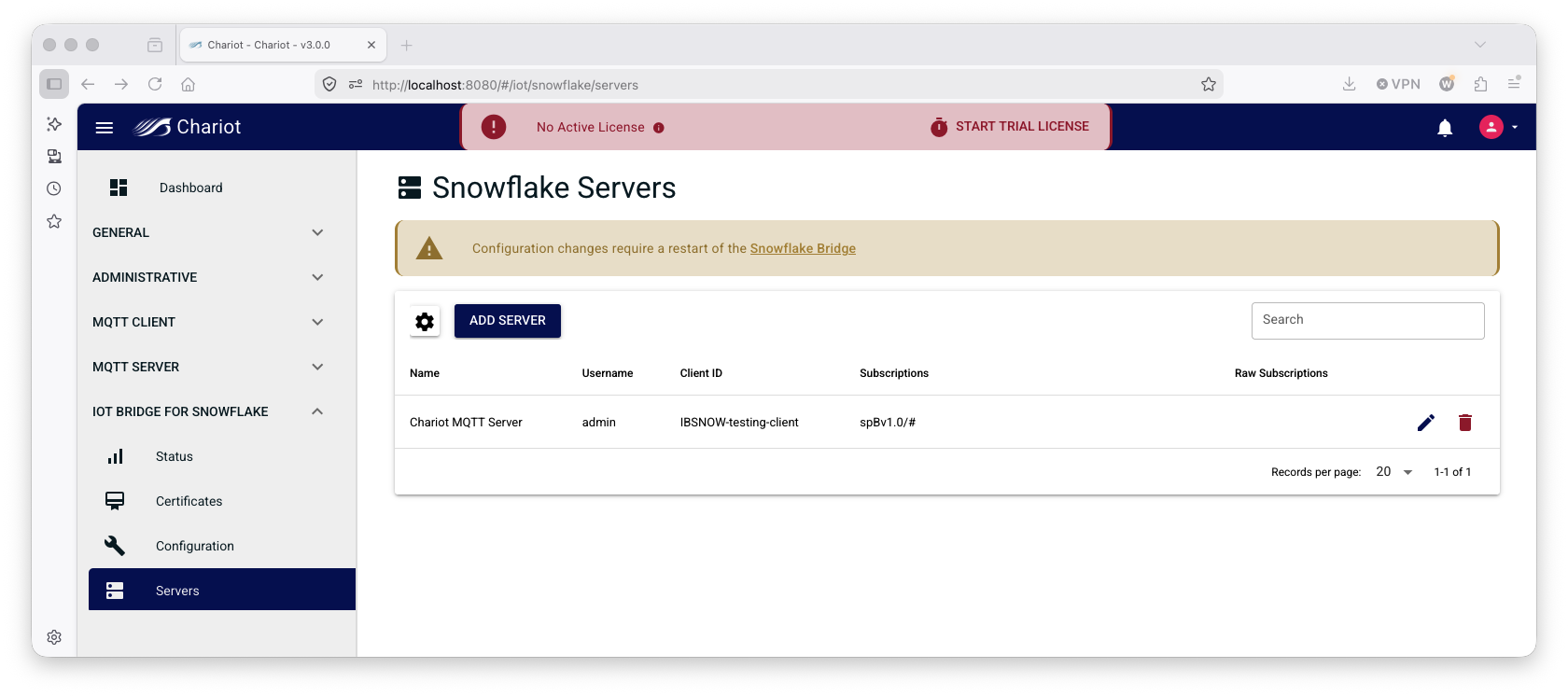
Now navigate to 'IoT Bridge for Snowflake → Configuration' on the left navigation panel as shown below:
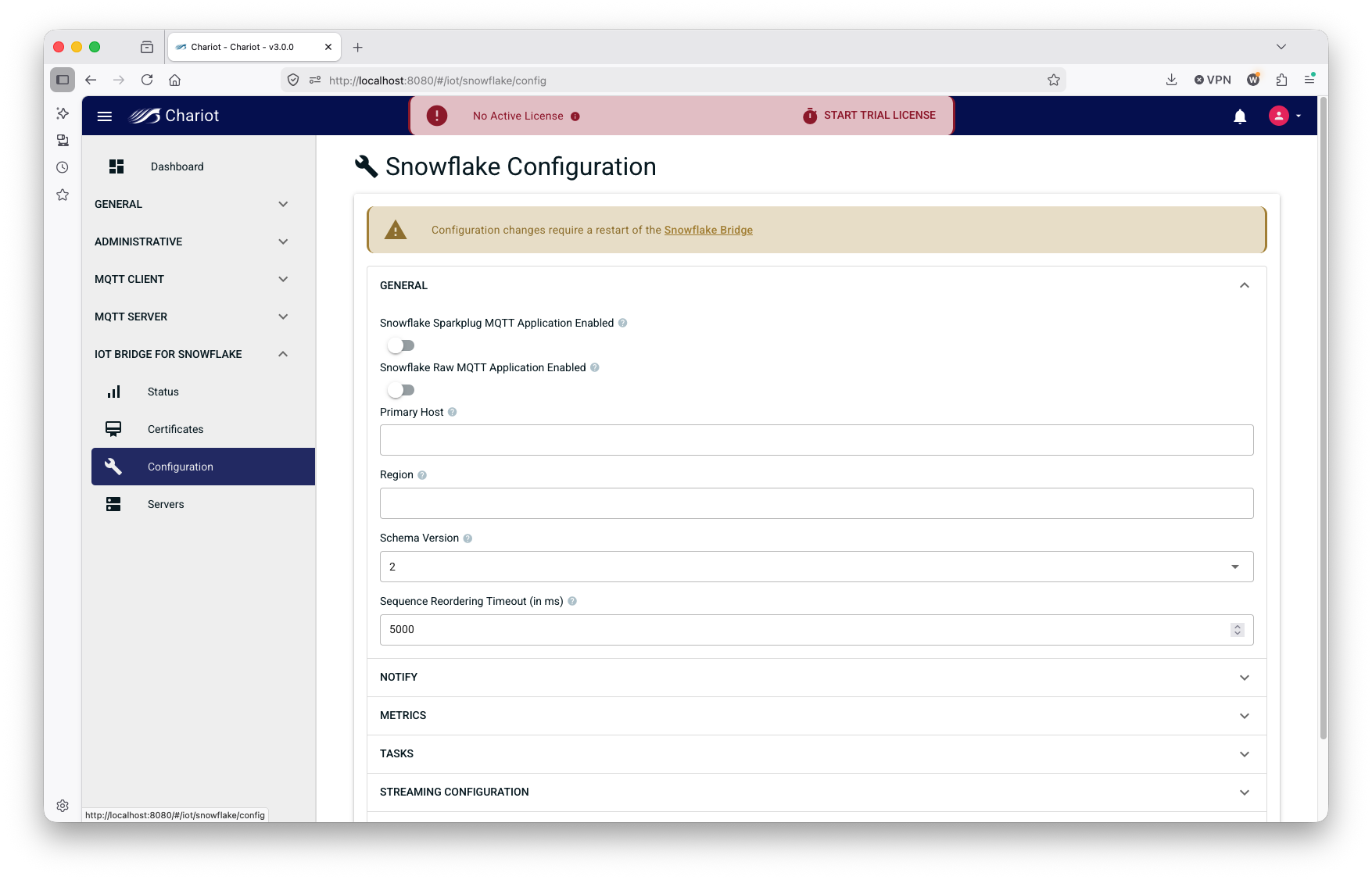
Modify the following properties leaving all others default:
- General → Snowflake Sparkplug MQTT Application Enabled = true
- General → Primary Host = IamHost
- Notify → Notify Database Name = cl_bridge_node_demo_db
- Notify → Notify Warehouse Name = cl_bridge_ingest_demo_wh
- Streaming Profile → User = IBSNOW_DEMO_INGEST
- Streaming Profile → URL = https://ACCOUNT_ID.snowflakecomputing.com:443
- Replace ACCOUNT_ID with your Snowflake account ID
- Streaming Profile → Account = ACCOUNT_ID
- Replace ACCOUNT_ID with your Snowflake account ID
- Streaming Profile → Private Key = PRIVATE_KEY_FILE_NAME
- Replace PRIVATE_KEY_FILE_NAME with the filename of your private key file (i.e. rsa_key.p8)
- Streaming Profile → Host = ACCOUNT_ID.snowflakecomputing.com
- Replace ACCOUNT_ID with your Snowflake account ID
- Streaming Profile → Database = cl_bridge_stage_demo_db
- Streaming Profile → Connect String = jdbc:snowflake://ACCOUNT_ID.snowflakecomputing.com:443
- Replace ACCOUNT_ID with your Snowflake account ID
- Streaming Profile → Warehouse = cl_bridge_ingest_DEMO_wh
- Streaming Profile → Role = cl_bridge_process_DEMO_rl
Once you've made these changes, save the configuration and navigate to the 'Status' tab under IoT Bridge for Snowflake.
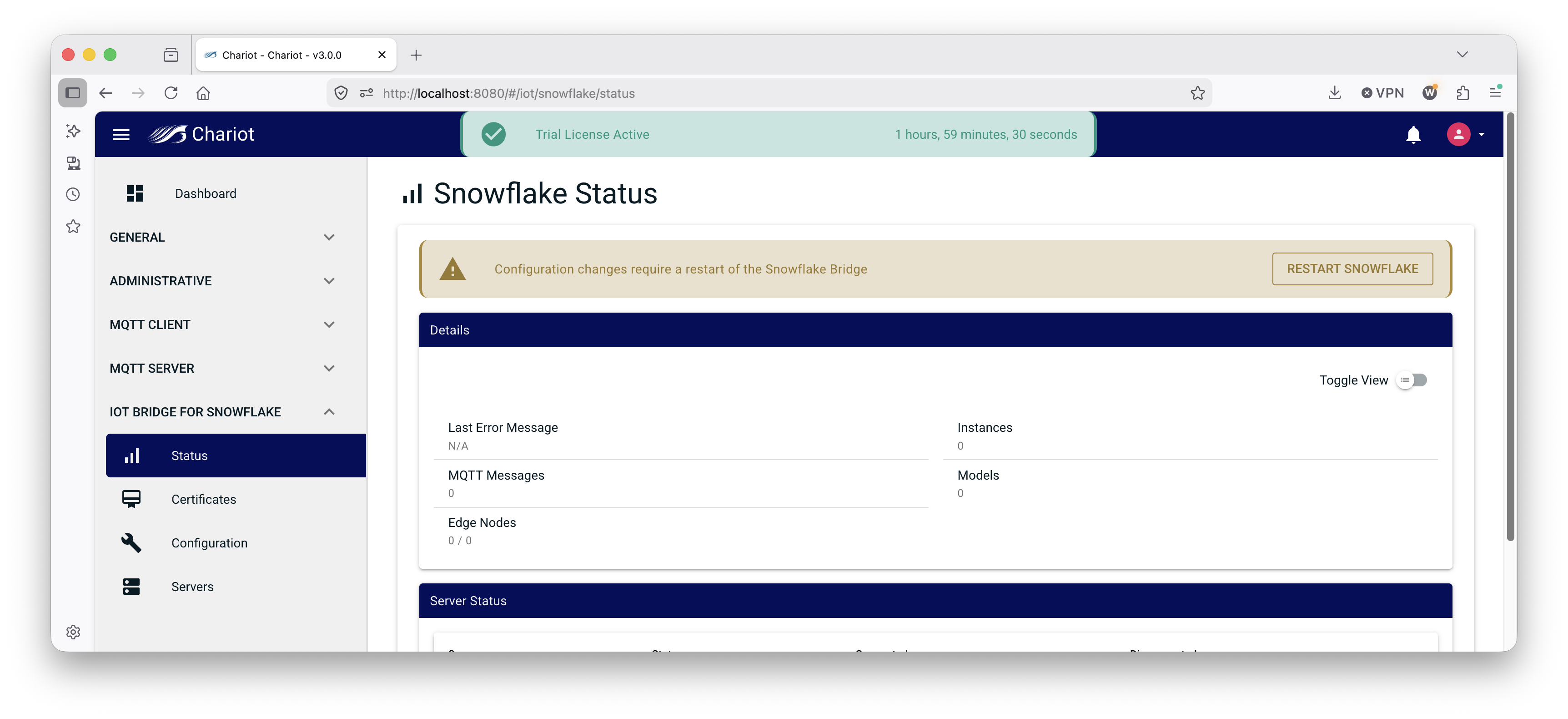
At this point, make sure the trial license is running or you've purchased a license for the system. Also, ensure you've restarted IoT Bridge for Snowflake. If you have not done so, the 'RESTART SNOWFLAKE' banner will be present as shown below.
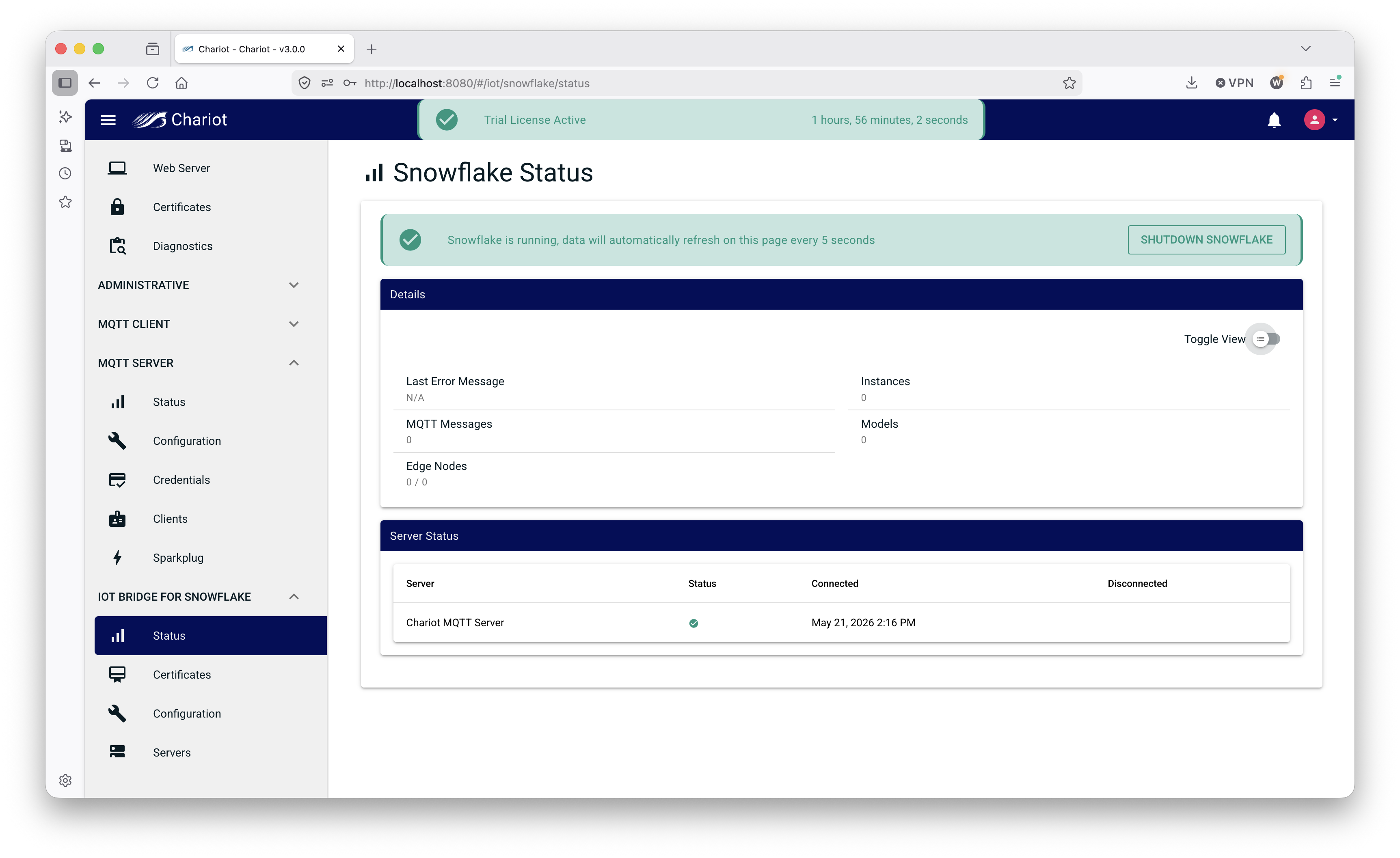
Once the trial is running and the configuration is saved, you should see the IoT Bridge for Snowfalke is connected to the Chariot MQTT Server as shown below.
Edge Setup with Ignition and MQTT Transmission
Install Ignition and MQTT Transmission module
At this point IoT Bridge is configured and ready to receive data. To get data flowing into IBSNOW we'll set up Inductive Automation's Ignition platform along with the MQTT Transmission module from Cirrus Link.
Installation of Ignition is very straightforward following the instructions in the Installing and Upgrading Ignition guide.
With Ignition installed, the Cirrus Link MQTT Transmission module must be installed as a plugin to Ignition. Follow the instructions in our Module Installation guide
Import UDTs and tags
Launch the Ignition Designer to connect to your Ignition instance.
Once it is launched, navigate to the 'default' tag provider in the Tag Browser, expand the tag tree to see the automatically created tags as shown below and delete tags Example Tag and MQTT Quickstart.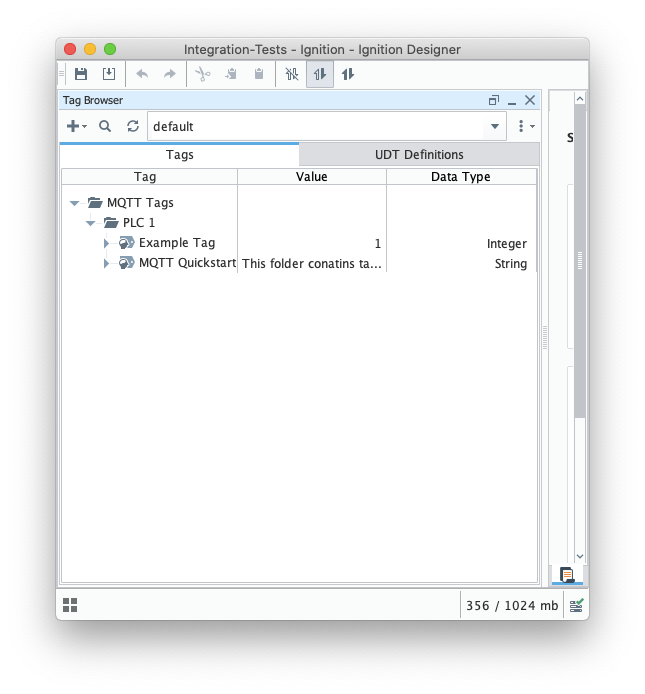
from the Designer import these tags IBSNOW_Quickstart_tags.json to MQTT Tags > PLC 1 create a UDT Definition and instance.
Review the Ignition Exporting and Importing Tags document if needed
You can view the imported UDT Definition and instance in the tag browser:
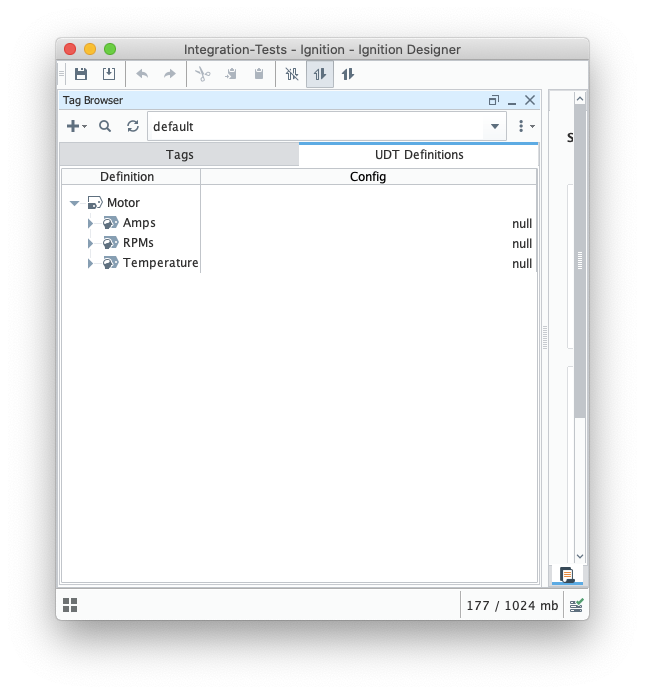
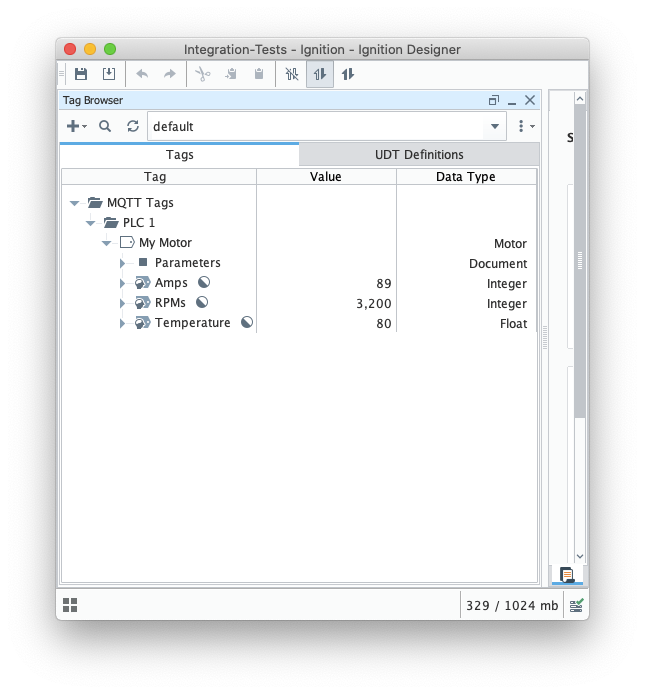
At this point, our tags are configured. A UDT definition will map to a model in Snowflake and UDT instances in Ignition will map to Snowflake.
But, before this will happen we need to point MQTT Transmission to the Chariot MQTT Server. To do so, browse back to the Ignition Gateway Web UI and select MQTT Transmission → Settings from the left navigation panel.
Now select the 'Transmitters' tab as shown below.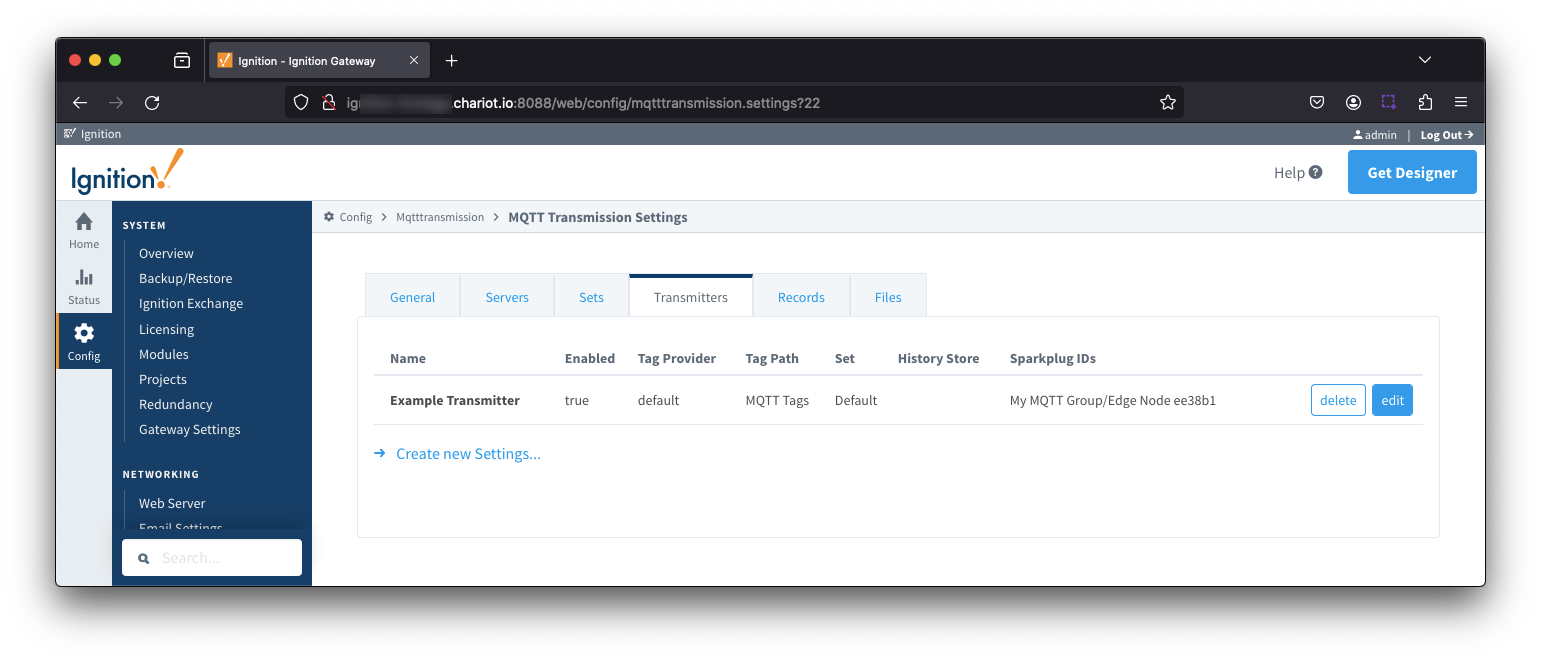
Now click the 'edit' button to the right of the 'Example Transmitter'. Scroll down to the 'Convert UDTs' option and uncheck it as shown below. This will also un-grey the 'Publish UDT Definitions' option. Leave it selected as shown below.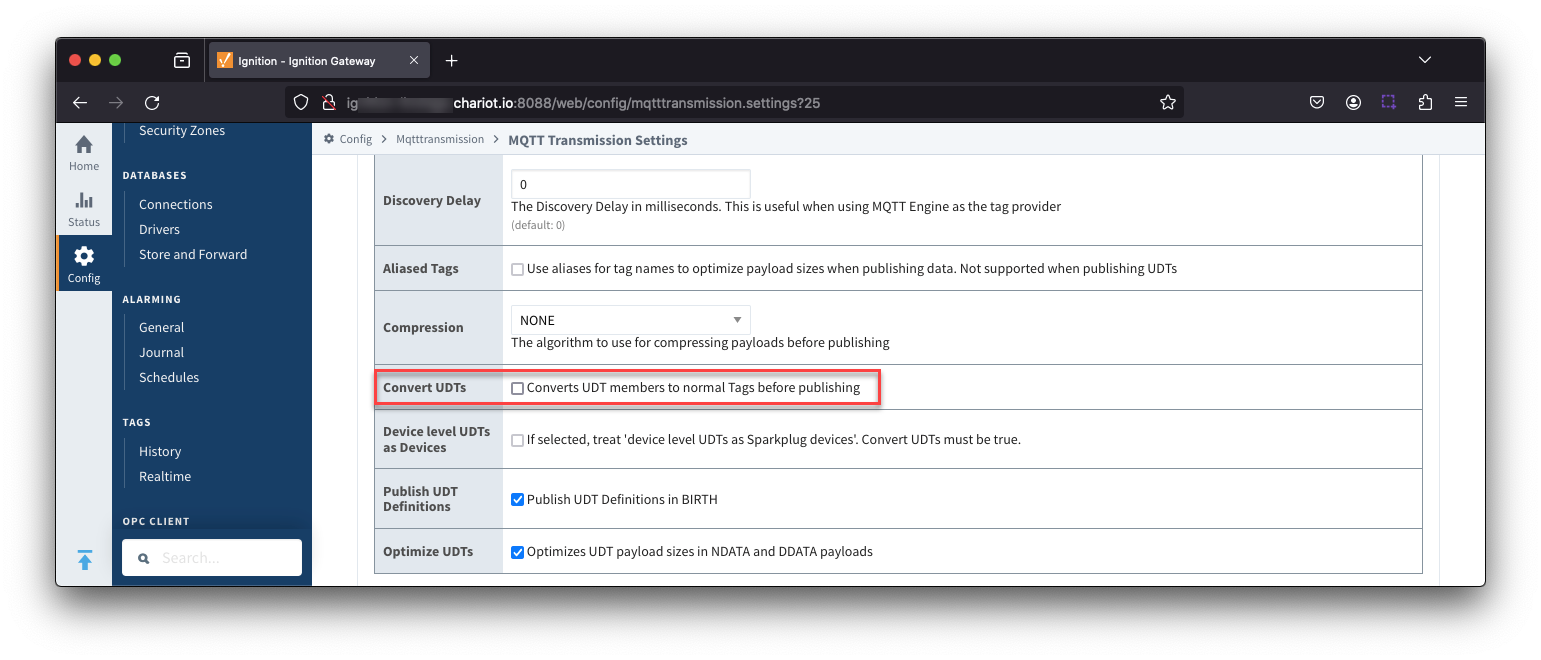
Now switch to the 'Servers' and 'Settings' tab. Delete the existing 'Chariot SCADA' pre-seeded MQTT Server Definition. Then create a new one with the following configuration.
- Name
- Chariot MQTT Server
- URL
- Your MQTT Server Endpoint URL of the form ssl://ENDPOINT_URL:8883
- Username
- Your username for the Chariot MQTT Server connection
- If using Chariot MQTT Server, the default username is 'admin'
- Password
- Your password for the Chariot MQTT Server connection
- If using Chariot MQTT Server, the default password is 'changeme'
When complete, you should see something similar to the following. However, the 'Connected' state should show '1 of 1' if everything was configured properly.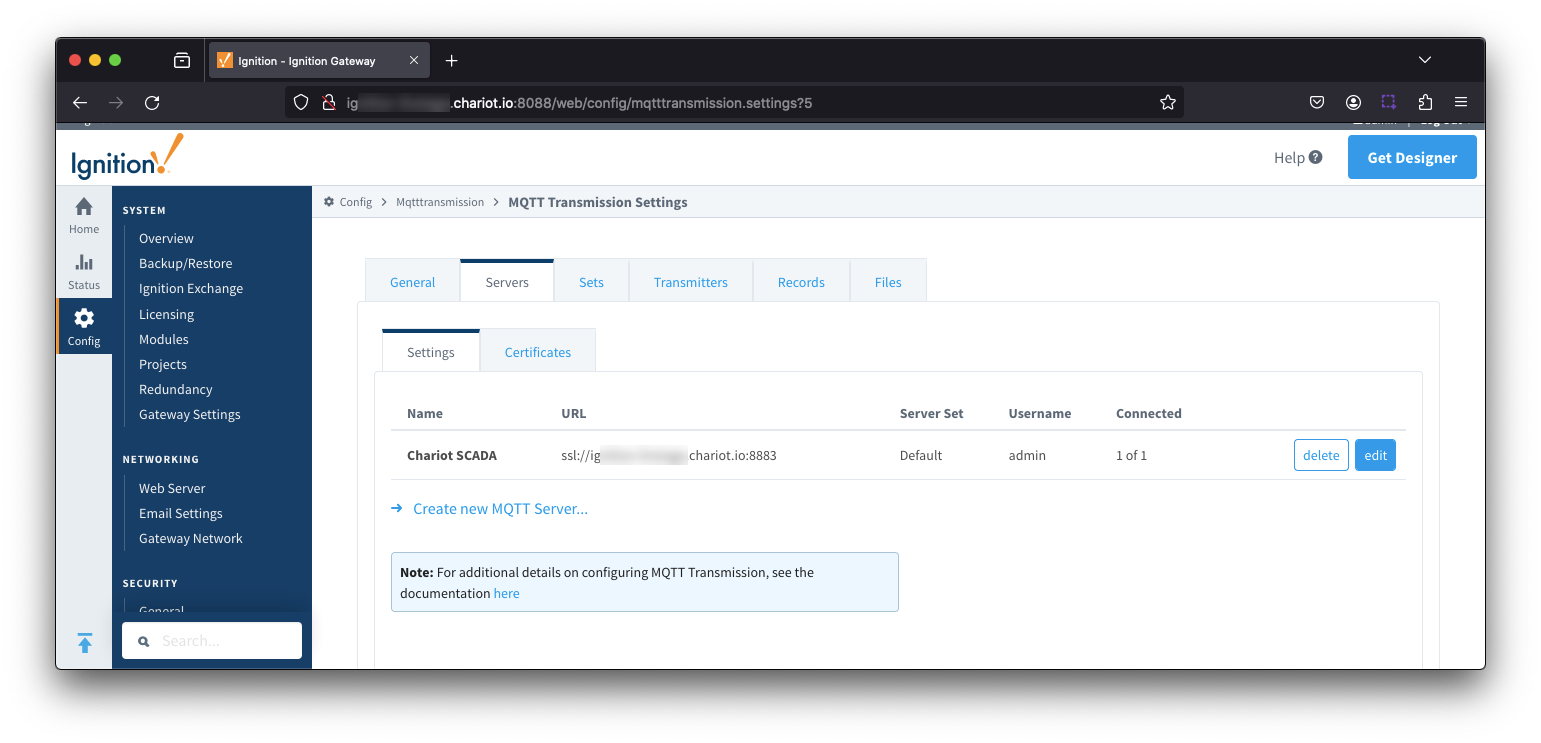
At this point, data should be flowing into Snowflake.
By tailing the log in IBSNOW you should see something similar to what is shown below which shows IBSNOW receiving the messages published from Ignition/MQTT Transmission.
When IBSNOW receives the Sparkplug MQTT messages, it creates and updates asset models and assets in Snowflake. The log below is also a useful debugging tool if things don't appear to work as they should.
Successful Insert
<TBD>
Review the IBSNOW: Viewing the data in Snowflake document for details on the DB tables and views available
Overview
Content Tools