


The Chariot UI can be used to identify MQTT client connection properties when investigating memory or CPU usage issues at the broker.
Session Connection
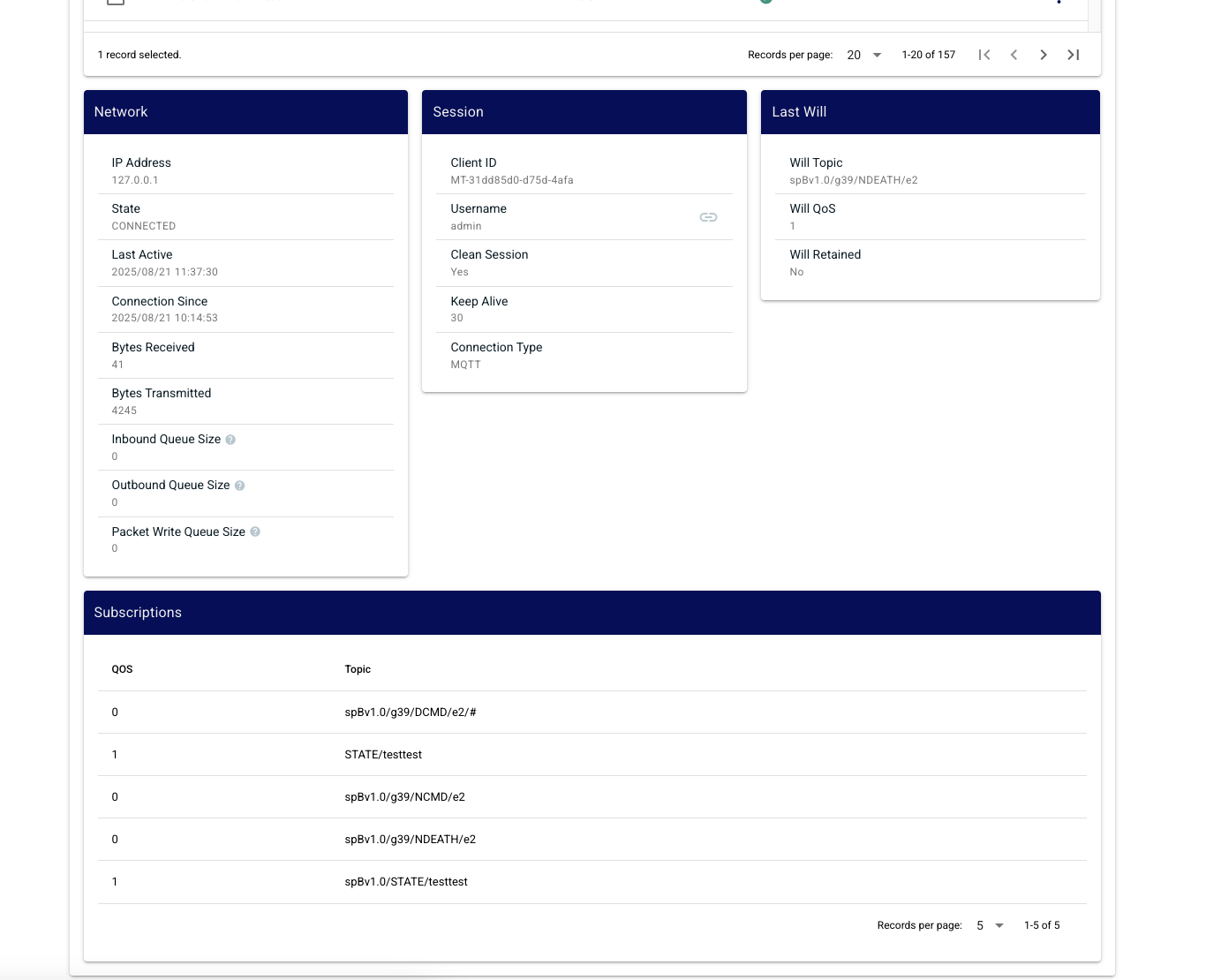
Navigate to the MQTT > Client Status > Clients view and select a Client ID. The details for Network, Session, Last Will and Subscriptions will be populated for the selected client.
Look for:
- Clients with a persistent session (Clean Session set to No)
- Clients with subscriptions with a QoS level > 0
An MQTT client that has connected with a persistent session with a very broad QoS 1 or 2 subscriptions, can cause the MQTT server to persist lots of messages in memory for a client that is not currently connected.
Retained Messages
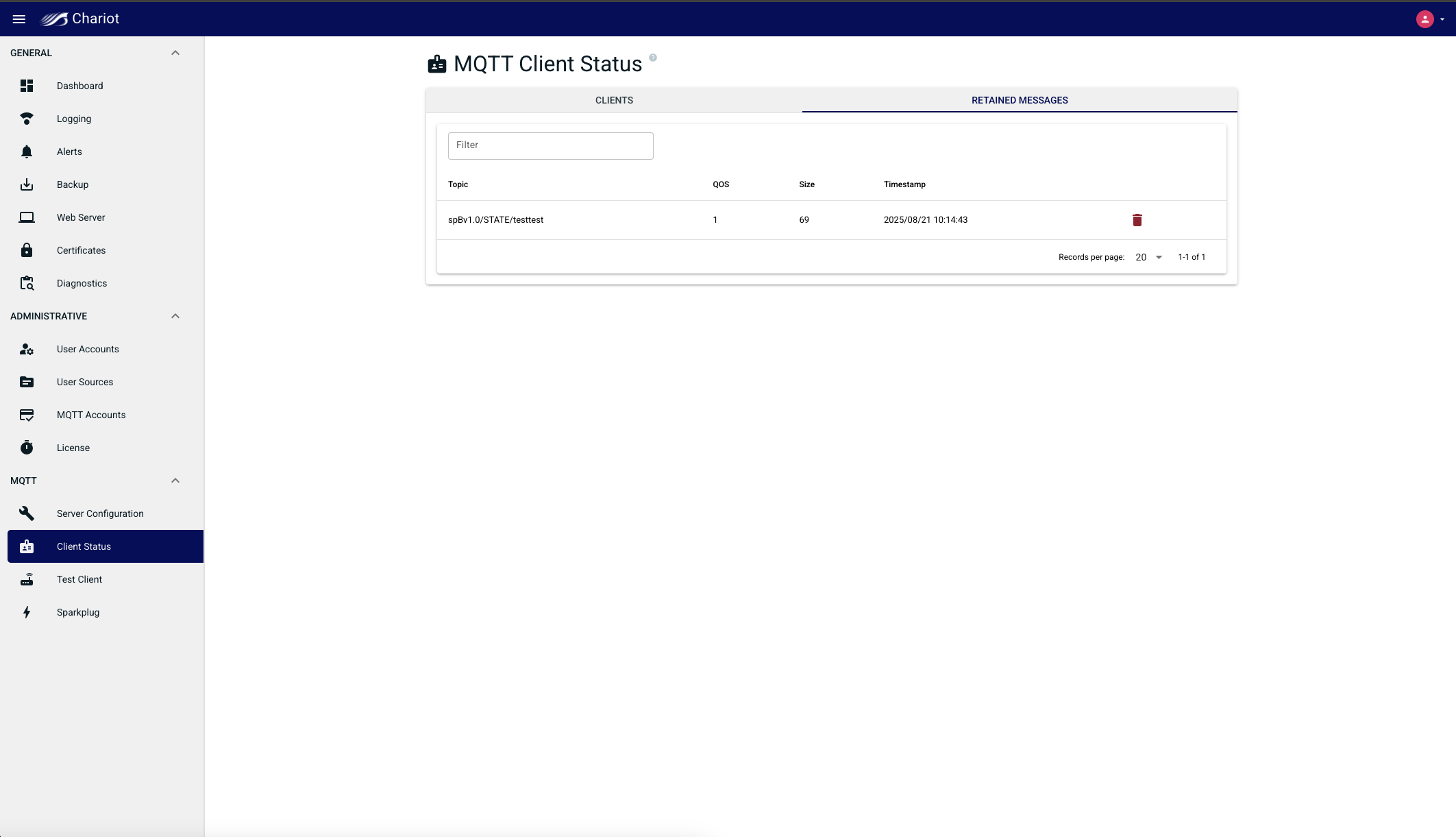
Navigate to the MQTT > Client Status > Retained Messages view to display all the retained messages at the Chariot server.
A very large number of large retained messages will result in more memory being consumed on the MQTT server
Published message QoS level
You can track the MQTT message QoS for messages published from a specific client via logging.
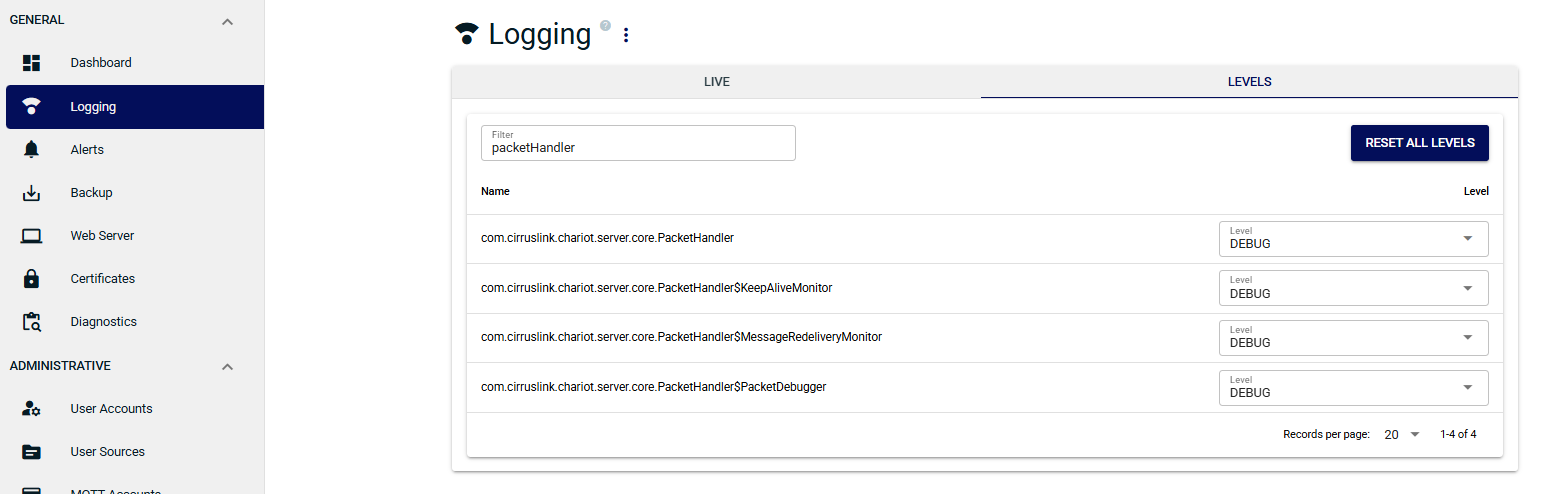
- Navigate to the GENERAL > Logging > LEVELS view and set the level to DEBUG for the com.cirruslink.chariot.core.PacketHandler logger
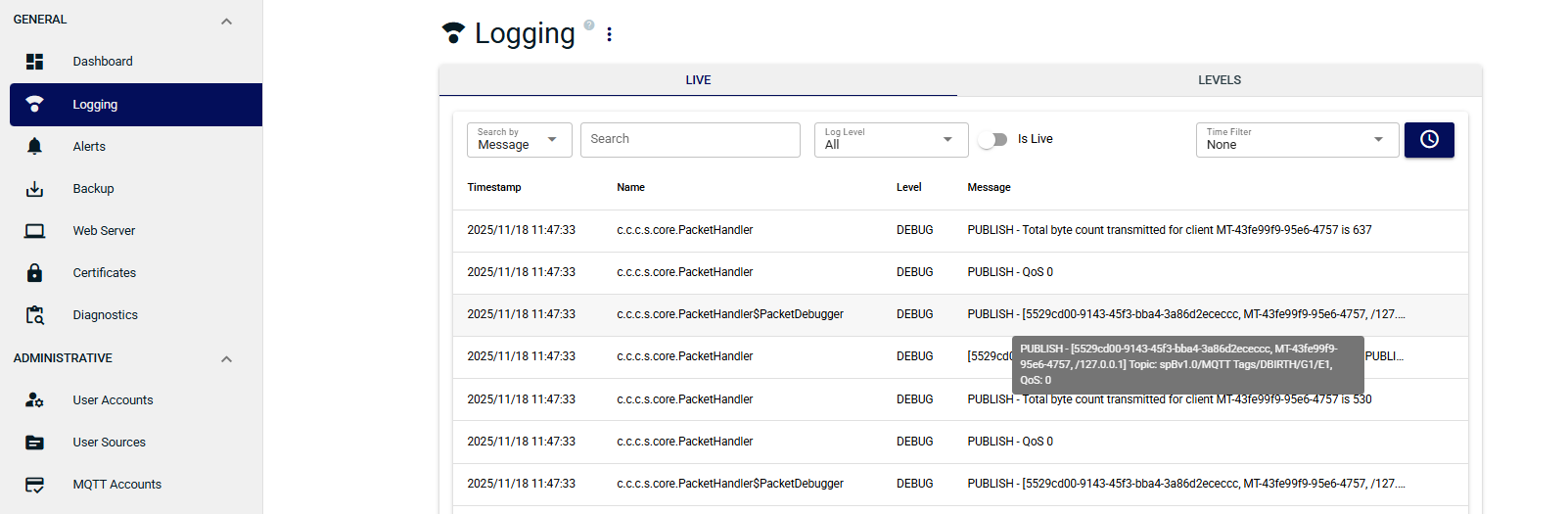
- Navigate to the GENERAL > Logging > LIVE view and you will find a log message for every message coming into the Chariot MQTT Server.
- Hover over each PUBLISH log message to show the MQTT client ID, the client IP address, the message topic and the message QoS. For example,
- MQTT client ID : MT-42fe99f9-95e6-4757
- Client IP address : 127.0.0.1
- Message topic : spBv1.0/MQTT Tags/DBIRTH/G1/E1
- QoS: 0
Overview
Content Tools