Prerequisites:
- Knowledge of Ignition and Module installation process: Cirrus Link Module Installation
- Install Ignition on an 'host/backend' system
- This must be a 'full version' of Ignition (i.e. not Ignition Edge)
- Install MQTT Distributor and MQTT Engine Modules
- Install Ignition on an 'edge' system
- This can be a 'full version' of Ignition or Ignition Edge
- Install the MQTT Transmission Module
Overview:
Transmission is an MQTT module for Ignition that can publish files using MQTT Sparkplug to be processed by MQTT engine.
Files are transferred using Sparkplug over MQTT and which files get transferred and when they get transferred can be configured in a number of different ways. The file transfer configuration also defines how quickly a file transfer occurs and how long before a timeout will occur on failure to receive host side acknowledgements which can be adjusted as required based on the size of files you are sending and any bandwidth constraints that you may have.
This tutorial shows how to configure the MQTT modules to publish and receive files from one Ignition system to another.
Step 1: Install MQTT Engine and MQTT Distributor on the host machine
Install the MQTT Engine and Distributor modules onto your host Ignition system following the Cirrus Link Module Installation guide.
By default, MQTT Engine is configured to connect to MQTT Distributor on tcp://localhost:1883 and will show as Connected under the Servers configuration setting in the Ignition UI.
Step 2: Install MQTT Transmission on the edge machine
Install the MQTT Transmission onto your edge Ignition system following the Cirrus Link Module Installation guide.
By default, MQTT Transmission is configured to connect to MQTT Distributor on tcp://localhost:1883. As the MQTT Distributor is installed o a different server, we will need to edit the configuration to allow MQTT Transmission to connect to the host server.
Navigate to the MQTT Transmission > Settings in the left side bar of the Ignition Gateway UI and select the Servers tab.
Change the server URL to point to the server IP address or domain name of the Ignition system running MQTT Distributor and save the configuration. When complete, you should see something similar to the following: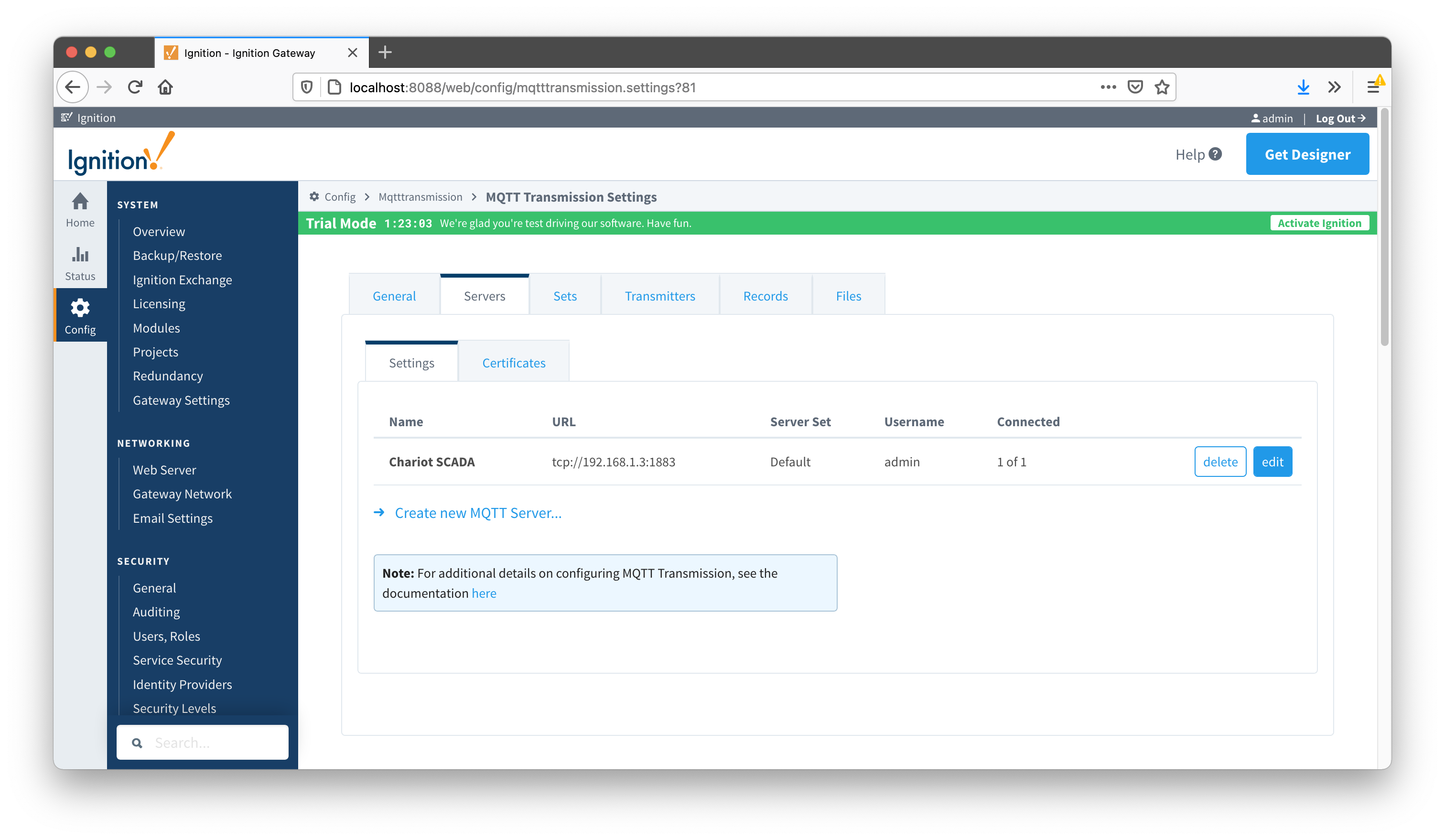
MQTT Transmission will also have an Example Transmitter configured pointing to a set of tags that are configured in the Ignition "default" tag provider.
Now we have the three modules connected, we can setup the file publish configuration.
Step 3: Config MQTT Engine File Handling
Now we can configure the MQTT Engine module to process the published files.
Navigate to the MQTT Engine > Settings in the left side of the Ignition Gateway UI and select the Namespaces tab. From the Default tab, edit the Sparkplug B namespace shown below:
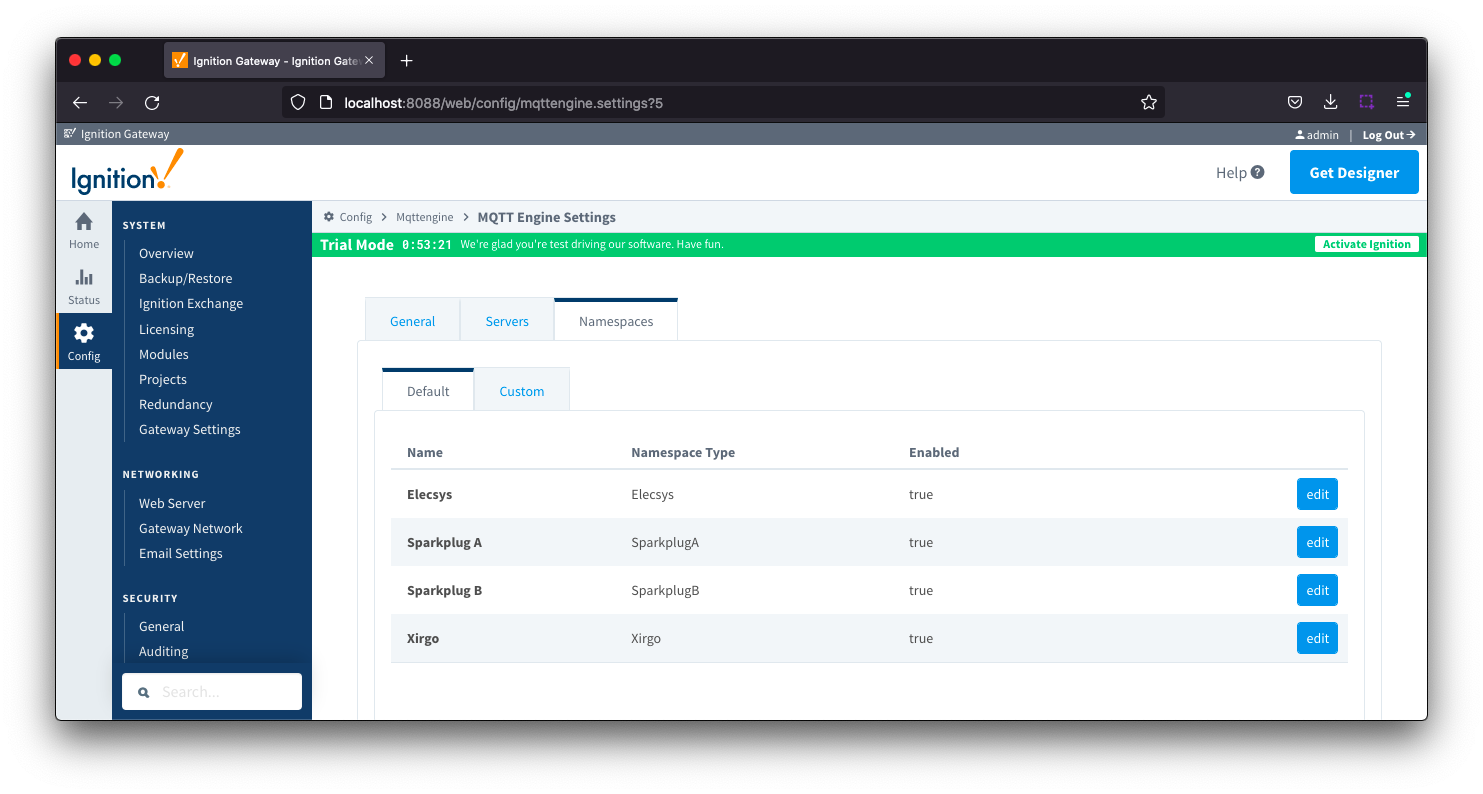
Now select the 'Files' tab and set the following
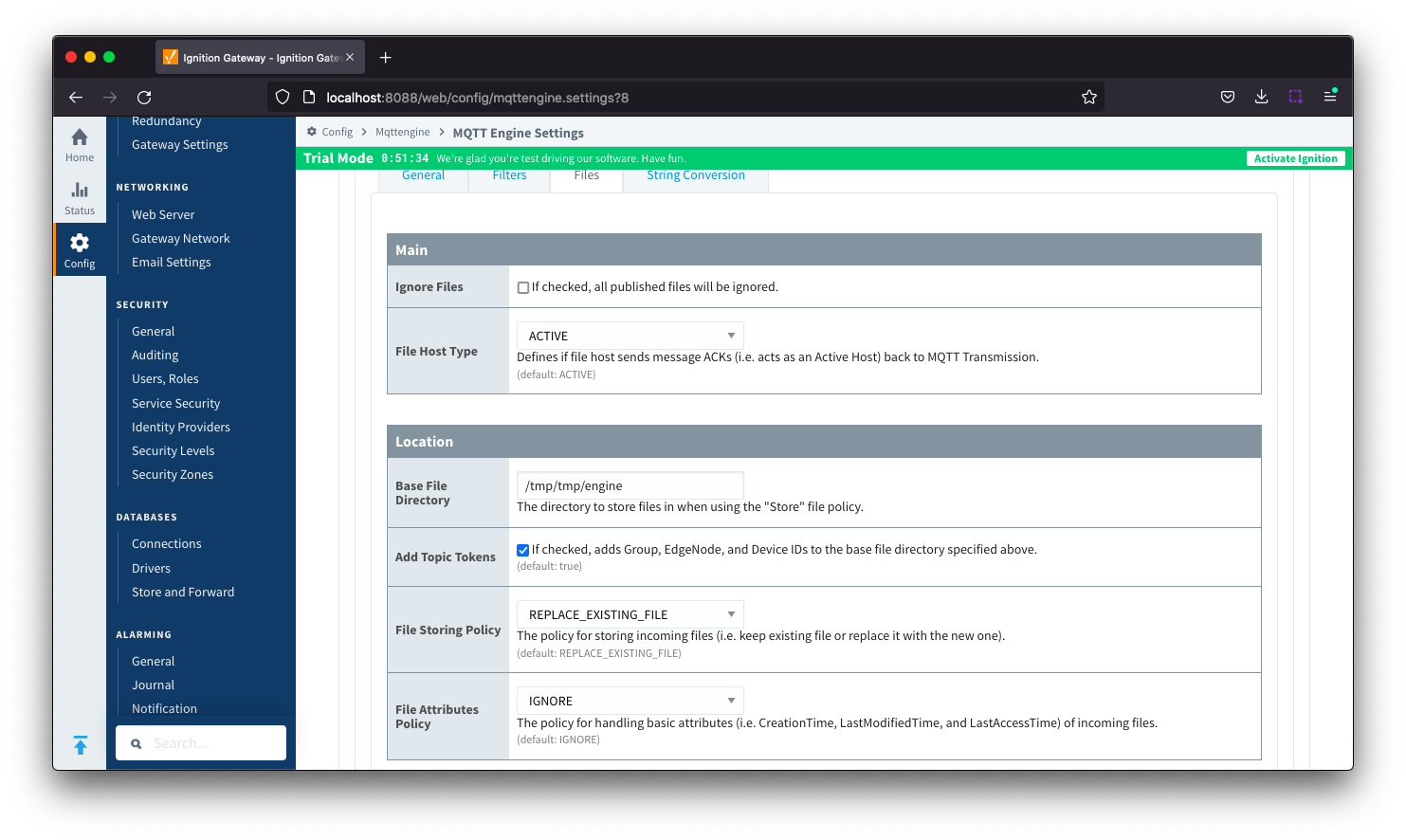
- Ignore Files
- Leave this property unchecked so that publish files will not be ignored
- File Host Type:
- ACTIVE to specify that a message ACK is sent back to MQTT Transmission
- Base File Directory
- Set to some directory file path (i.e. 'C:\My Files' or something similar) where the files will be stored
- Add Topic Tokens
- Leave this property as checked to add the Group ID, Edge Node ID and Device ID to the base file directory path
- File Storing Policy
- Set this policy to REPLACE_EXISTING_FILE
When complete, it should look similar to the following. Save the changes after confirming.
Now we can configure the MQTT Transmission module to publish files using the existing MQTT client created by the Example Transmitter. Navigate to the MQTT Transmission > Settings in the left side bar of the Ignition Gateway UI and select the Transmitters tab. Make note of the Sparkplug IDs configured for your transmitter.
For our example we have the Group ID as My MQTT Group and the Edge Node ID as Edge Node faec7e 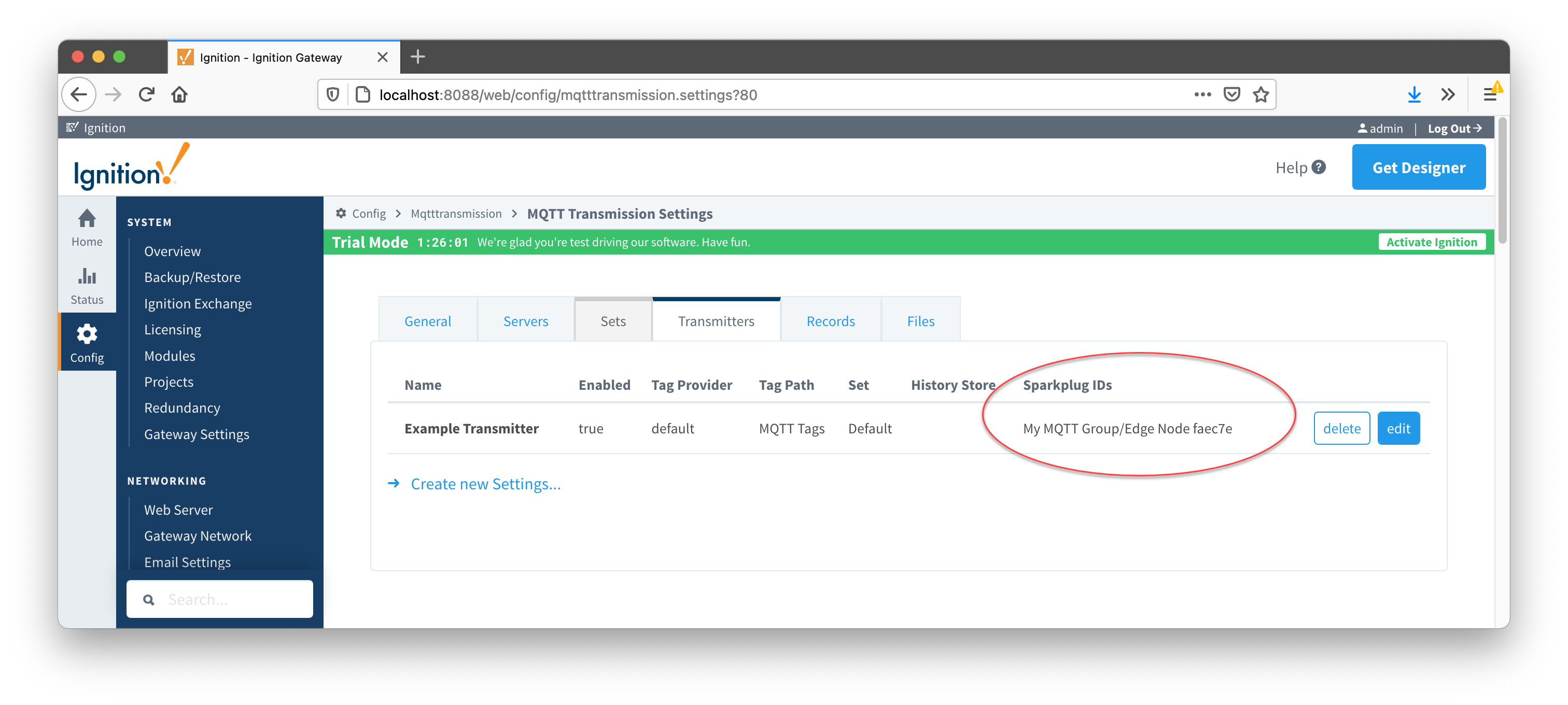
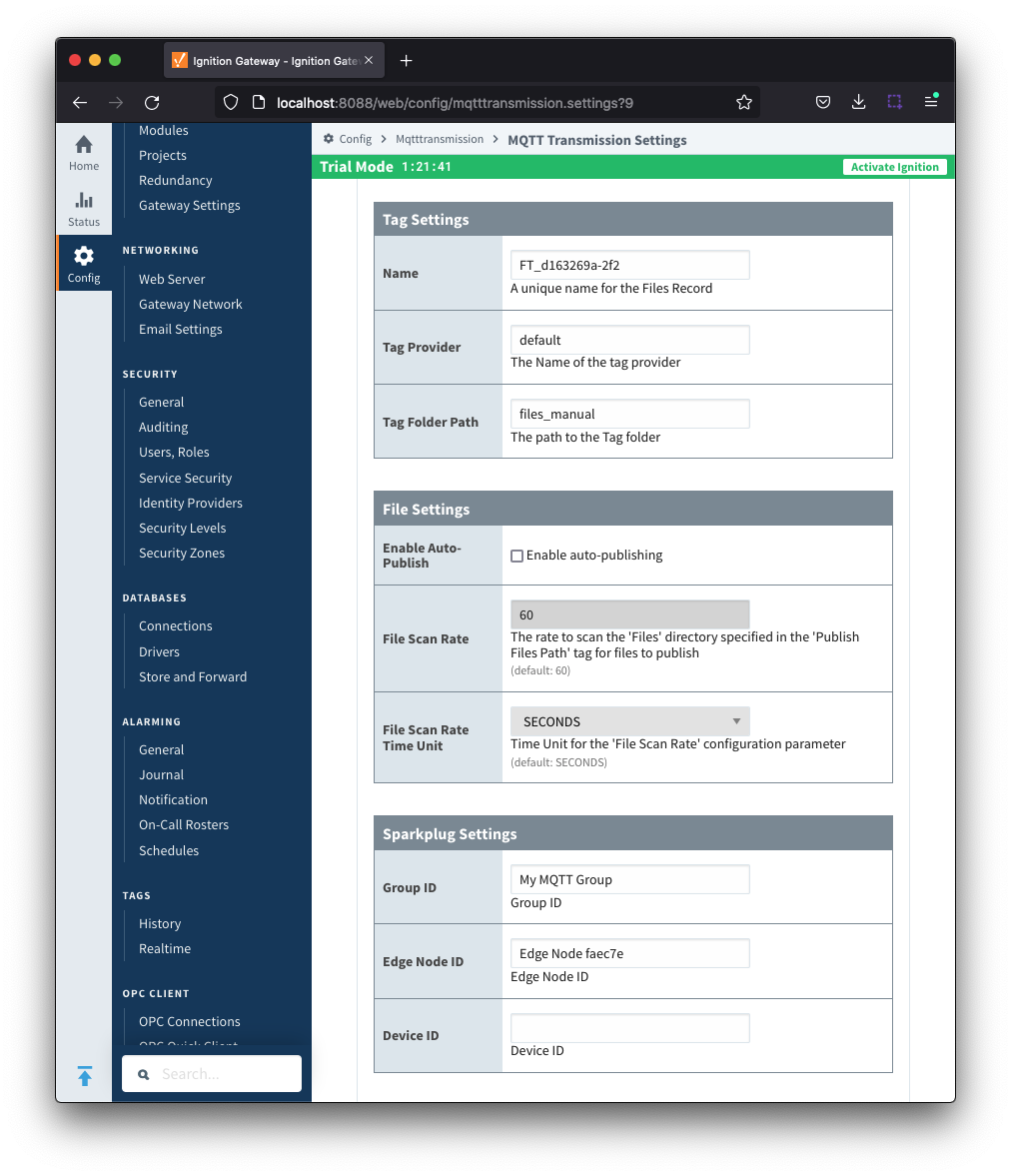
Now on the 'Files' tab, select the Create new Files... link and configure the following fields
- Tag Provider
- Set to 'default'. This is the tag provider where the publish control and information tags will be created
- Tag Folder Path
- Set to 'files_manual'. This is the tag folder in the specified tag provider where the publish control and information tags will be created
- Enable Auto-Publish
- Leave this unchecked. This will force manual publishes only
- Group ID
- Use the Group ID from your Transmitters Sparkplug ID. For this example, My MQTT Group
- Edge Node ID:
- Use the Edge Node ID from your Transmitters Sparkplug ID. For this example, Edge Node faec7e
When complete, it should look similar to the following. Save the changes after confirming.
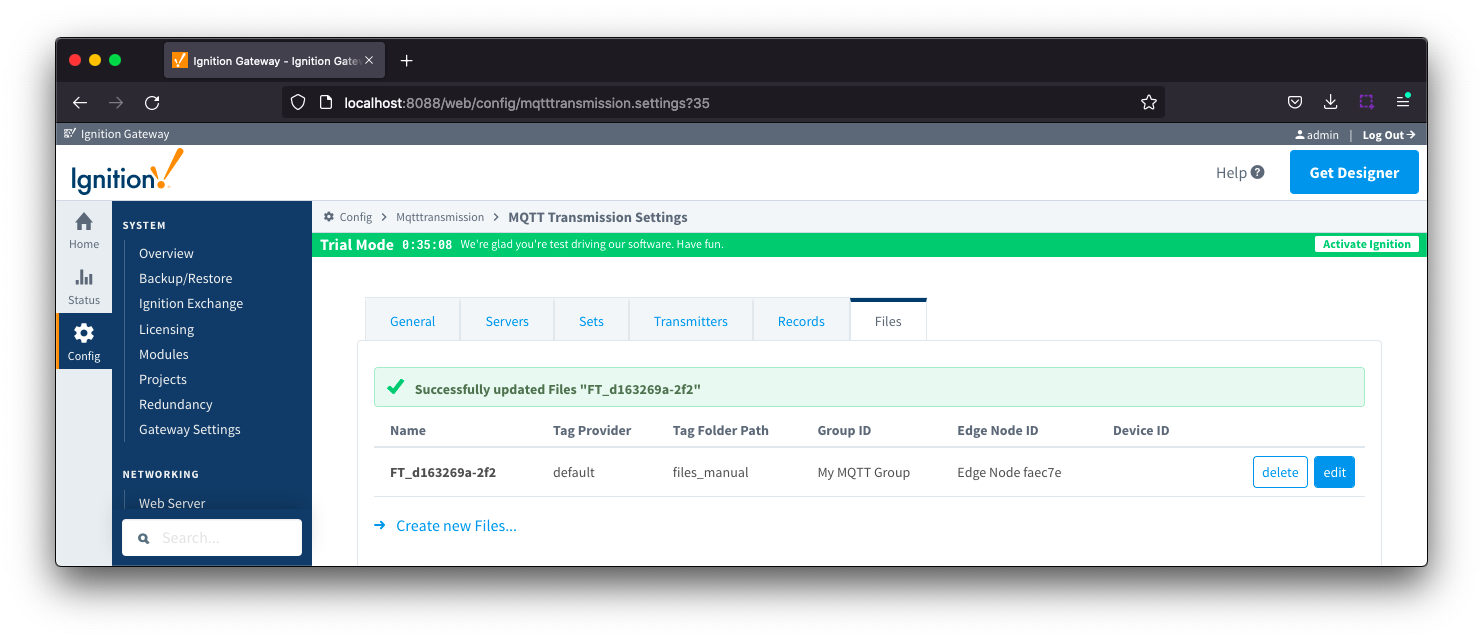
After the configuration is saved, it should look similar to below:
Step 5: Publish Files
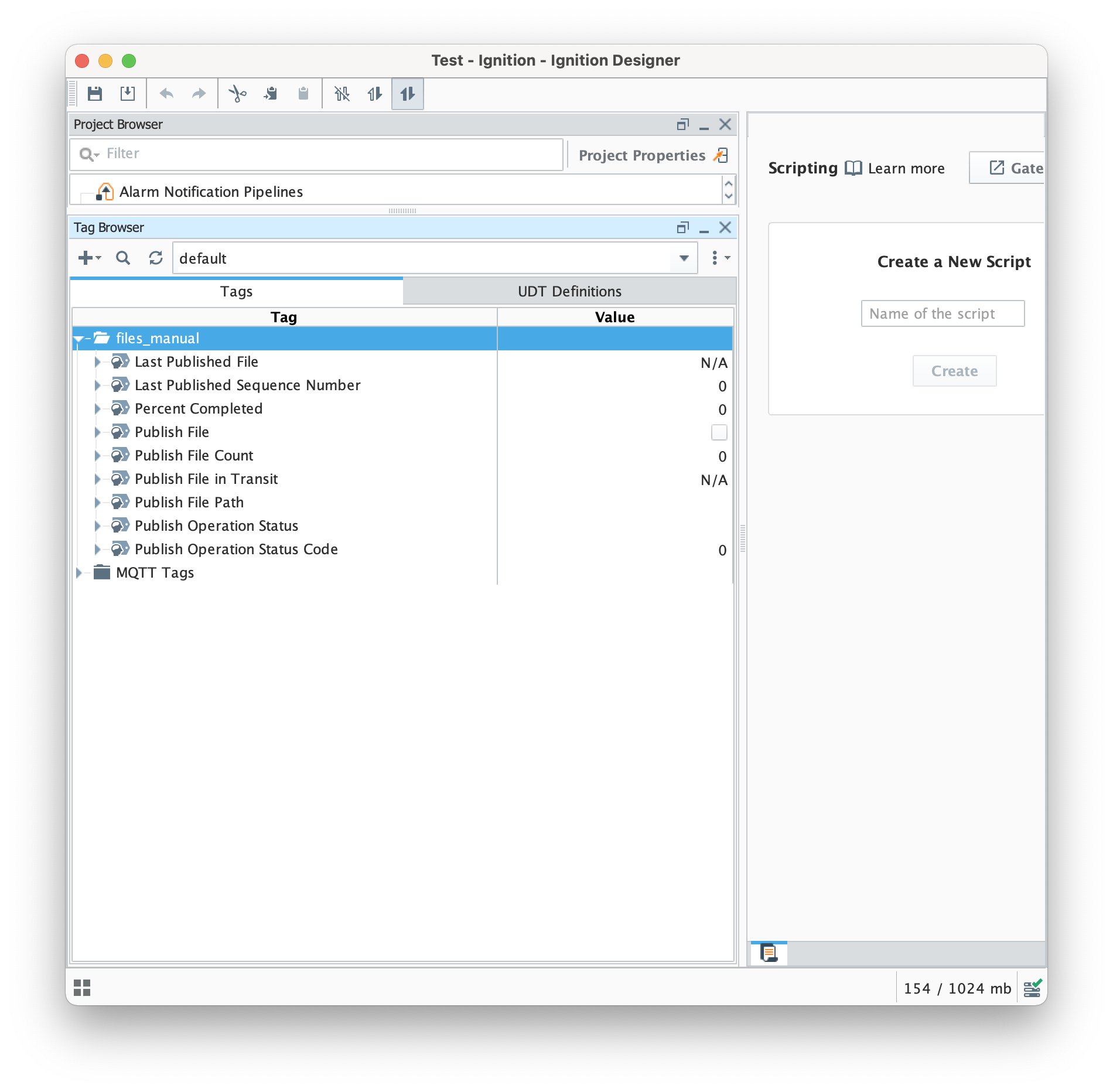
At this point, everything should be configured to send files from MQTT Transmission to MQTT Engine. Open Ignition Designer on the system running MQTT Transmission. You should see the control and information tags created in the specified tag provider and folder as shown below:
At this point, we just need to tell MQTT Transmission which file to send. Download this sample_file.zip which contains two text files. The two text files are:
sample_file.txt
- This is a text file with an arbitrary string. But, it could be a file of any type. This is purely for demonstration purposes.
sample_file.txt.md5
- This is a text file that contains only the md5 sum of the sample_file.txt
Unzip this sample file to some location and note that location. When transferring any file, MQTT Transmission requires two files to be present before it will transfer the target file. The first is the file itself. The second is a file that has the same name as the target file followed by a '.md5' extension. The contents of that file must contain the Message Digest Algorithm 5 (or MD5 sum) of the file. The MD5 sum can be calculated using command line utilities on most operating systems. Here are some examples:
Linux
ubuntu@linux-host:~$ md5sum myfile.bin
07180622a24ebf905cf5f770cd54197a  myfile.bin

# In the above example, the md5 sum is: 07180622a24ebf905cf5f770cd54197a
OSX
user@osxhost:~$ md5 sample_file.txt
MD5 (sample_file.txt) = 85324ffbcc7d97c478adf53796aff787

# In the above example, the md5 sum is: 85324ffbcc7d97c478adf53796aff787
Windows
Get-FileHash -Algorithm MD5 .\some_file.iso

Algorithm       Hash                                                                   Path
---------       ----                                                                   ----
MD5             80FD169D3FDADBC97E66C168F796B1BF                                       C:\temp\some_file.iso

# In the above example, the md5 sum is: 80FD169D3FDADBC97E66C168F796B1BF
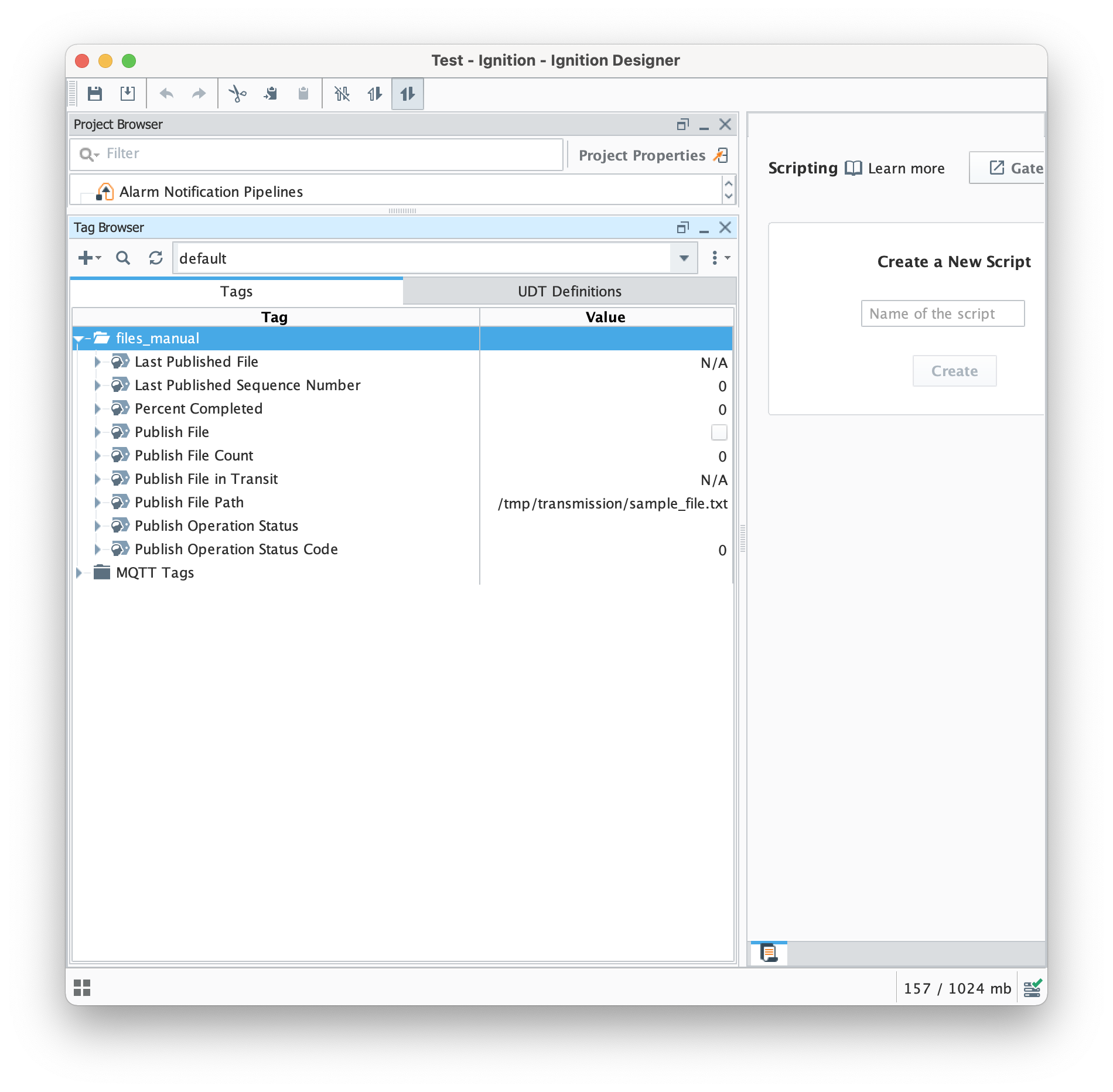
With both files in place, we can now set the 'Publish File Path' tag. This path must be the full path to the target file to publish over MQTT. In this example, we're using the path of '/tmp/transmission/sample_file.txt'. However, on a Windows system that would look something like 'C:\full\path\to\my\sample_file.txt'. When this is set, you should see something like this
Finally, click the 'Publish File' boolean tag. This will begin the file publish process which will cause the file to be published. After doing so, you should see something similar to what is shown below.
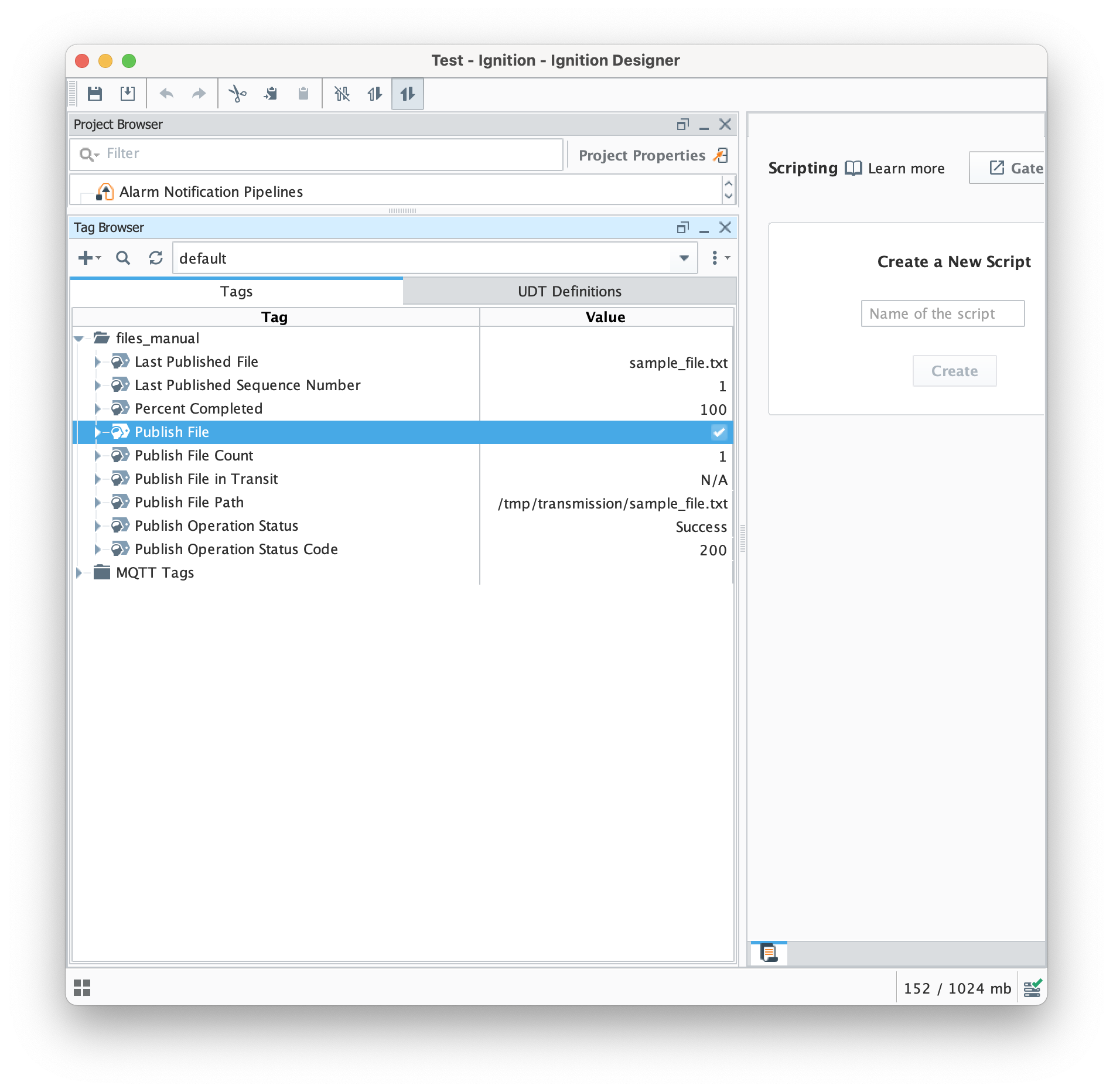
You should also now see the file on the Ignition system with MQTT Engine installed. The file will be saved to the location you set as the 'Base File Directory' in your MQTT Engine namespace configuration for Sparkplug B.
At this point you have a fully functional system which can be expanded or modified as required. Below are some addition configuration options to try:
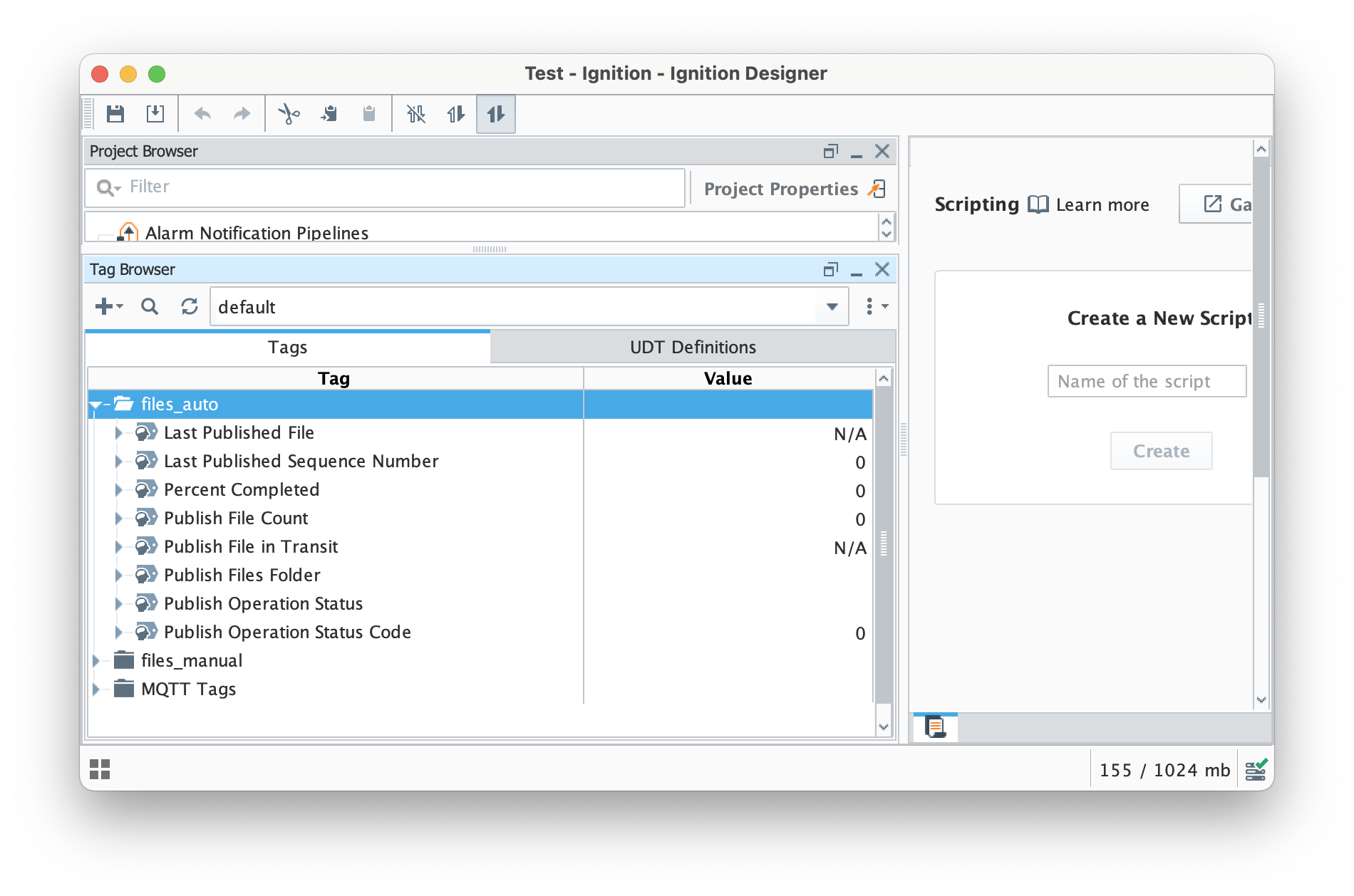
- Setup MQTT Transmission to automatically publish files. In the 'File' configuration of MQTT Transmission, check the 'Enable Auto-Publish'. When this is enabled, MQTT Transmission will create a tag called 'Publish Files Folder' instead of 'Publish File Path' as shown below. MQTT Transmission will scan the folder specified in the tag and will publish all files that appear in this directory automatically. When the file is successfully transferred both files will be removed from the originating filesystem.
Just as with the 'manual publish' option, an associated md5 sum file must be present and properly represent the md5 sum of the target file before it will be published.
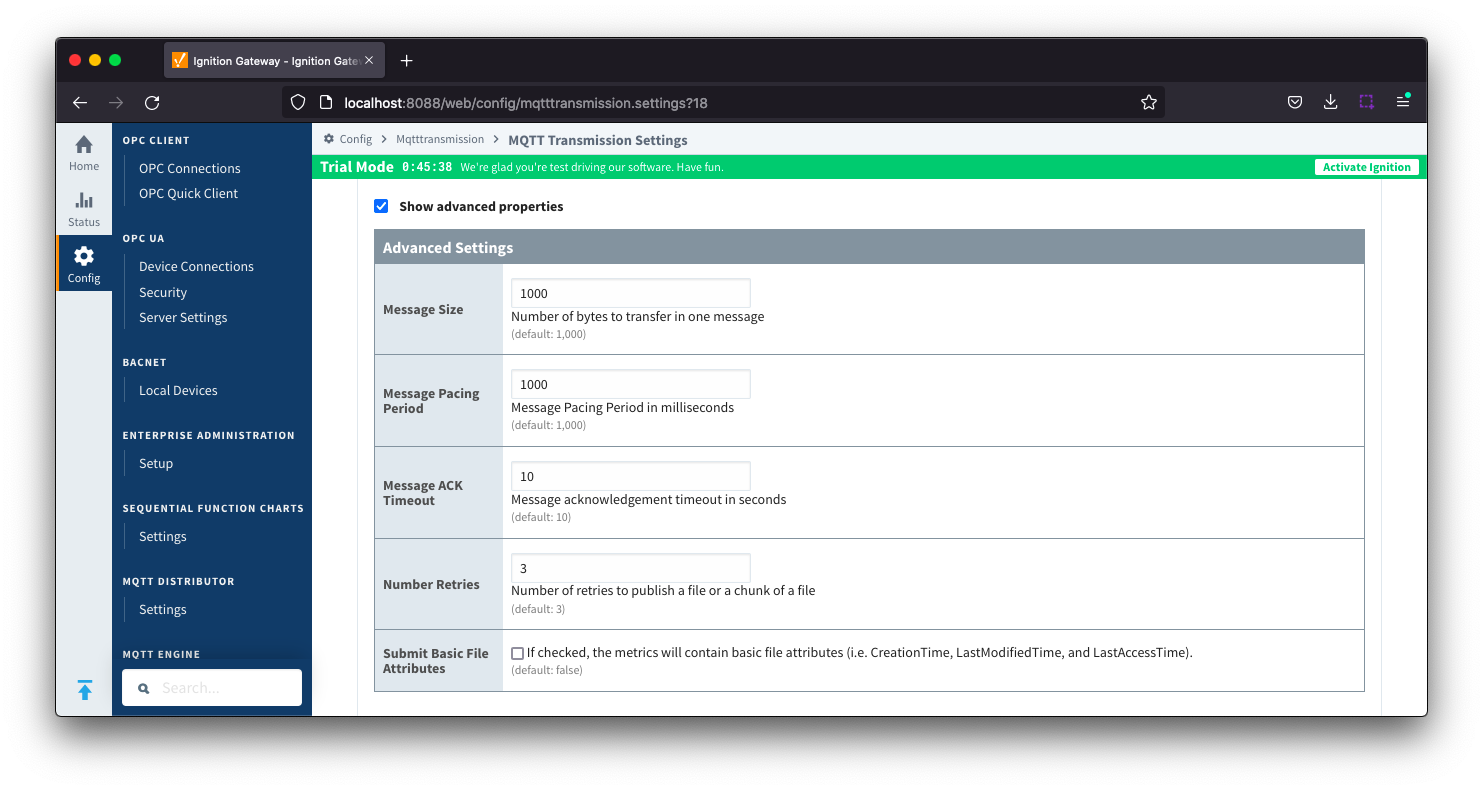
- Adjust the file transfer configuration to define how quickly a file transfer occurs and how long before a timeout will occur on failure to receive host side acknowledgements based on the size of files you are sending and any bandwidth constraints that you may have.
Additional Resources
- Inductive Automation's Ignition download with free trial
- Cirrus Link Solutions Modules for Ignition
- Support questions
- Sales questions
- About Cirrus Link