The he Azure Injector module provides the ability to push Tag data to an Azure IoT Hub, Azure IoT Edges, Azure Event Hubs and Azure IoT Central endpoints.
...
- Store & Forward Enabled
- Whether to enable Store & Forward capabilities for this endpoint
- Store & Forward Type
- The type of the Store & Forward mechanism options: In_Memory and Disk_Backed (available in release 4.0.17 and higher)
- Data stored with an In_Memory Store & Forward will not be persisted across a module configuration change, module disable/enable, module restart or power loss.
- Data stored with a Disk_Backed Store & Forward will persist across a module configuration change, module disable/enable, module restart or power loss
Message Capacity - deprecated in 4.0.19- The maximum number of messages to store before dropping the oldest historical messages
- History Max Size
- Maximum number of megabytes history can use before dropping the data
- An In_Memory History store will use the Ignition Java Heap memory
- History Max Age
- The maximum number of minutes to store history before dropping the data
- Flush Period
- The period of time to wait (in milliseconds) between sending when flushing messages
...
- Keep Alive
- The MQTT keep alive timeout in seconds
- Max Message Size
- The maximum message size in bytes that any message can be when pushing to IoT Hub. Generally, this should match the max message size allowed by IoTHub.
- Session Expiration
- How long in seconds to specify for session token timeouts when not using certificate based authentication
- Content Type
- Content Encoding
- The content encoding to include in the topic to Azure IoT Hub
- NONE (default) - No content encoding header will be included with the message
- UTF_8 - The 'utf-8' header will be included with the message and make the body of the message available for routing if the content type is also set to APPLICATION_JSON
- UTF_16 - The 'utf-16' header will be included with the message and make the body of the message available for routing if the content type is also set to APPLICATION_JSON
- UTF_32 - The 'utf-32' header will be included with the message and make the body of the message available for routing if the content type is also set to APPLICATION_JSON
- ISO-8859-1 - The 'ISO-5589-1' header will be included with the message and make the body of the message available for routing if the content type is also set to APPLICATION_JSON
- See Using IoT Hub Message Based Routing tutorial for more details
- Azure Date/Time Format
- The date/time format to use when pushing messages to IoT Hub
- LONG_MS_SINCE_EPOCH (default) - The timestamp values will all be as numbers in milliseconds since epoch (Jan 1, 1970) in UTC
- STRING_AZURE_COMPAT - The timestamp will be pushed as described here. This is useful when wanting to use 'edge' timestamps in Azure Time Series insights.
- See Pushing Data to Azure Time Series Insights tutorial for more details
...
| Note |
|---|
All certificate or private keys must be in PEM format. For modules pre 4.0.9, only RSA PKCS1 format private keys are supported.For modules 4.0.9 to 4.0.16, RSA PKCS8 and password encrypted format private keys are also supported. For modules 4.0.17 or higher, password encrypted PKCS8 private keys are also supported. |
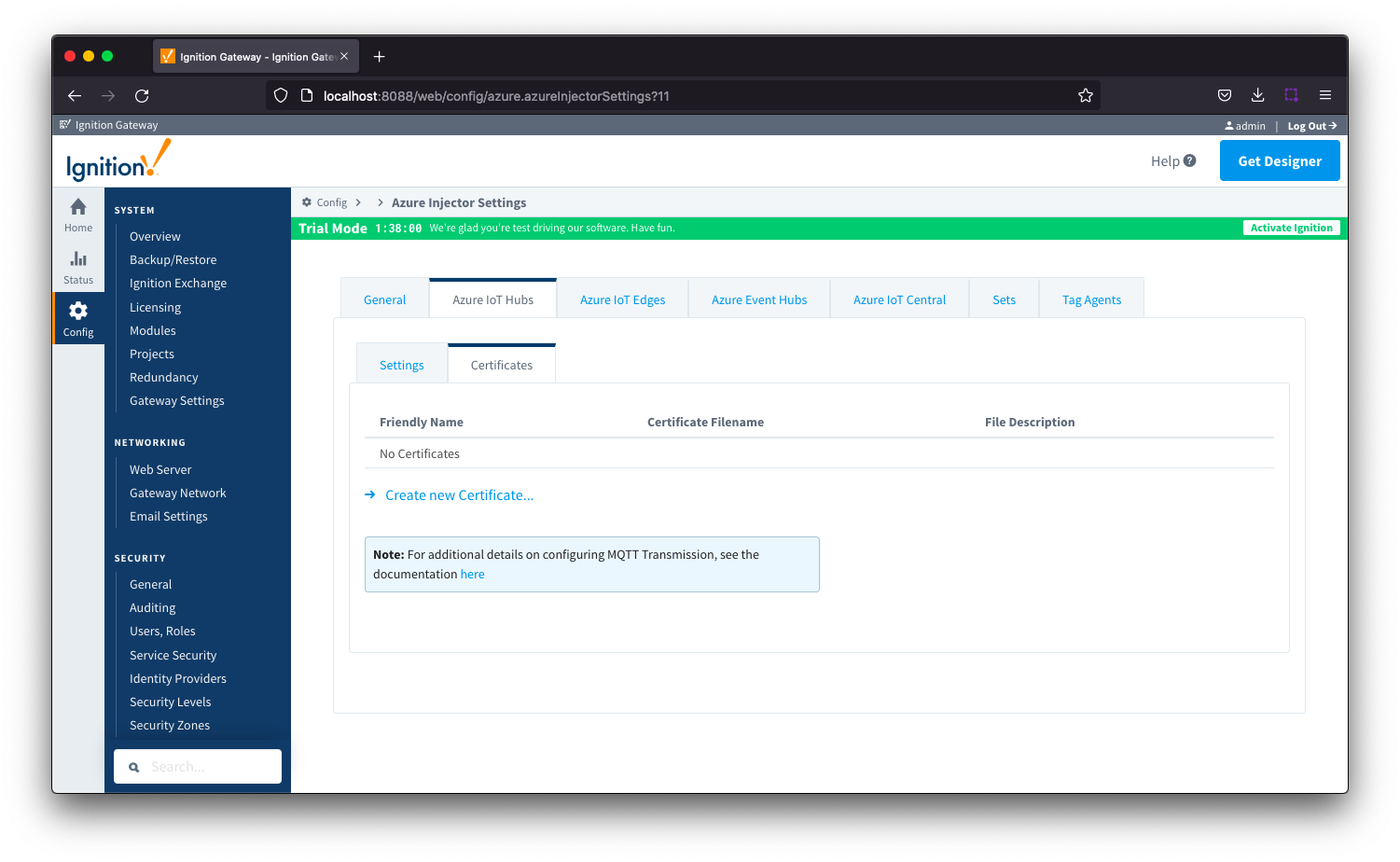 Image Removed
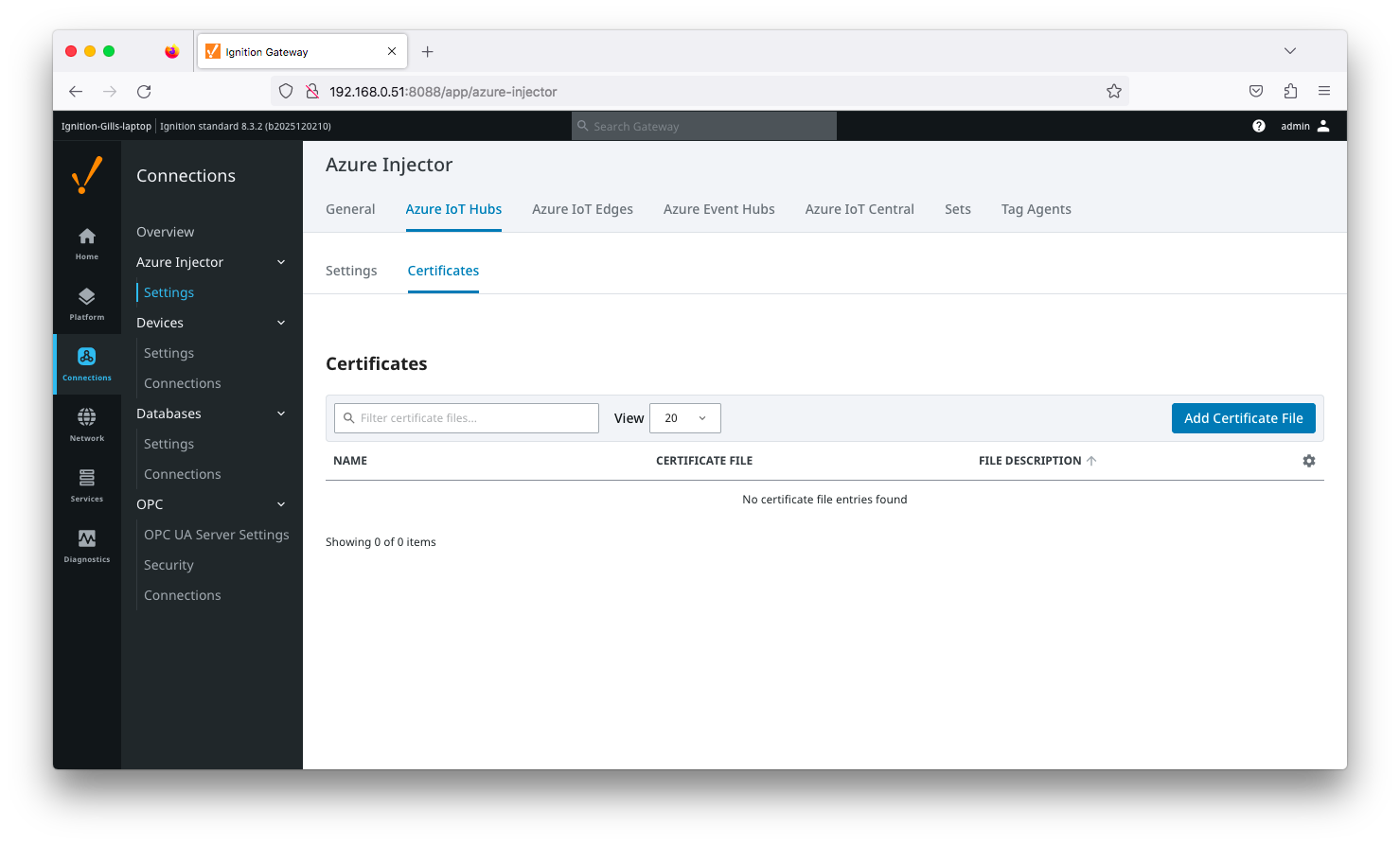 Image Added
Clicking Clicking on the 'Create new Add Certificate ..File' link will bring up the following form to add a new Certificate. The Certificates tab contains a single Main section.
| Anchor |
|---|
| azureiothubcertificatesmain |
|---|
| azureiothubcertificatesmain |
|---|
|
...
Main
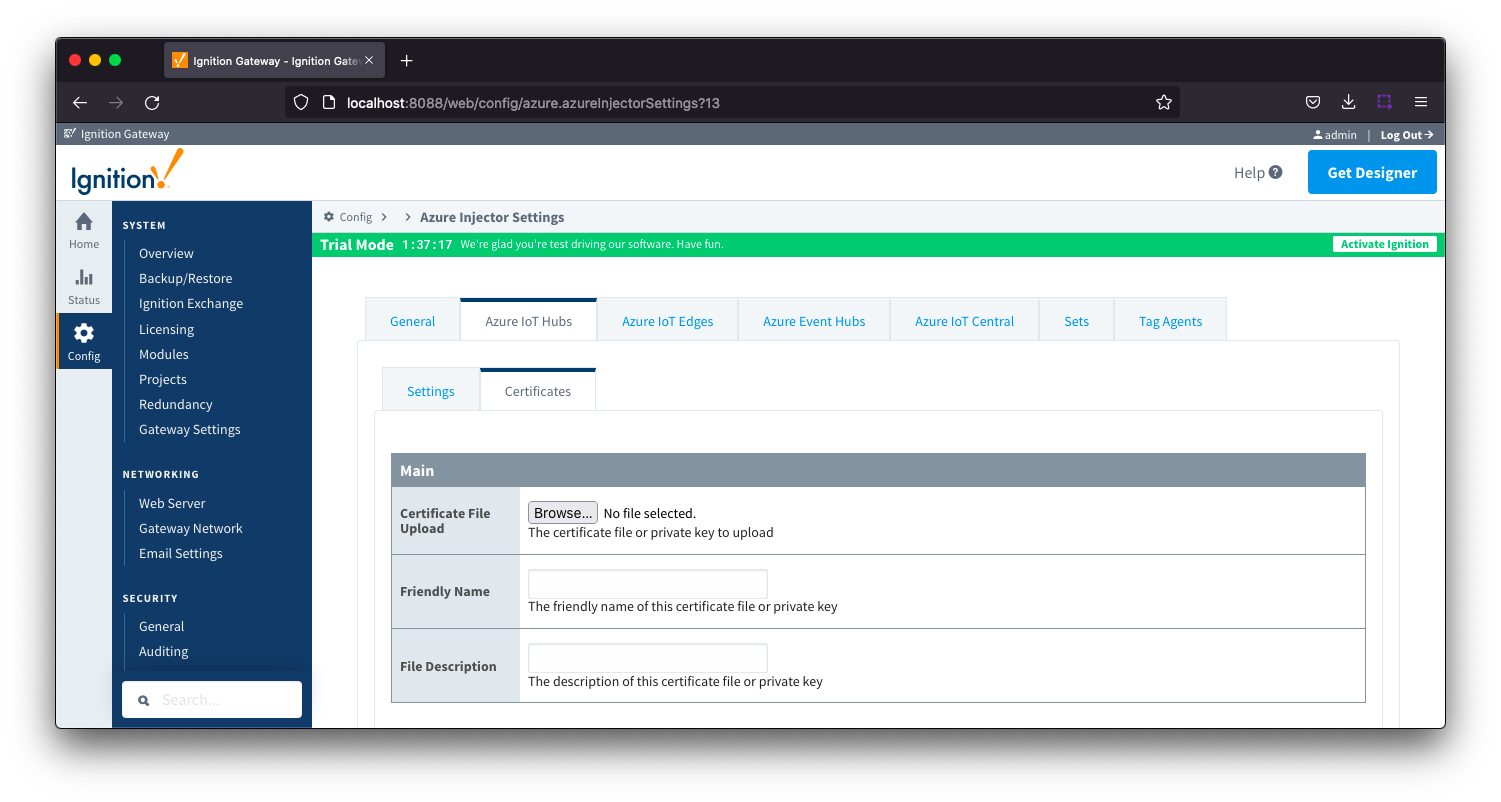 Image Removed
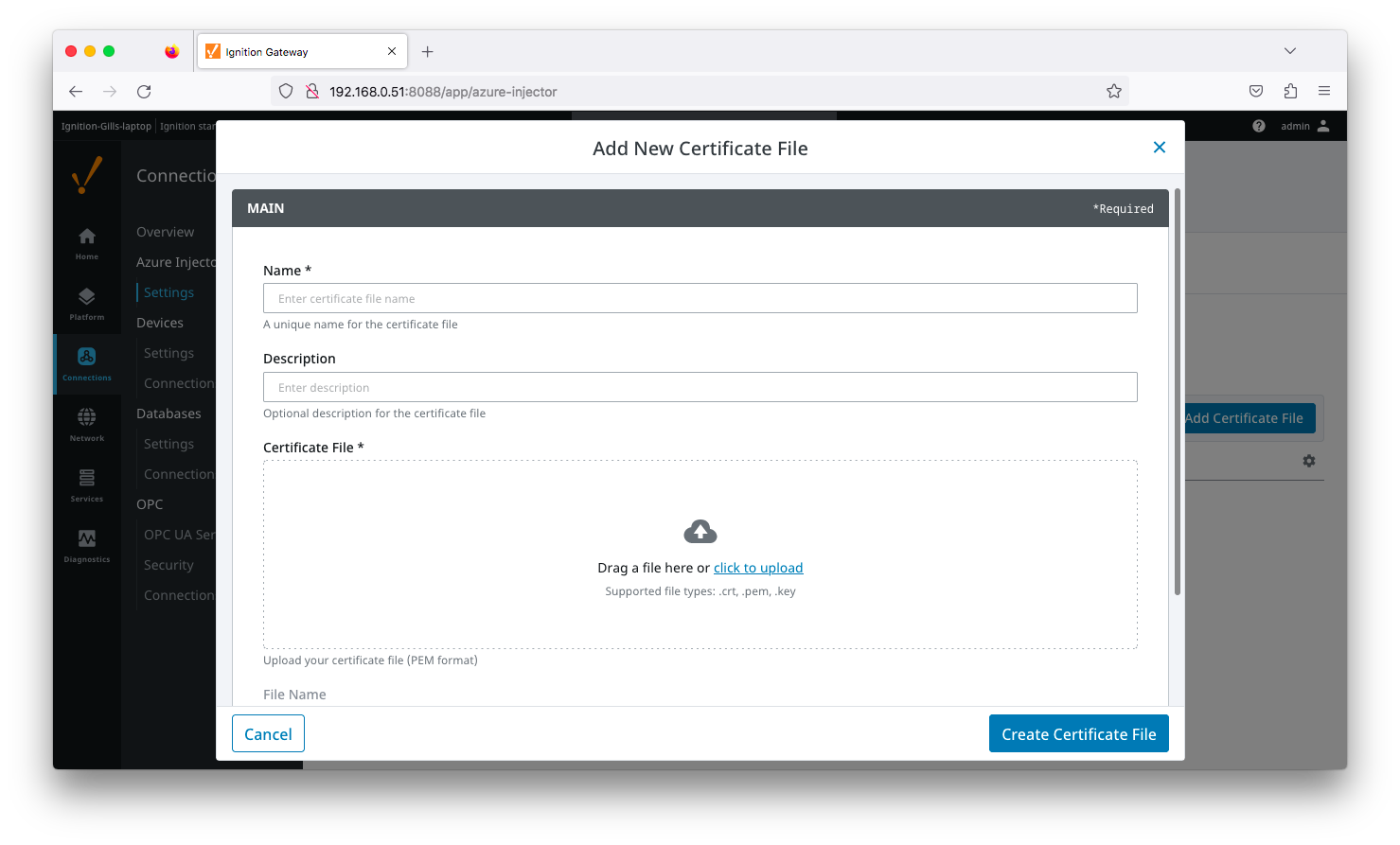 Image Added
- Certificate File Upload
- Browse to the certificate file or private key to upload.
- Friendly Name
- The friendly name of the certificate file or private key.
- File Description
- The description of the certificate file or private key.
...
This tab provides a list of Azure IoT Edge endpoints that the module should connect to to push tag data. One or more Azure IoT Edge endpoints can be configured on this tab.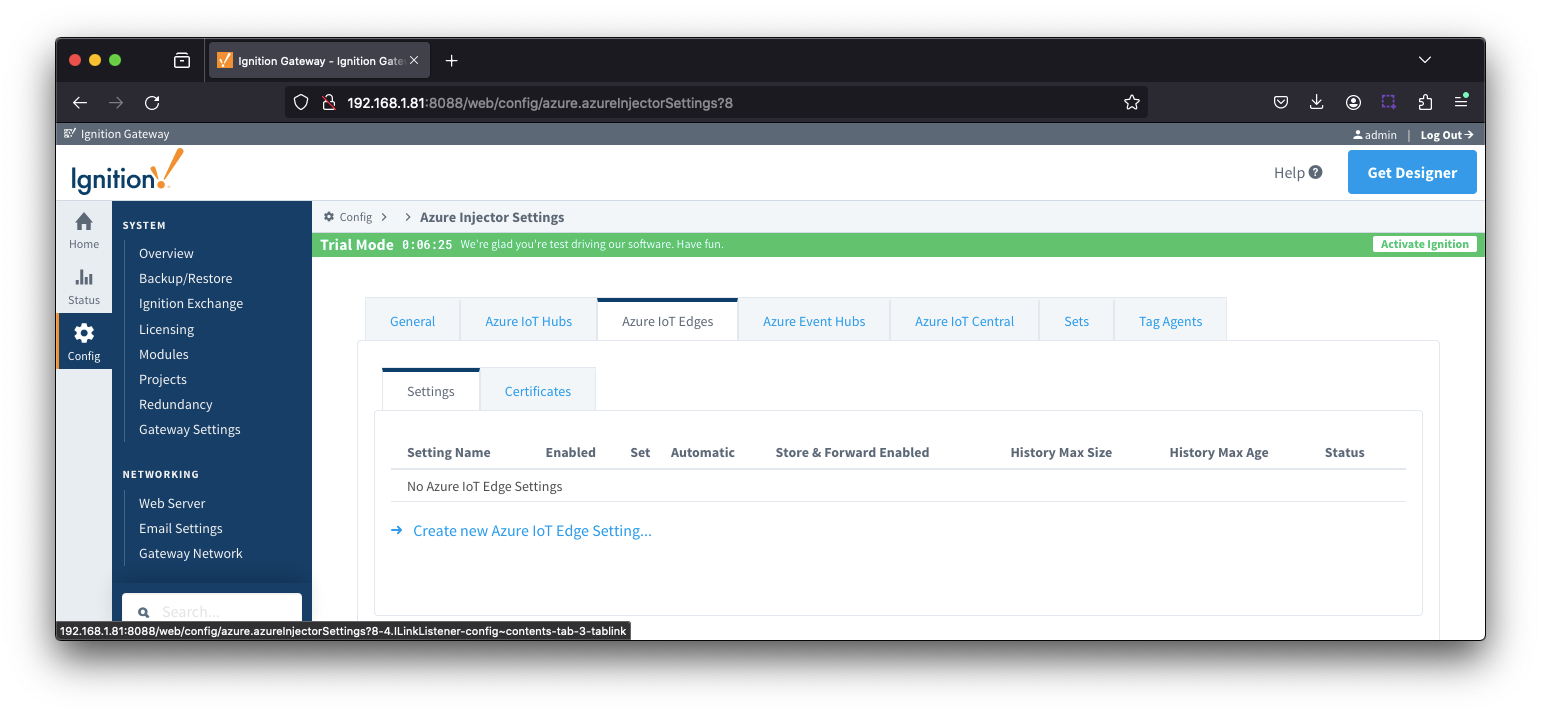 Image Removed
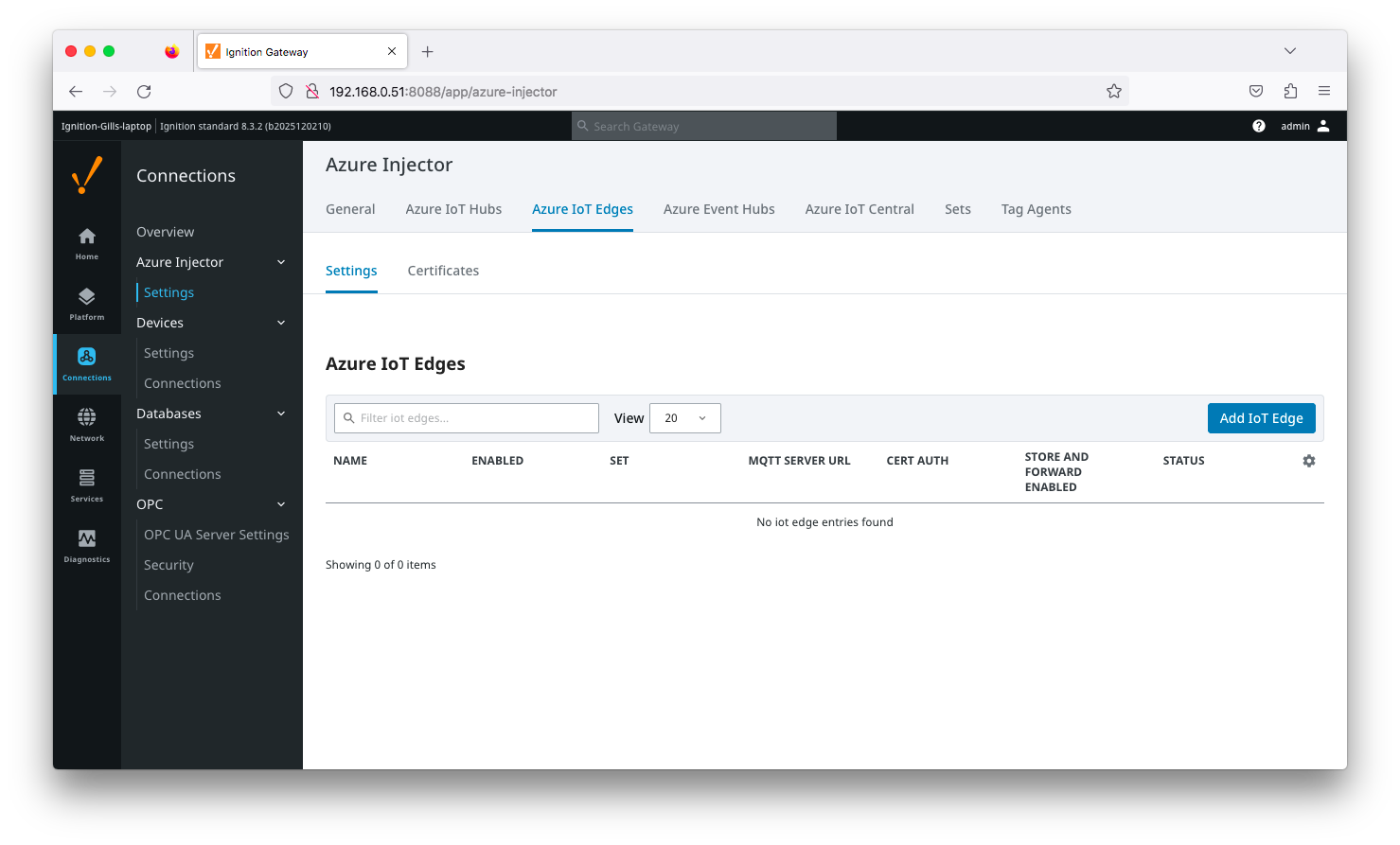 Image Added
Clicking on the 'Create new Azure Add IoT Edge..." link will bring up the following form to add a new Azure IoT Edge. The configuration sections available are Main, Connectivity, Authentication, Store & Forward and Advanced.
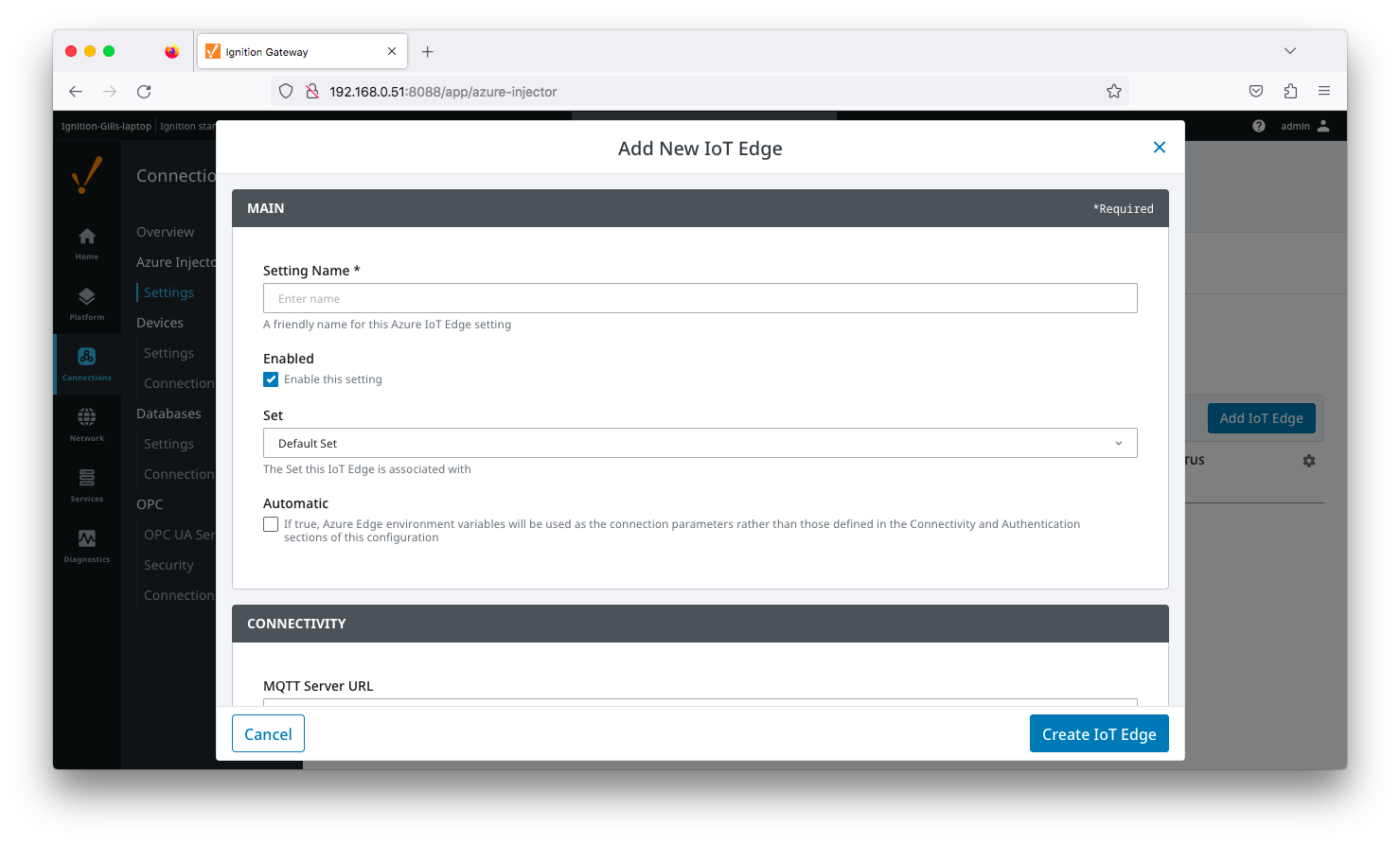 Image Added
| Anchor |
|---|
| azureiotedgesettinsgmain |
|---|
| azureiotedgesettinsgmain |
|---|
|
...
Main
...
- Setting Name
- This is the friendly name of the Azure IoT Edge used to easily identify it. This must be unique.
- Enabled
- Whether or not this connection is enabled.
- Set
- The Set to associate this Azure IoT Edge connection with
- Automatic
- Whether the Azure Edge environment variables will be used as the connection parameters rather than those defined in the connectivity and Authentication sections of the configuration.
| Anchor |
|---|
| azureiotedgesettingsconnectivity |
|---|
| azureiotedgesettingsconnectivity |
|---|
|
...
Connectivity
...
- MQTT Server URL
- The MQTT Server URL for the Azure IoT Edge. Default: ssl://edgehub:8883
| Anchor |
|---|
| azuireiotedgesettingsauthentication |
|---|
| azuireiotedgesettingsauthentication |
|---|
|
...
Authentication
...
- Enable Certificate Based Authentication
- Whether or not to use certificate based authentication.
- If not using certificate based authentication, the 'Password' field must be used.
- If certificate based authentication is used, the other Authentications fields must be used.
- Password (required if not using certificate based authentication)
- This is the Azure IoT Edge connection string used to connect.
- This is either the Connection string associated with the Child Device or with the Azure Edge Module
- CA Certificate File
- The CA certificate file currently in use on the IoT Edge instance.
- It is used for both Certificate and Connection String based authentication and is the CA Device Certificate that was uploaded to the Azure Edge instance.
- The drop down is populated from a list of files that have been uploaded to the IoT Edge/Certificates tab.
- Client Certificate File (required if using certificate based authentication)
- The client certificate file currently in use
- The drop down is populated from a list of files that have been uploaded to the IoT Edge/Certificates tab.
- Client Private Key File (required if using certificate based authentication)
- The client private key file currently in use
- The drop down is populated from a list of files that have been uploaded to the IoT Edge/Certificates tab.
- Password/Private key password
- The password used for the private key if one was specified for the key
- MQTT Hostname (required if using certificate based authentication)
- This is the DNS endpoint name of your IoT Hub
- Device ID (required if using certificate based authentication)
- The Device ID as provisioned in the Azure IoT Edge configuration
- Module ID Config Option
- The method to use to configure the Module ID. This should be 'NONE' if using a 'child device' connection to Edge. It should be 'ENVIRONMENT_VARIABLE' if you want to pick up the Module ID from the 'IOTEDGE_MODULEID' environment variable. Otherwise, specify IGNITION_CONFIG and specify the Module ID in this configuration page.
- Module ID
- The Module ID as provisioned in the Azure IoT Edge configuration. This is only used if the 'Module ID Config Option' is IGNITION_CONFIG.
| Anchor |
|---|
| azureiotedgesettingsstoreandforward |
|---|
| azureiotedgesettingsstoreandforward |
|---|
|
...
Store & Forward
| Note |
|---|
From release 4.0.19, major improvements have been made to the disk-backed History Store. As a result, Message Capacity has been deprecated and History Max Age added |
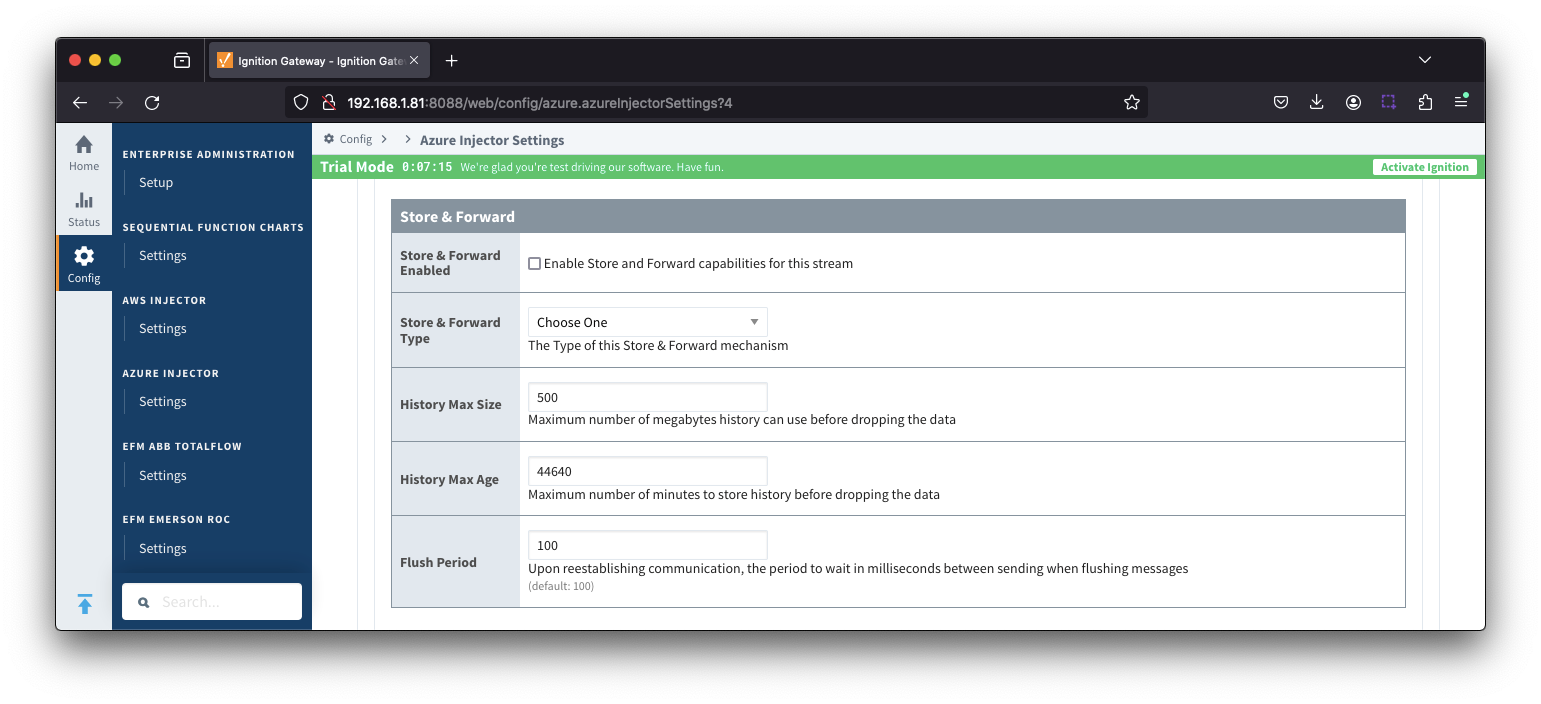 Image Removed
- Store & Forward EnabledStore & Forward Enabled
- Whether to enable Store & Forward capabilities for this endpoint
- Store & Forward Type
- The type of the Store & Forward mechanism options: In_Memory and Disk_Backed (available in release 4.0.17 and higher)Backed
- Data stored with an In_Memory Store & Forward will not be persisted across a module configuration change, module disable/enable, module restart or power loss.
- Data stored with a Disk_Backed Store & Forward will persist across a module configuration change, module disable/enable, module restart or power loss
Message Capacity - deprecated in 4.0.19- The maximum number of messages to store before dropping the oldest historical messages
- History Max Size
- Maximum number of megabytes history can use before dropping the data
- An In_Memory History store will use the Ignition Java Heap memory
- History Max Age
- The maximum number of minutes to store history before dropping the data
- Flush Period
- The period of time to wait (in milliseconds) between sending when flushing messages
| Anchor |
|---|
| azureiotedgessettingsadvanced |
|---|
| azureiotedgessettingsadvanced |
|---|
|
...
Advanced
...
- Keep Alive
- The MQTT keep alive in seconds
- Max Message Size
- The maximum message size in bytes that any message can be when publishing to IoT Edge. Generally, this should match the max message size allowed by IoT Edge.
- Session expiration
- How long in seconds to specify for token timeouts when not using certificate based authentication
- Content Type
- The content type to include in the topic to Azure IoT Edge
- NONE (default) - No content type header will be included with the message
- APPLICATION_JSON - The application/json header will be included with the message and make the body of the message available for routing if content encoding is also not 'NONE'
- Content encoding
- The content encoding to include in the topic to Azure IoT Edge
- NONE (default) - No content encoding header will be included with the message
- UTF_8 - The 'utf-8' header will be included with the message and make the body of the message available for routing if the content type is also set to APPLICATION_JSON
- UTF_16 - The 'utf-16' header will be included with the message and make the body of the message available for routing if the content type is also set to APPLICATION_JSON
- UTF__32 - The 'utf-32' header will be included with the message and make the body of the message available for routing if the content type is also set to APPLICATION_JSON
- Azure Date/Time Format
- The date/time for mat to use when pushing messages to IoT Edge
- LONG_MS_SINCE_EPOCH (default) - The timestamp values will all be as numbers in milliseconds since epoch (Jan 1, 1970) in UTC
- STRING_AZURE_COMPAT - The timestamp will be pushed as described here. This is useful when wanting to use 'edge' timestamps in Azure Time Series Insights.
- Custom Topic Extension
- The Custom Topic Extension to append to the topic string for things like Application Properties
...
Advanced Store & Forward
...
- H2 Database Directory - added in 4.0.25Database Directory
- Directory to store the H2 Database in. Applicable for Disk-backed history store only
- The default base path for Linux is ~yourIgnitionInstance\data\modules and the database will be included in the Ignition GWBK
- The default location for Windows Linux is ~yourIgnitionInstance\user-lib\modules and the database will not be included in the Ignition GWBK
- The database file will be created in this directory under the base path com.cirrus-link\com.cirruslink.injector.azure.gateway\h2
- H2 Database Port
- TCP Port to connect to H2 Database for Disk_Backed Store & Forward
...
| Note |
|---|
| All certificate or private keys must be in PEM format . If using modules pre 4.0.9, any private key must also be in RSA PKCS1 format. If using modules 4.0.9 or greater, with any private key must also be in either RSA PKCS1 or PKCS8 format. |
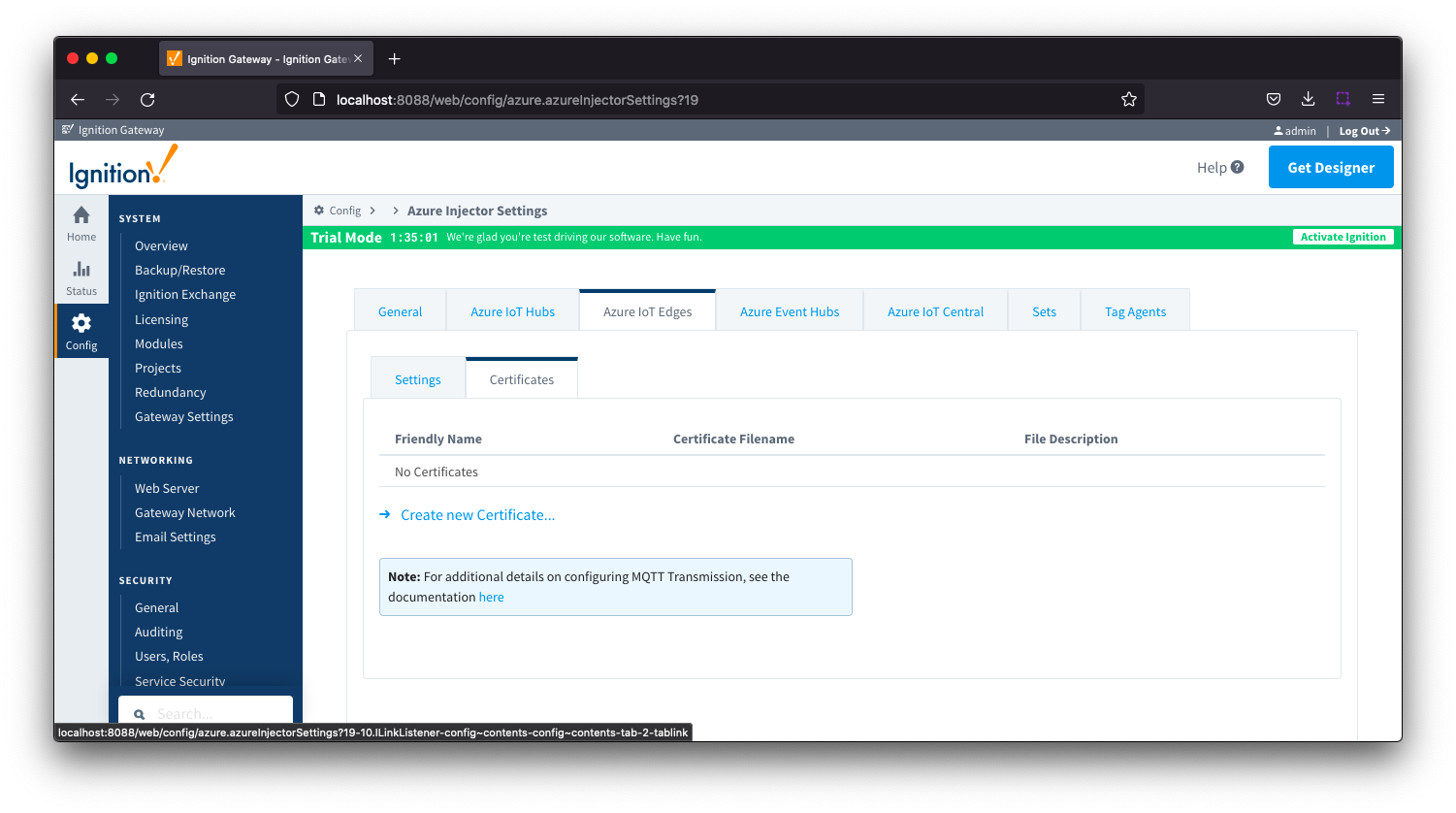 Image Removed
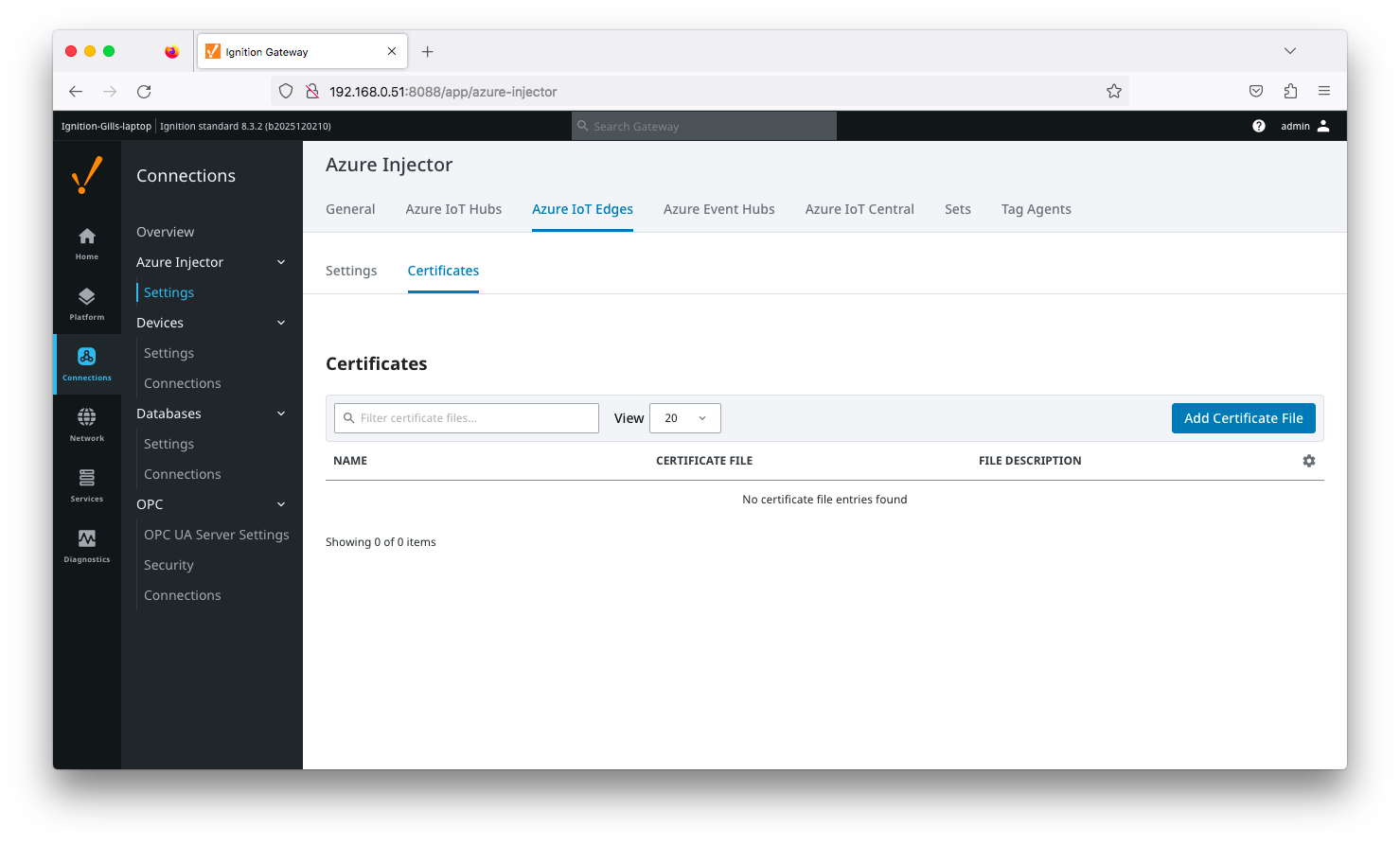 Image Added
Clicking on the 'Create new Certificate...Add Certificate File' will bring up the following form to add a new certificate. The Certificates tab contains only a single Main section.
| Anchor |
|---|
| azureiotedgescertificatesmain |
|---|
| azureiotedgescertificatesmain |
|---|
|
Azure IoT Edges Certificates - Main
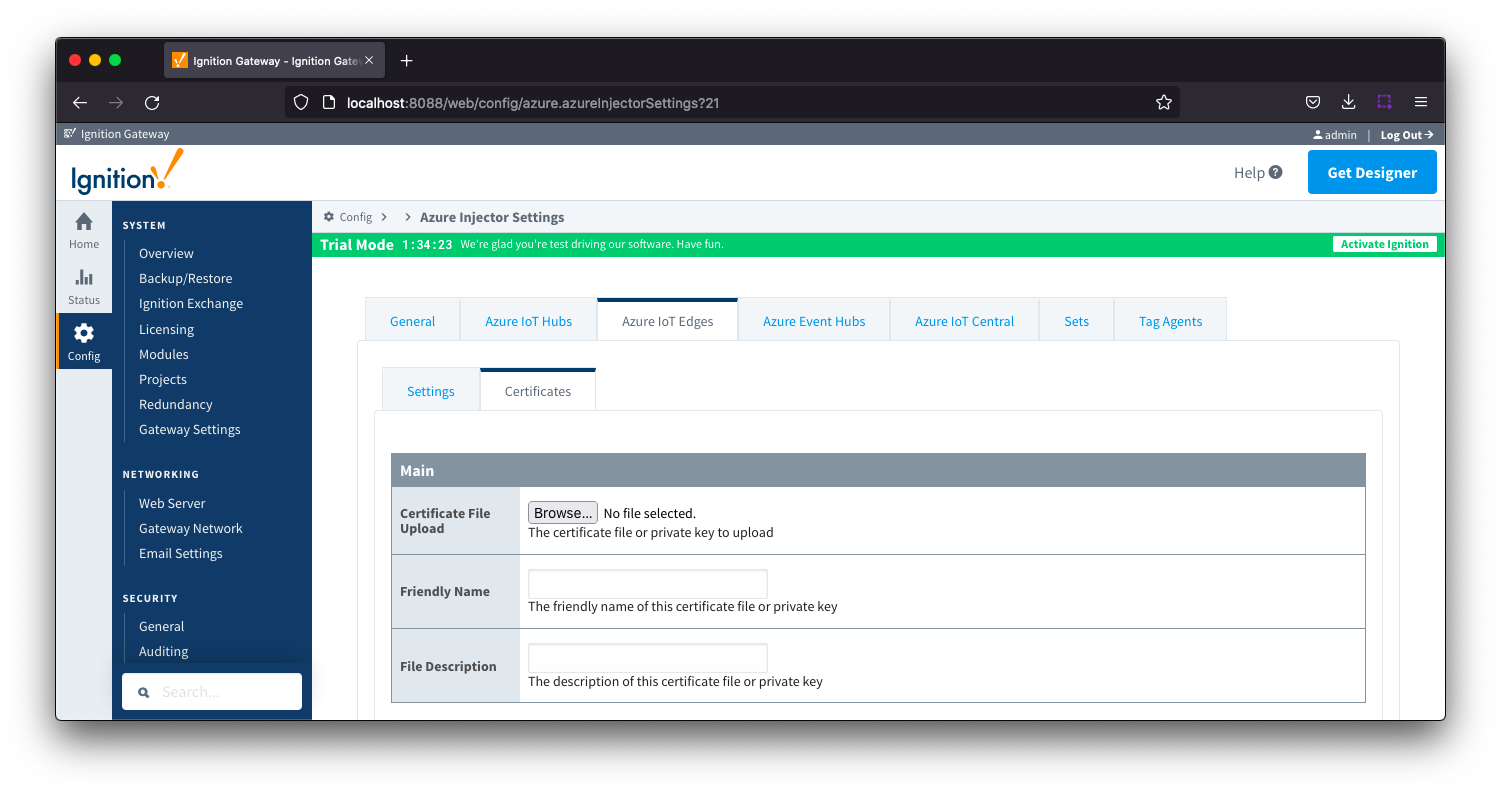 Image Removed
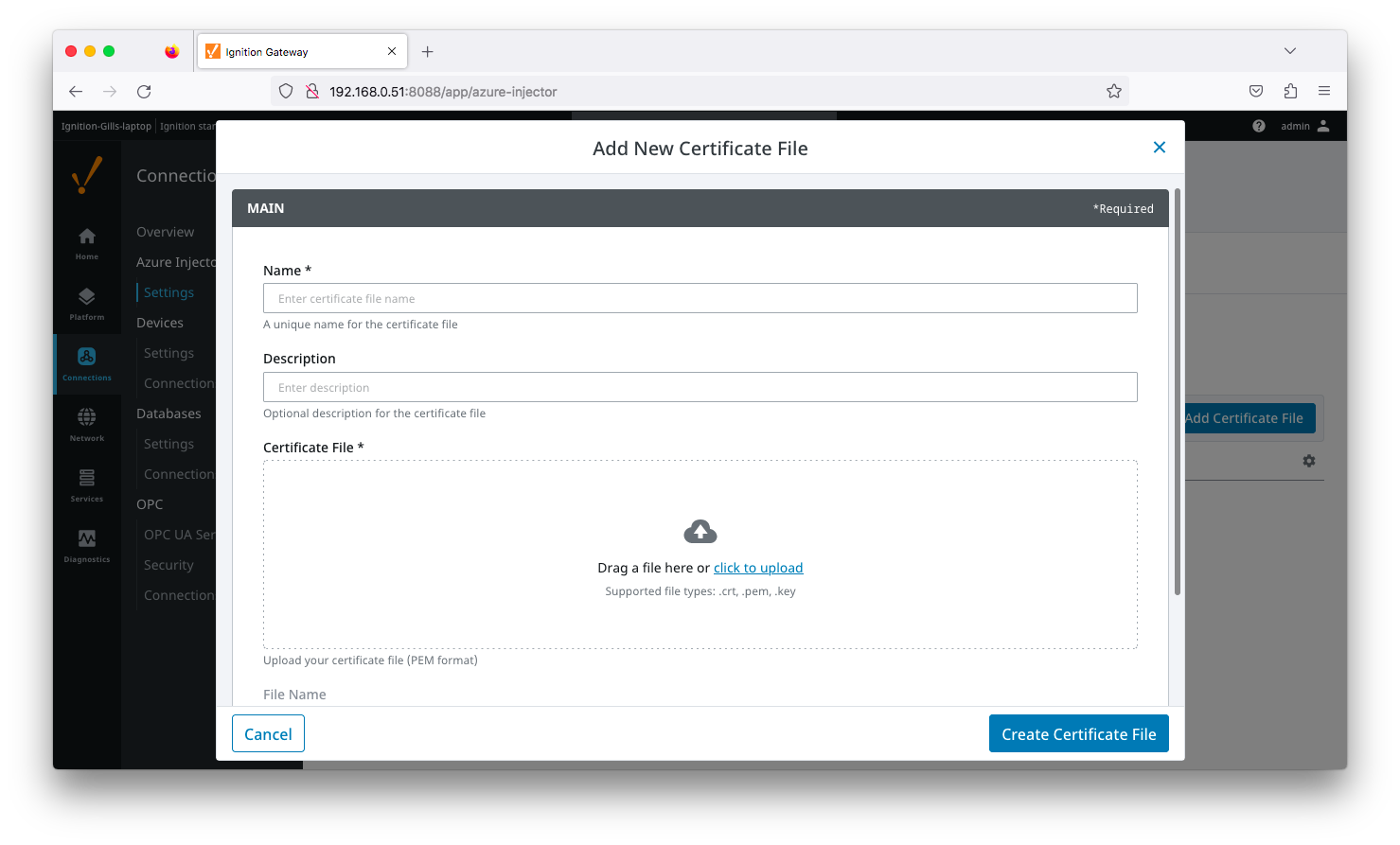 Image Added
- Certificate File Upload
- Browse to the certificate or private key to upload
- Friendly Name
- The friendly name of the certificate file or private key
- File Description
- The description of the certificate file or private key
...
The Azure Event Hubs tab has two parts - Settings and Certificates
...
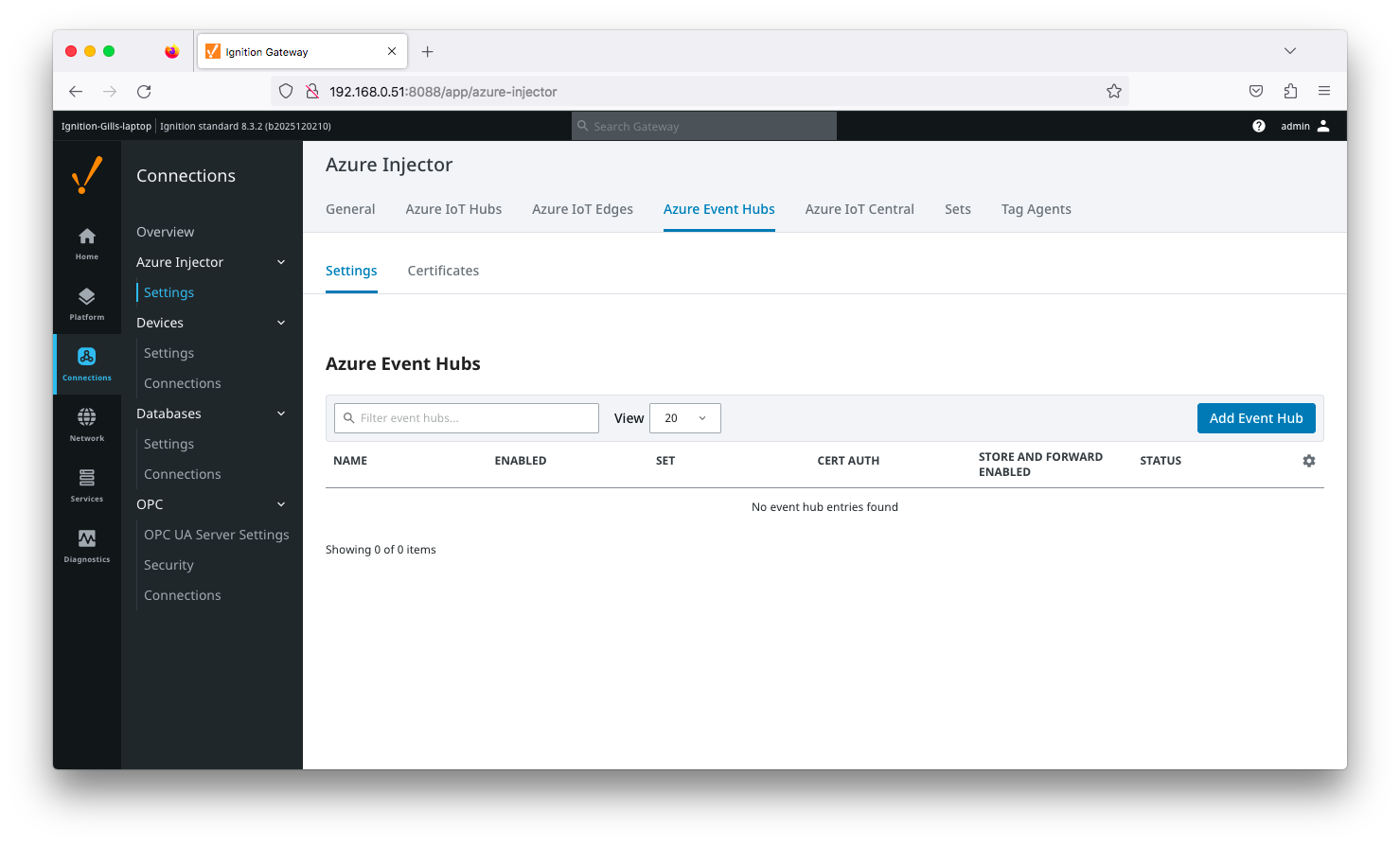 Image Added
| Anchor |
|---|
| azureeventhubssettings |
|---|
| azureeventhubssettings |
|---|
|
Azure Event Hubs - Settings
This tab provides a list of Azure Event Hub endpoints that the module should connect to to push tag data. One or more Azure Event Hub endpoints can be configured on this tab. 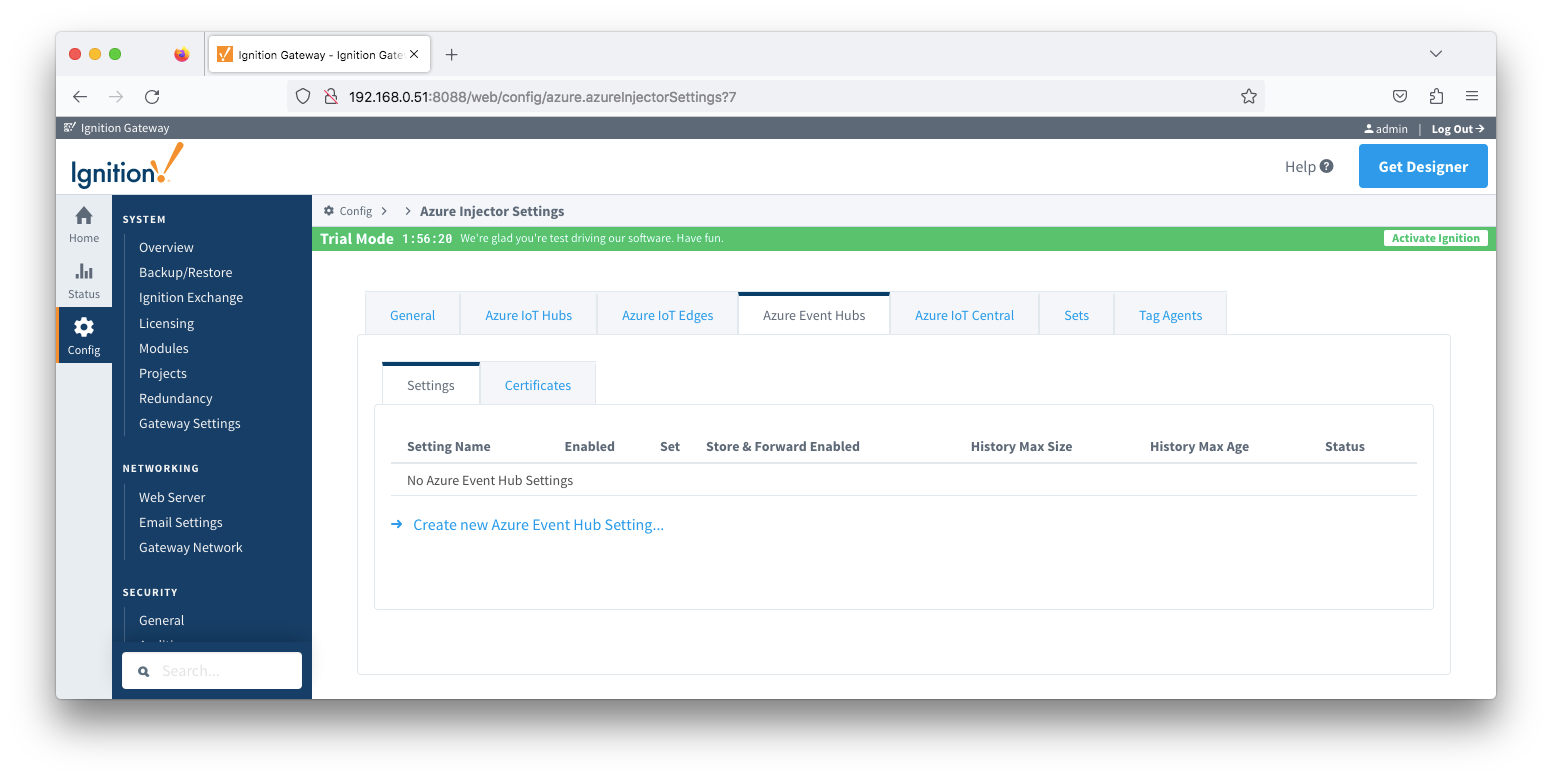 Image Removed
Clicking on the 'Create new Azure Add Event Hub ..' link will bring up the following form to add a new Azure Event Hub. The configuration sections available are Main, Authentication, Store & Forward and Advanced
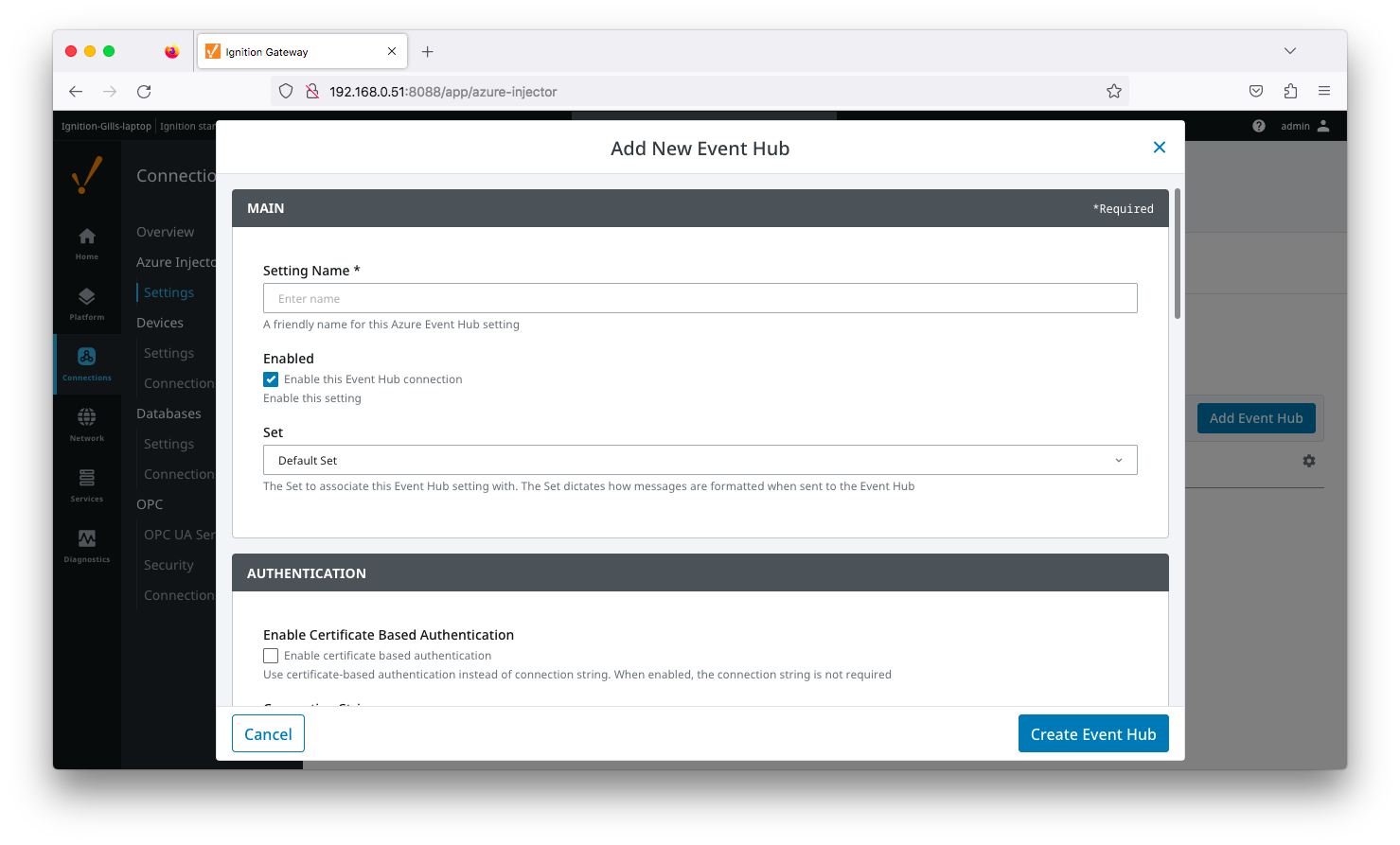 Image Added
| Anchor |
|---|
| eventhubssettingsmain |
|---|
| eventhubssettingsmain |
|---|
|
...
Main...
- Setting Name
- This is a friendly name of the Azure Event Hub used to easily identify it. This must also be unique.
- Enabled
- Whether or not this connection is enabled.
- Set
- The Set to associate this Azure Event Hub connection with.
| Anchor |
|---|
| eventhubssettingsauthentication |
|---|
| eventhubssettingsauthentication |
|---|
|
...
Authentication
...
- Enable Certificate Based Authentication
- Whether or not to use certificate based authentication.
- If not using certificate based authentication, the 'Password' field must be used.
- If certificate based authentication is used, the other Authentications fields must be used.
- Password/Connection String
- Tenant ID
- Service Principal Client ID
- The Service Principal Client ID associated with the client certificate
- Event Hub Namespace
- The Event Hub Namespace associated with the client certificate
- Event Hub Name
- The Event Hub Name associated with the client certificate
- Client Certificate File
- The client certificate file currently in use
- The drop down is populated from a list of files that have been uploaded to the Event Hubs Certificates tab.
- Client Private Key File
- The client private key file currently in use
- The drop down is populated from a list of files that have been uploaded to the Event Hubs Certificates tab.
- Password
- The password used for the private key if one was specified for the key
| Anchor |
|---|
| eventhubssettingsstoreandforward |
|---|
| eventhubssettingsstoreandforward |
|---|
|
...
Store & Forward
...
| Note |
|---|
From release 4.0.19, major improvements have been made to the disk-backed History Store. As a result, Message Capacity has been deprecated and History Max Age added |
...
- Store & Forward Enabled
- Whether to enable Store & Forward capabilities for this endpoint
- Store & Forward Type
- The type of the Store & Forward mechanism options: In_Memory and Disk_Backed (available in release 4.0.17 and higher)
- Data stored with an In_Memory Store & Forward will not be persisted across a module configuration change, module disable/enable, module restart or power loss.
- Data stored with a Disk_Backed Store & Forward will persist across a module configuration change, module disable/enable, module restart or power loss
Message Capacity - deprecated in 4.0.19- The maximum number of messages to store before dropping the oldest historical messages/enable, module restart or power loss
- History Max Size
- The maximum number of megabytes history can use before dropping the data
- In_Memory Store & Forward will use the Ignition Java Heap memory
- History Max Age
- The maximum number of minutes to store history before dropping the data
- Flush Period
- The period of time to wait (in milliseconds) between sending when flushing messages
| Anchor |
|---|
| eventhubssettingsadvanced |
|---|
| eventhubssettingsadvanced |
|---|
|
...
Advanced
...
- Max Message Size
- The maximum message size for the Azure Event Hub. Default is 262144 bytes (256KB). Generally, this should match the max message size allowed by the Event Hub.
- EventHub Basic: 262144 bytes (256KB)
- EventHub Standard or better: 1048576 bytes (1MB)
- Content Encoding
- The content encoding of the data to push to Event Hub.
- Current options are UTF_8, UTF_16 and UTF_32
- Azure Date/Time Format
- The date/time format to use when pushing messages to IoT Hub
- LONG_MS_SINCE_EPOCH (default) - The timestamp values will all be as numbers in milliseconds since epoch (Jan 1, 1970) in UTC
- STRING_AZURE_COMPAT - The timestamp will be pushed as described here. This is useful when wanting to use 'edge' timestamps in Azure Time Series insights.
- See Pushing Data to Azure Time Series Insights tutorial for more detail
...
Advanced Store & Forward
...
- H2 Database Directory - added in 4.0.25
- Directory to store the H2 Database in. Applicable for Disk-backed history store only
- The default base path for Linux is ~yourIgnitionInstance\data\modules and the database will be included in the Ignition GWBK
- The default location for Windows Linux is ~yourIgnitionInstance\user-lib\modules and the database will not be included in the Ignition GWBK
- The database file will be created in this directory under the base path com.cirrus-link\com.cirruslink.injector.azure.gateway\h2
- H2 Database Port
- TCP Port to connect to H2 Database for Disk_Backed Store & Forward
...
| Note |
|---|
| All certificate or private keys must be in PEM format. Private key formats supported include RSA PKCS1 or PKCS8 format. |
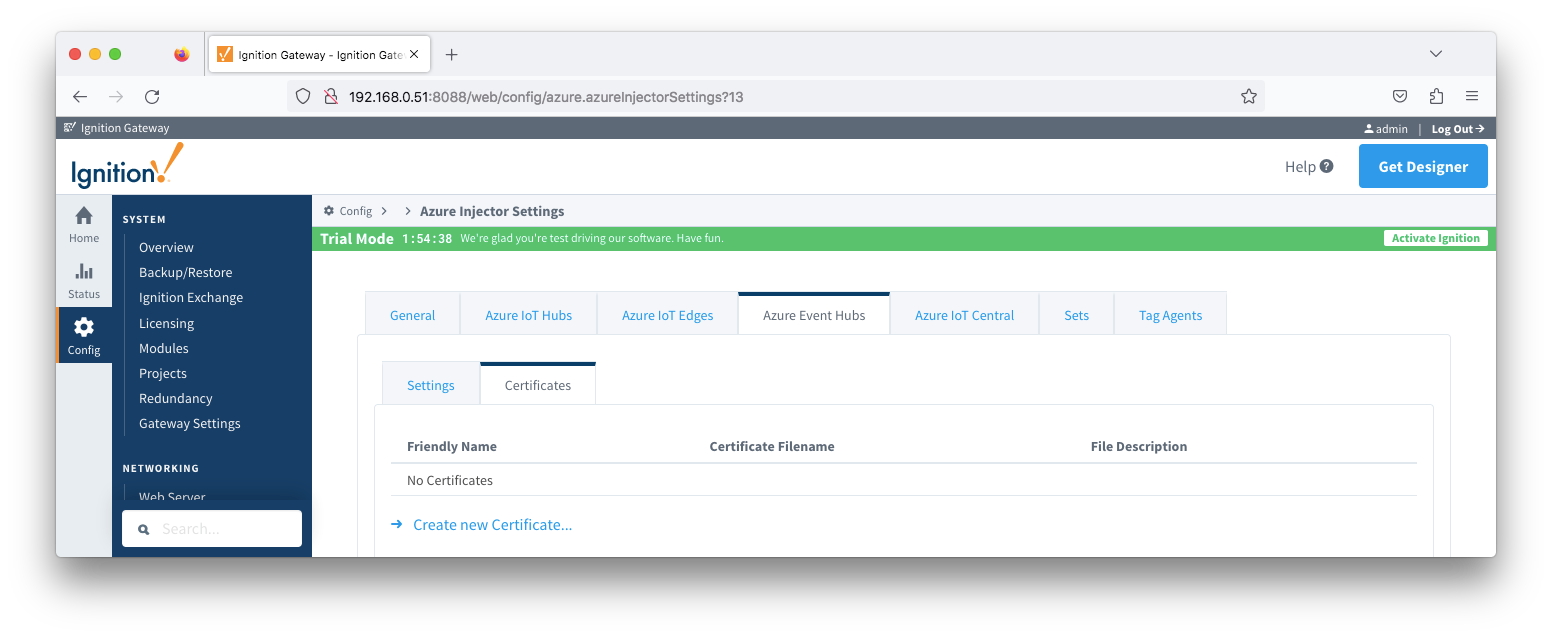 Image Removed
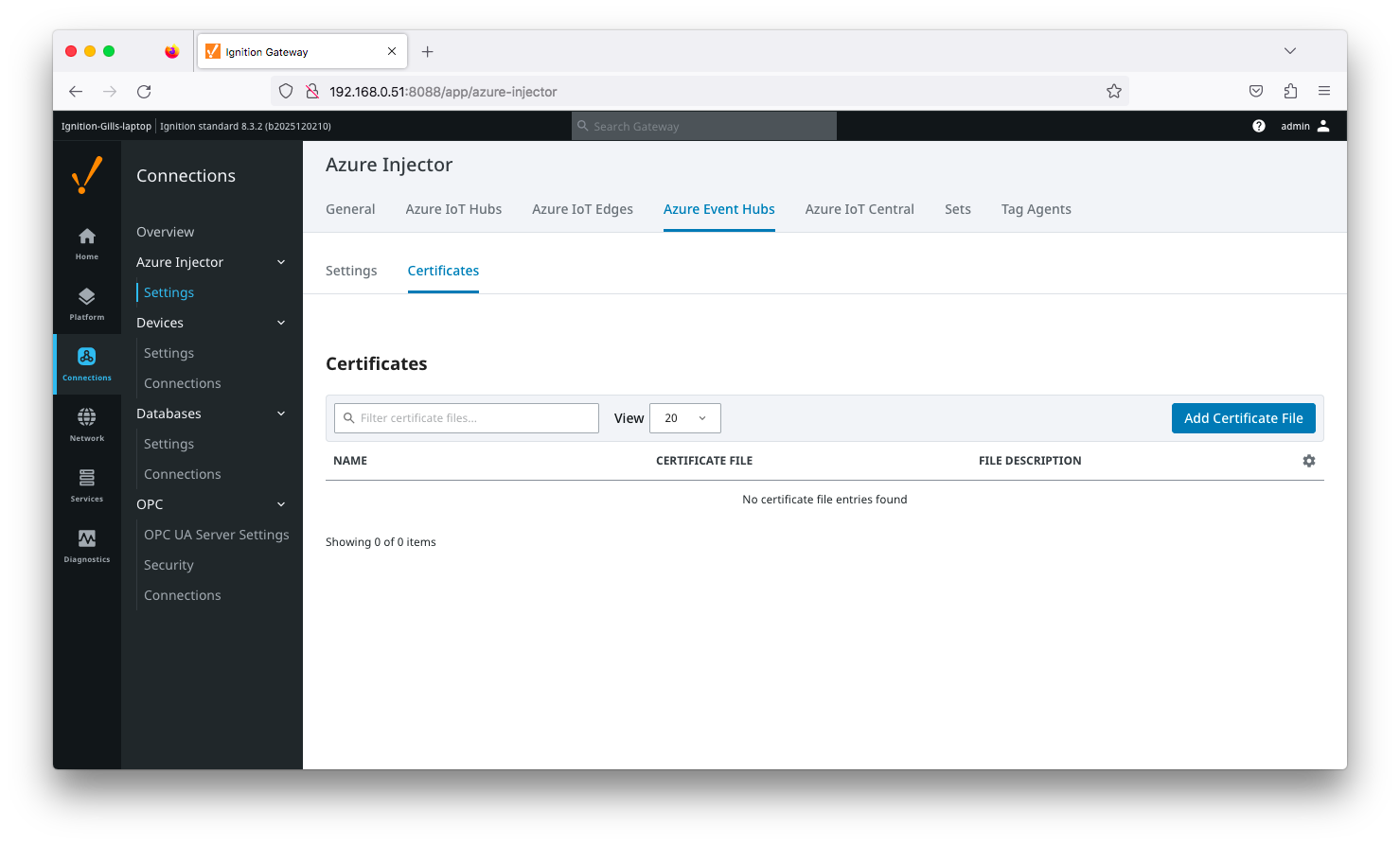 Image Added
Clicking on the 'Create new Certificate...Add Certificate File' will bring up the following form to add a new certificate. The Certificates tab contains only a single Main section.
| Anchor |
|---|
| azureeventhubscertificatesmain |
|---|
| azureeventhubscertificatesmain |
|---|
|
...
Main
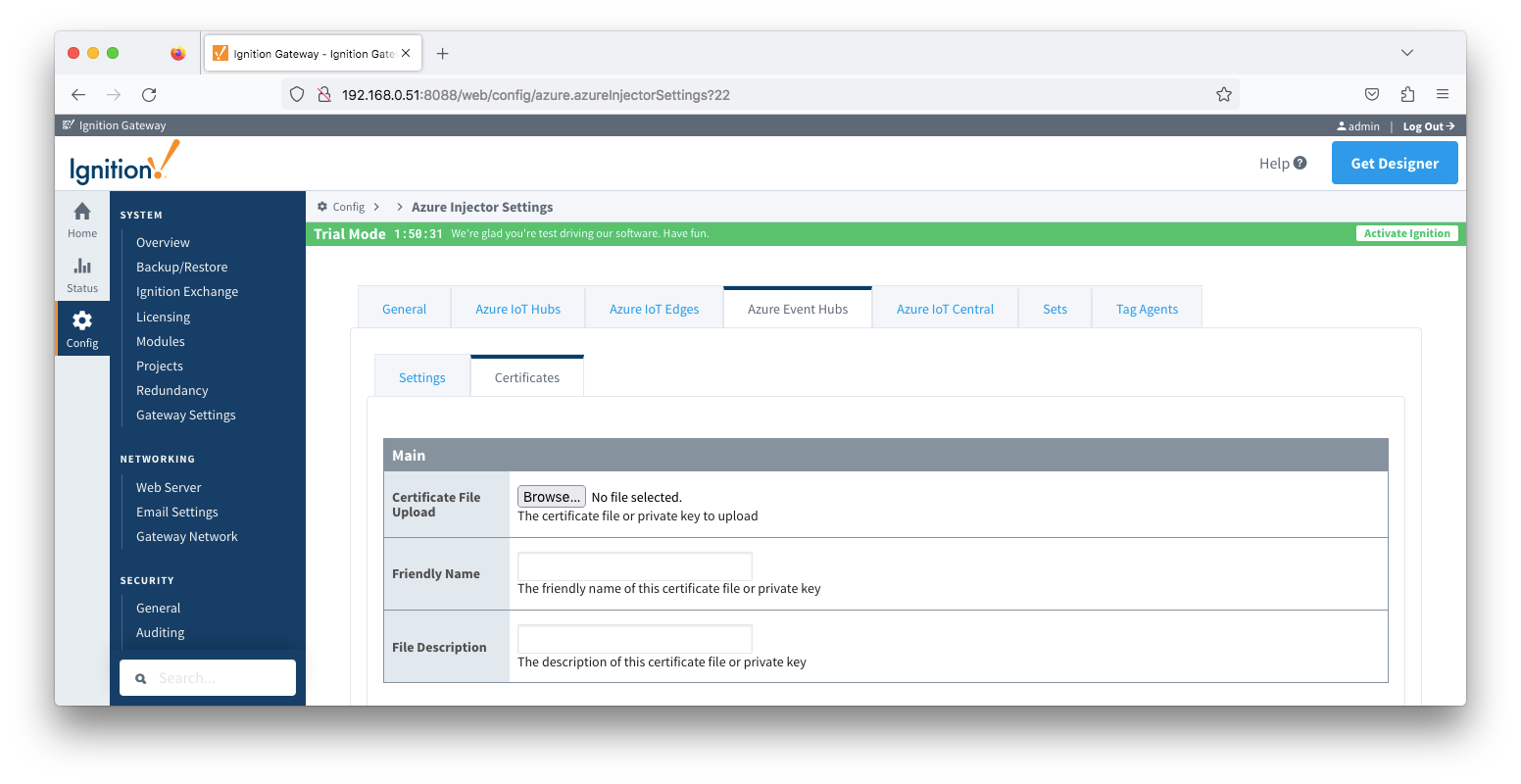 Image Removed
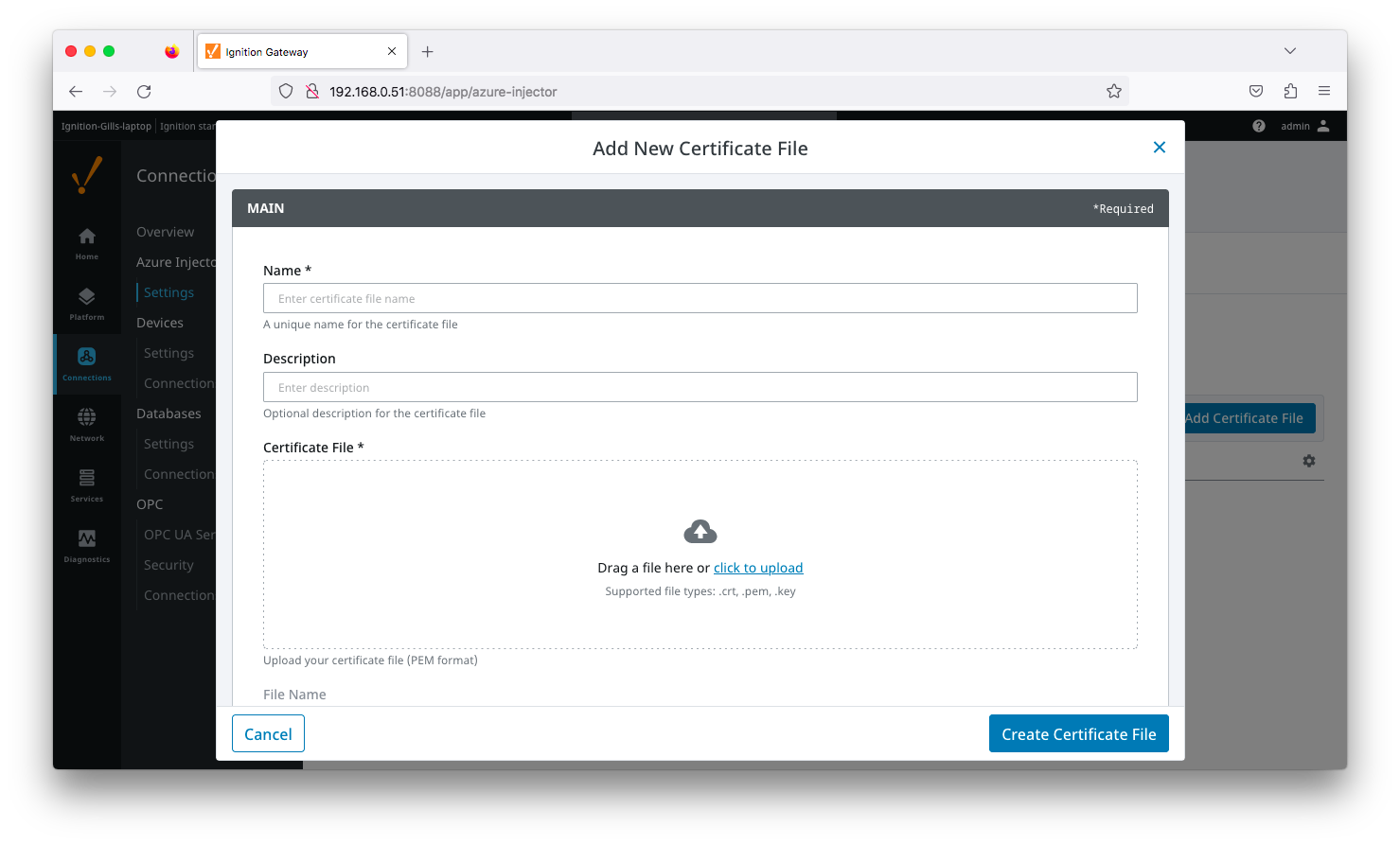 Image Added
- Certificate File Upload
- Browse to the certificate or private key to upload
- Friendly Name
- The friendly name of the certificate file or private key
- File Description
- The description of the certificate file or private key
...
This tab provides a list of Azure IoT Central endpoints that the module should connect to to push tag data. One or more Azure IoT Central endpoints can be configured on this tab.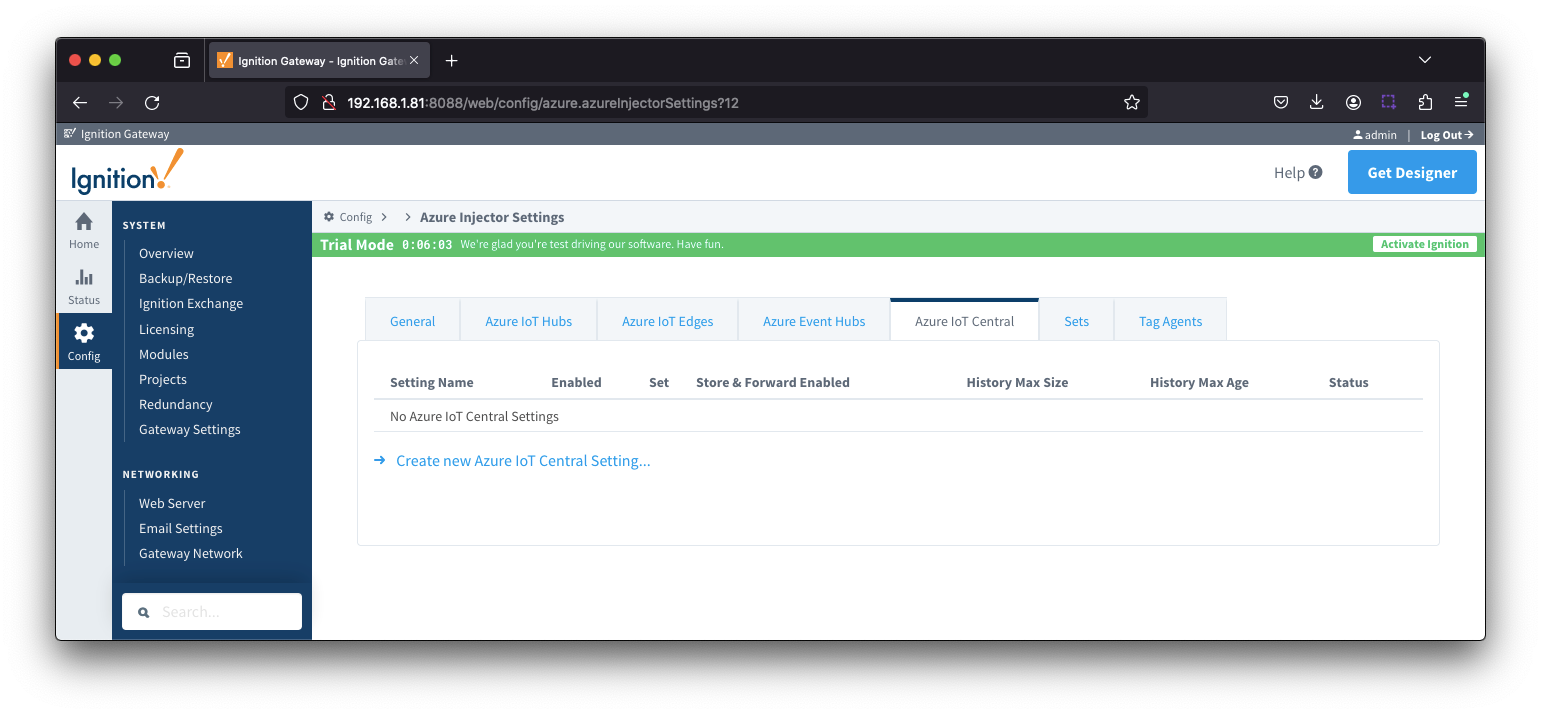 Image Removed
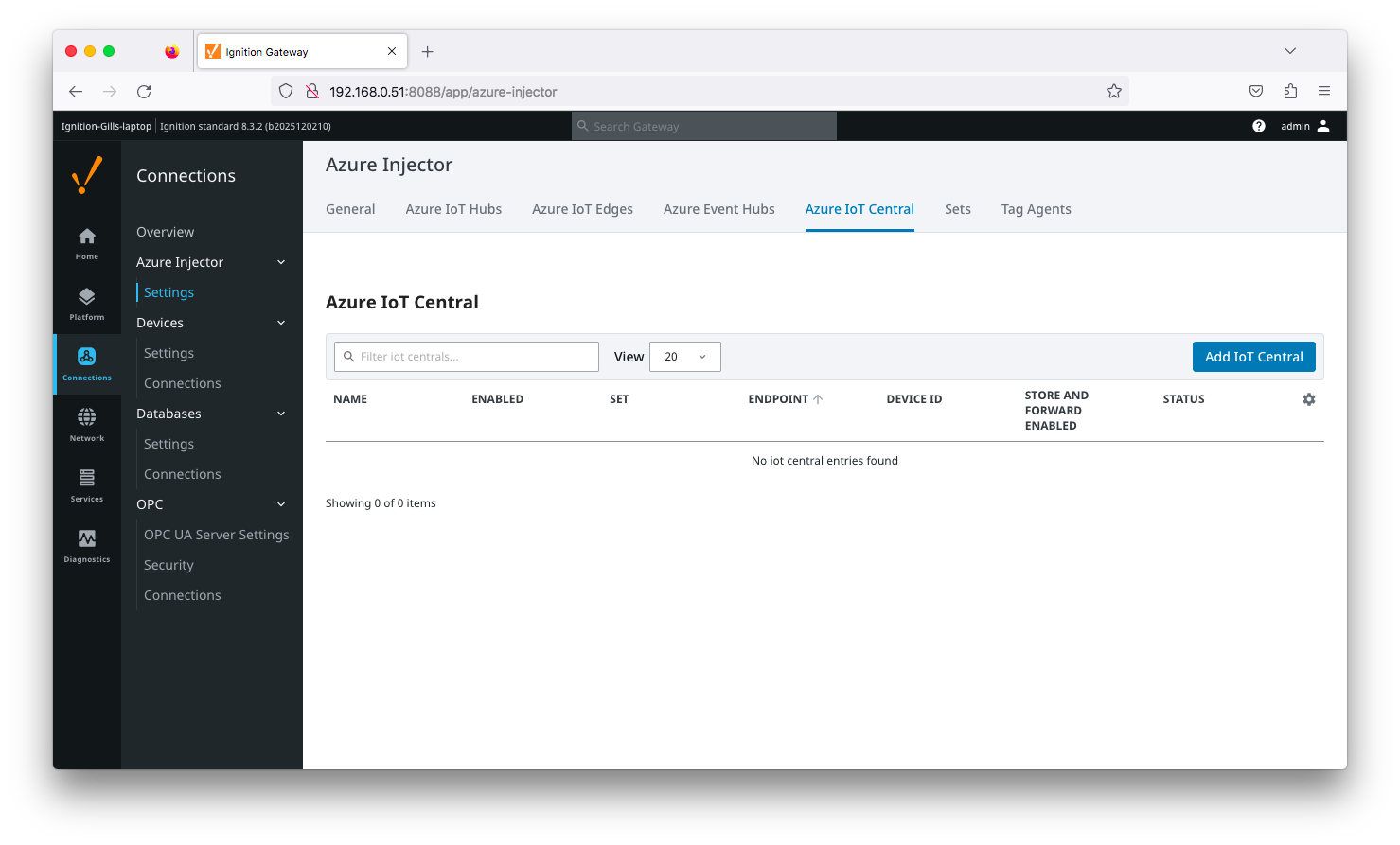 Image Added
Clicking on the 'Create new Azure Add IoT Central Setting.." link will bring up the following form to add a new Azure IoT Central. The configuration sections available are Main, Store & Forward and Advanced.
| Anchor |
|---|
| iotcentralmain |
|---|
| iotcentralmain |
|---|
|
...
Main
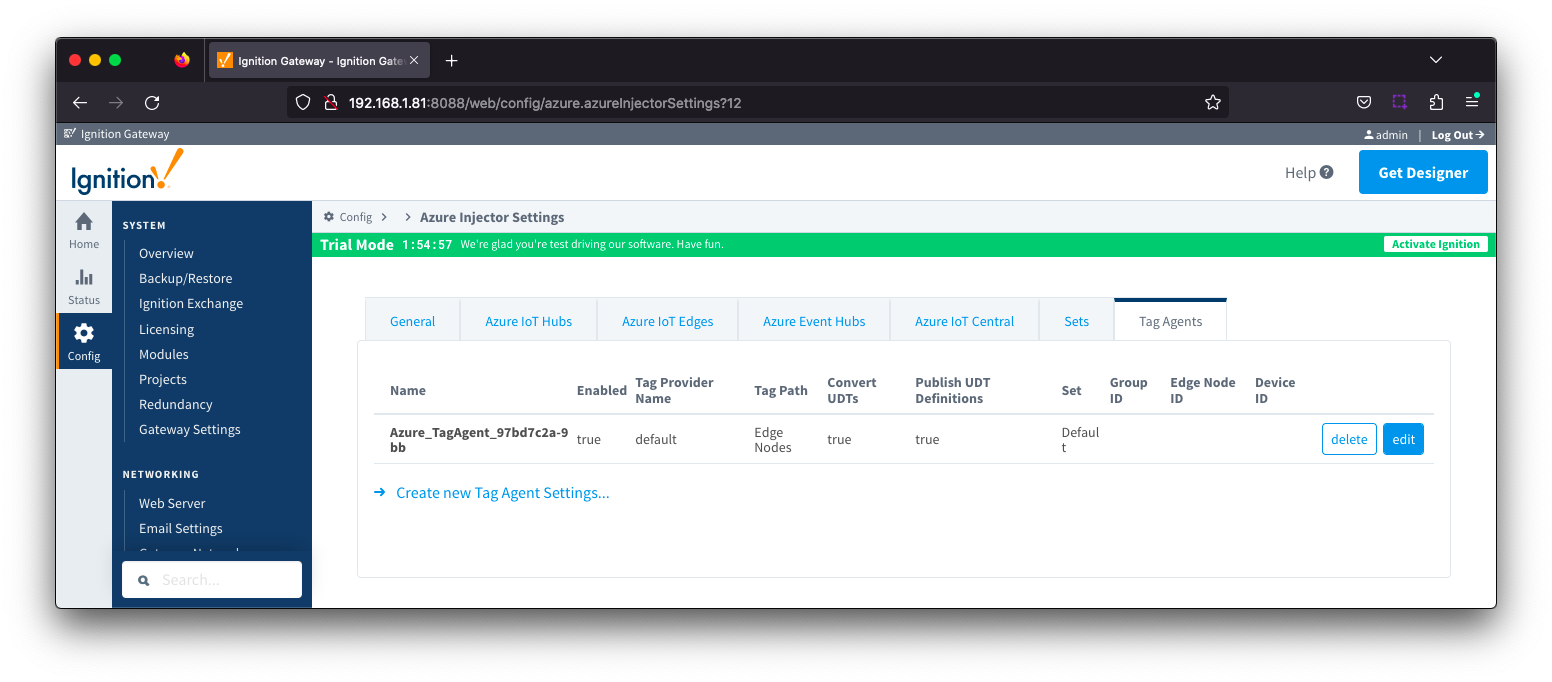 Image Removed
- Setting Name
- This a friendly name of the Azure IoT Central used to easily identify it. This must also be unique.
- Enabled
- Whether or not this connection is enabled.
- Scope ID
- The Azure IoT Central Scope ID.
- Found in the IoT Central -> Administration → Device Settings.
- Password
- The Azure Enrollment Group Symmetric Key.
- Found in the IoT Central -> Security -> Permissions -> Device Connection Groups -> [SAS-IoT-Devices] -> SAS -> Primary/Second key.
- Global Endpoint
- The global endpoint of the IoT Central connection. Default is global.azure-devices-provisioning.net
- Provisioned Device ID
- The provisioned Device ID associated with this IoT Central connection.
- Model ID
- The Model ID associated with this IoT Central connection.
- Set
- The Set associated with this IoT Central connection.
| Anchor |
|---|
| iotcentralstore&forward |
|---|
| iotcentralstore |
|---|
|
...
Store & Forward| Note |
|---|
From release 4.0.19, major improvements have been made to the disk-backed History Store. As a result, Message Capacity has been deprecated and History Max Age added |
Image Removed
- Store & Forward Enabled
- Whether to enable Store & Forward capabilities for this endpoint
- Store & Forward Type
- The type of the Store & Forward mechanism options: In_Memory and Disk_Backed (available in release 4.0.17 and higher)
- Data stored with an In_Memory Store & Forward will not be persisted across a module configuration change, module disable/enable, module restart or power loss.
- Data stored with a Disk_Backed Store & Forward will persist across a module configuration change, module disable/enable, module restart or power loss
Message Capacity - deprecated in 4.0.19- The maximum number of messages to store before dropping the oldest historical messagespower loss
- History Max Size
- The maximum number of megabytes history can use before dropping the data
- In_Memory Store & Forward will use the Ignition Java Heap memory
- History Max Age
- The maximum number of minutes to store history before dropping the data
- Flush Period
- The period of time to wait (in milliseconds) between sending when flushing messages
| Anchor |
|---|
| iotcentraladvanced |
|---|
| iotcentraladvanced |
|---|
|
...
Advanced
...
- Max Message Size
- The maximum message size in bytes that any message can be when pushing to IoT Central.
- Azure Date/Time Format
- The date/time format to use when pushing messages to IoT Hub
- LONG_MS_SINCE_EPOCH (default) - The timestamp values will all be as numbers in milliseconds since epoch (Jan 1, 1970) in UTC
- STRING_AZURE_COMPAT - The timestamp will be pushed as described here. This is useful when wanting to use 'edge' timestamps in Azure Time Series insights.
- See Pushing Data to Azure Time Series Insights tutorial for more details
...
Advanced Store & Forward
...
- H2 Database Directory - added in 4.0.25
- Directory to store the H2 Database in. Applicable for Disk-backed history store only
- The default base path for Linux is ~yourIgnitionInstance\data\modules and the database will be included in the Ignition GWBK
- The default location for Windows Linux is ~yourIgnitionInstance\user-lib\modules and the database will not be included in the Ignition GWBK
- The database file will be created in this directory under the base path com.cirrus-link\com.cirruslink.injector.azure.gateway\h2
- H2 Database Port
- TCP Port to connect to H2 Database for Disk_Backed Store & Forward
...
Out of the box the Azure Injector module will have one "Default" set defined. Additional Sets can be configured for situations where multiple Tag Agents will need to push to different Azure IoT Hub endpoints.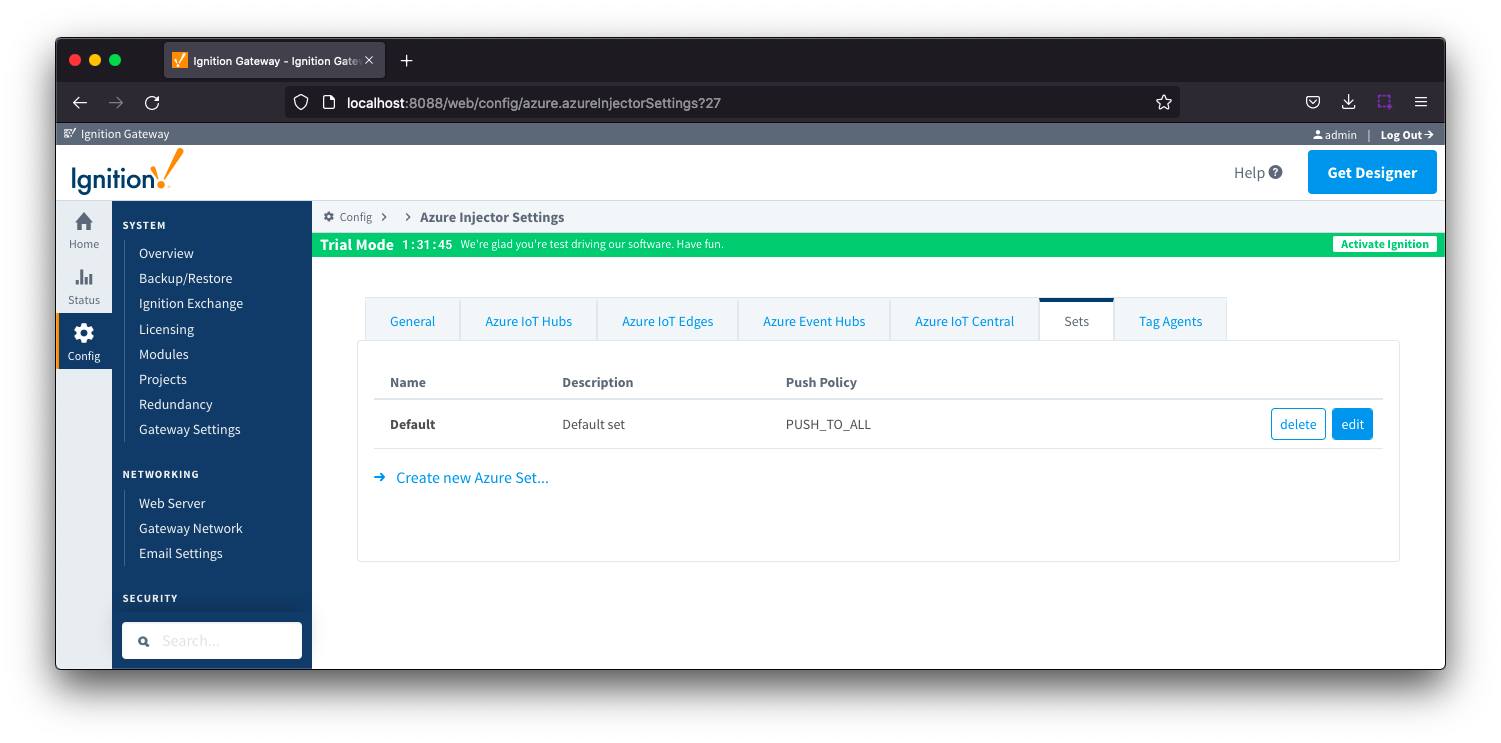 Image Removed
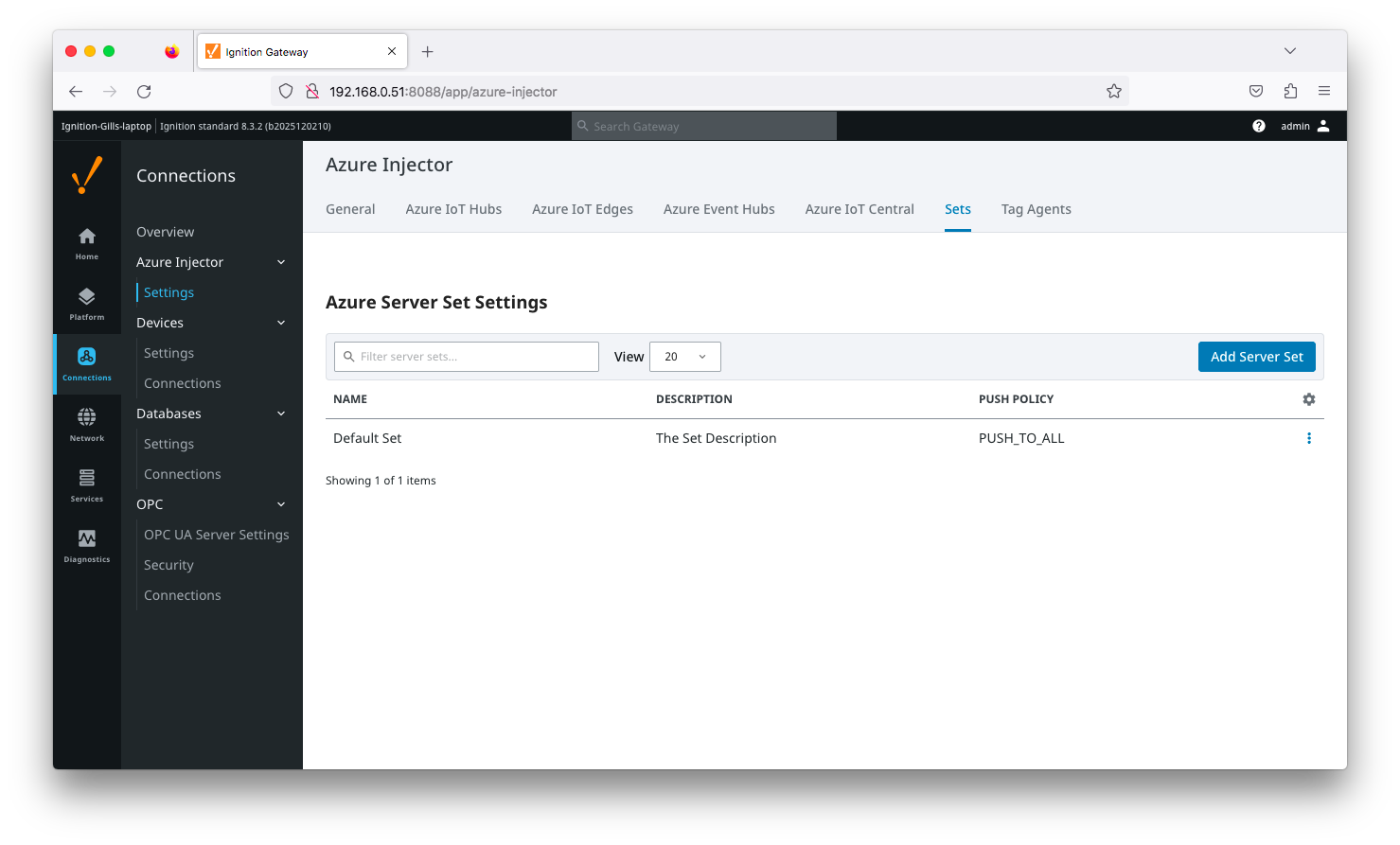 Image Added
Clicking on the 'Create new Azure Set ..Add Server Set' link will bring up the following form to add a new Set. The configuration section available is Main
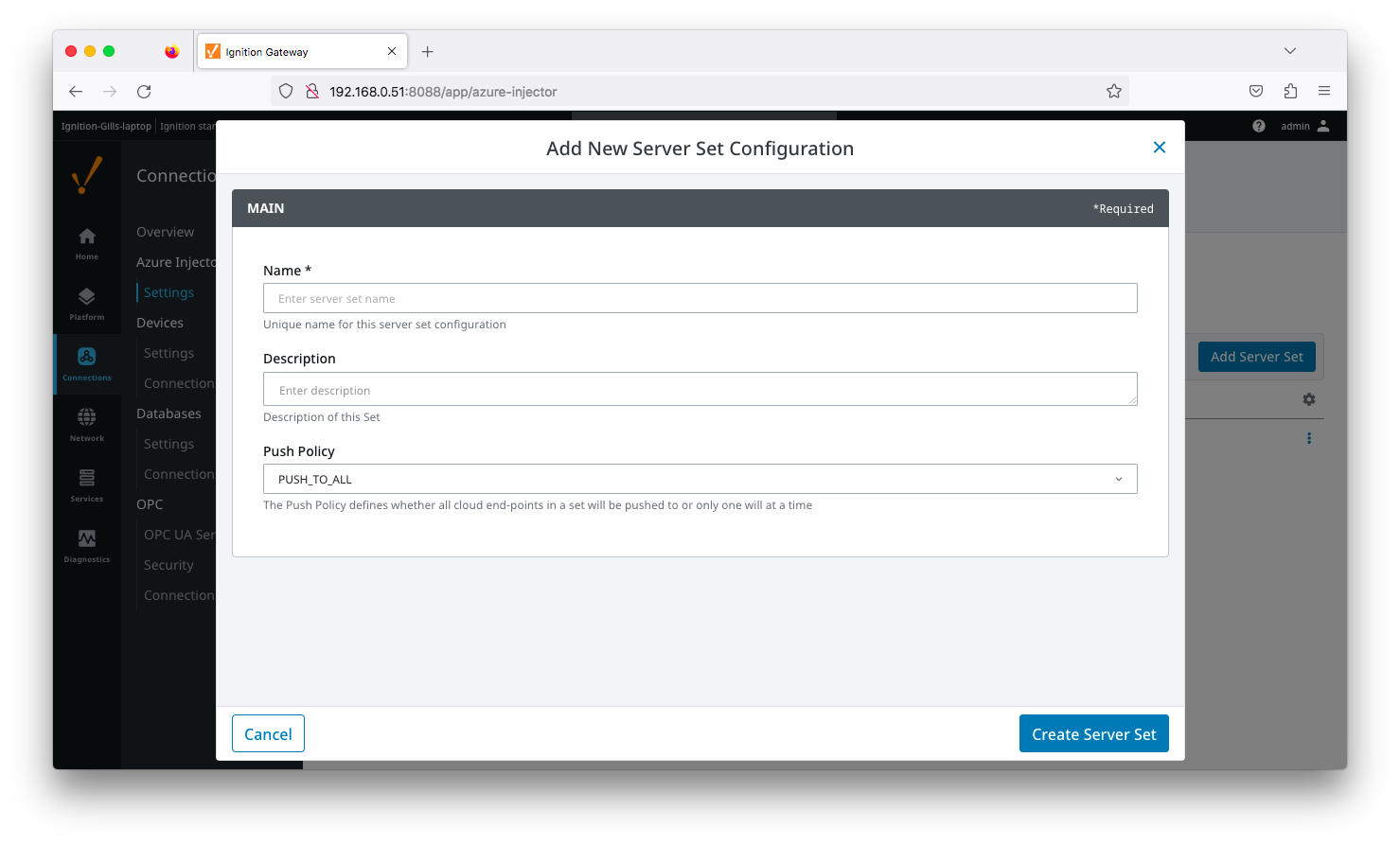 Image Added
...
Main
...
- Name
- This is the friendly name of the set used to easily identify it.
- Description
- This is a friendly description of the set.
- Push Policy
- This defines which endpoints to push to.
- If PUSH_TO_ALL is selected, every endpoint that is part of this set will receive all messages.
- If PUSH_TO_ANY is selected, only one of the endpoints that is part of this set will receive any given message. PUSH_TO_ANY is useful when adding endpoint configurations to increase the throughput of the Injector.
...
If your tag folder hierarchy does not conform to this structure, you can explicitly define these required elements under the SparkPlug Settings section to be included when building the message topic.
Image Removed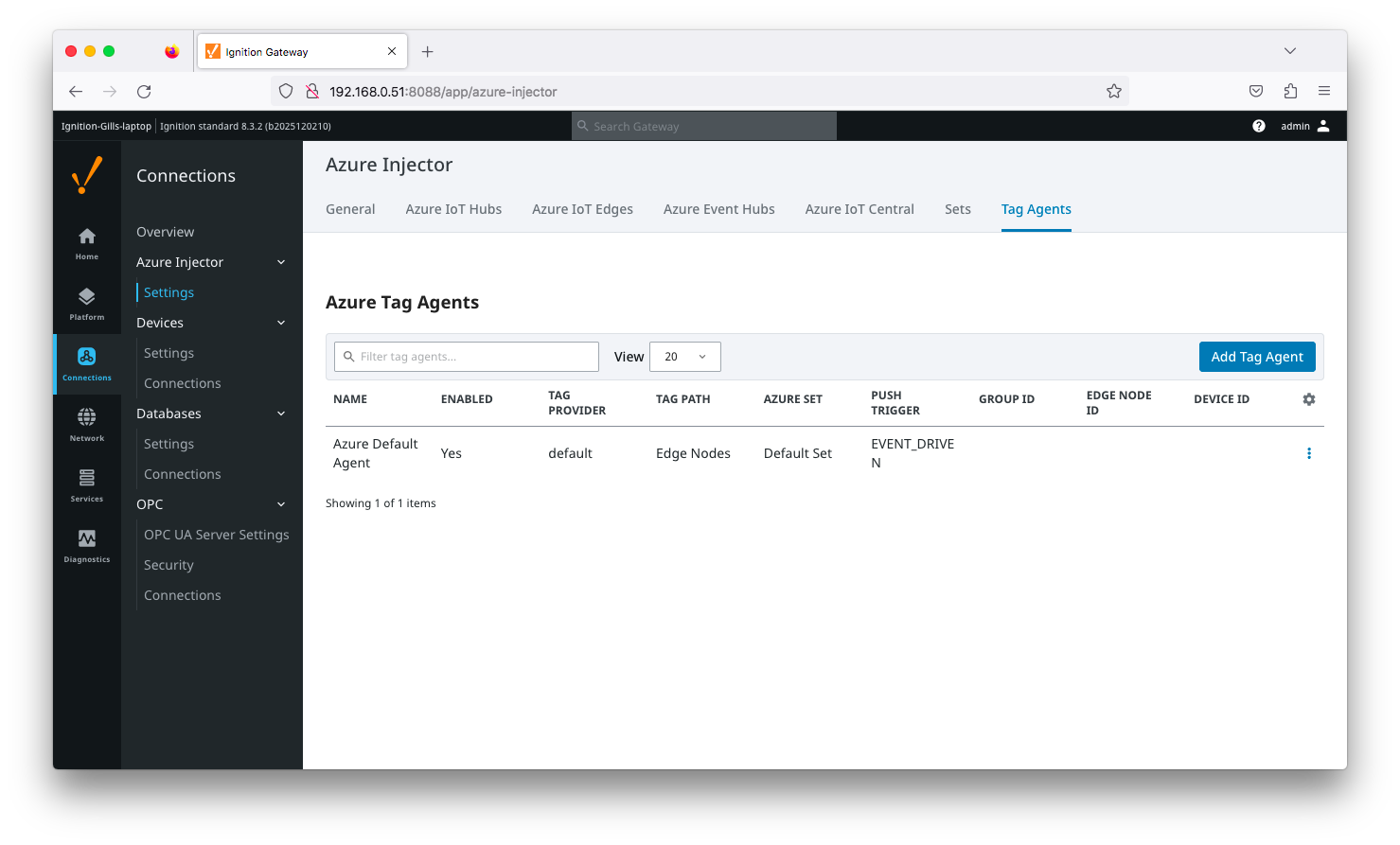 Image Added
Clicking on the 'Create new Add Tag Agent Settings..' link will bring up the following form to add a new Tag Agent. The configuration sections available are Agent Settings, Sparkplug Settings and Advanced
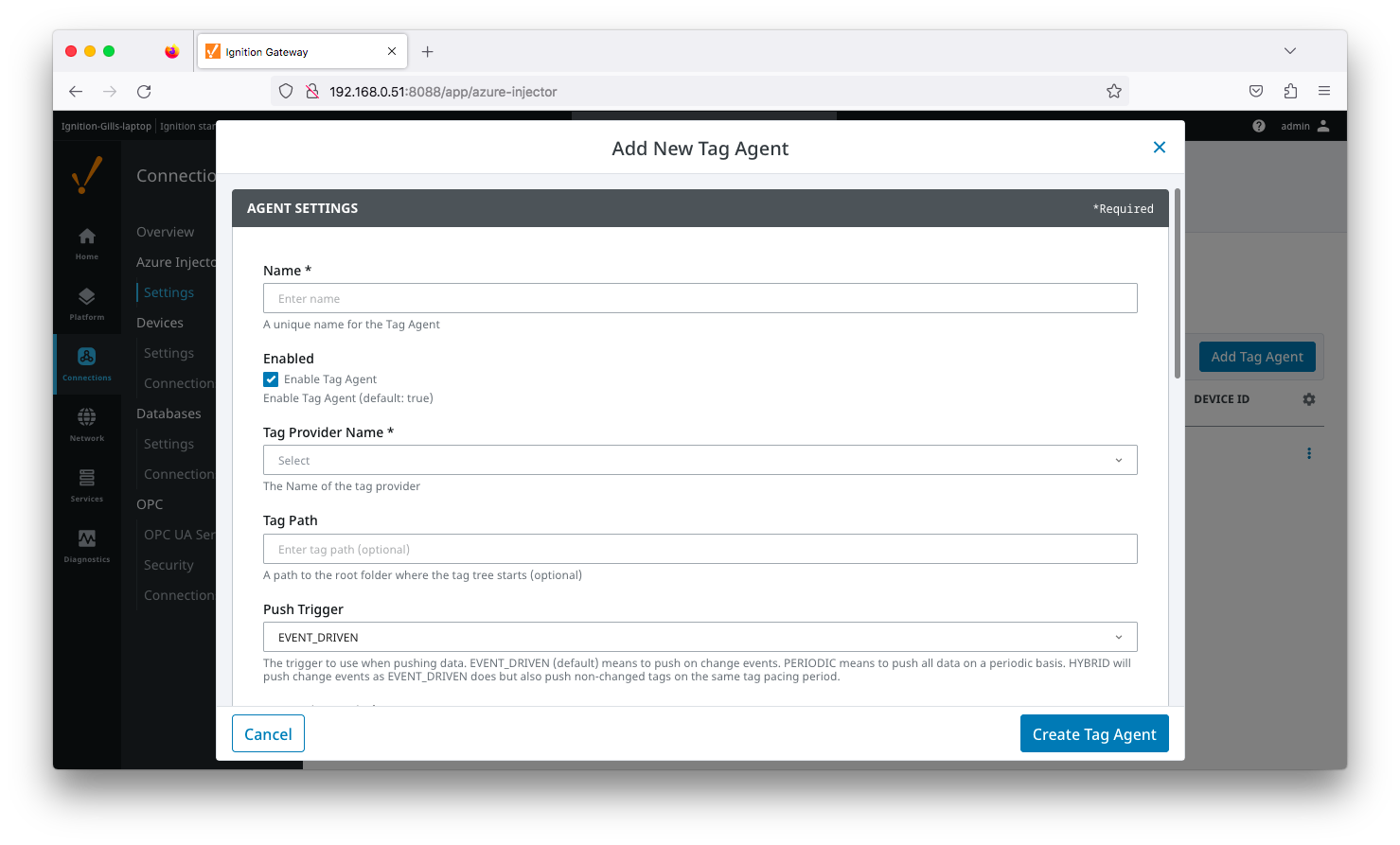 Image Added
| Anchor |
|---|
| tagagentsagentsettings |
|---|
| tagagentsagentsettings |
|---|
|
...
Agent Settings
 Image Removed
- Name
- A unique name for the tag agent.
- Enabled
- Sets whether the Tag Agent is enabled or disabled. If disabled, the Tag Agent will not run and no data will be pushed to any configured endpoints.
- Tag Provider Name
- The name of the Tag provider containing the tags.
- Tag Path
- An optional path to the root folder where the tag tree starts.
- Push Trigger
- Defines what triggers a push to the cloud endpoint
- EVENT_DRIVEN (default) - when a tag change event (value or quality) occurs, and no pending push exists, tag events will be aggregated for the 'Tag Pacing Period' before being pushed.
- PERIODIC - will push the latest data for all tags associated with the Agent every 'Tag Pacing Period'.
- With this option, only one event per tag will be sent - this may result in data loss if tags are changing more frequently than the 'tag pacing period'
- HYBRID - will push change events as EVENT_DRIVEN but will also push non changed events on the same tag pacing period.
- Review How the MQTT Injector Push Trigger affects data published for examples
- Tag Pacing Period
- The buffer period, in milliseconds, that Tag events will be aggregated into a single payload before pushing.
- Convert UDTs
- Whether to convert UDT members to normal Tags before publishing. If enabled the Tags representing the UDT member will retain their member path prefixed by the UDT Instance name.
- Publish UDT Definitions
- This will only be used if 'Convert UDTs' is false
- Whether or not to push the UDT Definitions in the the NBIRTH messages
- Optimize UDTs
- This will only be used if 'Convert UDTs' is false
- Whether or not to 'convert UDTs' only for DATA messages.
- Set
- The Set of Azure IoT Hub endpoints that the Tag Agent will push to.
| Tip |
|---|
| Review the Managing UDTs through Injector Tag Agents for more details on the Convert UDTs, Publish UDT Definitions and Optimize UDTs parameters |
| Anchor |
|---|
| tagagentssparkplugsettings |
|---|
| tagagentssparkplugsettings |
|---|
|
...
Sparkplug Settings
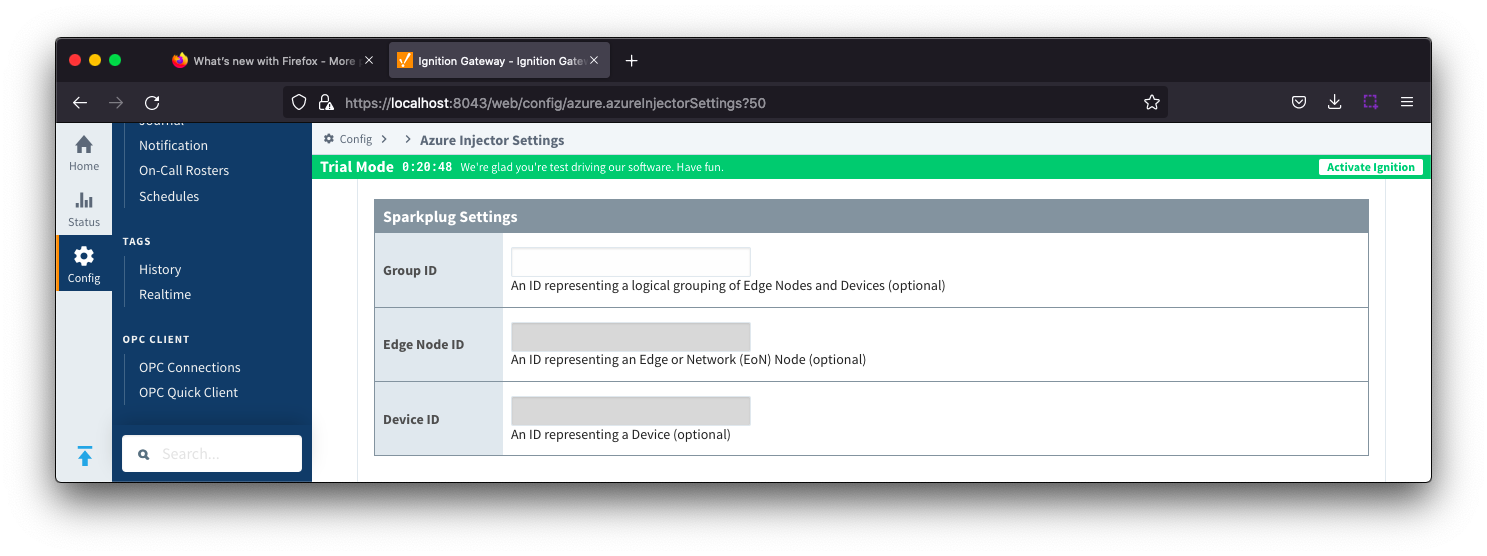 Image Removed
- Group ID
- An ID representing a logical grouping of MQTT Edge Of Network (EoN) Nodes and Devices into the infrastructure.
- Edge Node ID
- An ID that uniquely identifies the MQTT Edge Of Network (EoN) Node within the infrastructure.
- Device ID
- An optional ID that uniquely identifies a Device within the infrastructure.
...
| Tip |
|---|
| For more information see the Cloud Injector Tag Agents and Tag Trees tutorial. |
| Anchor |
|---|
| tagagentsadvanced |
|---|
| tagagentsadvanced |
|---|
|
...
Advanced
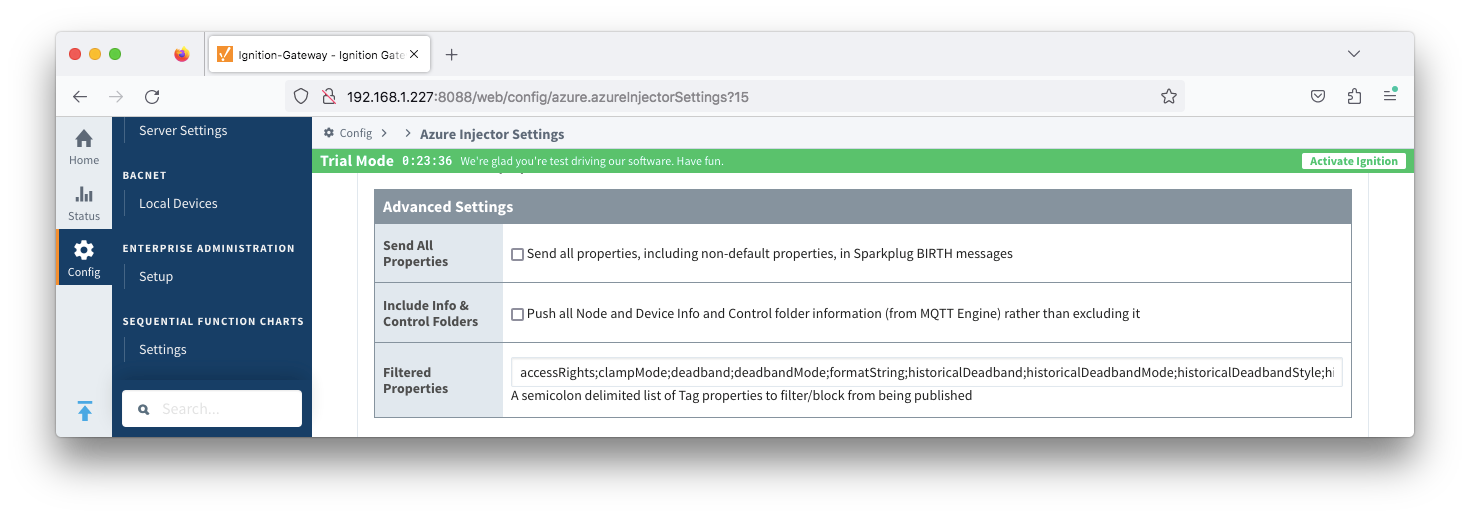 Image Removed
- Send All Properties - added in 4.0.25
- Send all properties, including default properties, in Sparkplug BIRTH messages
- Include Info & Control Folders - added in 4.0.30
- Push all Node and Device Info and Control folder tags from MQTT Engine
- Filtered Properties
- A semicolon delimited list of Tag properties to filter/block from being published. These should typically not be modified unless there is an explicit requirement that a specific property is needed to be added or removed from the default.
...