IoT Bridge for Snowflake is not quite ready but will be released in early Q2 of 2023.
Prerequisites
Before being able to install and set up IoT Bridge you must have an Amazon Web Services (AWS) account. If you do not already have one you can create one here.
...
This process covers installing the IoT Bridge for Snowflake AMI into an AWS account as an EC2 instance. For reference, the IoT Bridge for Snowflake Cloud Formation Template (CFT) used to build the AWS infrastructure is here - ibsnow.yaml. Note, this yaml file does not need to be used for anything (and cannot because the AMI references don't do not exist). It is here purely for reference to show exactly what is done during the cloud formation deployment.
This document describes the process of installing IoT Bridge for Snowflake using the cloud formation template, which automates most of these steps. However, it is also possible to install IoT Bridge for Snowflake by deploying onto an AWS EC2 instance into an existing AWS environment rather than using this document to set everything up from scratch. If going this route, you will need to manually set up the necessary AWS components and configure them correctly. This is what the CFT does and what would need to be set up manually if deploying IoT Bridge for Snowflake directly on an AWS EC2 instance.
- Create an AWS EC2 Keypair to be used for SSH access to the EC2 instance
- Set up an AWS Virtual Private Cloud (VPC) for the EC2 instance
- Set up a network interface for the EC2 instance
- Set up a EC2 Security Group with the following rules and bind it to the EC2 instance deployed with IoT Bridge for Snowflake: https://docs.aws.amazon.com/AWSEC2/latest/UserGuide/creating-security-group.html
- Inbound SSH Connection (port 22)
- For IoT Bridge for Snowflake configuration and debugging
- Outbound MQTT Connection (port 1883 or port 8883 depending on MQTT configuration)
- Outbound Snowflake Connection (port 443)
- Deploy an EC2 instance using the IoT Bridge for Snowflake AMI using the components created above.
Again, this installation document uses Cloud Formation which handles most of the steps above automatically. So, this information above is here for reference if one is deploying the IoT Bridge for Snowflake EC2 instance into a customized AWS environment.
IoT Bridge Installation
Before deploying IoT Bridge you must create create an AWS EC2 key pair which will ultimately allow you to SSH into the EC2 instance that gets created as part of the process. Information on how to create the key pair can be found here. The key pair must be created in the AWS Region that you intend to deploy IoT Bridge into.
...
In the search bar, type in 'IoT Bridge for Snowflake' and hit enter. This should show the following.
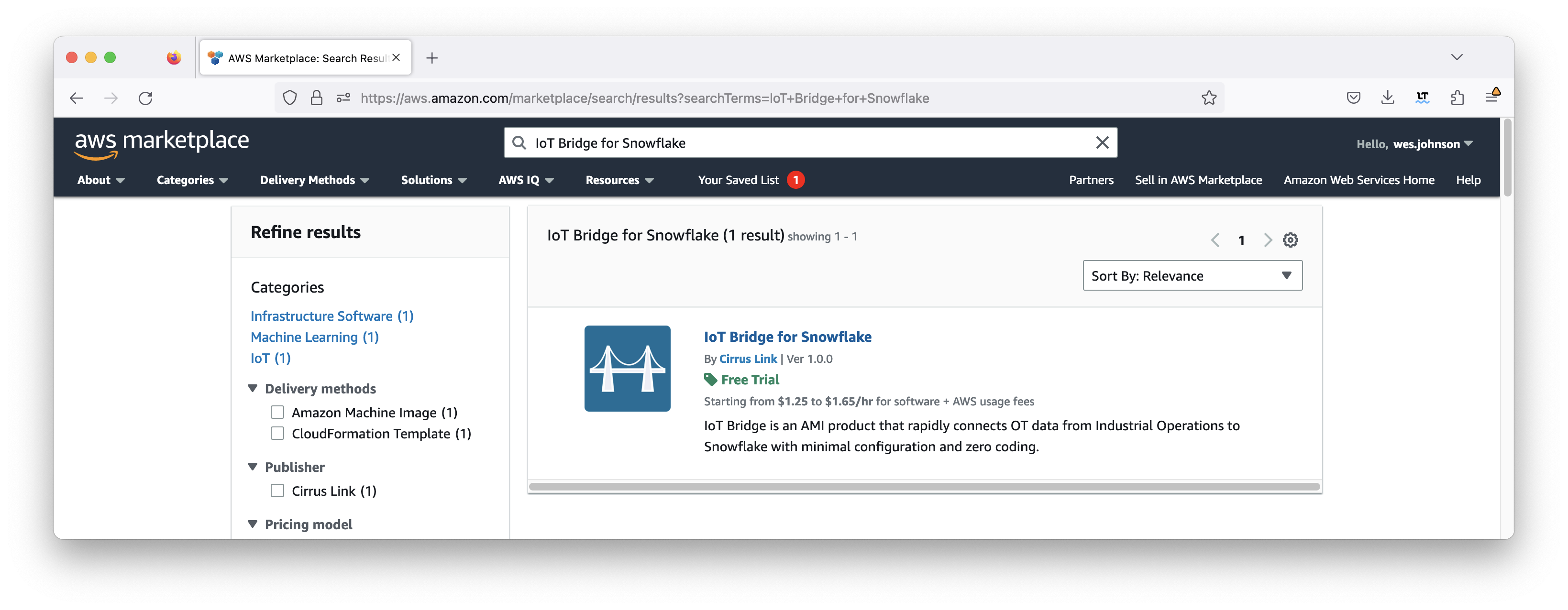 Image Removed
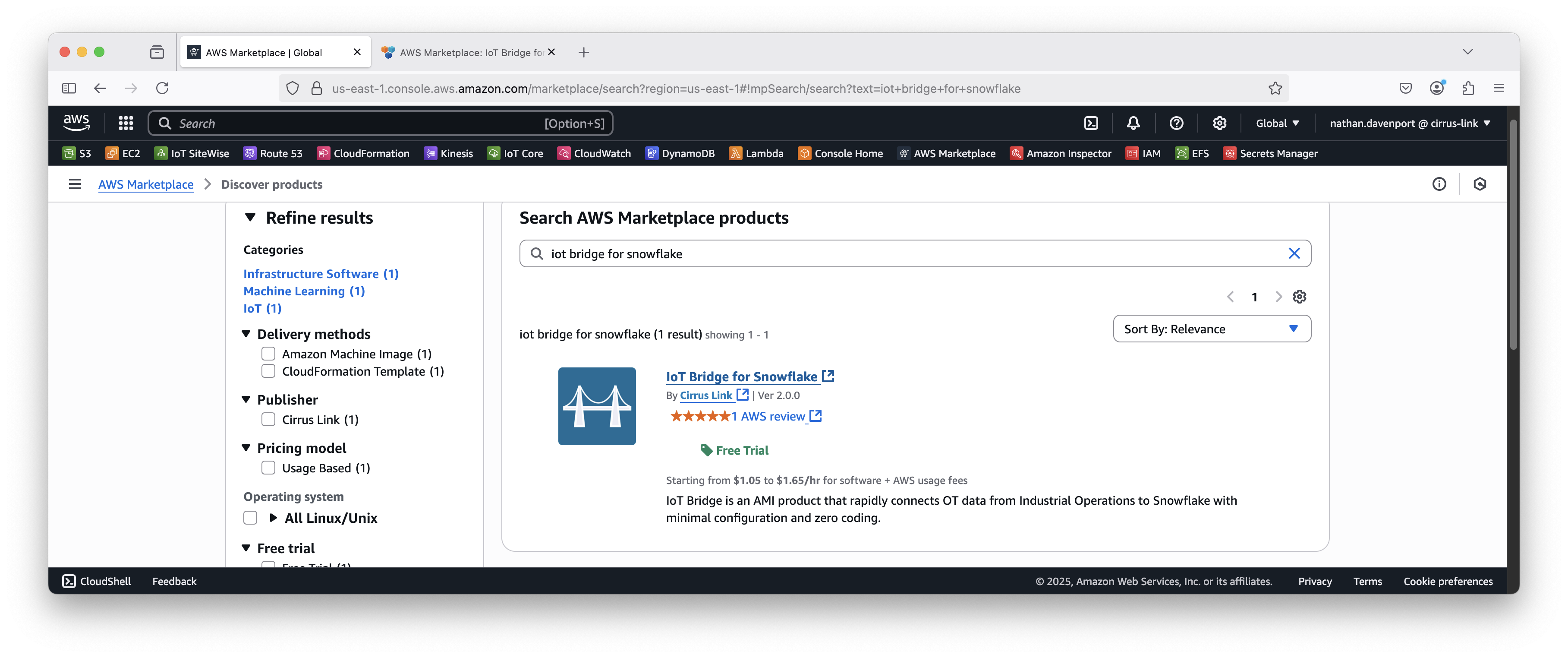 Image Added
Then click on IoT Bridge by Cirrus Link. After doing so, you should see the following.
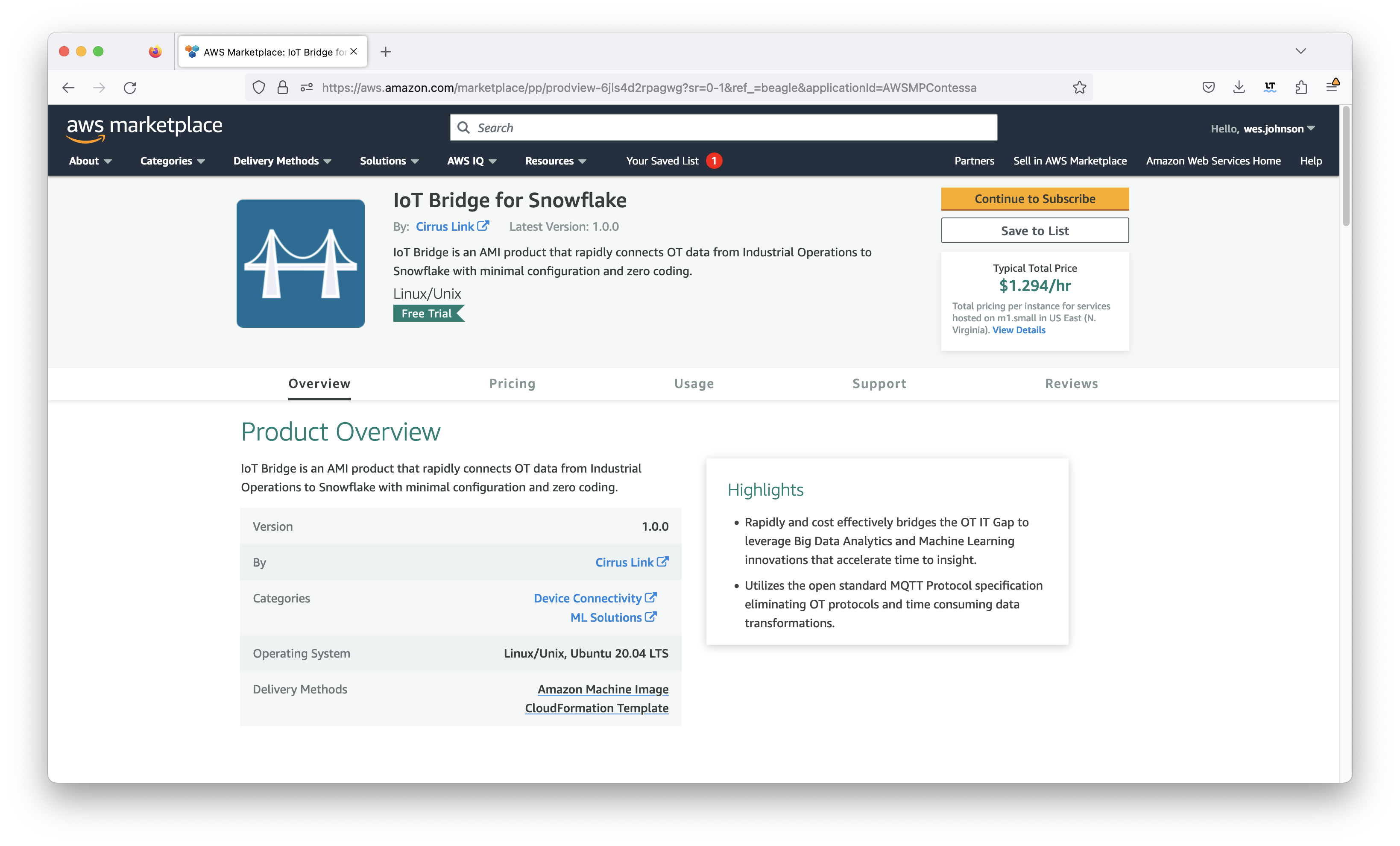 Image Removed
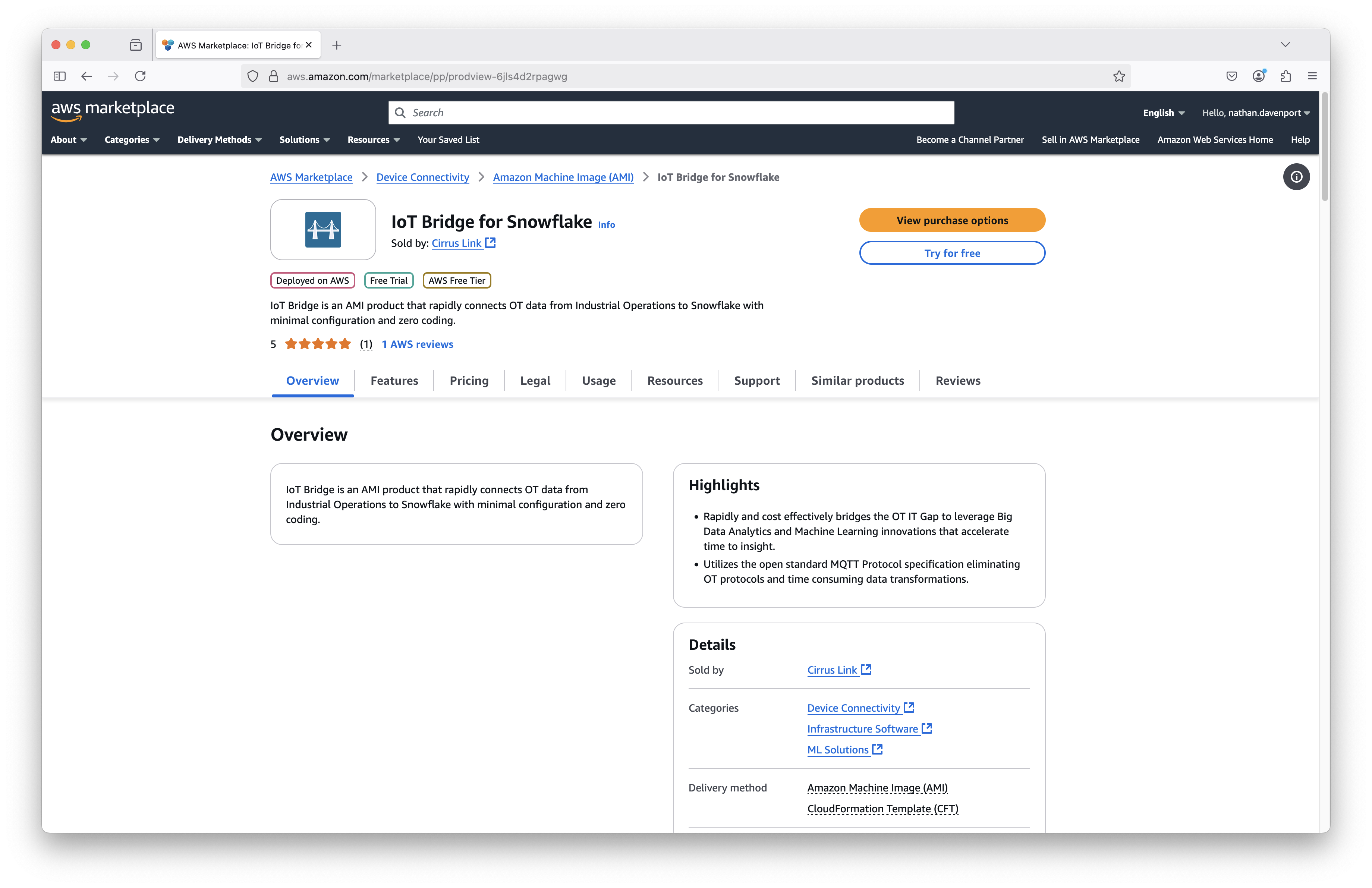 Image Added
Click the yellow 'Continue to Subscribe' button near the top of the screen. This will bring up the following page:
...
Now click the orange 'Accept Terms' button if you agree to the terms. This will bring up the following screen.
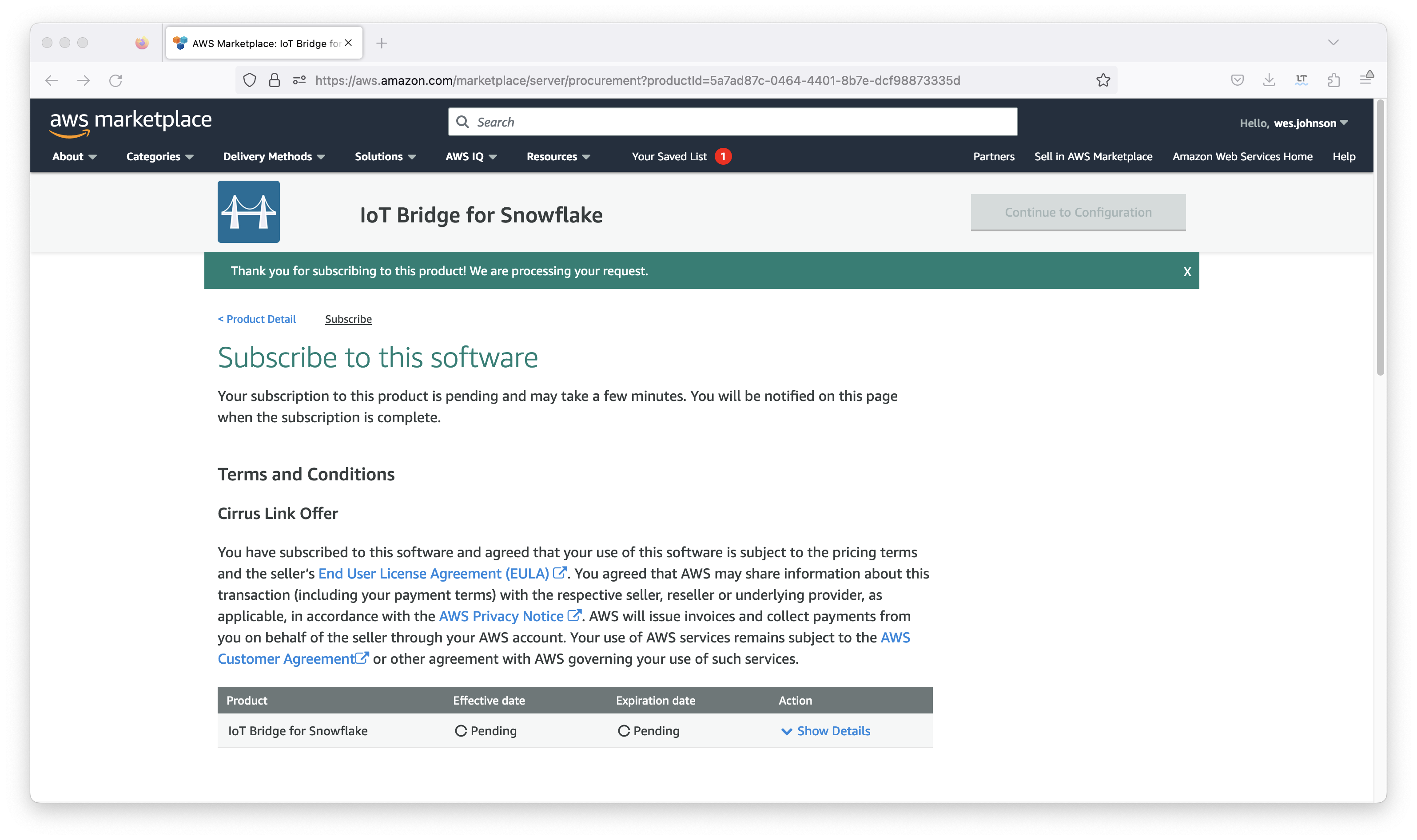 Image Added
It will take some time and within a few minutes the effective date and expiration date should get set. Once this is done, click the orange 'Continue to Configuration' button in the upper right section of the screen. This will bring you to the following screen.
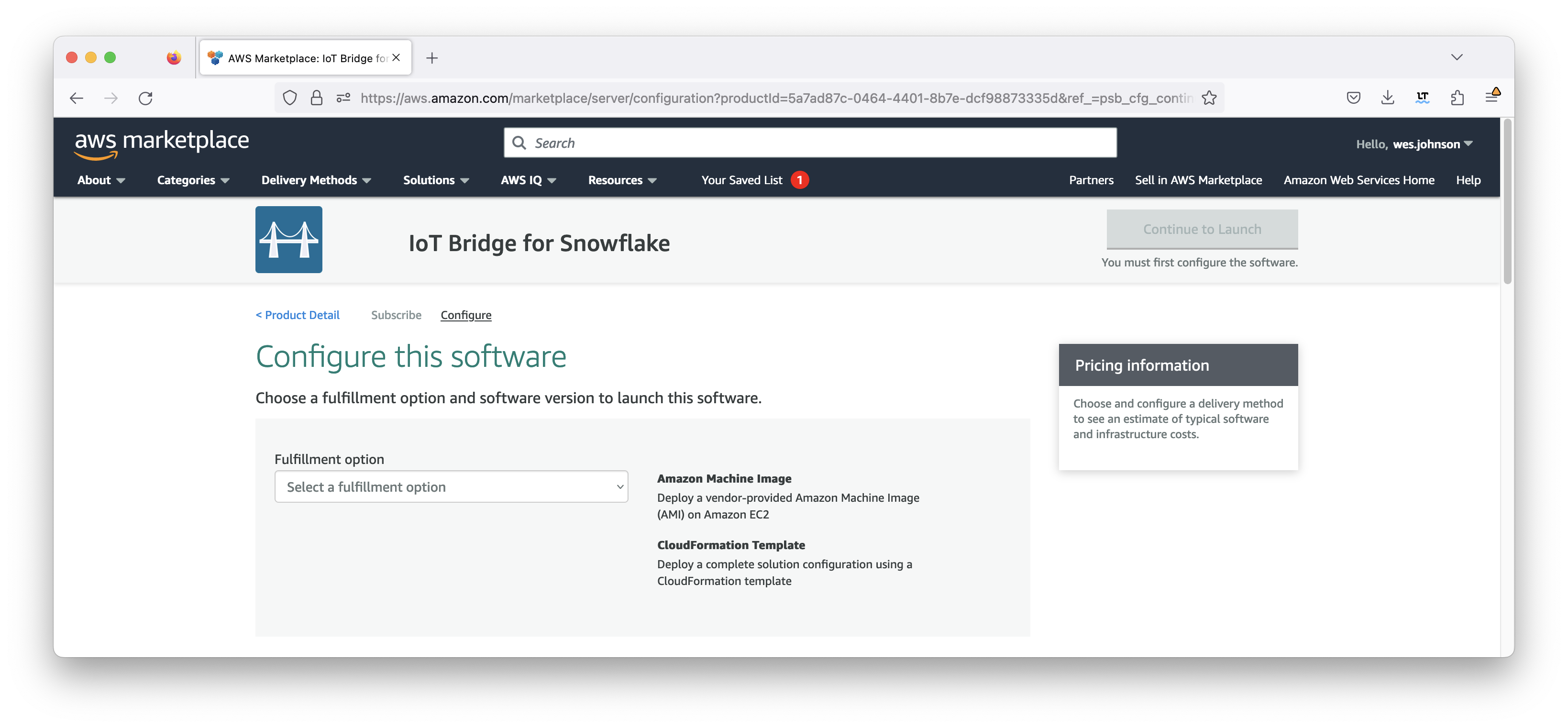 Image Added<TODO>Add Image</TODO>
In the 'Delivery MethodFulfillment option' field, select 'CloudFormation Template' as shown below. This will set up the defaults including the 'Cirrus Link IoT Bridge for AWS Snowflake Template' field, the version, and the region. Select your preference for the region also as shown below. Note your region should usually match the region Snowflake runs in.
<TODO>Add Image</TODO>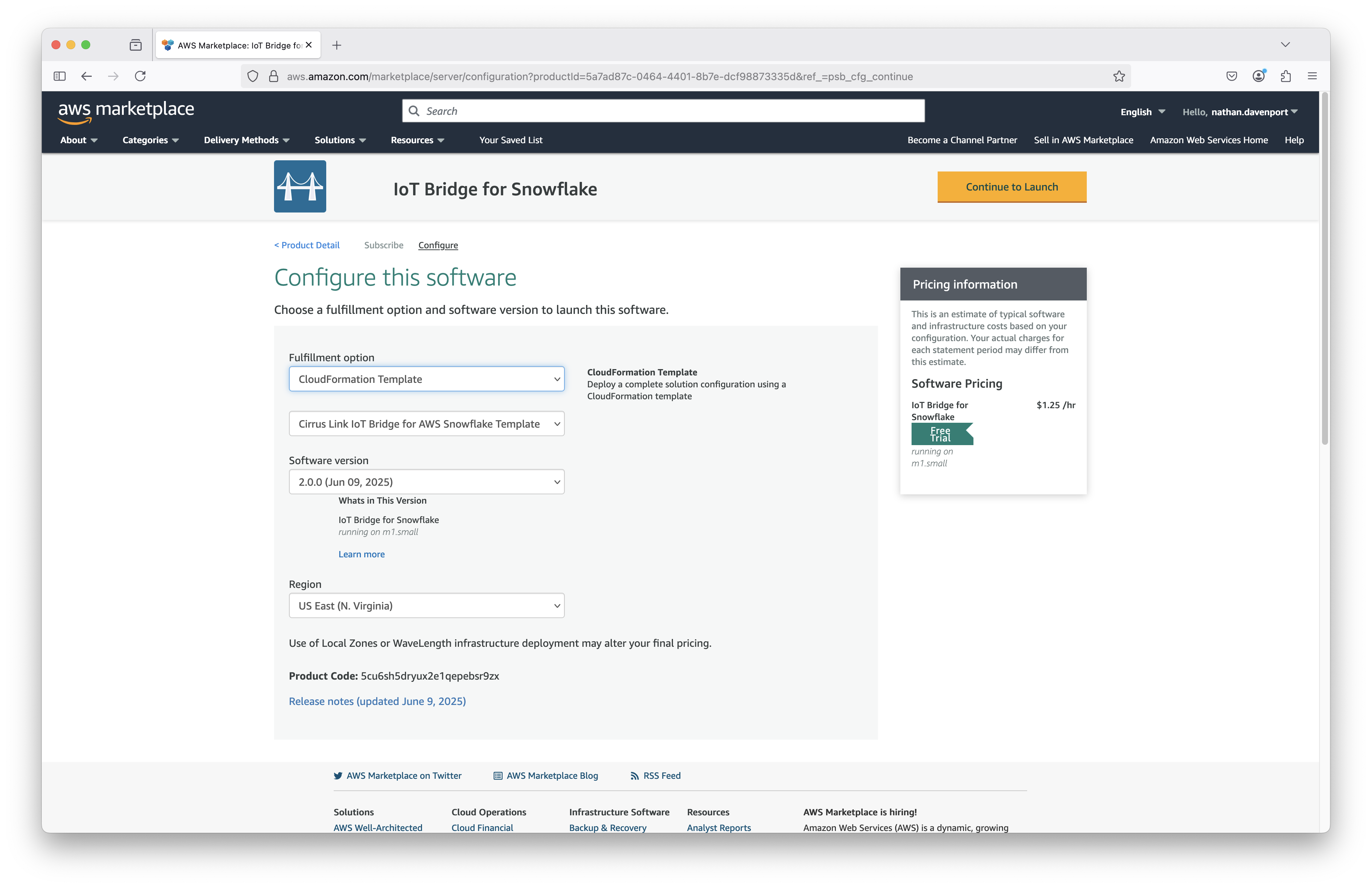 Image Added
Now click the blue orange 'Continue to Launch' button in the upper right corner. This will bring up the following screen.
<TODO>Add Image</TODO>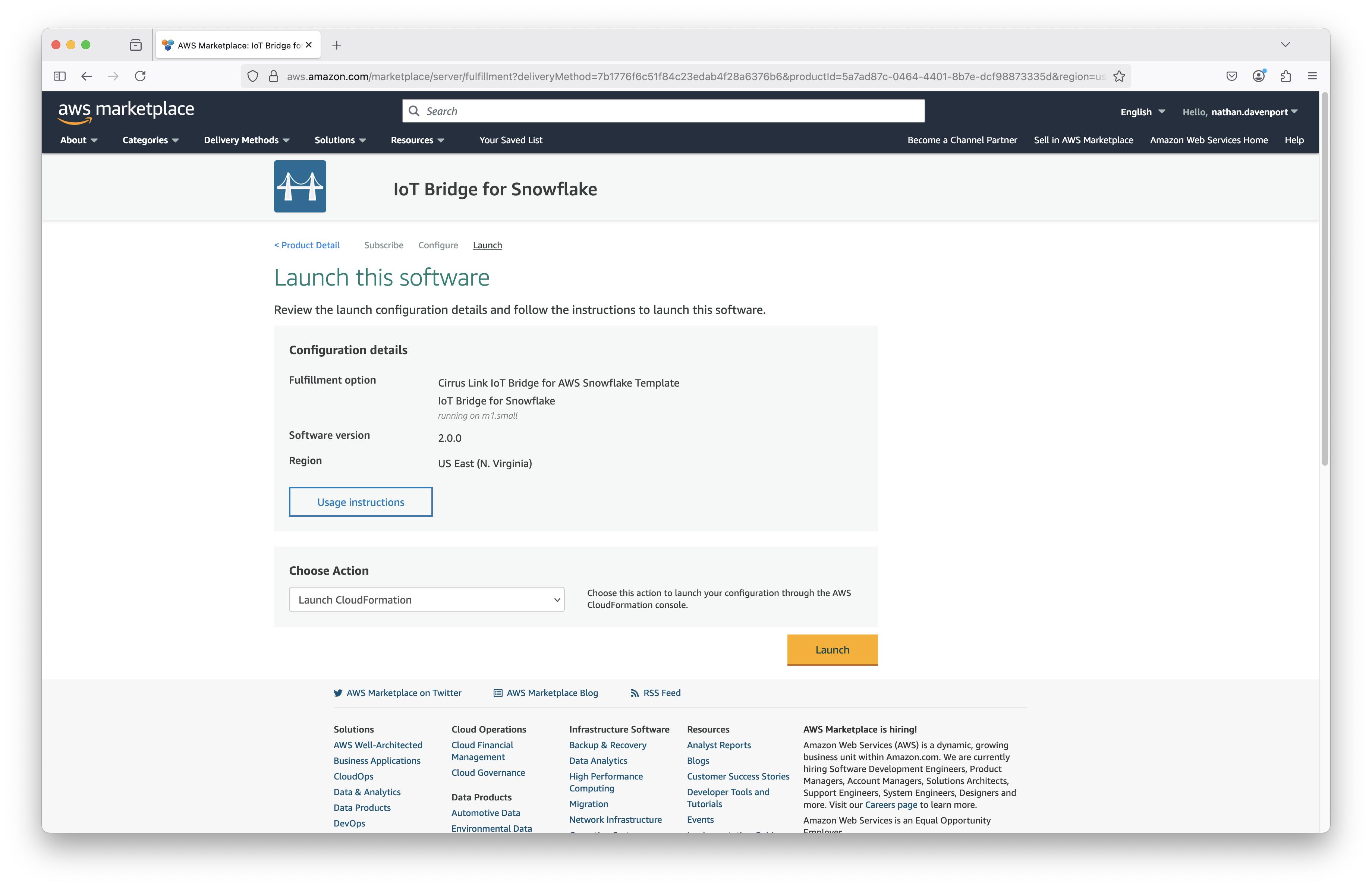 Image Added
Finally, click the orange 'Launch' button shown in the screenshot above. This will bring up the CloudFormation stack creation page shown below. Note the template associated with the IoT Bridge is automatically populated for you. This is also shown below.
<TODO>Add Image</TODO>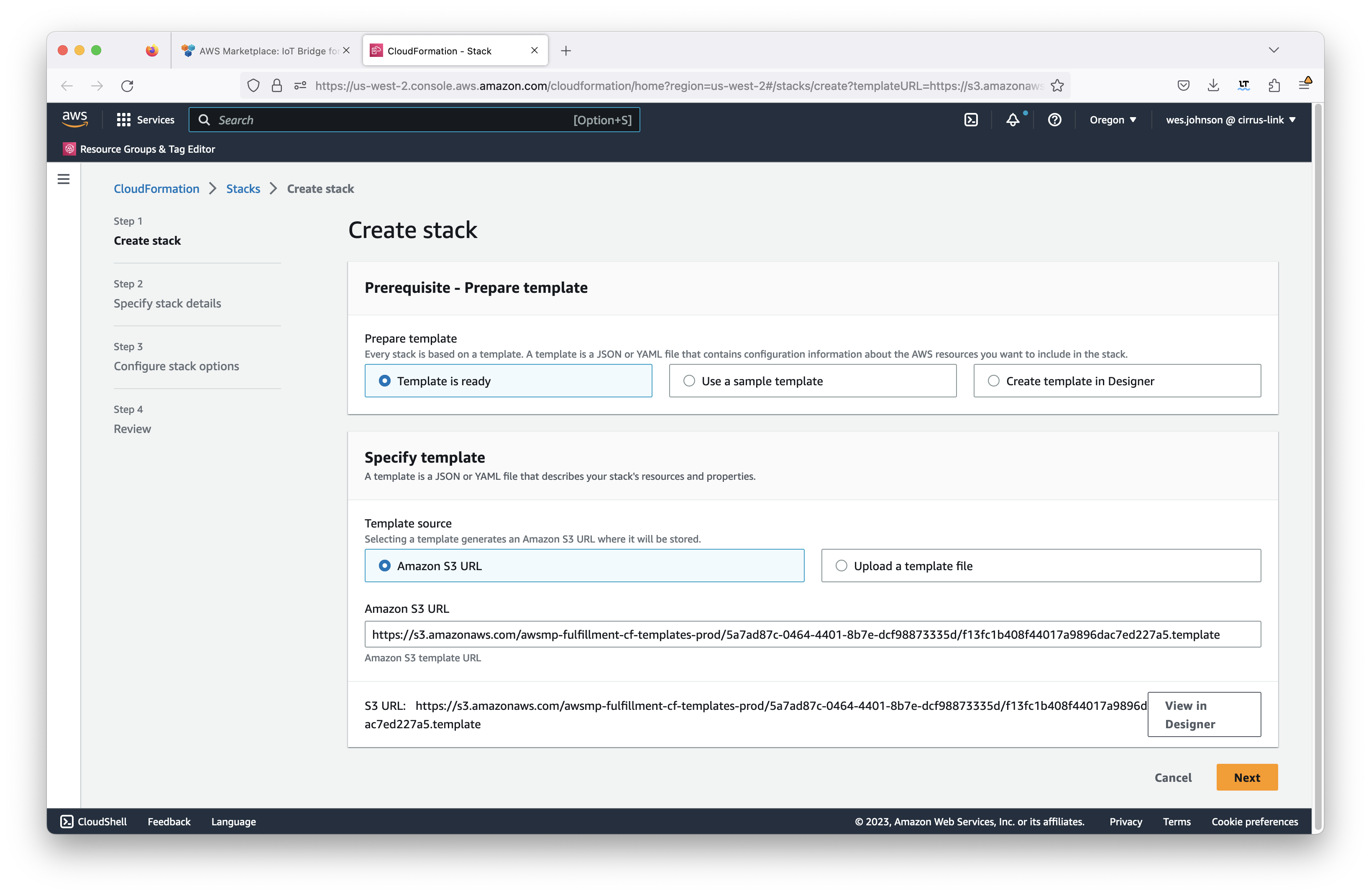 Image Added
Click 'Next' in the lower right in the screen capture above. This will bring up the stack configuration page shown below.
<TODO>Add Image</TODO>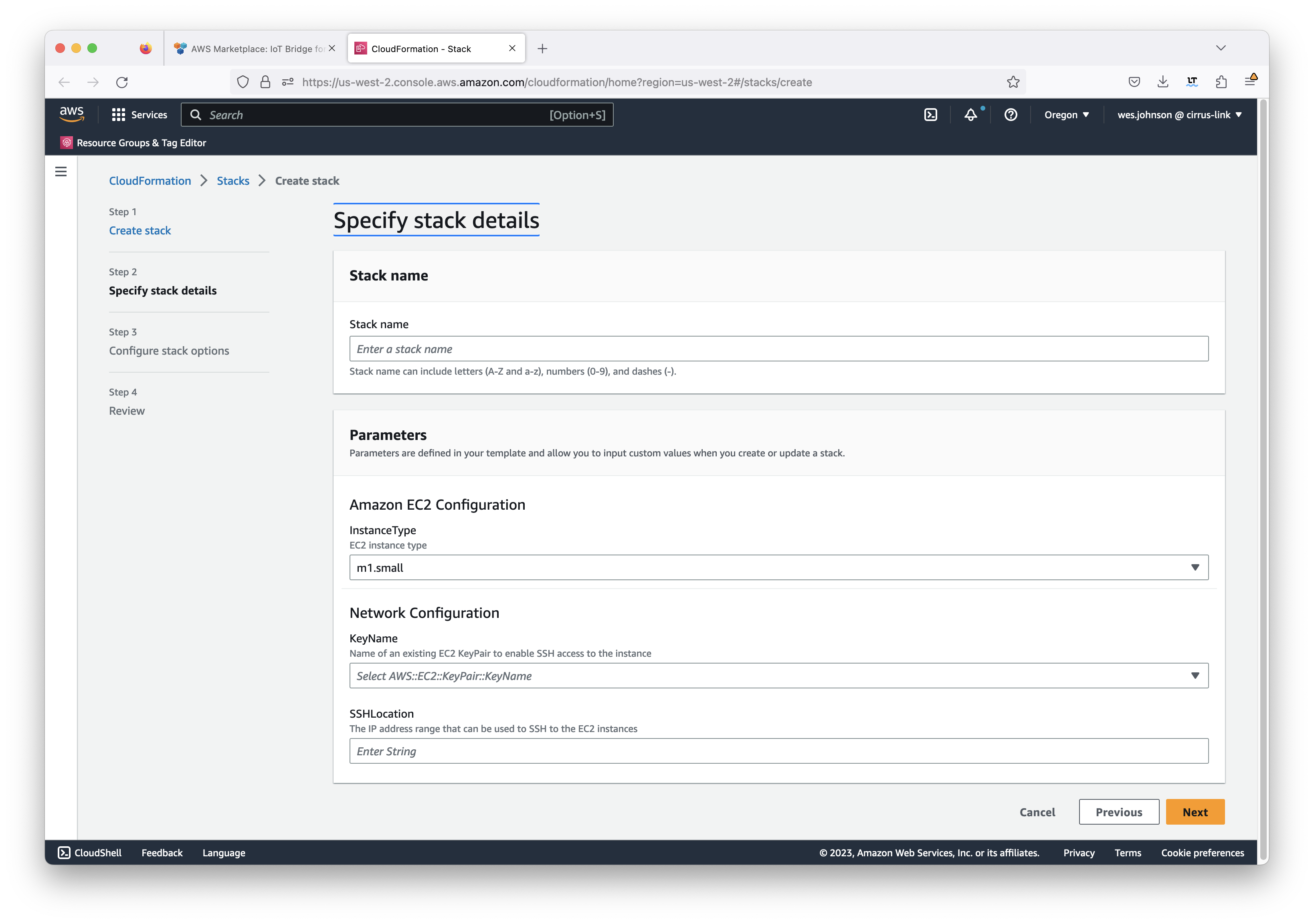 Image Added
Set the following properties for the stack:
...
After setting the properties, click the 'Next' button in the lower right of the Window. This will bring up the following screen.
<TODO>Add Image</TODO>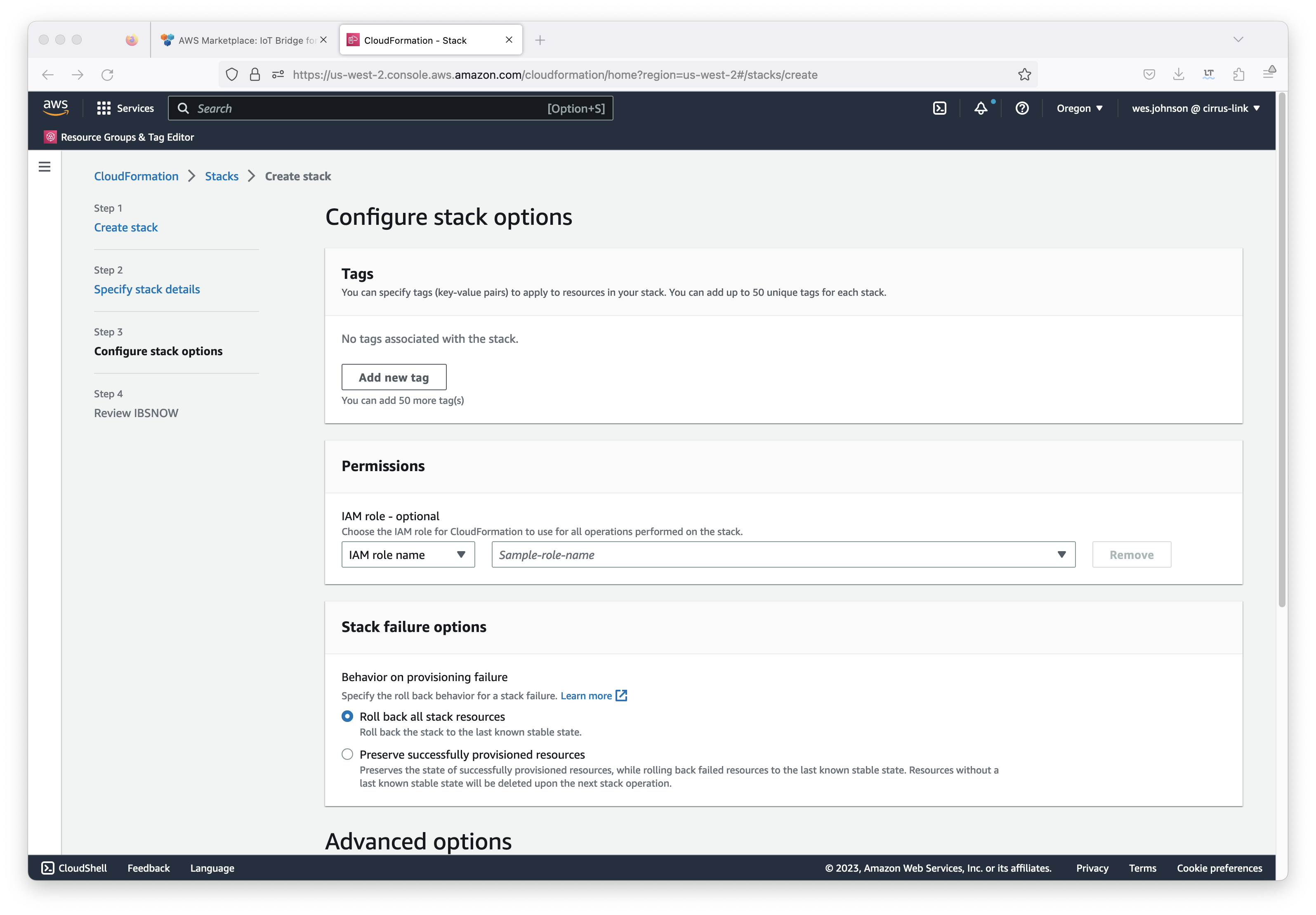 Image Added
Configure anything else that may be required here. Generally, nothing must be set here given that the user you are logged in as has the permissions to create everything that will created as part of the Cloud Formation deployment. Also, the 'Roll back all stack resources' should be selected in case there is a failure in deployment. This will ensure no resources get created and left in place should the any portion of the stack creation fail. After setting any additional configuration here, click the 'Next' button in the lower right corner. This will bring up the review screen as shown below.
<TODO>Add Image</TODO>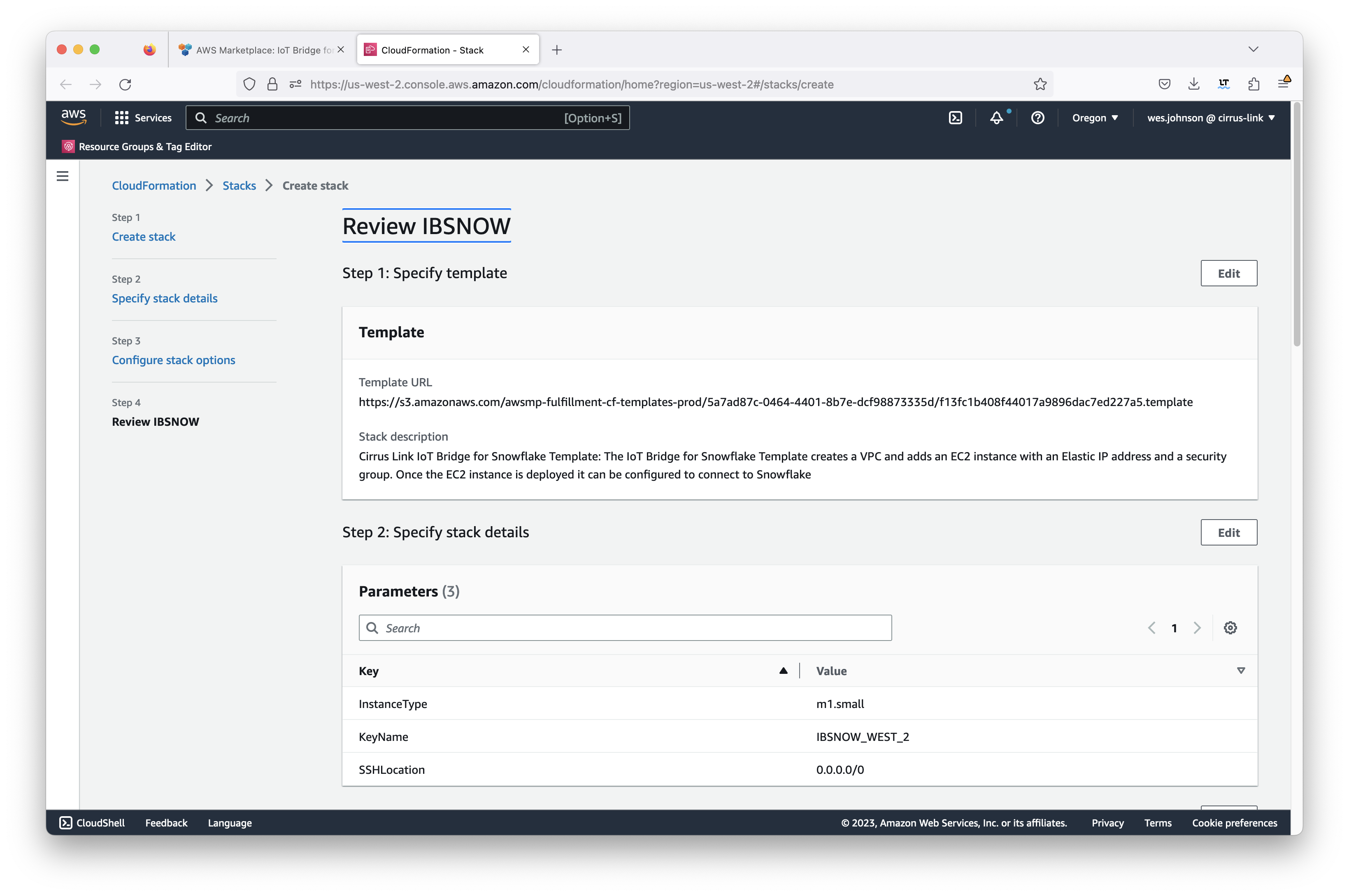 Image Added
Double check the configuration and finally click 'Create stackSubmit' in the bottom right corner of the screen . Note you also must accept the IAM changes that the IoT Bridge Cloud Formation deployment makes to your AWS account. If you agree to this, click the checkbox shown below and then click the 'Create stack' button.to kick off the stack creation. You should now see the 'CREATE_IN_PROGRESS' status as shown below.
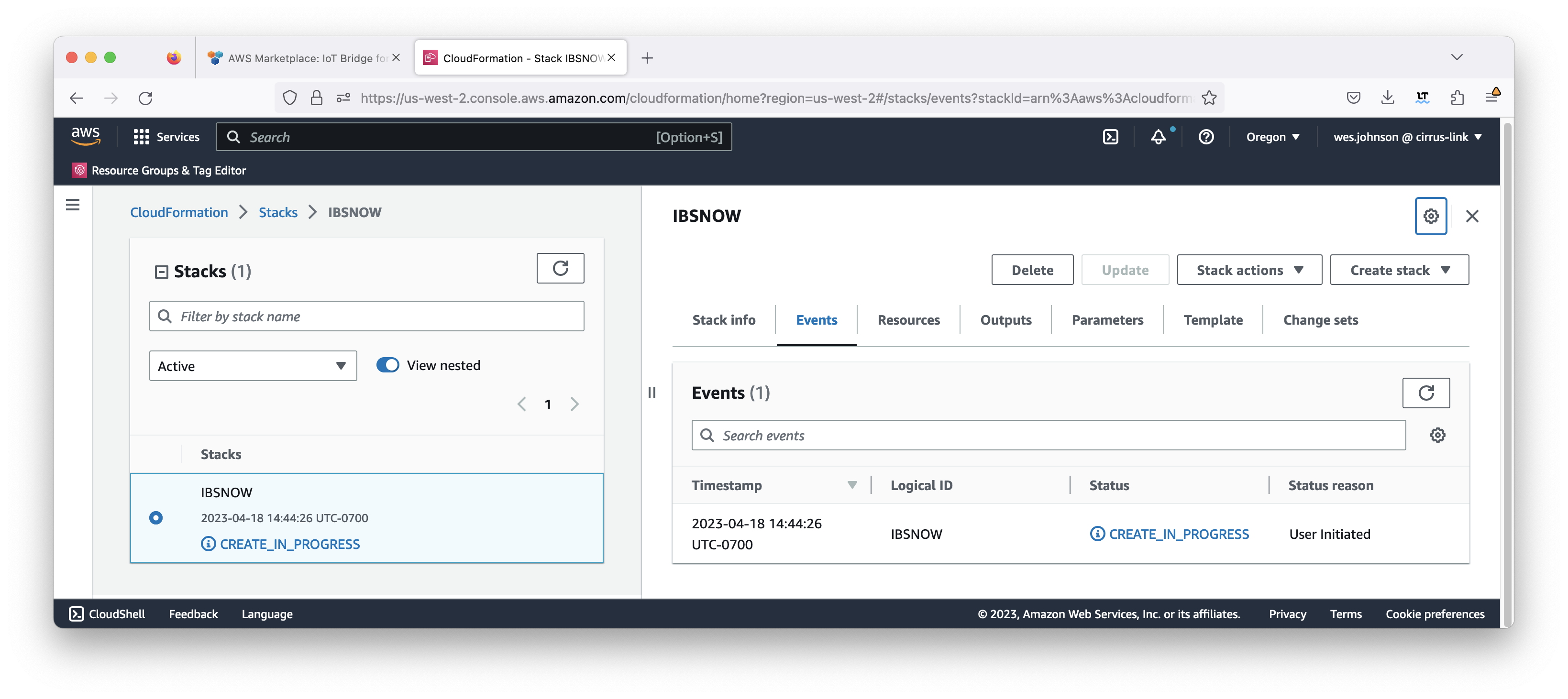 Image Added<TODO>Add Image</TODO>
This will begin the stack deployment. You can check on the progress by clicking both the Events and Resources tab as shown below. Deployment takes a few minutes to complete. When it completes, you should see something similar to what is shown below with all of the resources showing 'CREATE_COMPLETE' for the status.
<TODO>Add Image</TODO>
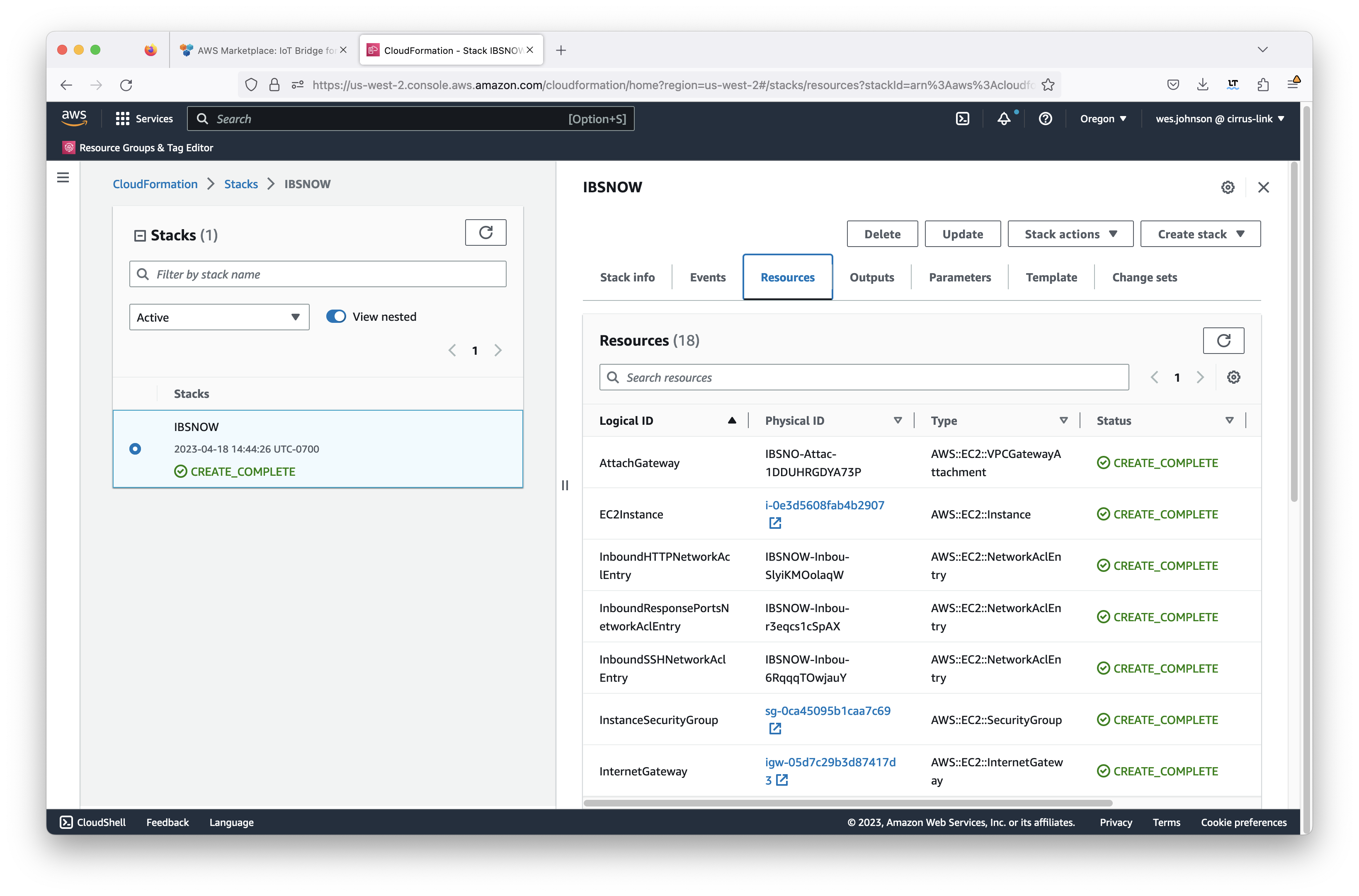 Image Added
Deployments Note deployments can fail for multiple reasons included , including AWS account resource limitations. Below is an example of a failed deployment's resources page. Note the 'DELETE_COMPLETE' state for a subset of all of the resources that should've been created.
<TODO>Add Image</TODO>
By clicking the 'Events' page we , you can see more information about what failed as shown below.
<TODO>Add Image</TODO>
during deployment.
If this happens during deployment, note Note the 'Status reason' column on the right . This deployment failed because the AWS account under which it was deployed has reached its limit of Internet Gateways. To resolve the issue for this case, follow these steps:side of the events tab. Typically the following steps are necessary to resolve the issue.
- Delete the stack using the 'Delete' button at the top of the stack's page
- Resolve the limit issue - either free up an Internet Gateway or request additional resources issue resulting in the failure. Often these are AWS account resource limits. If so, request an AWS resource limit increase via an AWS support ticket.
- Repeat this procedure to deploy the stack.
After the AWS Infrastructure has been deployed via the AWS Marketplace 1-click procedure, the application must be configured. In order to configure the application, you must be able to access the EC2 instance via SSH. Information on accessing the EC2 instance via SSH can be found here. Additional details on the filesystem file system layout of this EC2 instance can be found here.
IoT Bridge Configuration
...