...
- Ignition with Google Cloud Injector Module installed
- Ignition Designer installed
- Review the Inductive Automation documentation for Launching Designer against the Ignition gateway
- An existing Clearblade IoT Core account with a Project, IoT Core registry, credentials, and device created.
- Documentation on getting started with the Clearblade IoT Core can be found here
...
Once you have Ignition and the Google Cloud Injector Module installed and running we can setup the configuration to connect to your existing Clearblade IoT Core.
Navigate to the Google Cloud Injector Modules configuration section from the left side bar in the Ignition Gateway and select the Clearblade IoT Core tab.
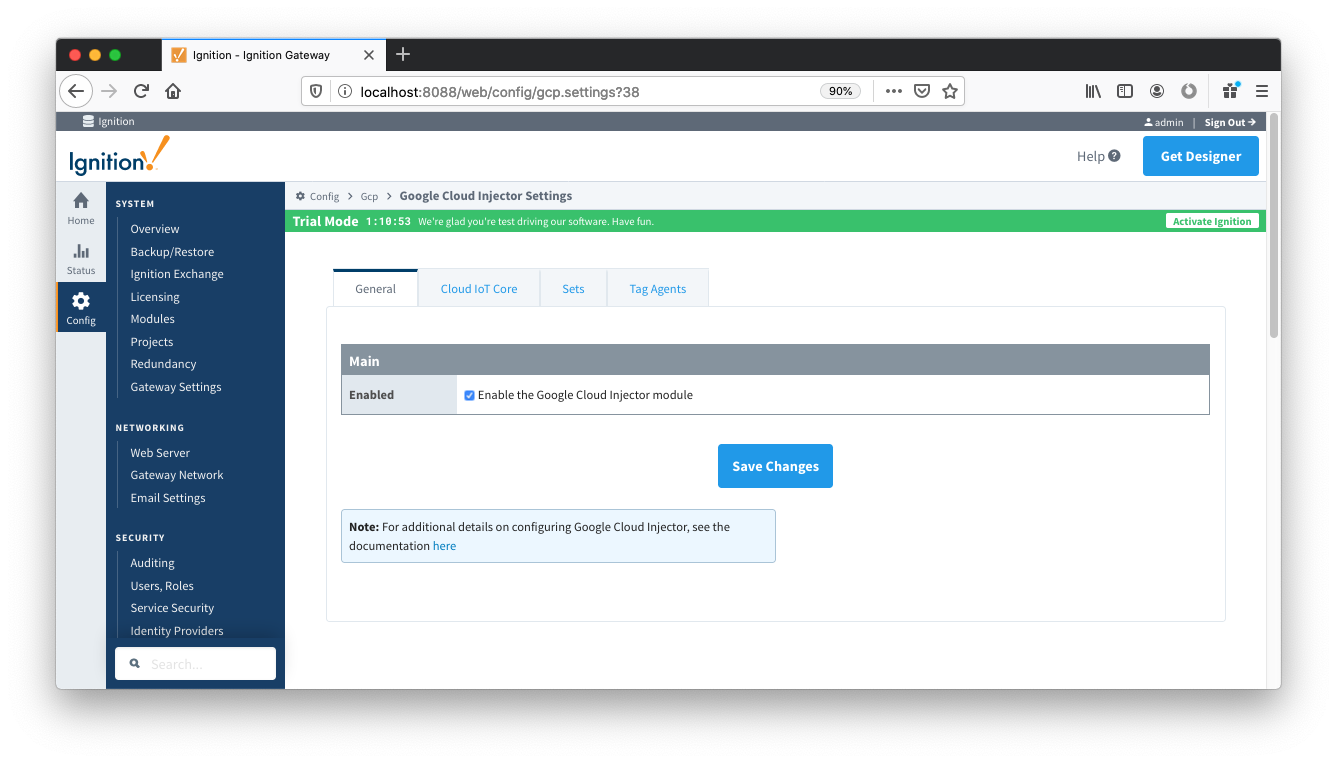 Image Removed
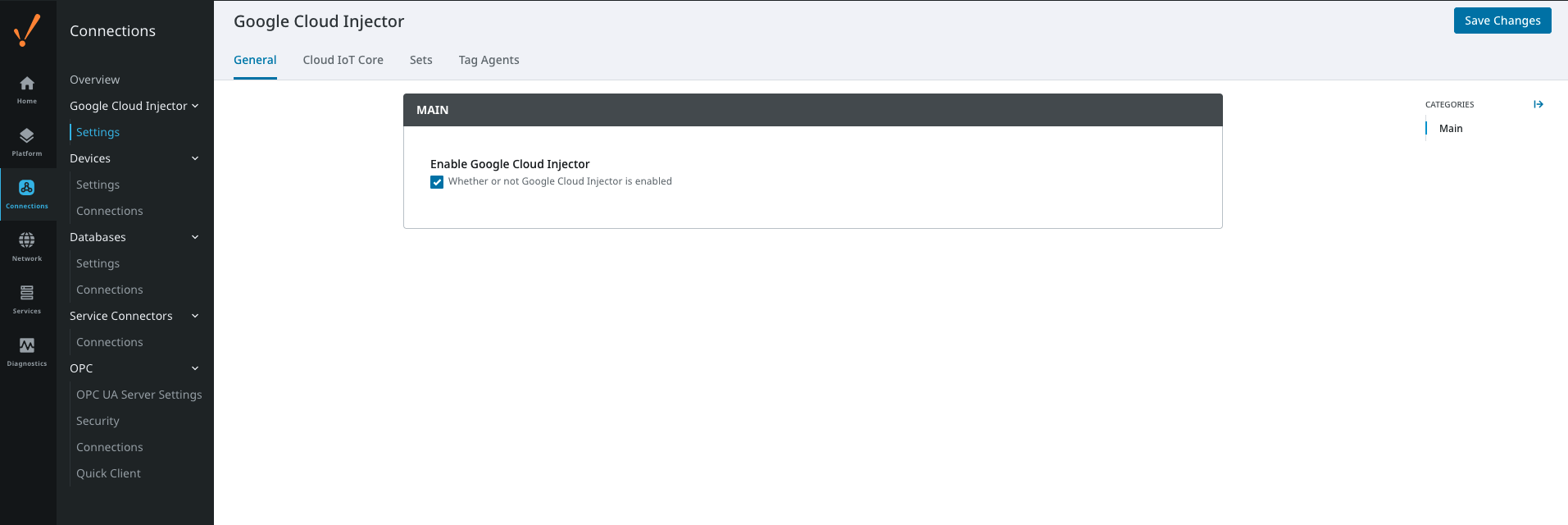 Image Added
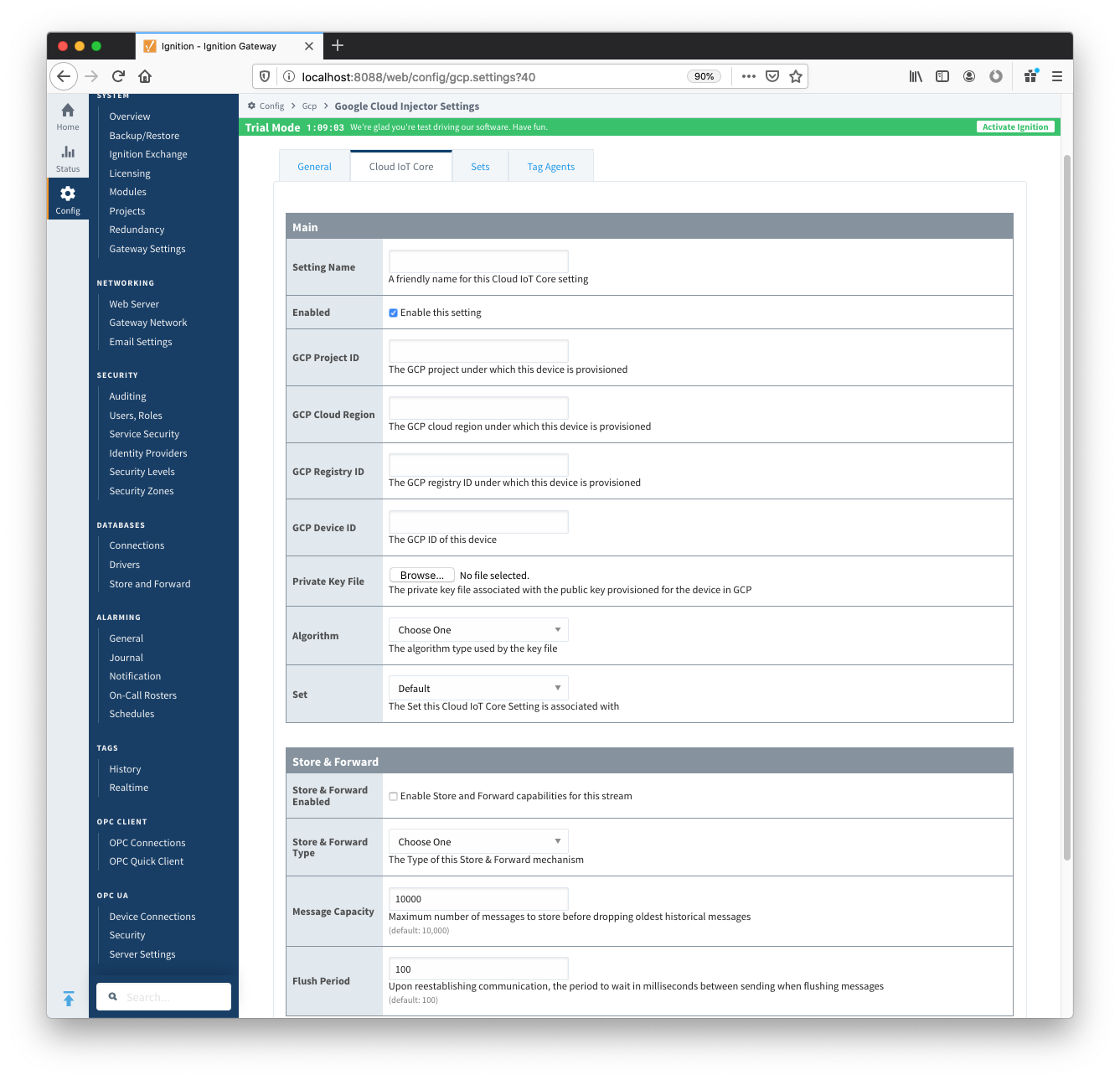 Image Removed
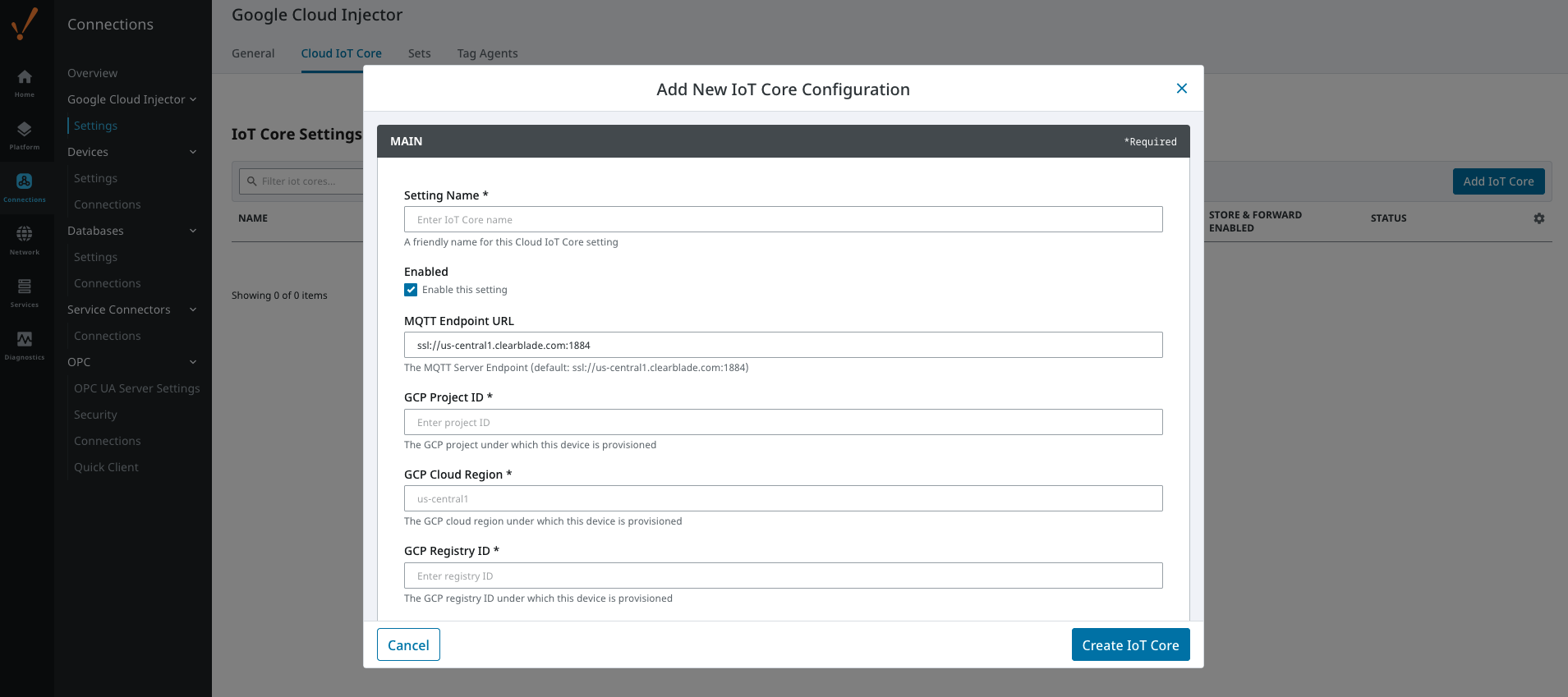 Image Added
Set the following parameters:
...
If you already have Ignition tags defined, for example from the Ignition OPC UA Server, then depending on the depth of your tag tree you may need to configure the Sparkplug Settings.
| Tip |
|---|
Review the Cloud Injector Tag Agents and Tag Trees document
which describes how Cloud Injector Agent configurations interact with Ignition tag trees to push messages and tag change events to the cloud service. It explains how tags get identified to be pushed as well as what specific 'topics' will be included with the messages. It also goes over some example configurations to show how the system will behave in different scenarios. |
...
...
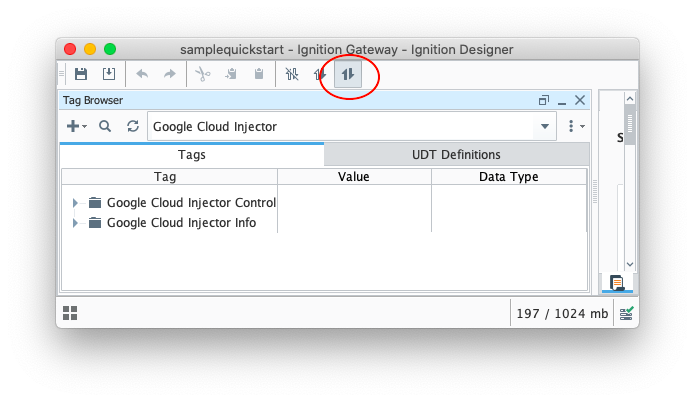
Make sure that the Ignition Designer has read/write communications turned on by selecting the Project/Comm Read/Write button highlighted in the image below.
...