...
Once you have Ignition installed and running, and the AWS Injector module downloaded, browse to the Ignition Gateway console (e.g. http://localhost:8088). Login using the default credentials of admin/password. Click on Configuration tab and then click on the Modules tab on the left side of the page. Scroll to the bottom of the Modules section and click on the Download/Upgrade modules button. When prompted, select the AWS Injector module from the file browser and install it. When complete, the Ignition Gateway Web UI module section should look similar to what is shown below:
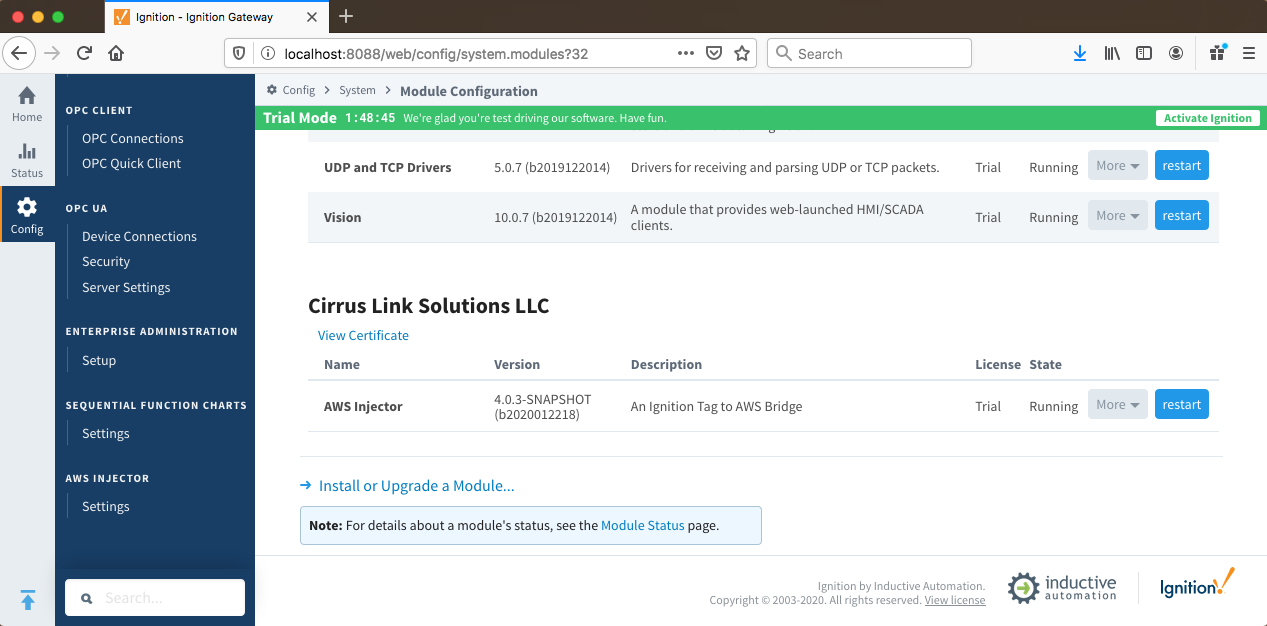 Image Removed
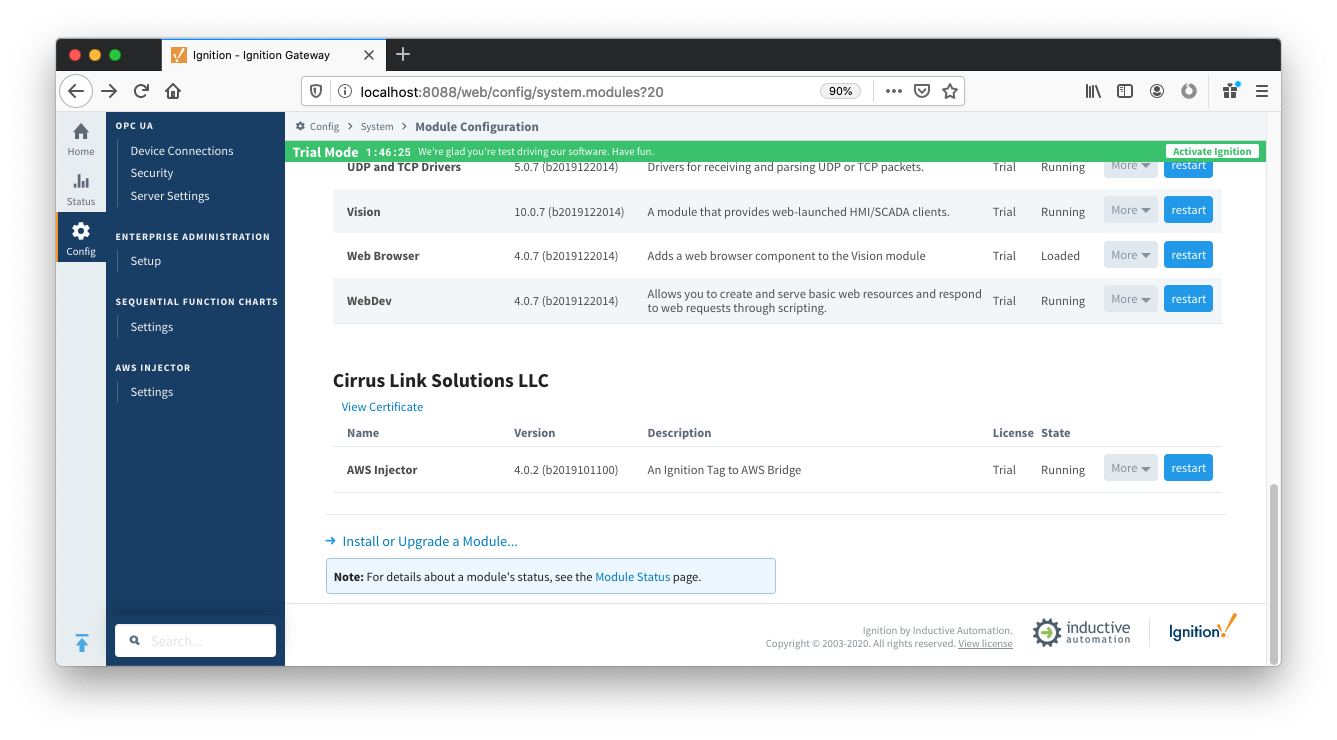 Image Added
Select the "AWS INJECTOR" → "Settings" link on the lower left of the page to navigate to the AWS Injector Module's configuration page.
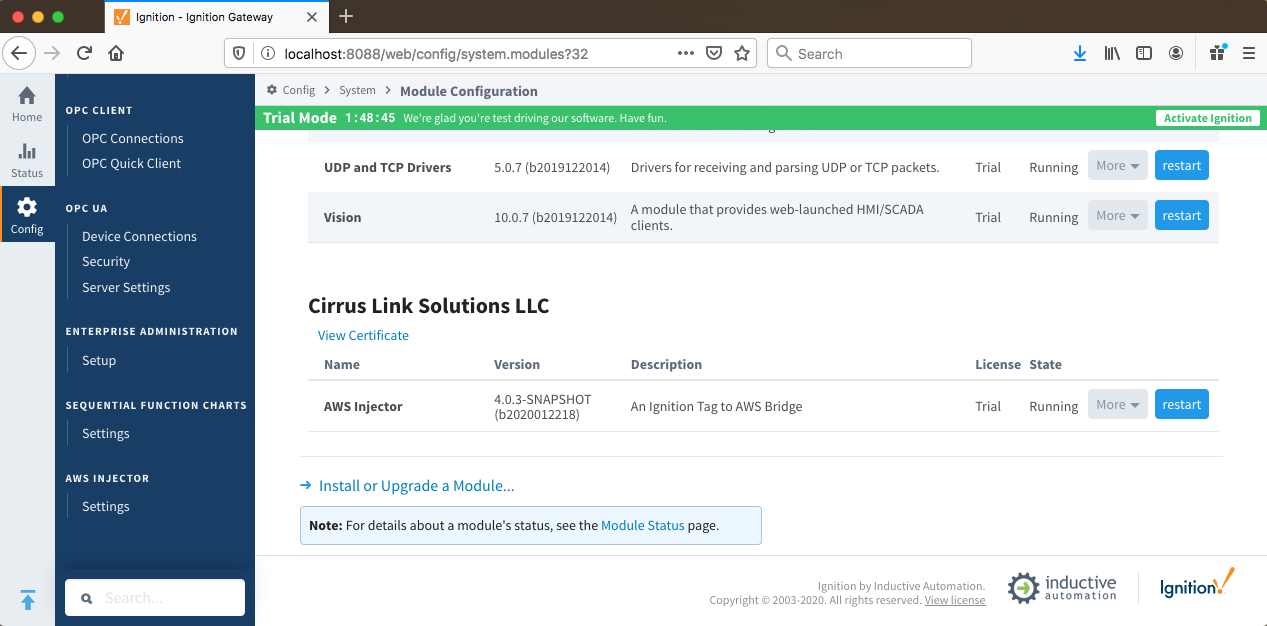 Image Removed
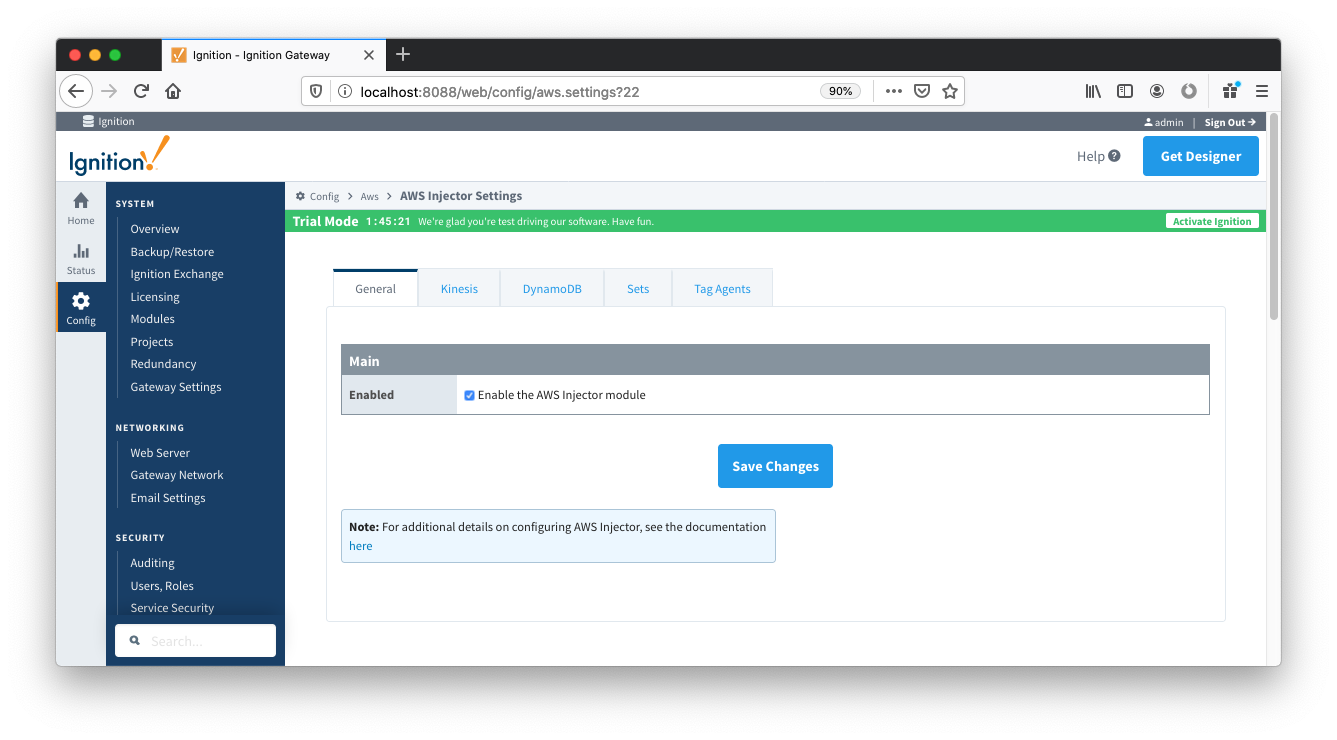 Image Added
A detailed explanation of each configuration tab can be found here. For this tutorial, we will be adding new Kinesis Stream and DynamoDB Database Settings. You may optionally choose to skip one of the following two sections if you do not wish to setup a Kinesis Stream endpoint or a DynamoDB Database.
...
With the Kinesis tab selected, Click on the "Create new AWS Kinesis Stream Setting..." link to bring up the following configuration form:
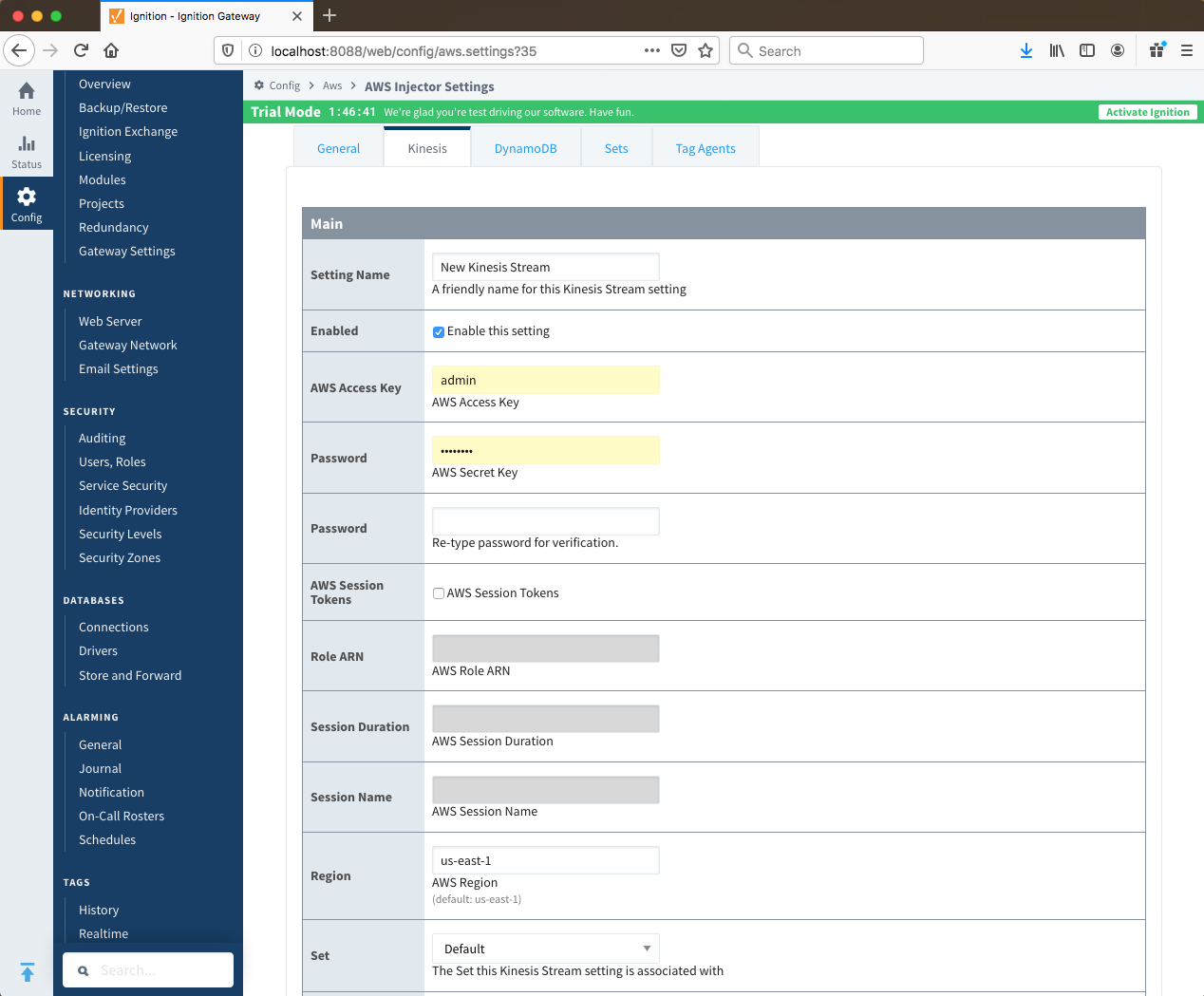 Image Removed
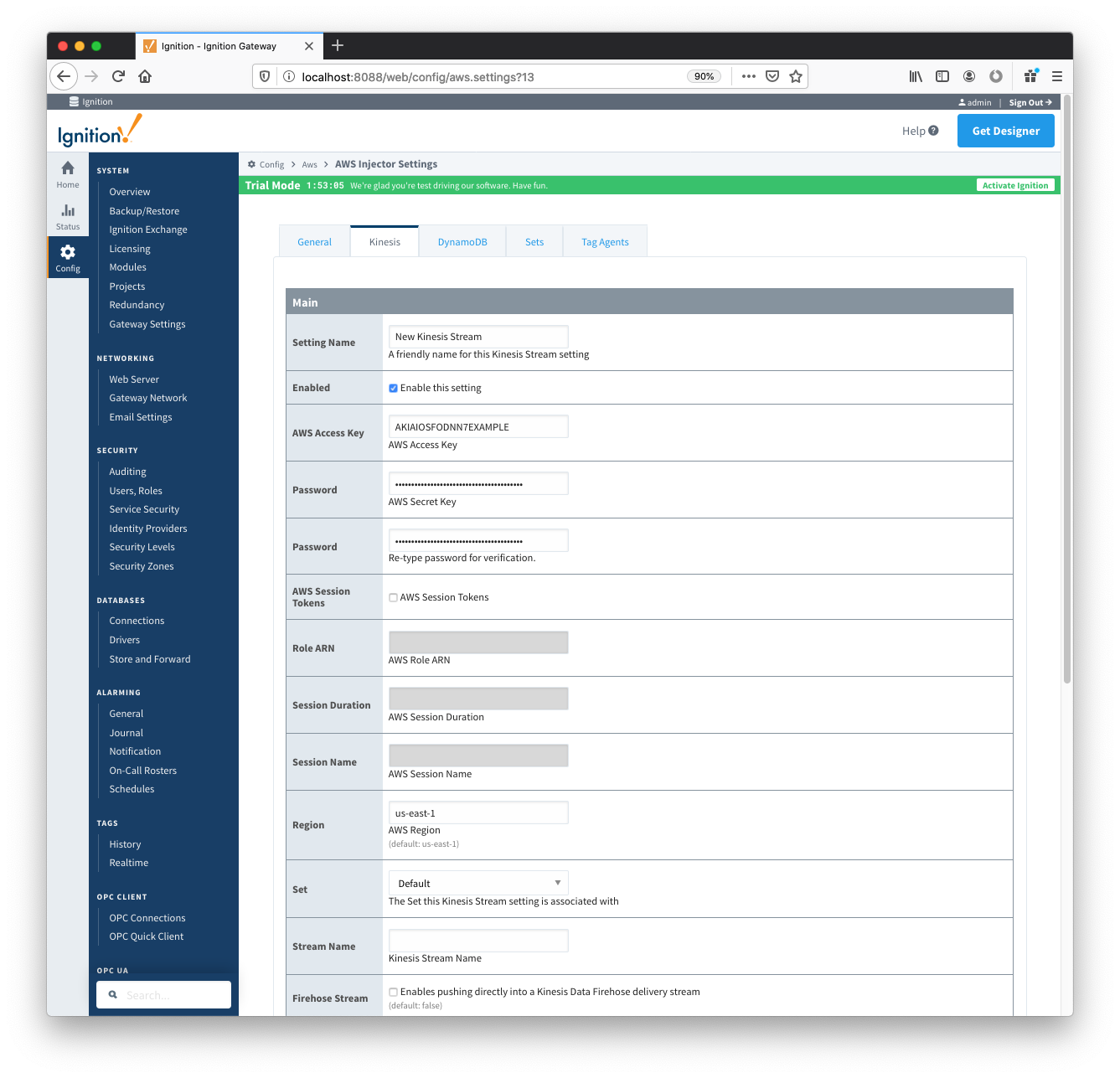 Image Added
For the Setting Name you can enter any unique identifier, we will use "TestSetting". For the AWS credentials, you will need to enter your Access Key and Secret Key used to authenticate to your AWS account as well as the region that your Kinesis Stream is in. The Set can be left as Default. Finally, the Stream Name will be the name of the Kinesis Stream that you wish to connect to. This is shown below in the AWS Kinesis Streams console.
...
Click on "Create New Kinesis Stream Setting" to finish creating the new configuration setting.
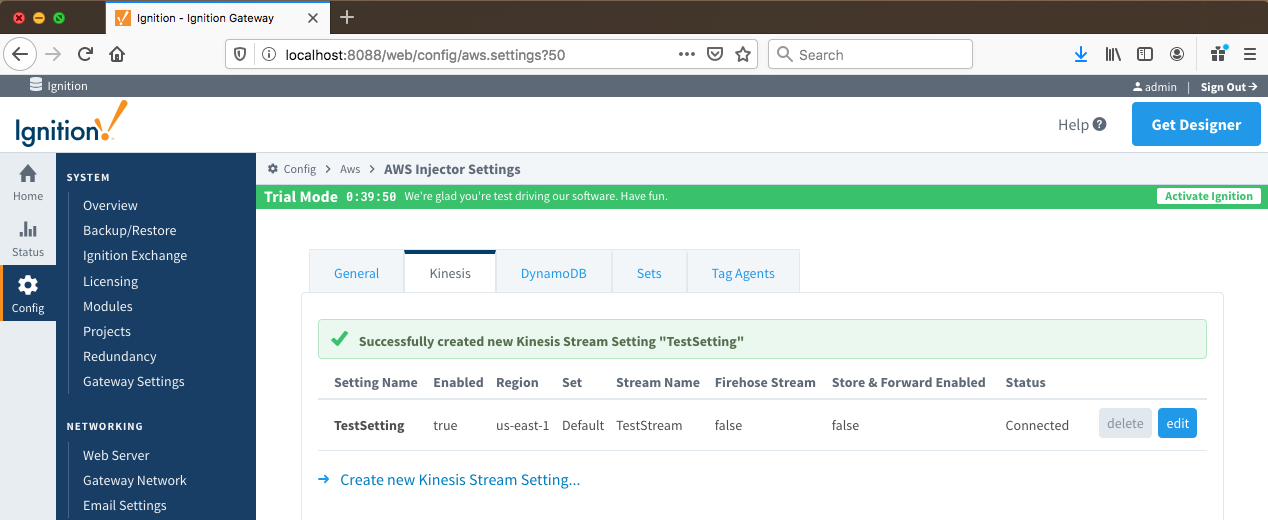 Image Removed
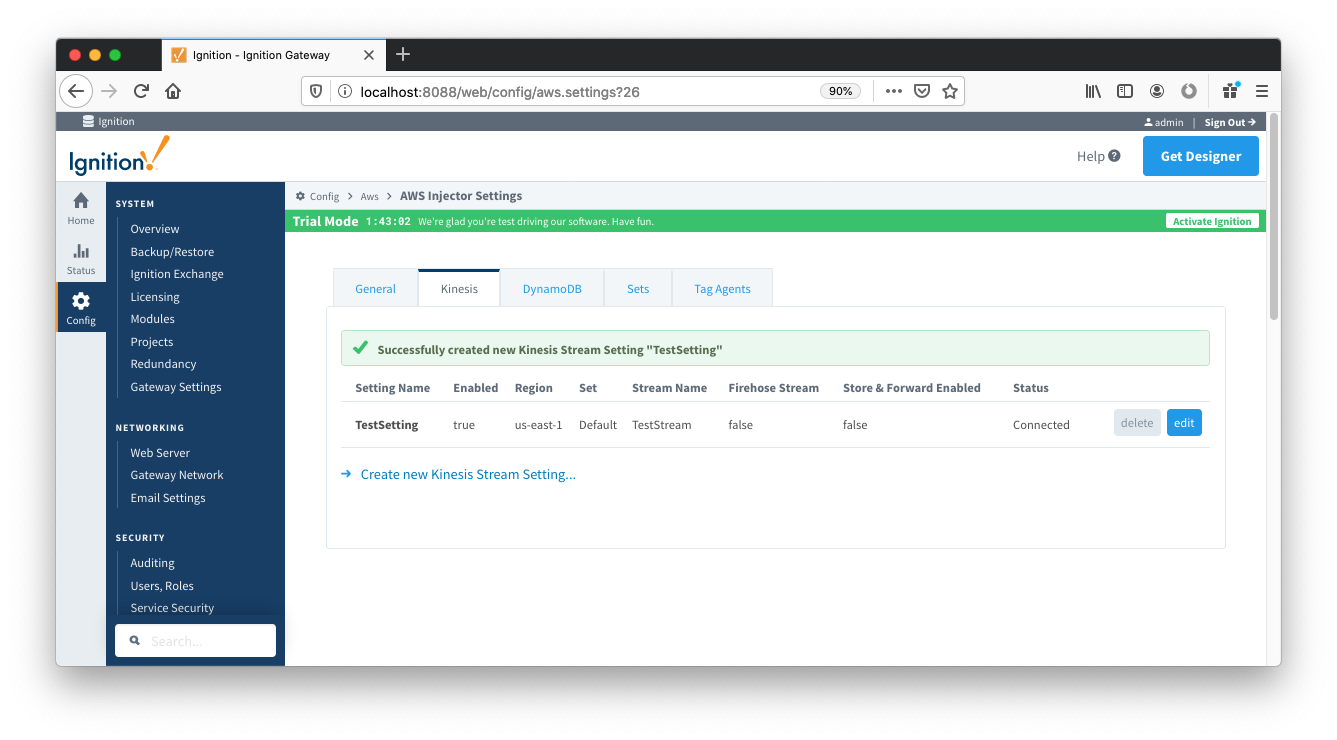 Image Added
Create an AWS DynamoDB Database Setting
Select the DynamoDB tab to bring up the DynamoDB Database Settings page.
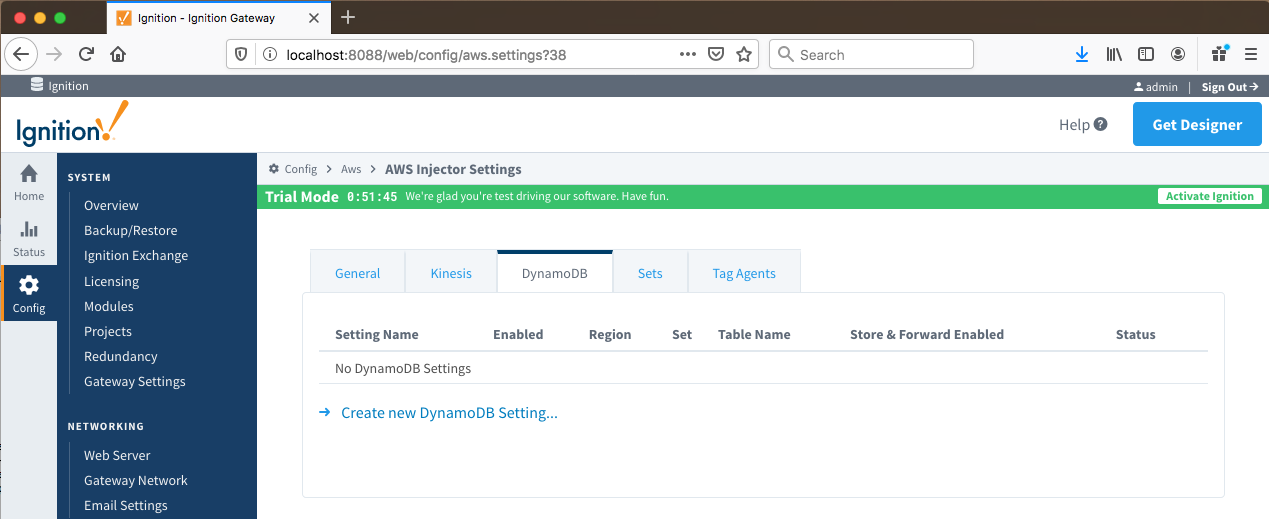 Image Removed
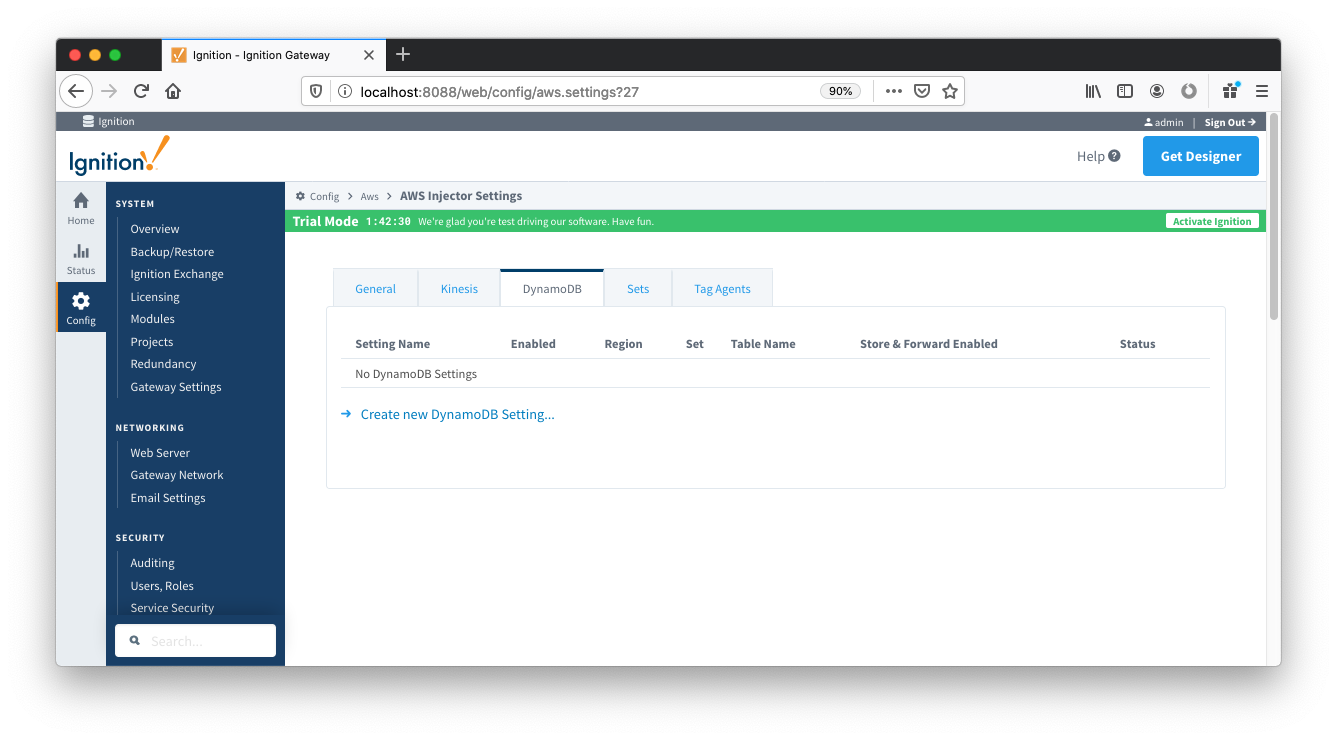 Image Added
Click on the "Create new DynamoDB Setting..." link to bring up the following configuration form:
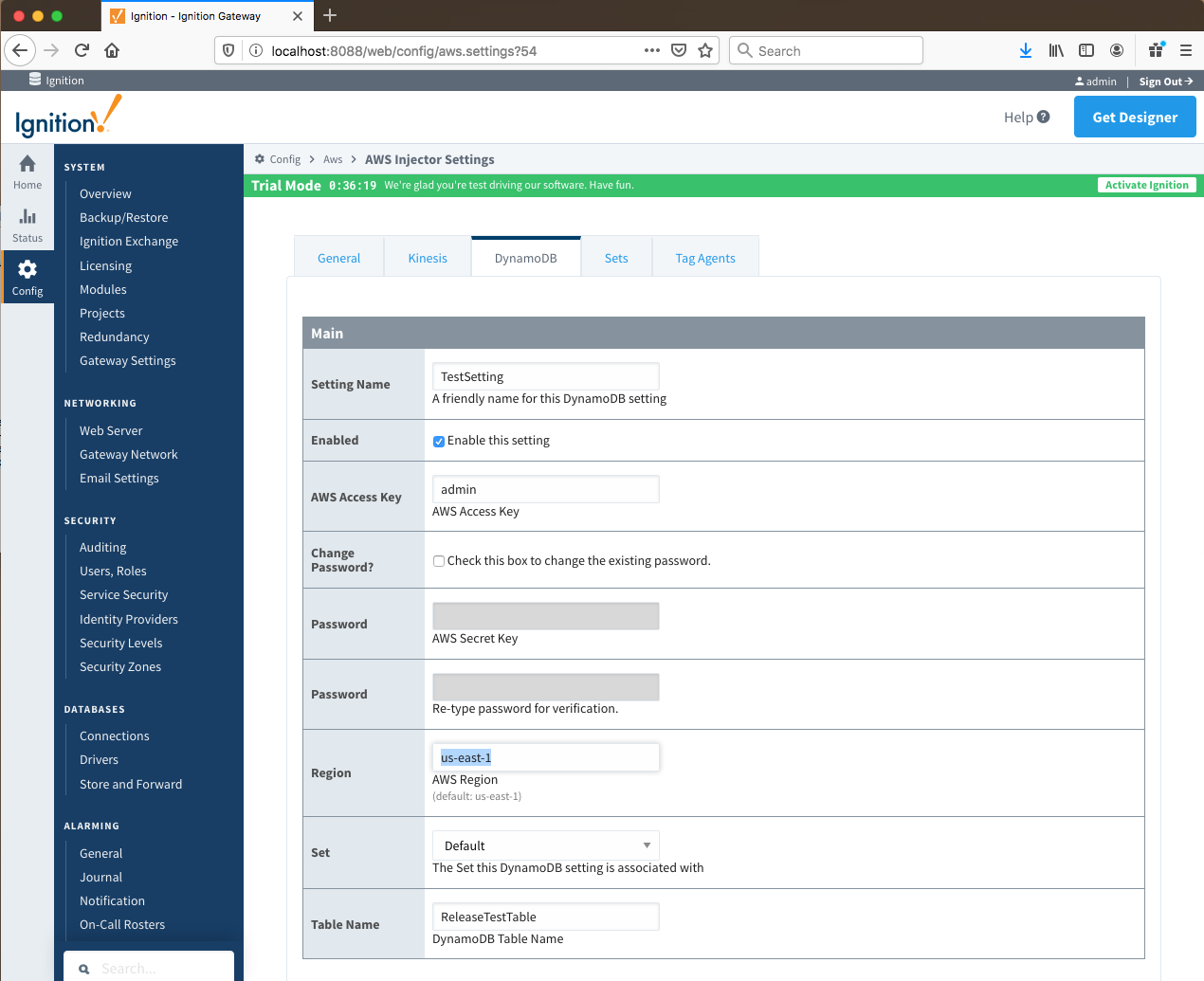 Image Removed
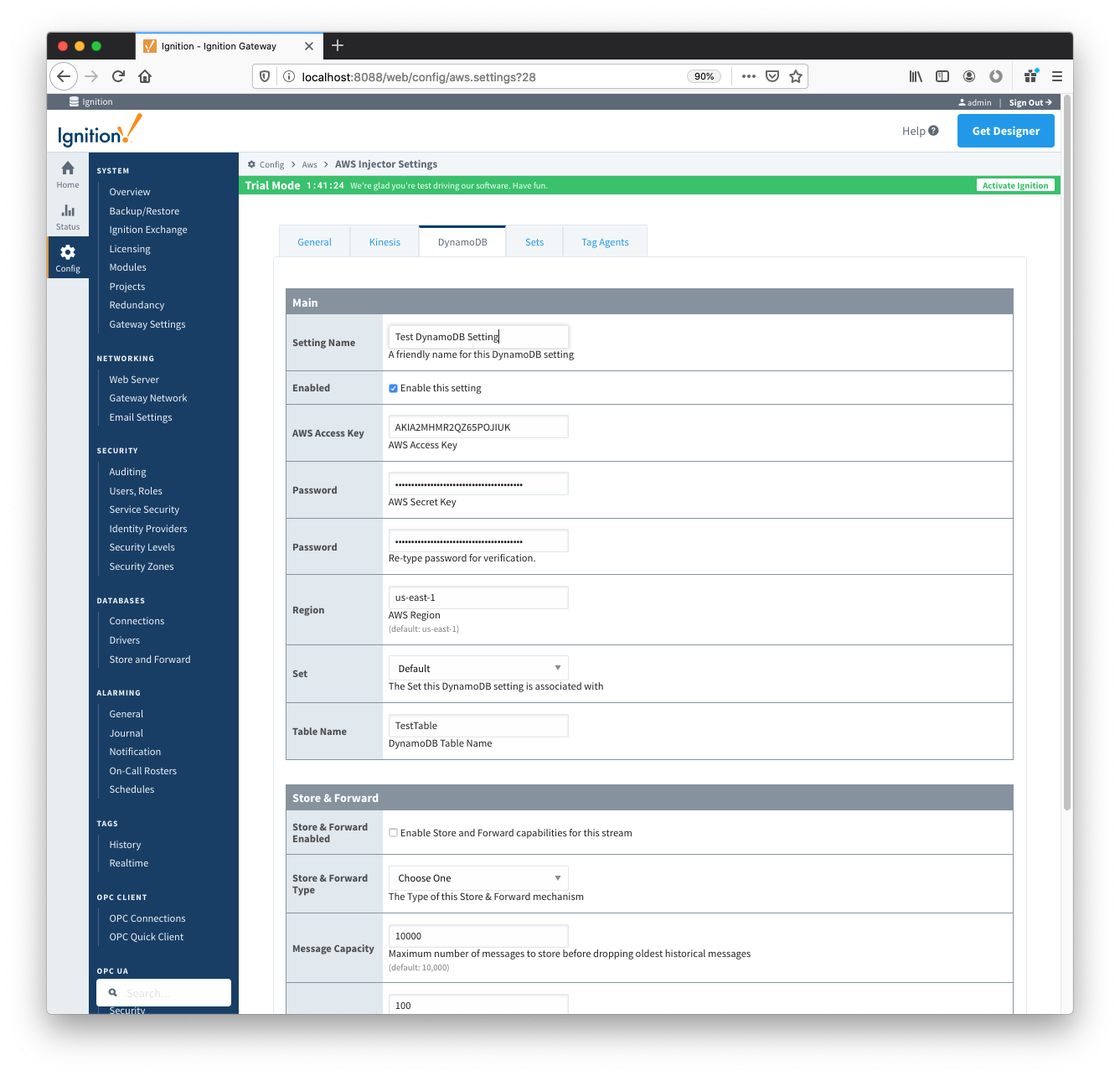 Image Added
For the Setting Name you can enter any unique identifier. We will again use "TestSetting" as it must only be unique among DynamoDB Settings. For the AWS credentials, you will need to enter your Access Key and Secret Key used to authenticate to your AWS account as well as the region that your DynamoDB Database is in. The Set can be left as Default. Finally, the Table Name will be the name of the DynamoDB Table that you wish to connect to. For example, this is shown below in the AWS DynamoDB console.
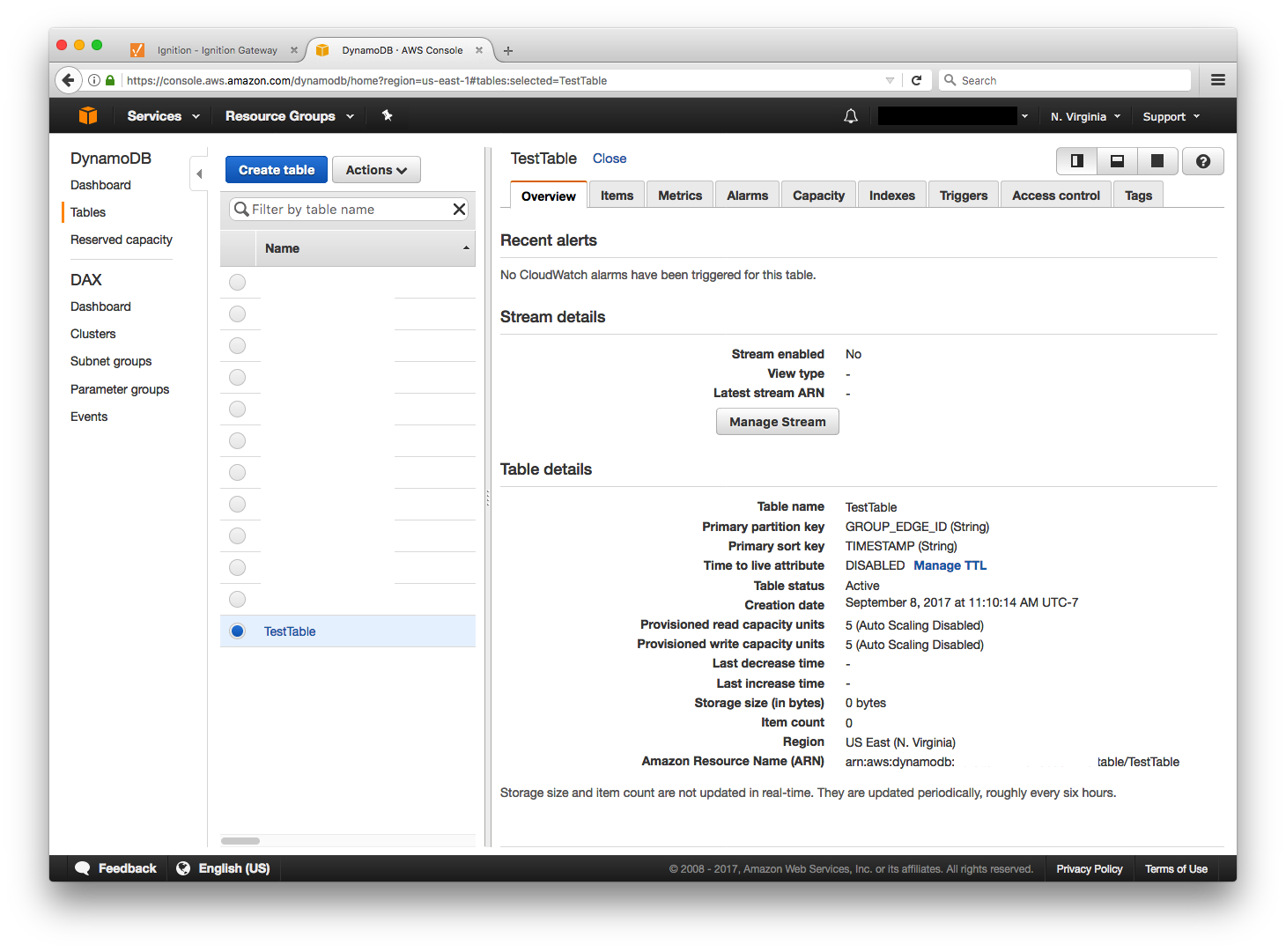 Image Modified
Click on "Create New DynamoDB Setting" to finish creating the new configuration setting.
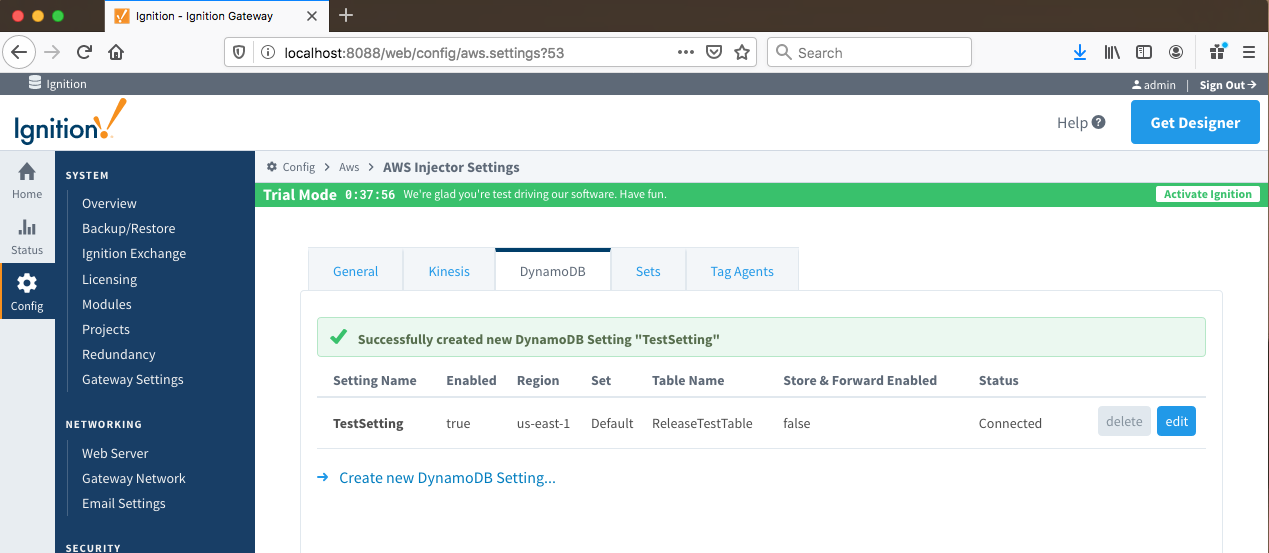 Image Removed
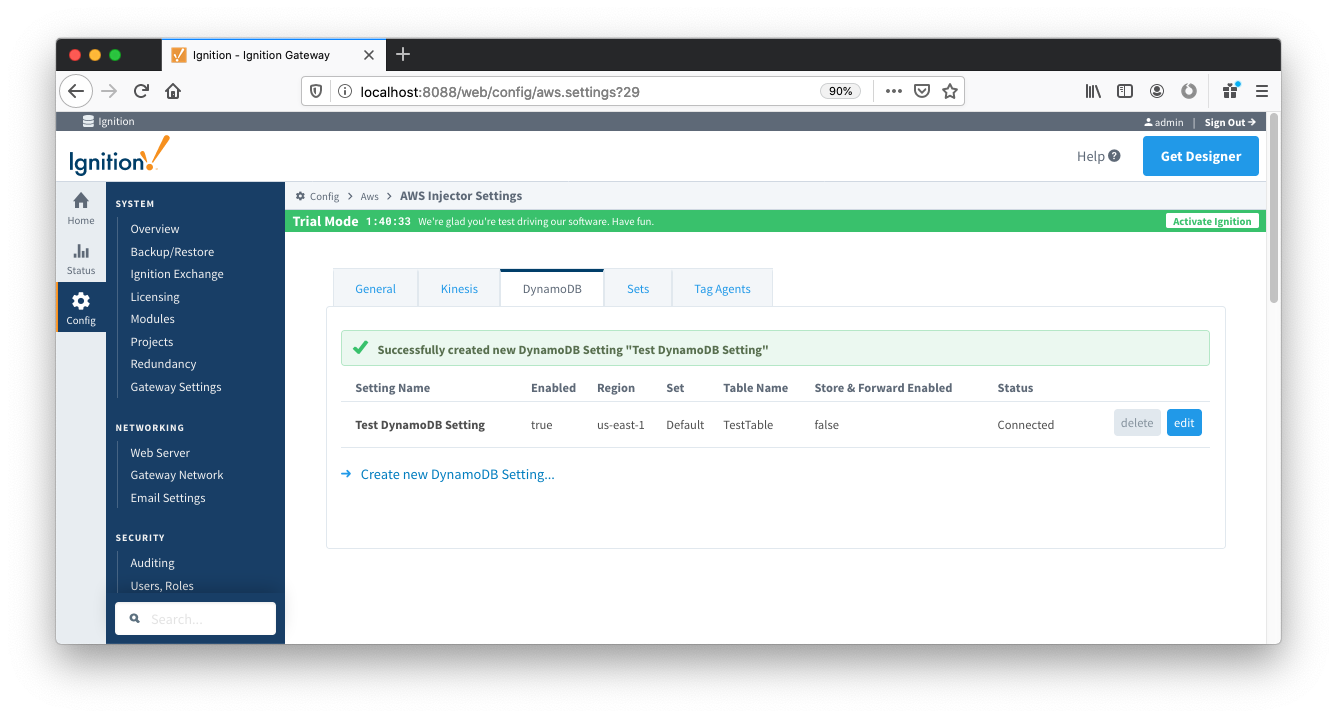 Image Added
Use Default Tag Agent Settings
Now the AWS Injector module is connected to a Kinesis Stream and/or a DynamoDB Database and ready to push Tag data you can click on the "Tag Agents" tab you will see that out-of-the-box the AWS Injector module will have one default Tag Agent defined. For this tutorial we will not need to make any configuration changes to the Tag Agents.
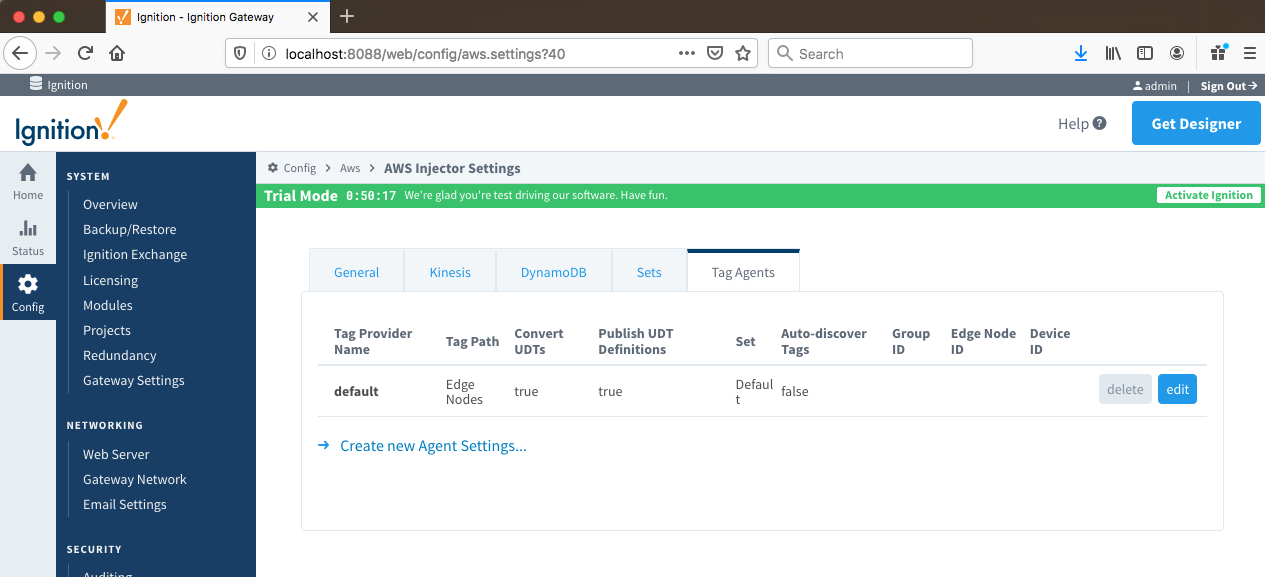 Image Removed
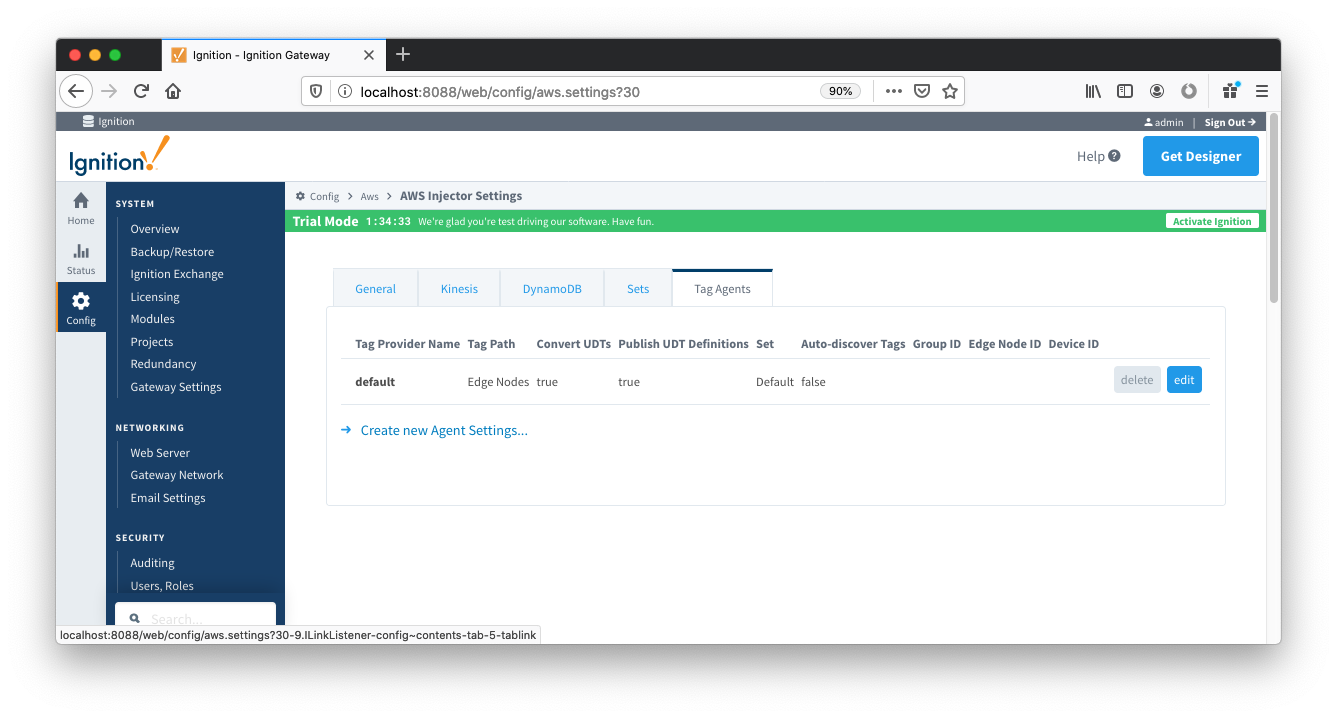 Image Added
The Default Tag Agent will monitor tags that are in the "Edge Nodes" folder of the "default" Tag Provider. In the next step we go into more detail about the tags in this folder.
...