...
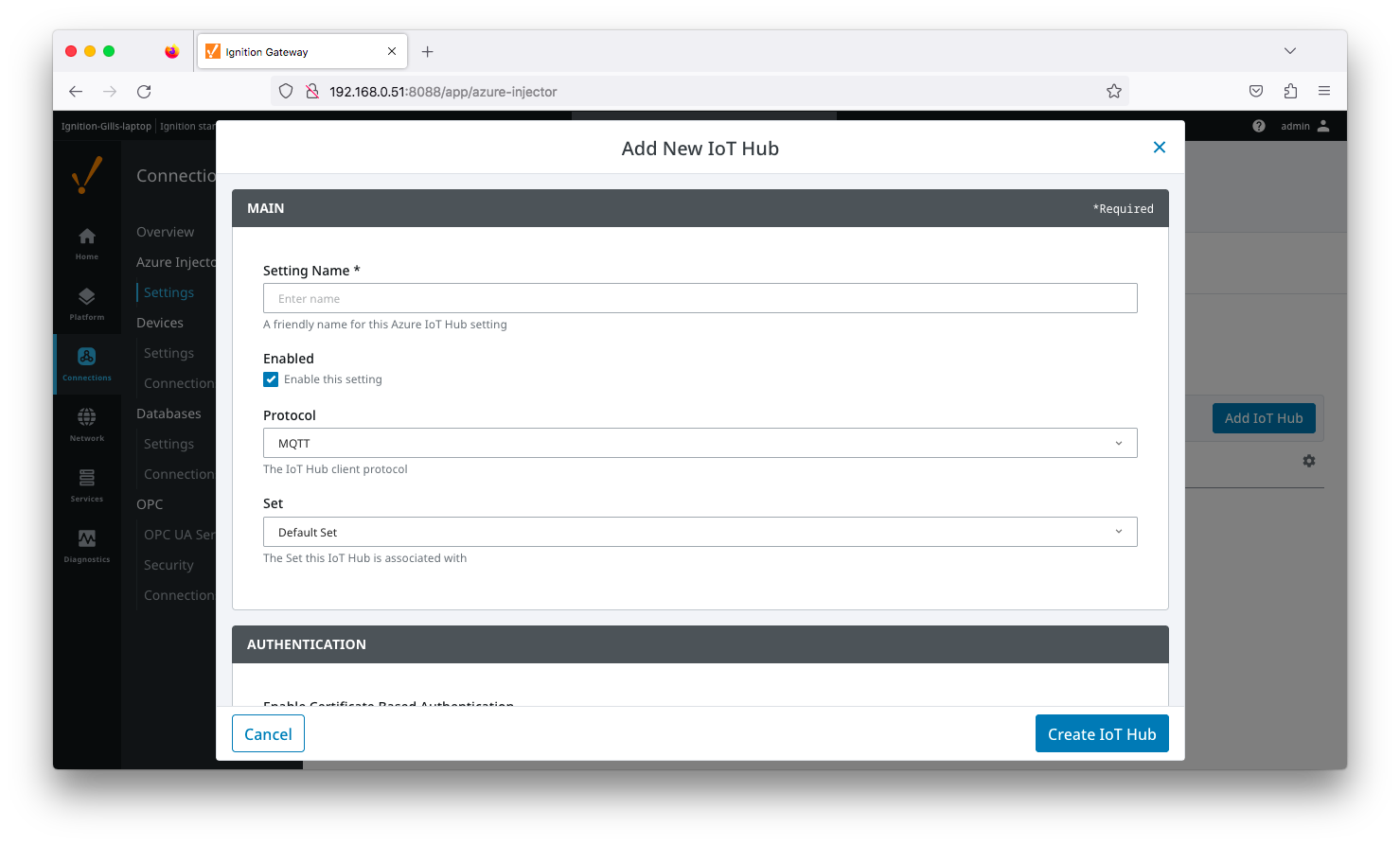
Clicking on the 'Add IoT Hub' link will bring up the following form to add a new Azure IoT Hub. The configuration sections available are Main, Authentication, Store & Forward and Advanced
| Anchor |
|---|
| azureiothubsettingmain |
|---|
| azureiothubsettingmain |
|---|
|
...
Main
- Setting Name
- This is a friendly name of the Azure IoT Hub used to easily identify it. This must also be unique.
- Enabled
- Whether or not this connection is enabled.
- Protocol
- The protocol to use when connecting to the Azure IoT Hub.
- Currently MQTT only is supported.
- Set
- The Set to associate this Azure IoT Hub connection with.
| Anchor |
|---|
| azureiothubsettingsauthentication |
|---|
| azureiothubsettingsauthentication |
|---|
|
...
Authentication
- Enable Certificate Based Authentication
- Whether or not to use certificate based authentication.
- This determines the authentication fields available for use.
- Password
- Available if not using certificate based authentication
- This is the Azure IoT Hub device connection string used to connect in the following format:
- HostName=<Host Name>;DeviceId=<Device Name>;SharedAccessKey=<Device Key>
- MQTT Hostname
- Available if using certificate based authentication
- This is the DNS endpoint name of your IoT Hub
- Device ID
- Available if using certificate based authentication
- The Device ID to connect to as provisioned in the IoT Hub
- CA Certificate File
- Available if using certificate based authentication
- The CA certificate that signed the SSL certificate being used in the IoT Hub server. See this document for more information.
- The drop down is populated from a list of files that have been uploaded to the IoT Hub/Certificates tab.
- Client Certificate File
- Available if using certificate based authentication
- The client certificate file as provisioned for the Device ID specified above. See this Connecting to Azure IoT Hub with Certificate Based Authentication for details on creating the client certificate
- The drop down is populated from a list of files that have been uploaded to the IoT Hub/Certificates tab.
- Client Private Key File
- Available if using certificate based authentication
- The client private key file that was used in generating the certificate for the Device ID specified above. See this Connecting to Azure IoT Hub with Certificate Based Authentication for details on creating the client private key
- The drop down is populated from a list of files that have been uploaded to the IoT Hub/Certificates tab.
- Private key password
- Available if using certification based authentication
- The password used for the private key if one was specified for the Client Private Key File
| Anchor |
|---|
| azureiothubsettingsstore&forward |
|---|
| azureiothubsettingsstore&forward |
|---|
|
...
Store & Forward
- Store & Forward Enabled
- Whether to enable Store & Forward capabilities for this endpoint
- Store & Forward Type
- The type of the Store & Forward mechanism options: In_Memory and Disk_Backed (available in release 4.0.17 and higher)
- Data stored with an In_Memory Store & Forward will not be persisted across a module configuration change, module disable/enable, module restart or power loss.
- Data stored with a Disk_Backed Store & Forward will persist across a module configuration change, module disable/enable, module restart or power loss
- Message Capacity - deprecated in 4.0.19
- The maximum number of messages to store before dropping the oldest historical messages
- History Max Size
- Maximum number of megabytes history can use before dropping the data
- An In_Memory History store will use the Ignition Java Heap memory
- History Max Age
- The maximum number of minutes to store history before dropping the data
- Flush Period
- The period of time to wait (in milliseconds) between sending when flushing messages
| Anchor |
|---|
| azureiothubsettingsadvanced |
|---|
| azureiothubsettingsadvanced |
|---|
|
...
Advanced
- Keep Alive
- The MQTT keep alive timeout in seconds
- Max Message Size
- The maximum message size in bytes that any message can be when pushing to IoT Hub. Generally, this should match the max message size allowed by IoTHub.
- Session Expiration
- How long in seconds to specify for session token timeouts when not using certificate based authentication
- Content Type
- Content Encoding
- The content encoding to include in the topic to Azure IoT Hub
- NONE (default) - No content encoding header will be included with the message
- UTF_8 - The 'utf-8' header will be included with the message and make the body of the message available for routing if the content type is also set to APPLICATION_JSON
- UTF_16 - The 'utf-16' header will be included with the message and make the body of the message available for routing if the content type is also set to APPLICATION_JSON
- UTF_32 - The 'utf-32' header will be included with the message and make the body of the message available for routing if the content type is also set to APPLICATION_JSON
- ISO-8859-1 - The 'ISO-5589-1' header will be included with the message and make the body of the message available for routing if the content type is also set to APPLICATION_JSON
- See Using IoT Hub Message Based Routing tutorial for more details
- Azure Date/Time Format
- The date/time format to use when pushing messages to IoT Hub
- LONG_MS_SINCE_EPOCH (default) - The timestamp values will all be as numbers in milliseconds since epoch (Jan 1, 1970) in UTC
- STRING_AZURE_COMPAT - The timestamp will be pushed as described here. This is useful when wanting to use 'edge' timestamps in Azure Time Series insights.
- See Pushing Data to Azure Time Series Insights tutorial for more details
...
Advanced Store & Forward
- H2 Database Directory
- Directory to store the H2 Database in. Applicable for Disk-backed history store only
- The default base path for Linux is ~yourIgnitionInstance\data\modules and the database will be included in the Ignition GWBK
- The default location for Windows Linux is ~yourIgnitionInstance\user-lib\modules and the database will not be included in the Ignition GWBK
- The database file will be created in this directory under the base path com.cirrus-link\com.cirruslink.injector.azure.gateway\h2
- H2 Database Port
- TCP Port to connect to H2 Database for Disk_Backed History Store
...