...
In the search bar, type in 'IoT Bridge for Snowflake' and hit enter. This should show the following.
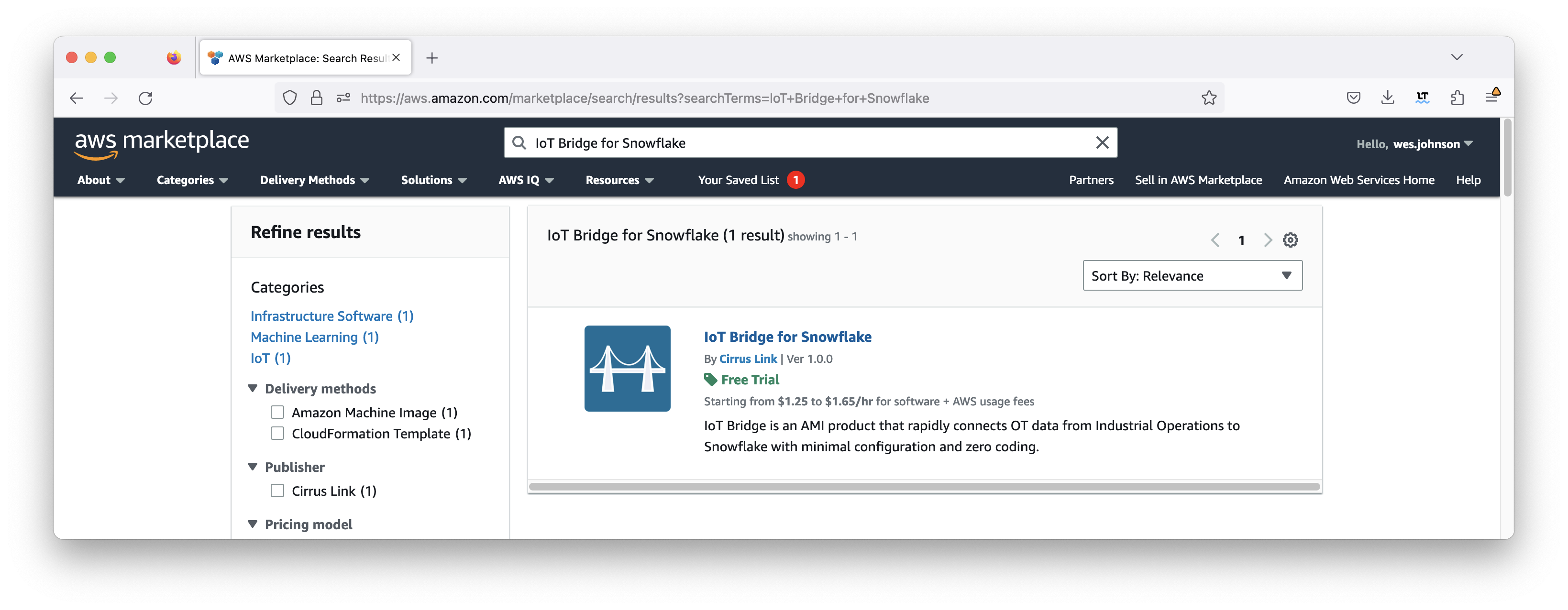 Image Removed
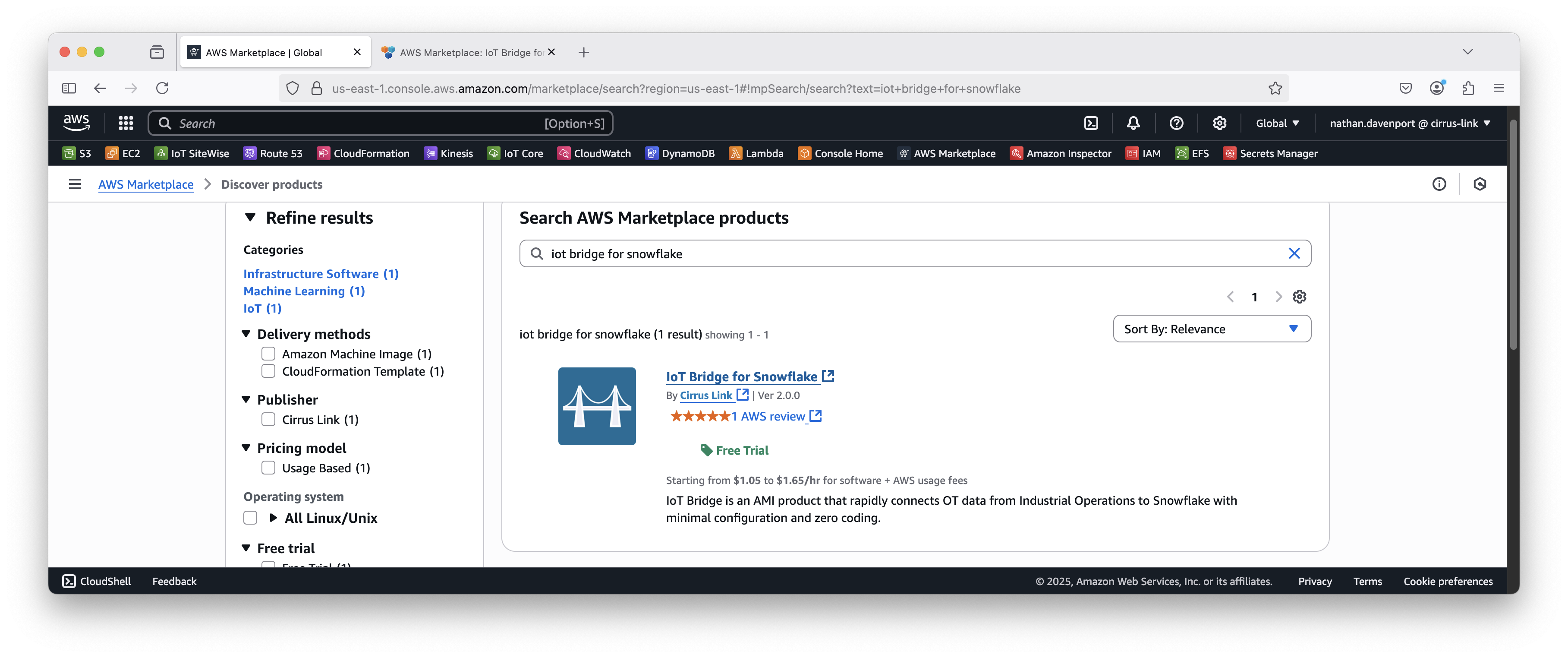 Image Added
Then click on IoT Bridge by Cirrus Link. After doing so, you should see the following.
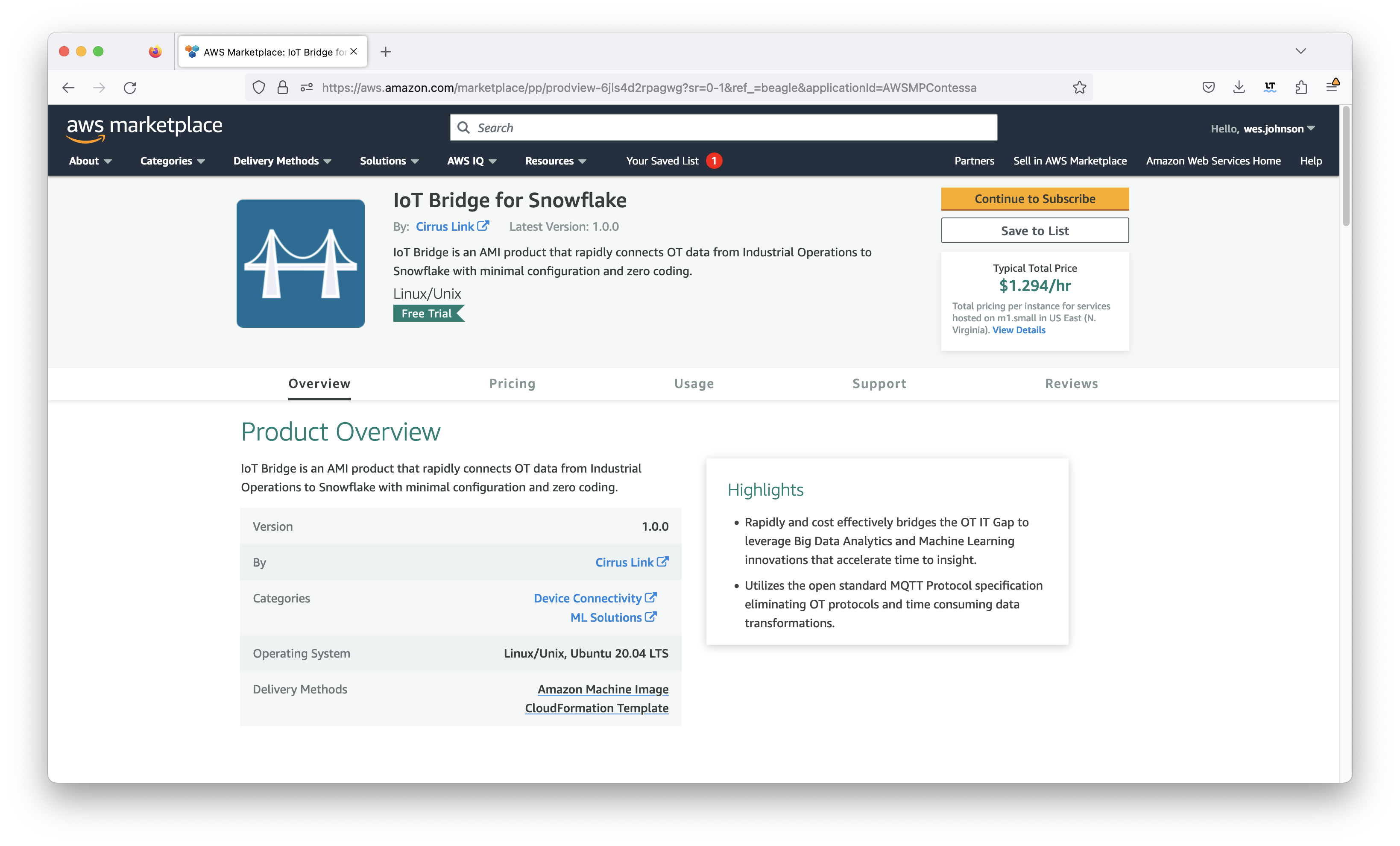 Image Removed
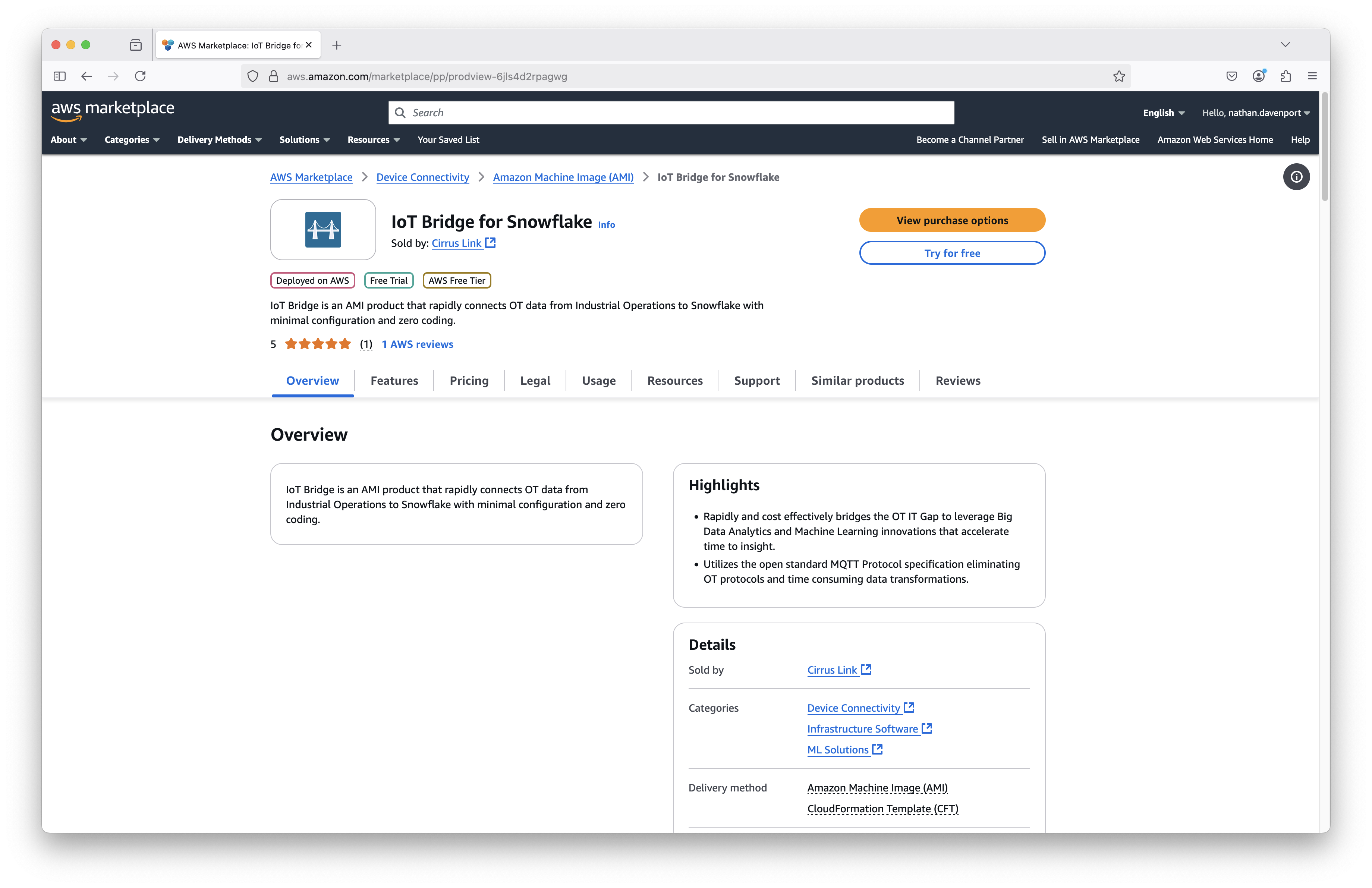 Image Added
Click the yellow 'Continue to Subscribe' button near the top of the screen. This will bring up the following page:
...
In the 'Fulfillment option' field, select 'CloudFormation Template' as shown below. This will set up the defaults including the 'Cirrus Link IoT Bridge for AWS Snowflake Template' field, the version, and the region. Select your preference for the region also as shown below. Note your region should usually match the region Snowflake runs in.
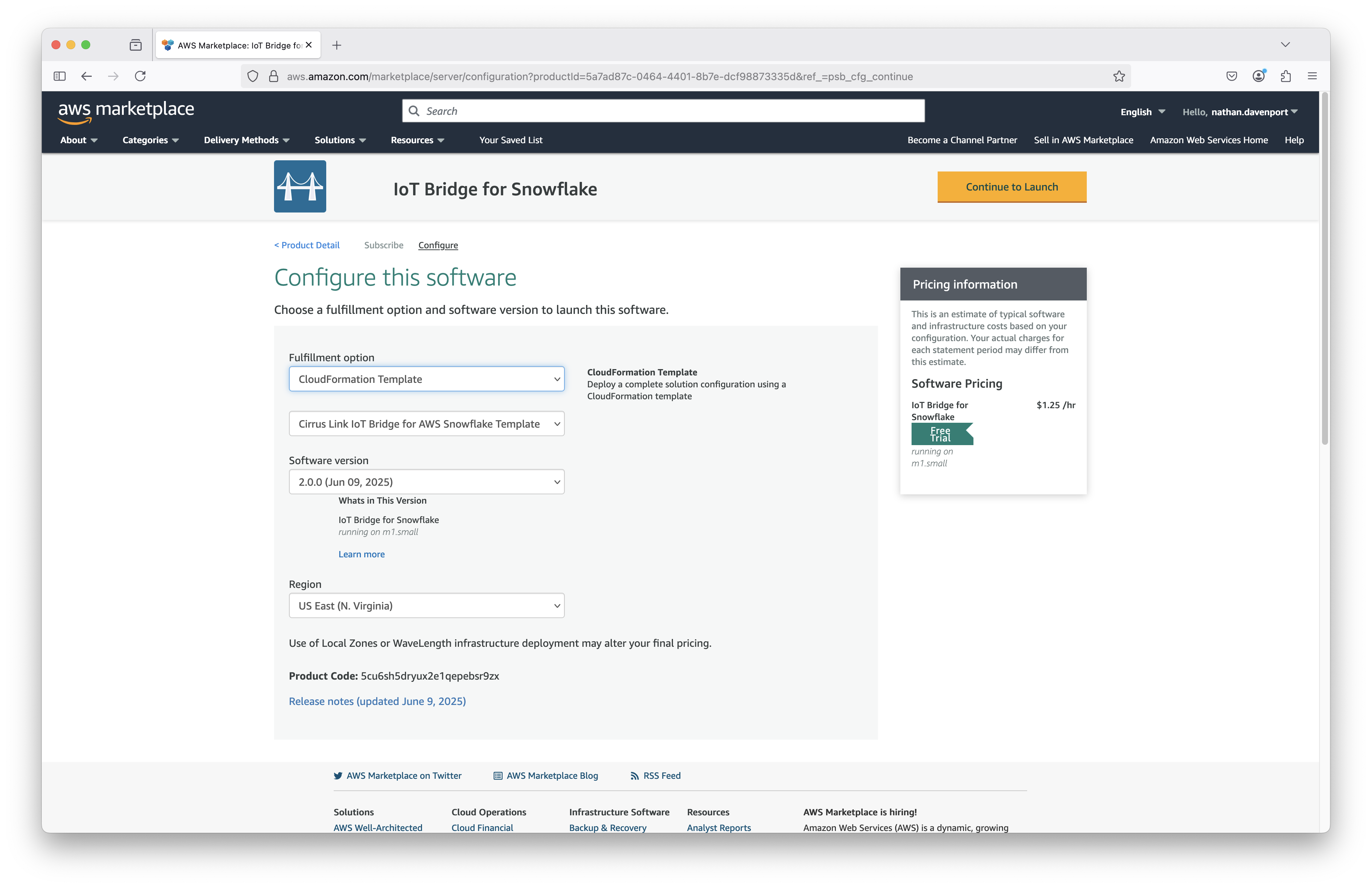 Image Added
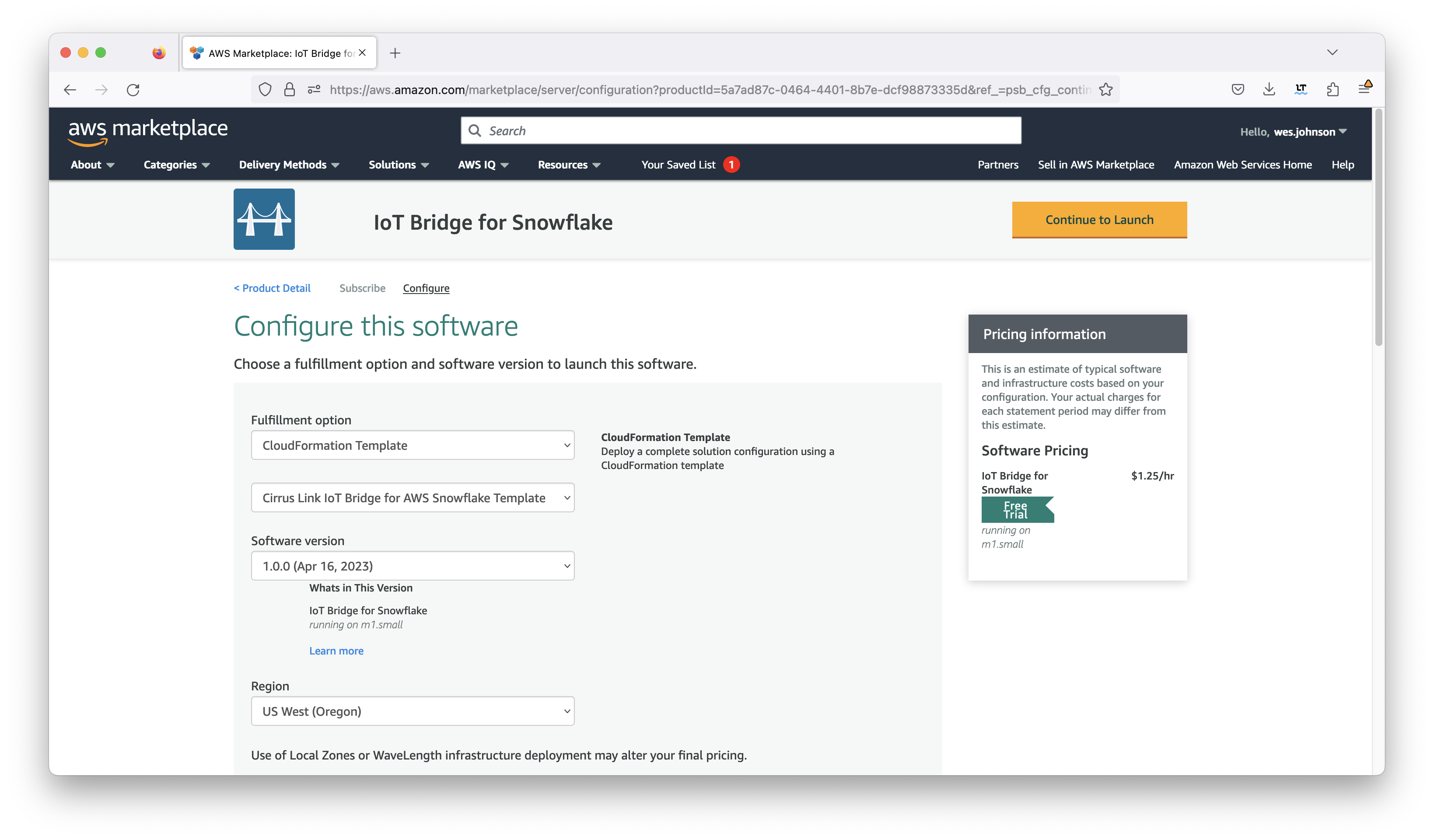 Image Removed
Now click the orange 'Continue to Launch' button in the upper right corner. This will bring up the following screen.
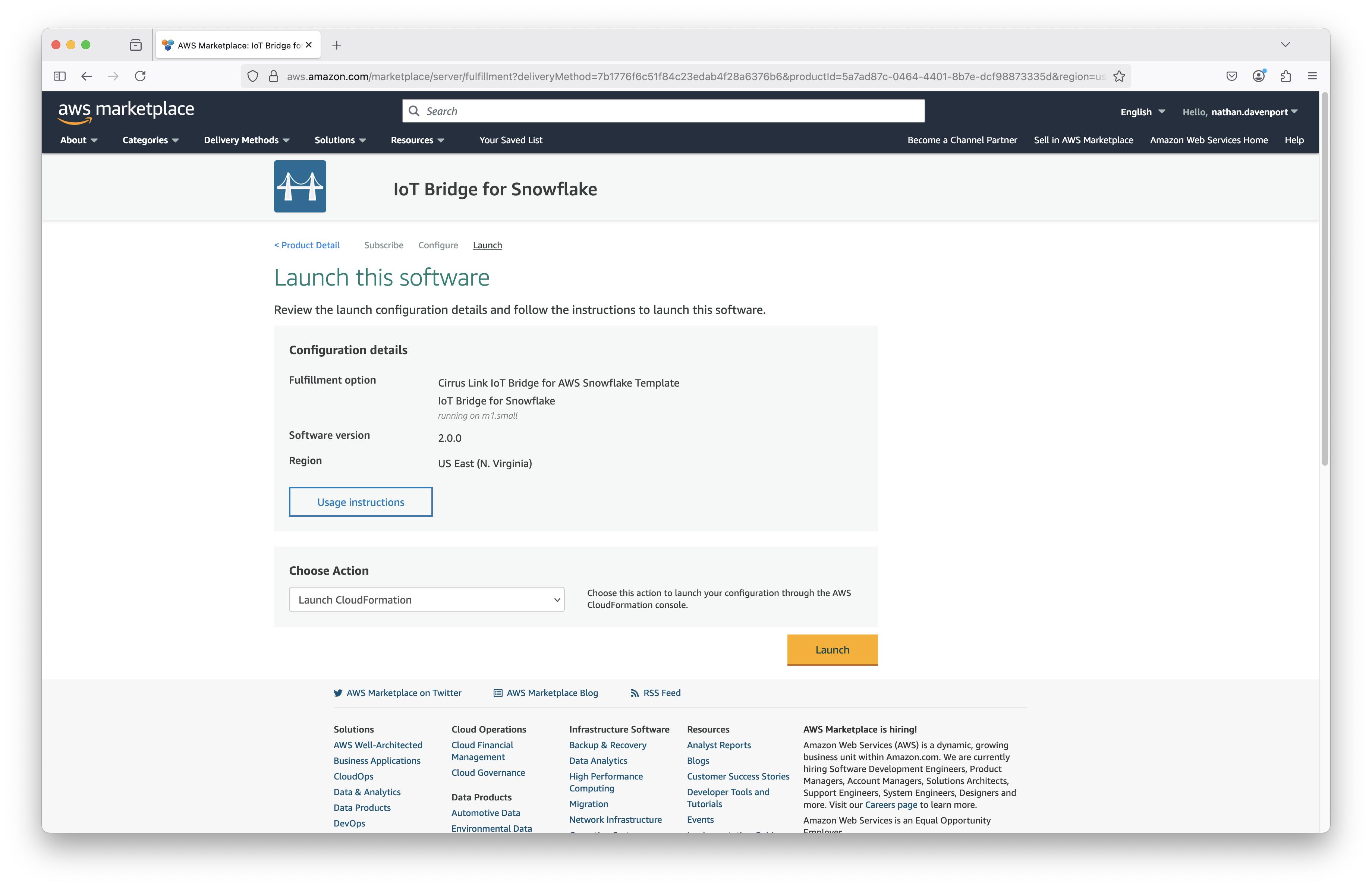 Image Added
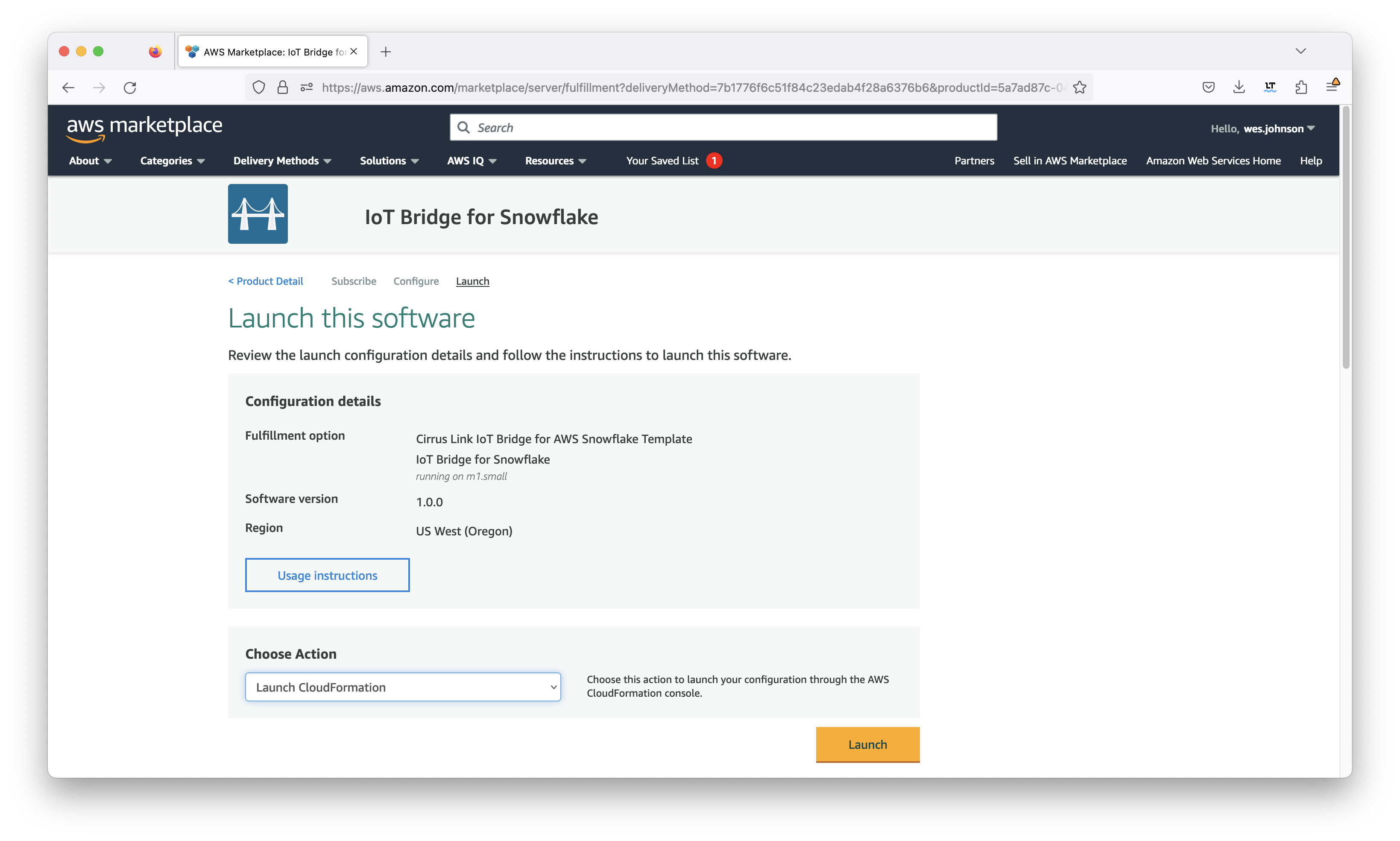 Image Removed
Finally, click the orange 'Launch' button shown in the screenshot above. This will bring up the CloudFormation stack creation page shown below. Note the template associated with the IoT Bridge is automatically populated for you. This is also shown below.
...