For closed-network environments running multiple Chariot instances that share a pool of concurrent license seats. License validation stays entirely inside the deployed network.
A Floating License Server (FLS) is a small server application that holds Chariot licenses and tracks how many Chariot instances are using it at any given time. Instead of binding a license to one specific Chariot server, the FLS lets multiple Chariot instances share a pool of concurrent license seats.
When a Chariot instance starts, it asks the FLS for a seat. When the Chariot instance shuts down, it releases the seat back to the pool. As long as there are available seats, additional Chariot instances can activate against the same FLS.
The FLS runs entirely inside the local network, with no inbound/outbound internet from Chariot or the FLS for license validation.
The FLS is provided by License4J as free software. For installation, configuration, and administration, see License4J's Floating License Server page.
Once the FLS is running, see Purchasing and Activation to purchase and activate a Self-Hosted Floating license against it.
Before requesting a Self-Hosted Floating license, you should already have:
16090).Make sure to purchase the number of licenses that the system requires under its highest load |
Send Cirrus Link two pieces of information from your FLS so Cirrus Link Support can issue a license usage keyed to the specific FLS.
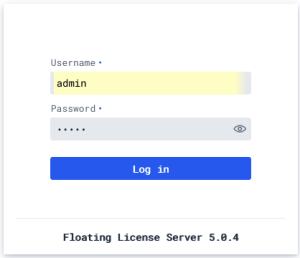
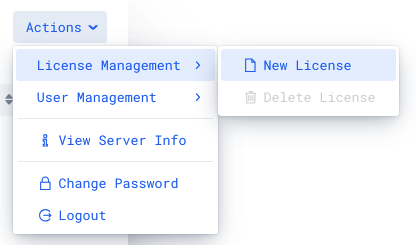
Log in to the FLS admin UI (default is port 16090, http://<fls-host>:16090)
Open the Actions dropdown.
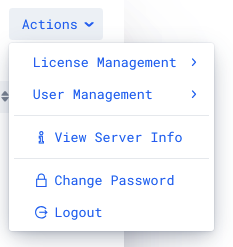
Select View Server Info.
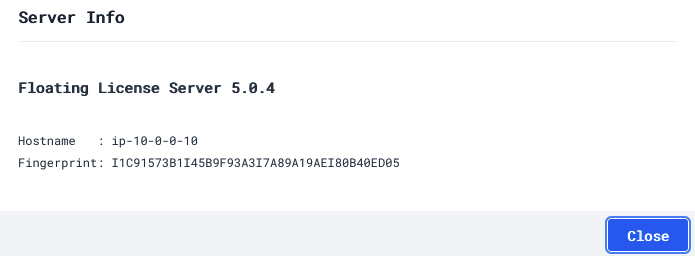
Note the Hostname and Fingerprint values.
Send Cirrus Link the FLS hostname, fingerprint, and your seat count.
Cirrus Link Support will generate a license and respond with an email containing the usage hash. This can take up to 24 hours.
Log in to your FLS admin UI (default is port 16090, http://<fls-host>:16090)
Navigate to License Management → New License.
Paste in the usage hash provided by Cirrus Link and save.
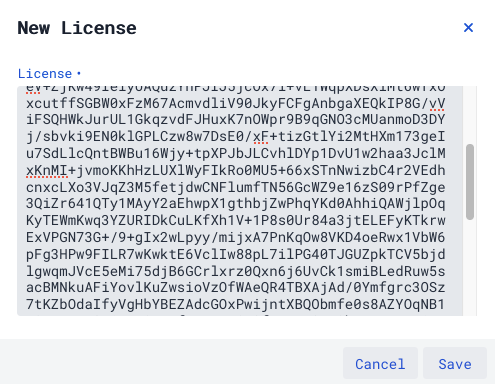
The license appears in the FLS license grid, and the FLS is ready to serve seats to Chariot instances.

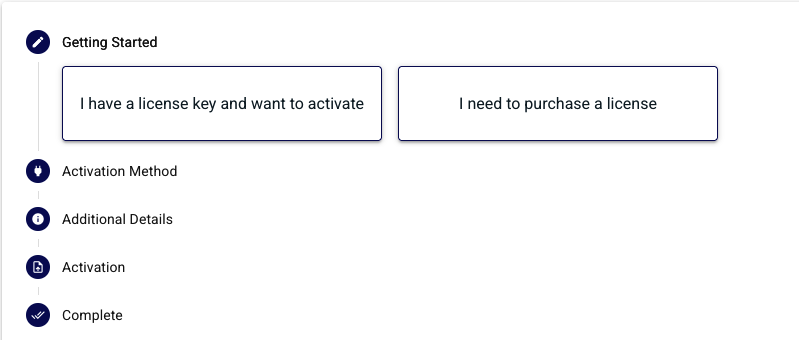
In the Chariot UI, navigate to the License page.
Select I have a license key and want to activate.
Select Floating and click Next.
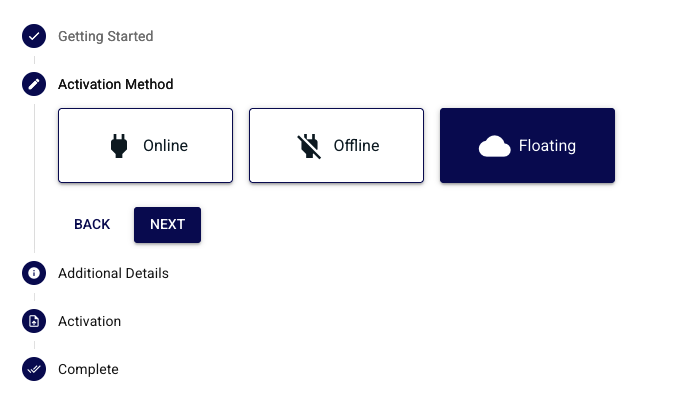
Fill in the activation details:
/fls path. Example: http://10.0.0.10:16090/fls
Click Next, then Finished on the Complete step.
Chariot will contact the FLS, lease a seat, and display a success screen.
Important: The
/flspath on the URL is required.
Important: The License Features selected in Chariot must match the features on the license installed on the FLS. Mismatched features will cause activation to fail.
Repeat for each Chariot instance.
Each running Chariot instance leases one seat from the FLS. As long as there are available seats on the installed license, additional Chariot servers configured with the same FLS URL and matching License Features will activate automatically.
In order to deactivate the floating license, log into the Chariot MQTT Server Web UI and from the left hand menu bar select License as shown below.
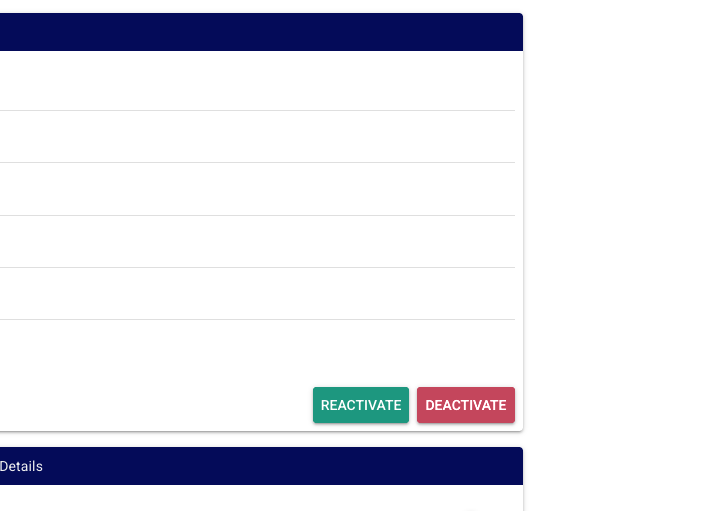
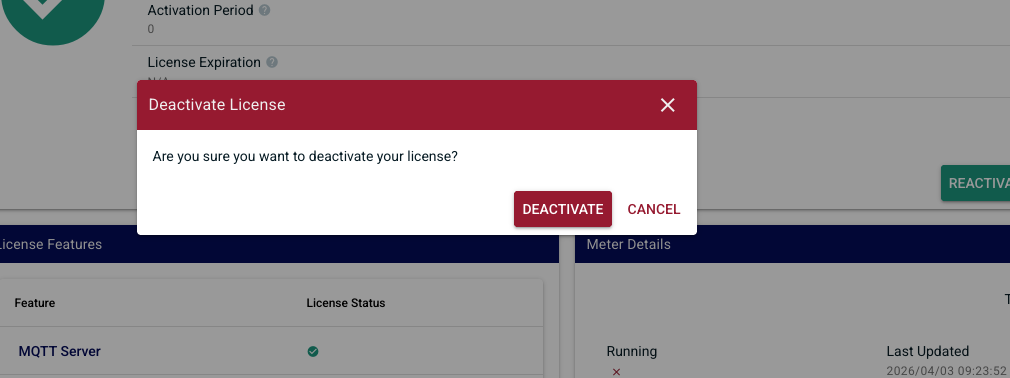
Select "Deactivate" for the license to be remotely deactivated so that it can be potentially activated on another Chariot MQTT Server instance.
| If the server is terminated, deleted, or destroyed without deactivating the active Chariot License, that license will permanently lose one of its total number of activations |
Once deactivation is successfully complete you will be returned back to the license activation wizard
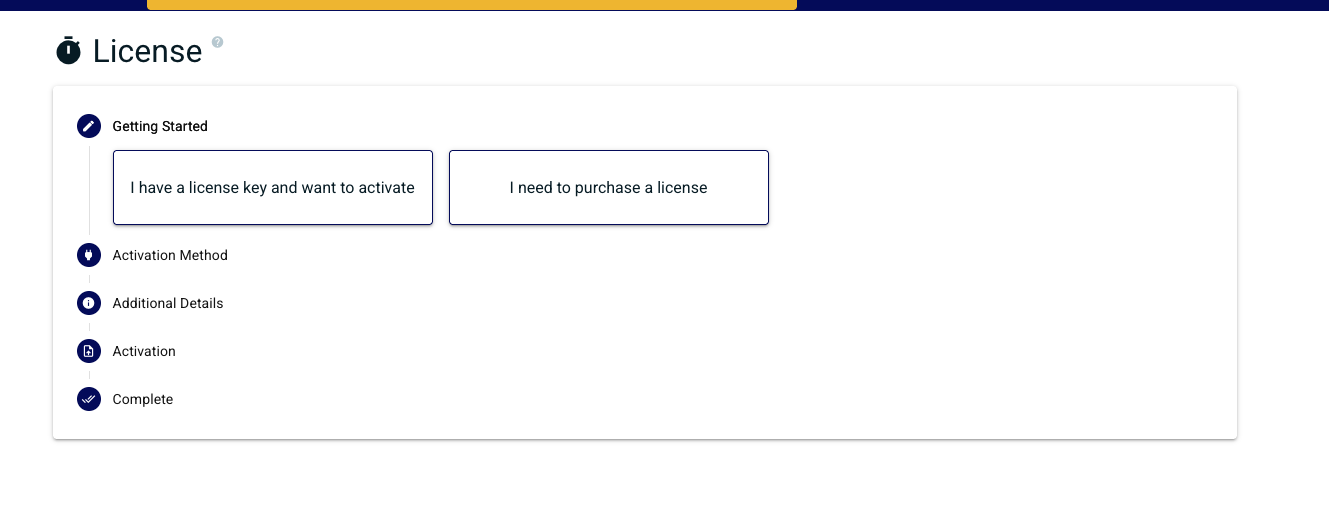
It can take up to 10 minutes for a floating license to deactivate |
When upgrading a Self-Hosted Floating license — for example, changing feature flags or adding seats — uninstall the previous license from your FLS before installing the new one. If both are installed at once, the FLS will reject the new license.