If at any point your onlinThe Chariot® MQTT Server Web UI allows for uploading, activating, and deactivating valid Chariot Licenses.
| If you have deployed Chariot through AWS Marketplace or Azure Marketplace, then no additional steps are required - your license is already installed and activated. |
These tutorials will cover how to purchase or upgrade an existing license
These tutorial will cover the process for both online and offline activations and deactivations:
Before using Chariot you will need to purchase a license. To do this there are two methods.
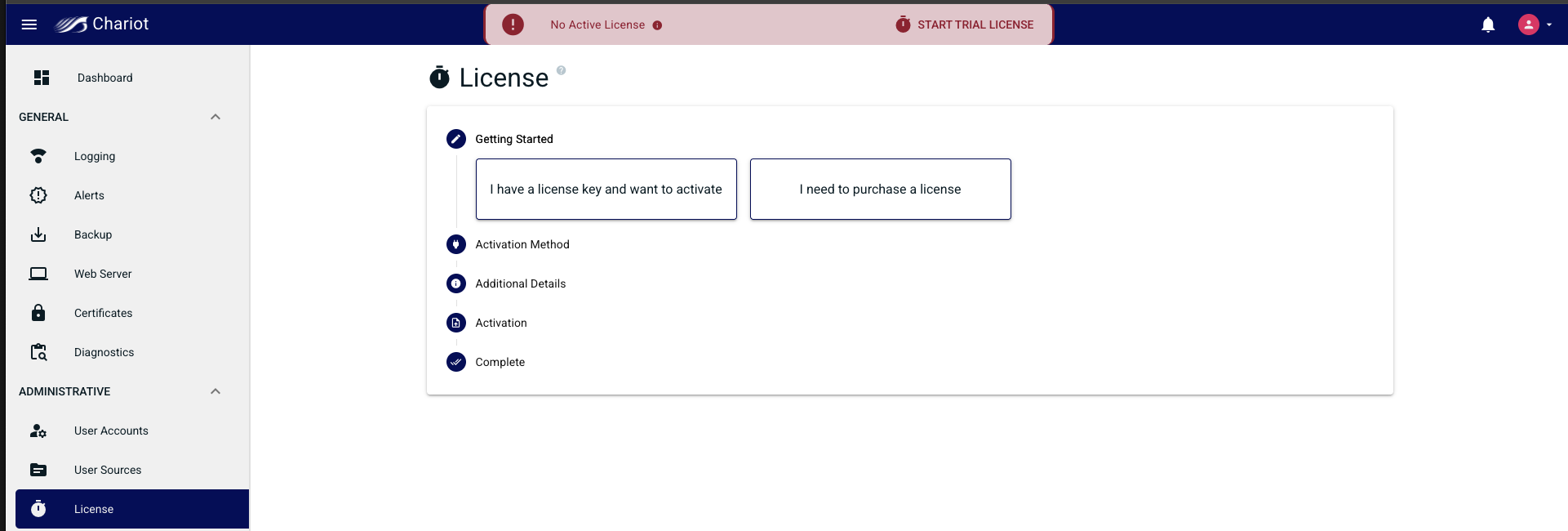
If using the Chariot UI first navigate to the License page
Select "I need to purchase a license" from the wizard. A modal will pop up providing different features that can be purchased for your license.
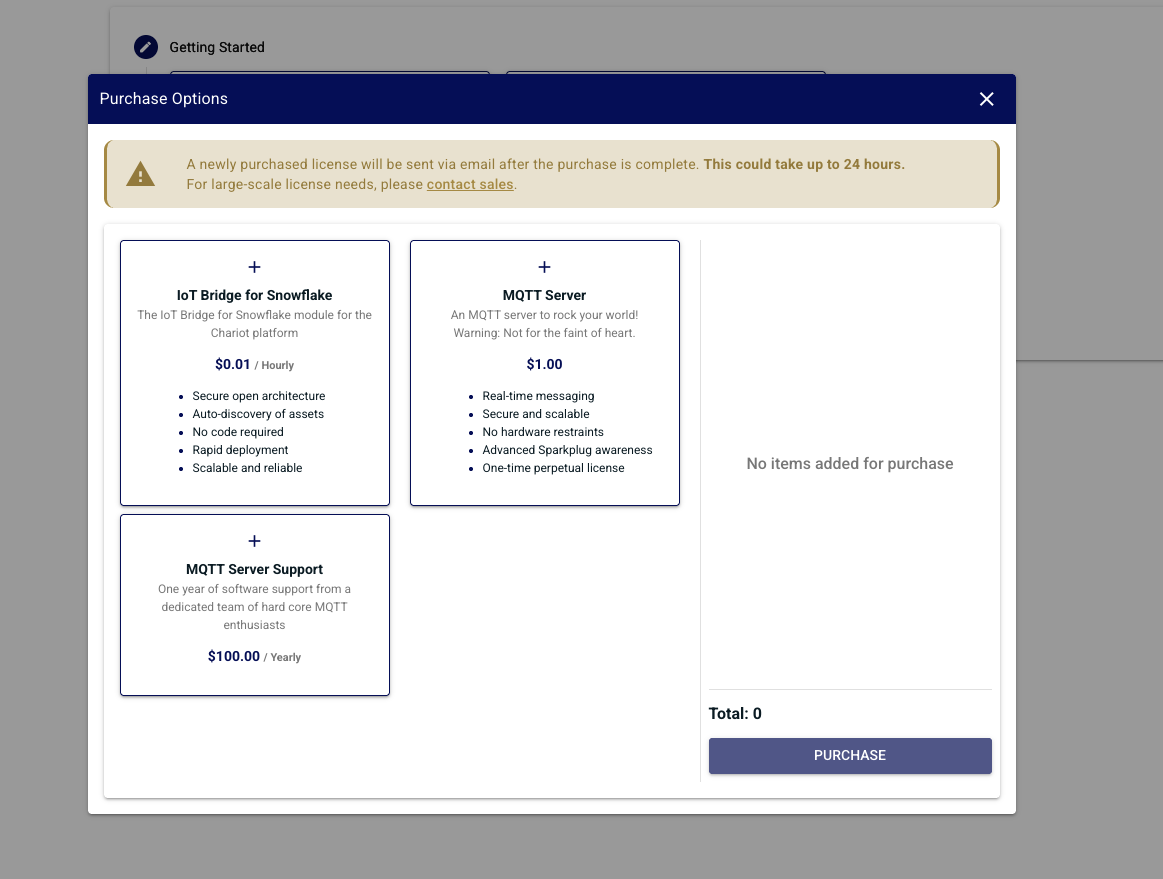
Make your feature selection
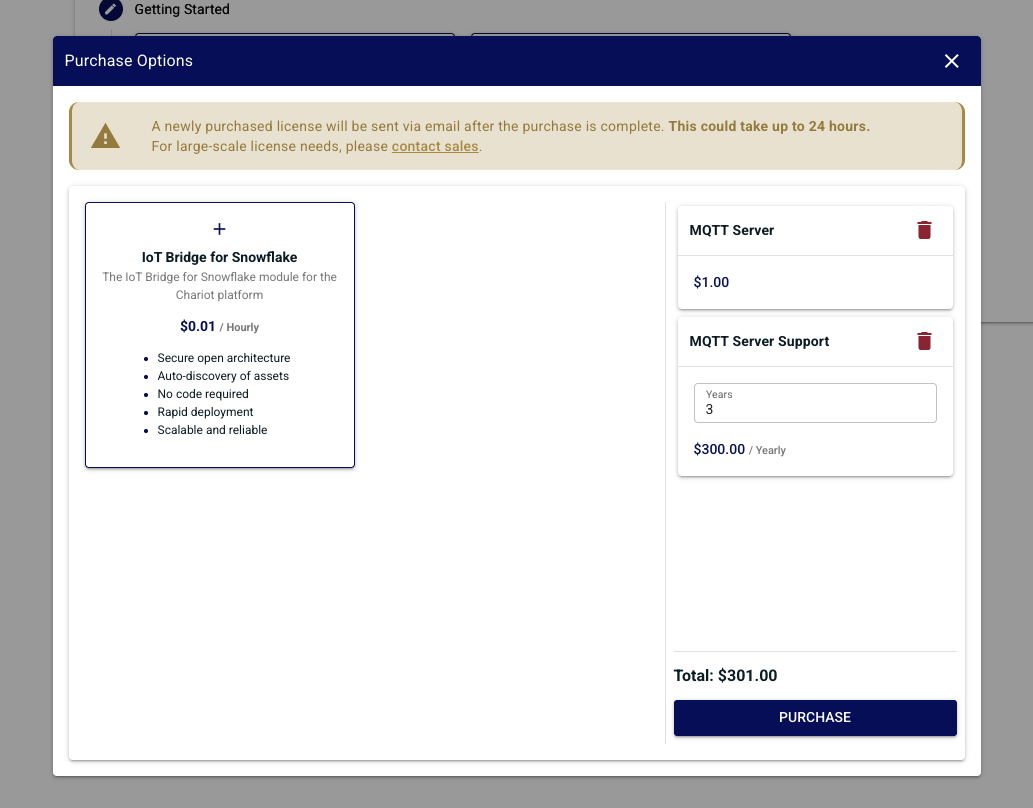
Once your selection is made click "Purchase" this will redirect you to the stripe purchase page. Verify that your product selection matches what you selected in Chariot.
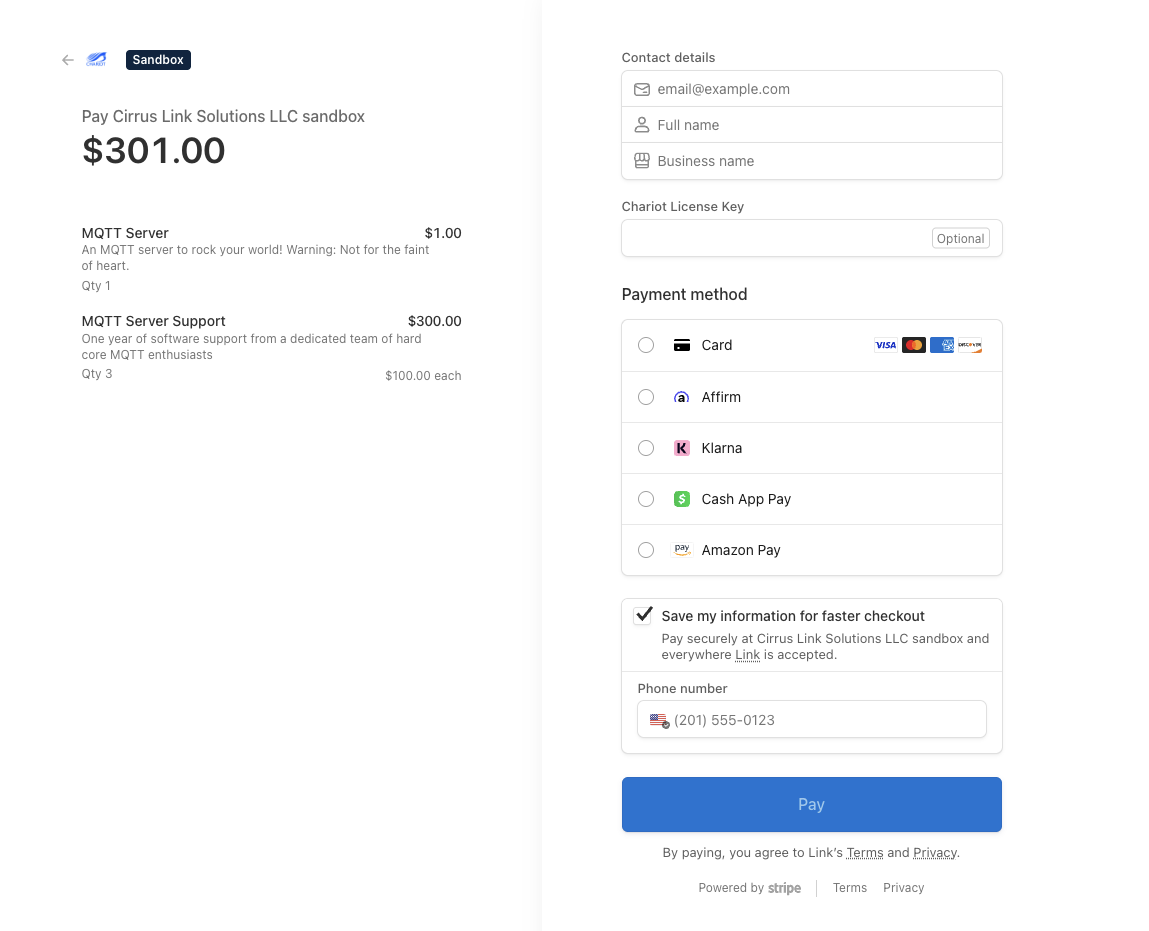
Fill out your payment method and click "Pay". If the payment was successful you will be directed back to Chariot.
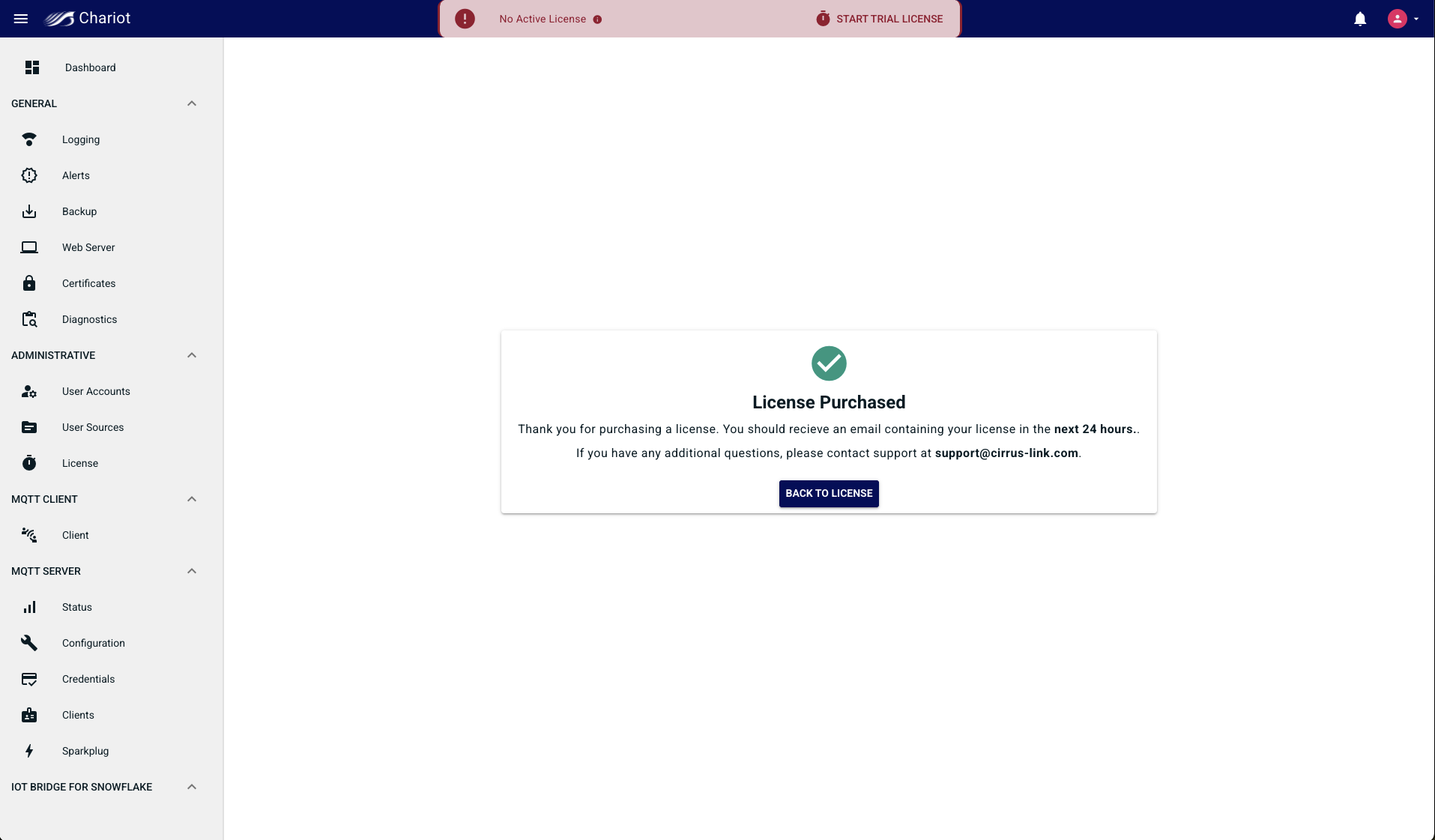
Once complete Cirrus Link will generate a license and email it to your provided contact information. Be aware this can take up to 24 hours.
When upgrading a license there are two methods you can use
If using the Chariot UI first navigate to the License page
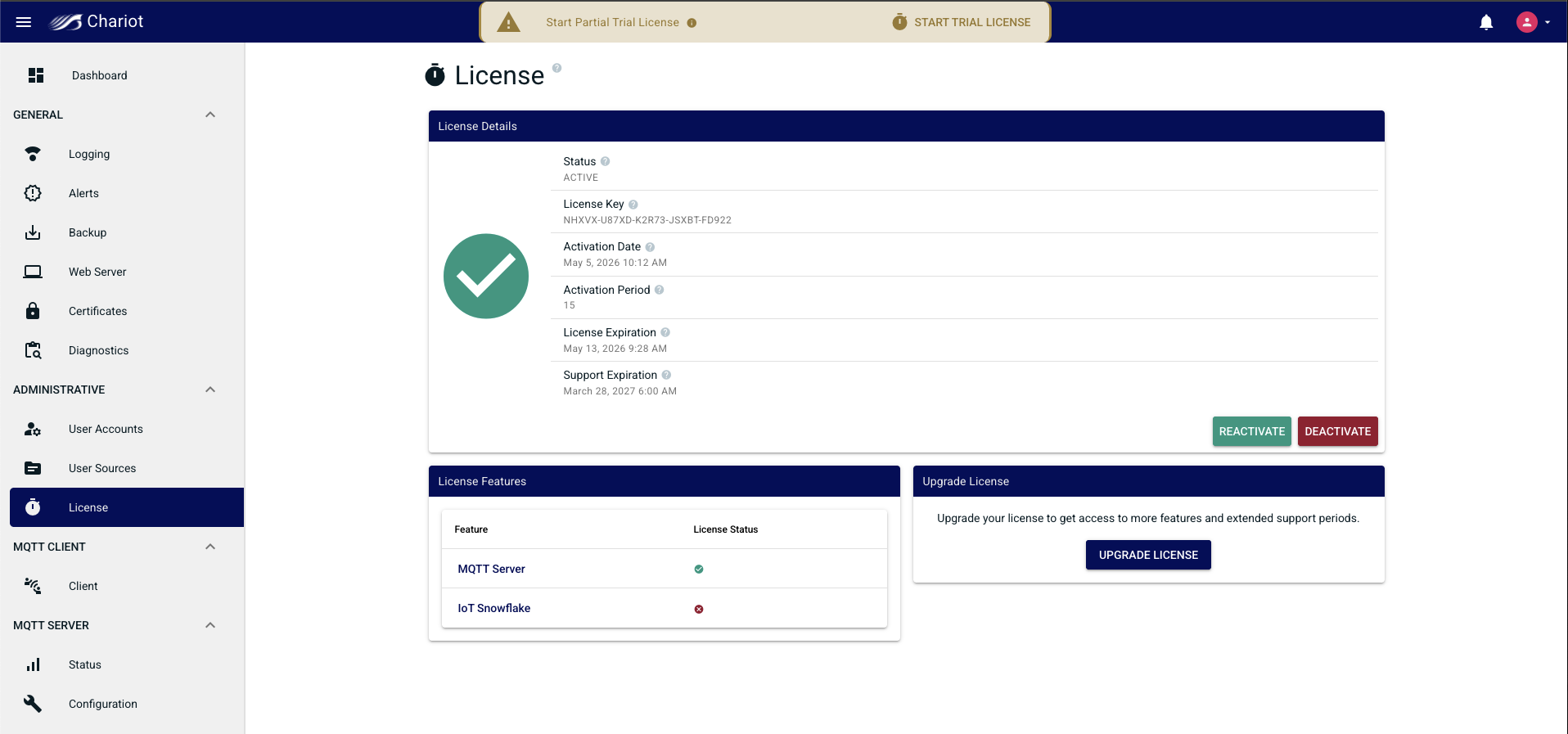
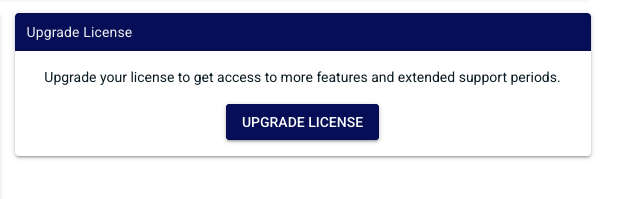
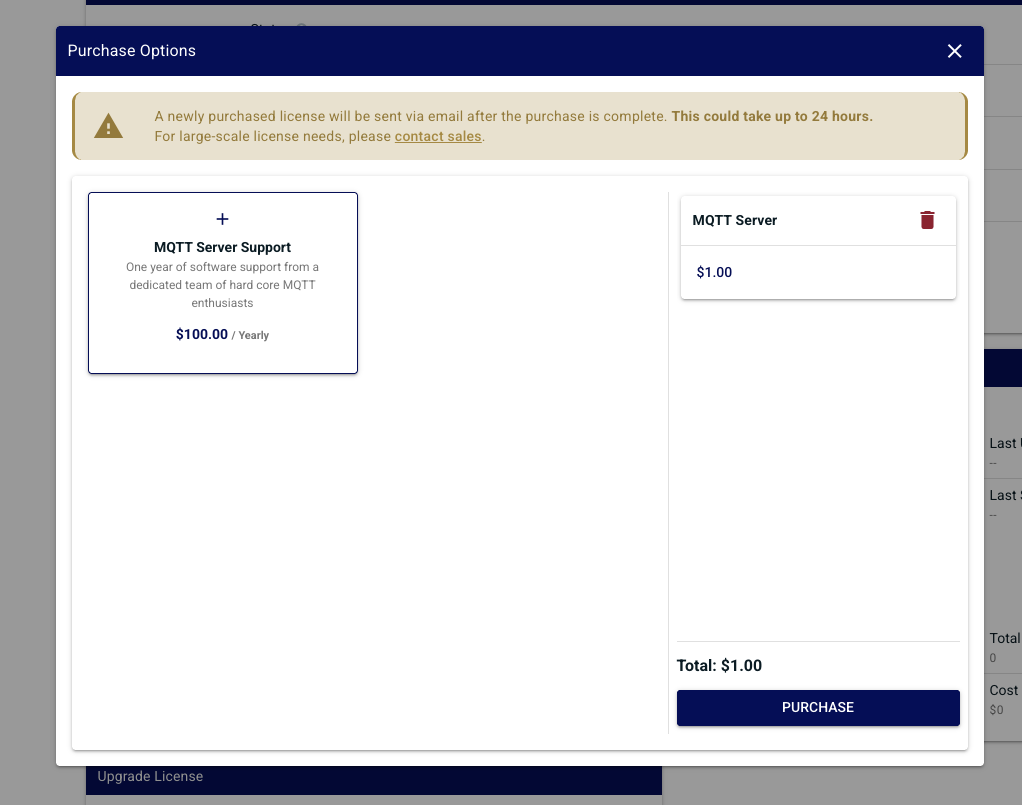
Locate the "Upgrade License" widget and click "Upgrade License"
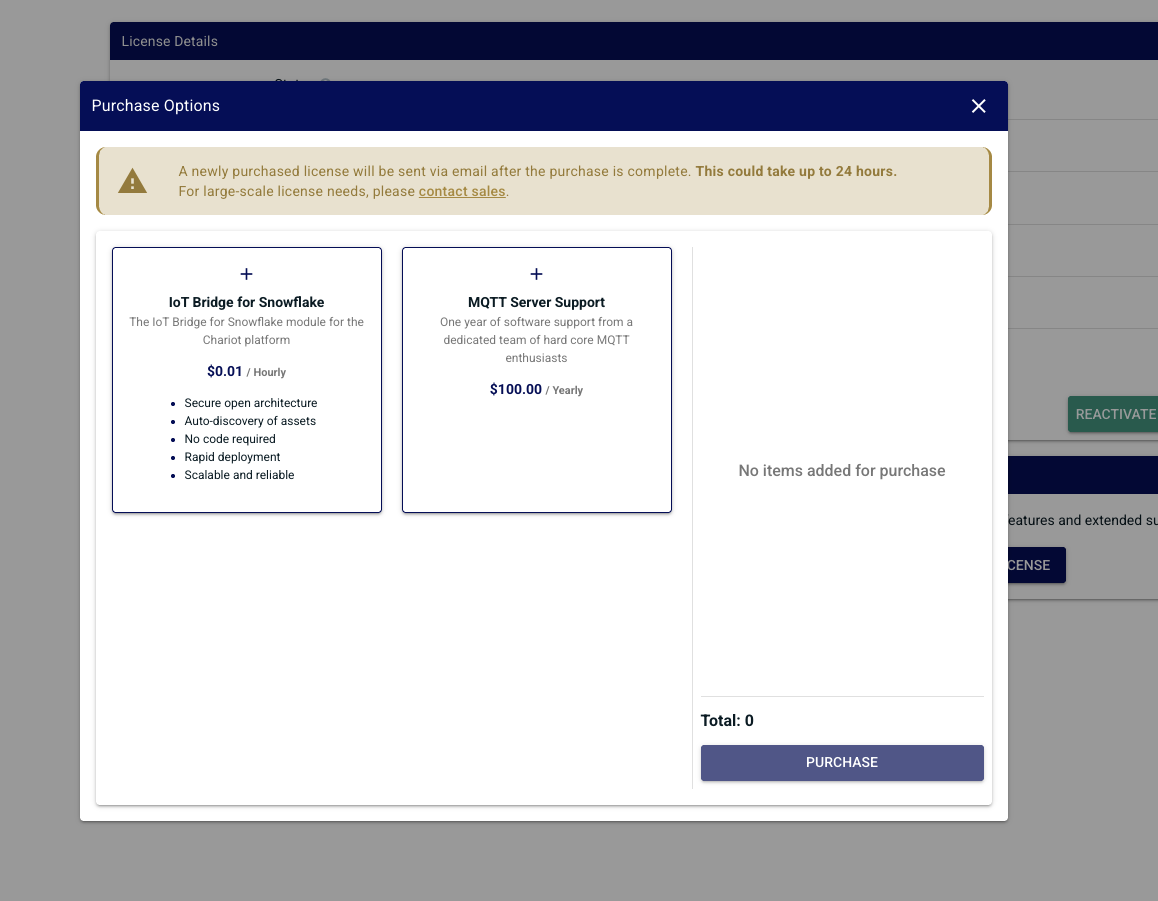
Features already activated in the license will not appear.
Once your selection is made click "Purchase" this will redirect you to the stripe purchase page. Verify that your product selection matches what you selected in Chariot. Additionally verify that your license key field is pre-populated with your current existing Chariot License.
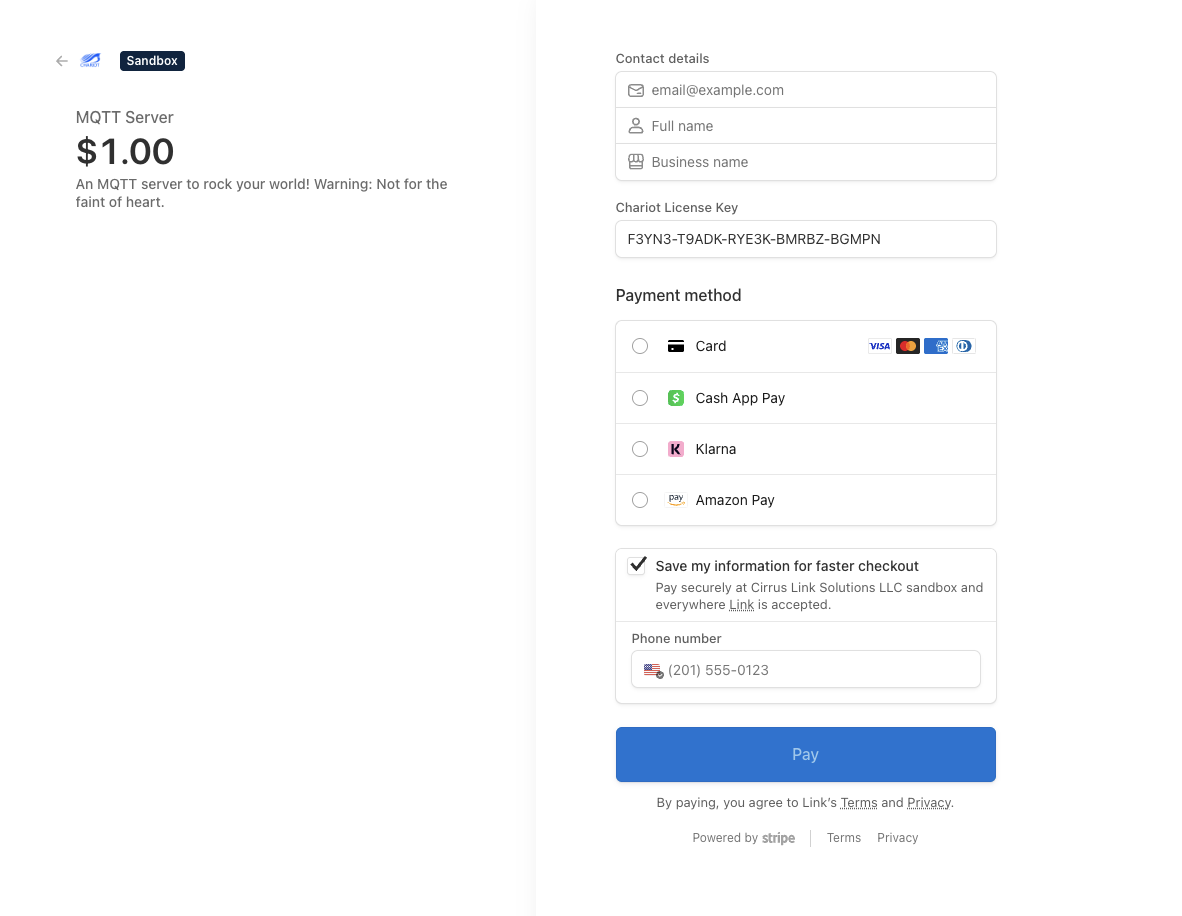
Fill out your payment method and click "Pay". Do not change the license key. If the payment was successful you will be directed back to Chariot
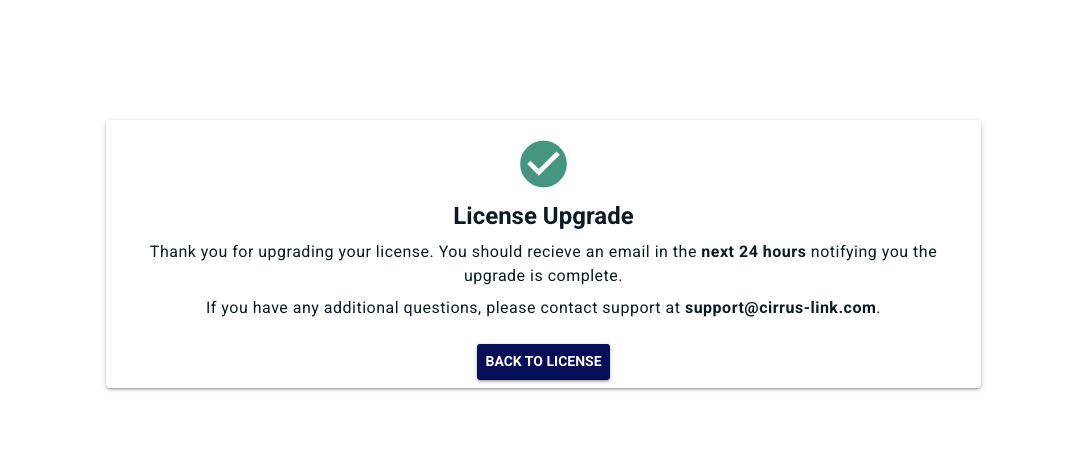
Once complete Cirrus Link will upgrade your license and email your provided contact information. Be aware this can take up to 24 hours.
The Online Activation feature allows a Chariot License to be automatically activated on a Chariot MQTT Server instance that is connected to the internet. The Chariot MQTT Server will remotely connect and activate a Chariot License if it is valid and has an activation available.
Log into the Chariot MQTT Server Web UI and from the left hand menu bar select License as shown below:
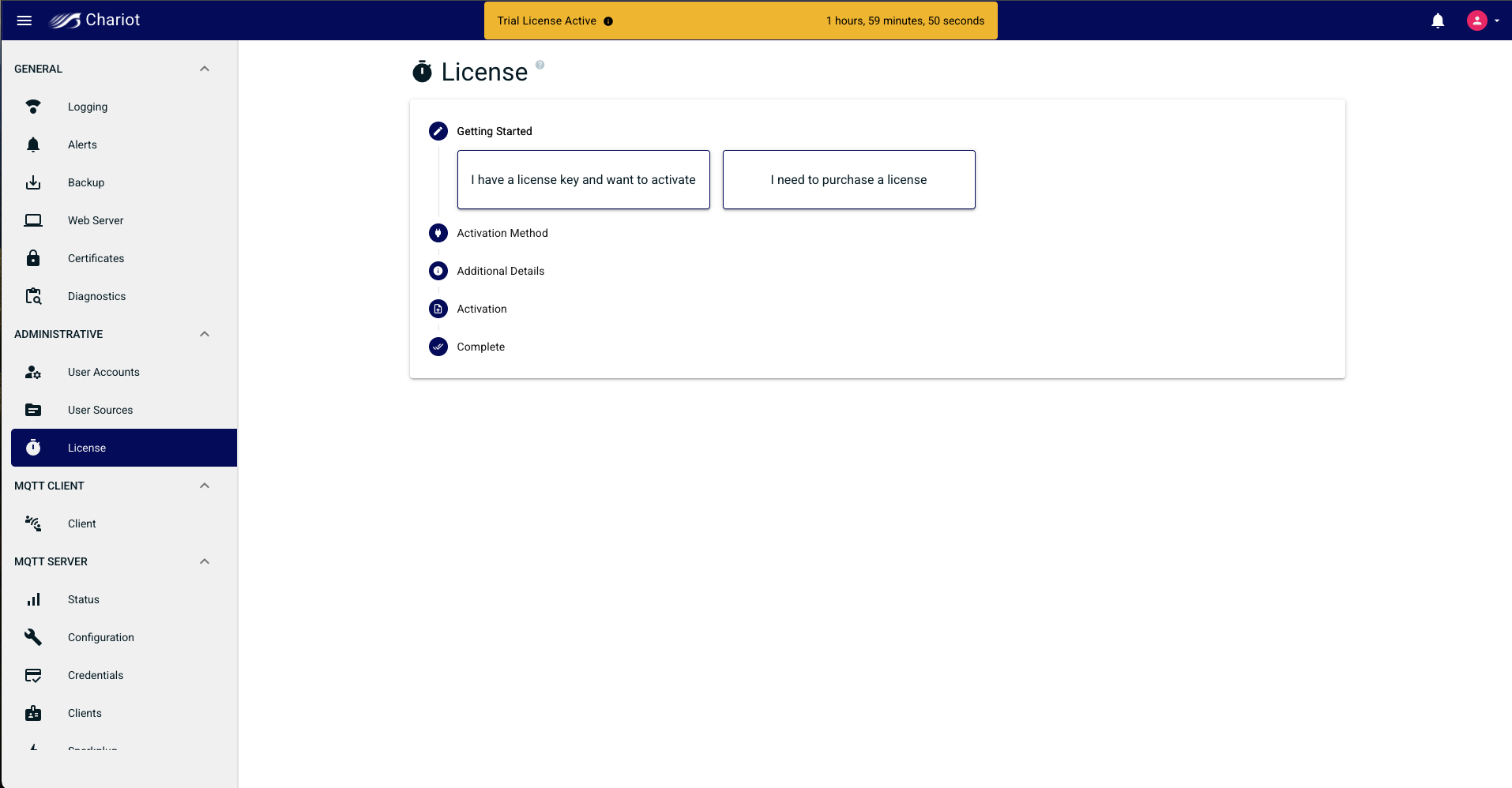
Follow the wizard selecting first the license activation method type
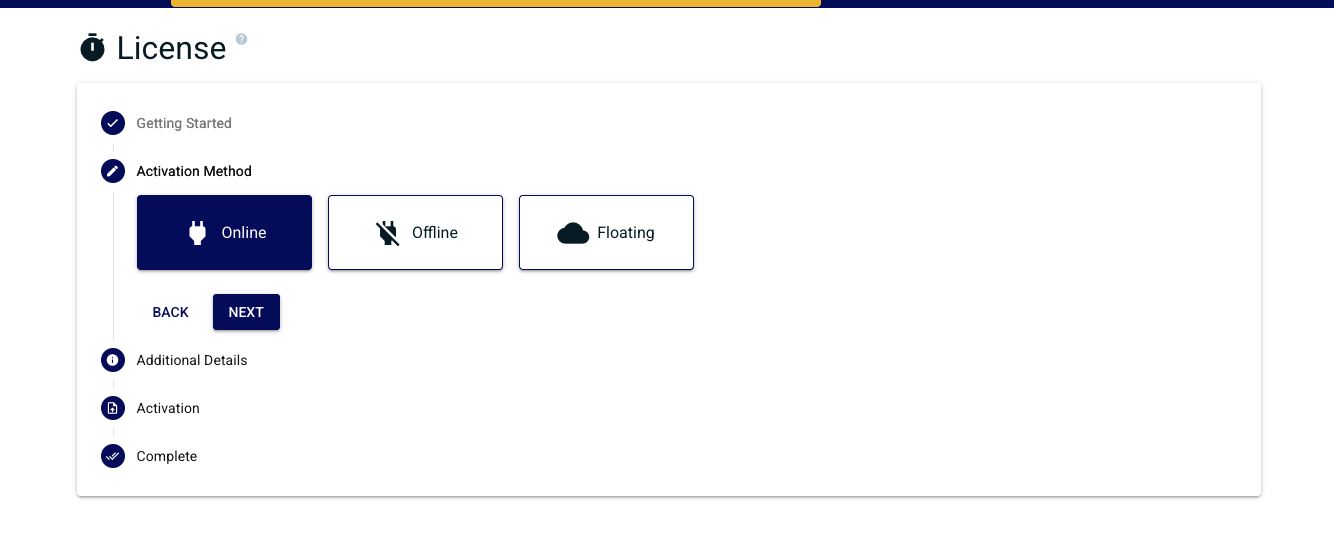
Select "Online" activation method
Provide the text file containing the Chariot License Key. This can either be done by dragging and dropping, typing, or clicking the upload button and selecting a file.
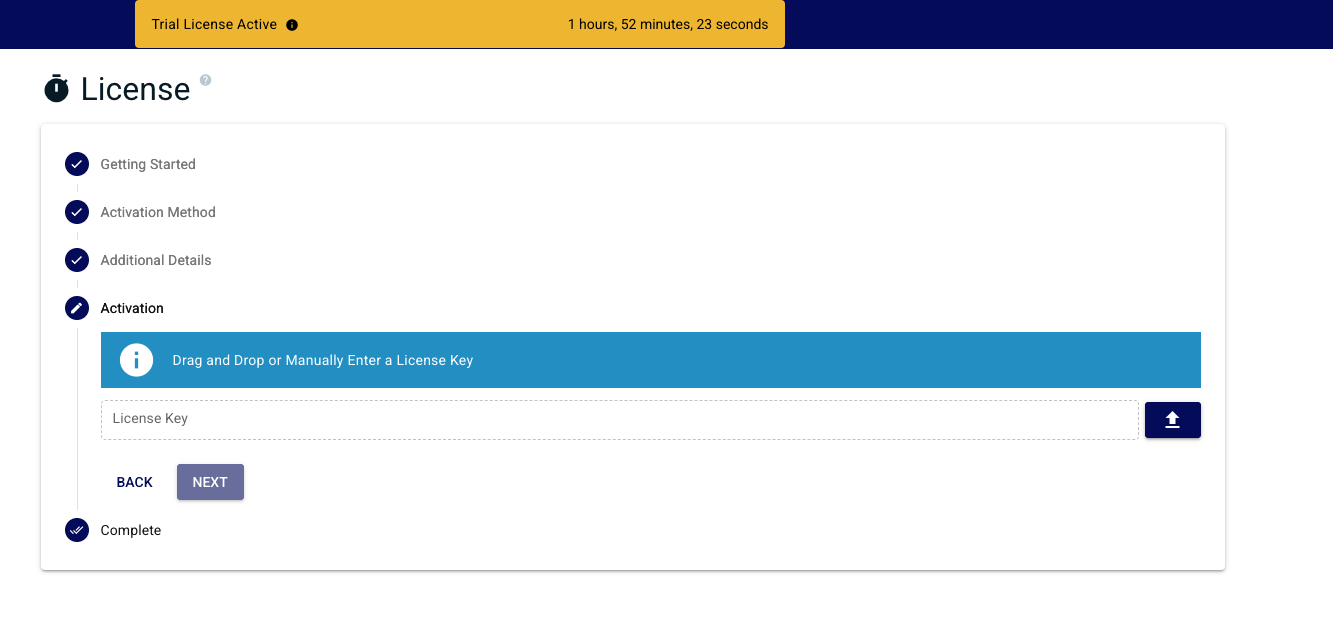
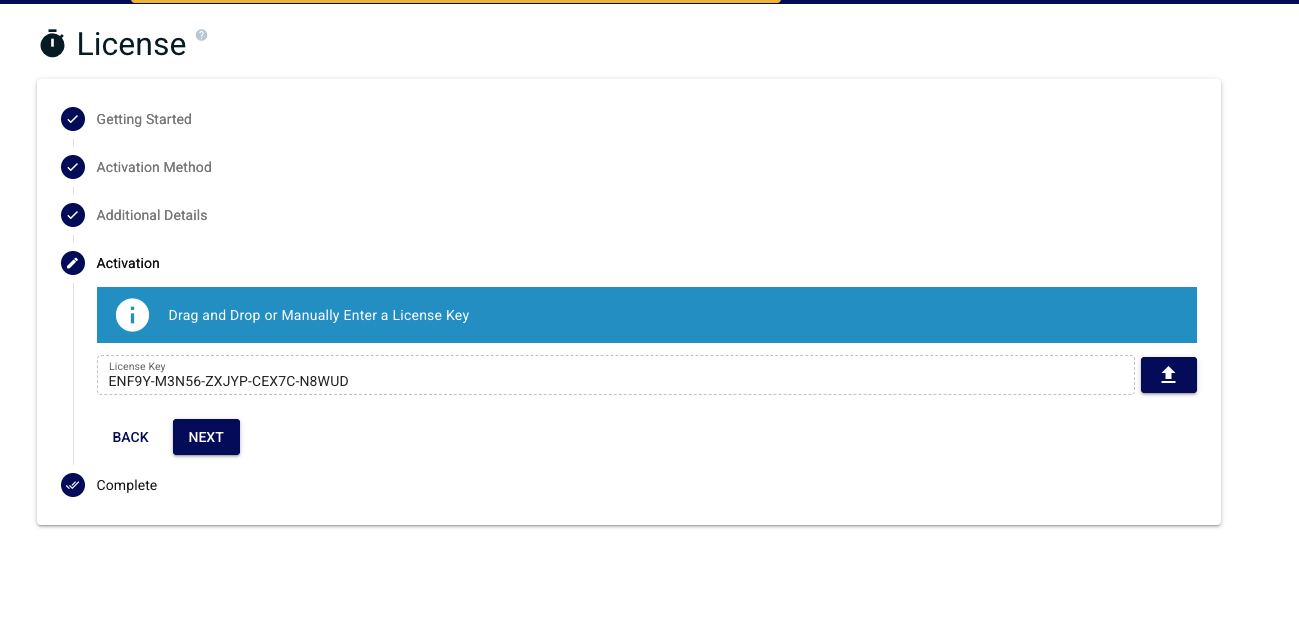
Confirm you are finished with the wizard
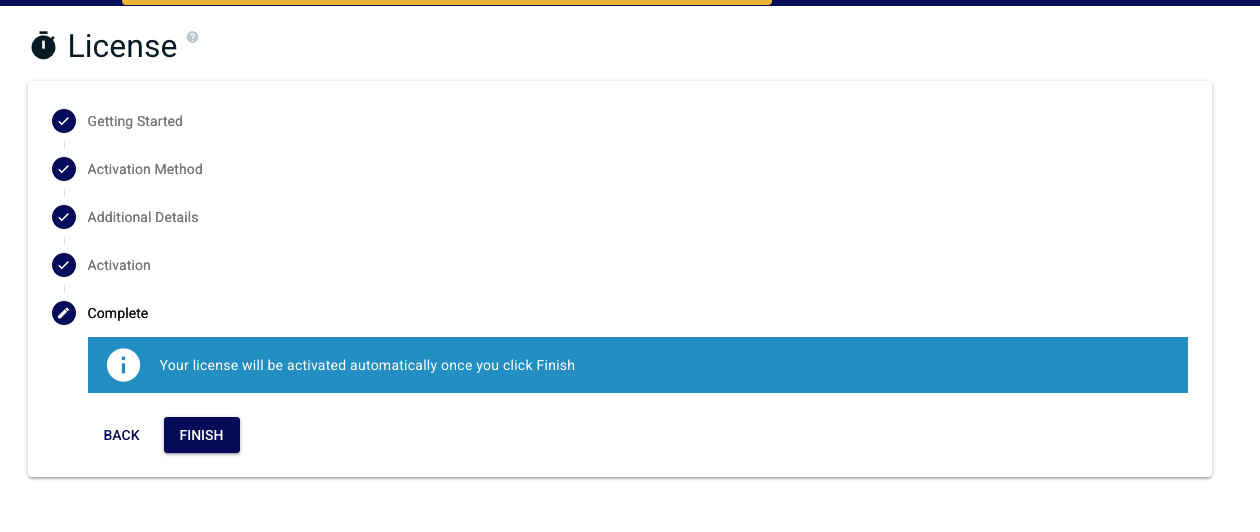
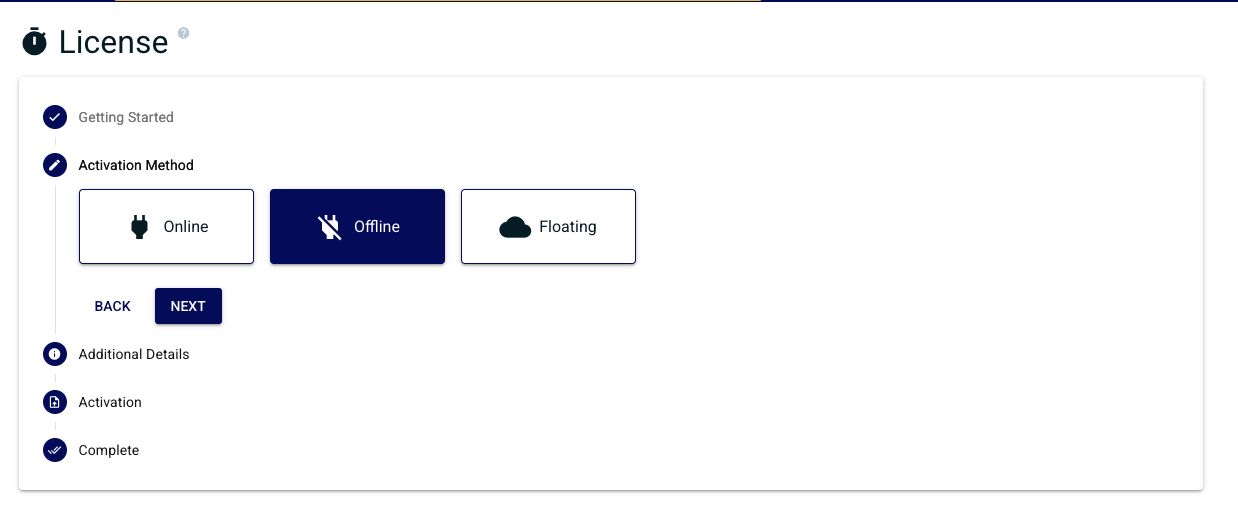
Select the "Offline" method
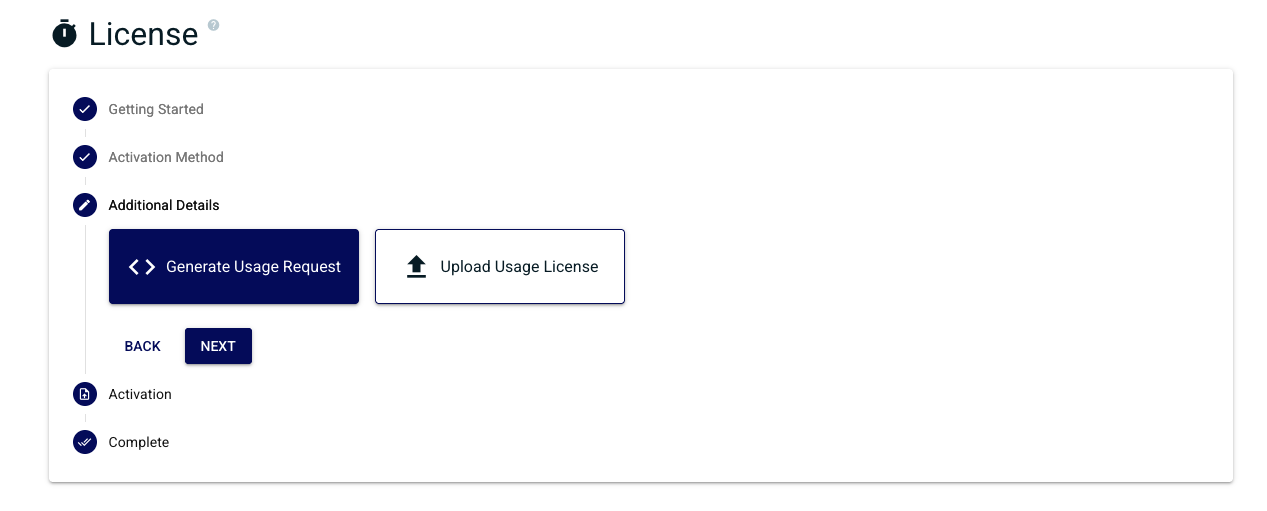
Next select generate usage request
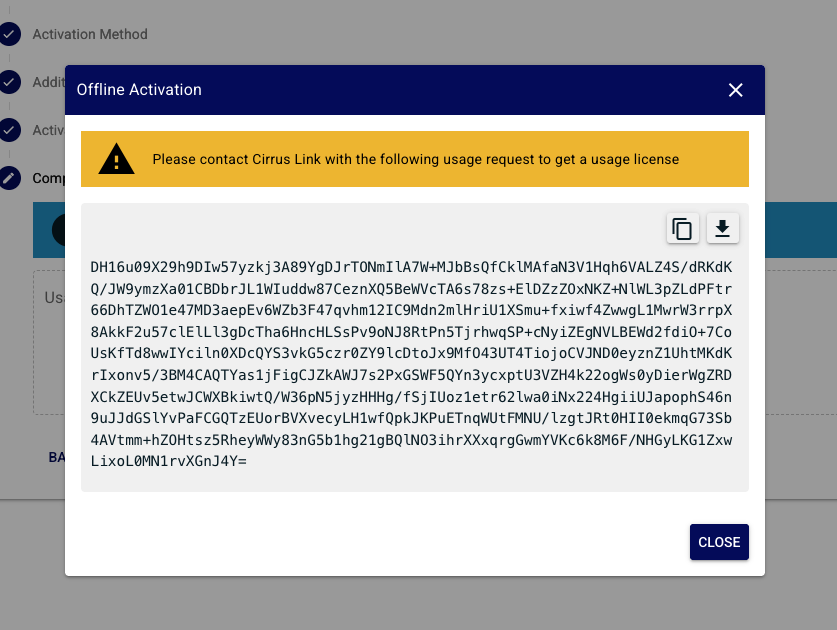
Enter a valid license key and click next a popup with your offline activation code will appear. This will have to be provided to Cirrus Link Support via email so that a usage license can be properly generated.
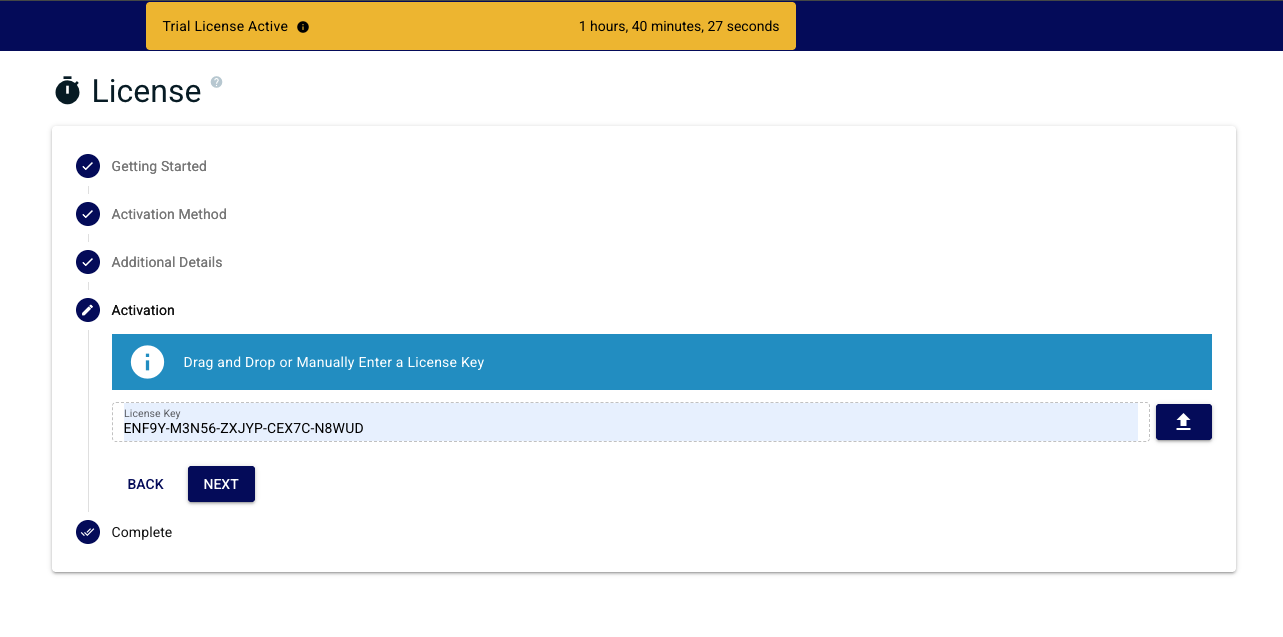
Once you receive an email from Cirrus Link Support containing your Usage License follow the wizard to finish your offline activation.
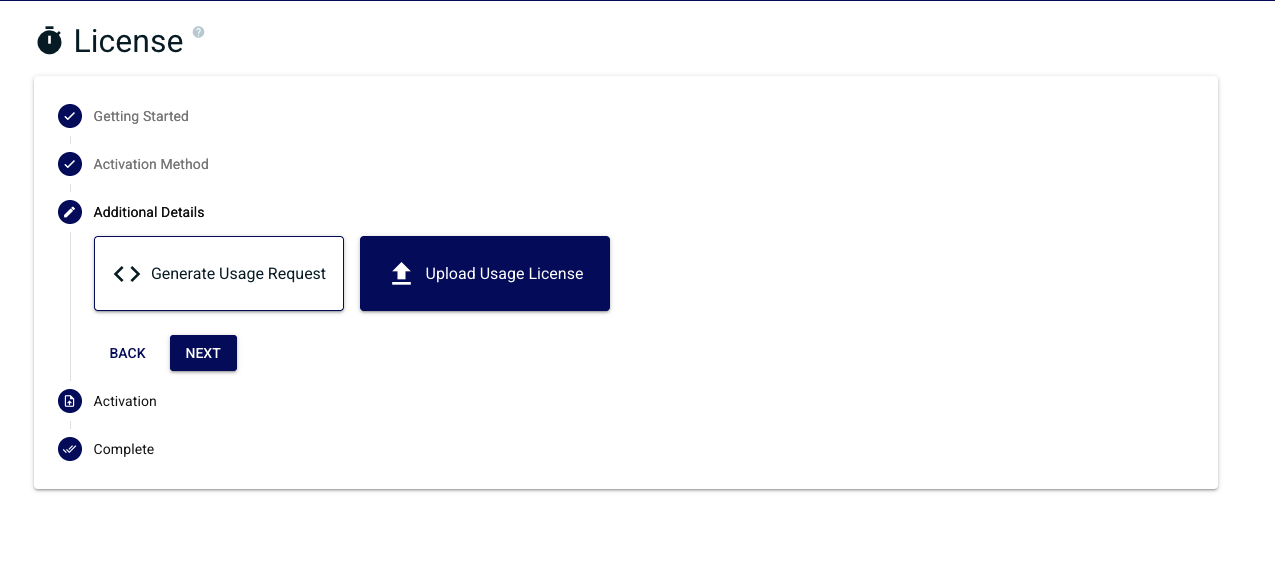
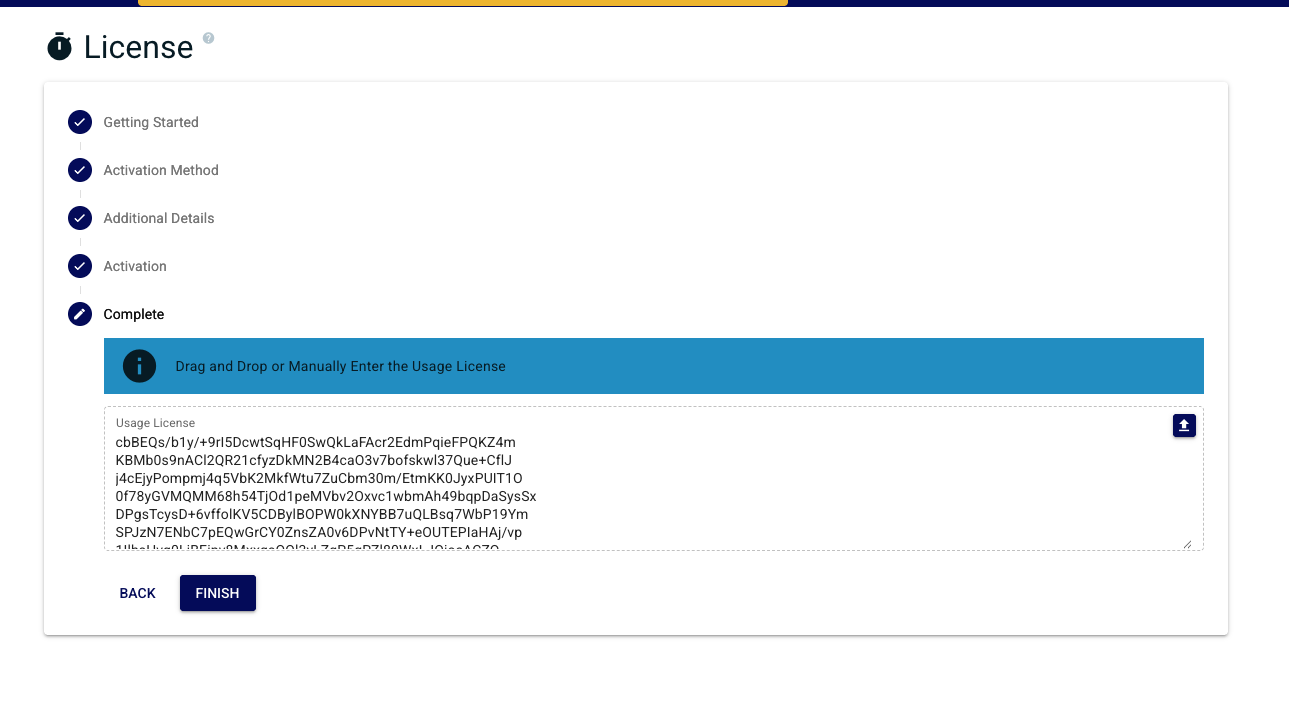
| Only do this ONCE as each new Activation Request will invalidate the previous one. |
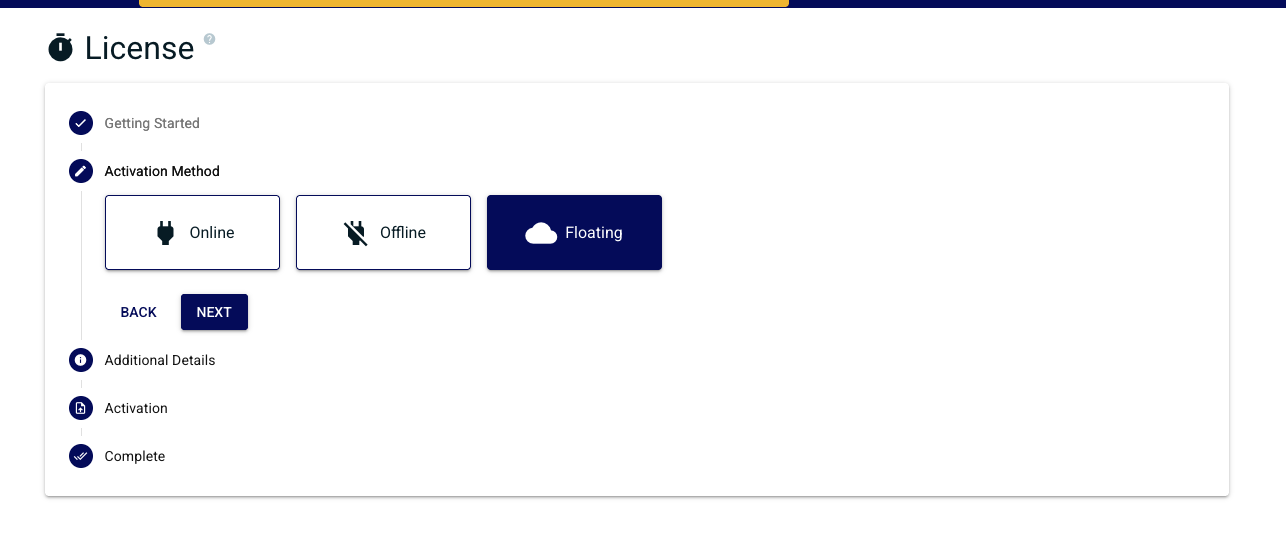
Select "Floating" activation method in the wizard
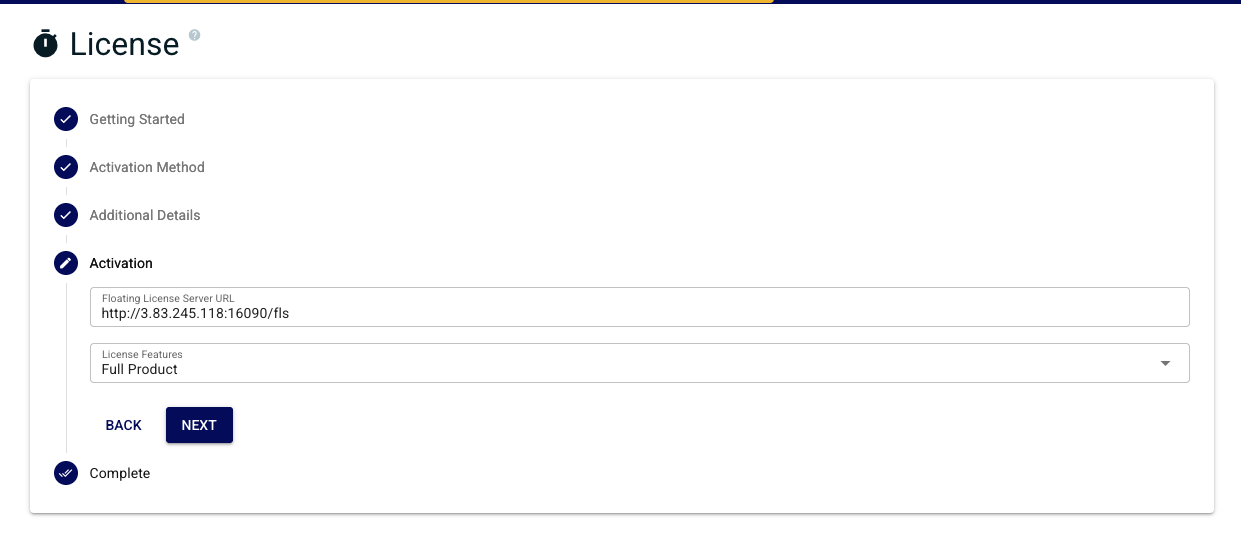
Provide a valid floating license server URL and select the appropriate Chariot feature set. Make sure to add "/fls" to the end of the URL.
Verify entry and click finish when ready to complete license activation flow
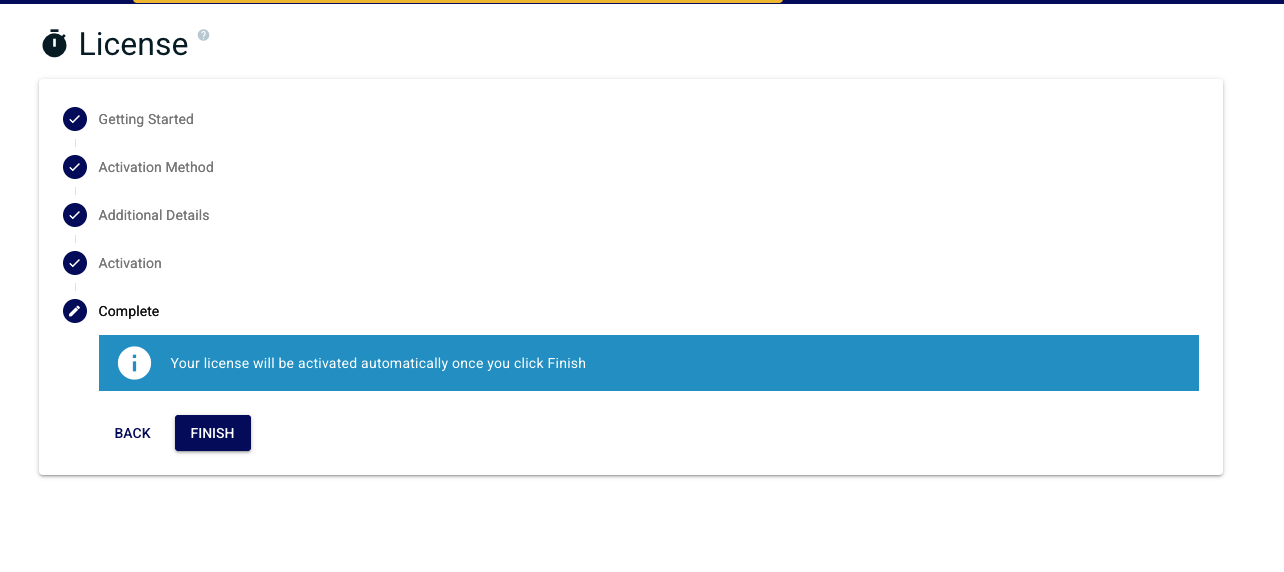
A successful activation will lead you to the license status. This will show you the state of your license, activated features and other details associated with licensing
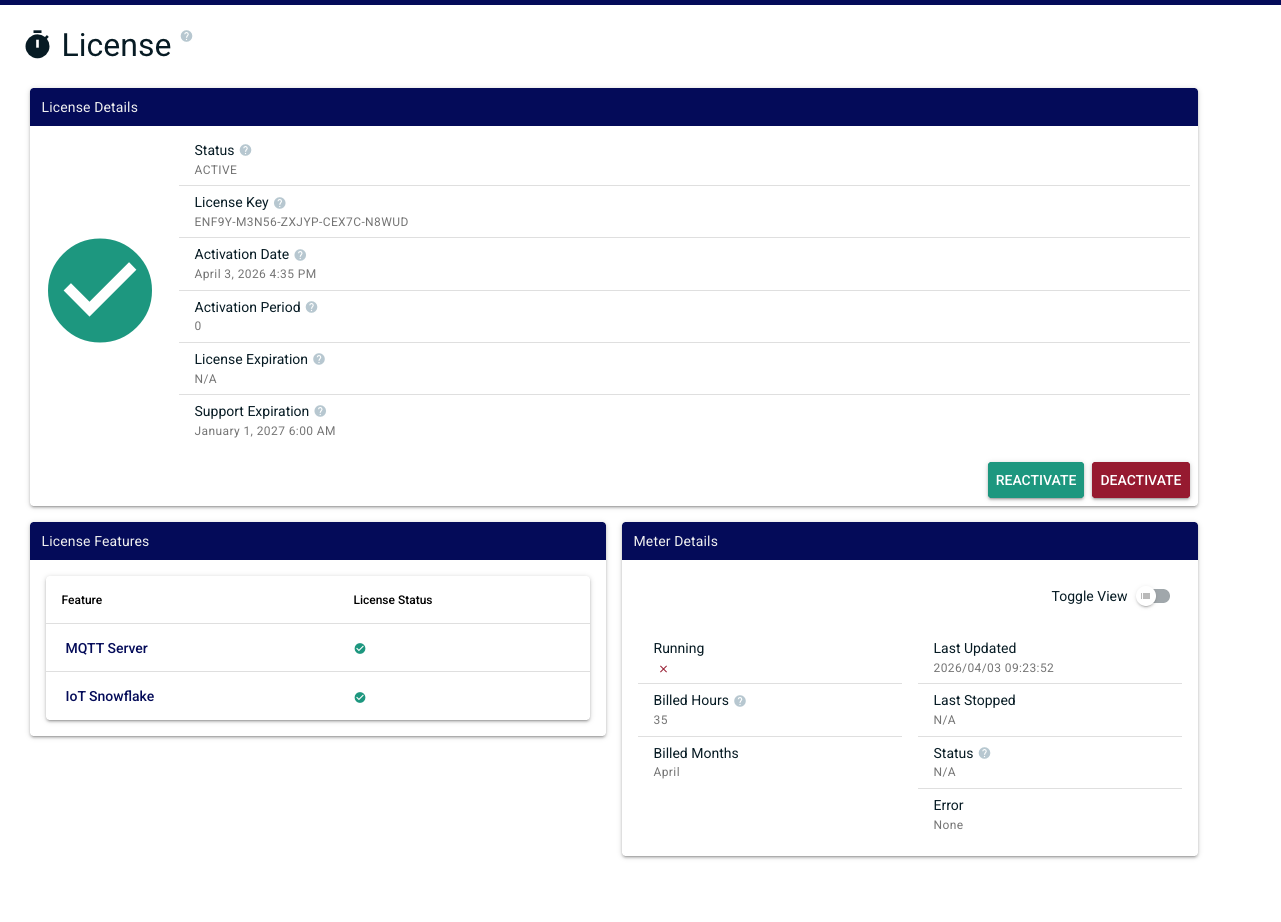
In order to deactivate the license online, log into the Chariot MQTT Server Web UI and from the left hand menu bar select License as shown below.
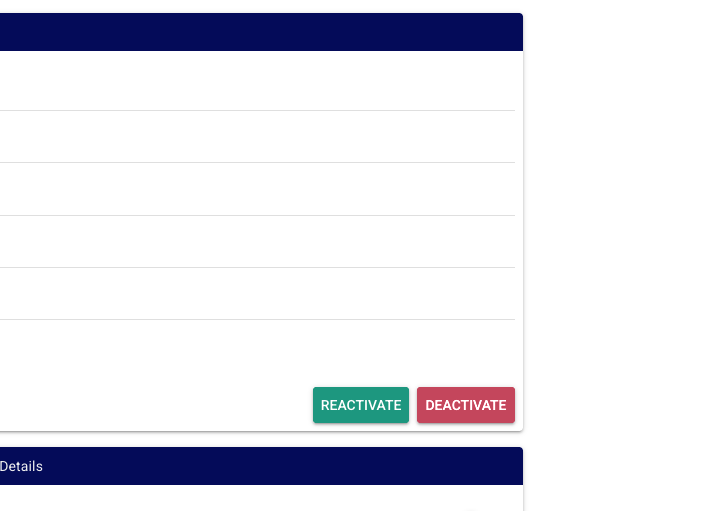
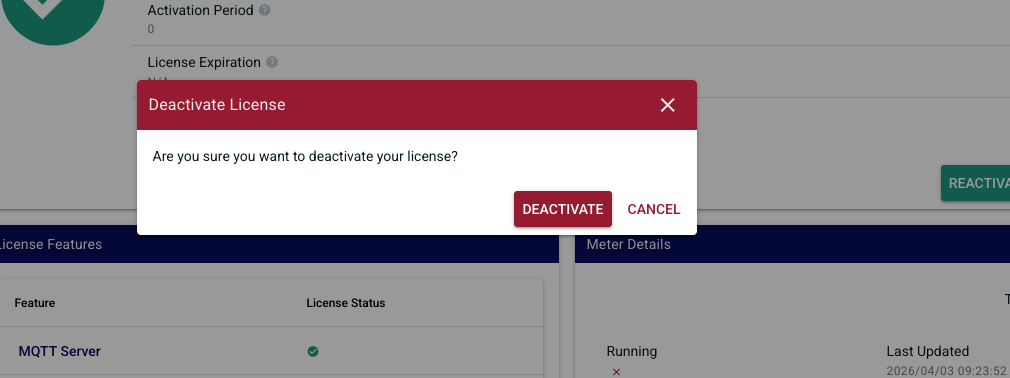
Select "Deactivate" for the license to be remotely deactivated so that it can be potentially activated on another Chariot MQTT Server instance.
| If the server is terminated, deleted, or destroyed without deactivating the active Chariot License, that license will permanently lose one of its total number of activations |
Once deactivation is successfully complete you will be returned back to the license activation wizard
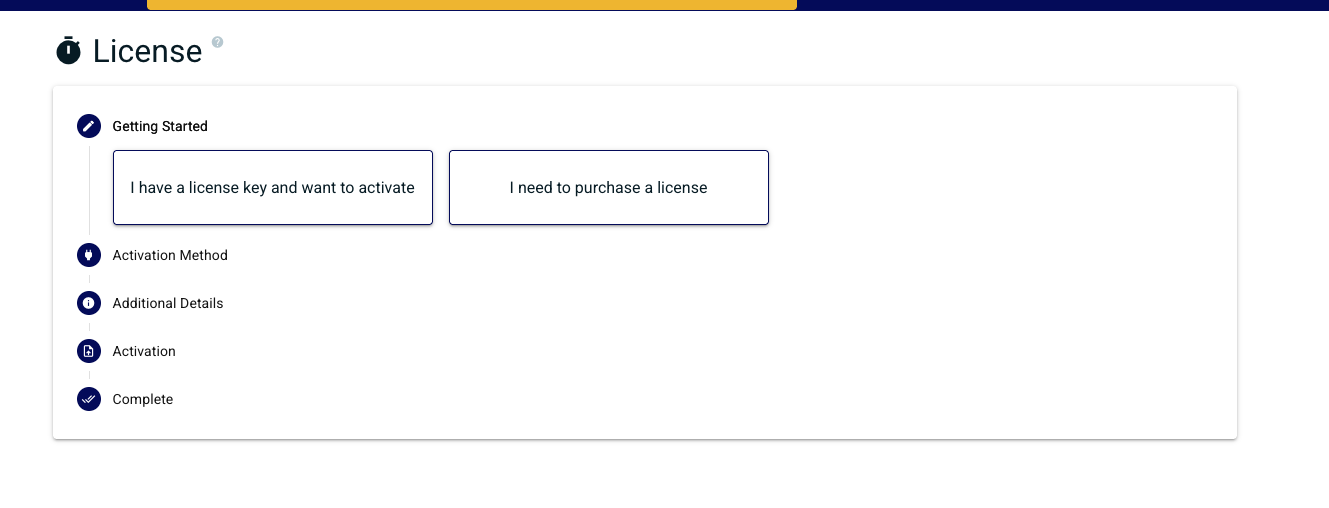
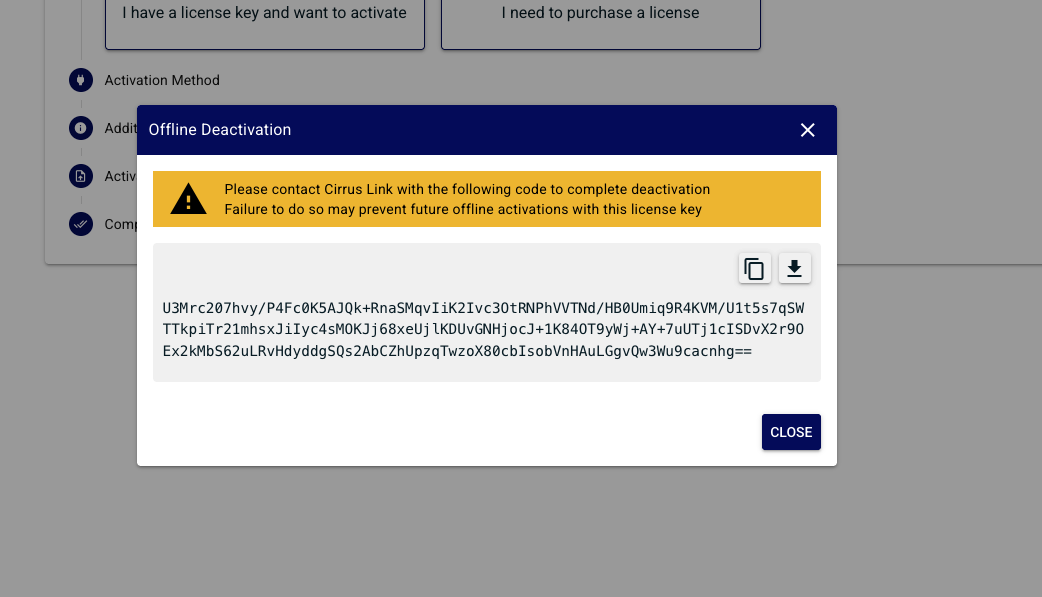
In order to deactivate the license offline, log into the Chariot MQTT Server Web UI and from the left hand menu bar select License. Select deactivation:
| This will provide a Deactivation Request code that should be provided to Cirrus Link Support along with the License ID in order to free up the previous activation for use with another Chariot MQTT Server instance. |
If at any point your online/floating license has a feature change, expiration date change, or any other information that requires an update, you must click the reactivate button to update your license information. 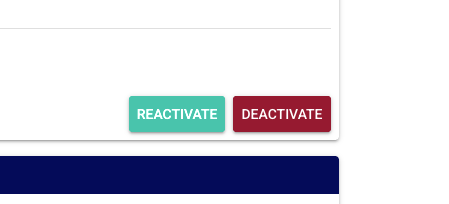
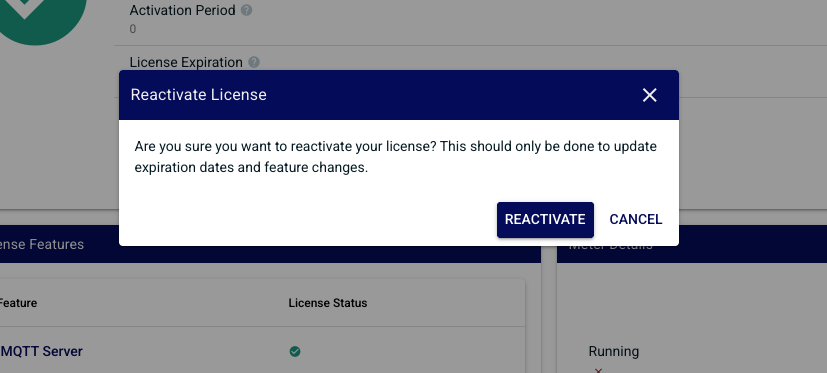
| This will not work with offline activated licenses. You will need to contact Cirrus Link Support for any changes. |