


Page History
...
This page covers requesting, installing, updating, and deactivating an offline license. To purchase the license itself, see Purchasing and Activation.
Request Offline License Usage
| Anchor | ||||
|---|---|---|---|---|
|
After purchasing a Chariot license and receiving your a license key by email, generate a Usage Request from Chariot and send it to Cirrus Link Support.
...
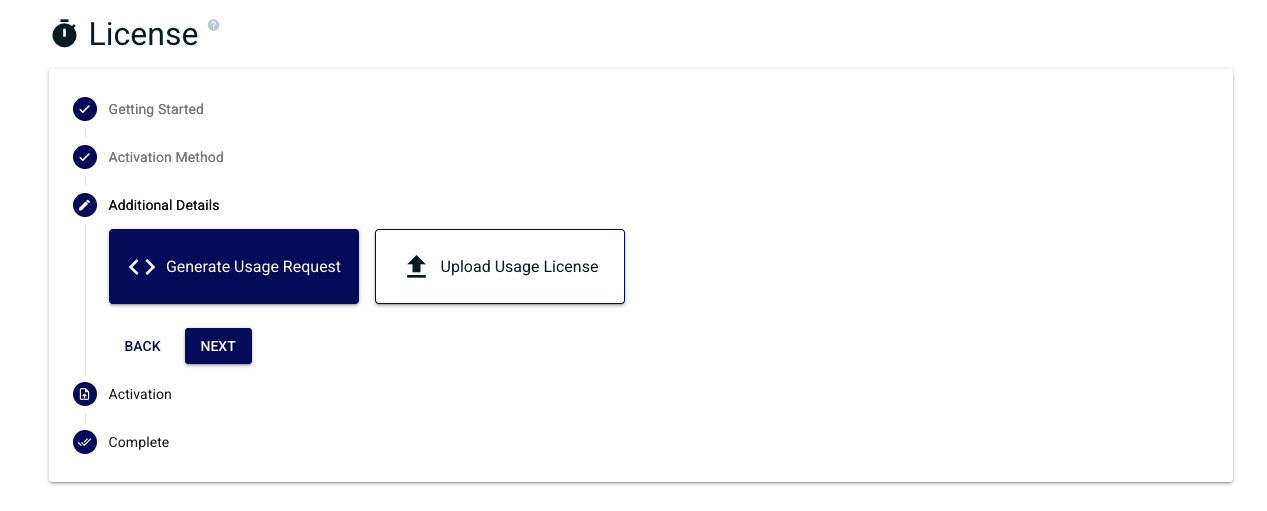
Select Generate Usage Request and click Next.
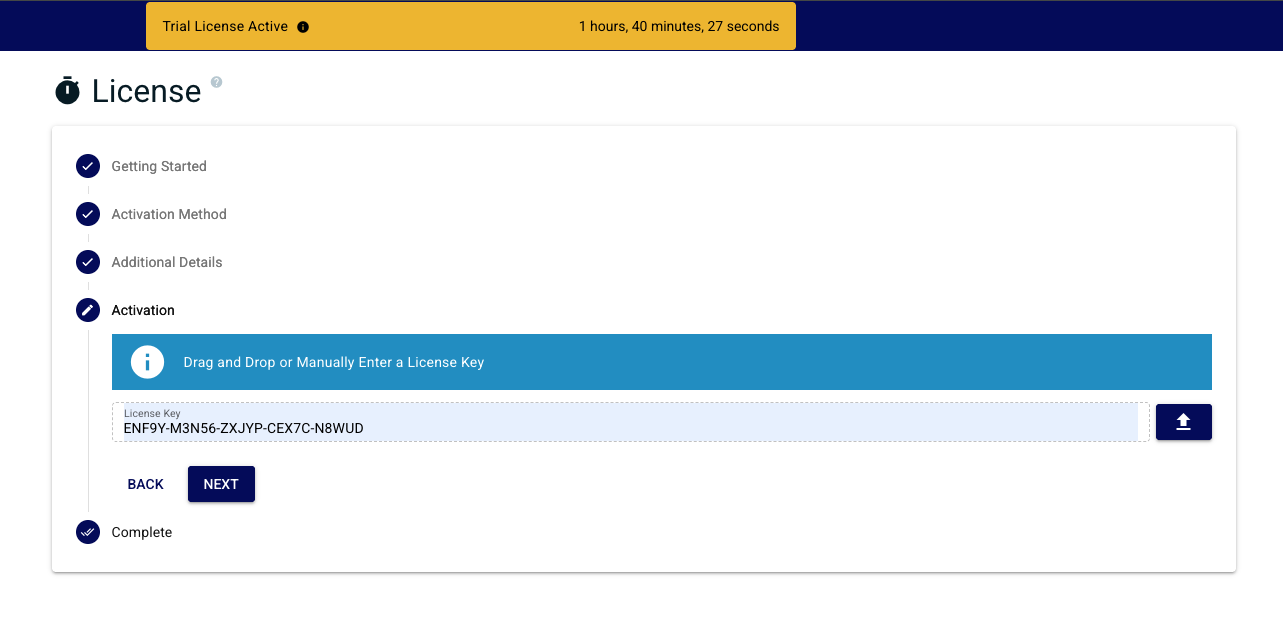
Enter your Chariot the Chariot License Key and click Next.
A popup displays your the offline activation code (the Usage Request).
...
Cirrus Link Support will email back a Usage License generated from your the Usage Request. Once you have it, install it in Chariot Install the usage license into Chariot by following the steps below.
Select Upload Usage License and click Next.
...
Paste the Usage License provided by Cirrus Link and click Finish.
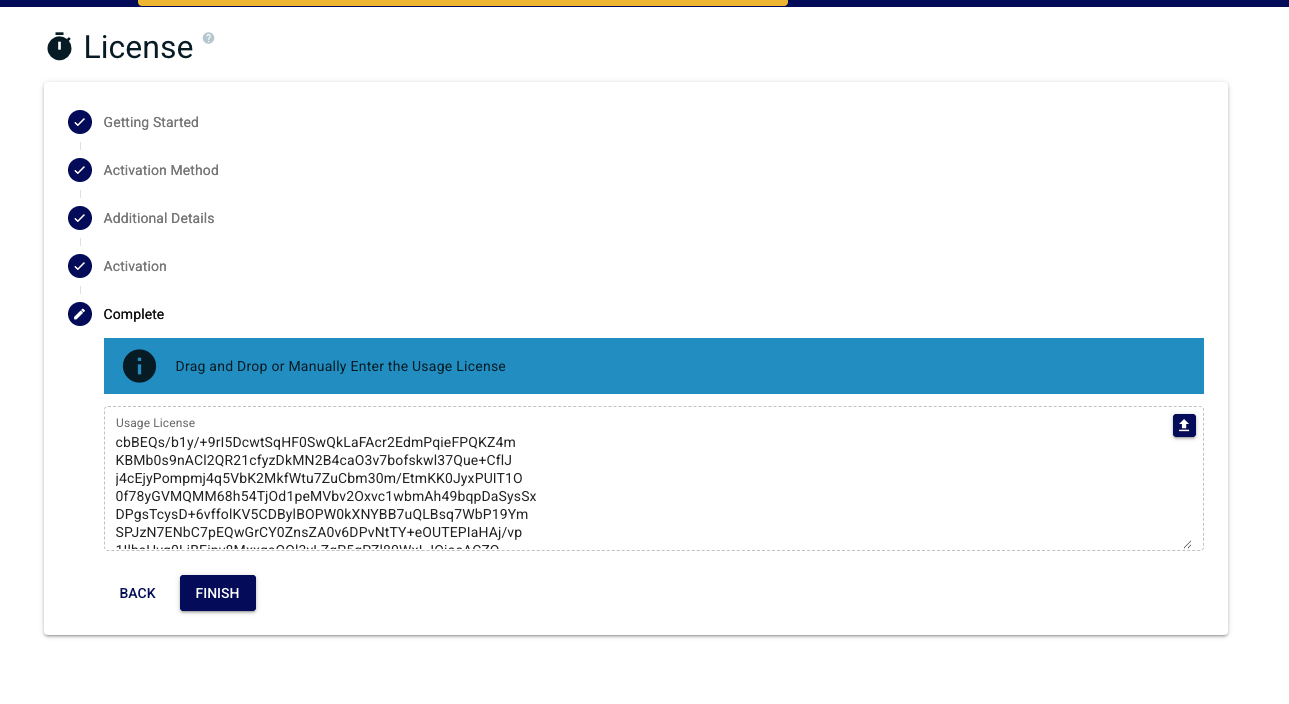
A successful activation takes you will redirect to the license status page, showing the state of your the license, activated features, and related details.
...
To apply an update to an offline license:
- Request an upgrade to your a Chariot License via Cirrus Link Support.
- Generate a new Usage Request following the steps in Request a Usage License.
- Email the Usage Request to Cirrus Link Support, noting that this is an update to an existing offline license.
- Install the returned Usage License following the steps in Install the Usage License.
...
If a Chariot server was destroyed without deactivating first and you 're are now unable to activate the license elsewhere, contact Cirrus Link Support. Include your the License ID and a brief description of what happened. Support can review your situation the situation and, in many cases, restore the lost activation.
...
Overview
Content Tools