...
- Knowledge of Ignition and Module installation process: Cirrus Link Module Installation
- Install the following MQTT Modules
- MQTT Distributor
- v4.0.X if using Ignition 8.0.x
- MQTT EngineTransmission
- v4.0.X if using Ignition 8.0.x
...
Now select 'Tag Change' click the 'new Tag+' icon at the bottom of the window shown below and create a new Tag Change Script called 'Publish Script'.
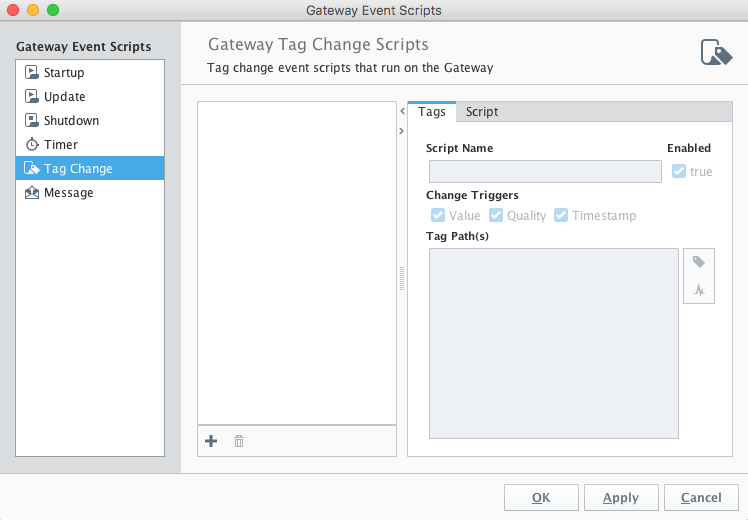 Image Removed
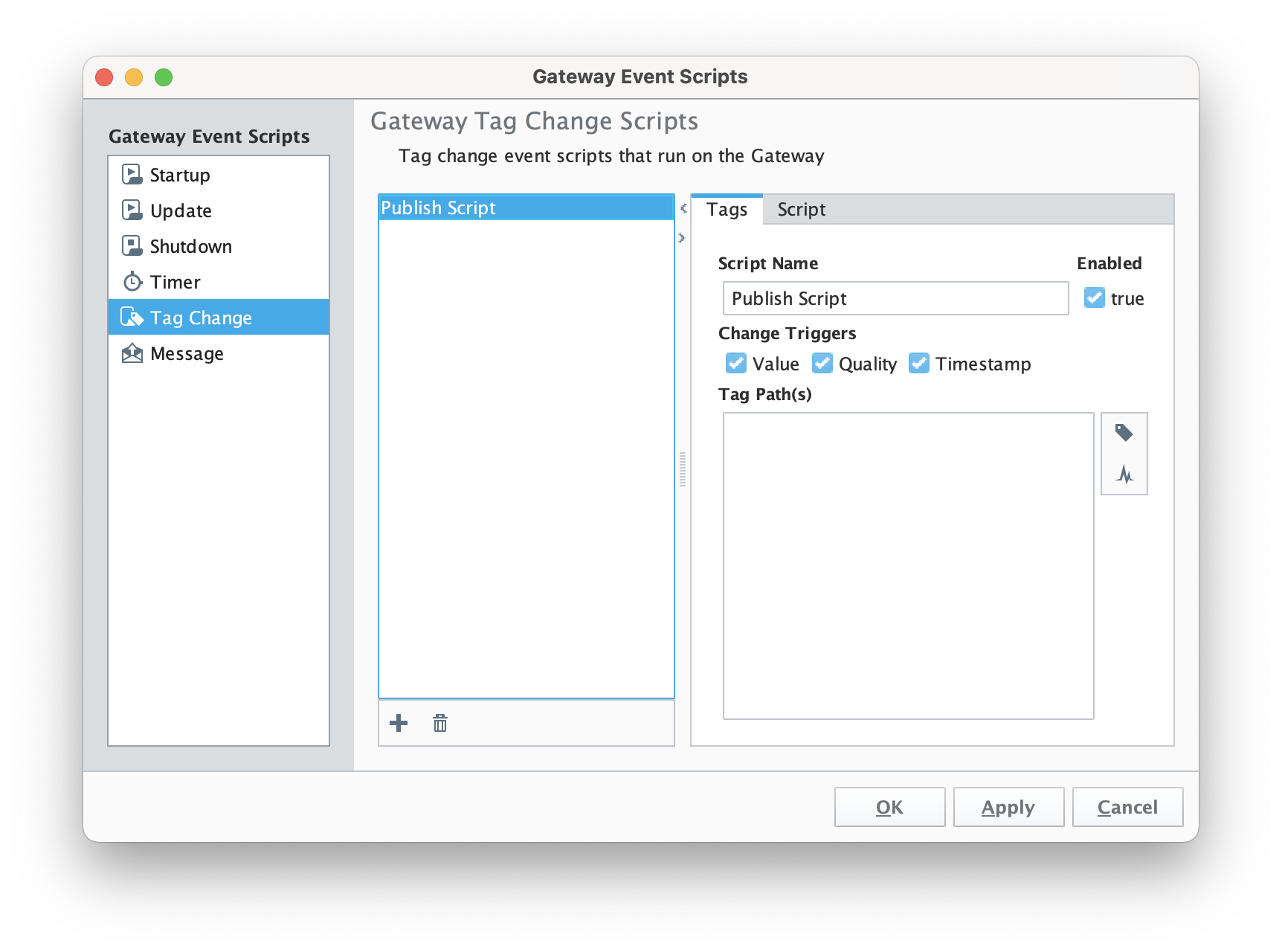 Image Added
Set After setting the name of the script and then select a tag path. In this case we're using an MQTT Engine tag from an emulated device.a tag in the default tag provider called 'MyTriggerTag' as shown below.
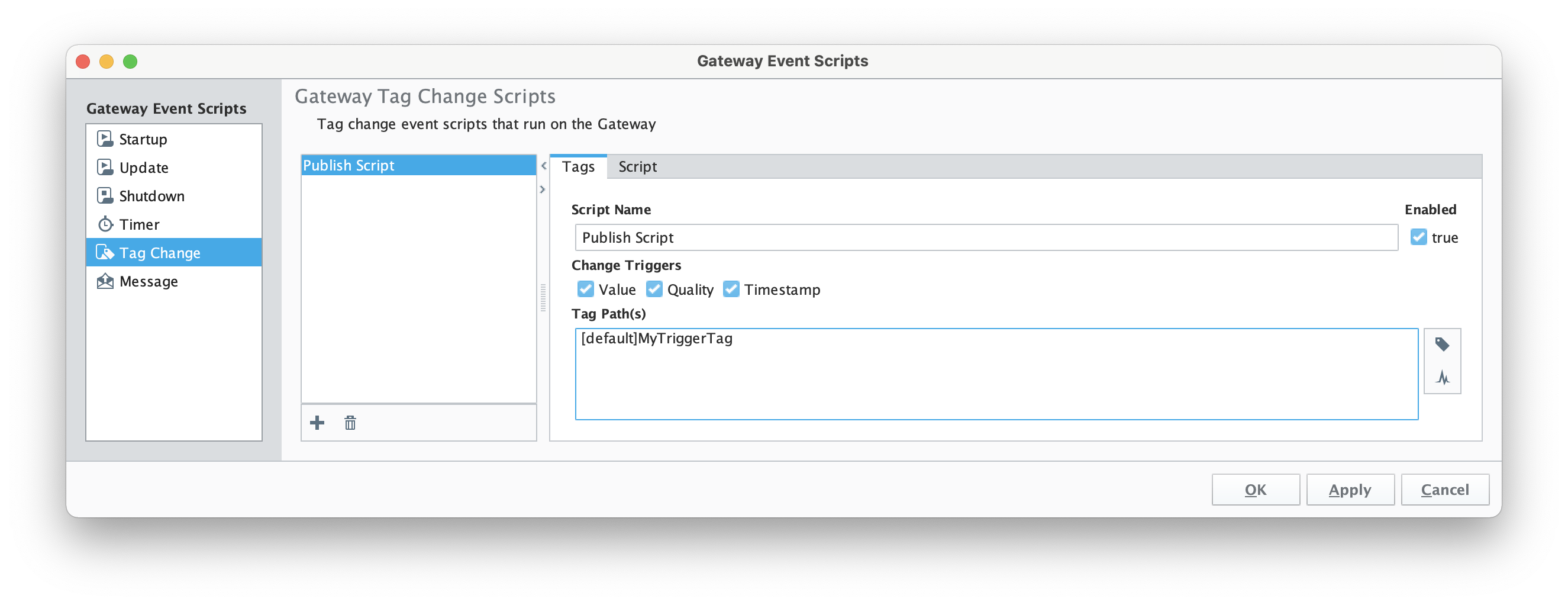 Image Added
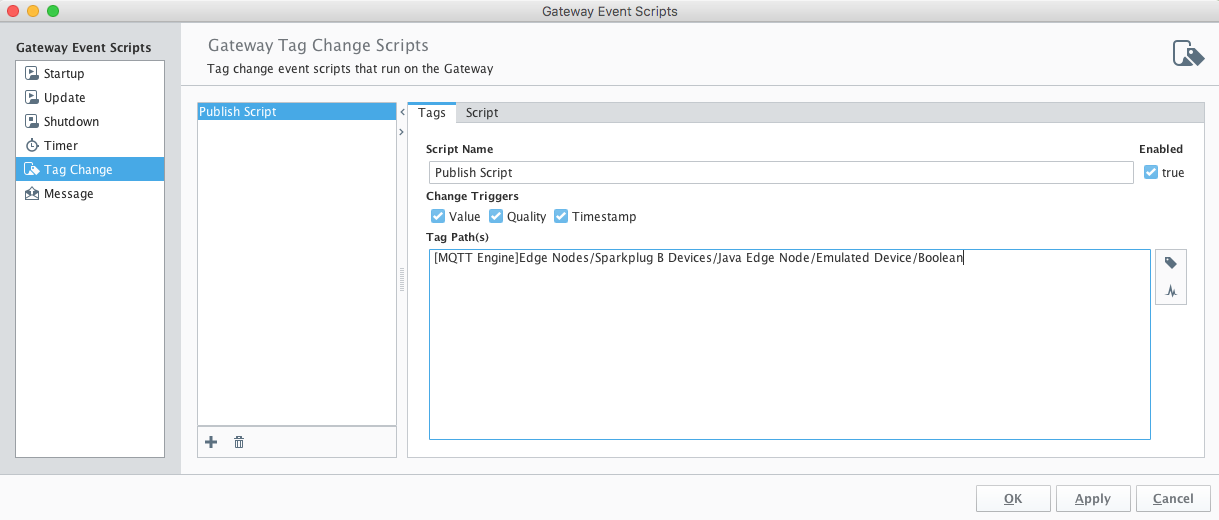 Image Removed
Now select the 'Script' tab near the top. In it, type the following line:
...
- serverName: The server name as shown in the MQTT Engine Transmission Settings configuration shown below
- mqttTopic: The MQTT Topic to publish on
- payload: The MQTT payload
- qos: The MQTT quality of service to publish on
- retain: Whether or not to set the retain flag in the MQTT message
When complete, the script should look something like this. Now click OK.
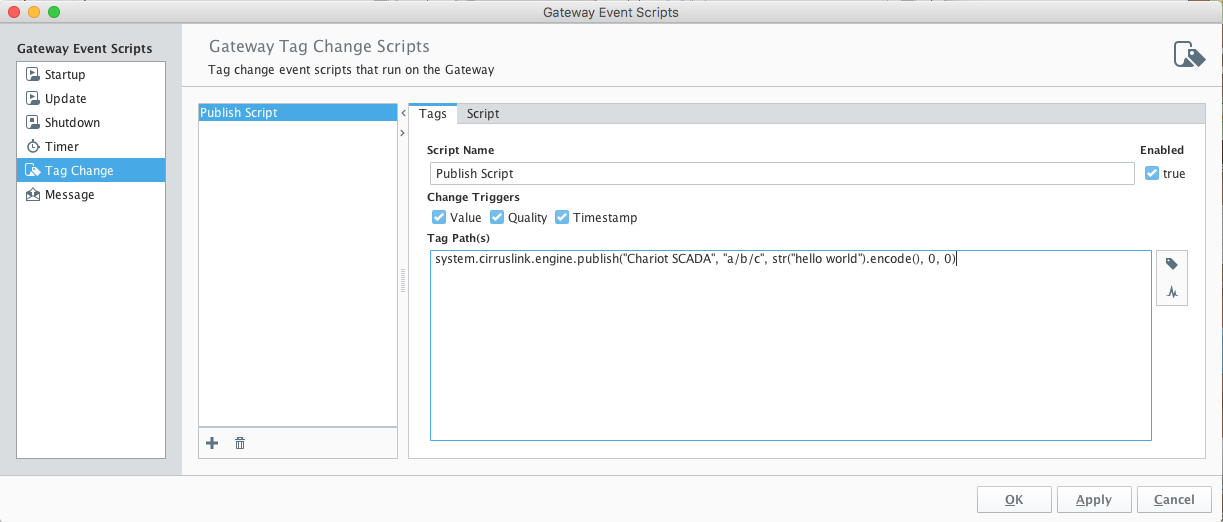 Image Removed
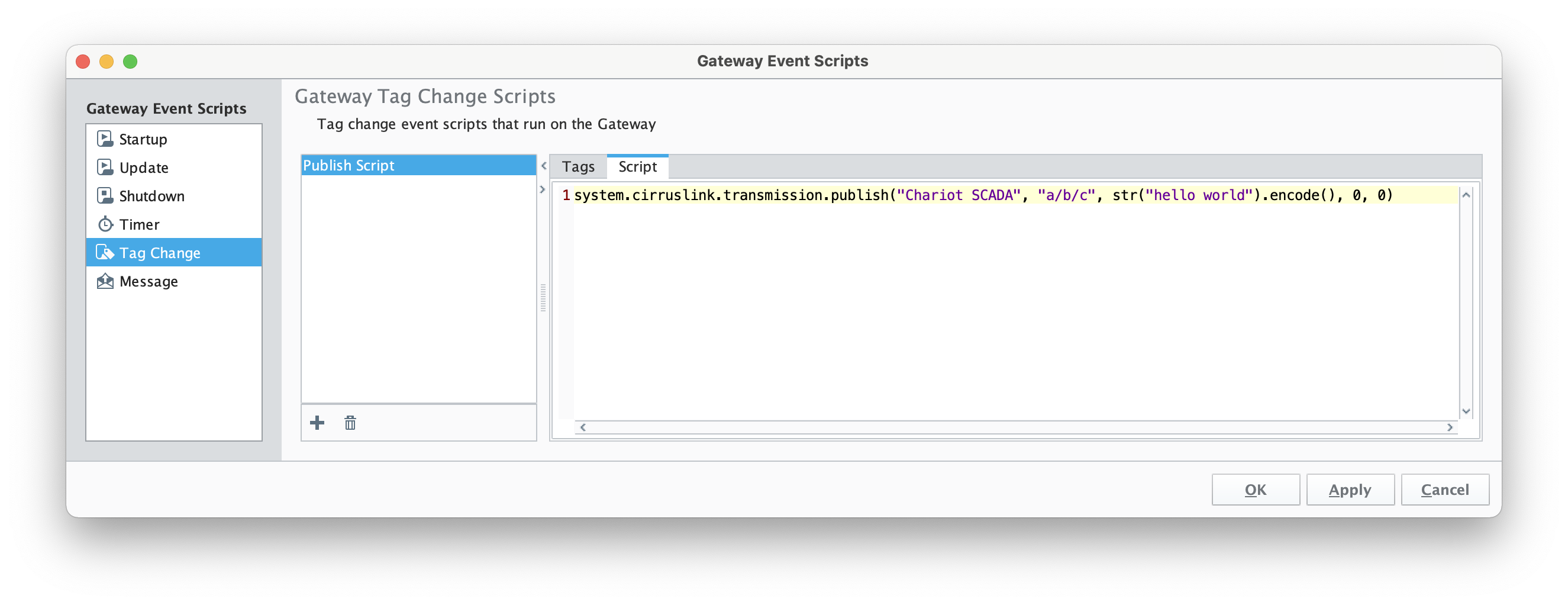 Image Added
Finally, save and publish the project. At this point every time this tags value, quality, or timestamp changes it will result in a MQTT message being published on topic 'a/b/c' with a payload of 'hello world'.
| Note |
|---|
MQTT Transmision currently has a max inflight message limit of 10. Depending on the frequency of MQTT publishes and the QOS selected, you may see the error "Too many publishes in progress" in the Ignition logs. There are a couple of options to work around this now: - Slow down the publish rate if possible
- Use QoS0 for publishing
- Set up multiple clients and spread the load across them
|
Additional Resources
- Inductive Automation's Ignition download with free trial
- Azure Injector download with free trial
- Questions about this tutorial?
- Sales questions
- About Cirrus Link