...
Using the Ignition Gateway Web UI, browse to the Ignition 'Config Connections > MQTT Engine > Settings > Servers' page. Now click the 'Certificates' tab as shown below: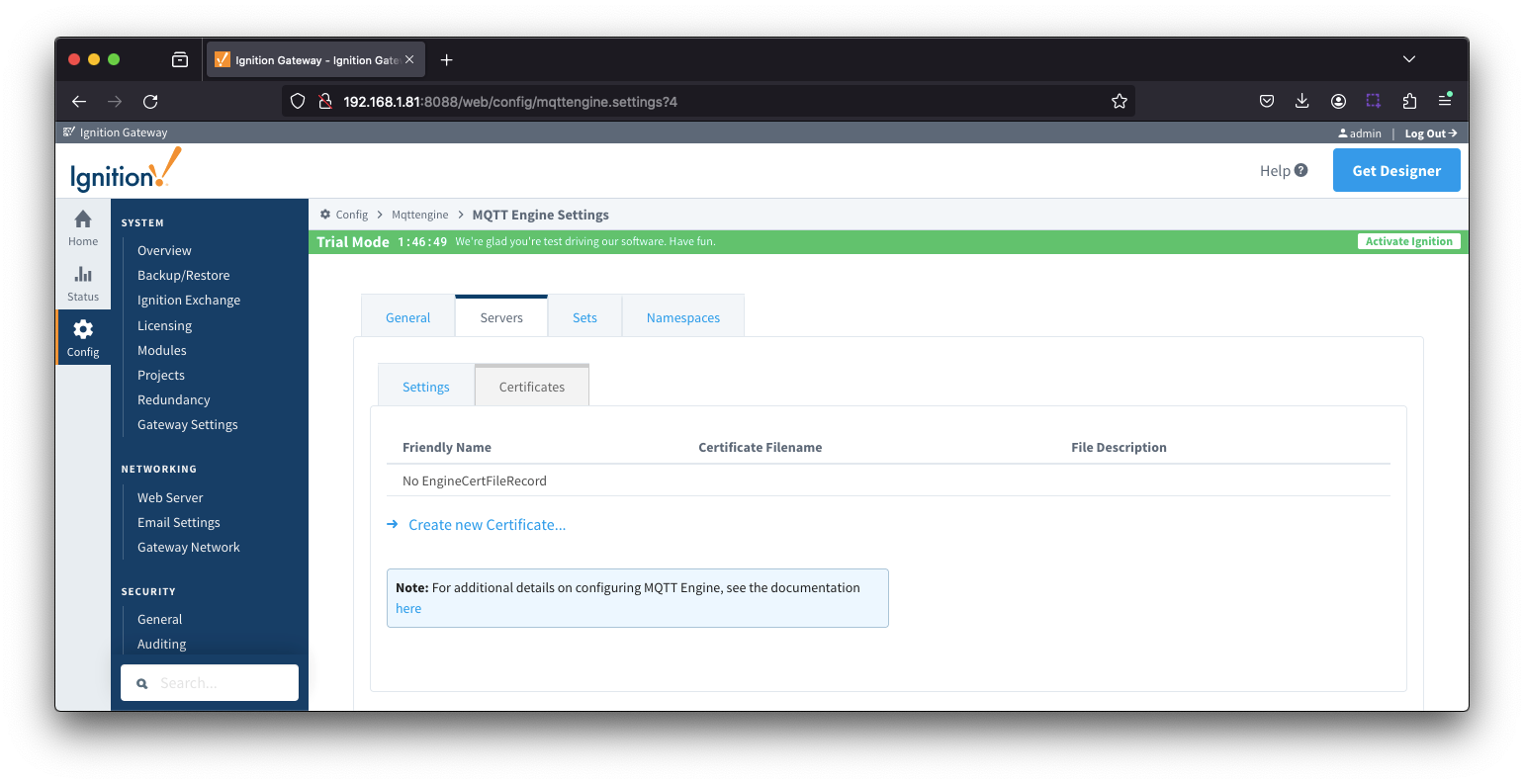 Image Removed
 Image Added
Now click the 'Create new Add Certificate File' link. Then upload one of the three files previously downloaded when creating the IoT Core 'Thing'. Once completed, your Certificates page should look similar to the following with all three files.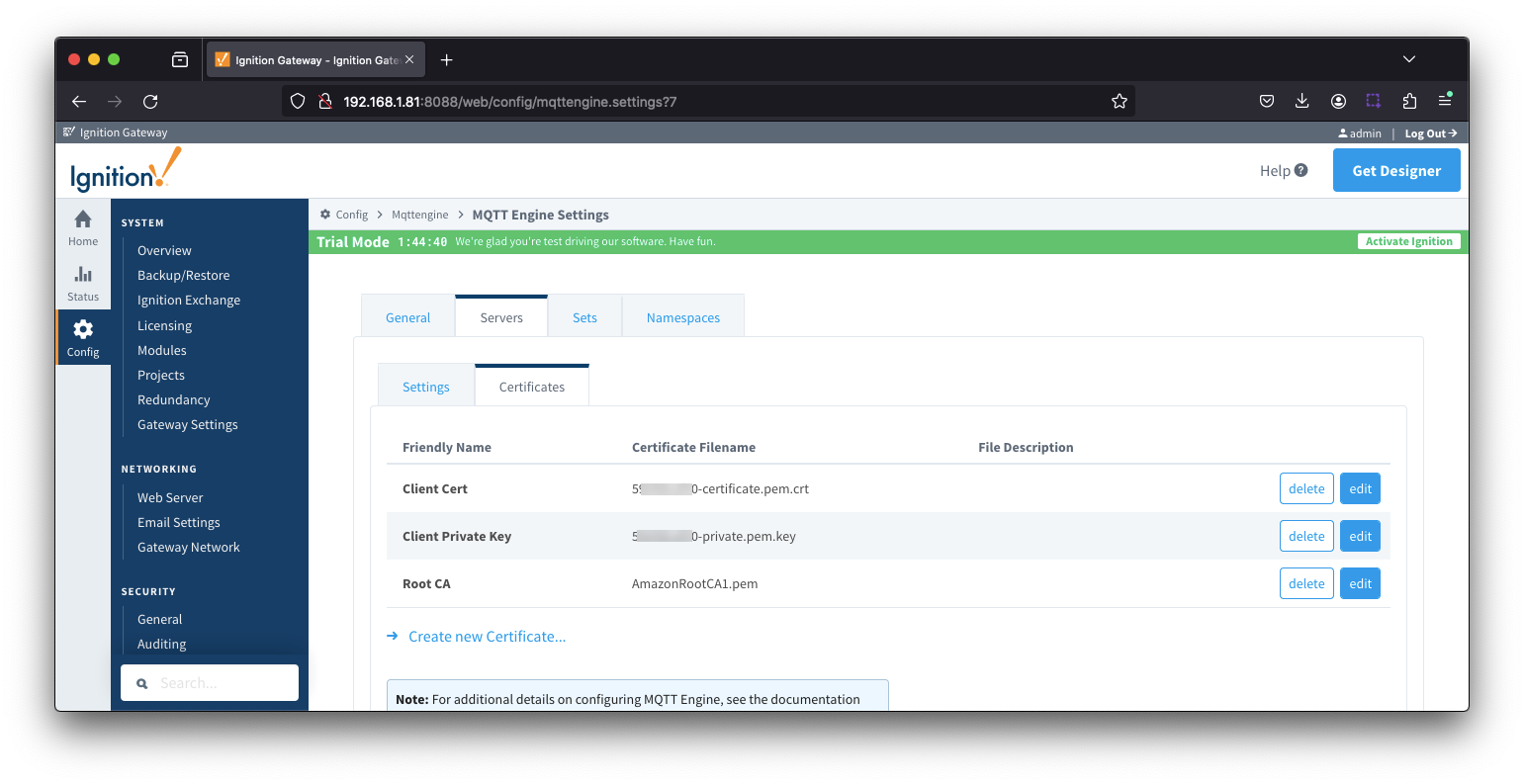 Image Removed
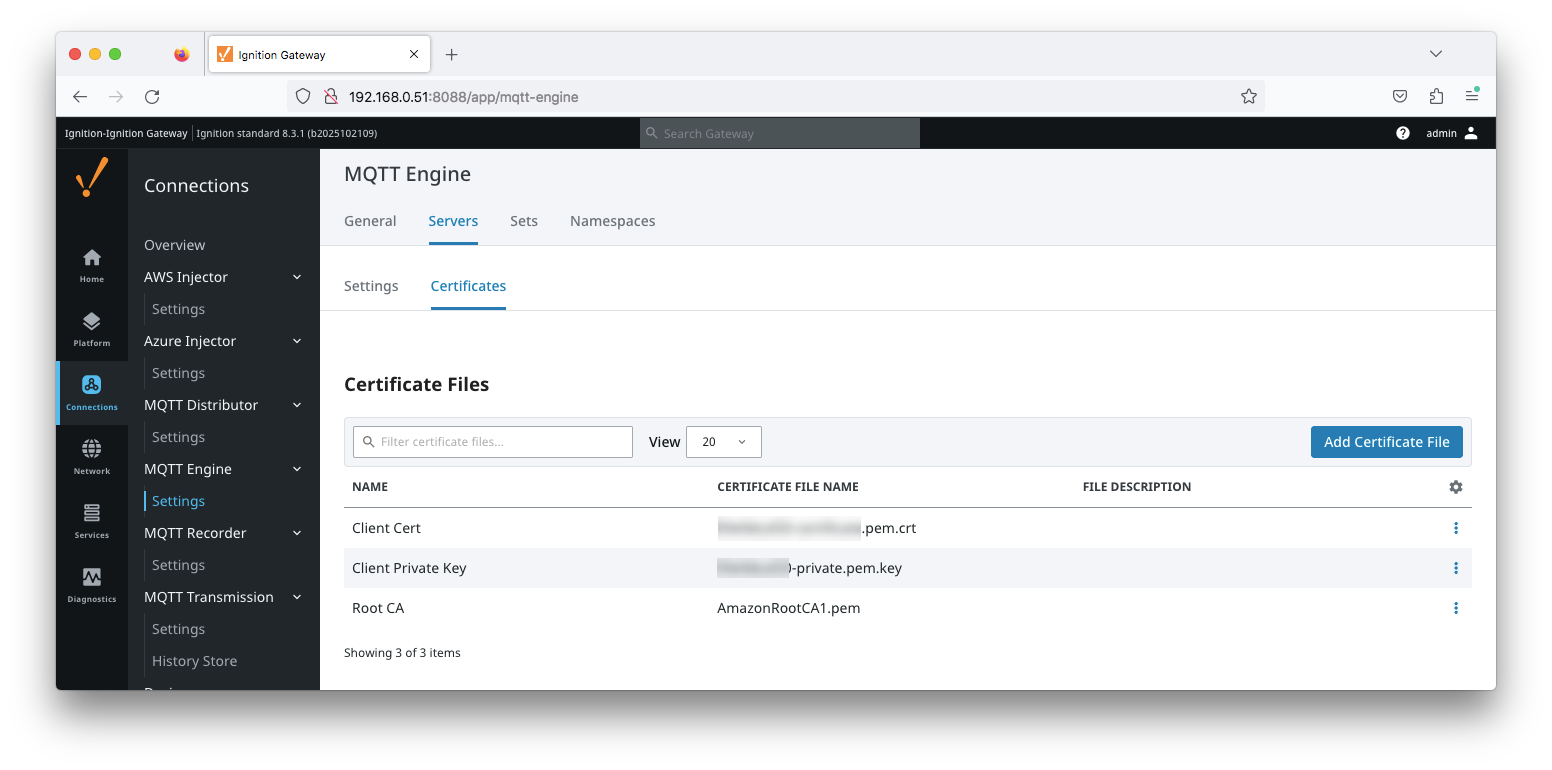 Image Added
Now, click the 'Servers' tab as shown below.
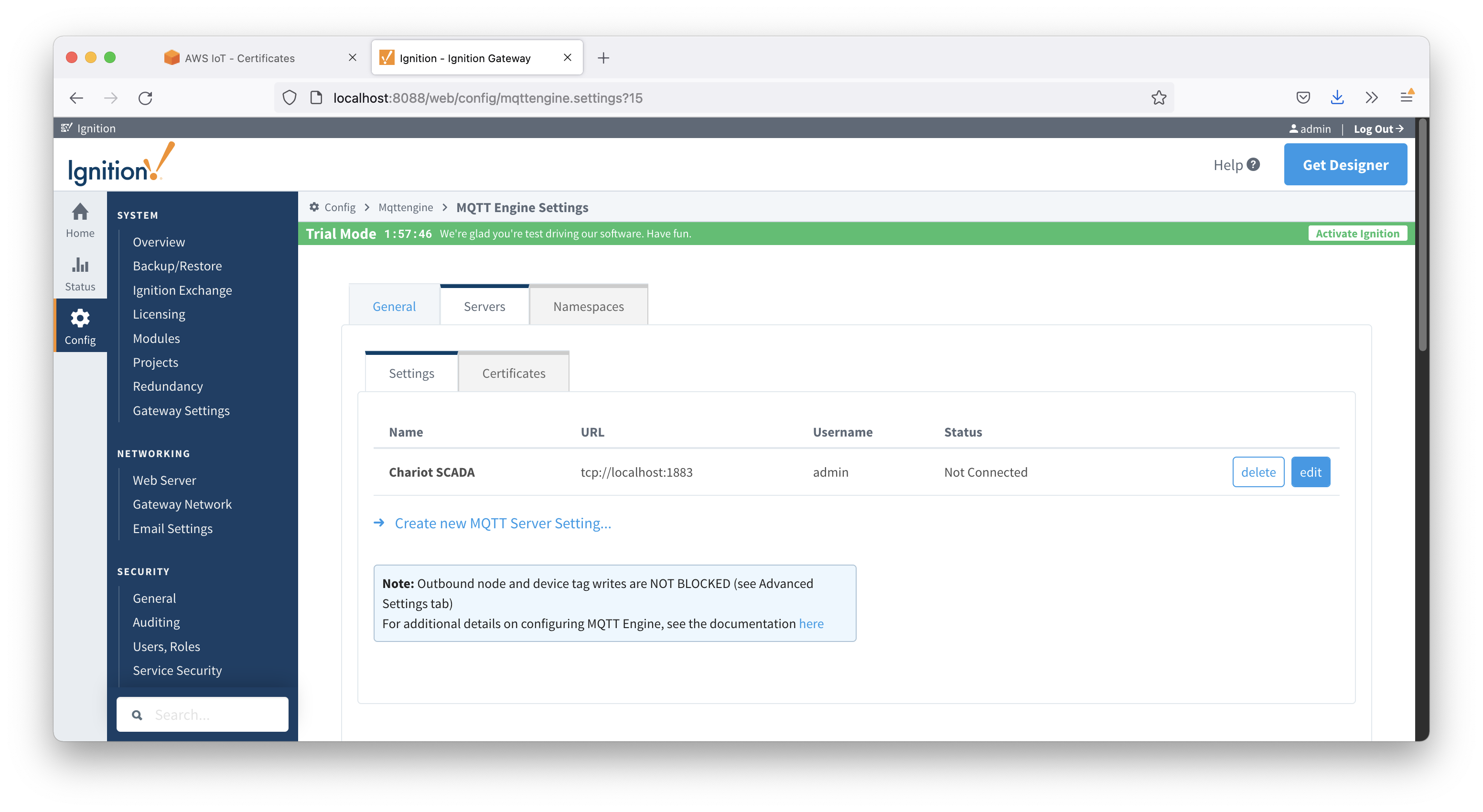 Image Removed
 Image Added
If you are only going to be connecting to AWS IoT Core, edit the existing 'Chariot SCADA' setting. Otherwise, create a new MQTT Server Setting. This should bring up the following page.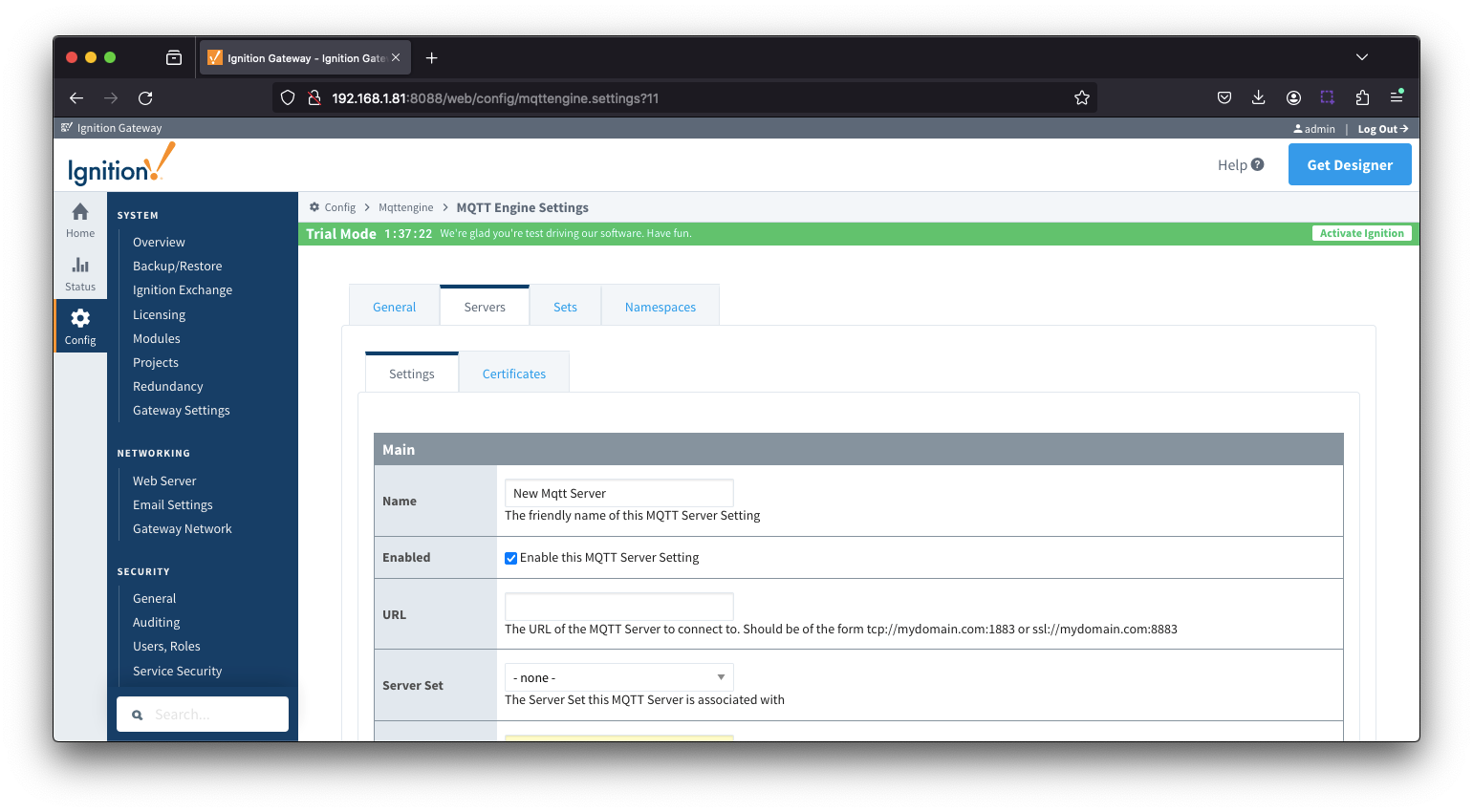 Image Removed
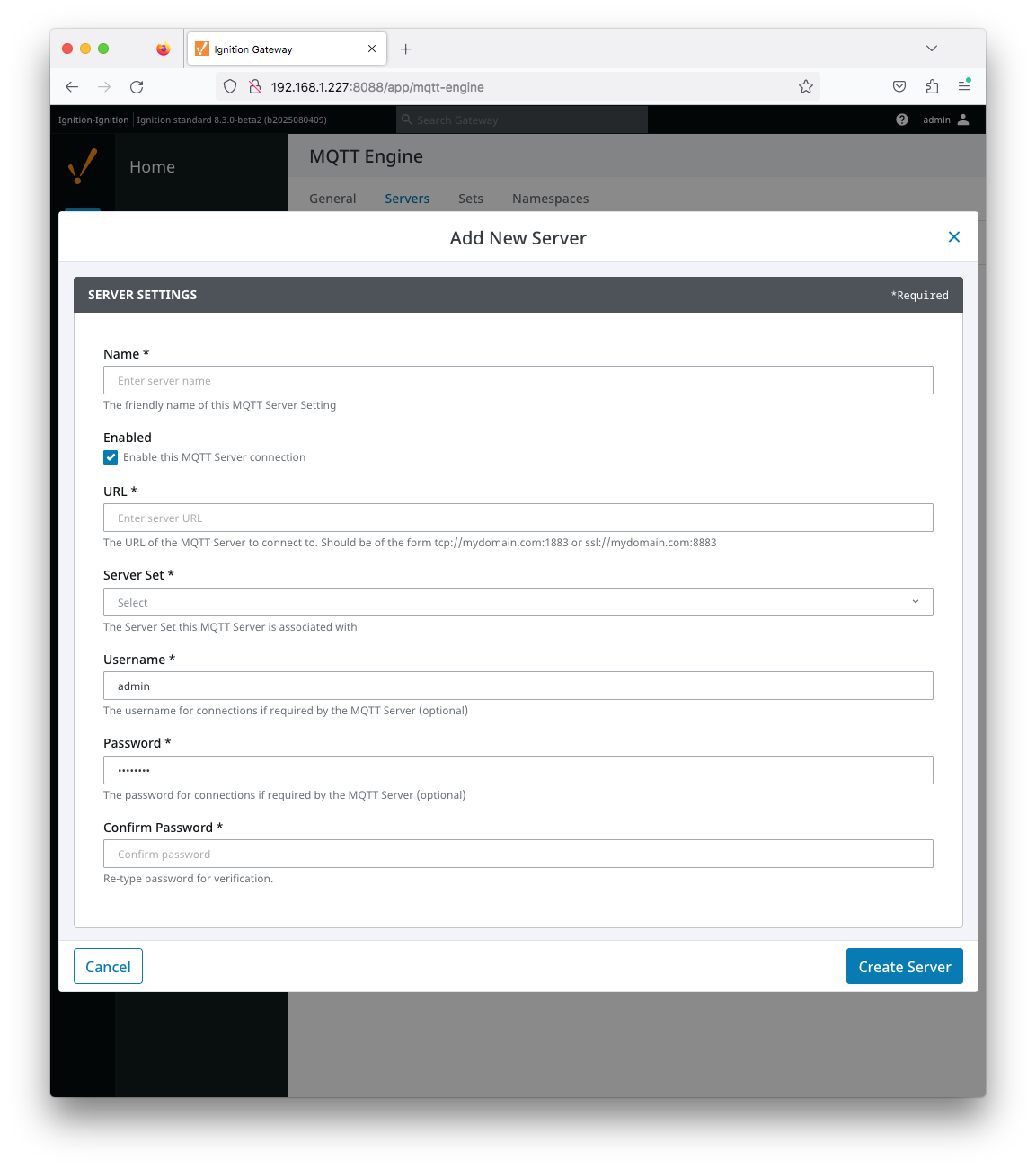 Image Added
Set the following.
...
Leave all other fields blank and submit the configuration. If everything was set up properly, the 'Status' should show 'Connected' when complete.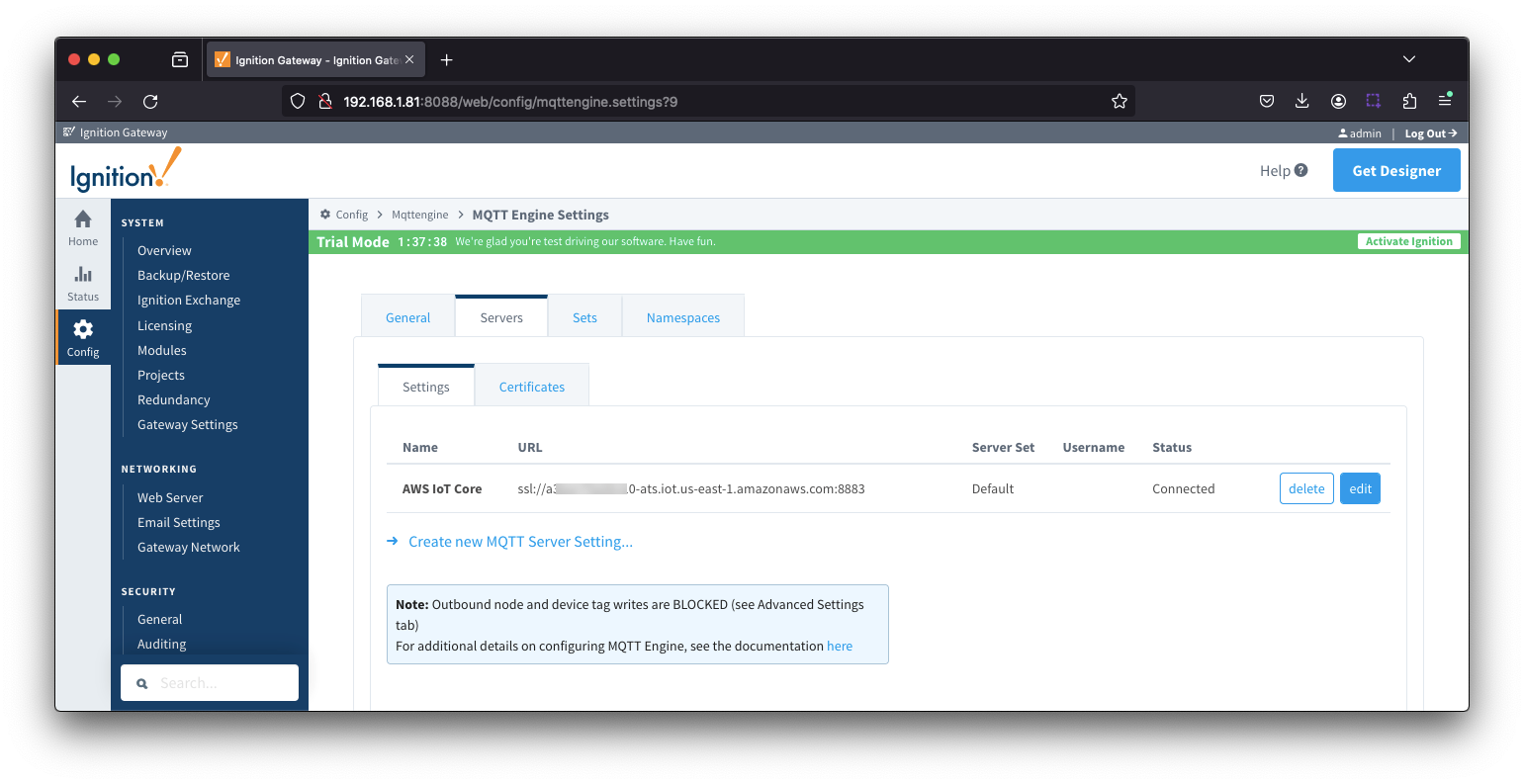 Image Removed
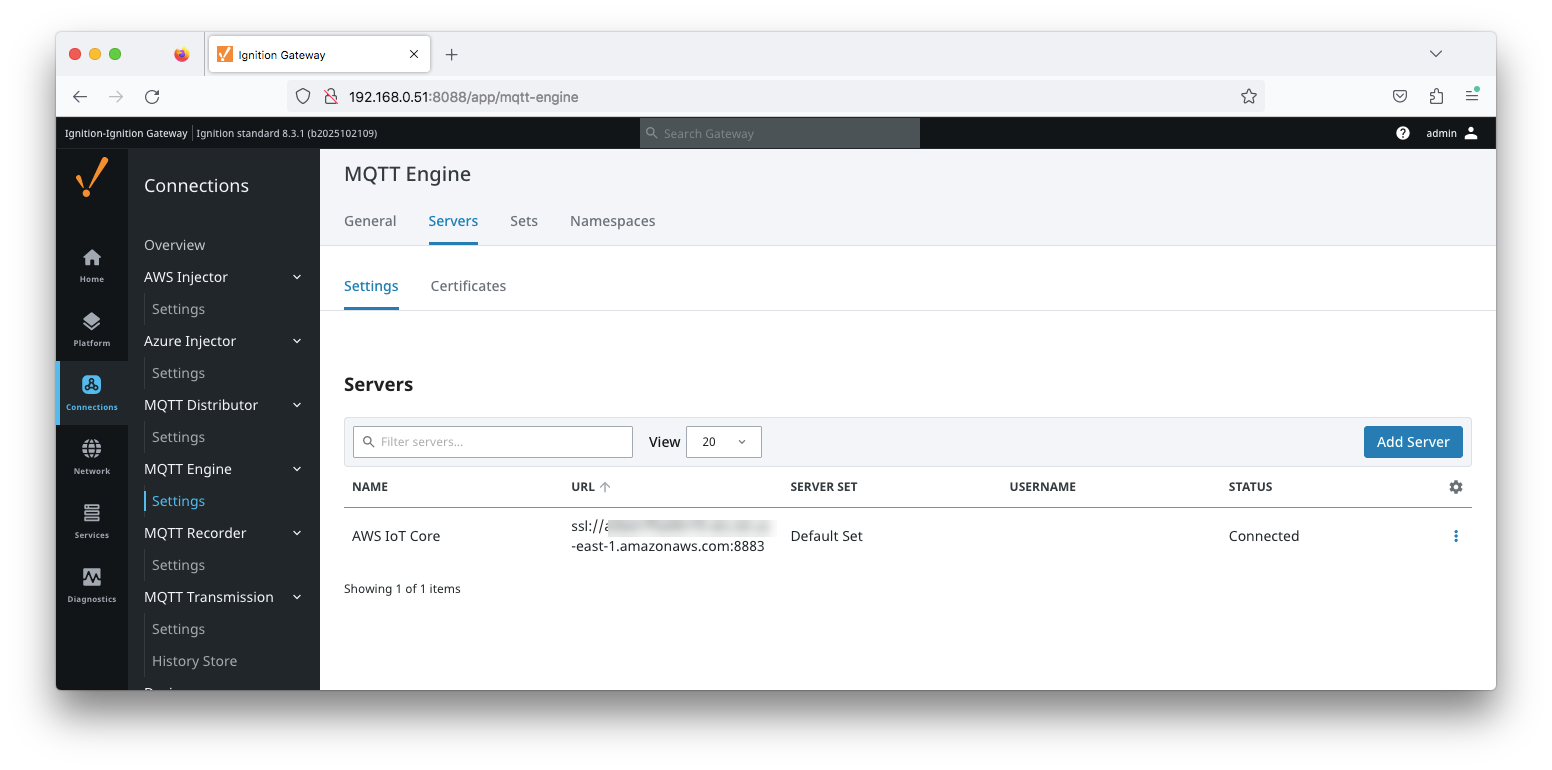 Image Added
| Anchor |
|---|
| CustomProperties |
|---|
| CustomProperties |
|---|
|
For MQTT Engine, you must also set the
'reordering timeout' Reordering Timeout property due to timing issues related to IoT Core message delivery.
To To do this,
set the Custom Properties naviagte to the Miscellaneous Settings section on the MQTT Engine General tab
to: { "reorderingTimeout" : 3000 } as shown below and save the changes.
This will allow MQTT Engine to buffer messages and reorder them should they be delivered out of order within a 3 second window. Generally 3 seconds seems to be plenty of time for the reordering with AWS IoT Core.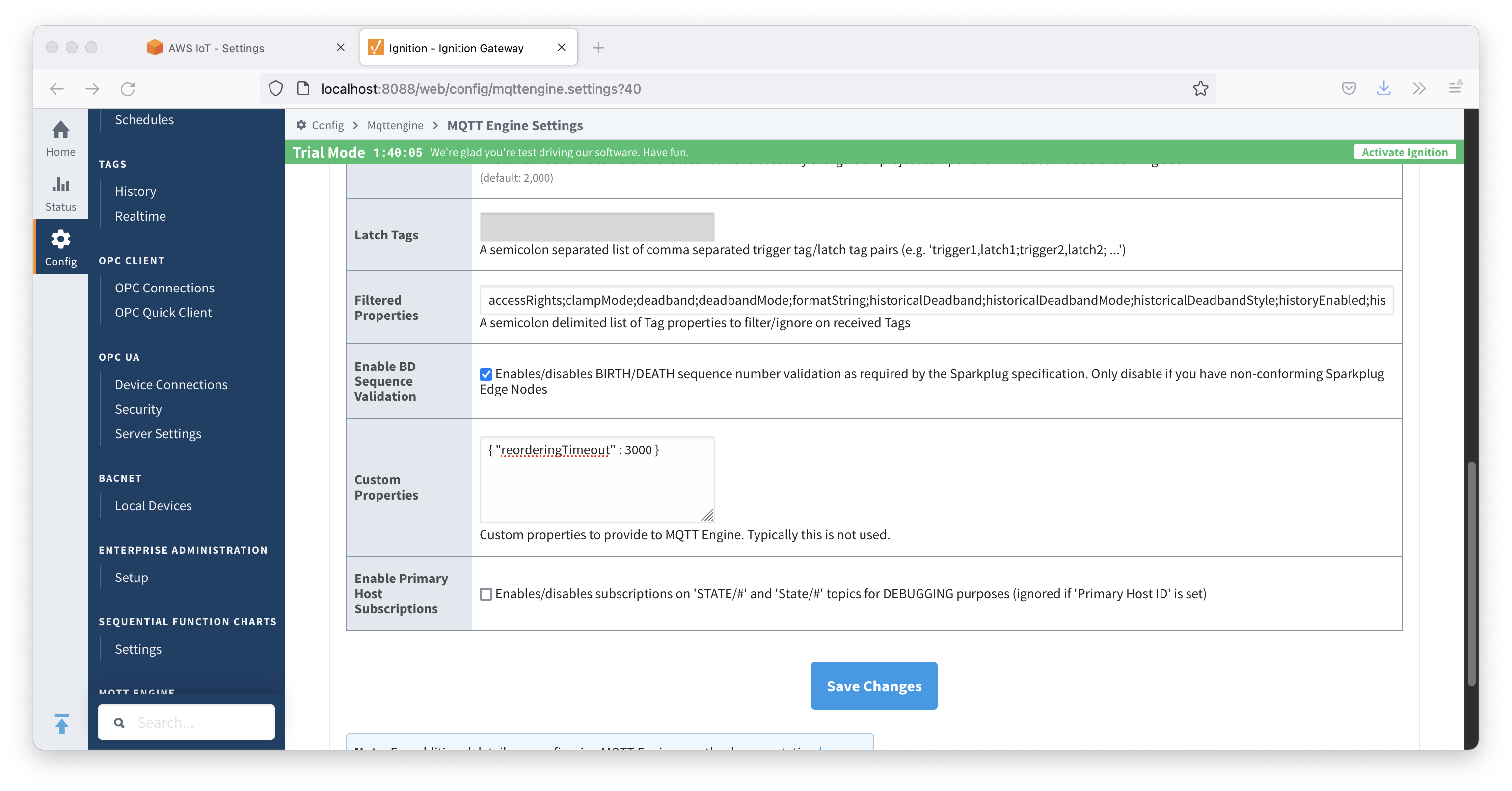 Image Removed
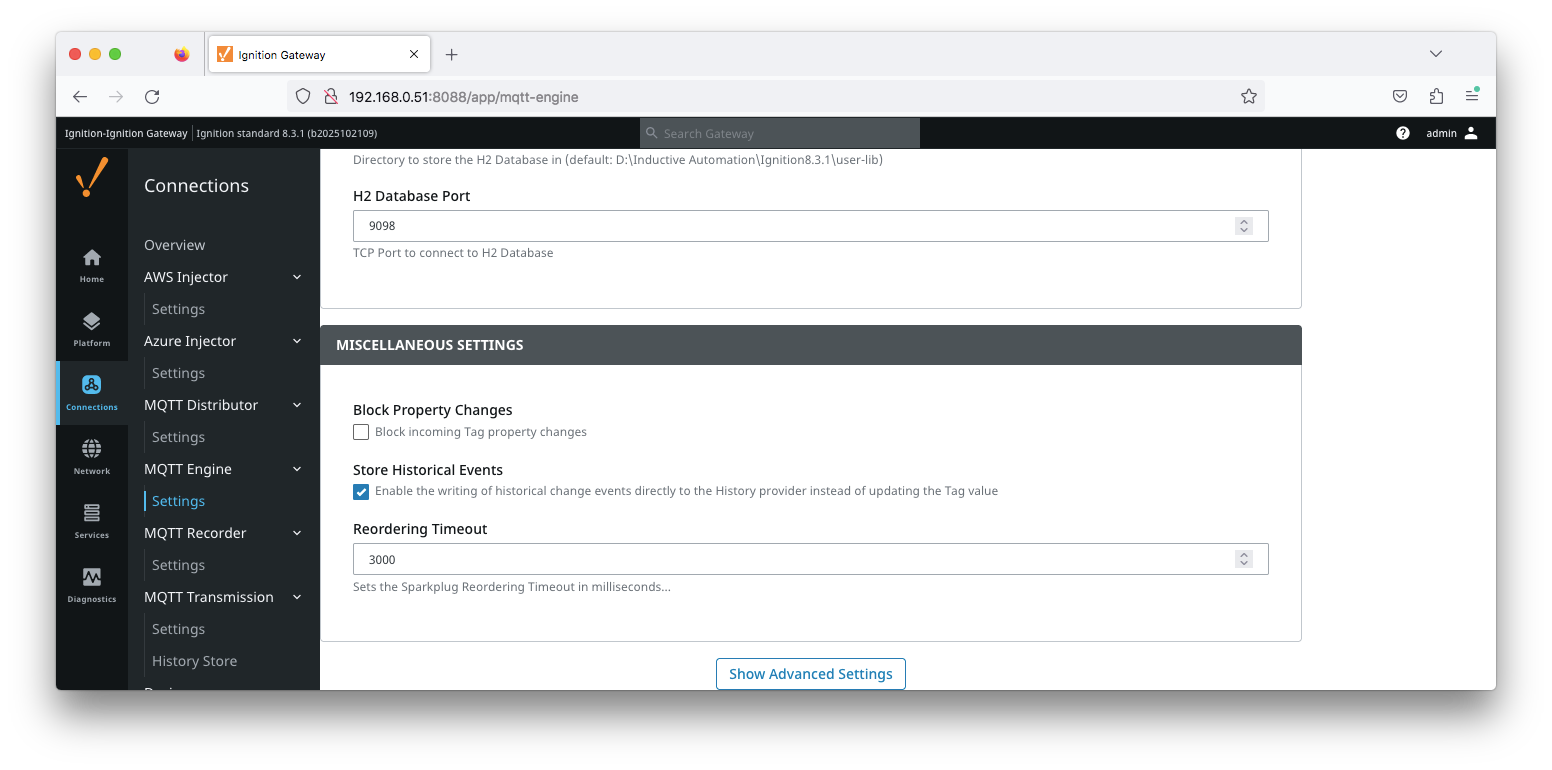 Image Added
Configuring MQTT TransmissionUsing the Ignition Gateway Web UI, browse to the Ignition 'Config Connections > MQTT Transmission Transmision > Settings > Servers' page. Now click the 'Certificates' tab as shown below: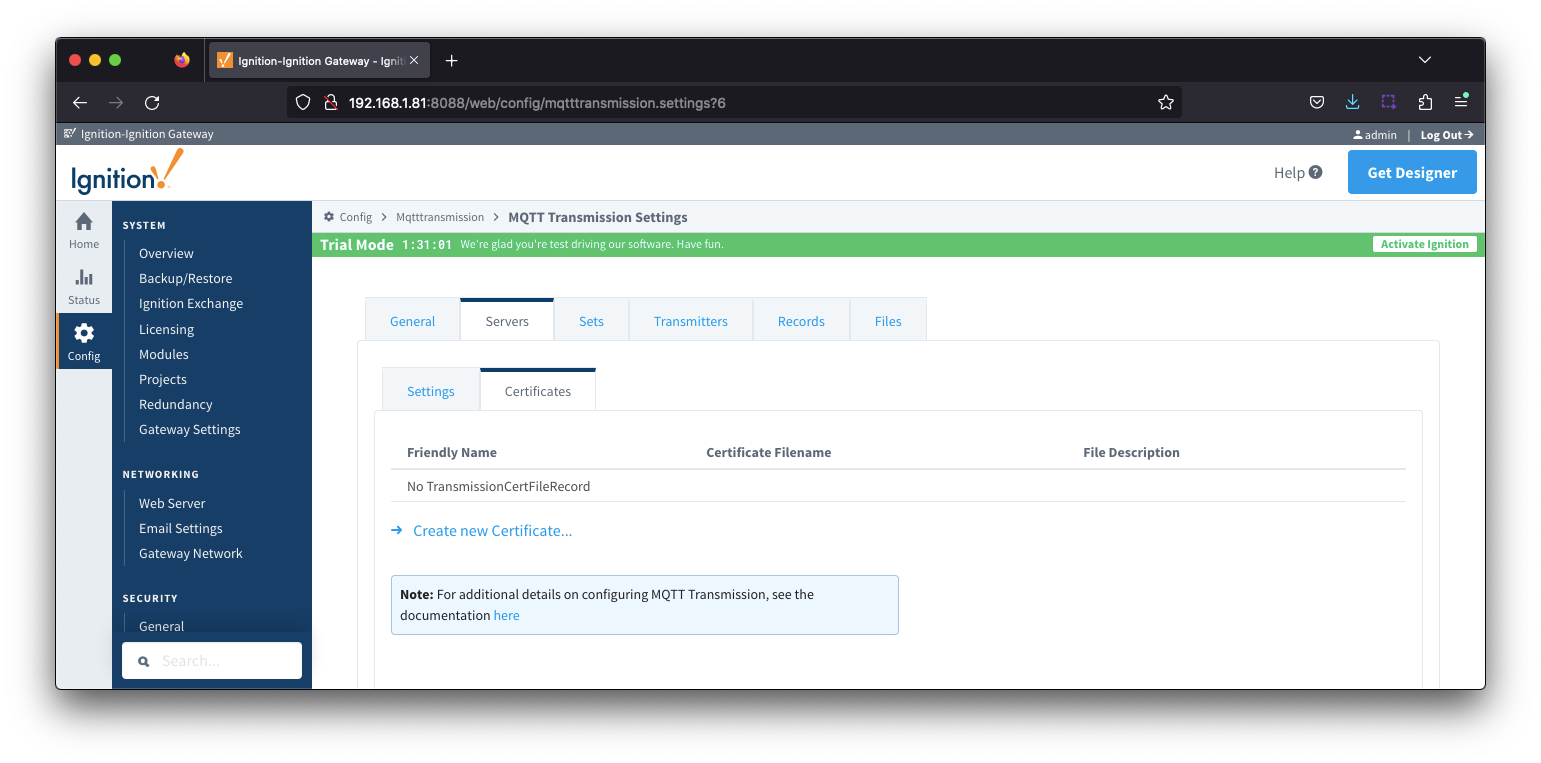 Image Removed
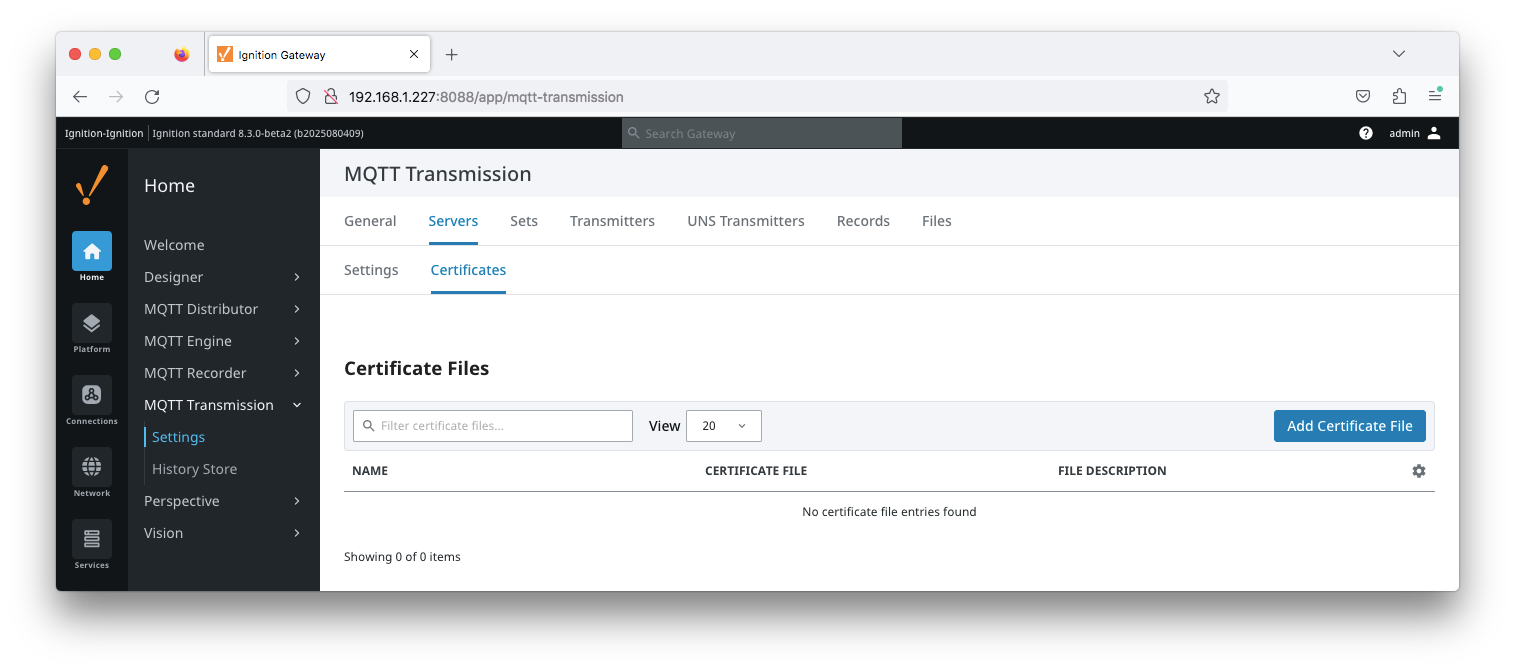 Image Added
Now click the 'Create new Certificate' link. Then upload one of the three files previously downloaded when creating the IoT Core 'Thing'. Once completed, your Certificates page should look similar to the following with all three files.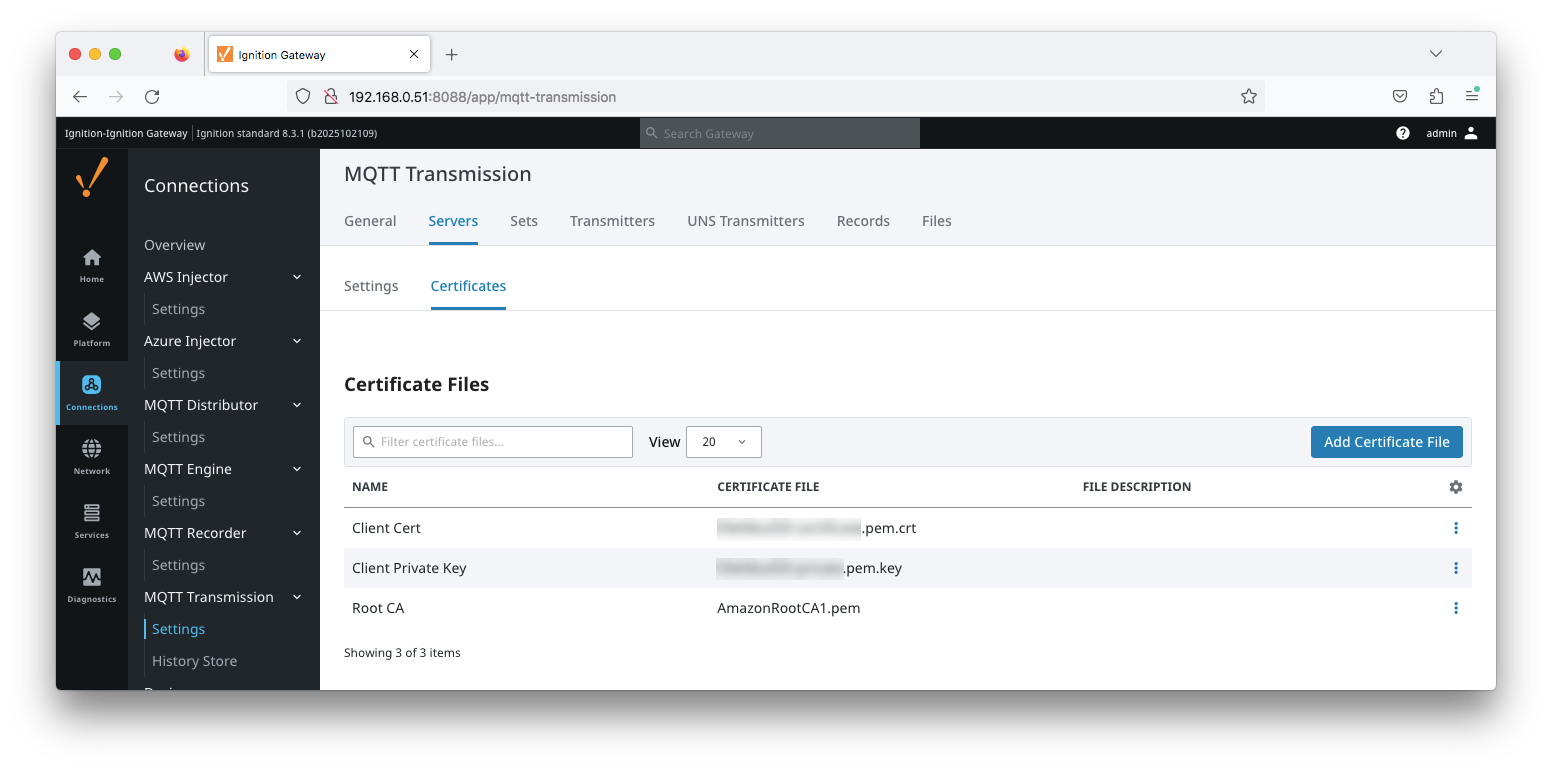 Image Added
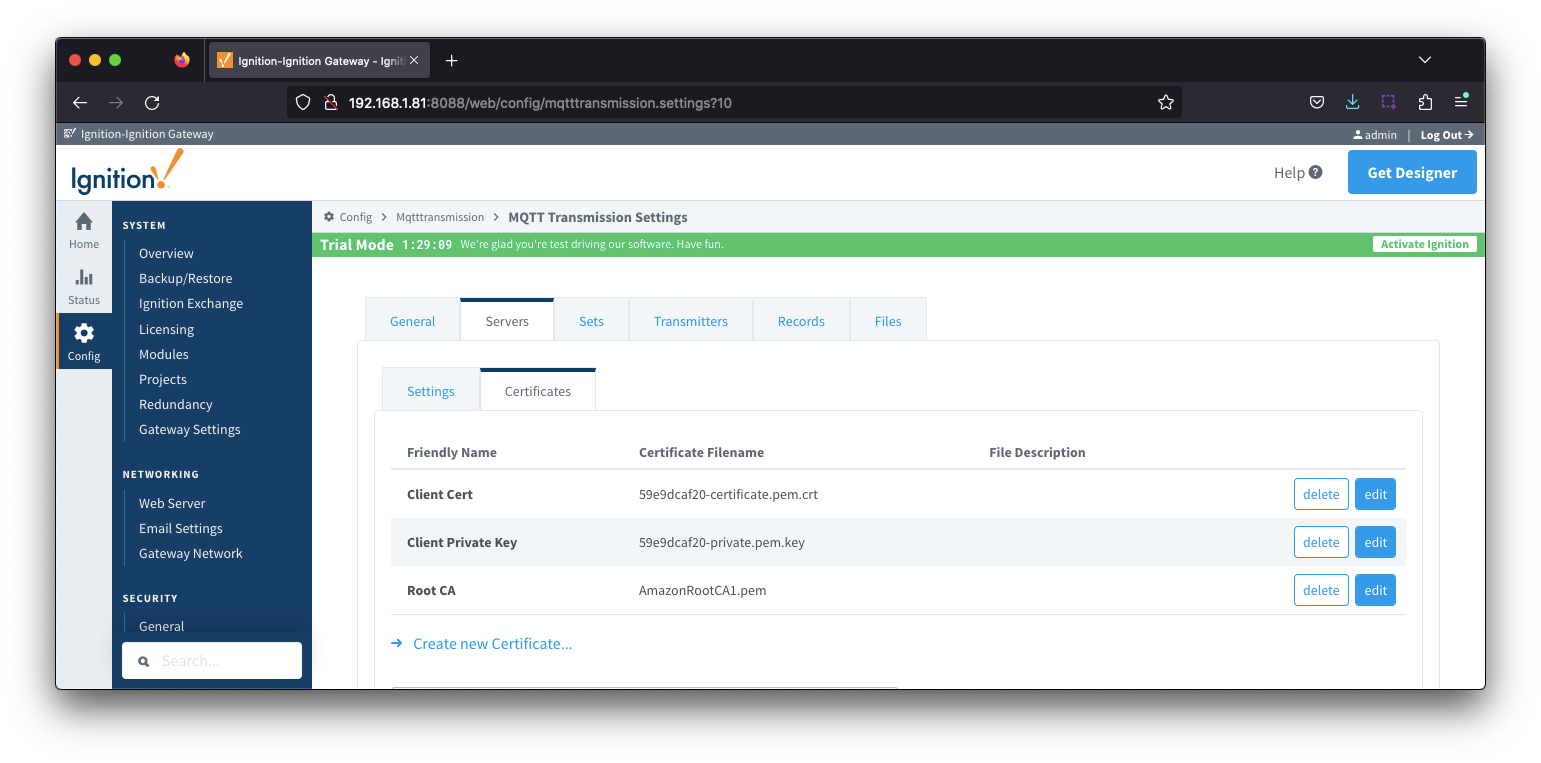 Image Removed
Now, click the 'Servers' tab as shown below.
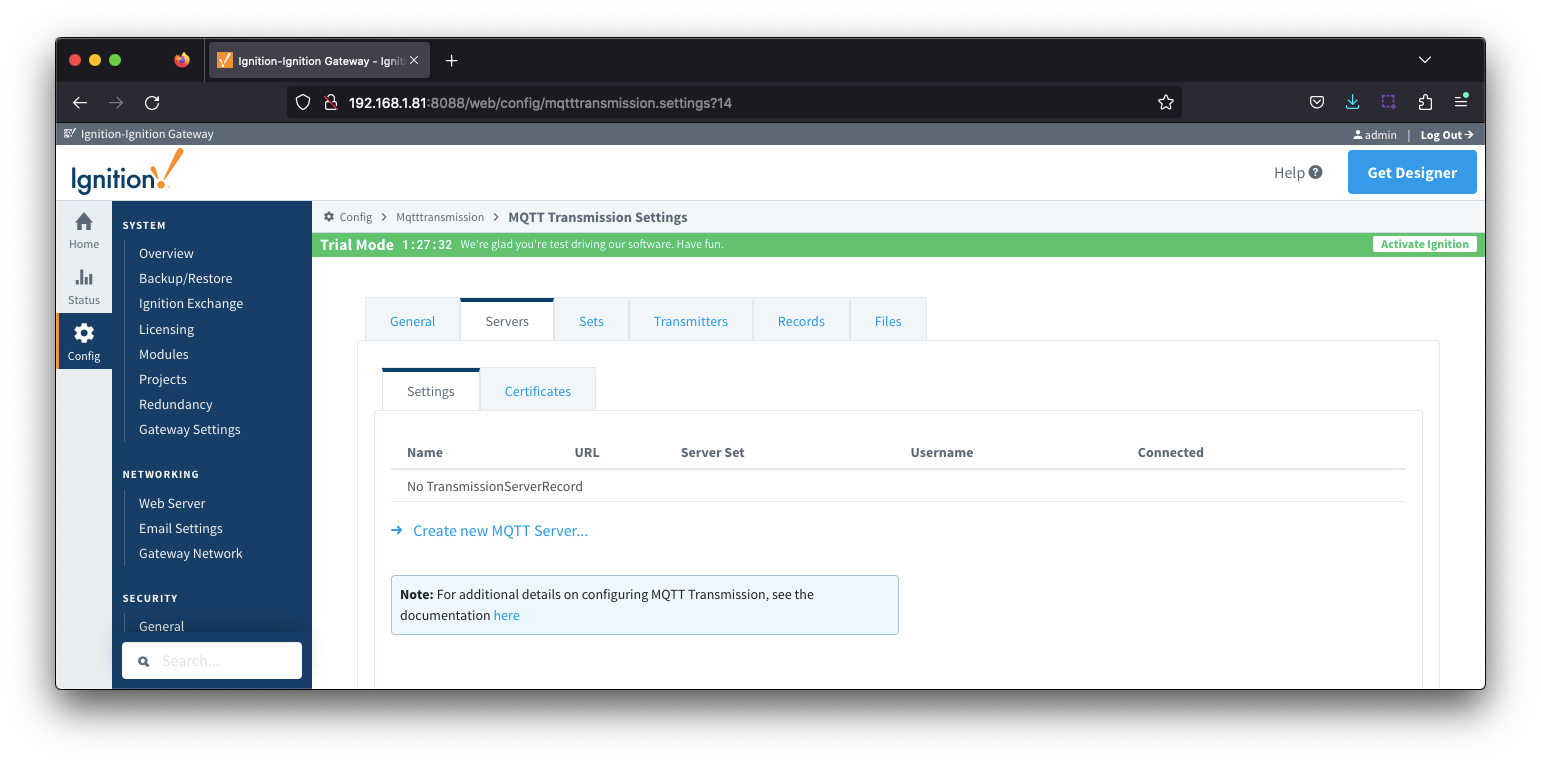 Image RemovedImage Added
Select 'Create a new MQTT Server' link which will bring up the following page.
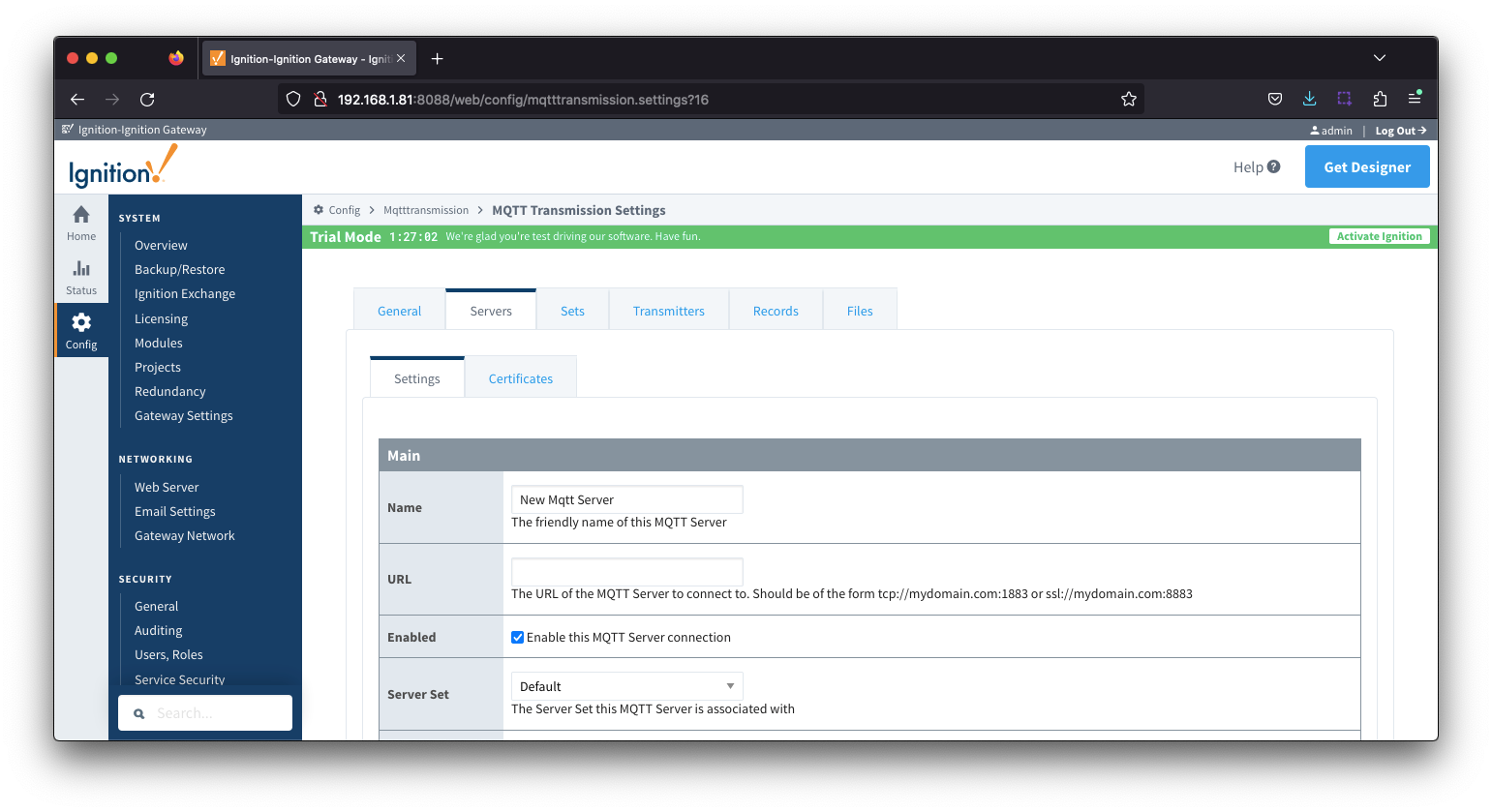 Image Removed
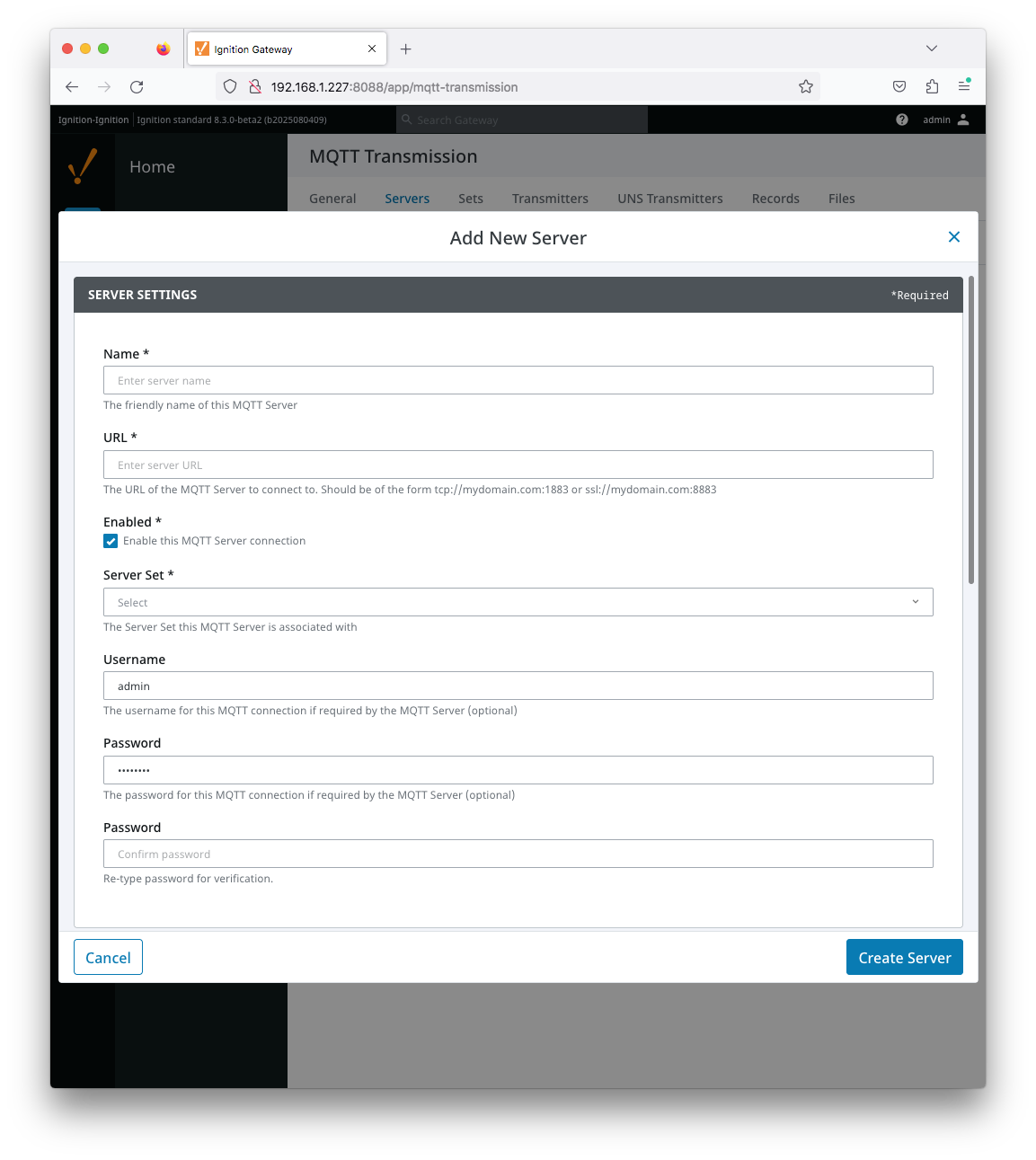 Image Added
Set the following.
...
Leave all other fields blank and submit the configuration.
| Note |
|---|
If Transmitters have ben configured the 'Status' will show x of x. If no Transmitters have been configured, the 'Status' will show 0 of 0 .and you should configured your Transmitter |
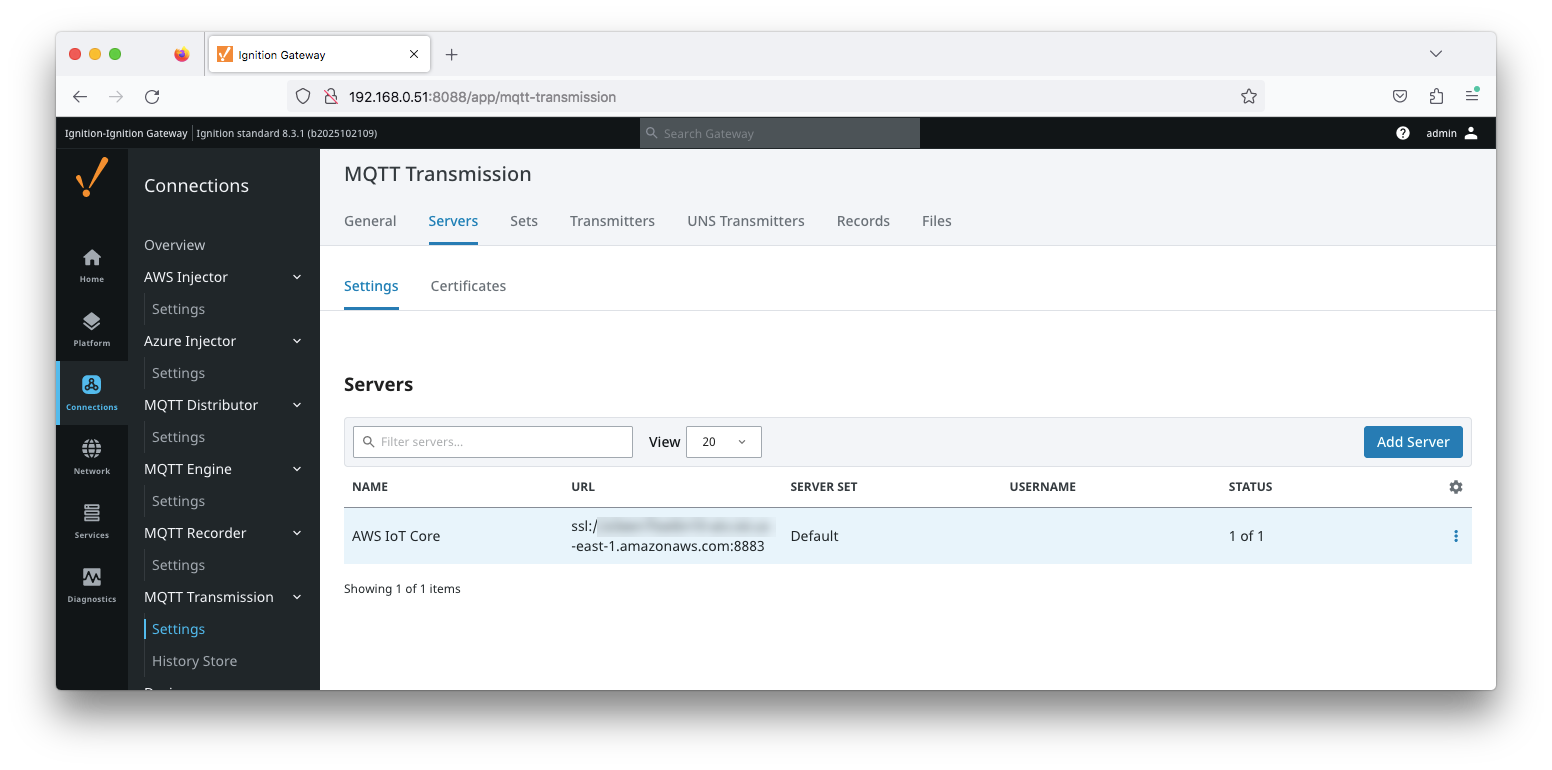 Image Added
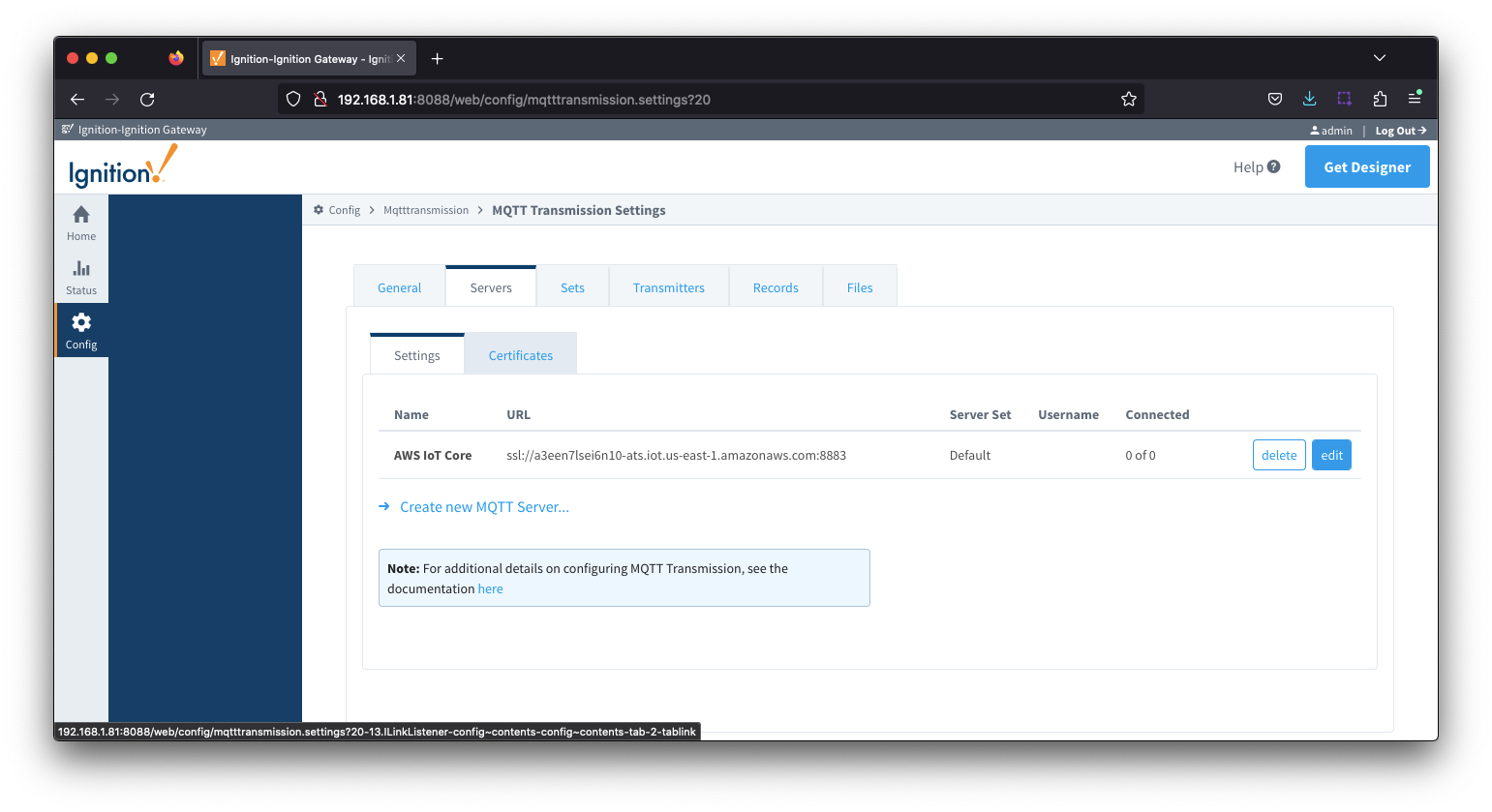 Image Removed
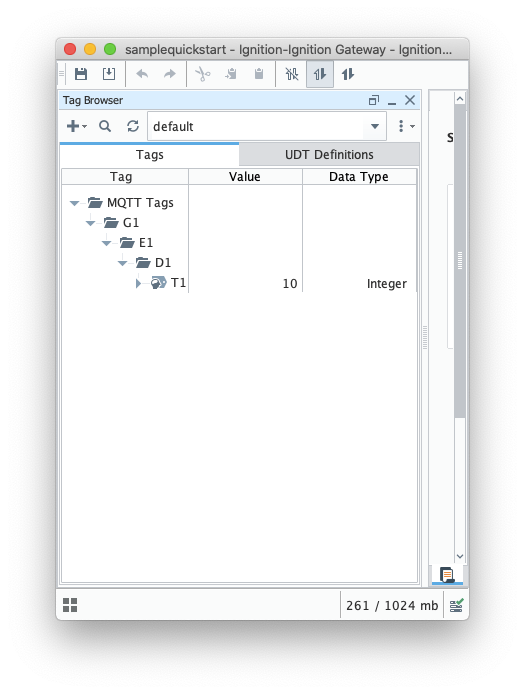
Configure an Transmitter as shown below and use Ignition Designer to created an appropriate tag tree in the default provider.
| Tip |
|---|
| Review the MQTT Transmission Transmitters and Tag Trees document for more information on how Transmitter configs and Ignition tag trees interact |
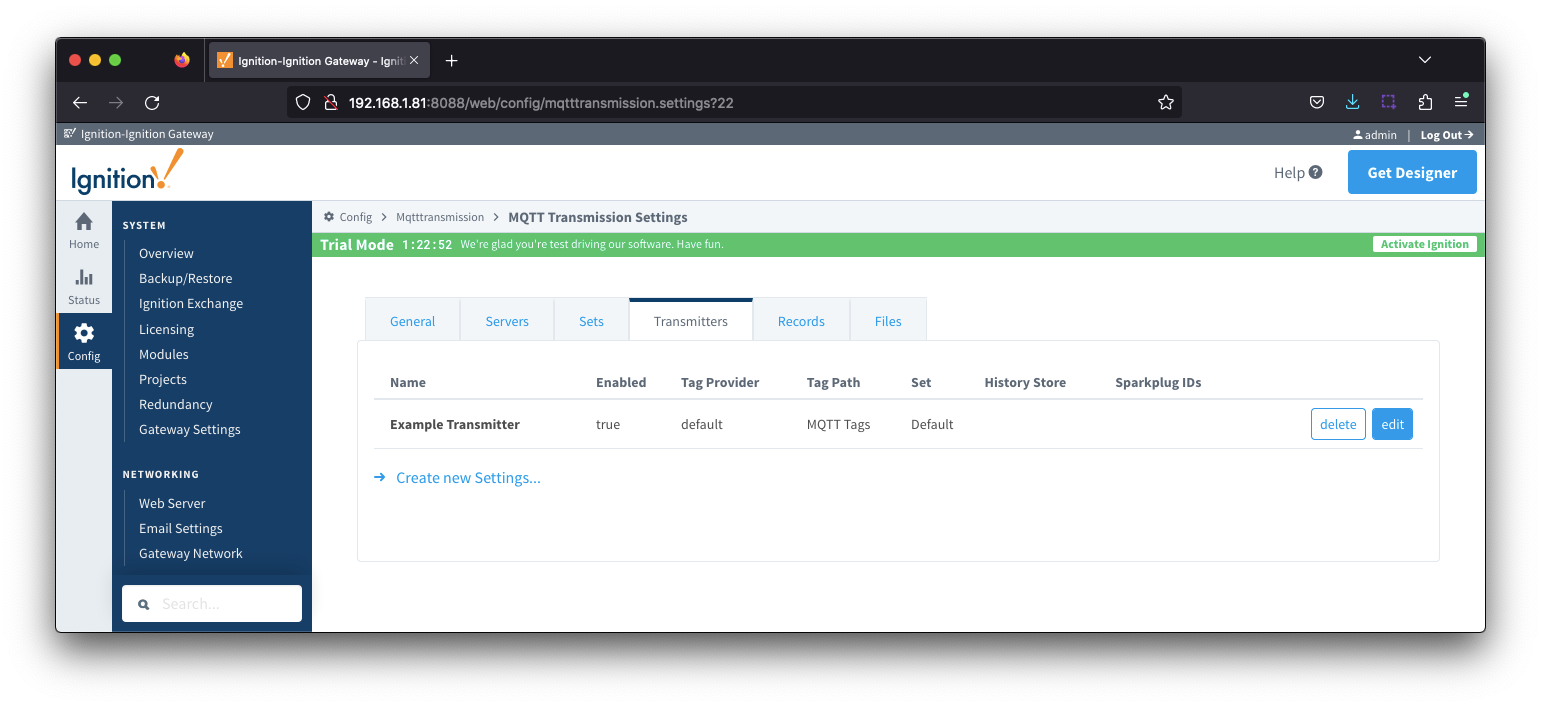 Image Removed
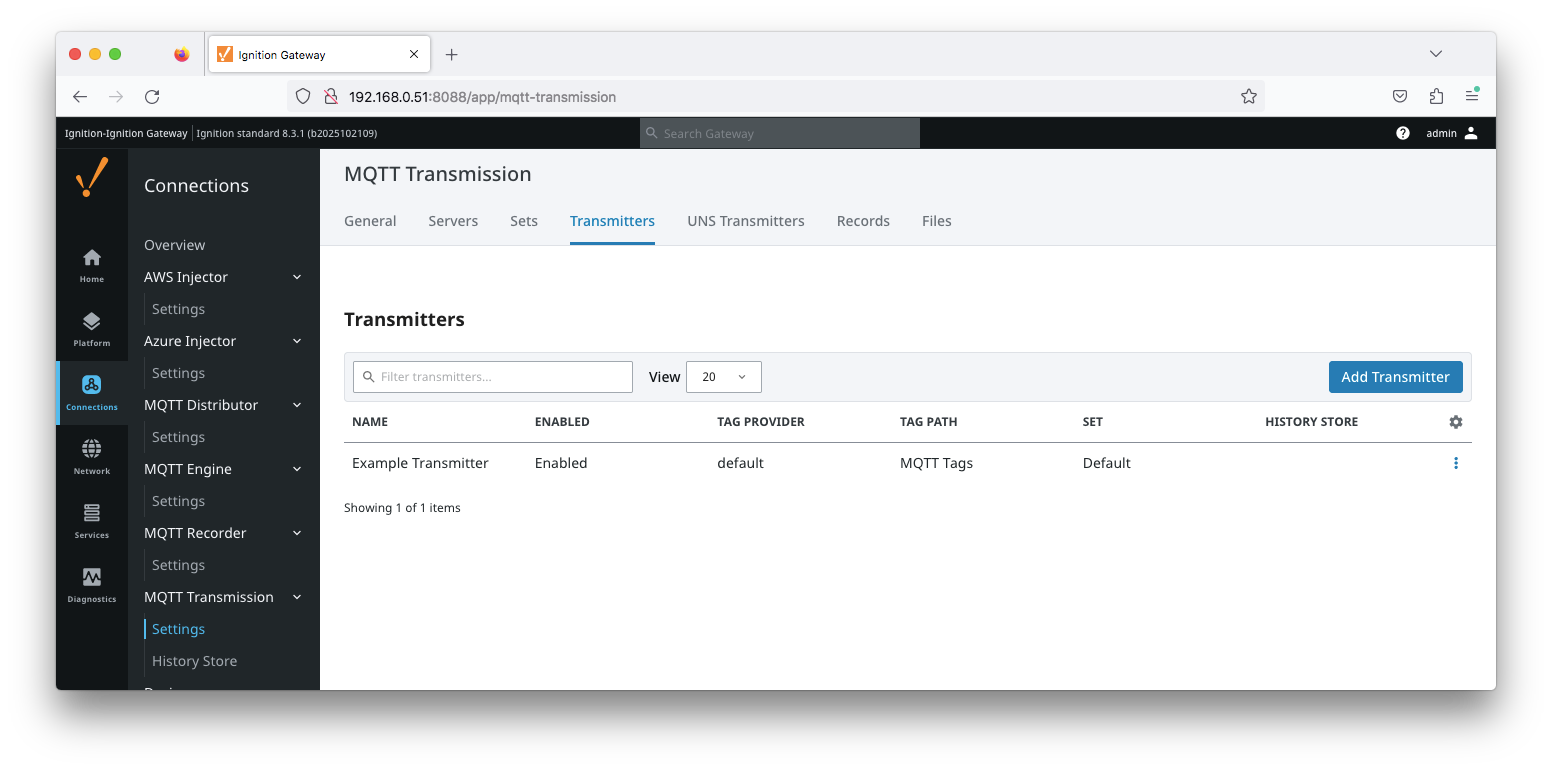 Image Added
The server connection will now show the connected client as '1 of 1'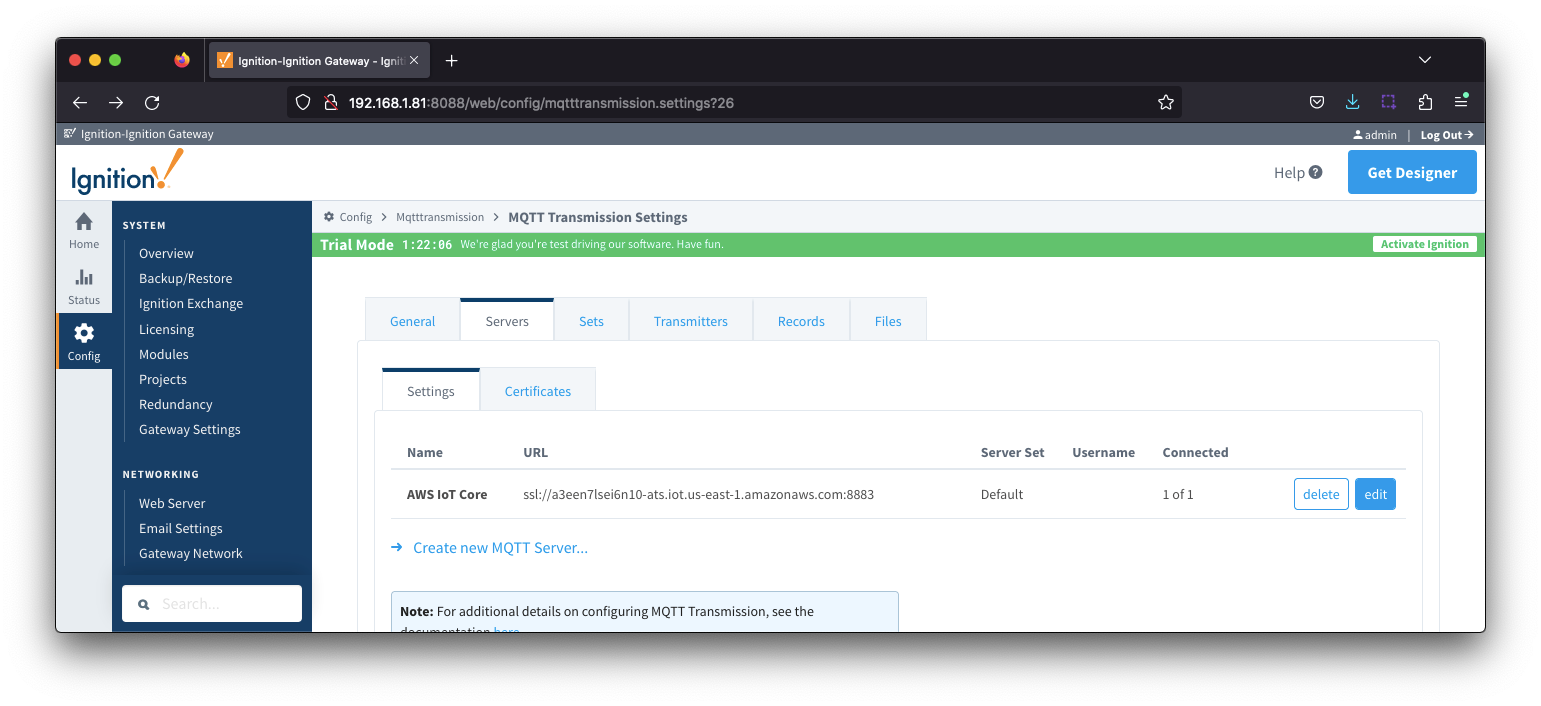 Image RemovedImage Added
To confirm messages are published from Transmission, navigate to the Ignition logs and Refresh Transmission. This will cause the client to disconnect, reconnect and publish its BIRTH messages.
The SparkplugTransmissionClient logger will show the NBIRTH and DBIRTH messages pushed.
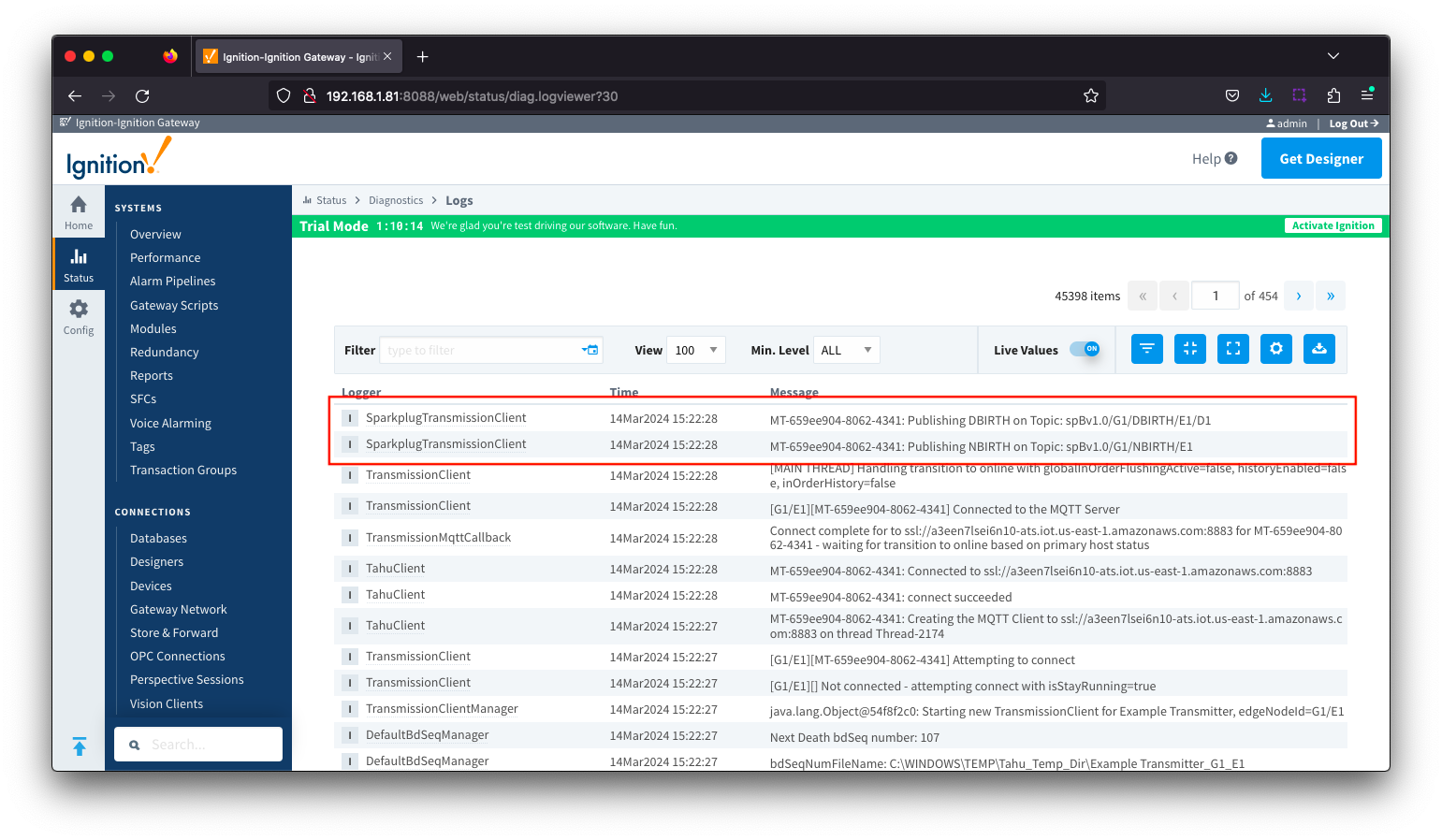 Image Removed
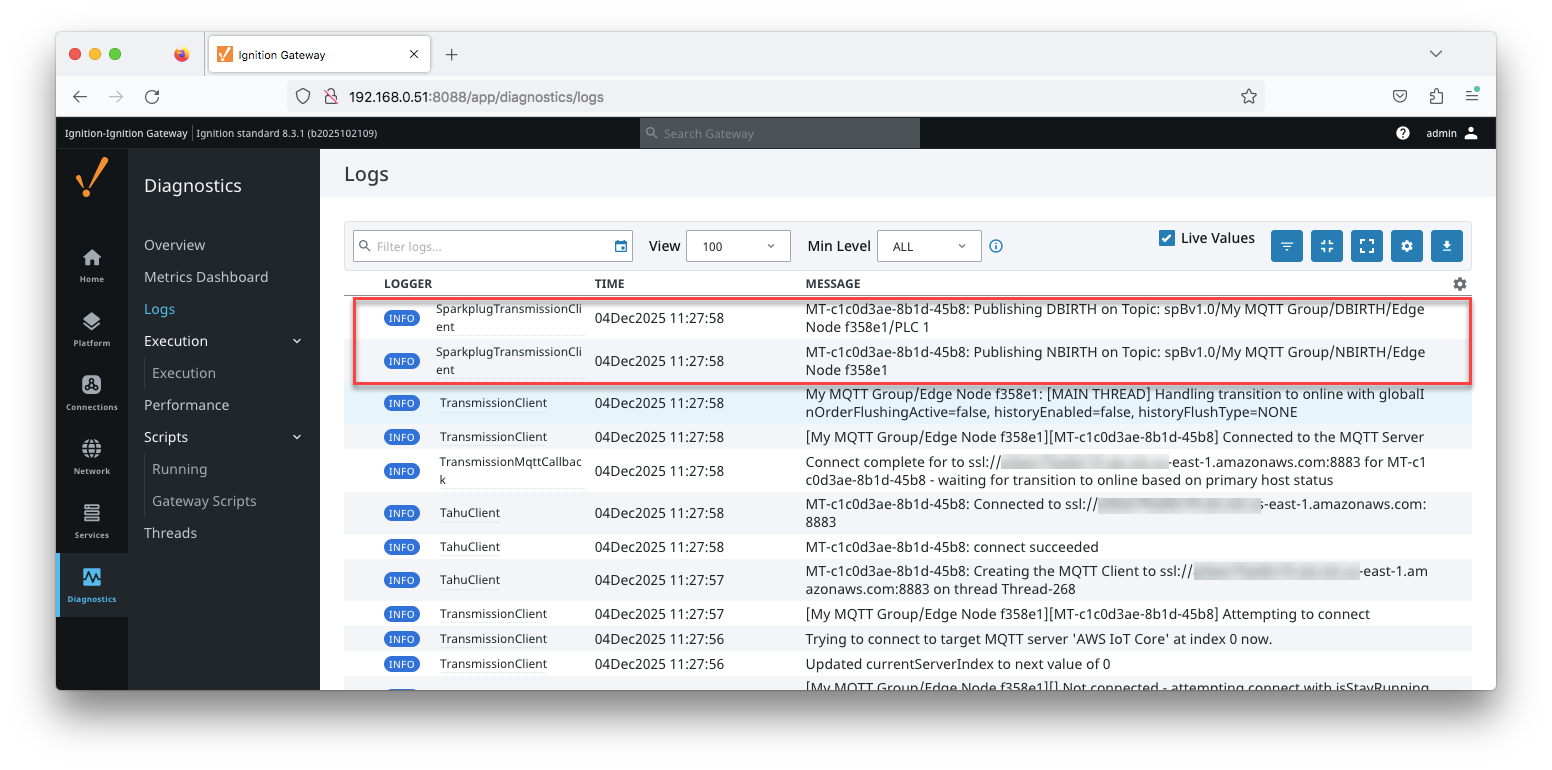 Image Added
To confirm messages are received as AWS IoT Core. On your AWS account, navigate to AWS IoT > Test > MQTT test client.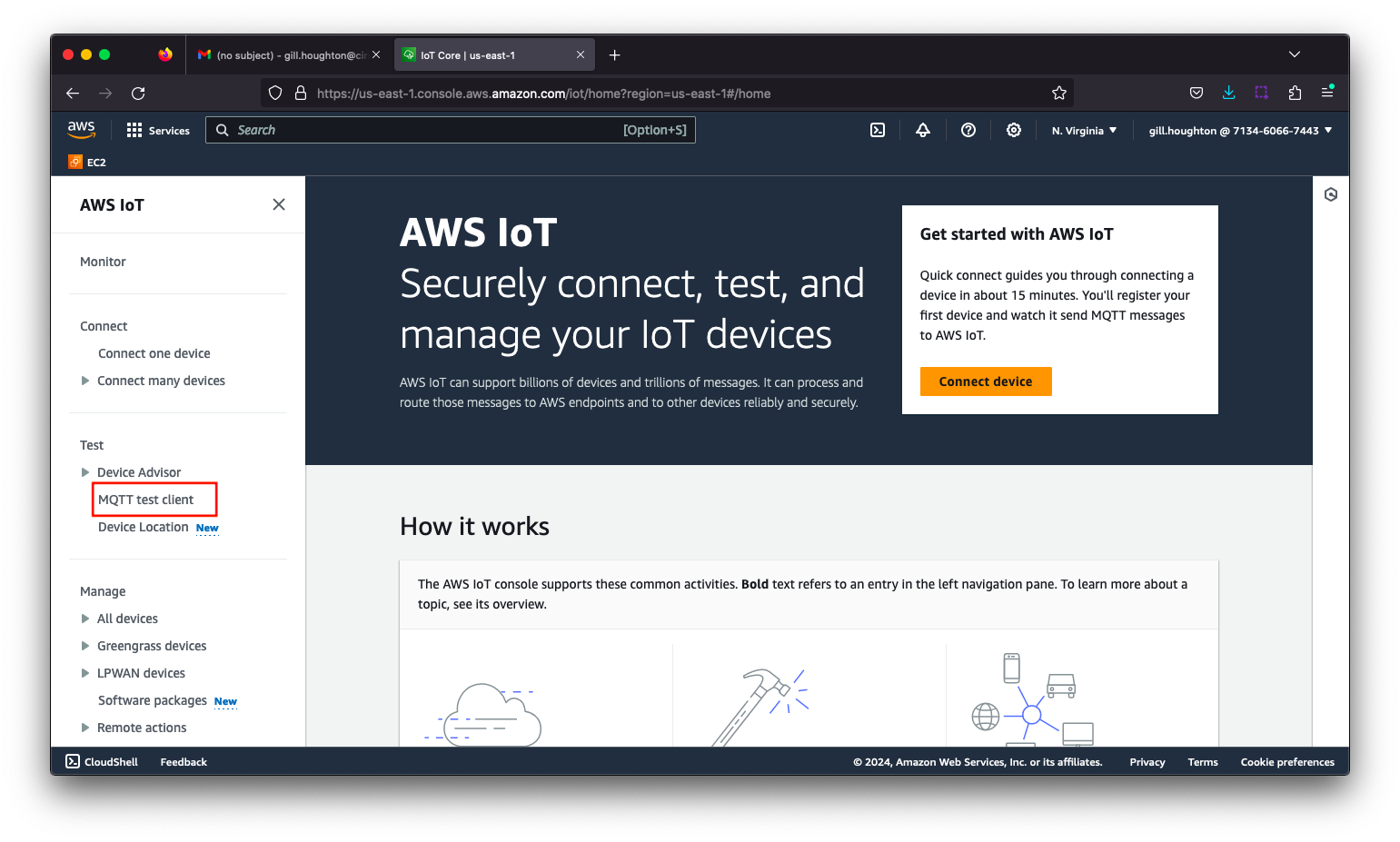
...