...
Add device certificates to Azure Injector IoT Hub configuration
Navigate to the Azure Injector > Settings > Azure IoT Hubs > Certificates and add the certificates as shown below:
| Friendly Name | Certificate Filename | File Description | File Location |
|---|
| CACertificate | |
|
|
| DeviceCertificate | CertDevice.pem | Device Certificate | iotcerts/certs/device/CertDevice.pem |
| DeviceKey | CertDevice.key | Device Private Key | iotcerts/certs/device/CertDevice.key |
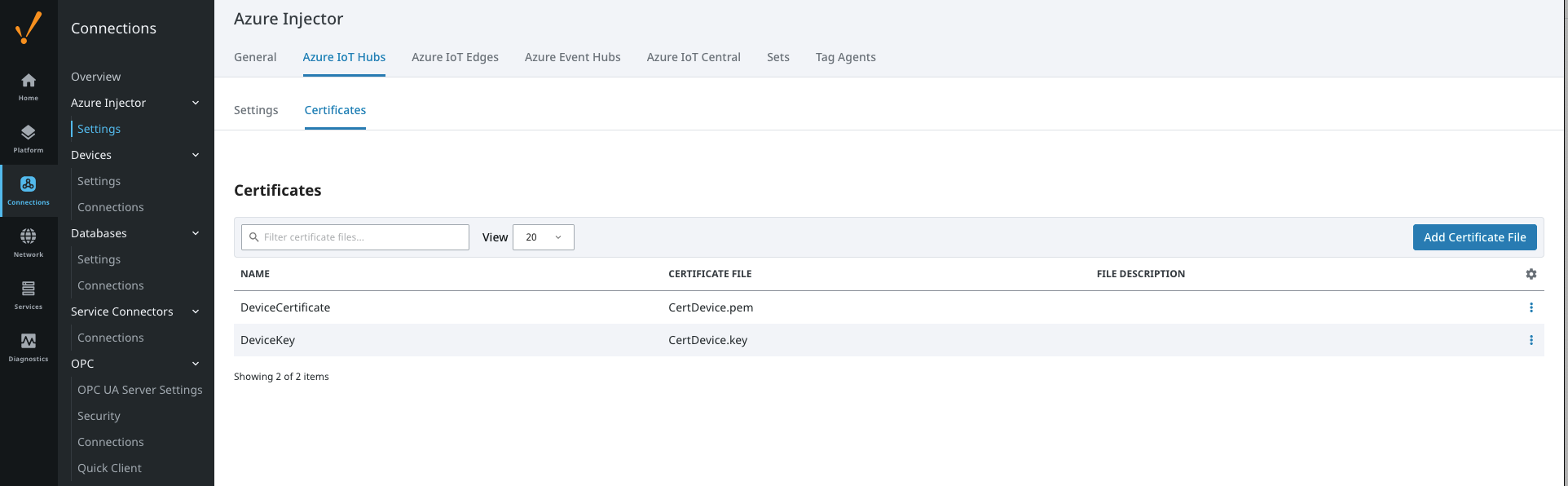 Image Modified
Update the Azure Injector > Settings > Azure IoT Hubs > Settings configuration to use the certificates as shown below. Note : the certificates created do not use a Password
...
Verify the connection is established as shown by the Status on the Azure Injector > Settings > Azure IoT Hubs view
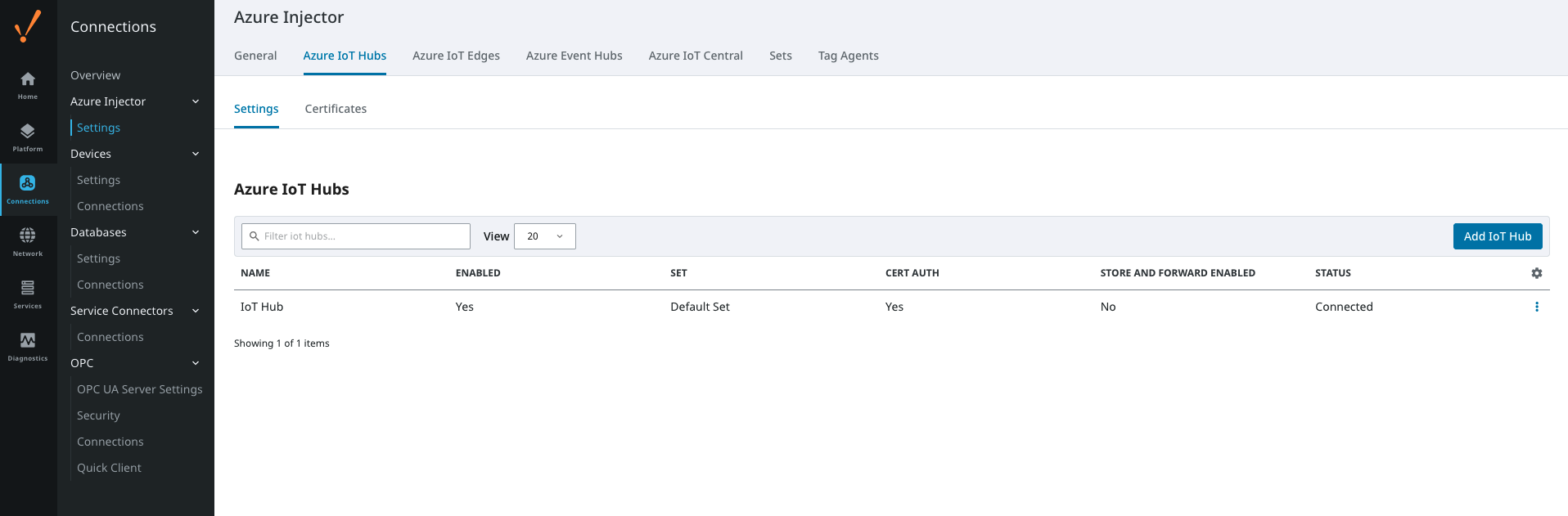 Image Modified