...
Once configured, the device should look similar to the following:
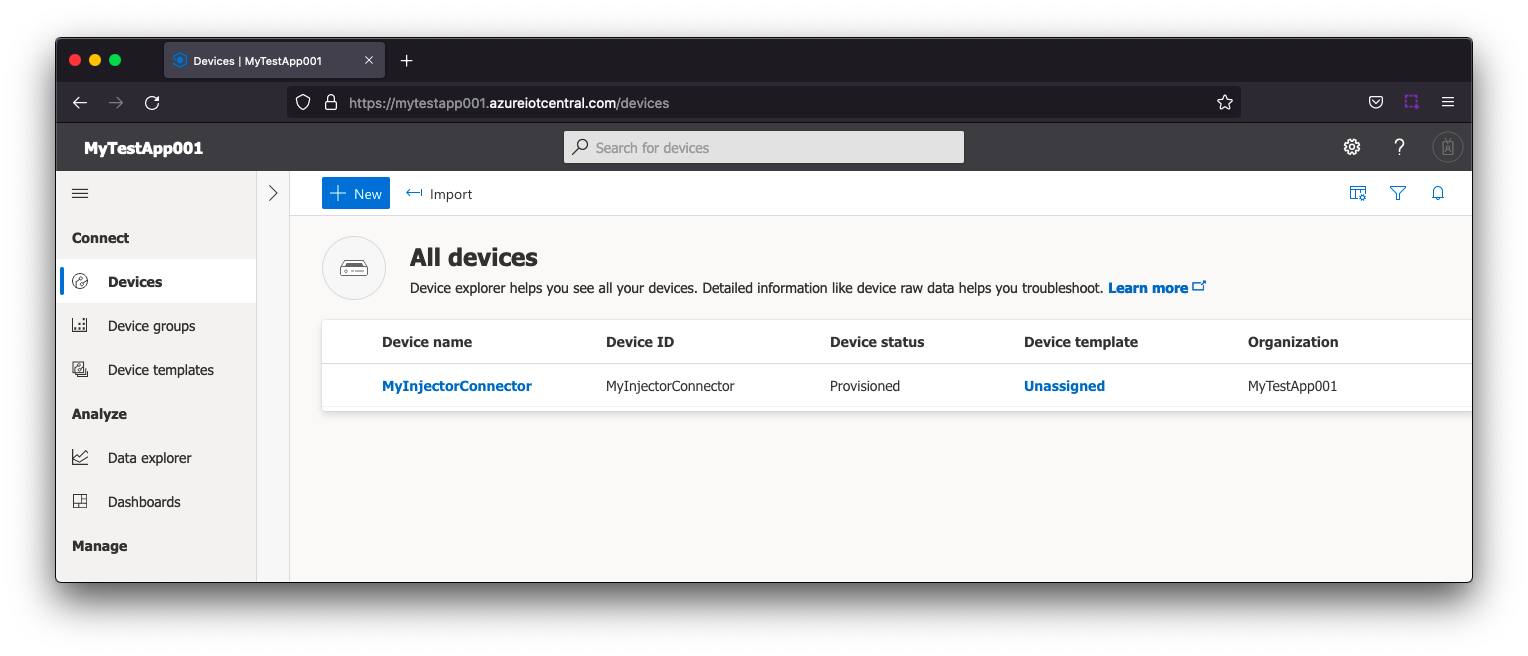 Image Modified
| Note |
|---|
| Make sure to note the 'Device ID' as this will be used later in the configuration of Azure Injector |
...
From the left hand menu bar under Security > Permissions > Device connection groups, record the "ID scope" as this will be used later in the configuration of Azure Injector.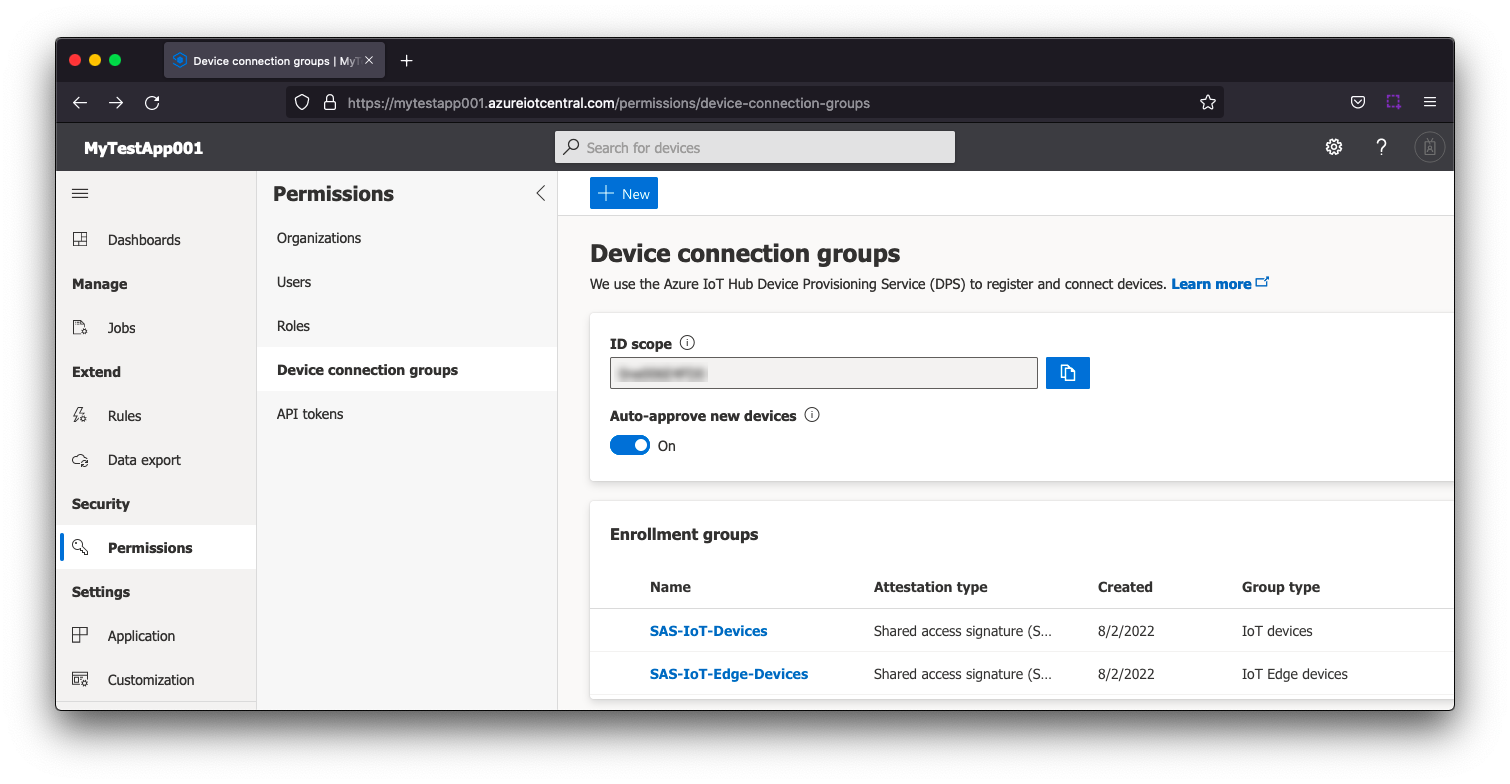 Image Modified
From the left hand menu bar under Security > Permissions > Device connection groups > SAS-IoT-Devices > Shared access signature (SAS), record either the "Primary key" or "Secondary key" as this will be used later in the configuration of Azure Injector.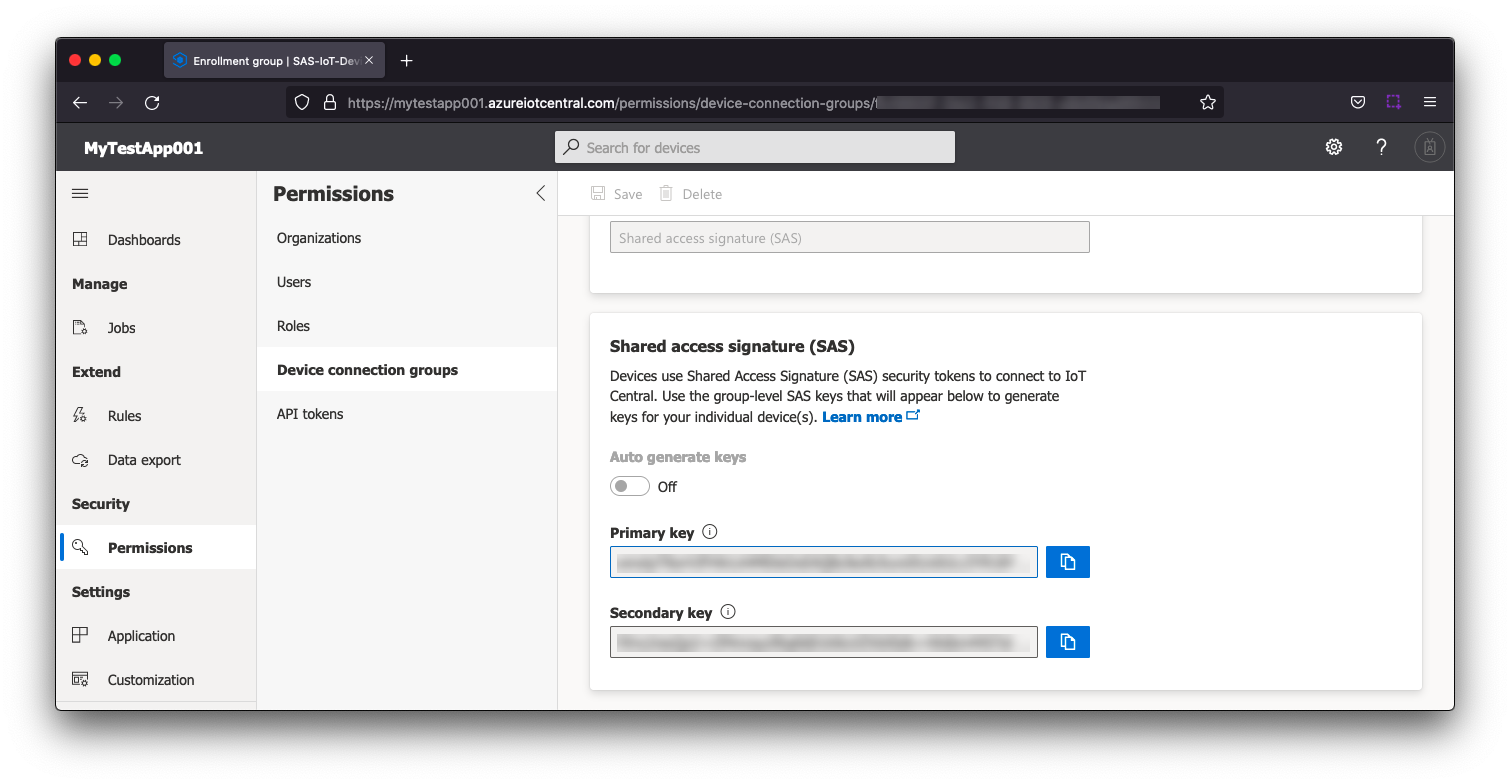 Image Modified
Step 4: Configure the Azure Injector Module
...
Navigate to the Azure Injector Modules configuration section from the left side bar in the Ignition Gateway and select the Azure IoT Central tab.
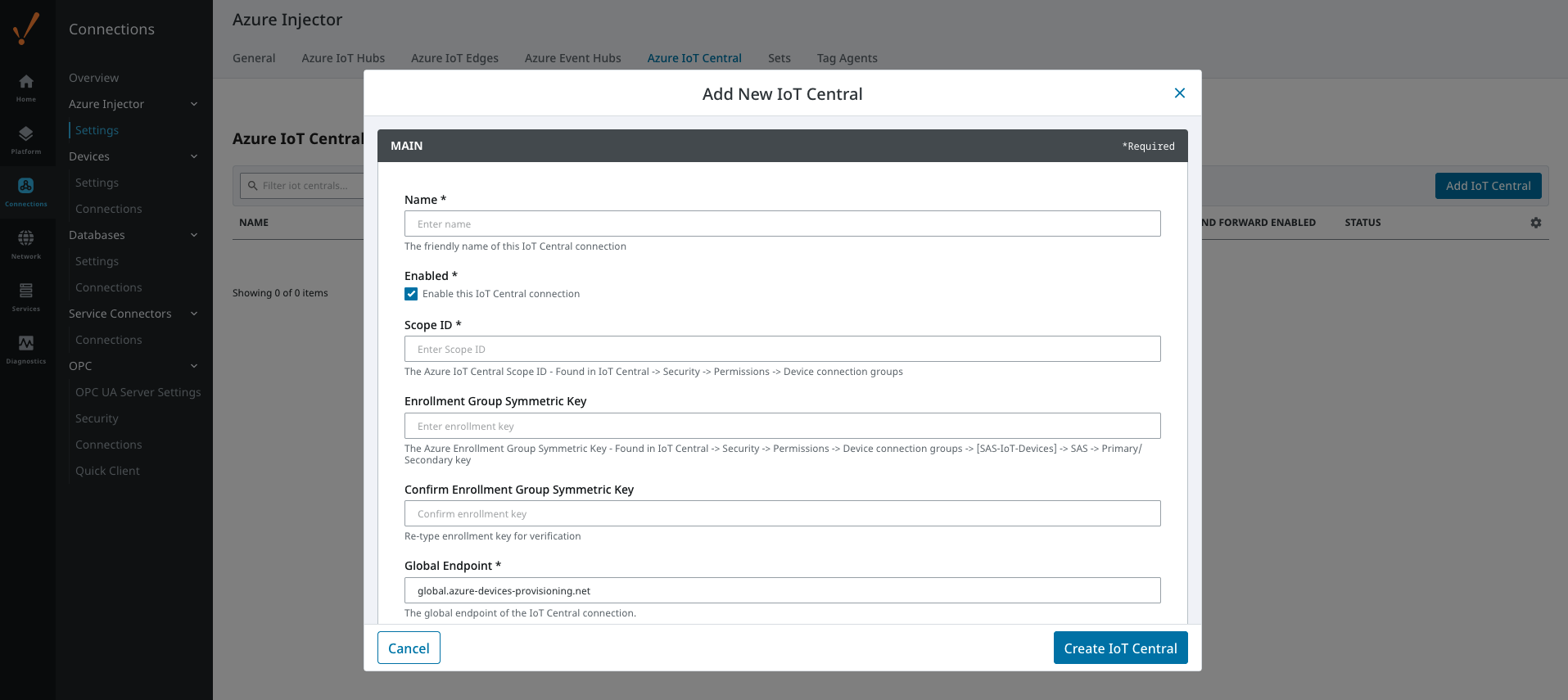 Image Modified
Set the following fields.
...
All other fields can remain default. Finally, click 'Save Changes' at the bottom of the configuration page. After a bit of time (about 30s or so) you should see the status go from 'Disconnected' to 'Connected' as shown below.
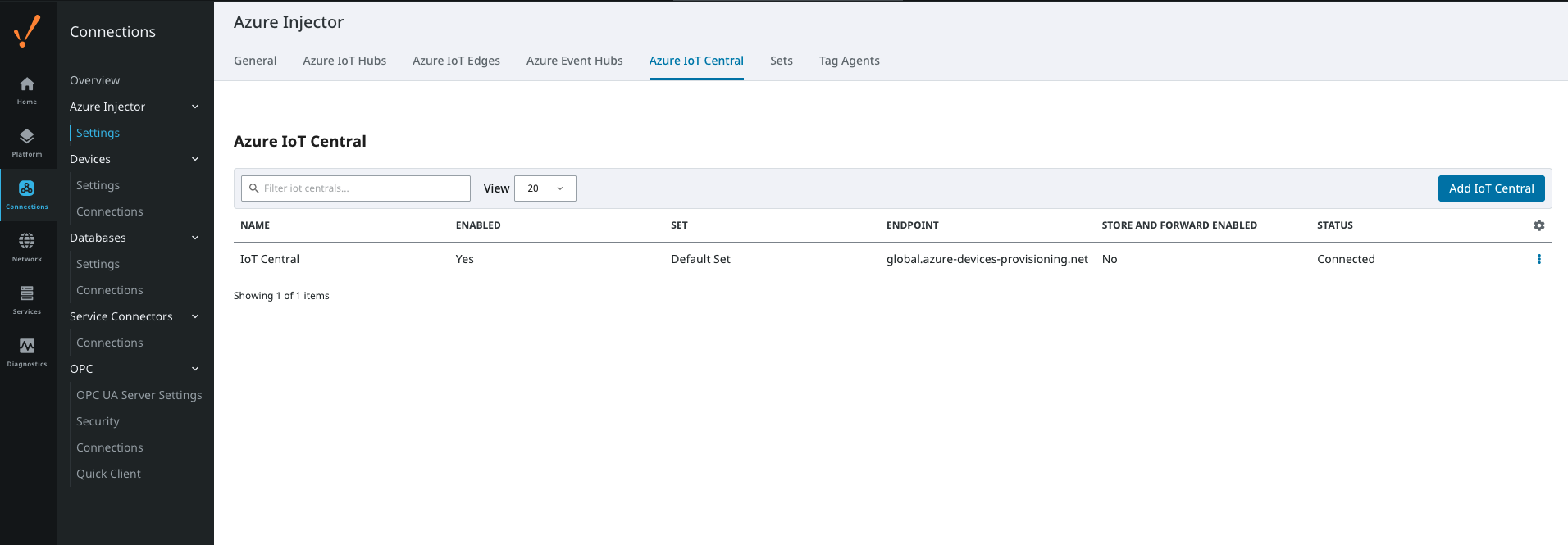 Image Modified
Also, in the IoT Central Application portal under devices you should see the device is connected.
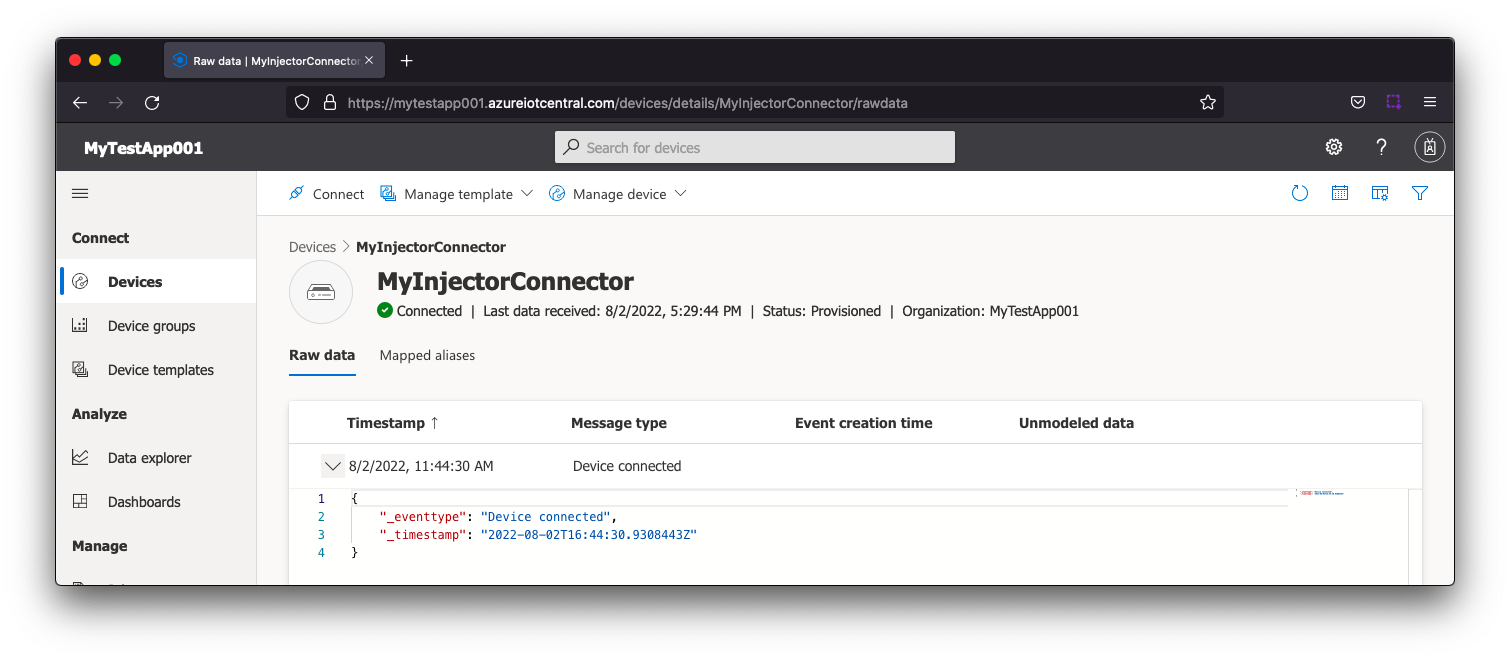 Image Modified
Now the Azure Injector module is connected to the MQTT server in Azure IoT Central, we have to determine if there are are changes needed to the Tag Agent tab to be able to push data.
...
The second message is a Sparkplug DBIRTH message denoting that a Sparkplug Device has come online along with its 'metrics' or tags, tag metadata, and values. In this case only a single tag is included in the payload.
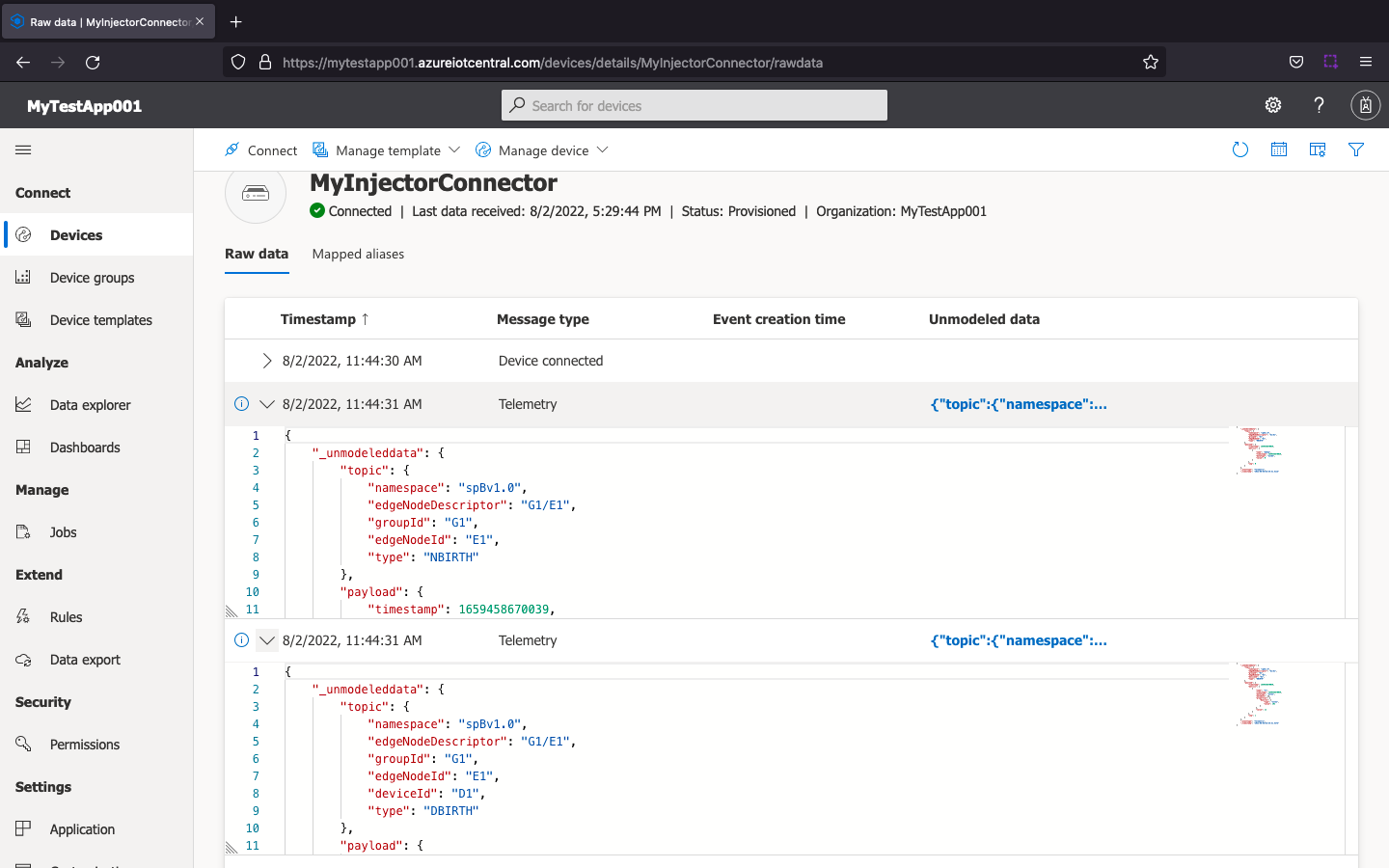 Image Modified
This includes the following data messages.
...
| Code Block |
|---|
{
    "_unmodeleddata": {
        "topic": {
            "namespace": "spBv1.0",
            "edgeNodeDescriptor": "G1/E1",
            "groupId": "G1",
            "edgeNodeId": "E1",
            "deviceId": "D1",
            "type": "DDATA"
        },
        "payload": {
            "timestamp": 1659462601542,
            "metrics": [
                {
                    "name": "T1",
                    "timestamp": 1659462601542,
                    "dataType": "Int32",
                    "value": 10
                }
            ],
            "seq": 2
        }
    },
    "_eventtype": "Telemetry",
    "_timestamp": "2022-08-02T17:50:02.771Z"
} |
| Excerpt Include |
|---|
| CLD83:FAQ: Ignition Modules |
|---|
| CLD83:FAQ: Ignition Modules |
|---|
| nopanel | true |
|---|
|
...