...
Now browse to the Ignition Gateway Web UI and to the Azure Injector Settings and finally to the 'Azure IoT Hubs'. You should see the 'Test Setting' that was created in the prerequisite tutorial as shown below.
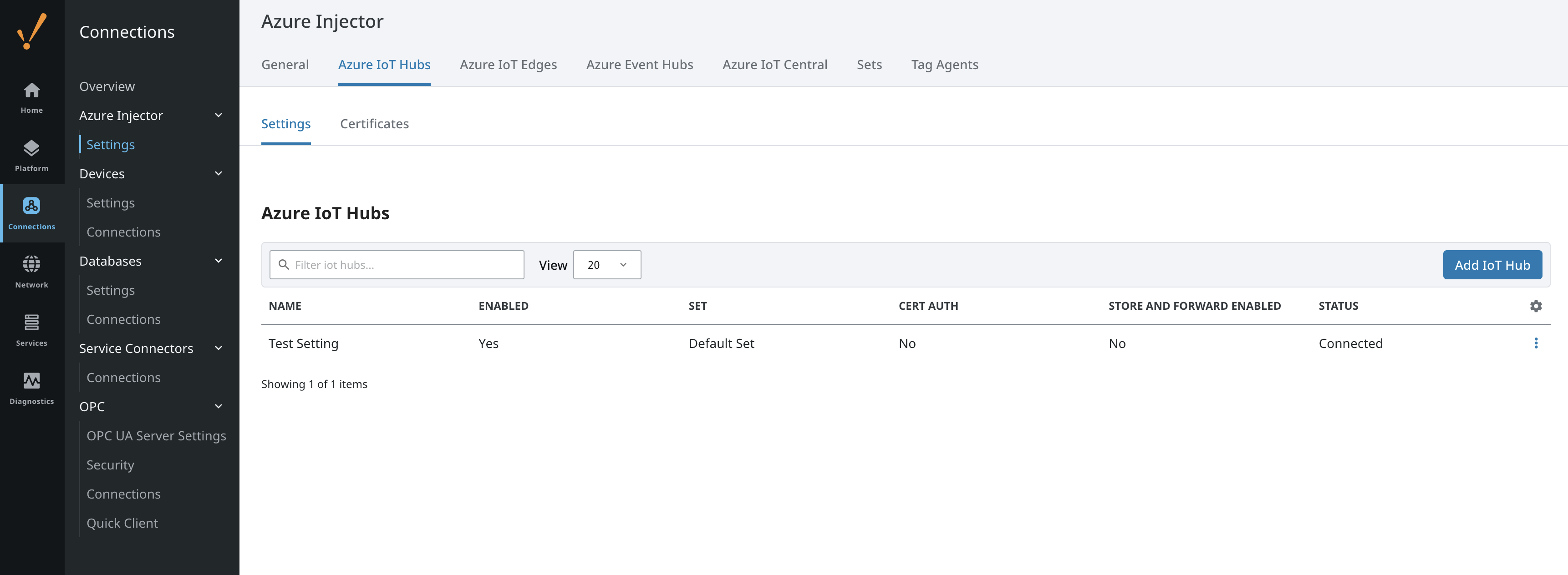 Image Modified
Click the 'edit' button under the three dots on the right for that setting to edit it. Then scroll down and click the 'Show advanced properties' checkbox near the bottom as shown below.
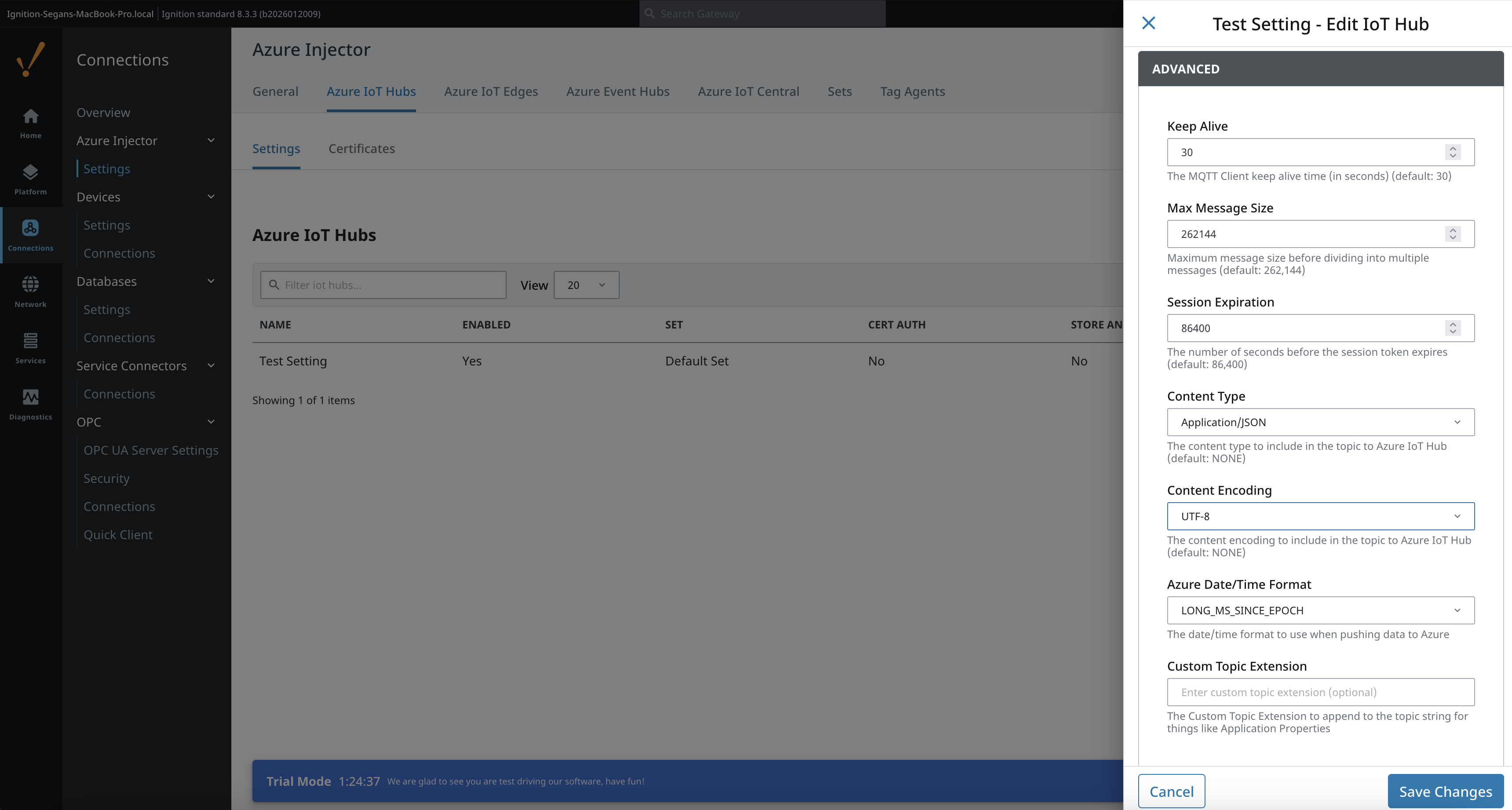 Image Modified
Note the 'Content Type' and 'Content Encoding' fields. In order for Azure message routing to work, the 'Content Type' MUST be set to APPLICATION_JSON and the 'Content Encoding' should be set to UTF_8.
During the prerequisite tutorial a set of tags were created to publish to Azure IoT Hub. At this point, we will create some new tags that will be will be routed to the container based on the configuration that now exists in Azure. Because we created a message route that filtered on a Sparkplug Group ID of 'Routed Group' we should create a structure that includes this in the tag tree. Expanding on the tag tree created previously, add a new Sparkplug Group, Edge Node, and Device folder structure with a single boolean tag along side the original structure created in the quickstart as shown below. Note for the message route in Azure to work properly, the Group ID MUST be 'Routed Group' as shown below.
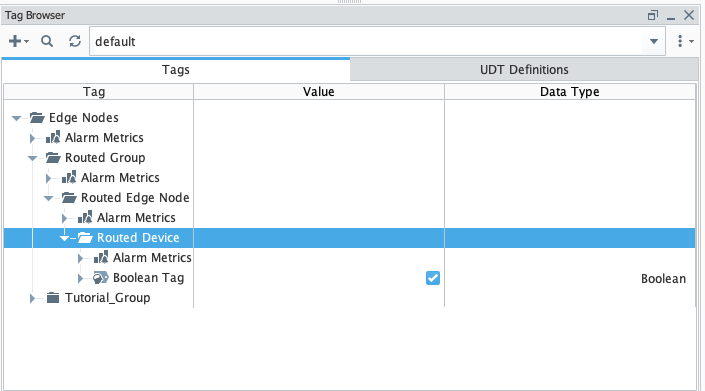 Image Removed
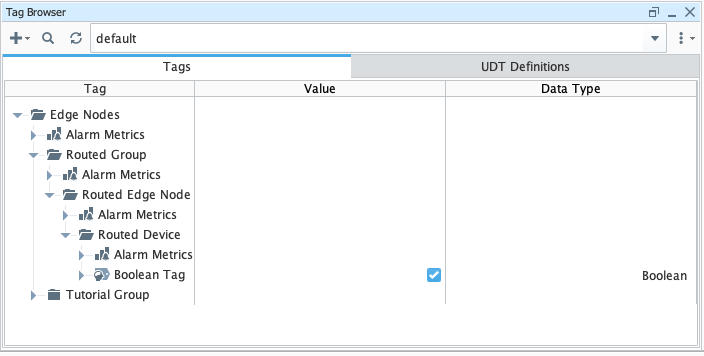 Image Added
Step 5: Publish Data to Azure IoT Hub
...