...
| Tip |
|---|
| Review theAWS Injector Module configuration guide for more details on each tab |
Navigate to the Connections > AWS Injector Module configuration section from the left side bar in the Ignition Gateway.
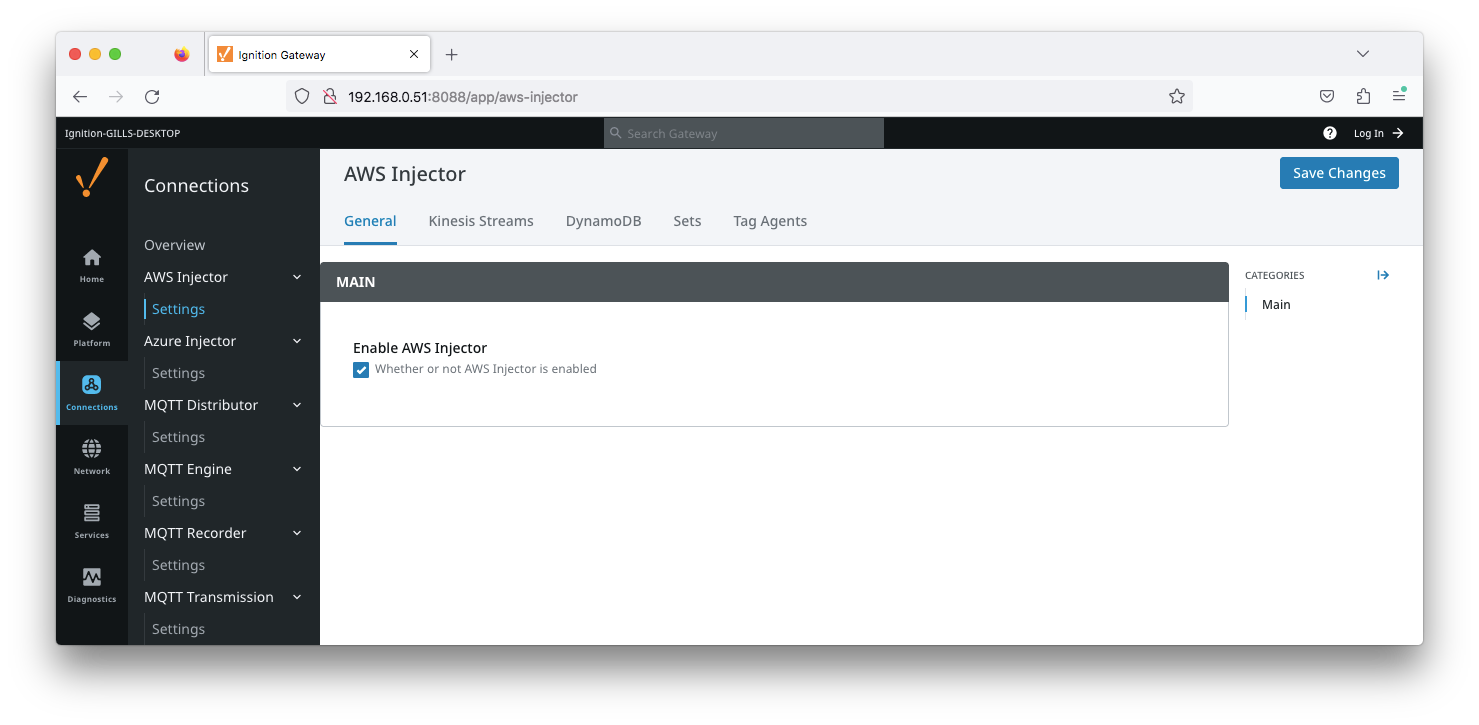 Image Added
| Note |
|---|
| For this tutorial, we will be adding new Kinesis Stream and DynamoDB Database Settings. You may optionally choose to skip one of the following two sections if you do not wish to setup a Kinesis Stream endpoint or a DynamoDB Database. |
 Image Removed
Create an AWS Kinesis Stream SettingFrom the Kinesis tab, click on the "Create new AWS Kinesis Stream Setting..." link to bring up the following configuration form: Image Removed
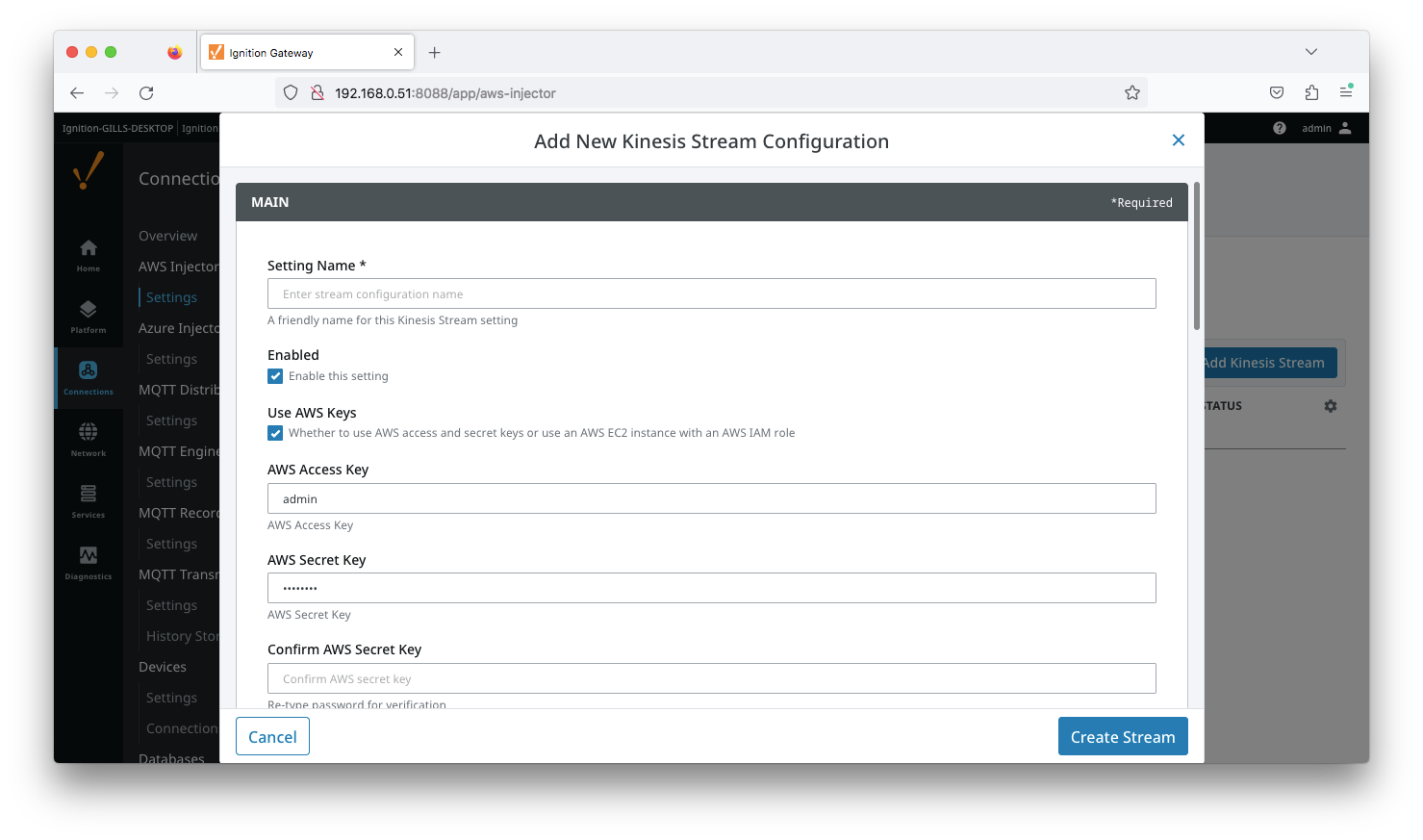 Image Added
Set the following parameters:
...
Click on "Create New Kinesis Stream Setting" to finish creating the new configuration setting.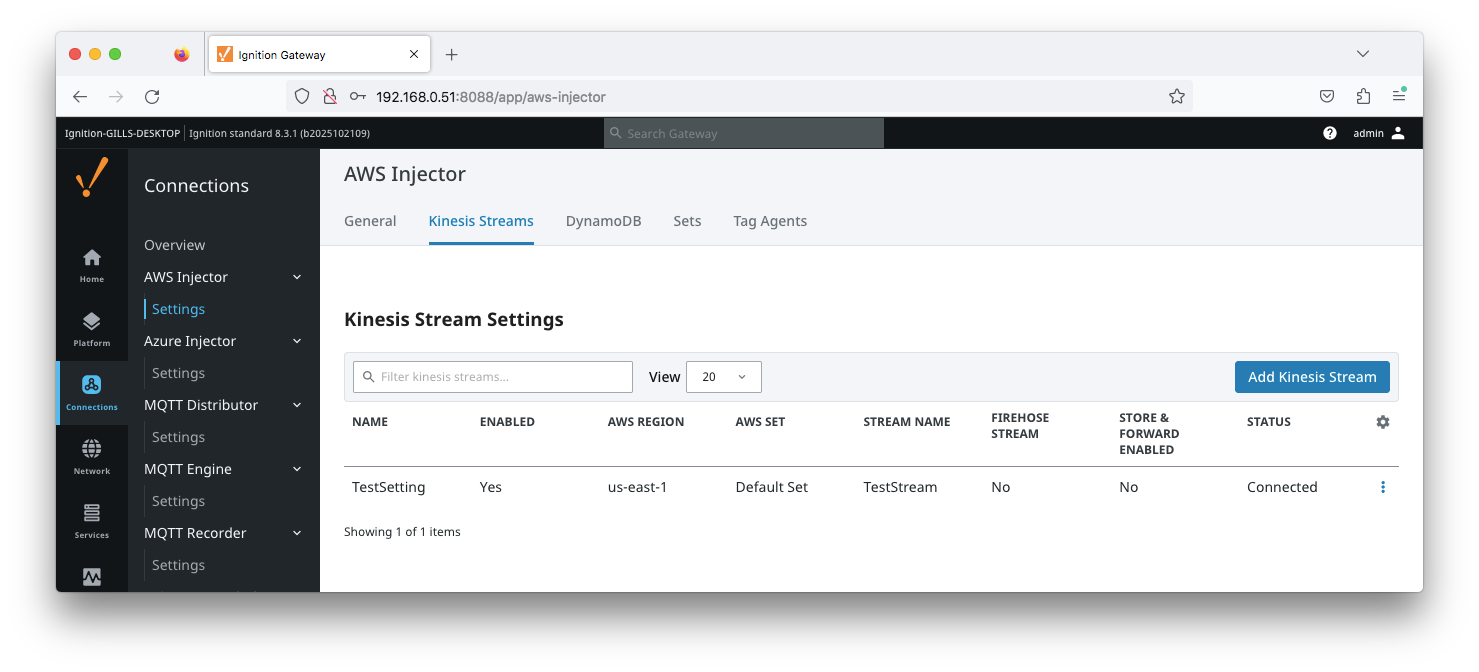 Image Added
 Image Removed
Create an AWS DynamoDB Database SettingFrom the DynamoDB tab, click on the "Create new DynamoDB Setting..." link to bring up the following configuration form: Image Removed
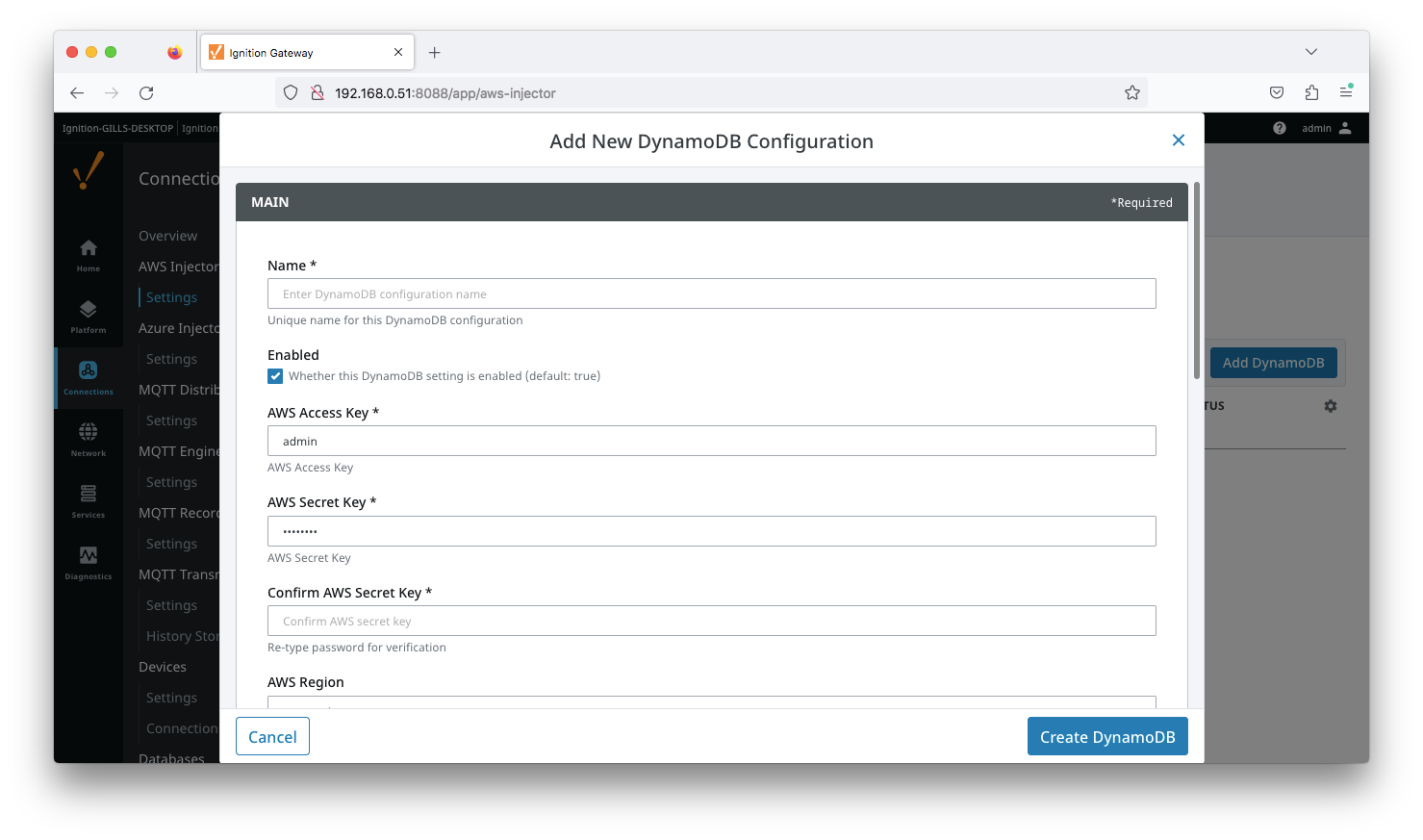 Image Added
Set the following parameters:
...
Click on "Create New DynamoDB Setting" to finish creating the new configuration setting. Image Removed
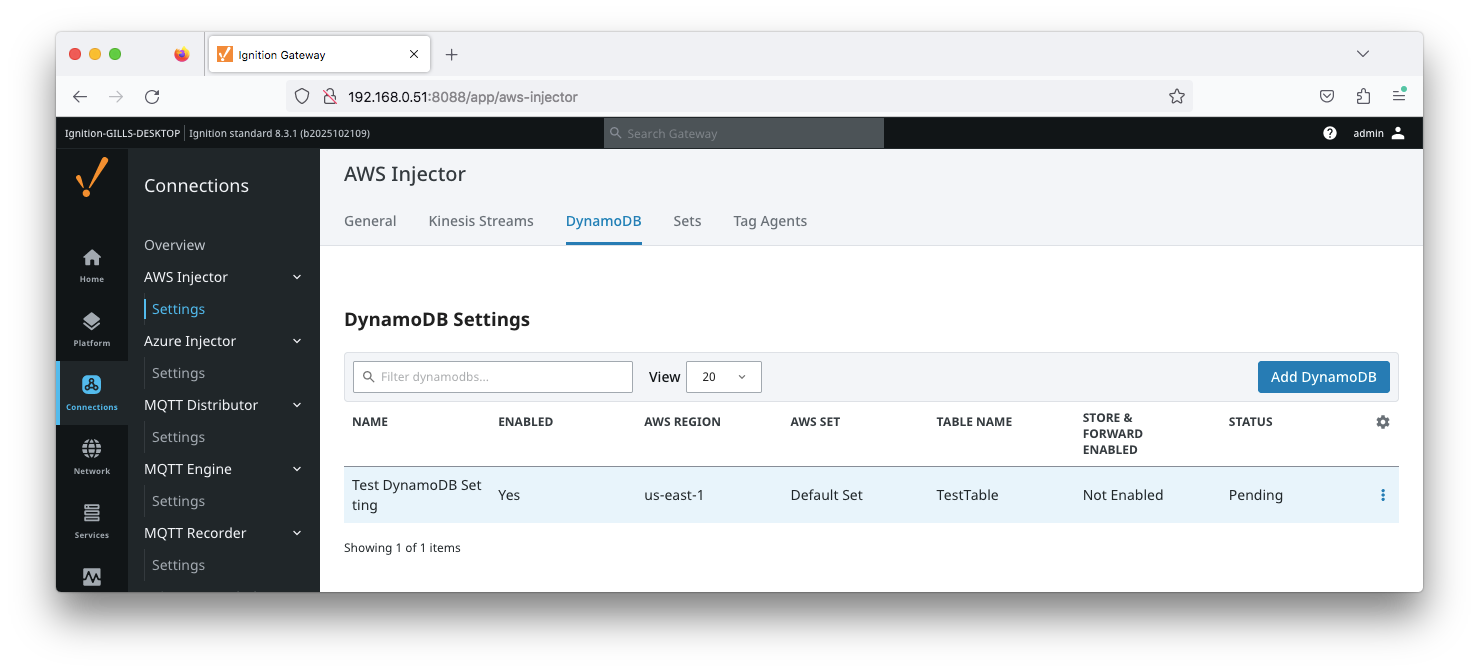 Image Added
Now the AWS Injector module is connected to a Kinesis Stream and/or a DynamoDB Database, we have to determine if there are are changes needed to the Tag Agent tab to be able to push data.
...