


Page History
...
For air-gapped deployments, see Offline Licenseslicenses. For multi-instance deployments inside a closed network, see CustomerSelf-Hosted Floating LicensesLicense Server.
| Note |
|---|
| If you have deployed Chariot There are no additional licensing steps for Chariot instances deployed through AWS Marketplace or Azure Marketplace , then no additional steps are required - your license is - licenses are already installed and activated. |
Purchase a New License
There are two ways to purchase a Chariot license:
- Through the Chariot UI (covered below) — self-serve via Stripe
- Single instance Node-Locked Online Licenses Only
- By contacting Cirrus Link Support
- All Licensing Models
...
- IoT Bridge for Snowflake — Connect your Chariot to Snowflake (meter-based licensing)
- MQTT Server — Full-featured MQTT server (one-time purchase)
- MQTT Server Support — A year of support (can be purchased yearly or multiple years at once)
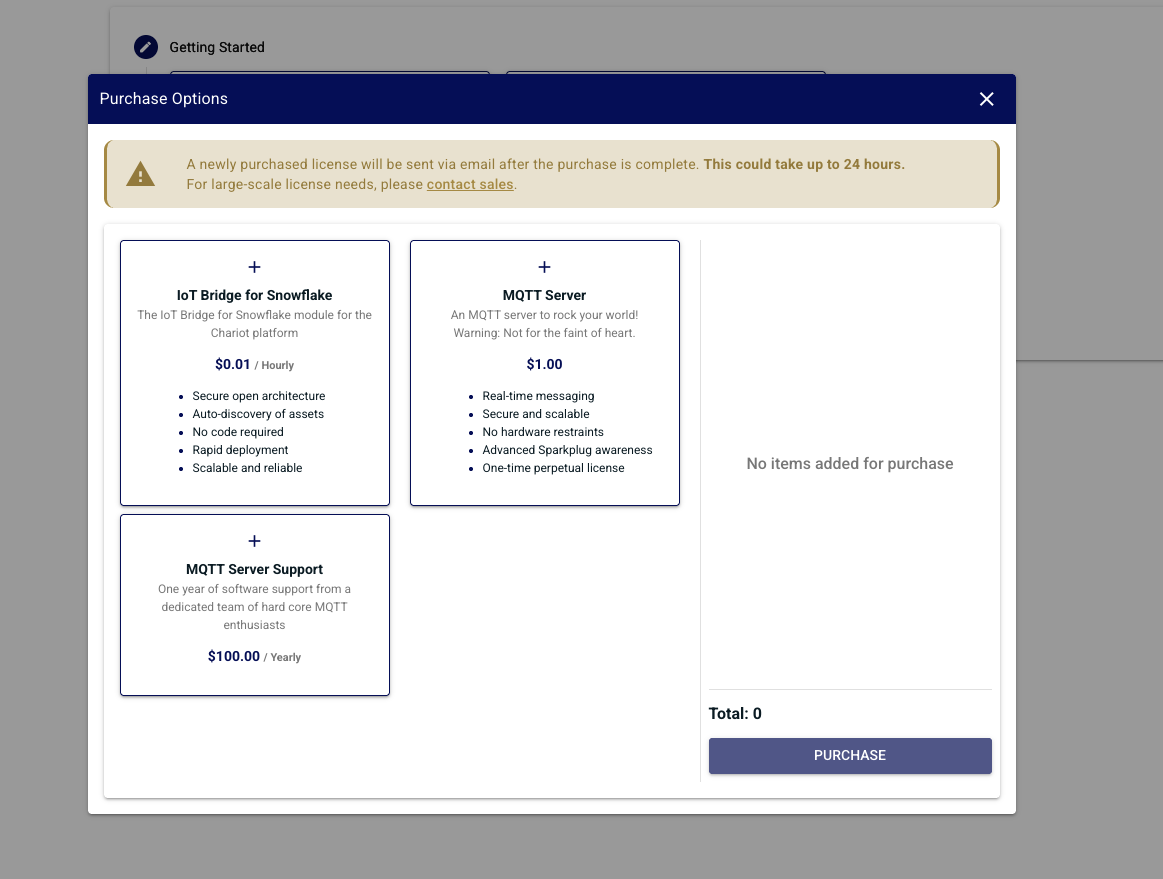
Make your feature selection Select desired features and click Purchase. You'll be redirected The page will redirect to the Stripe purchase page.
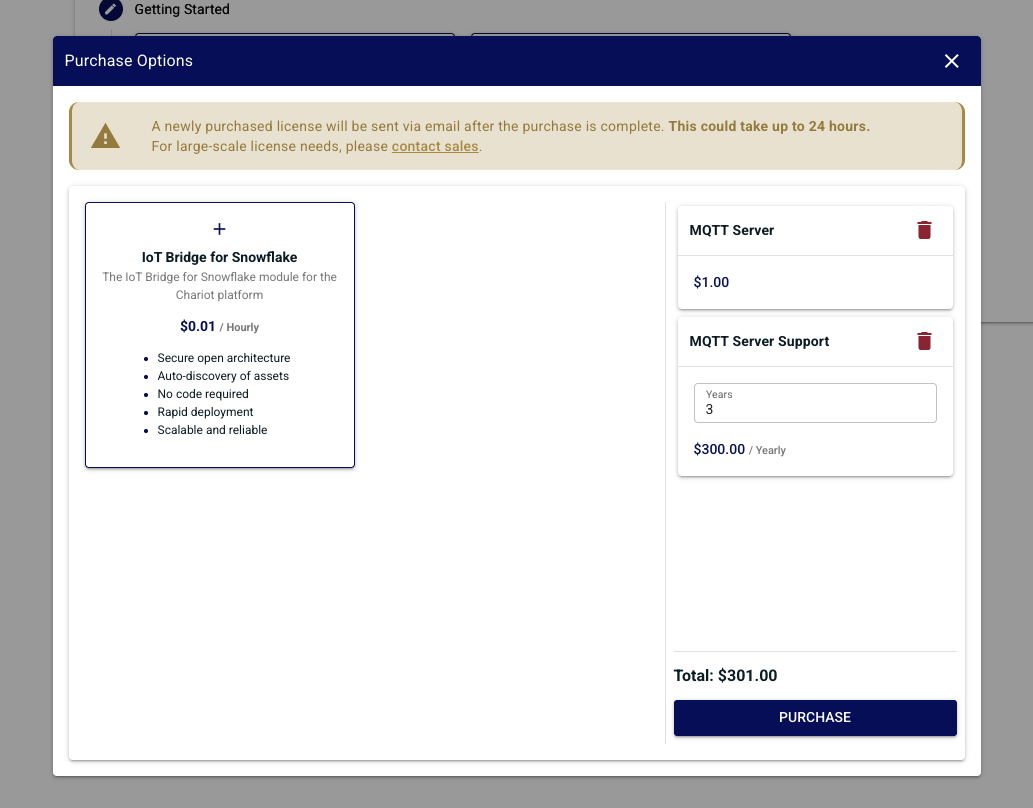
Verify that your the product selection matches what you was selected in Chariot.
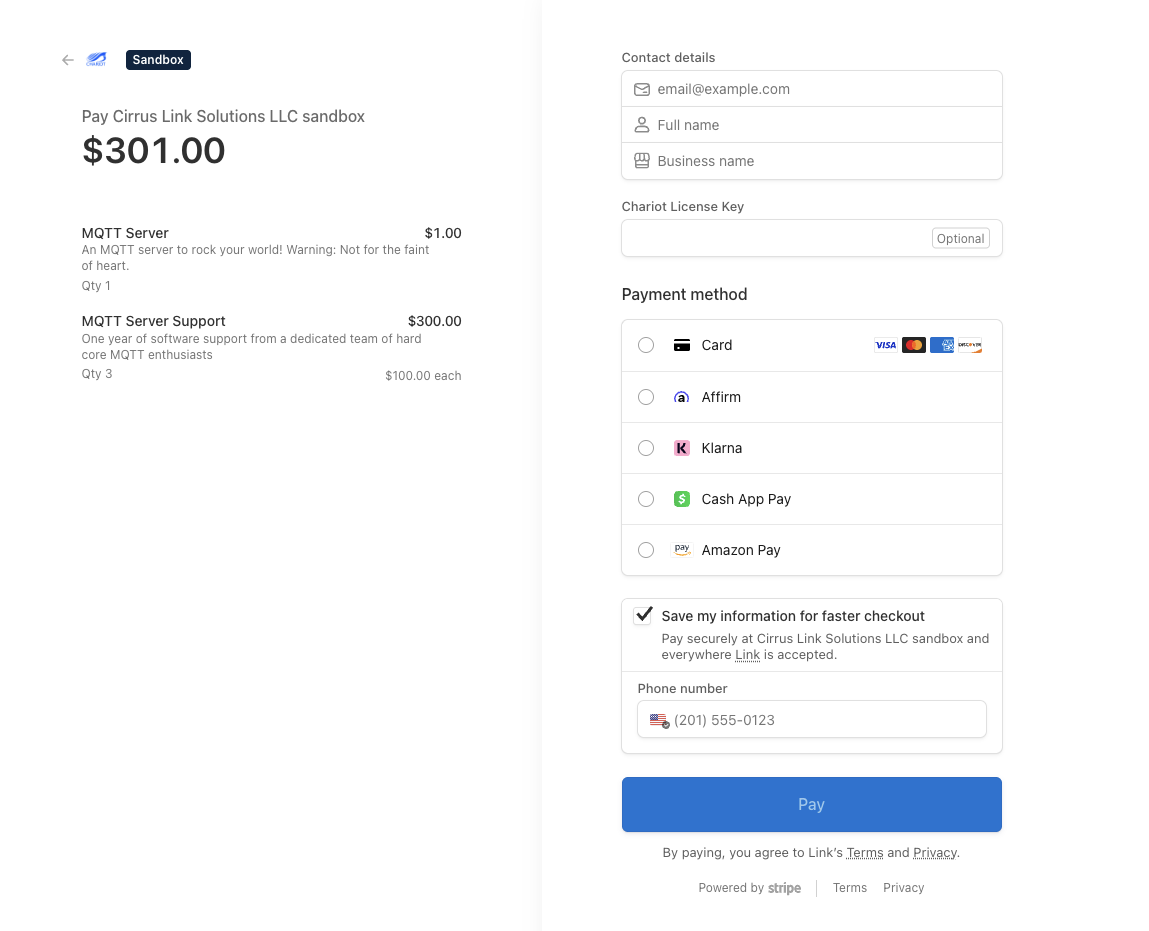
Fill out your the payment method information and click Pay. If the payment was successful, you'll be redirected the page will redirect back to Chariot.
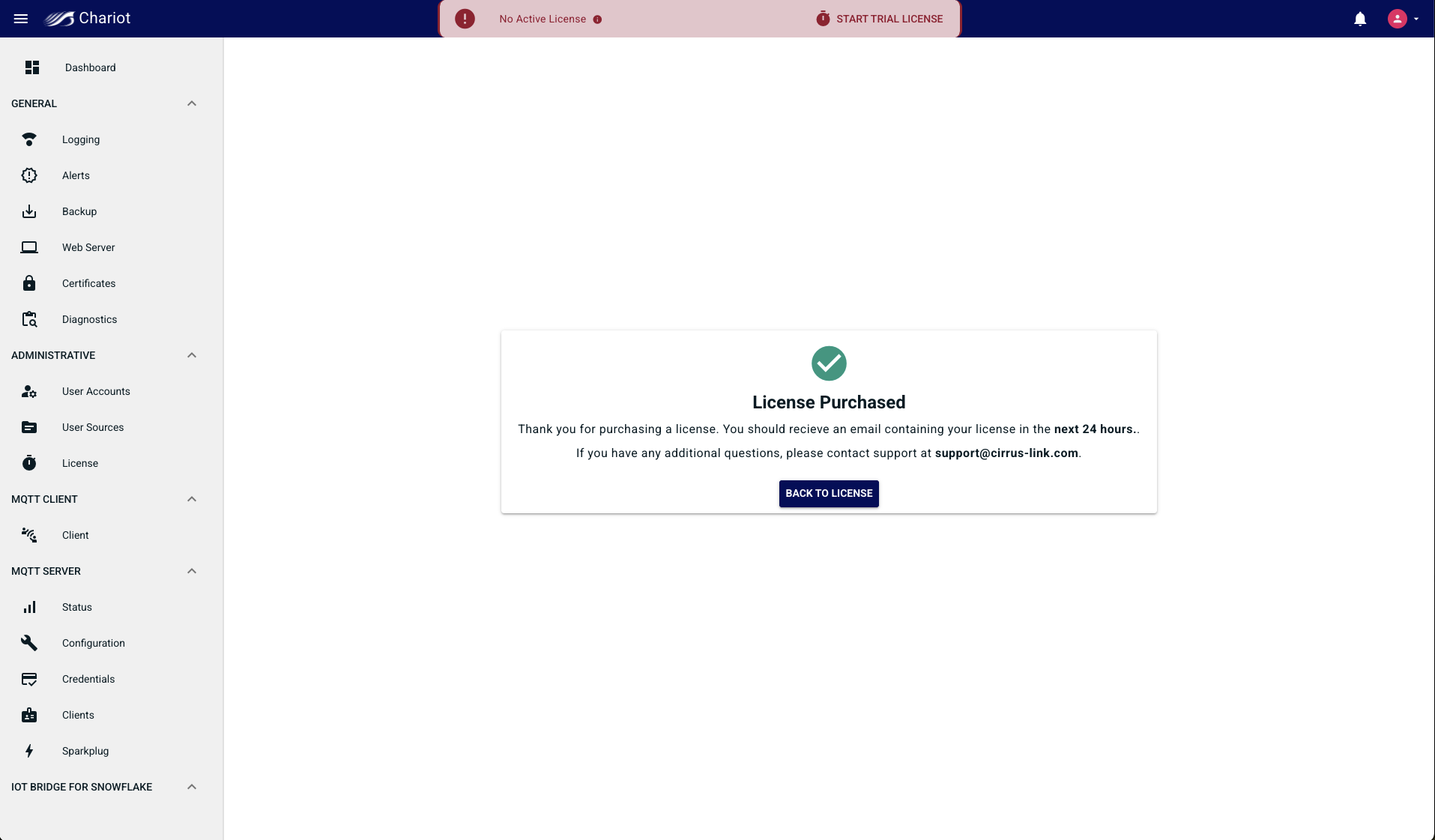
Cirrus Link will generate your the requested license and email it to the provided contact email you provided. Be aware this can take up to 24 hours.
Activate a License Online
Once you receive your After receiving the license key by email, activate it on your a Chariot MQTT Server.
The Chariot License page wizard offers three activation methods; Online, Offline, and Floating, which correspond to the three license deployment models.
...
| Info | ||
|---|---|---|
| ||
|
The Online Activation feature allows a Chariot License to be automatically activated on a Chariot MQTT Server instance that is connected to the internet. The Chariot MQTT Server will remotely connect and activate a Chariot License if it is valid and has an activation available.
|
This section covers Online; for the other two, see Offline Licenses or CustomerSelf-Hosted Floating LicensesLicense Server.
Log into the Chariot MQTT Server Web UI and from the left hand menu bar select License as shown below:
...
Provide the text file containing your Chariot the Chariot License Key. You can drag Drag and drop the file, paste the key directly, or click the upload button and select the file.
...
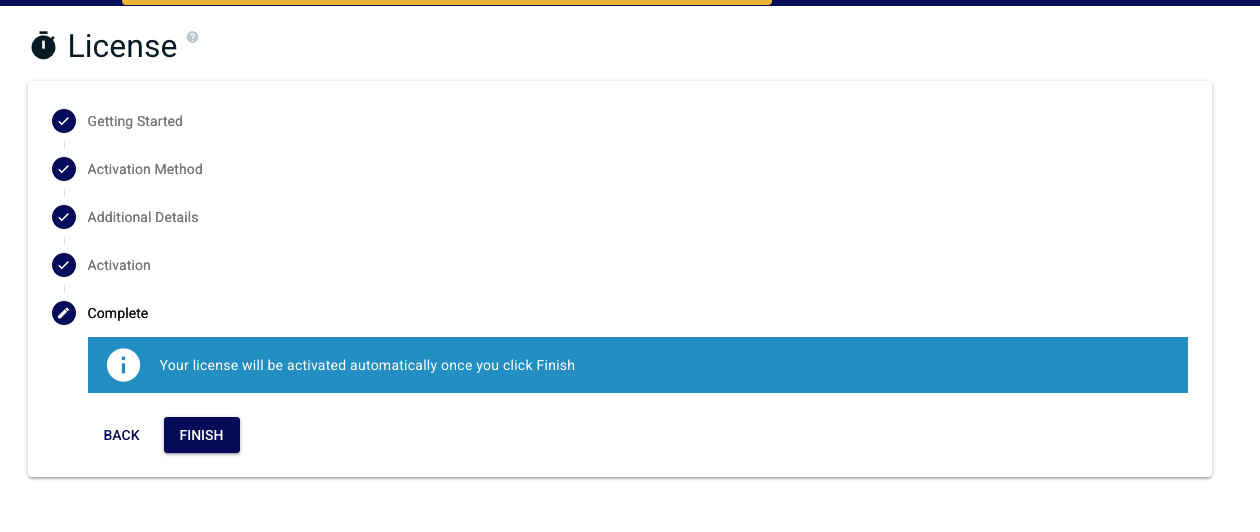
Confirm to finish the wizard.
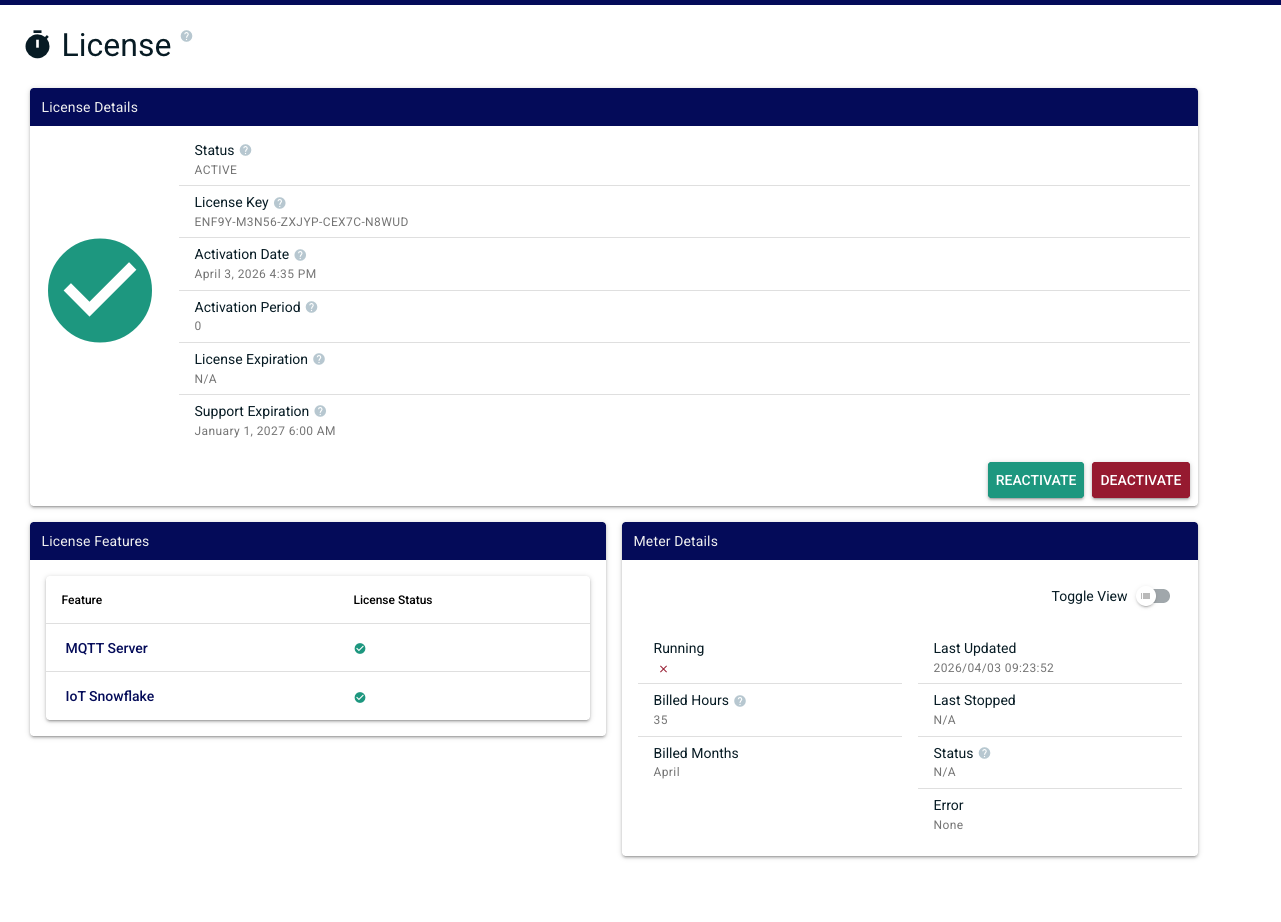
A successful activation takes you to will show the license status page, showing the state of your licensethe license, activated features, and related details.
Upgrade an Existing License
You can add Add features to a an existing license you already own — for example, adding IoT Bridge for Snowflake to an MQTT Server license, or adding additional years of support — without re-purchasing the original features.
...
- Through the Chariot UI (covered below) — self-serve via Stripe
- By contacting Cirrus Link Support — for enterprise deals, custom terms, or payment via purchase order or invoice
...
- In the Chariot UI, navigate to the License page.
- Locate the Upgrade License widget and click Upgrade License.
- Select the features you want to add to your the existing license.
- Click Purchase. You'll be redirected to Chariot will redirect to the Stripe purchase page.
- Verify two things on the Stripe page:
- Your product Product selection matches what you was selected in Chariot
- The license key field is pre-populated with your existing the existing Chariot License key
- Fill out your the payment method details and click Pay. Do not change the license key.
- If the payment was successful, you'll be redirected the page will redirect back to Chariot.
Cirrus Link will upgrade your the license and email confirmation to the contact email on file. This can take up to 24 hours. Once you receive After receiving confirmation, click Reactivate on the License page (see below) to apply the new features.
Features already activated on your license the license will not appear in the upgrade options, with one exception: MQTT Server Support can be purchased at any time to add additional years of support.
Reactivate an Online License
If your license a license has been updated — feature change, expiration date change, or any other update — click Reactivate on the License page to pull the updates without restarting Chariot.
...
| Warning |
|---|
| This will not work with offline activated licenses. You will need to contact Contact Cirrus Link Support for any changes. |
Deactivate an Online License
In order to deactivate the license online, log into the Chariot MQTT Server Web UI and from the left hand menu bar select License as shown below.
...
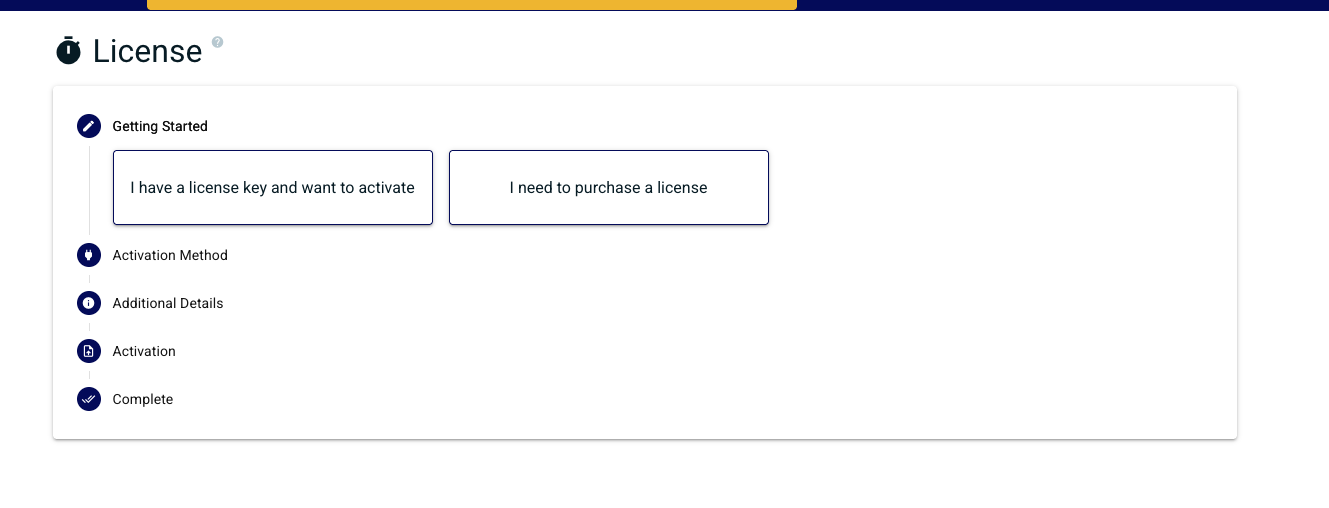
Once deactivation is successfully complete you will be returned back to completed, the page will show the license activation wizard
What if I forgot to deactivate?
If a Chariot server was destroyed without deactivating first and you 're now are unable to activate the license elsewhere, contact Cirrus Link Support. Include your the License ID and a brief description of what happened. Support can review your situation the situation and, in many cases, restore the lost activation.
Related Pages
- License Chariot V3 Licensing Types — — overview of all licensing options
- Offline Licenseslicenses — for Chariot hosts without internet access
- CustomerSelf-Hosted Floating Licenses — License Server — concurrent licensing in a closed networkCloud Floating Licenses — containerized and auto-scaling deployments
Overview
Content Tools