


Page History
For environments where the Chariot host has no internet access (air-gapped industrial networks or high-security deployments) Chariot supports offline license activation. Activation is a one-round-trip email exchange with Cirrus Link Support.
This page covers requesting, installing, updating, and deactivating an offline license. To purchase the license itself, see Purchasing and Activation.
Request Offline License Usage
| Anchor | ||||
|---|---|---|---|---|
|
After purchasing a Chariot license and receiving a license key by email, generate a Usage Request from Chariot and send it to Cirrus Link Support.
In the Chariot UI, navigate to the License page.
Select Offline and click Next.
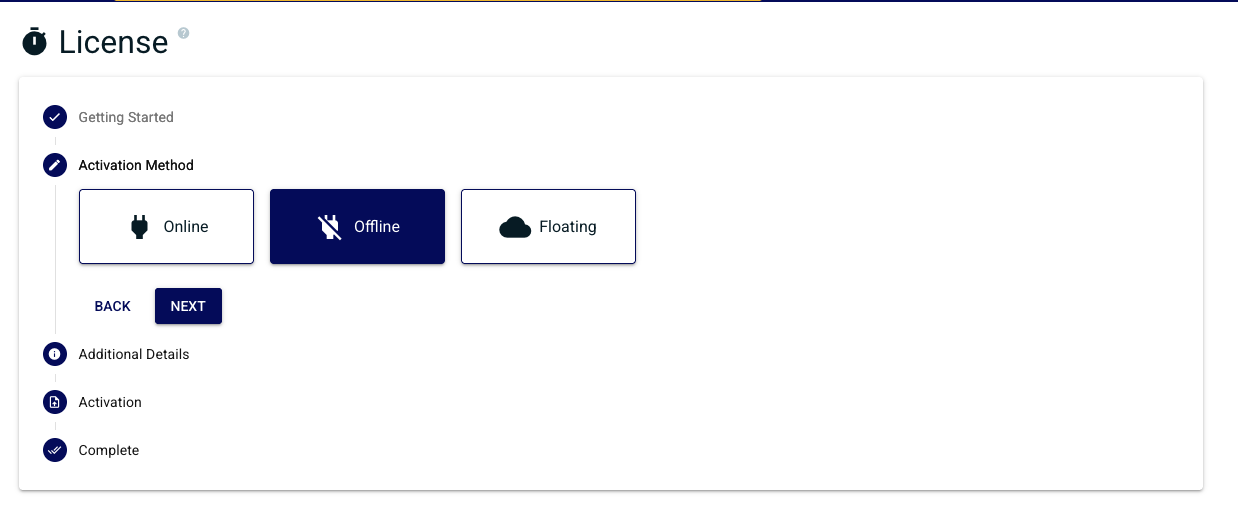
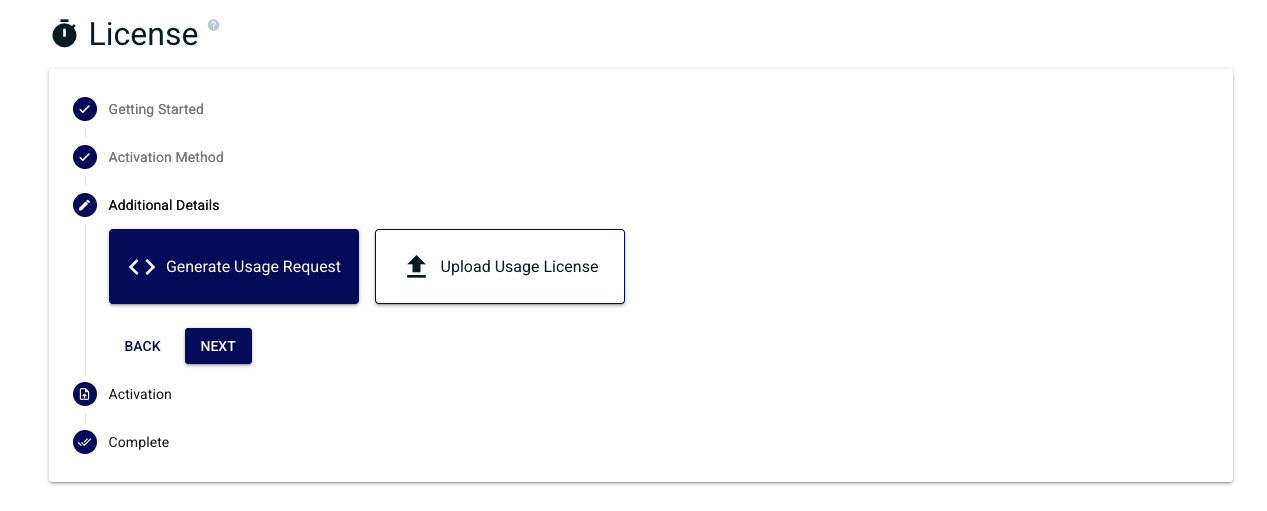
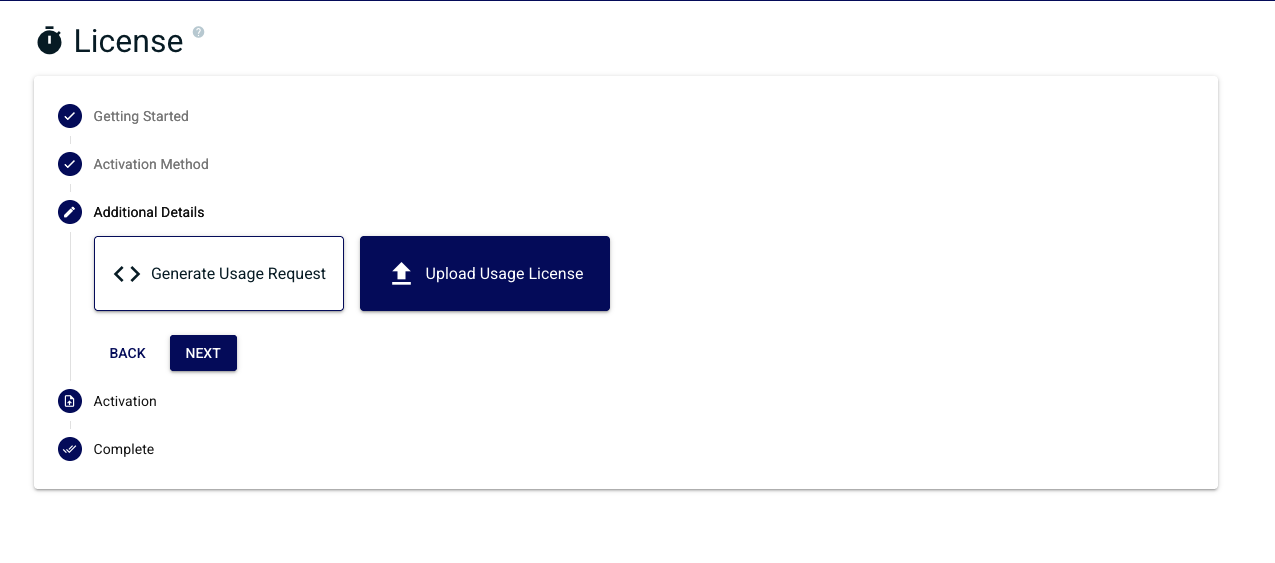
Select Generate Usage Request and click Next.
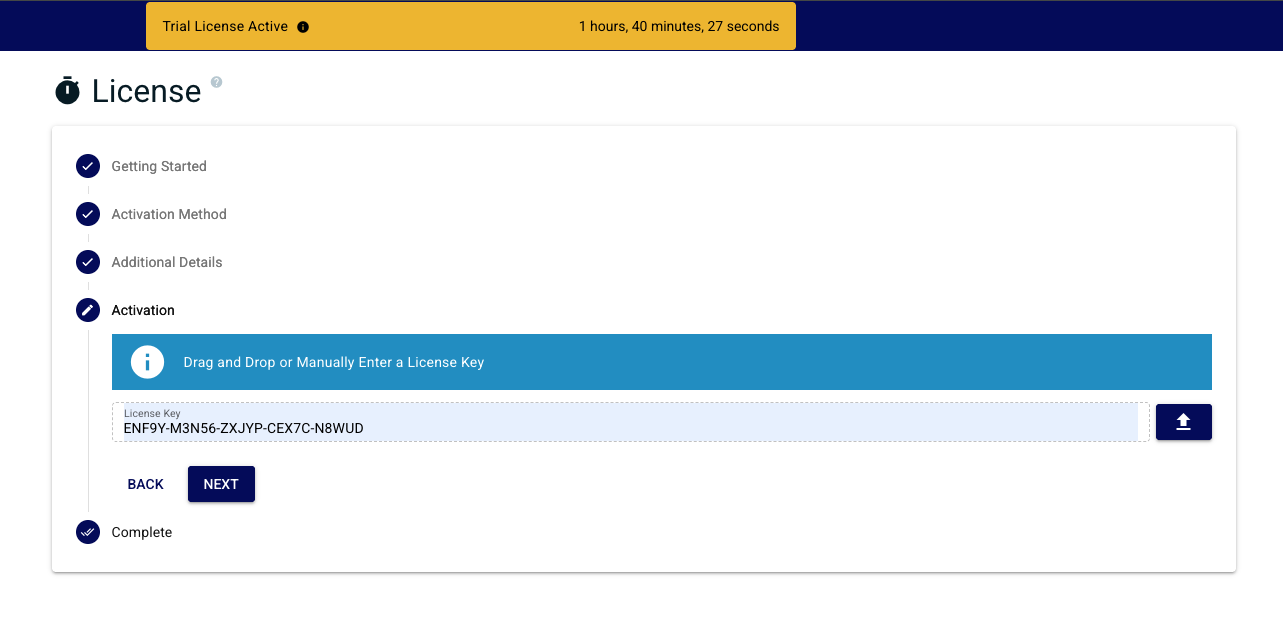
Enter the Chariot License Key and click Next.
A popup displays the offline activation code (the Usage Request).
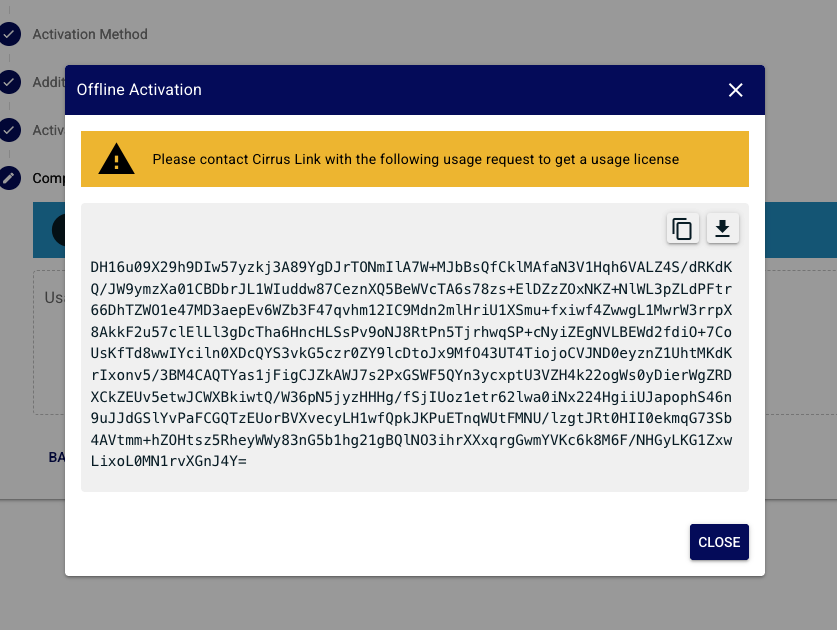
Download or copy the Usage Request and email it to Cirrus Link Support.
| Anchor | ||||
|---|---|---|---|---|
|
Activating Offline Licenses
Cirrus Link Support will email back a Usage License generated from the Usage Request. Install the usage license into Chariot by following the steps below.
Select Upload Usage License and click Next.
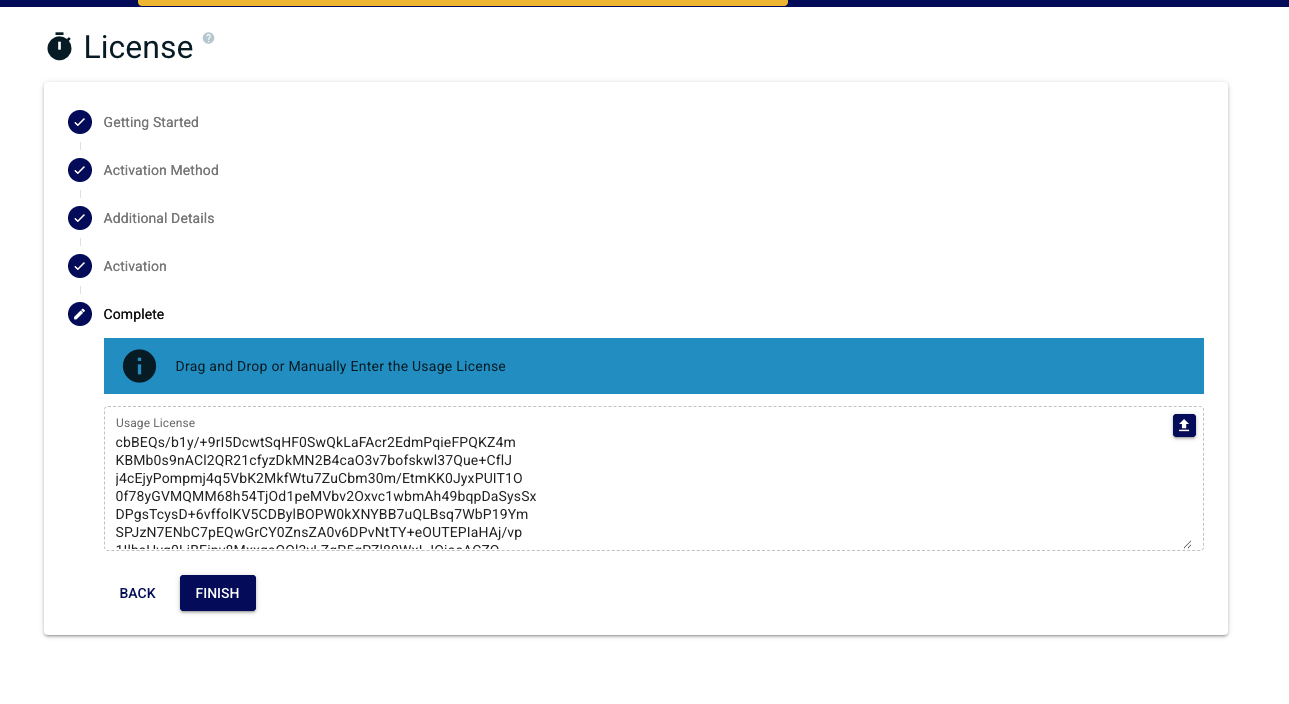
Paste the Usage License provided by Cirrus Link and click Finish.
A successful activation will redirect to the license status page, showing the state of the license, activated features, and related details.
| Warning |
|---|
| Only do this ONCE as each new Activation Request will invalidate the previous one. |
Upgrade an Offline License
Reactivation does not work for offline licenses. Any feature change, expiration extension, or other update requires a new round trip with Cirrus Link Support.
To apply an update to an offline license:
- Request an upgrade to a Chariot License via Cirrus Link Support.
- Generate a new Usage Request following the steps in Request a Usage License.
- Email the Usage Request to Cirrus Link Support, noting that this is an update to an existing offline license.
- Install the returned Usage License following the steps in Install the Usage License.
Deactivate an Offline License
Before terminating, deleting, or destroying a Chariot server, deactivate the license so its activation can be freed for use on another Chariot MQTT Server instance.
Log into the Chariot MQTT Server Web UI and from the left hand menu bar select License.
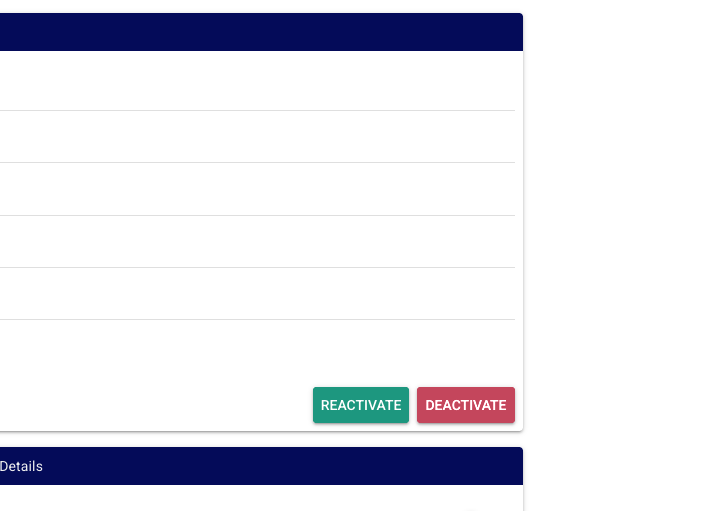
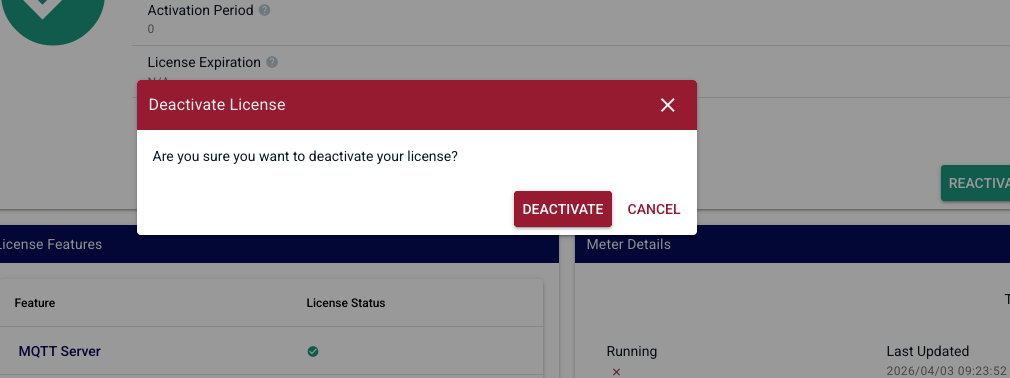
Select Deactivate.
| Tip |
|---|
| This will provide a Deactivation Request code that should be provided to Cirrus Link Support along with the License ID in order to free up the previous activation for use with another Chariot MQTT Server instance. |
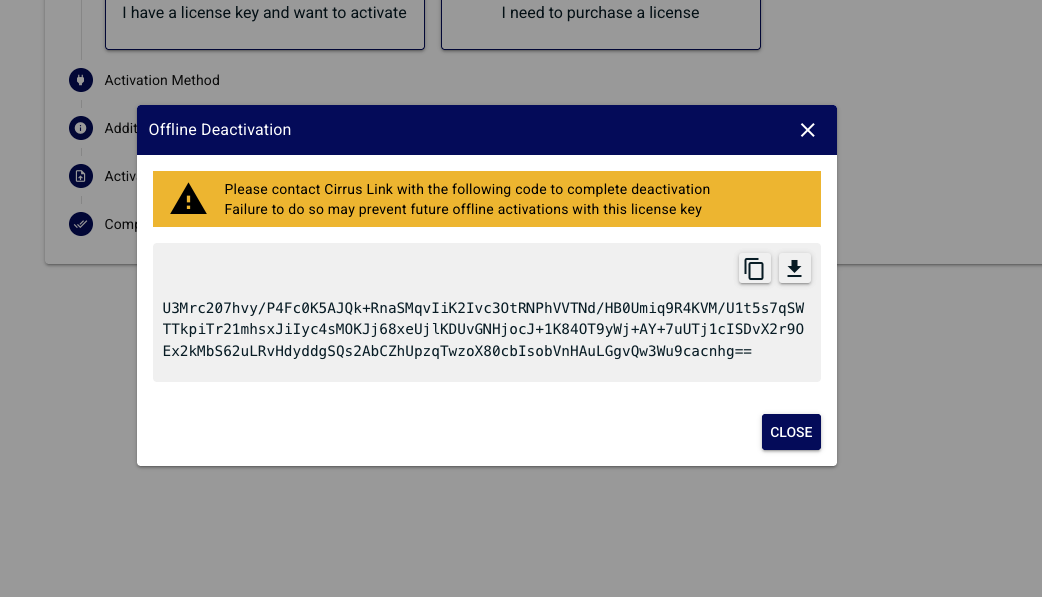
Cirrus Link Support will free up the previous activation so it can be used on another instance.
Important: If the server is terminated, deleted, or destroyed without deactivating the active Chariot License, that license will permanently lose one of its total activations.
What if I forgot to deactivate?
If a Chariot server was destroyed without deactivating first and you are now unable to activate the license elsewhere, contact Cirrus Link Support. Include the License ID and a brief description of what happened. Support can review the situation and, in many cases, restore the lost activation.
Related Pages
- License Types — overview of all licensing options
- Purchasing and Activation— Purchasing and Activating Chariot Licenses
- Customer-Hosted Floating Licenses — concurrent licensing in a closed network
Overview
Content Tools