


Page History
...
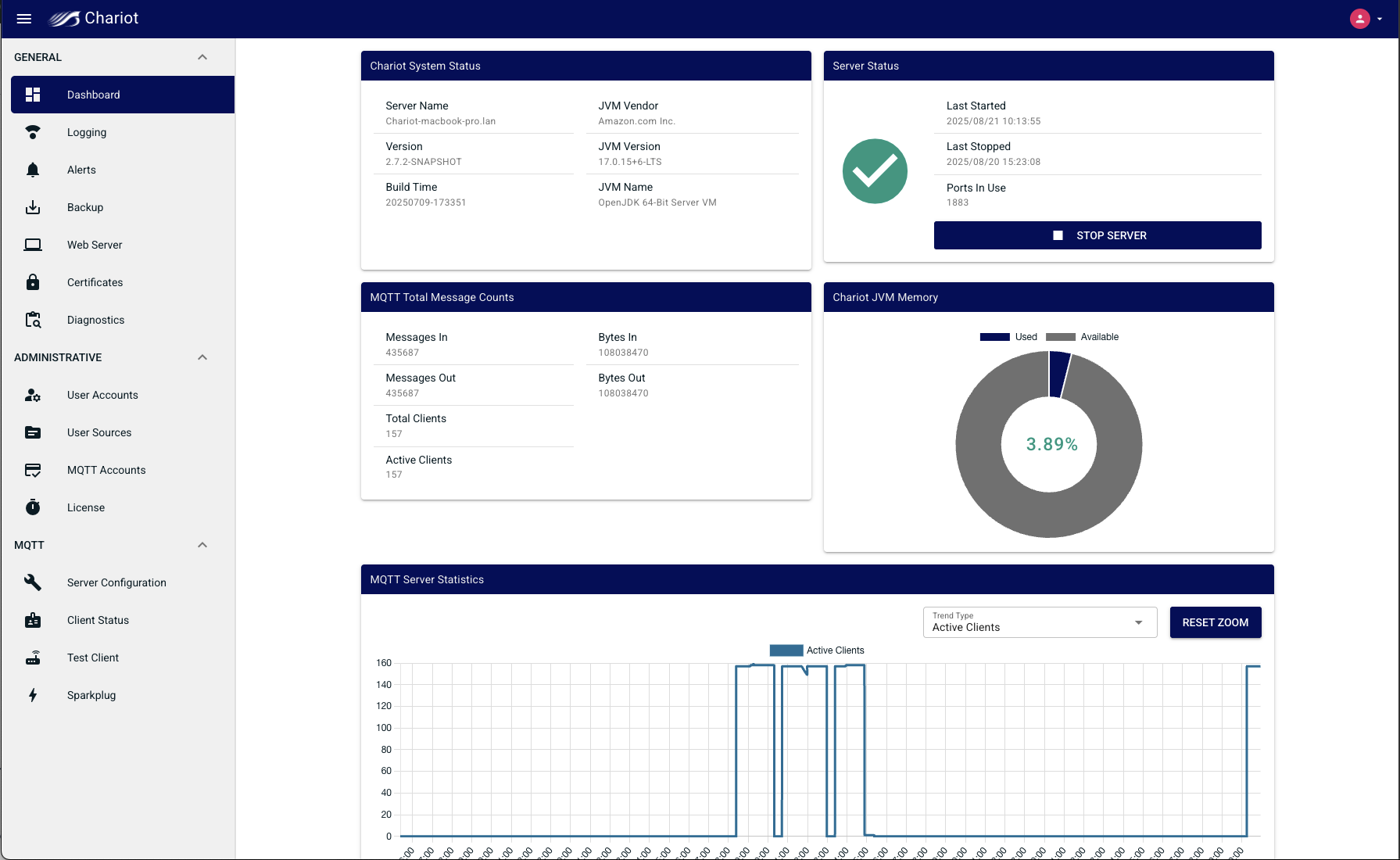
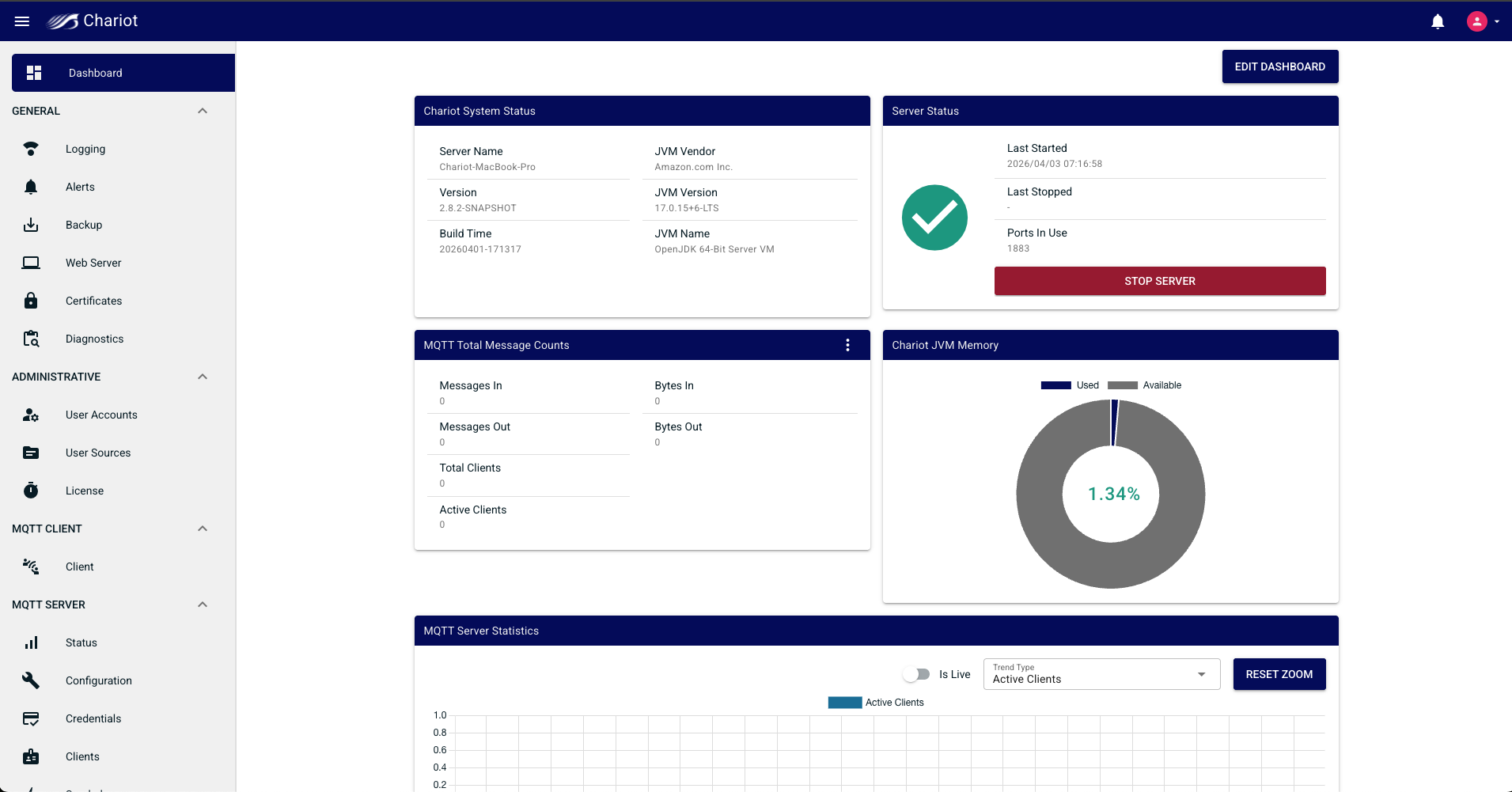
The Chariot dashboard provides a high level view of Chariot server and system status information.
| Anchor | ||||
|---|---|---|---|---|
|
...
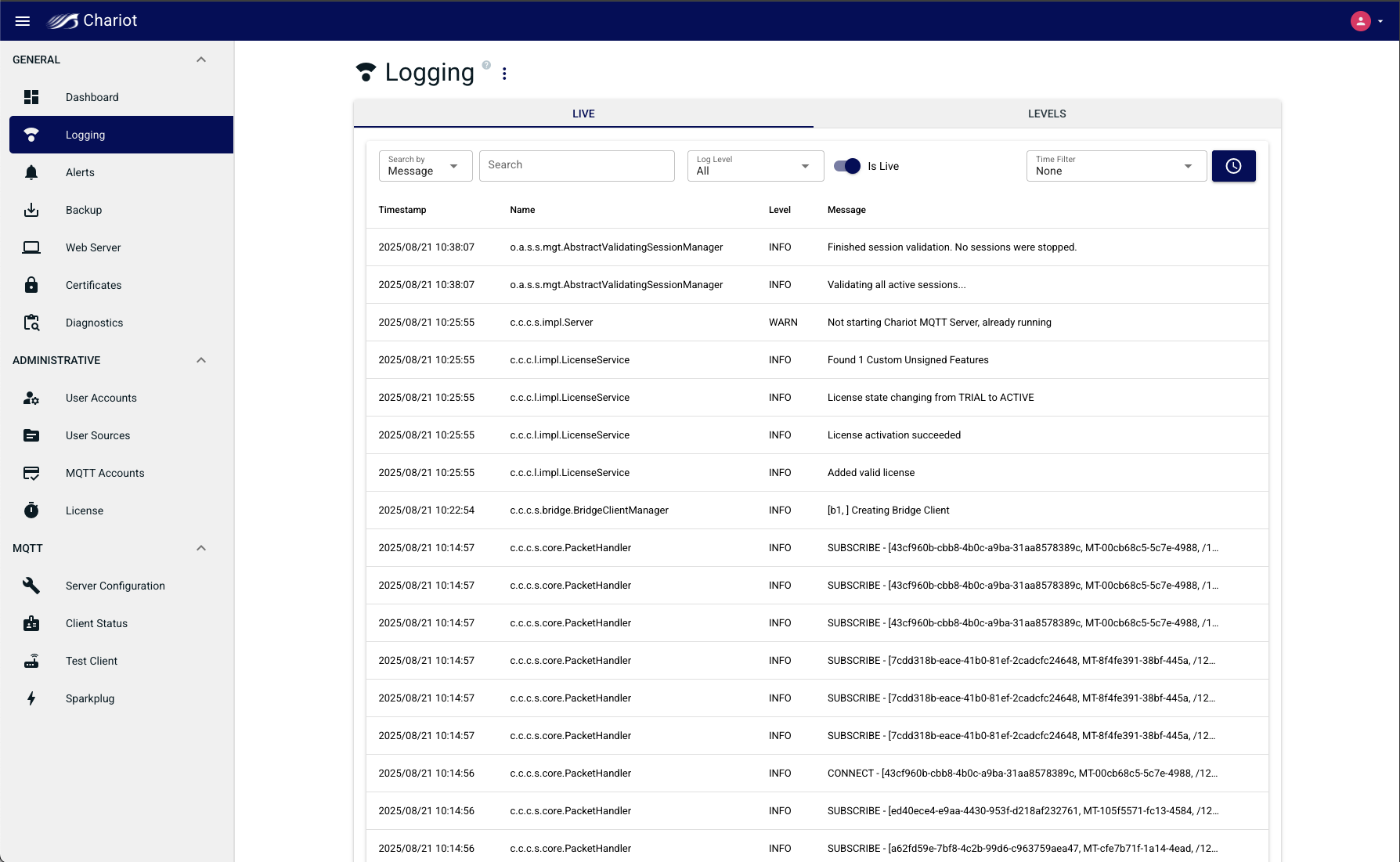
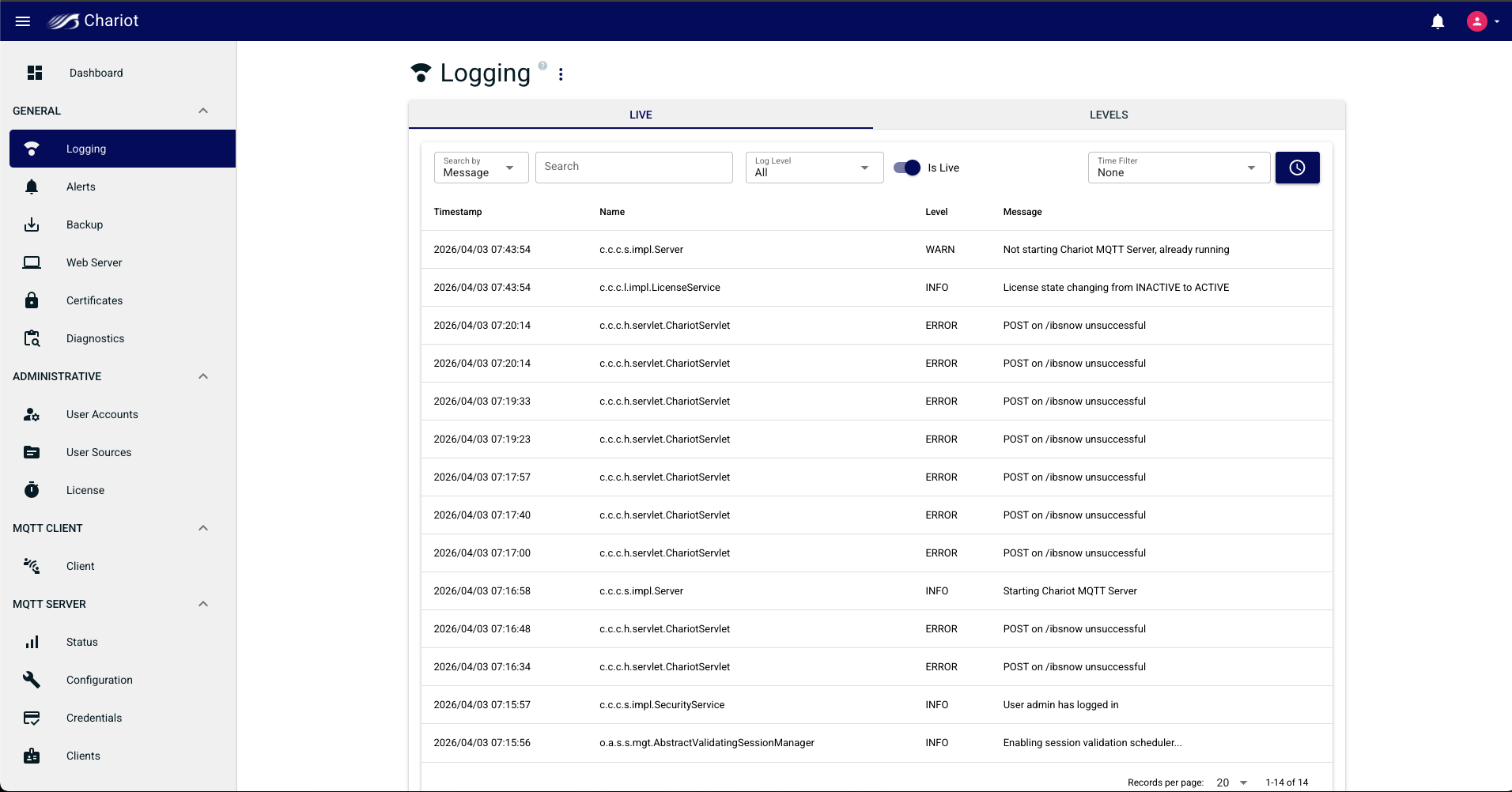
Live Chariot logs can be viewed on the Live logs tab. The live logs can be filtered by matching message text or selecting a minimum log level. A live toggle allows for enabling/disabling live log updates to the page.
Download Logs
The menu button at the top of the page contains an option for downloading a zip file containing the Chariot logs.
...
The second tabs allows for modifying log levels. The log levels can be filtered by name and each logger can have the level set to one of: TRACE, DEBUG, INFO, WARN and ERROR.
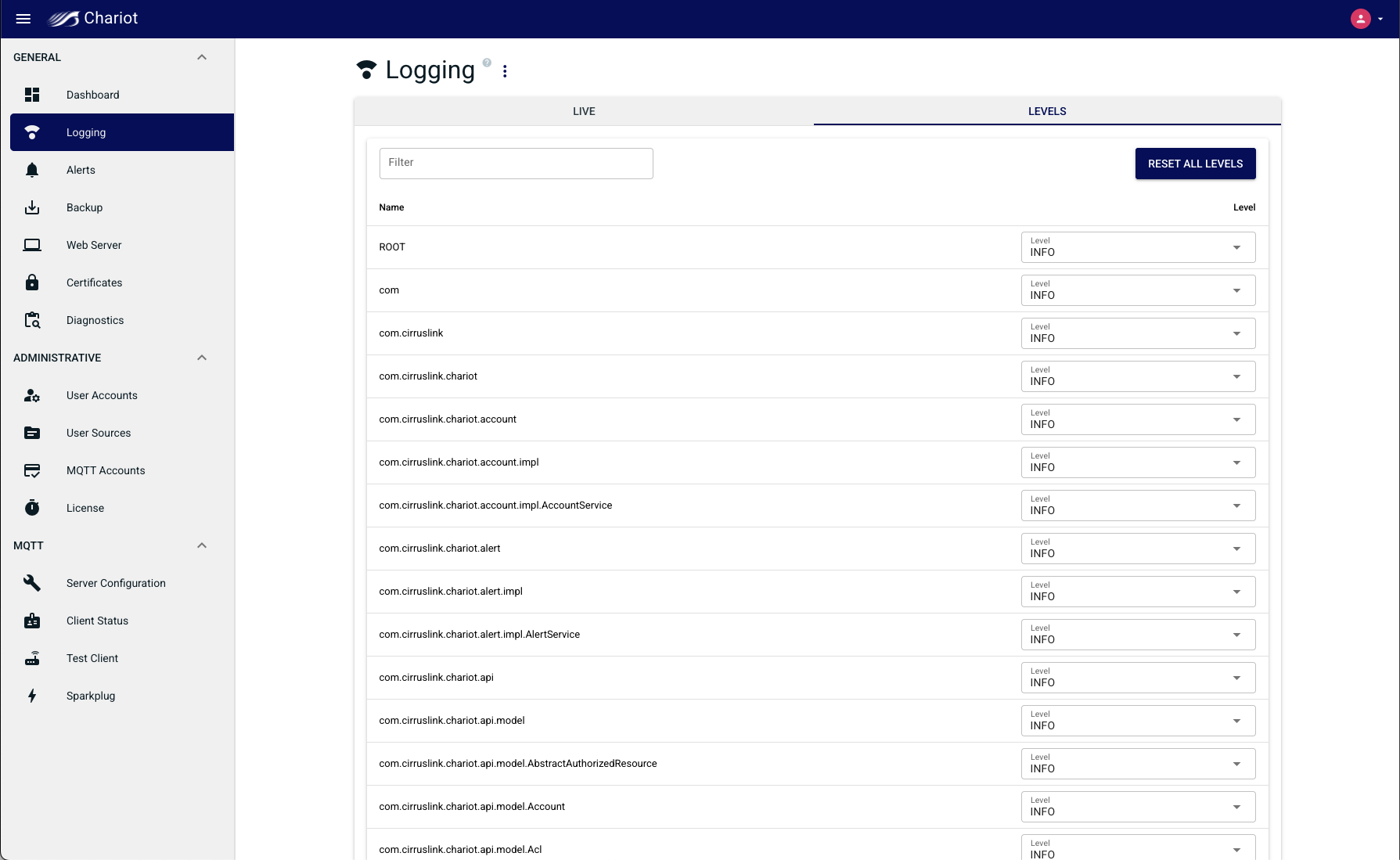
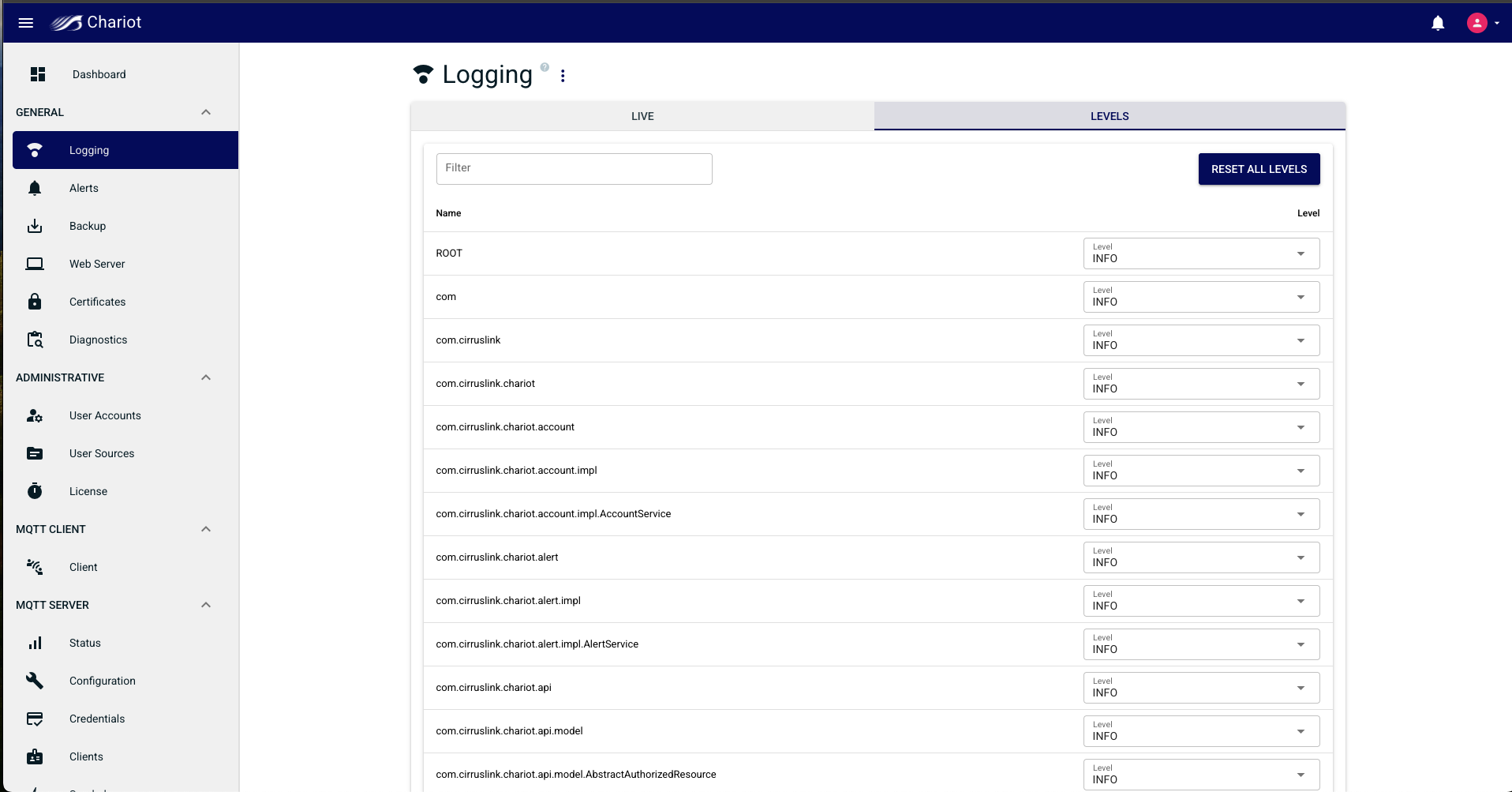
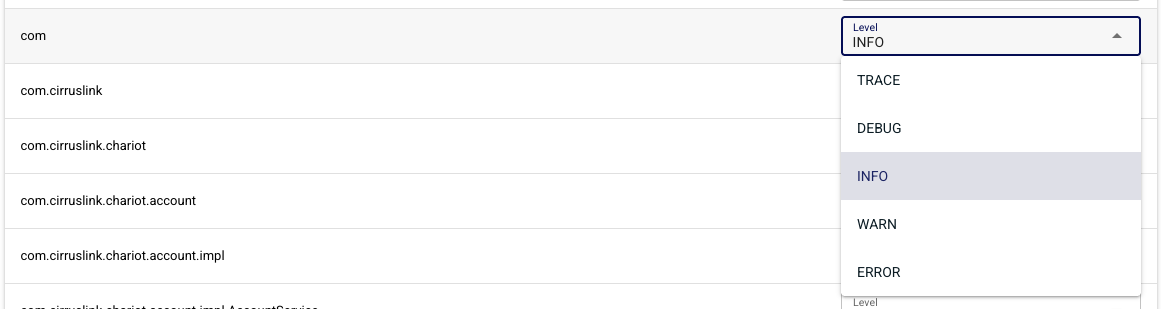
| Anchor | ||||
|---|---|---|---|---|
|
...
The Overview tab provides a dynamic representation of the Sparkplug Host Applications, Groups, Edge Nodes and Devices that are being tracked by Chariot.
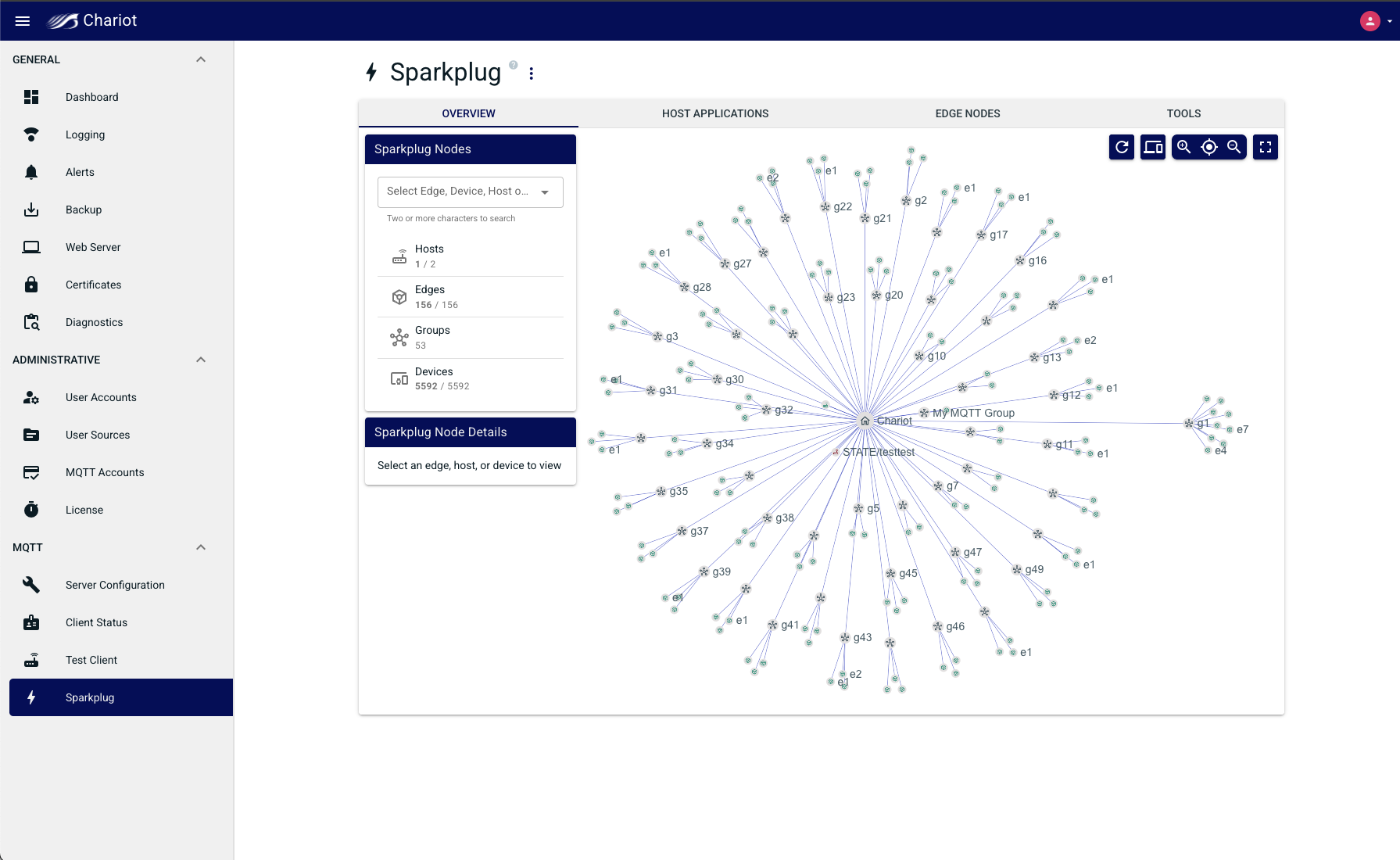
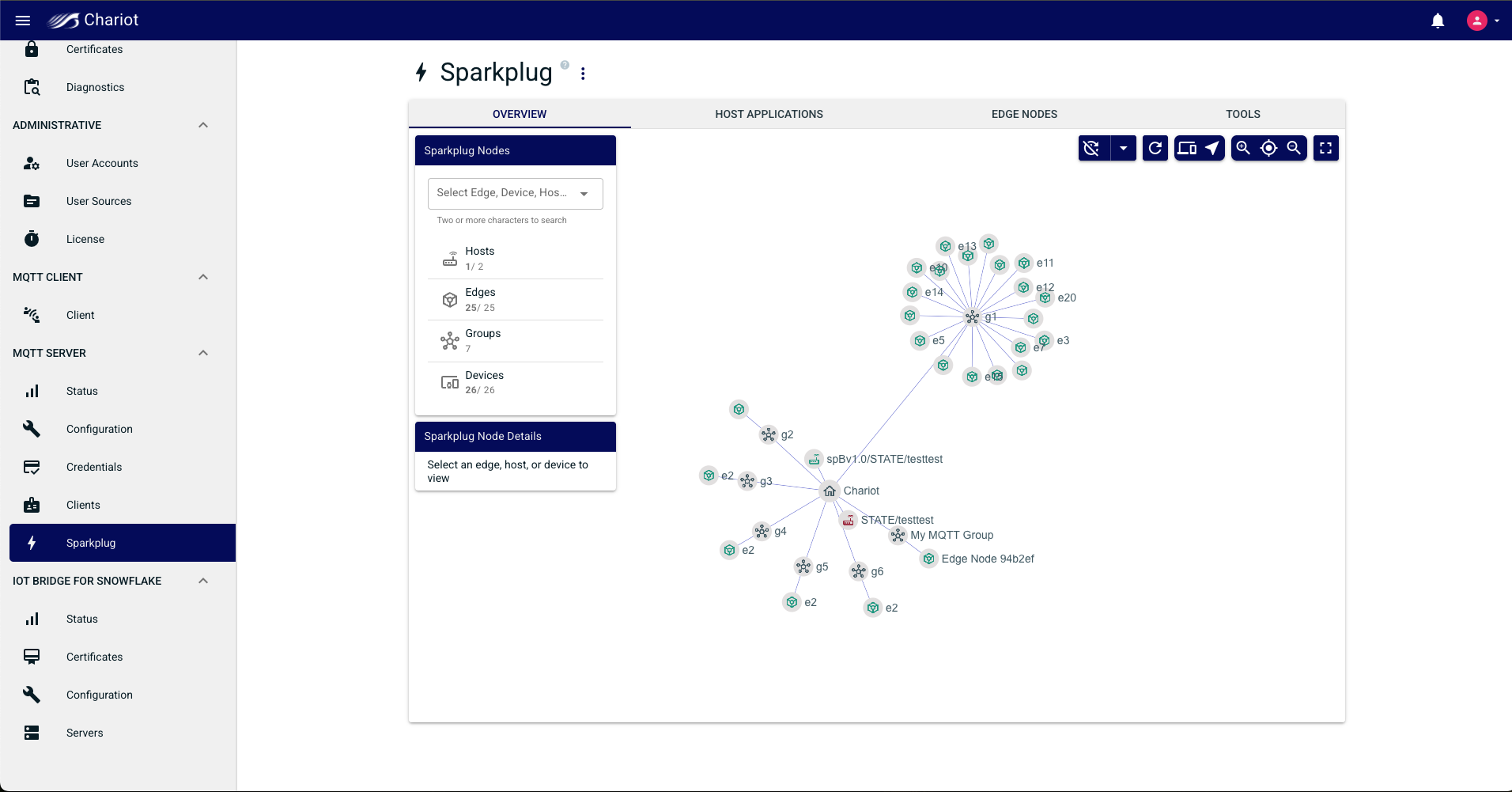
Selecting a specific Edge Node will display the Edge Node details
...
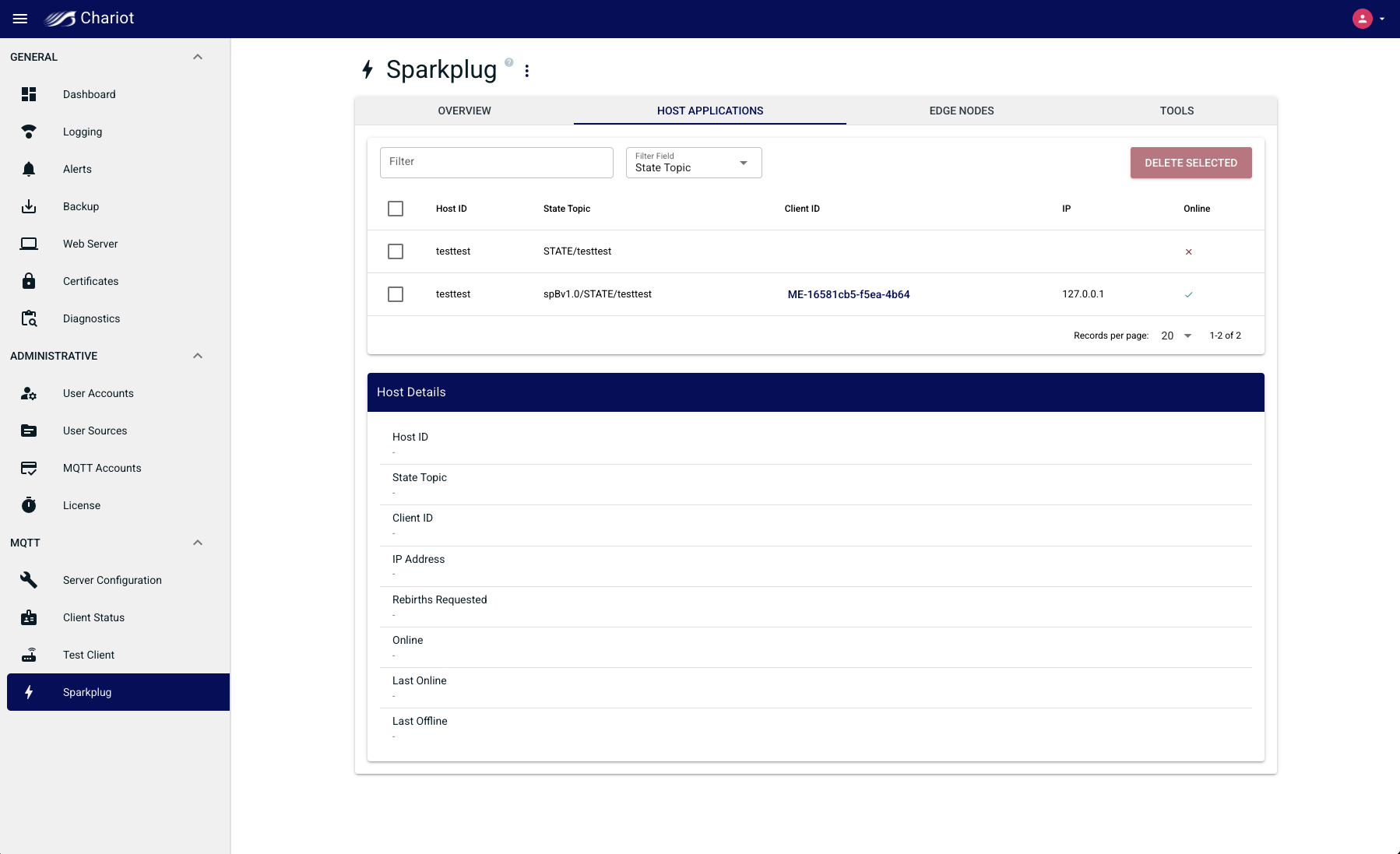
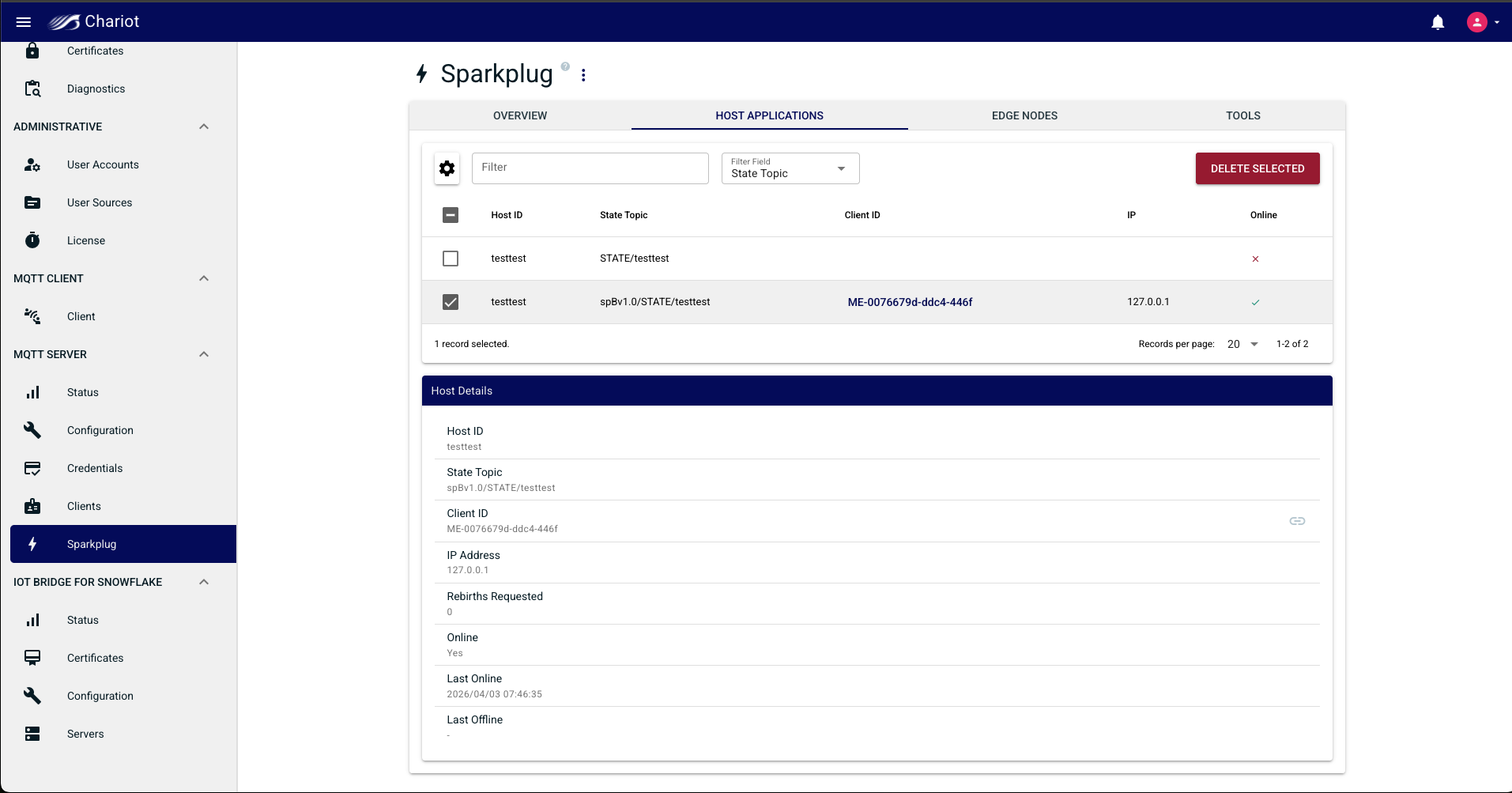
The Host Applications tab will show all Sparkplug Host applications that Chariot is tracking. Selecting a host application from the list will show additional details such as the last time it was online or offline.
Edge Nodes
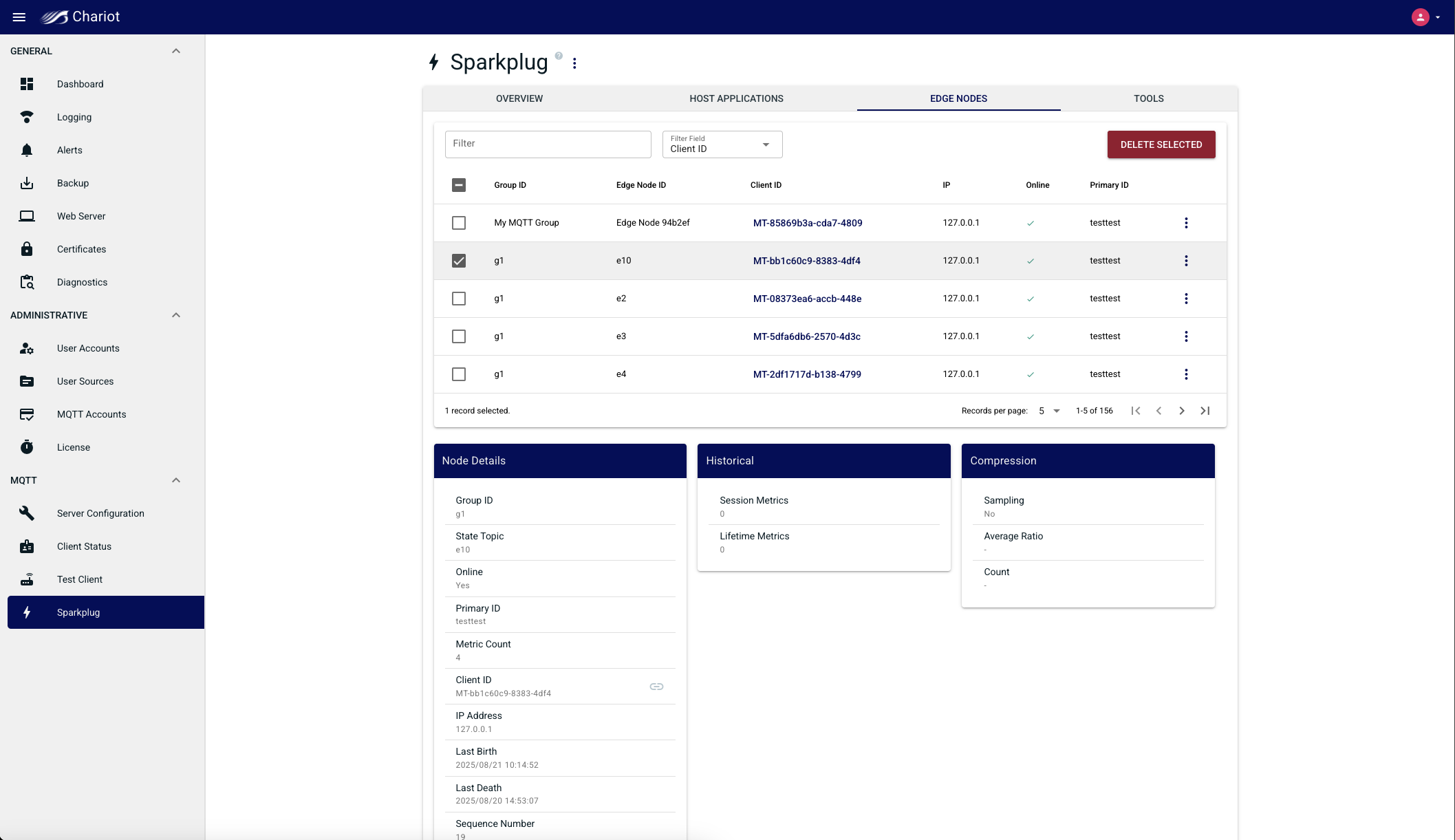
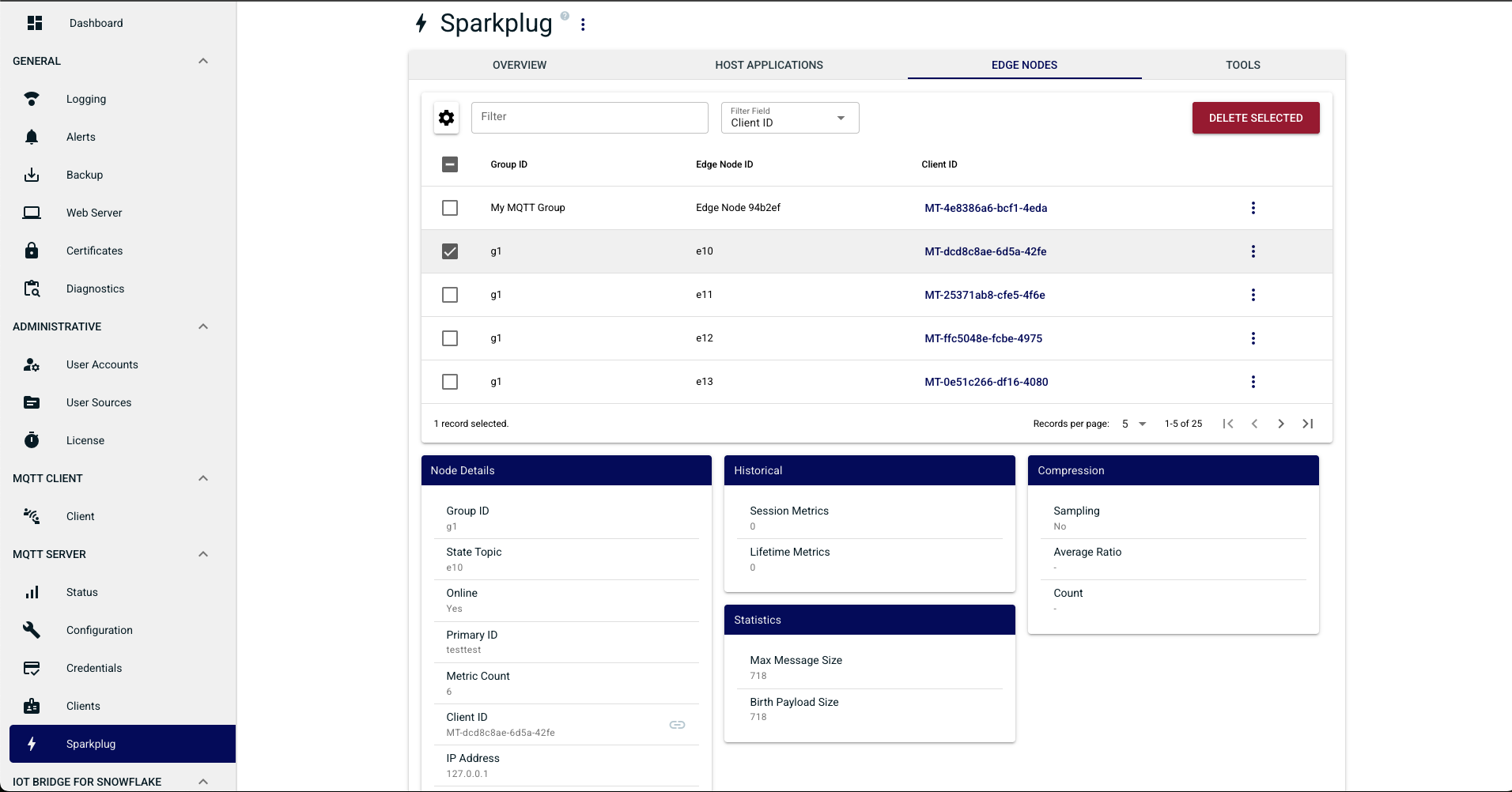
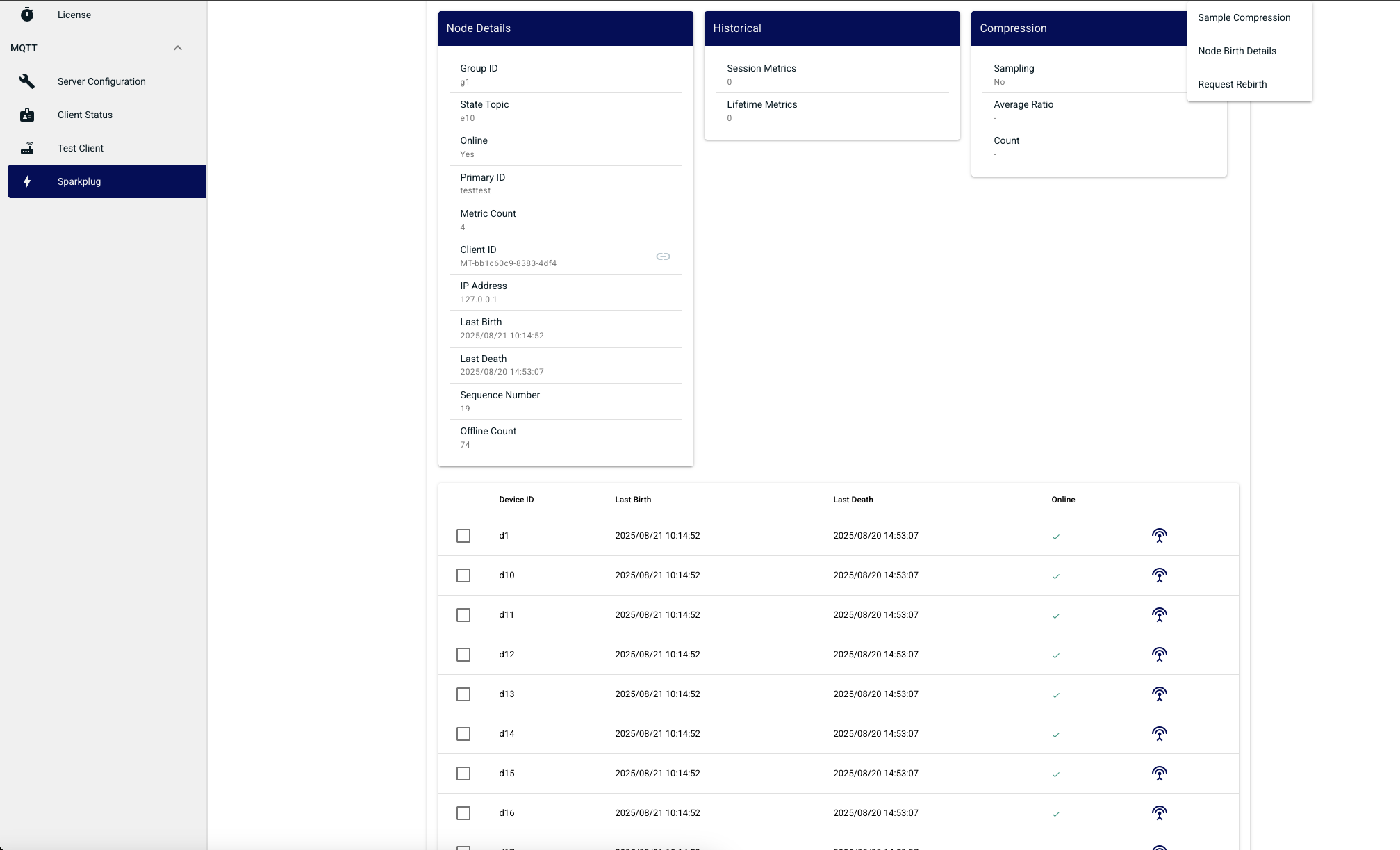
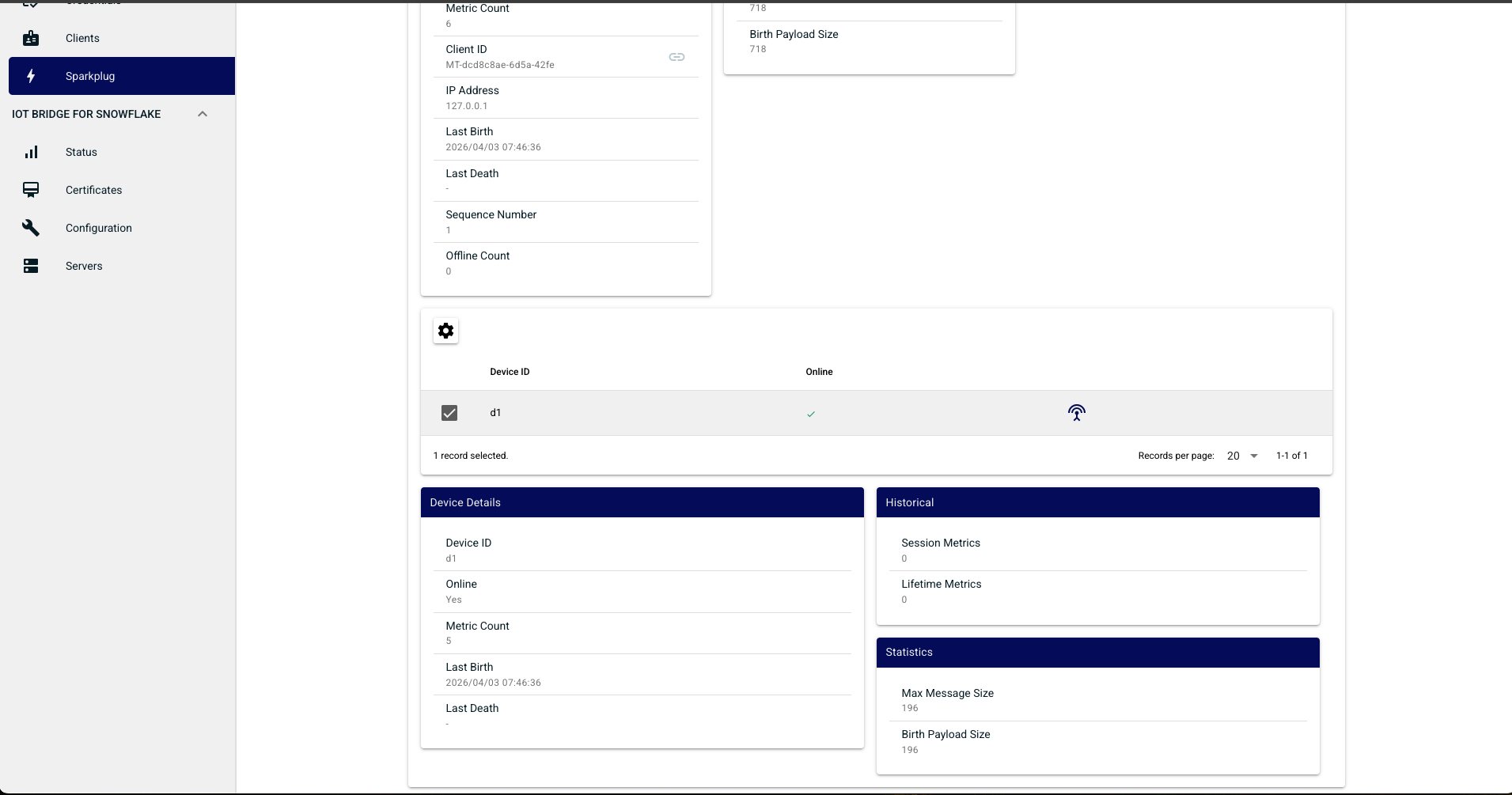
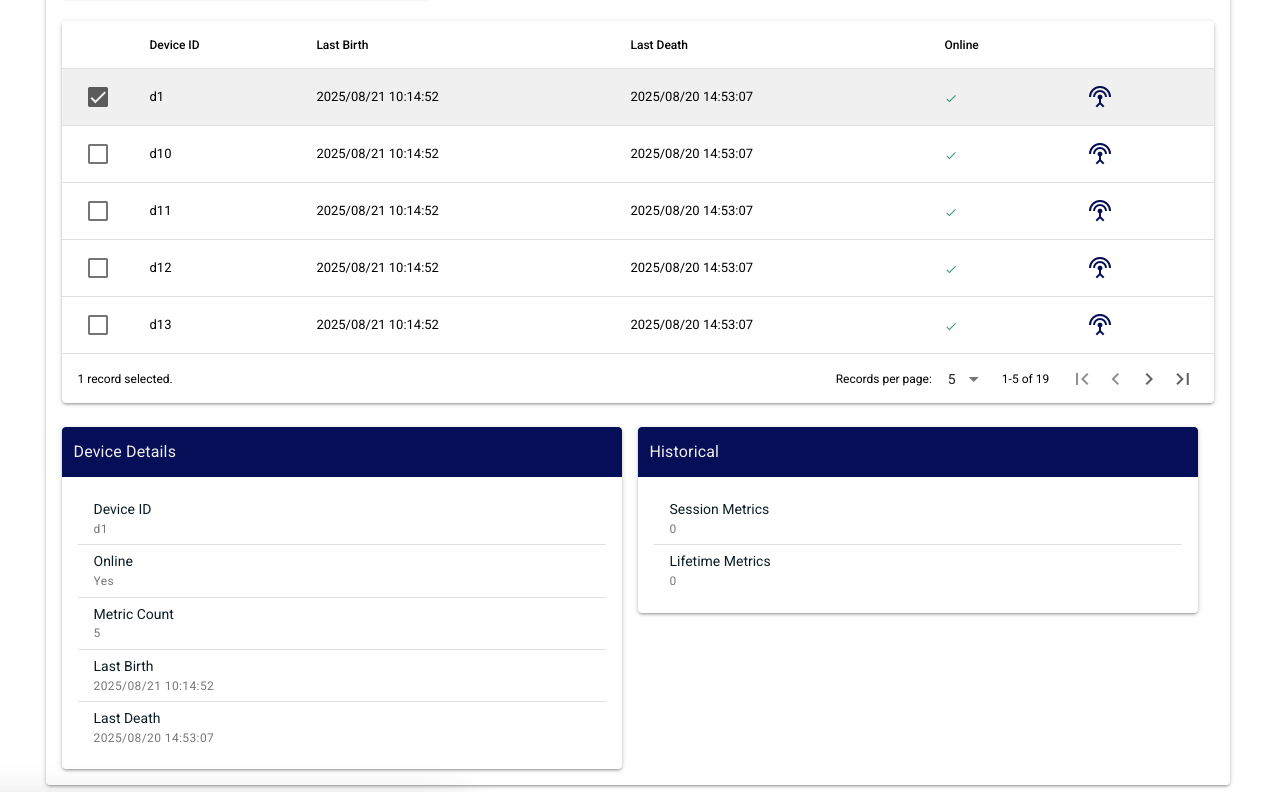
The Edge Nodes tab will show all Sparkplug Edge Nodes and any Devices that Chariot is tracking. Selecting an Edge Node from the list will show additional details and also populate the list of the Edge Node's Devices below.
Dropdown button on the far right of each Edge Node entry in the list provide tools for sampling compression, request rebirth and downloading the Sparkplug Edge Node Birth (NBIRTH) and Device Birth (DBIRTH) payloads in JSON format.

Tools
The Tools tab allows you to generate Access Control Lists (ACLs) needed for Hosts and Edge Nodes.
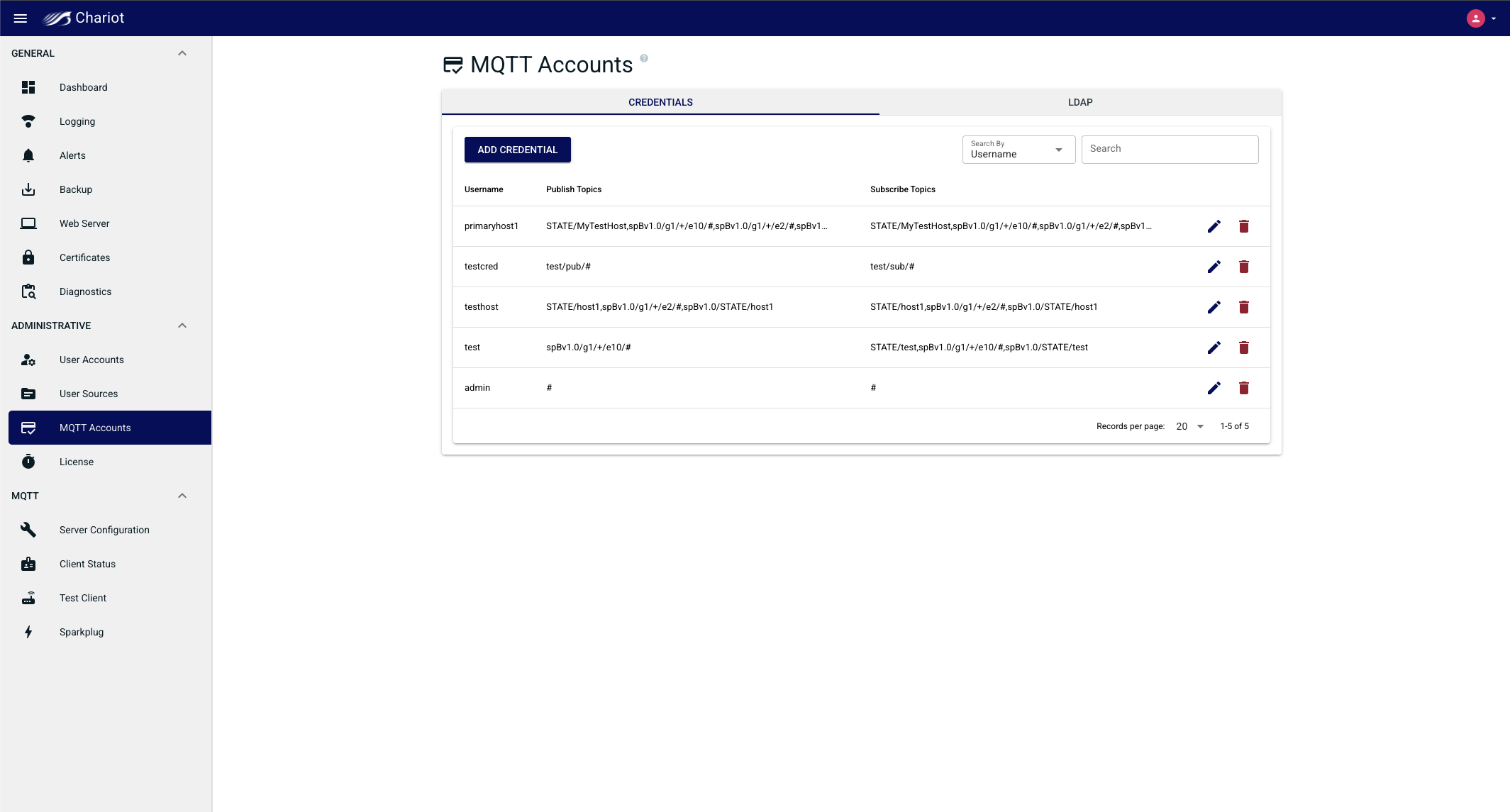
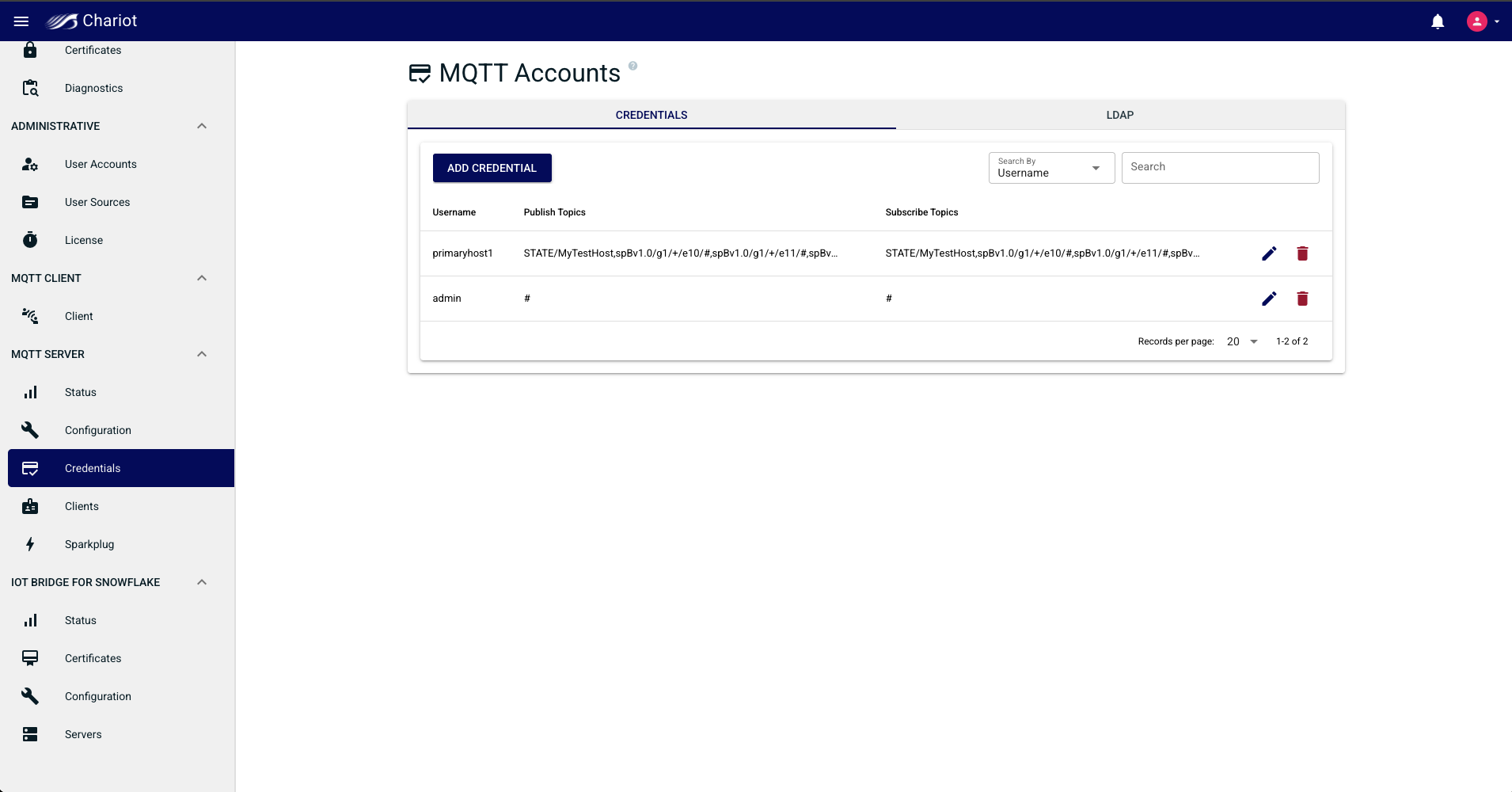
ACLs define the topics that a client can publish and subscribe on and generating an ACL through the Sparkplug Tools will automatically add the the credentials to the MQTT Account Credentials section of the Chariot configuration.
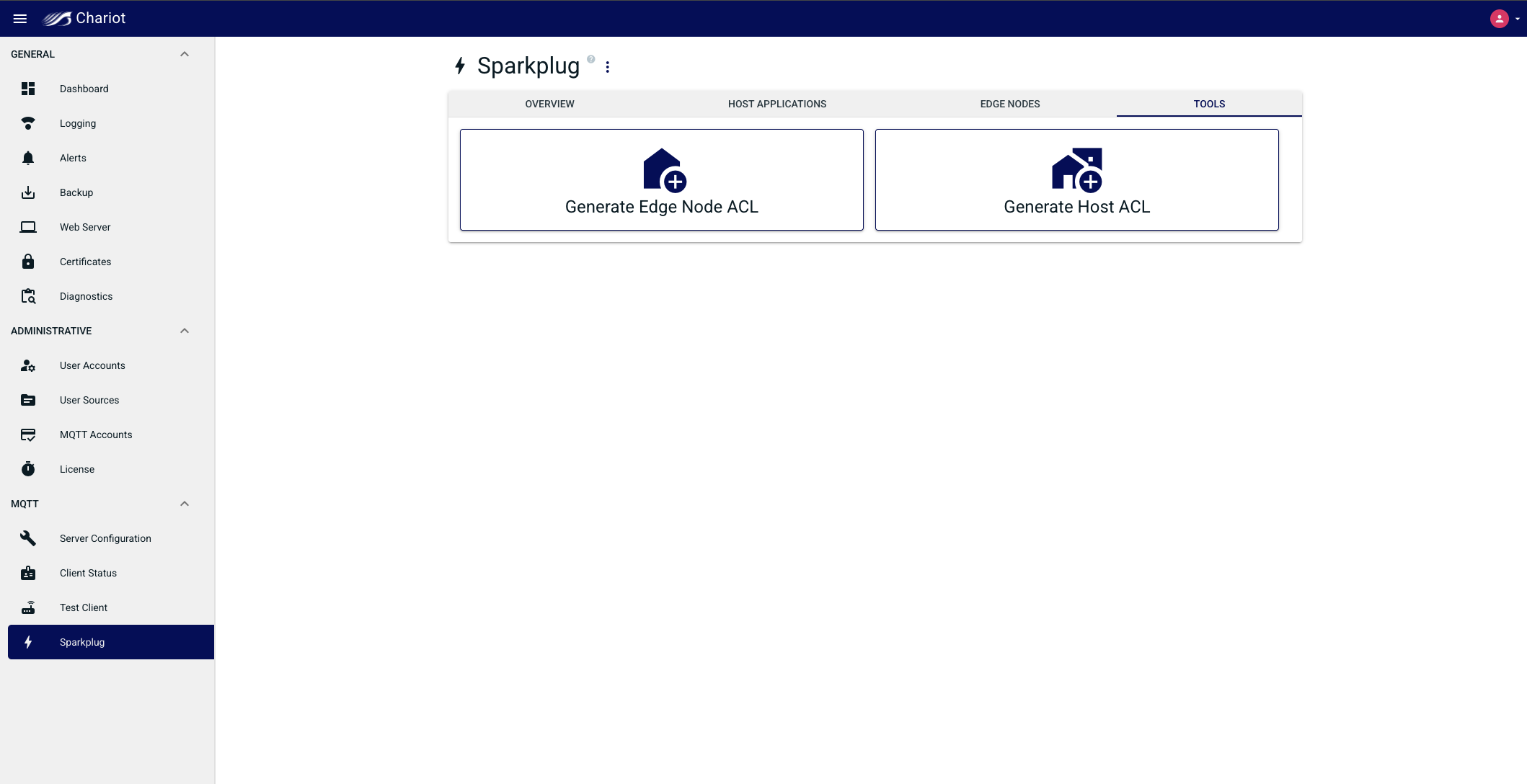
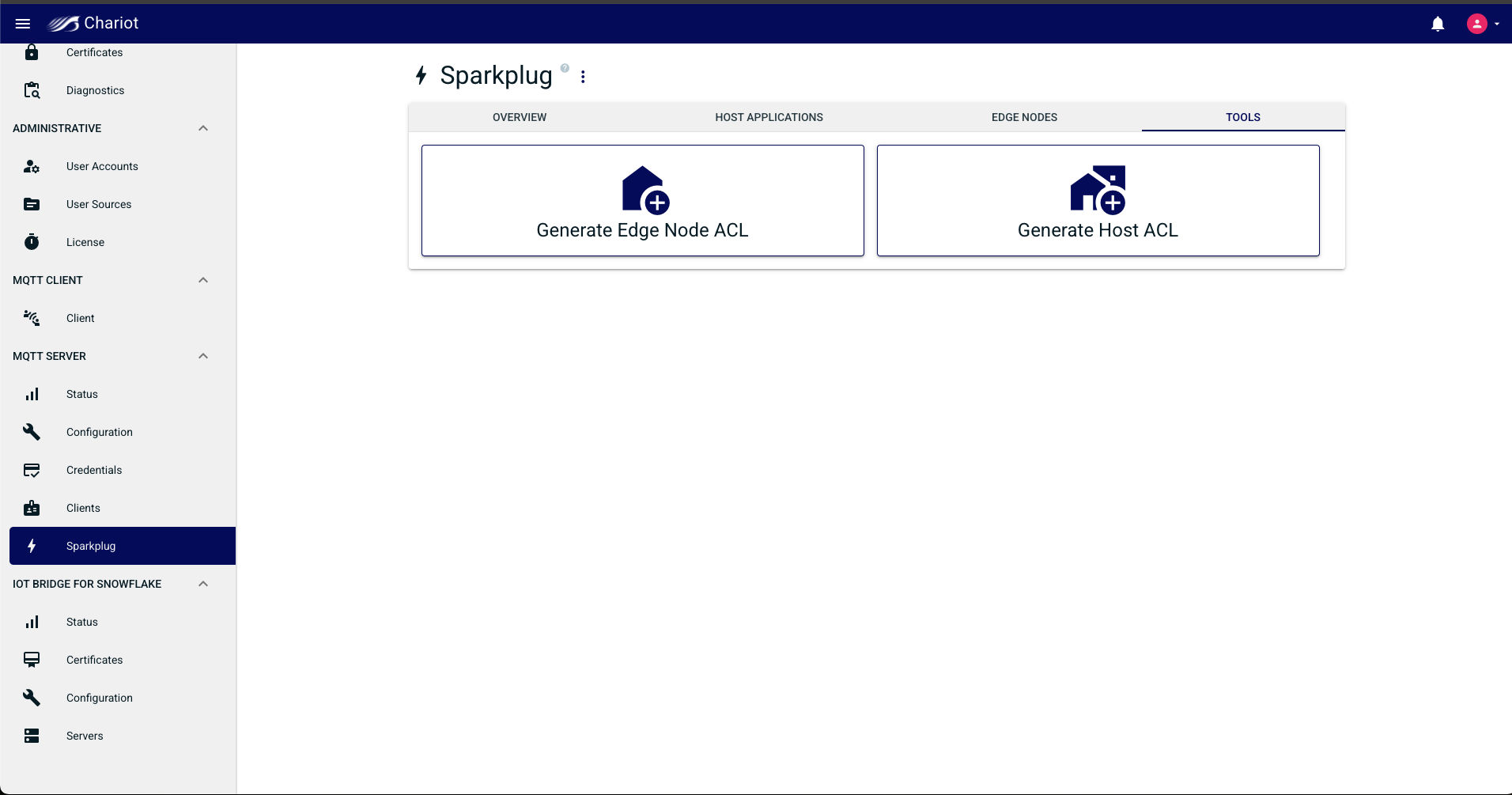
Select Generate Edge Node ACL to generate the ACLs for a Sparkplug client. Enter the client username, password and Primary Host ID (if needed). Add the required Sparkplug Edge Node IDs and select create.
...
A new entry for the username/password will be added to the MQTT Account Credentials section of the Chariot configuration.
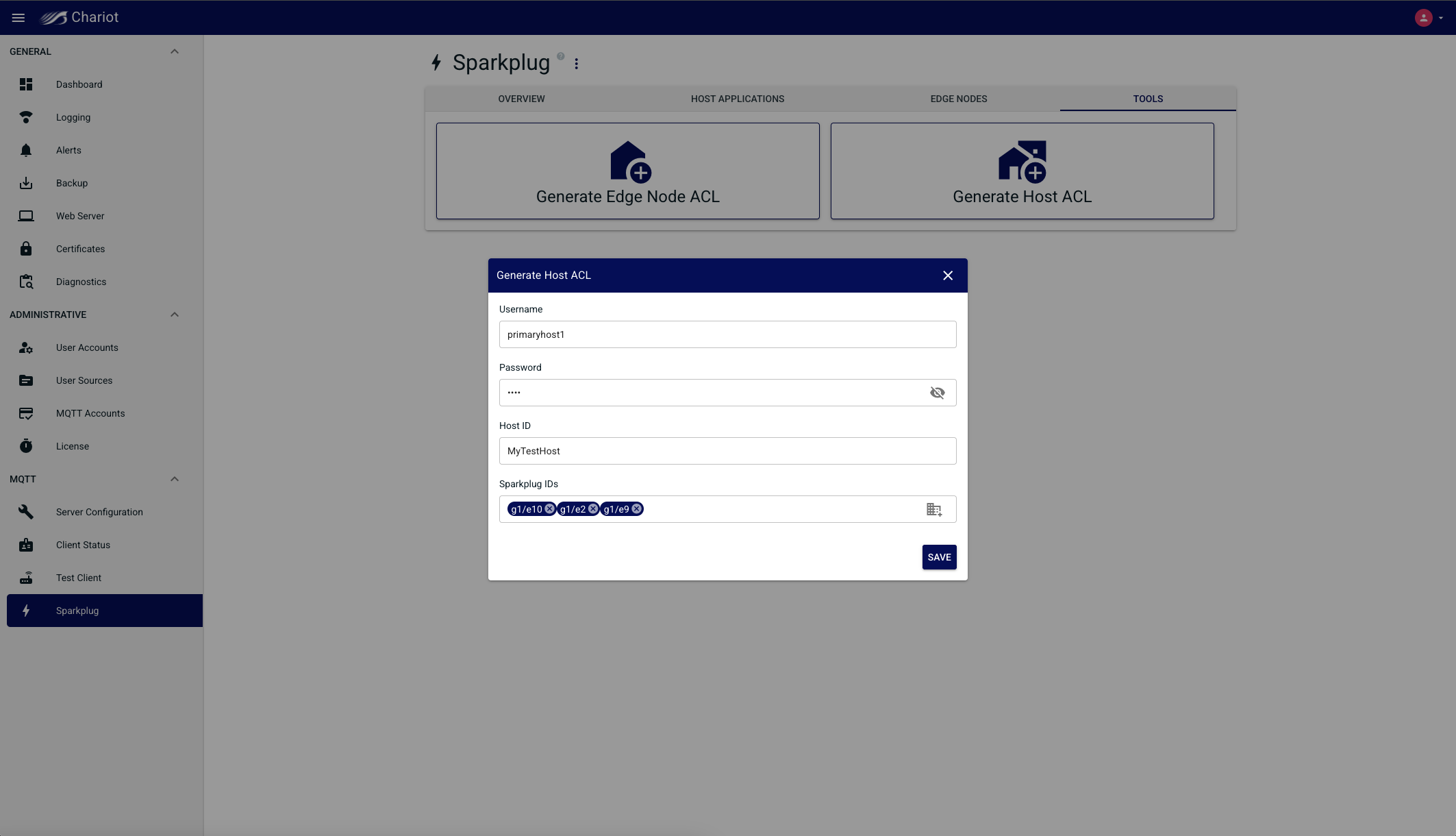
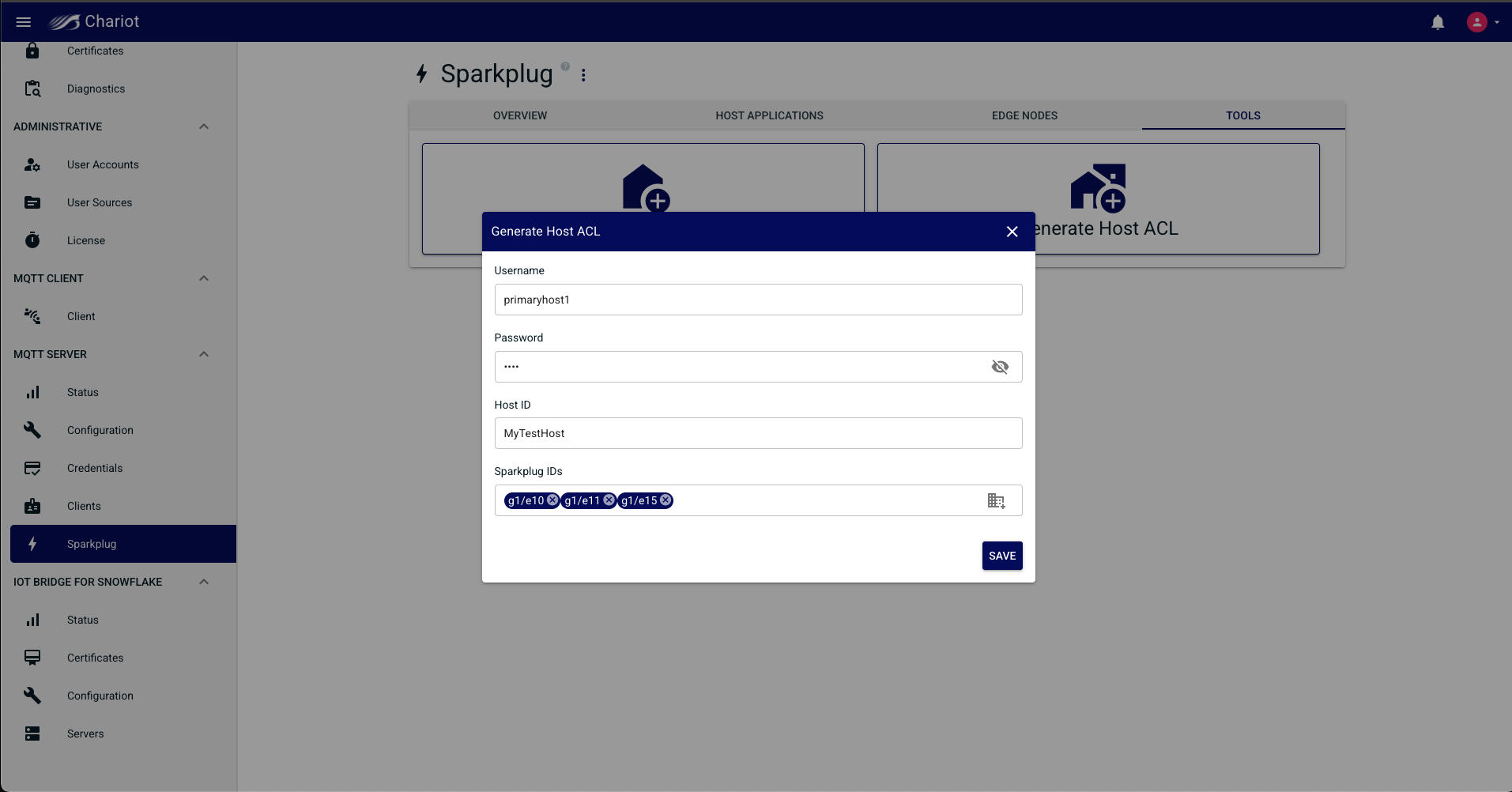
For the examples above, the MQTT Account Credentials will have been updated as shown below:
| Anchor | ||||
|---|---|---|---|---|
|
...
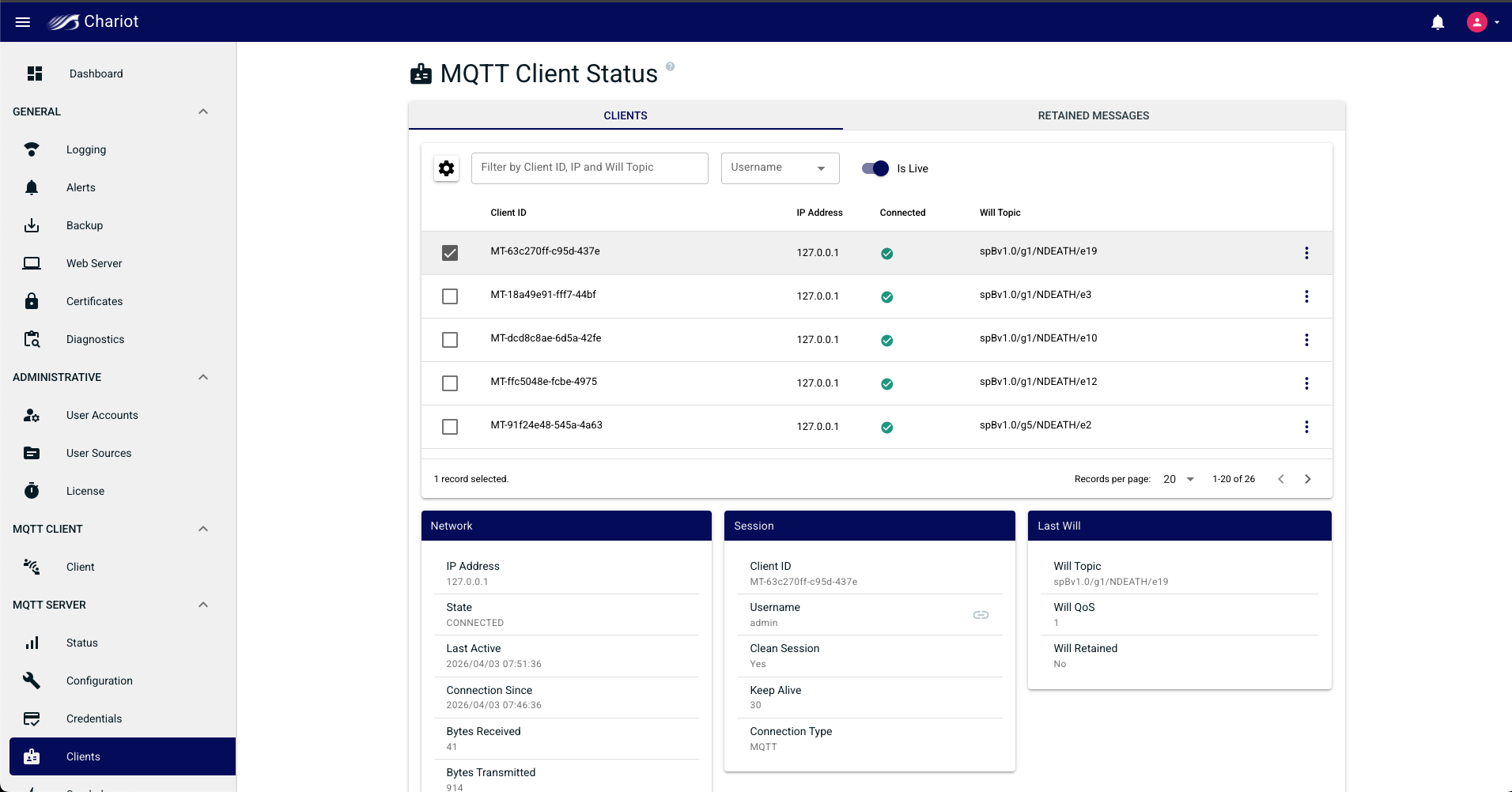
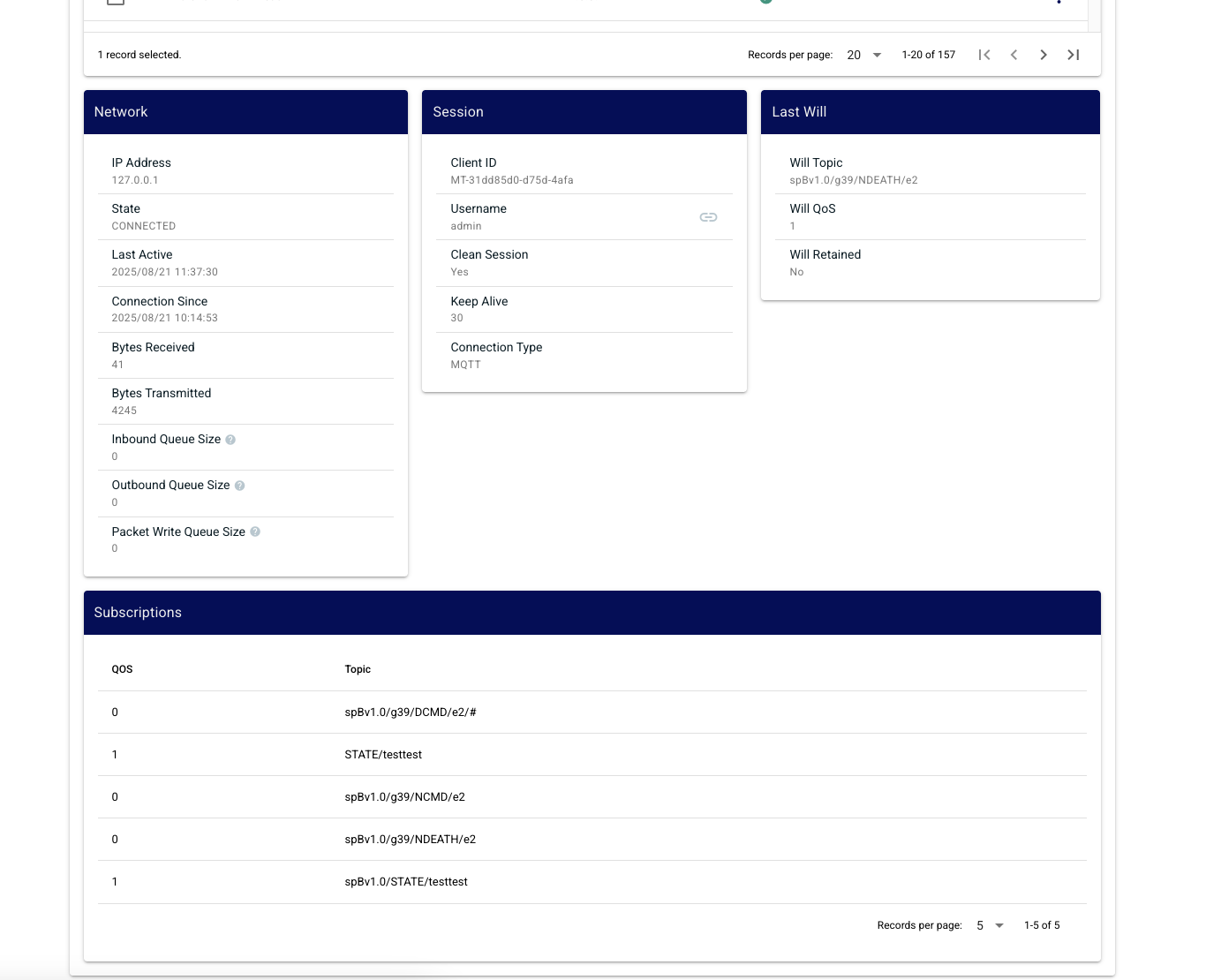
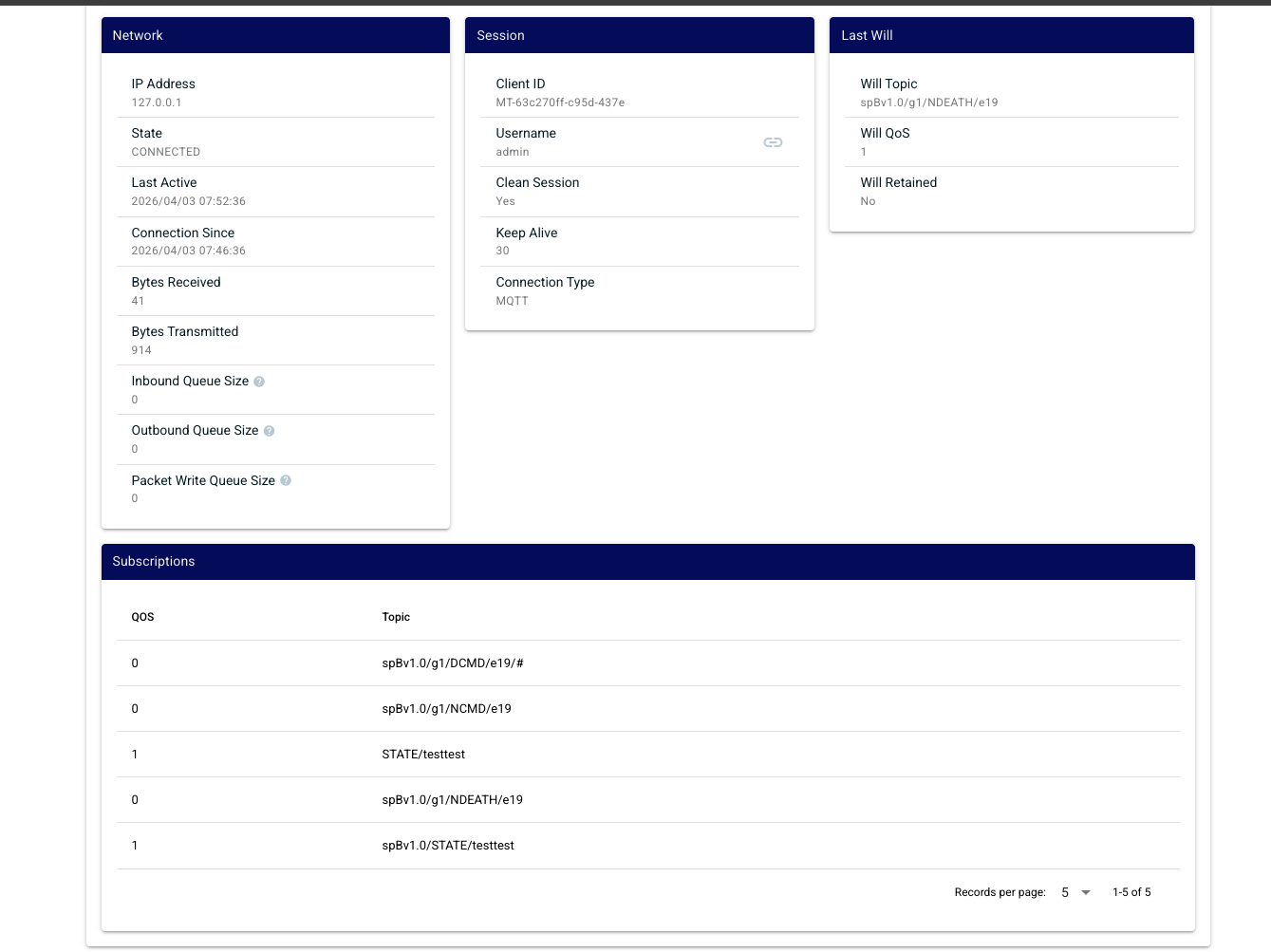
The MQTT Client Status page shows details of all clients connected to the Chariot MQTT server. A filterable table lists the MQTT clients, selecting one will allow you to view network details, session information, LWT details and a list of subscriptions.

Retained Messages
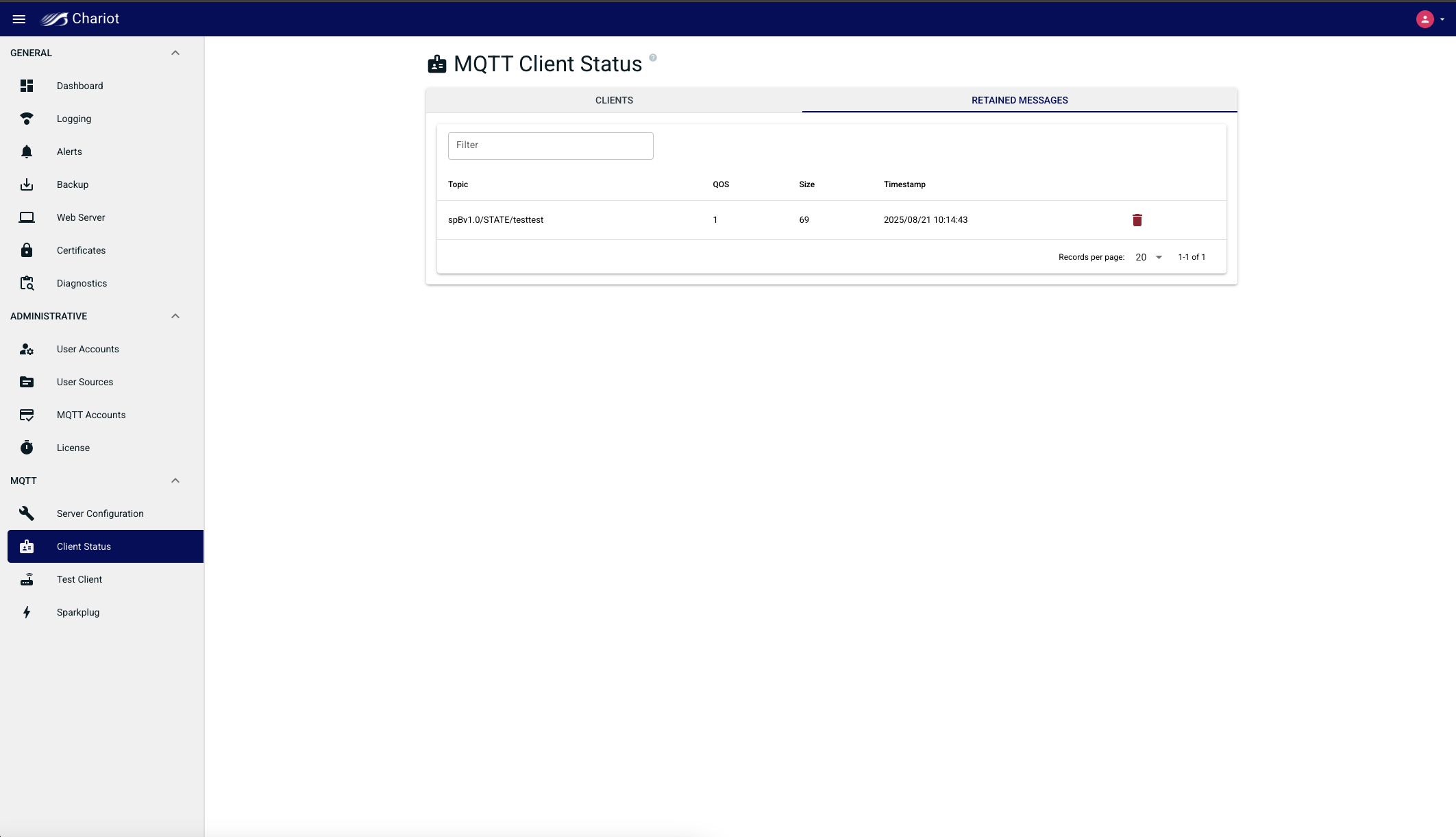
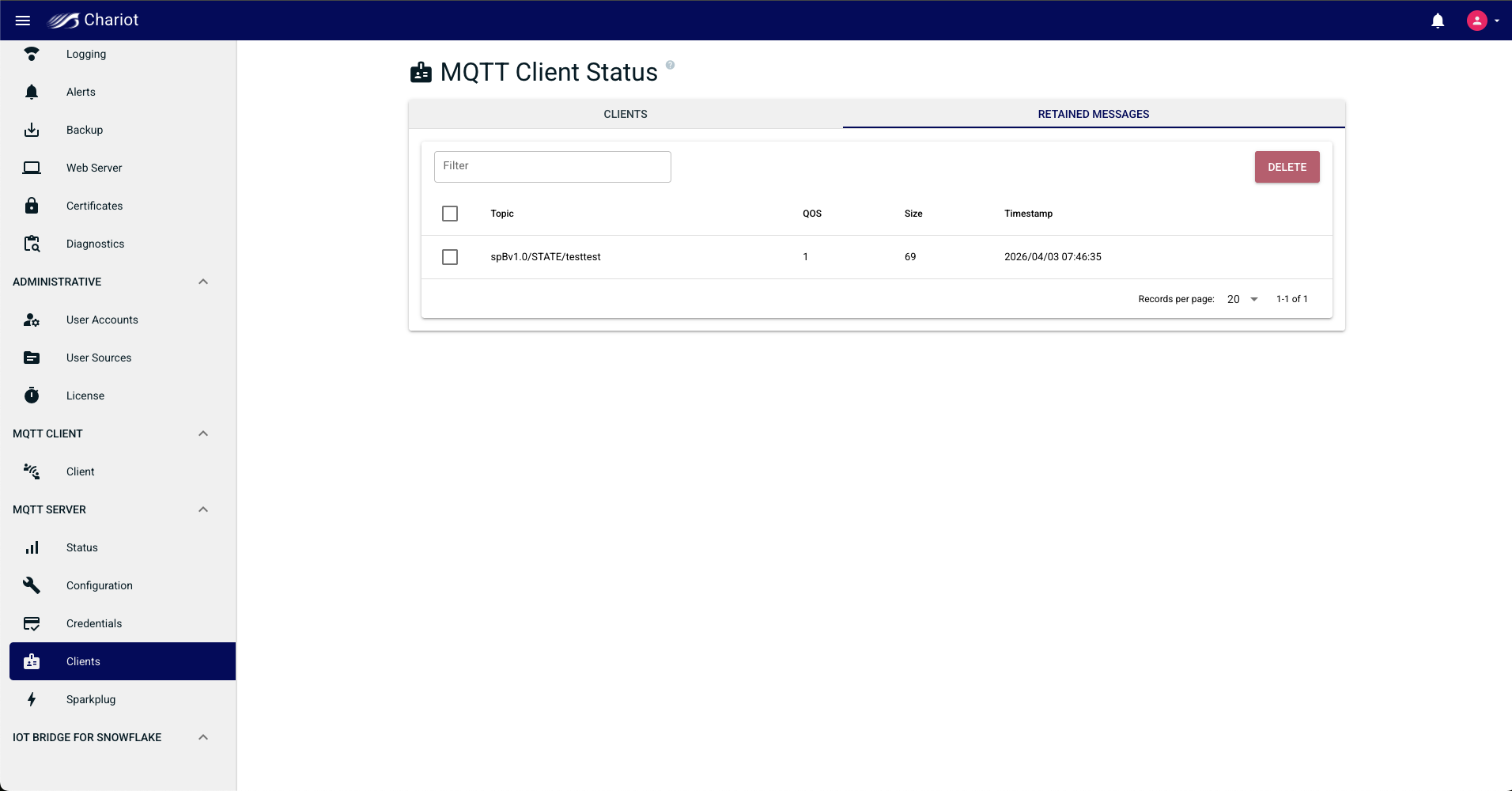
The Retained Messages page shows all retained messages recorded by the Chariot Server.
| Anchor | ||||
|---|---|---|---|---|
|
...
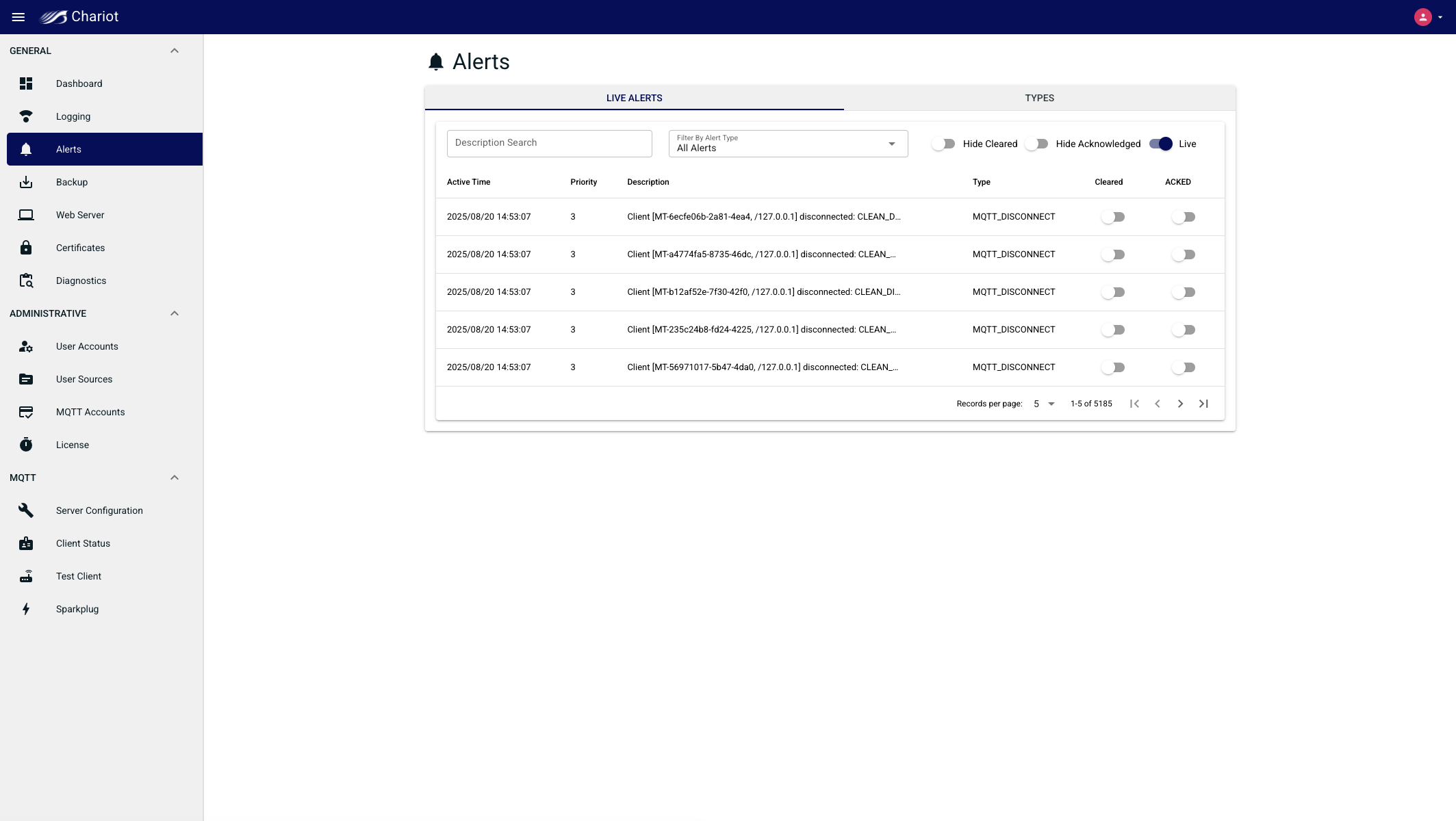
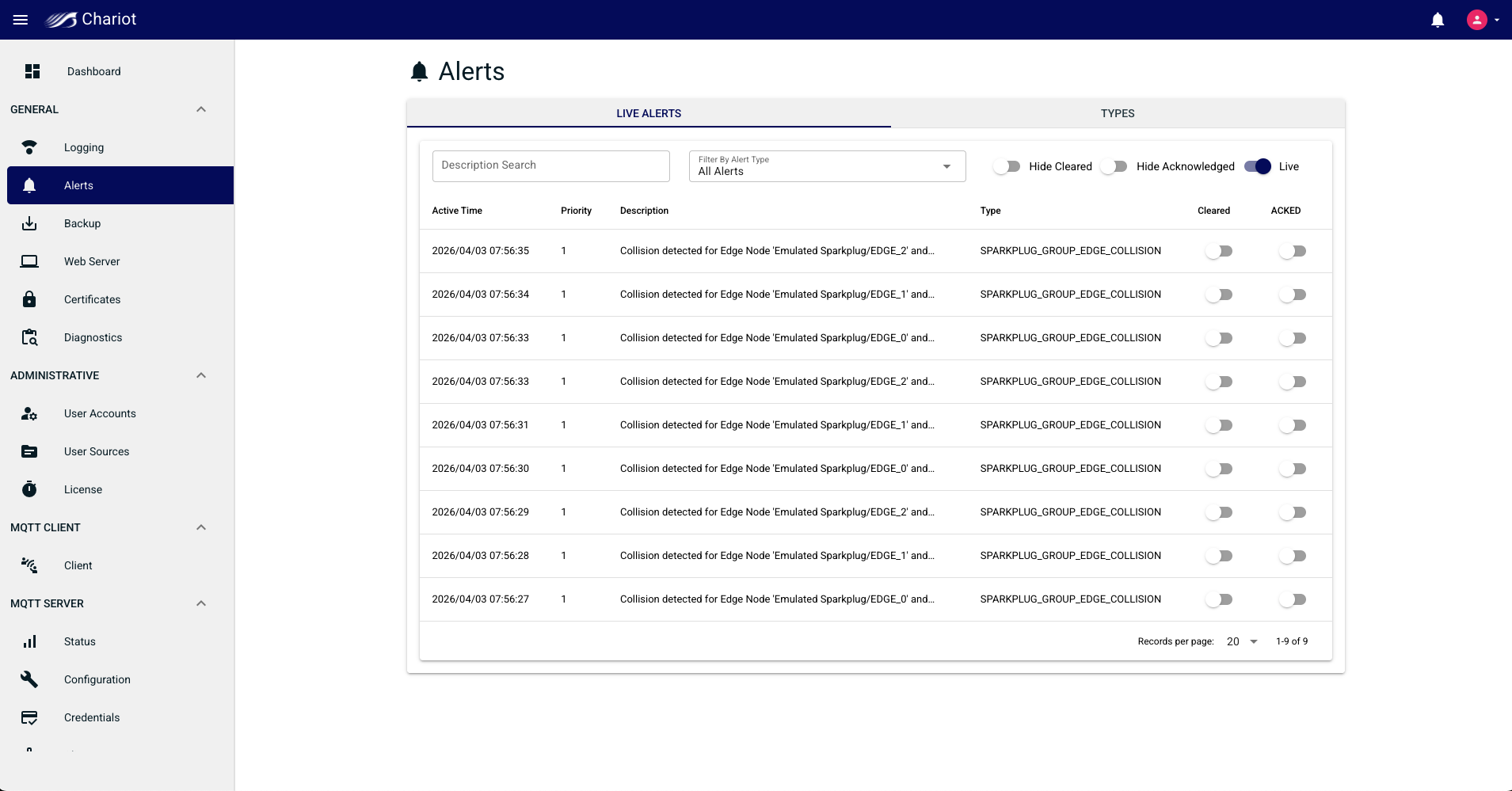
The Live Alerts tab shows a live view of alerts as they are generated. Individual alerts can be acknowledge and cleared. The alerts displayed can be filtered by matching text in the description, selecting an alert type, and/or hiding cleared or acknowledged alerts.
Types
The Types tab allows for the enabling/disabling of specific alert types as well as changing the priority (1, 2, or 3).
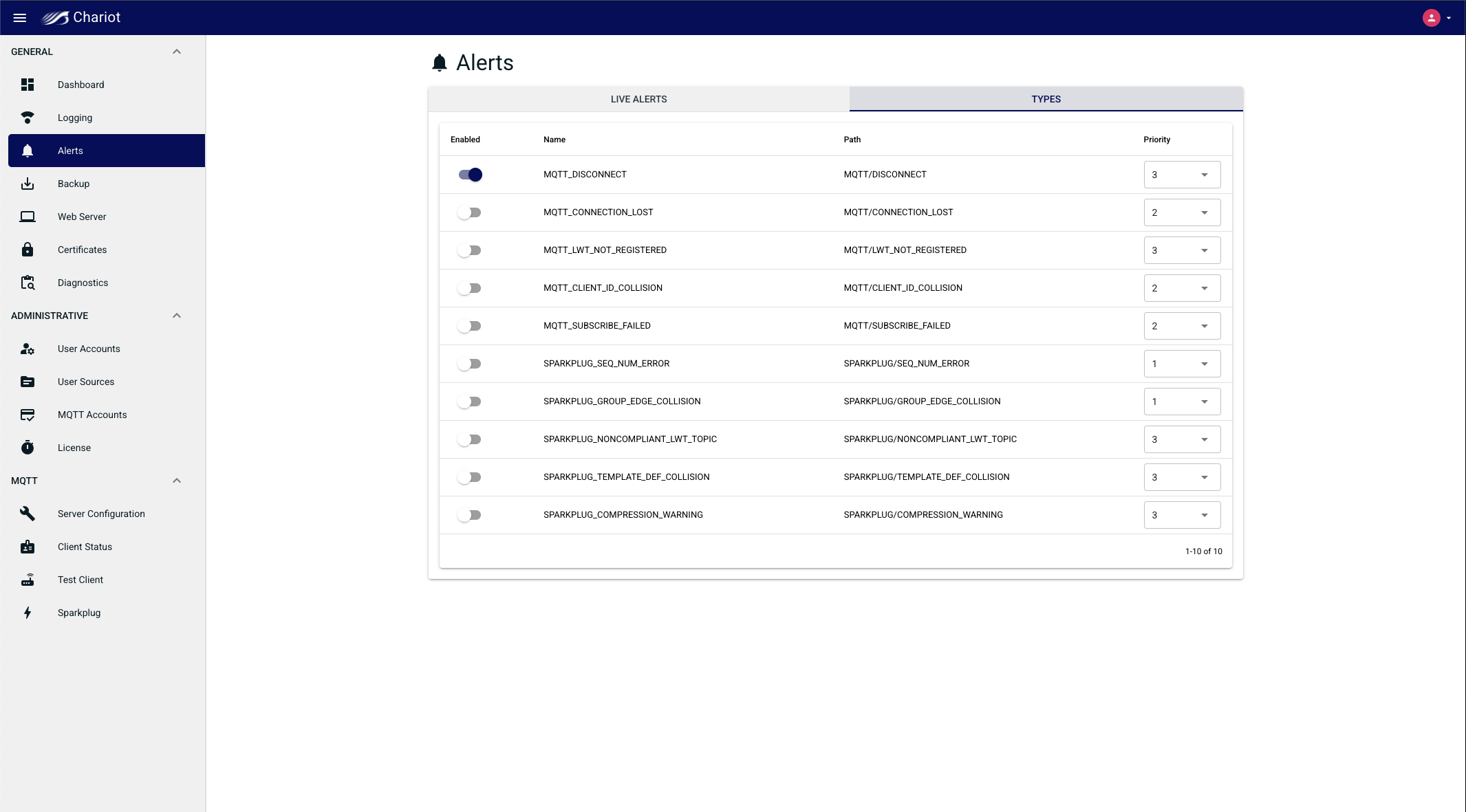
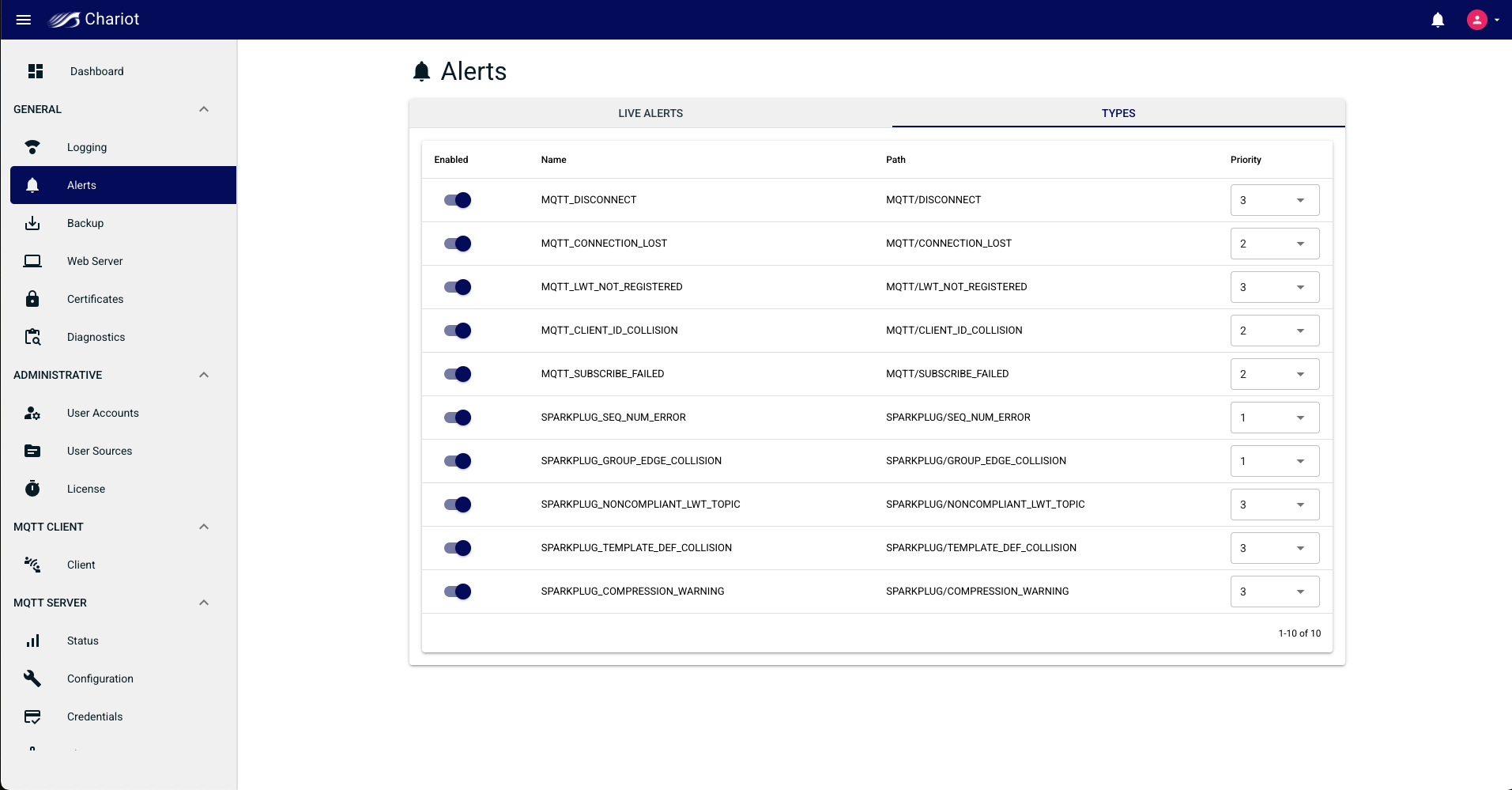
Some of the Alert Types supported in the Chariot Server include:
...
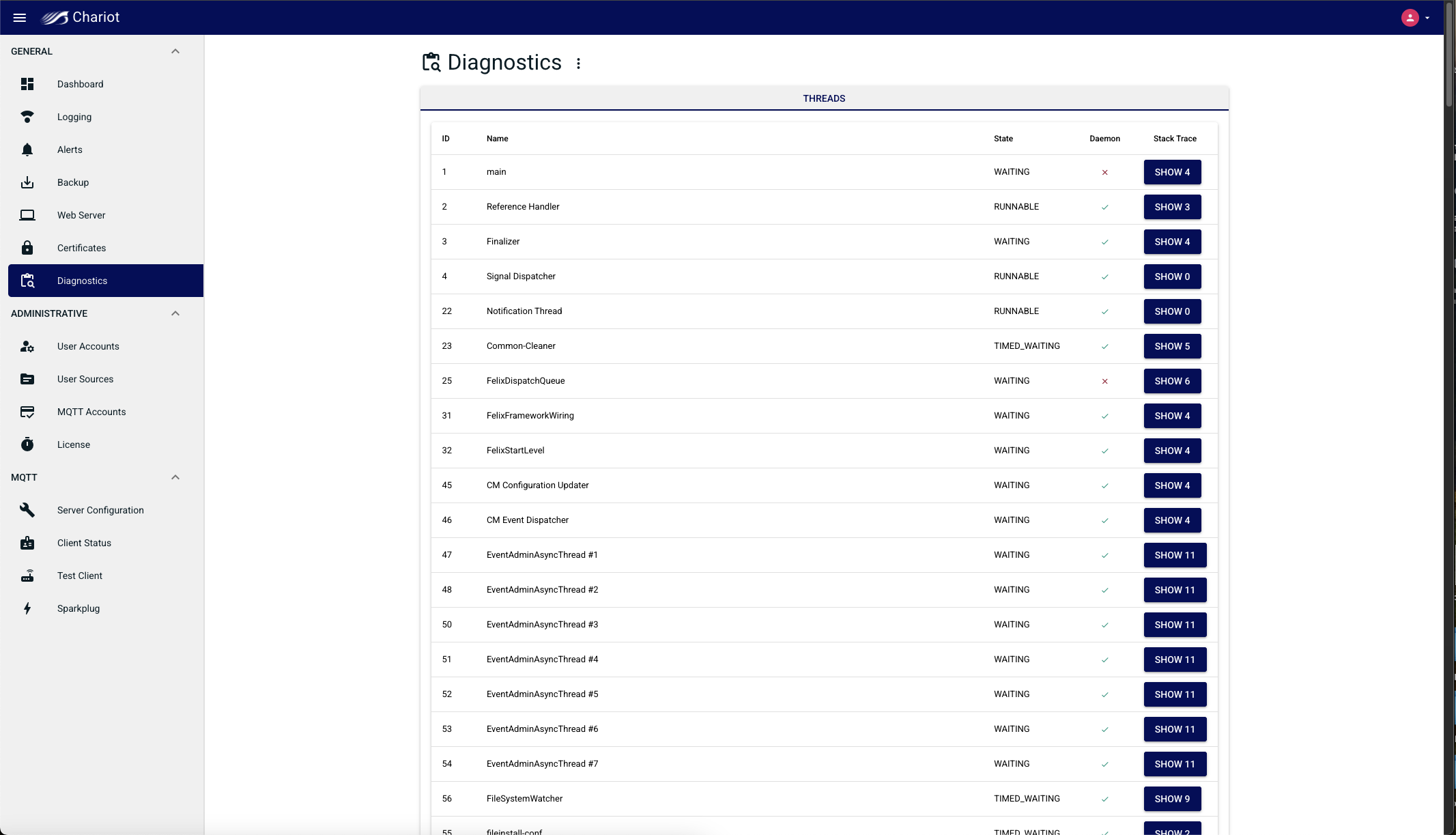
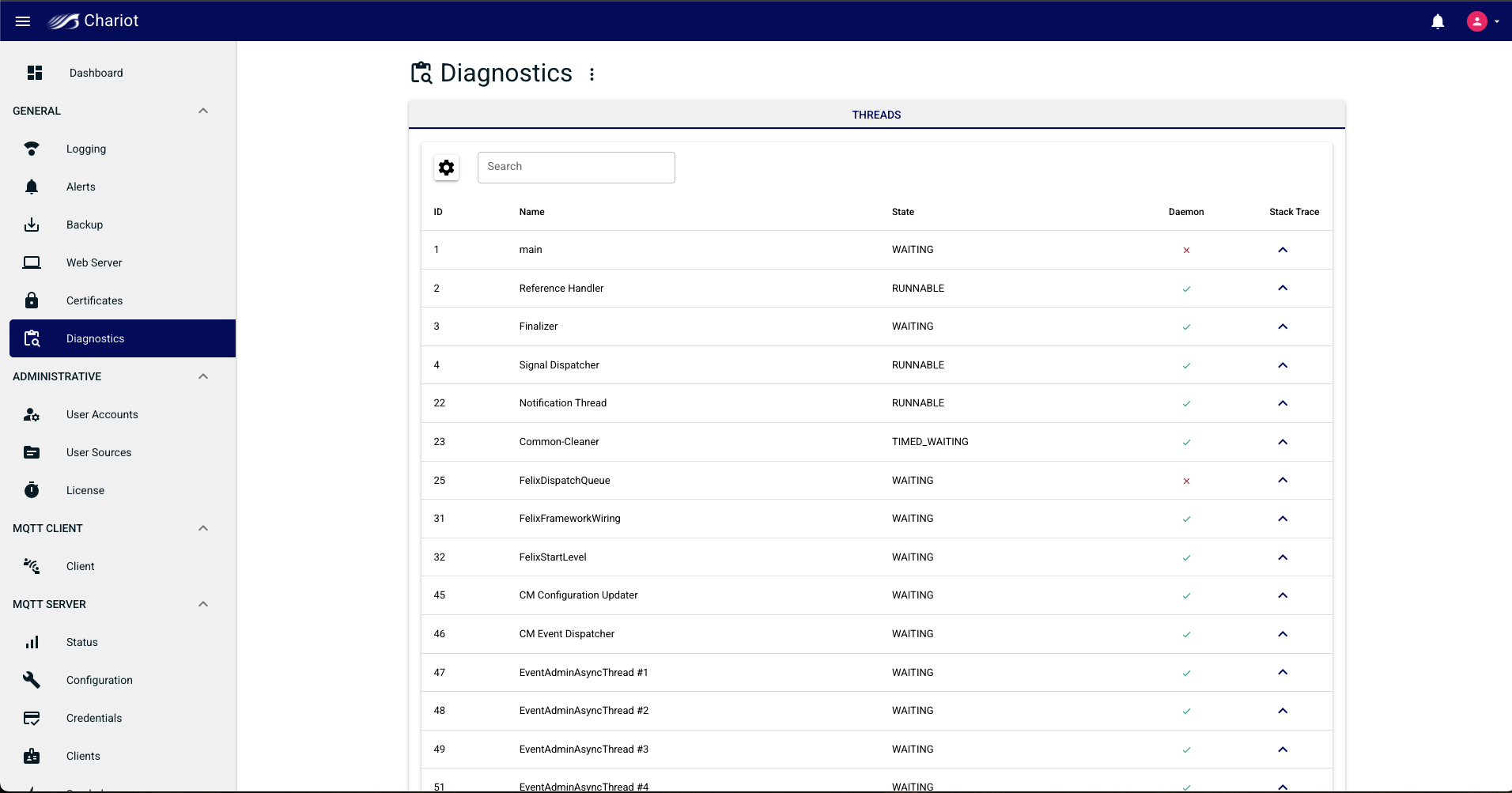
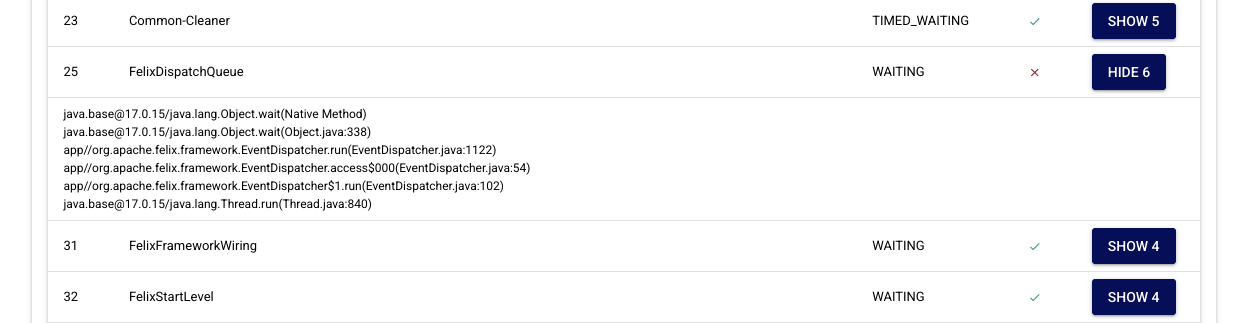
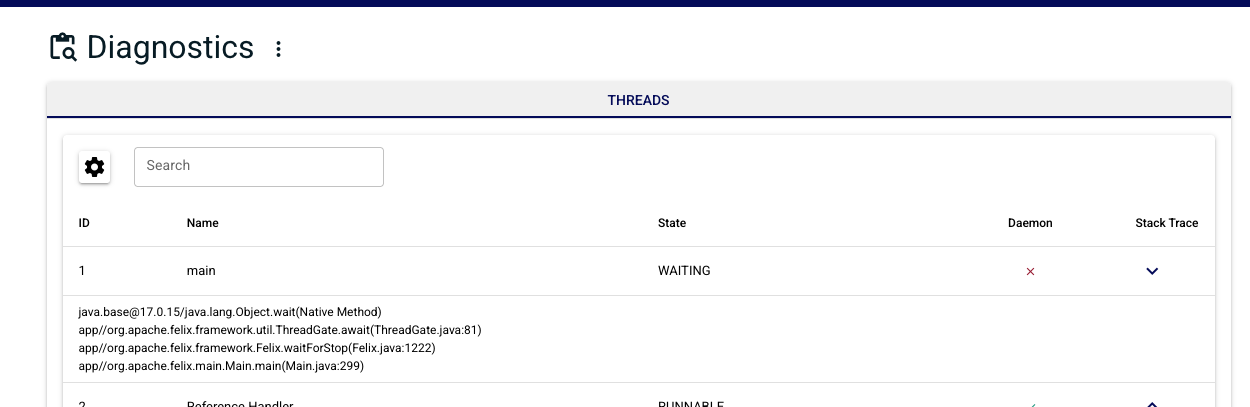
The Diagnostics page provides a view to the threads running within the Chariot Server. This information may be requested by Cirrus Link support personnel to assist in diagnosing issues with the Chariot Server.
Overview
Content Tools