...
- Ignition with Google Cloud Injector Module installed
- Ignition Designer installed
- Review the Inductive Automation documentation for Launching Designer against the Ignition gateway
- An existing Microsoft Azure account with an active IoT Hub and a registered device.
- Documentation on creating an IoT Hub and registering an new device can be found here
...
Navigate to the Azure Injector Module configuration section from the left side bar in the Ignition Gateway. From the Azure IoT Hubs tab, click on the "Create new Azure Add IoT Hub Setting..." link to bring up the following configuration form: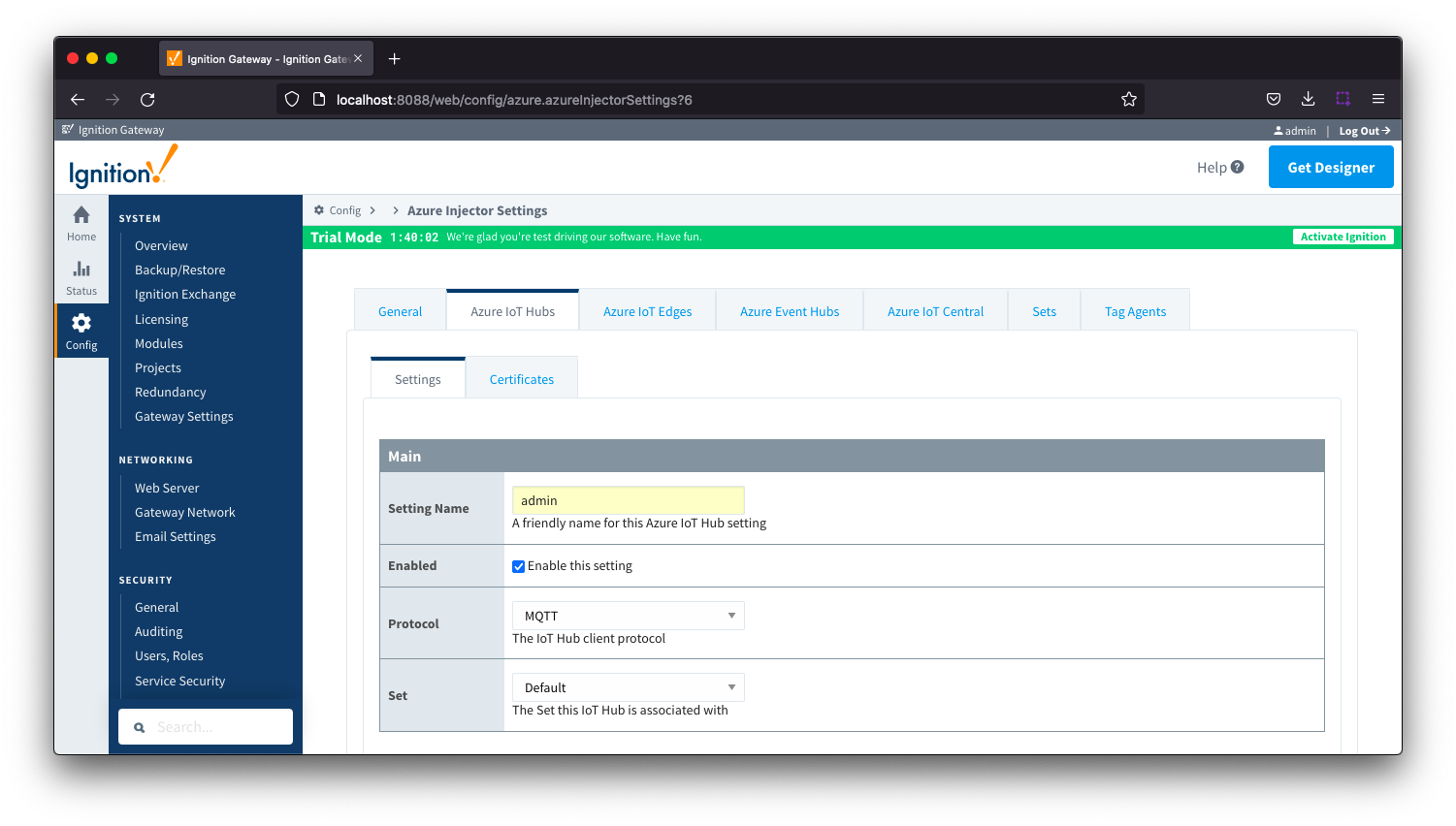 Image Removed
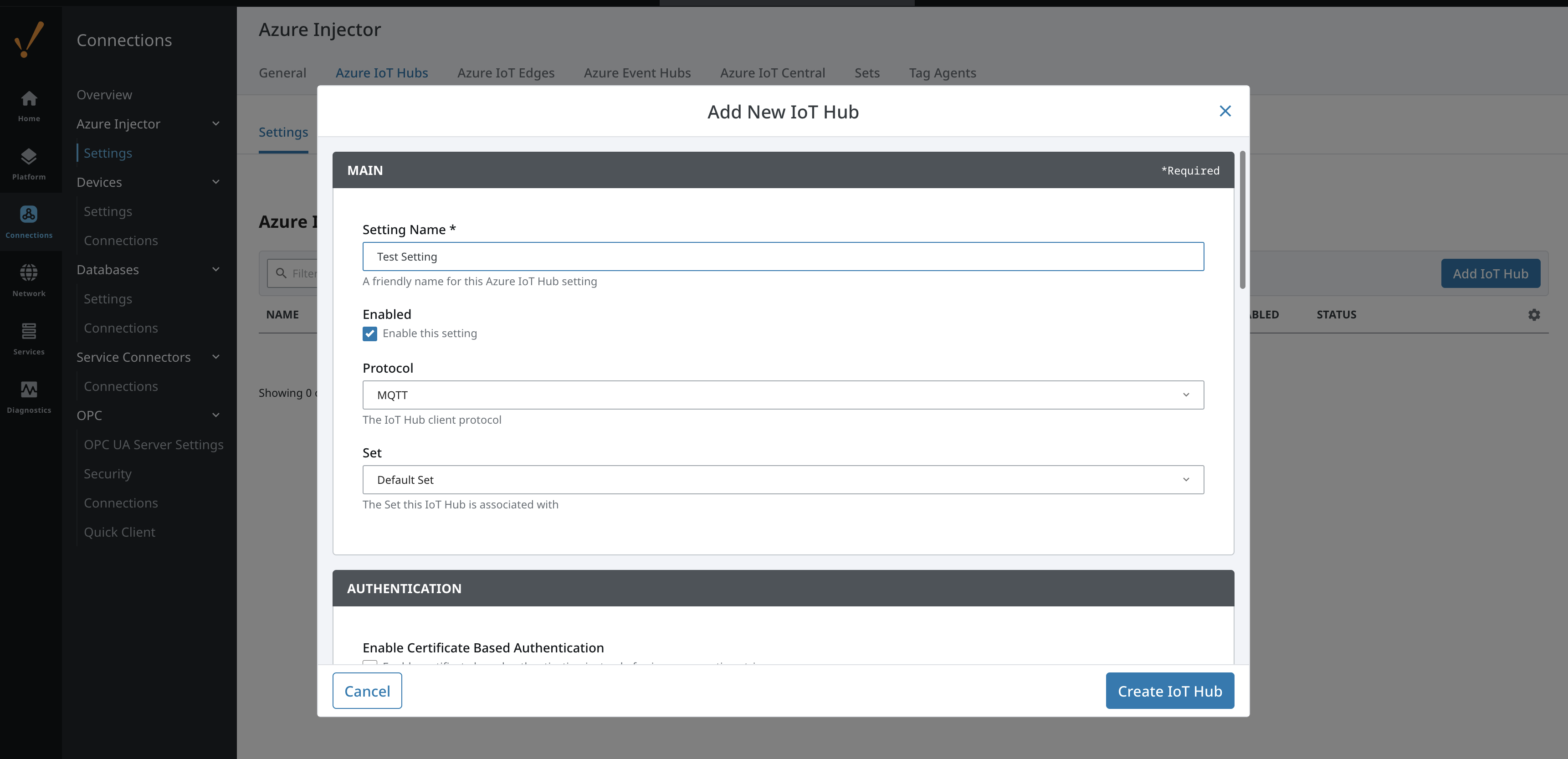 Image Added
Set the following parameters:
- Setting Name
- This can be any unique identifier. For this tutorial we will use "Test Setting".
- Password
- This the IoT Hub Device Connection String from your Azure IoT Hub. This can be found by navigating to a provisioned Device within the Device Explorer of the IoT Hub that you wish to use.
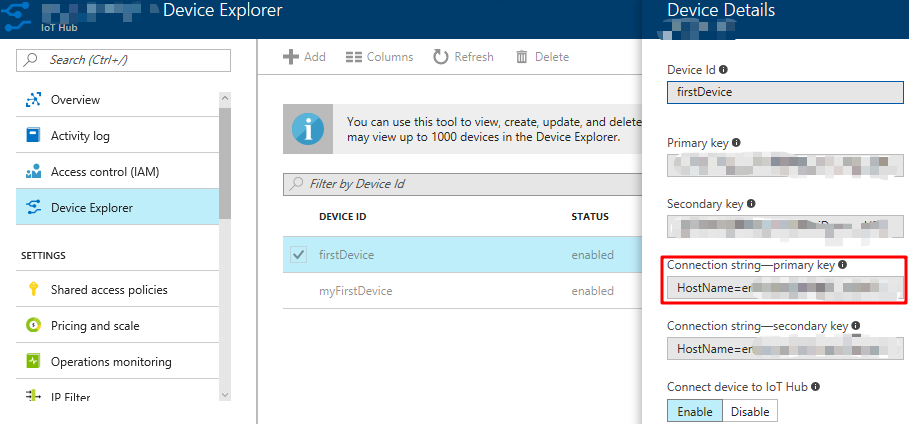 Image Modified
Click on "Create New Azure IoT Hub Setting" to finish creating the new configuration setting.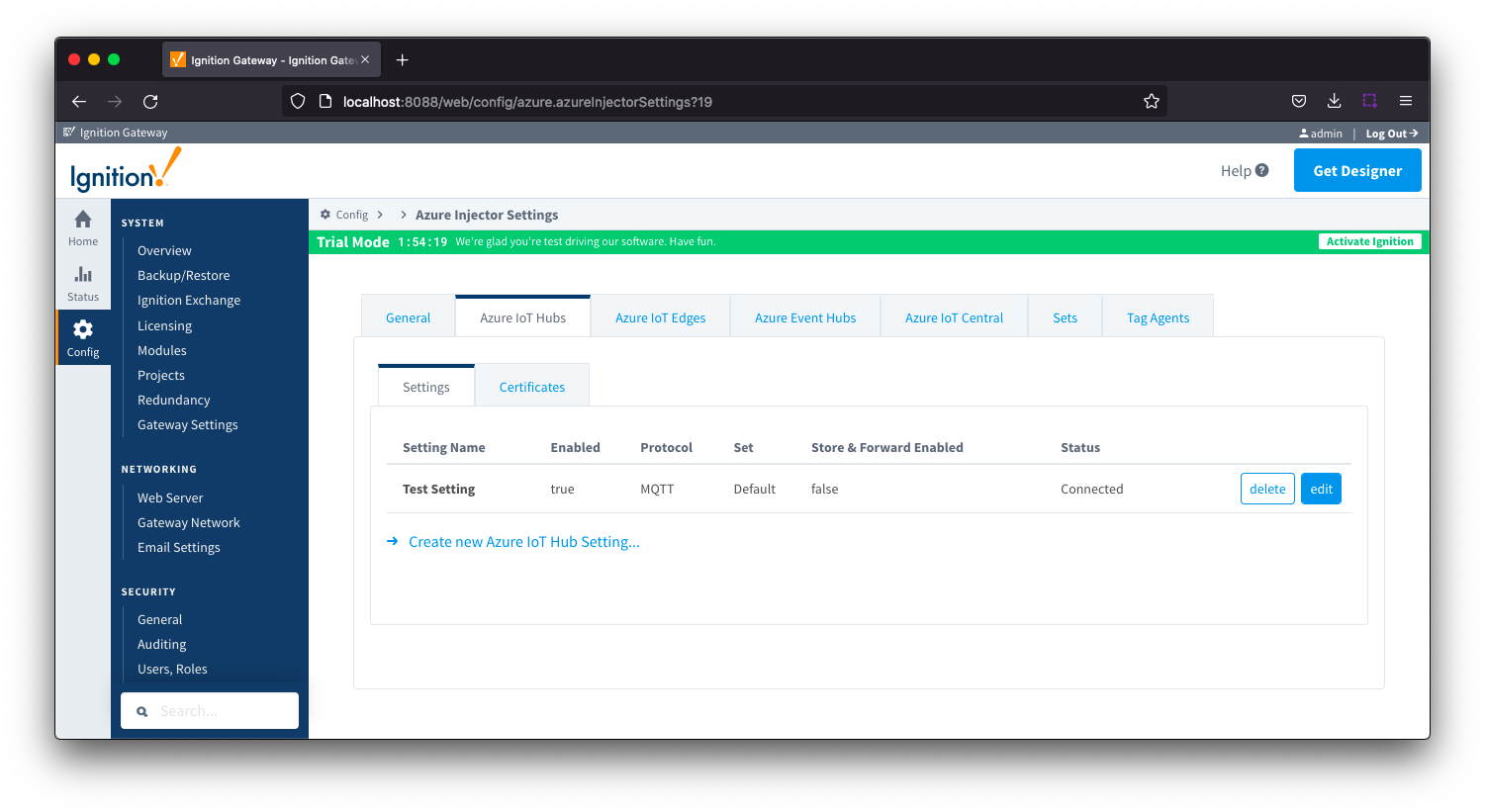 Image Removed
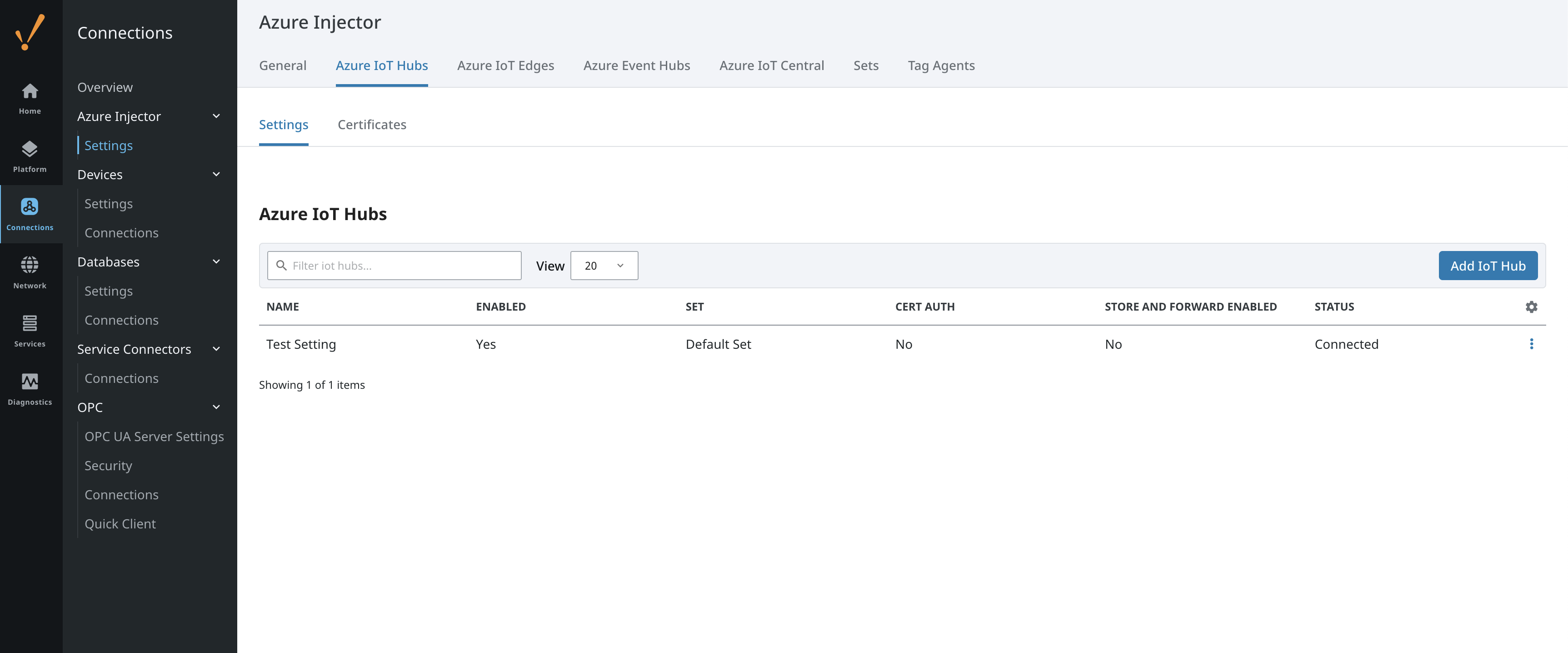 Image Added
Now the Azure Injector module is connected to the IoT Hub, we have to determine if there are are changes needed to the Tag Agent tab to be able to push data.
If you already have Ignition tags defined, for example from the Ignition OPC UA Server, then depending on the depth of your tag tree you may need to configure the Sparkplug Settings.
| Tip |
|---|
| Review the Cloud Injector Tag Agents and Tag Trees document which describes how Cloud Injector Agent configurations interact with Ignition tag trees to push messages and tag change events to the cloud service. It explains how tags get identified to be pushed as well as what specific 'topics' will be included with the messages. It also goes over some example configurations to show how the system will behave in different scenarios. |
...
| Tip |
|---|
| Refer to the Ignition Tag Browser and Creating Tags documentation for assistance in configuring Ignition tags |
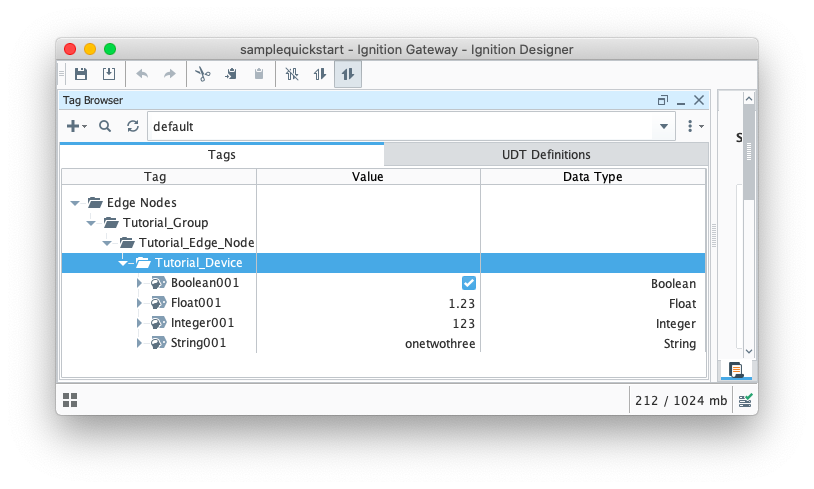 Image Removed
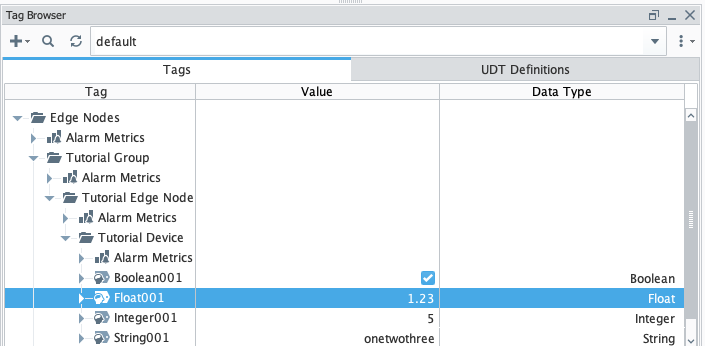 Image Added
Step 3: Publishing data
...
Make sure that the Ignition Designer has read/write communications turned on by selecting the Project/Comm Read/Write button highlighted in the image below.
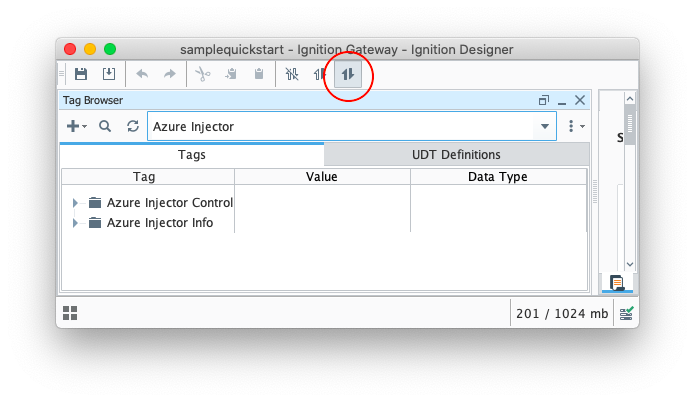
...
To refresh the default Tag Agent, open the folder "Azure Injector Control" and click on the Refresh Boolean. When this happens, the Tag Agent will scan the "Edge Nodes" folder and find the new Memory Tags that we have created, construct JSON payloads representing those tags with their current values and publish the payload to the Azure IoT Hub that we have configured.
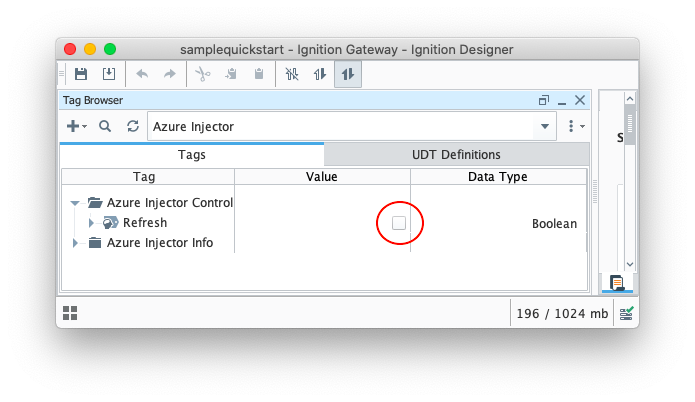 Image Removed
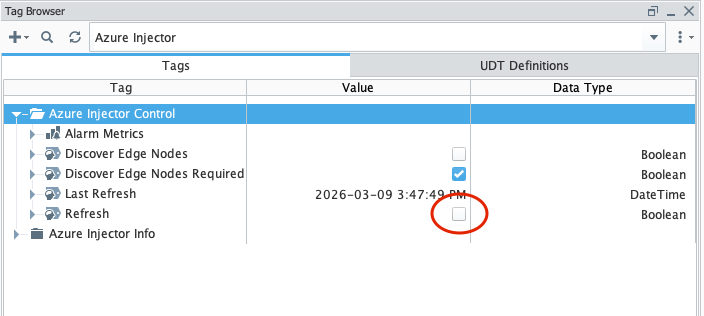 Image Added
| Note |
|---|
| The Boolean tag will not change to true. This is really a one-shot and as a result, the tag will not change to true. |
...
It is beyond the scope of this tutorial to show how to design an application in Azure to handle the payloads as they are pushed in to the Azure IoT Hub. For additional information on developing applications to consume this data see https://docs.microsoft.com/en-us/azure/.
| Excerpt Include |
|---|
| CLD83:FAQ: Ignition Modules |
|---|
| CLD83:FAQ: Ignition Modules |
|---|
| nopanel | true |
|---|
|