


Page History
...
This tutorial will cover the process for both online and offline activations and deactivations:
Offline activationdeactivationOffline deactivation
Prerequisites
- Request a valid Chariot License from Cirrus Link Support.
- Follow the Chariot® MQTT Server Installation instructions to download and install Chariot MQTT Server instance.
...
...
License Activation
The Online Activation feature allows a Chariot License to be automatically activated on a Chariot MQTT Server instance that is connected to the internet. The Chariot MQTT Server will remotely connect and activate a Chariot License if it is valid and has an activation available.
Log into the Chariot MQTT Server Web UI and from the left hand menu bar select License as shown below:
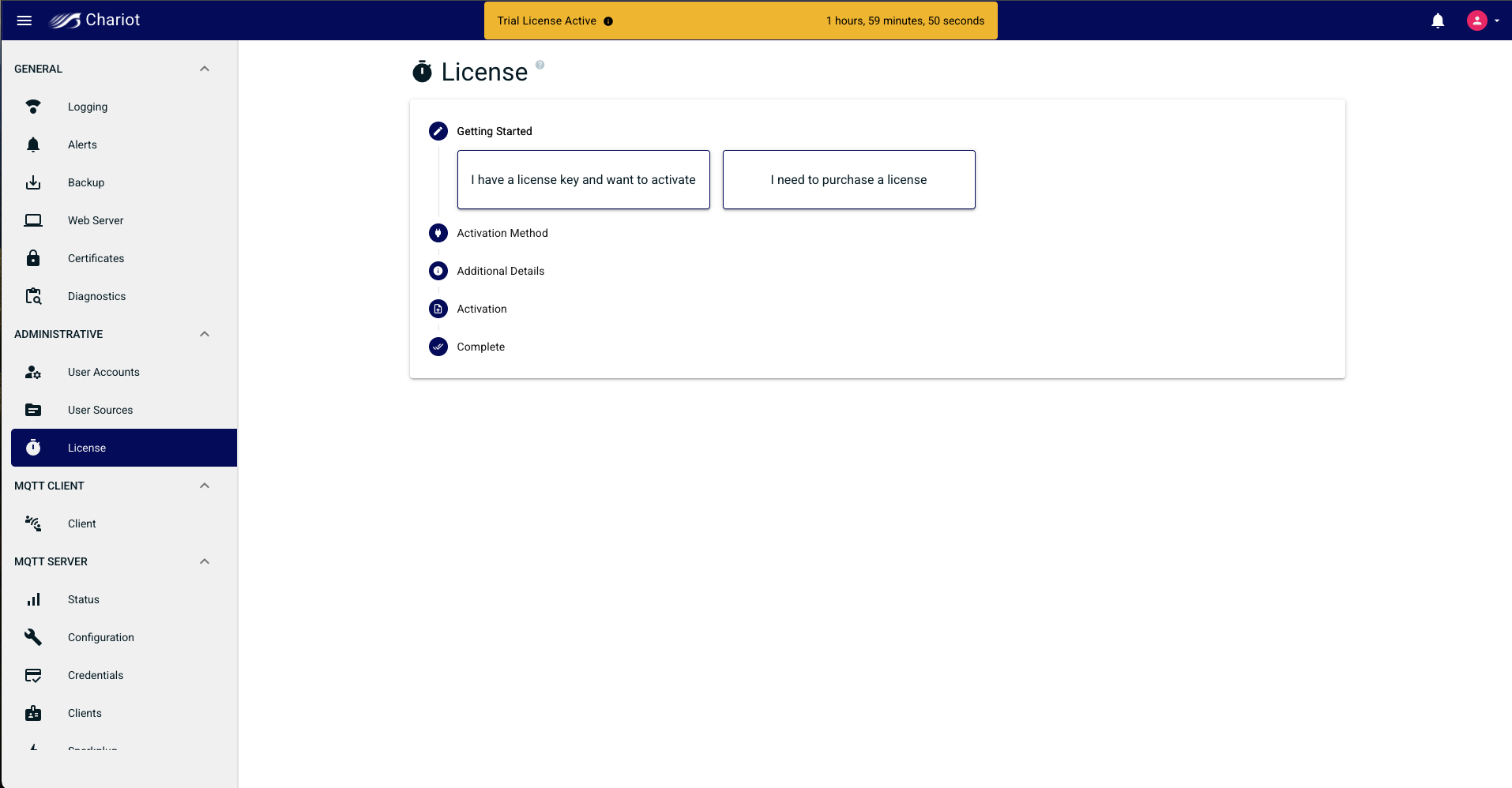
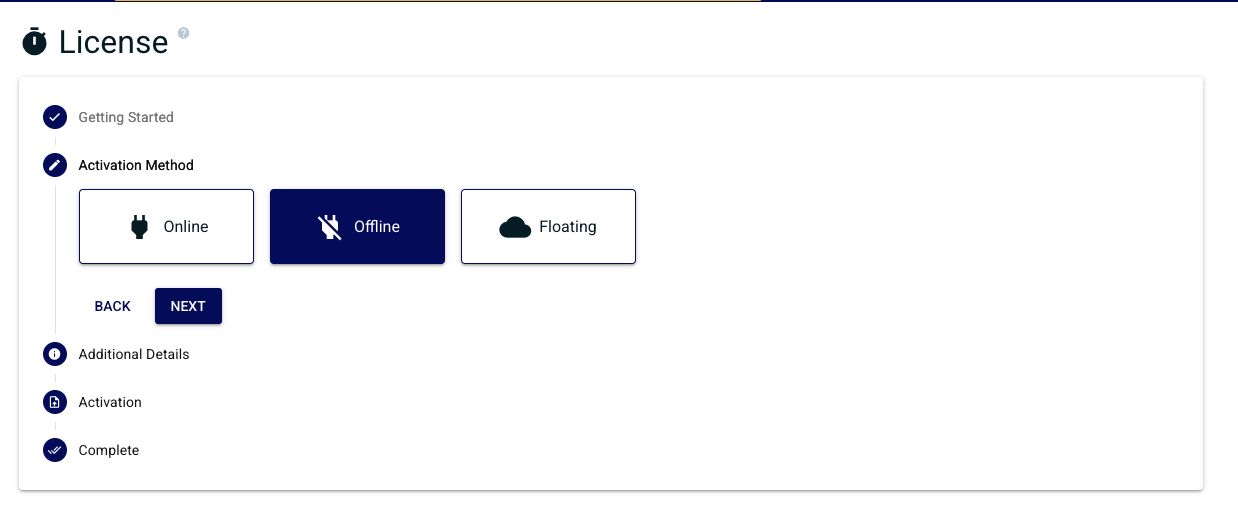
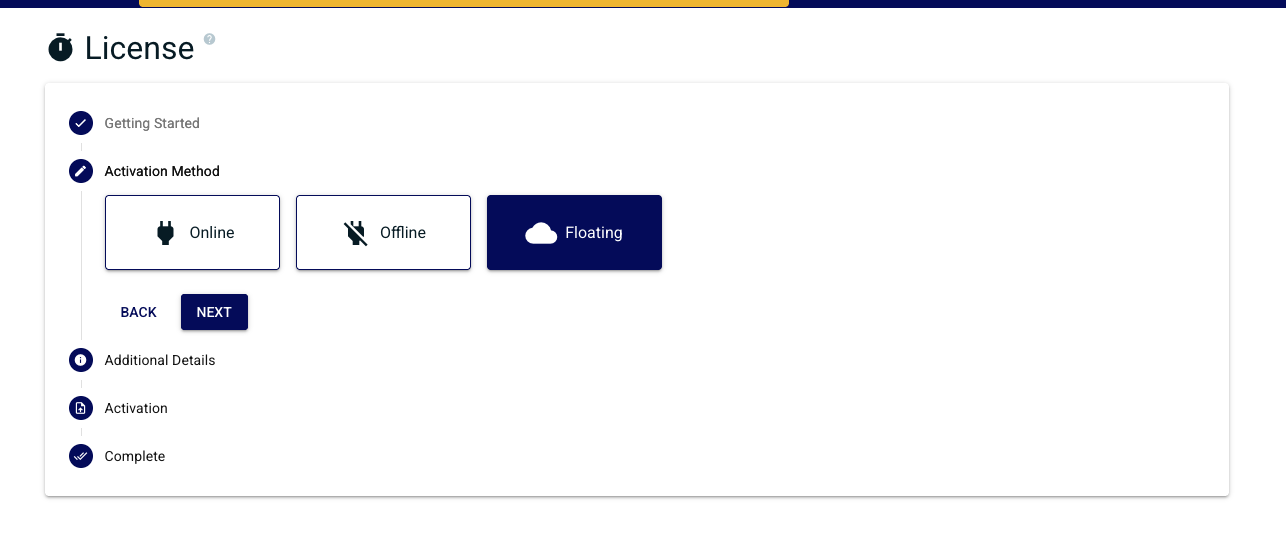
Follow the wizard selecting first the license activation method type
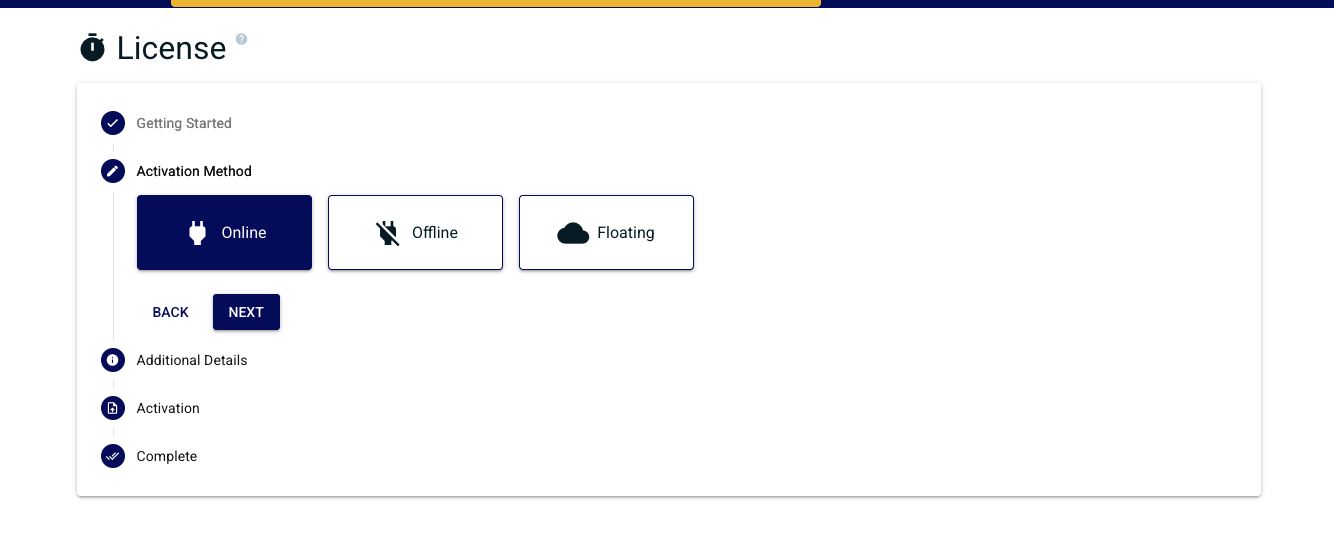
- Online - Requires an external internet connection and Chariot license key
- Offline - No external internet, will require email communication with Cirrus Link providing generated codes to gain the appropriate access
- Floating - A self hosted license server that you provide a URL to, this will server available licenses to systems as needed
| Anchor | ||||
|---|---|---|---|---|
|
Select "Online" activation method
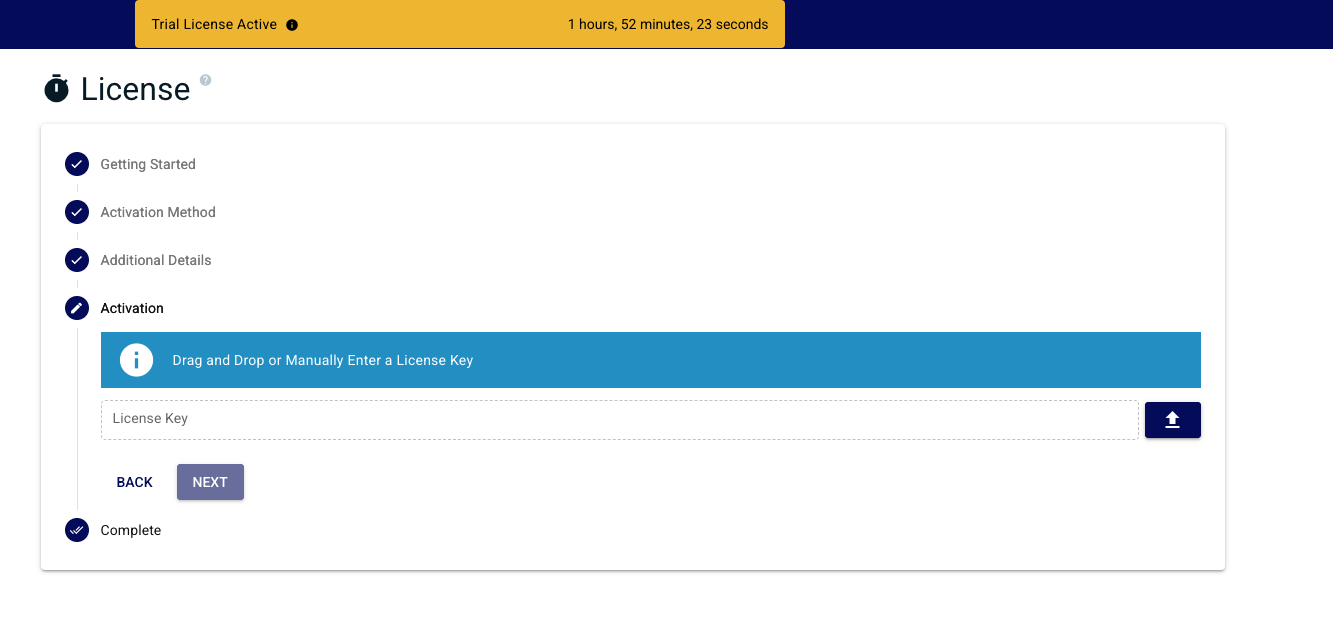
Provide the The text file containing the Chariot License can either be dragged/dropped in the "Upload License" area, or the area can be clicked to bring up an empty form and the license text can be copied/pasted into the form. A successfully added license will look like the following:
Click the OK button to finish uploading the Chariot License. The license will auto activate and the page should look like the following. The Chariot MQTT Server is now fully Licensed and read to you.
Key. This can either be done by dragging and dropping, typing, or clicking the upload button and selecting a file.
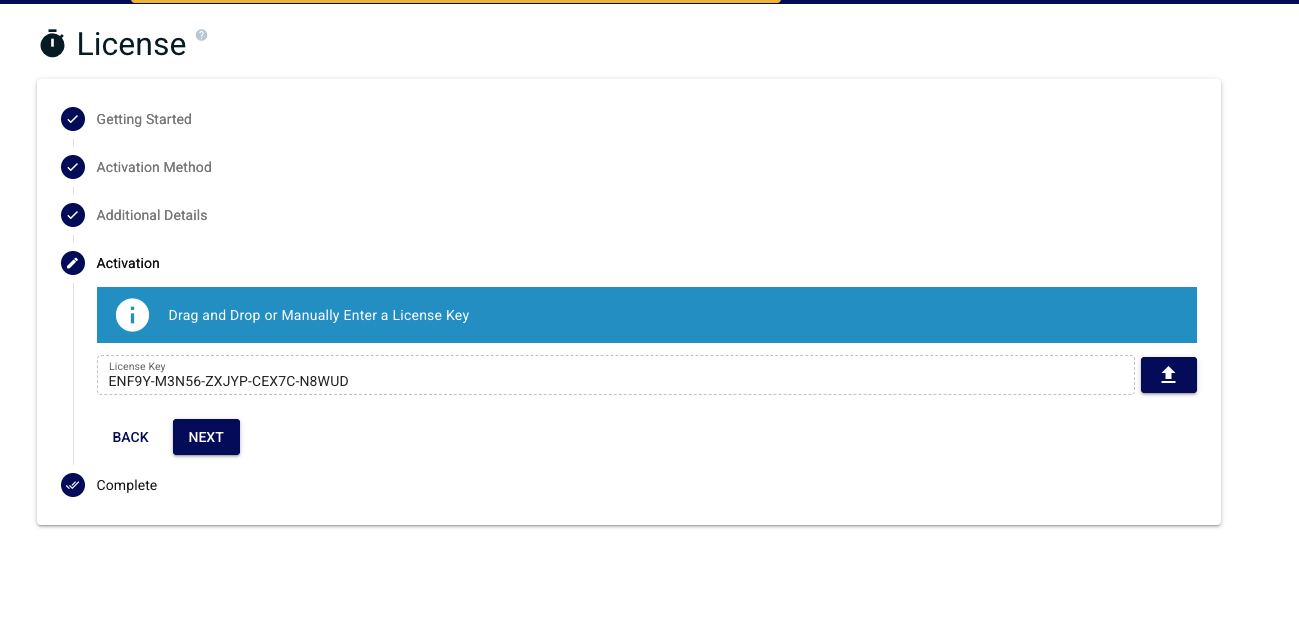
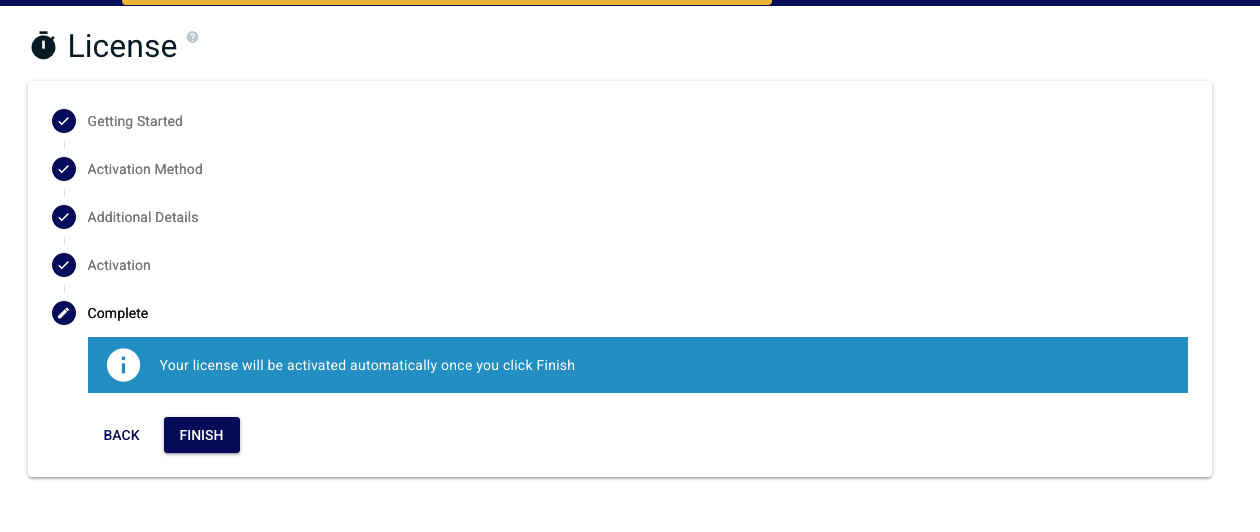
Confirm you are finished with the wizard
| Anchor | ||||
|---|---|---|---|---|
|
Select the "Offline" method
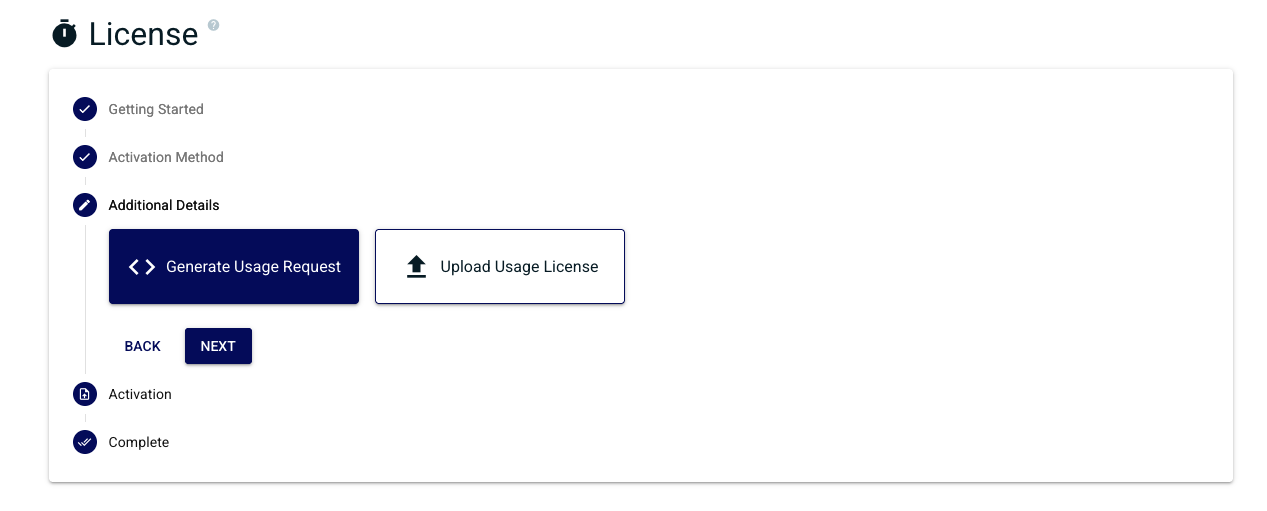
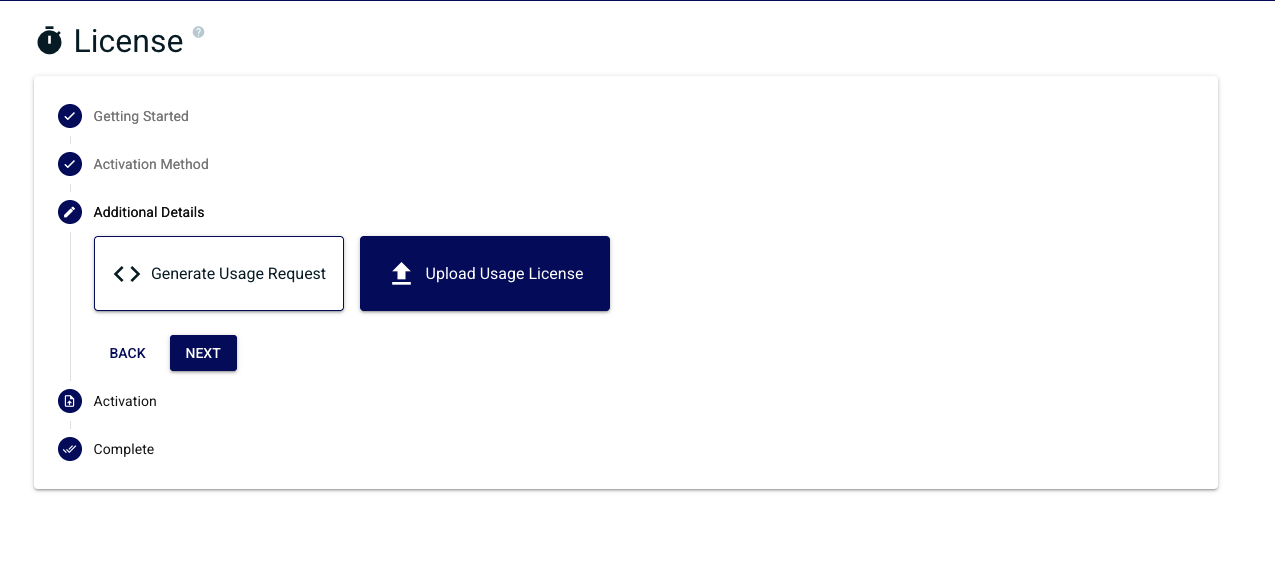
Next select generate usage request
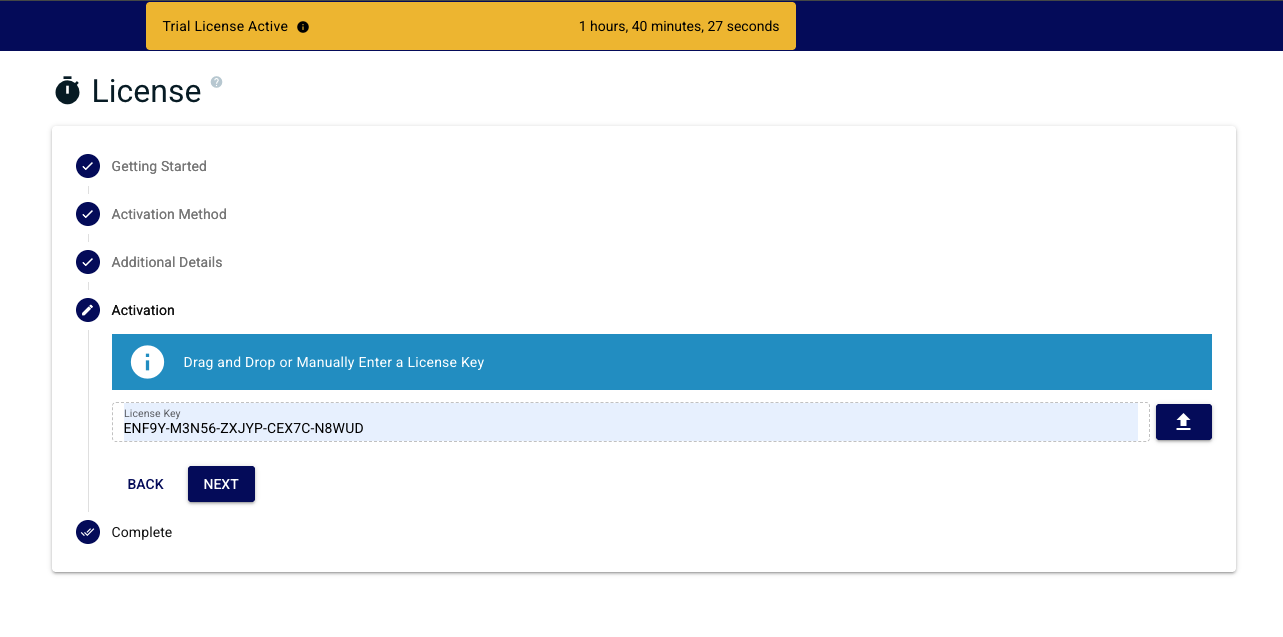
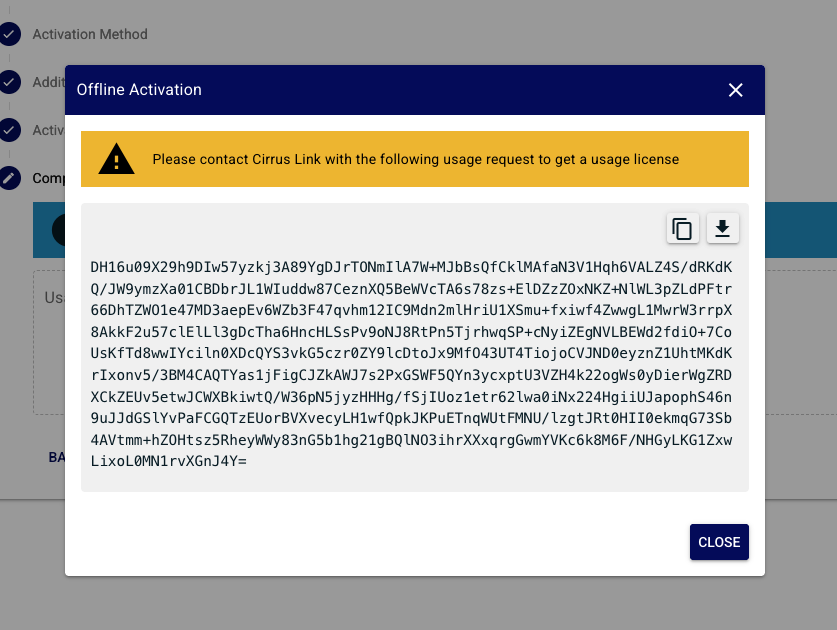
Enter a valid license key and click next a popup with your offline activation code will appear. This will have to be provided to Cirrus Link Support via email so that a usage license can be properly generated.
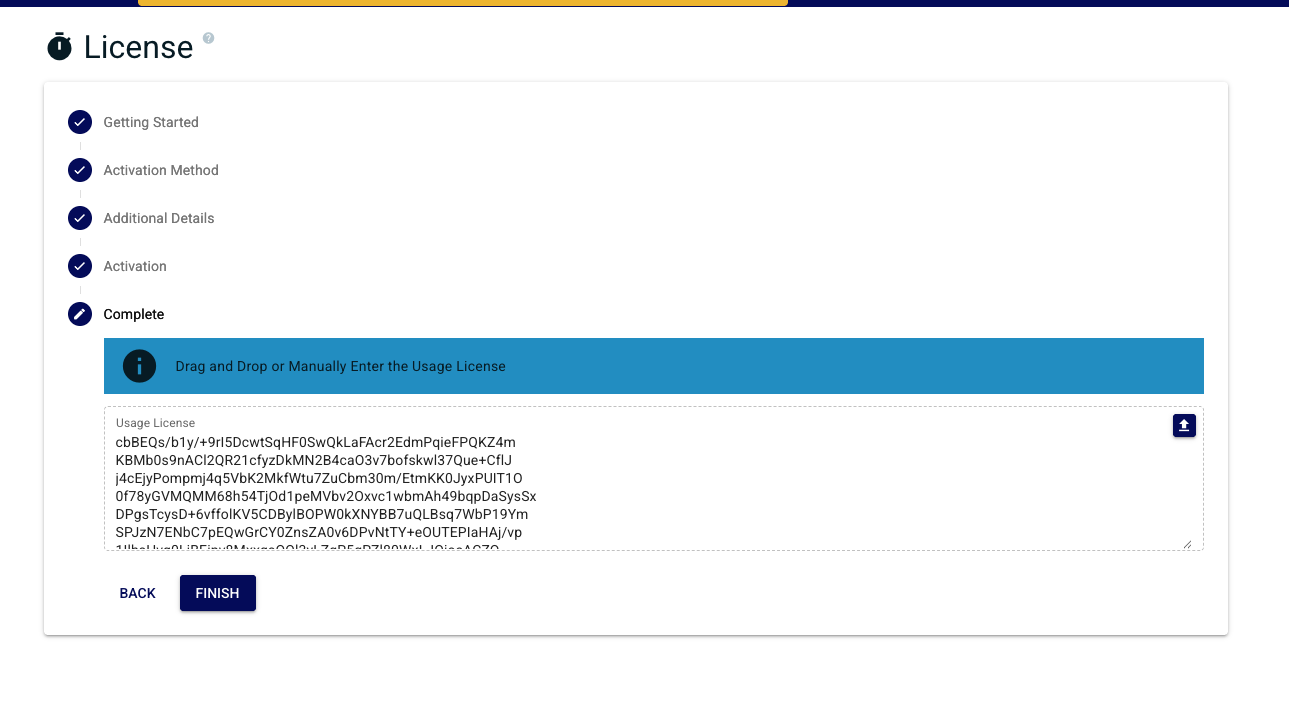
Once you receive an email from Cirrus Link Support containing your Usage License follow the wizard to finish your offline activation.
| Warning |
|---|
| Only do this ONCE as each new Activation Request will invalidate the previous one. |
| Anchor | ||||
|---|---|---|---|---|
|
Select "Floating" activation method in the wizard
Provide a valid floating license server URL and select the appropriate Chariot feature set
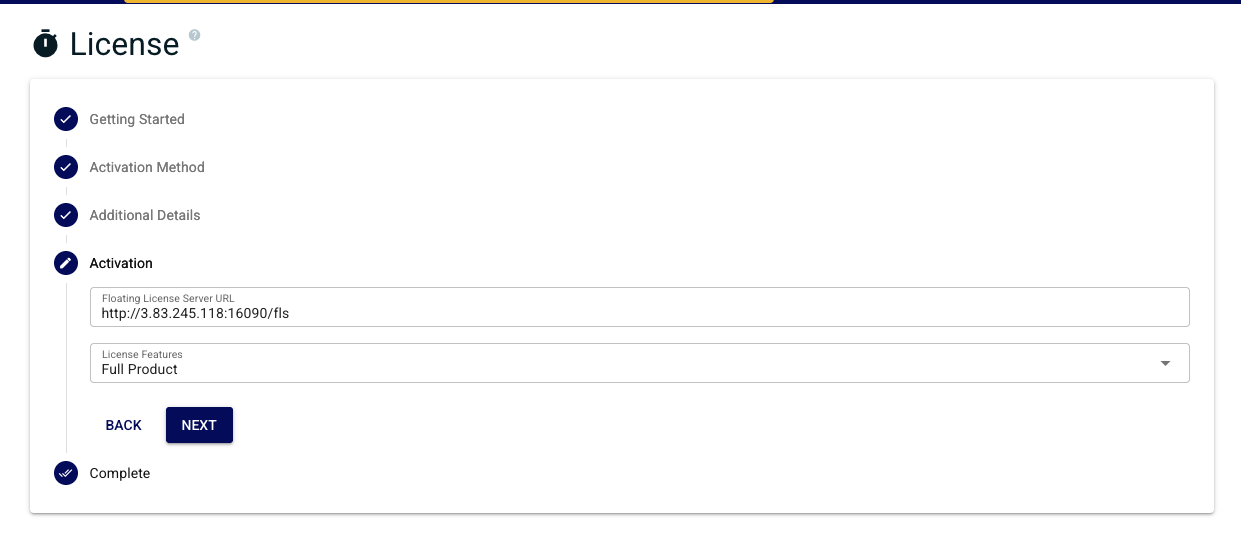
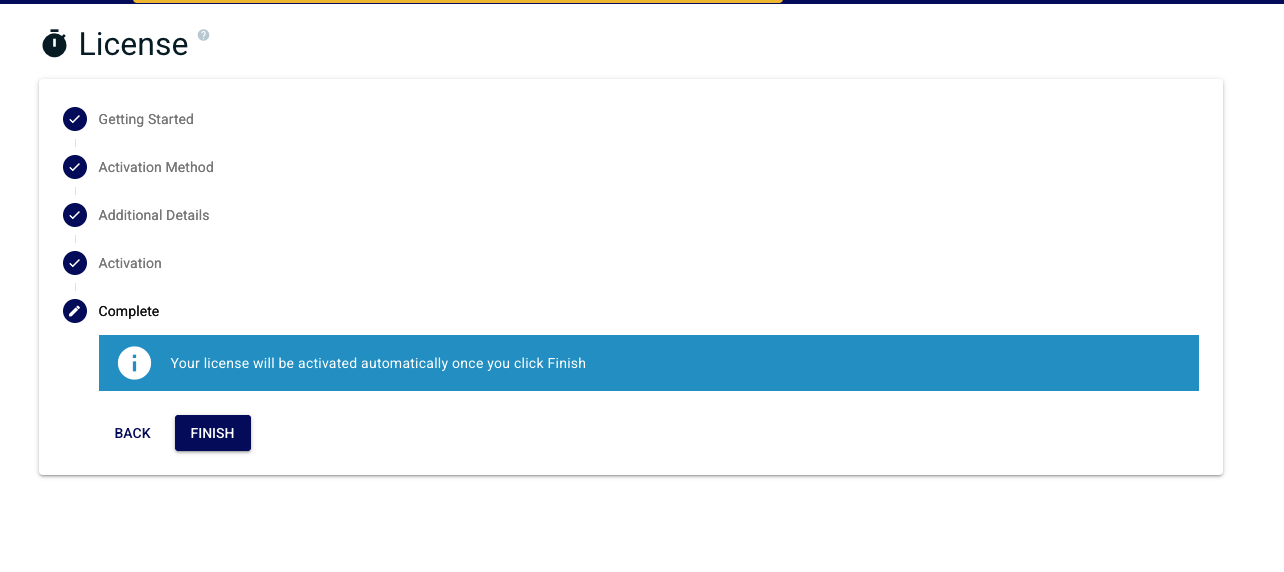
Verify entry and click finish when ready to complete license activation flow
| Anchor | ||||
|---|---|---|---|---|
|
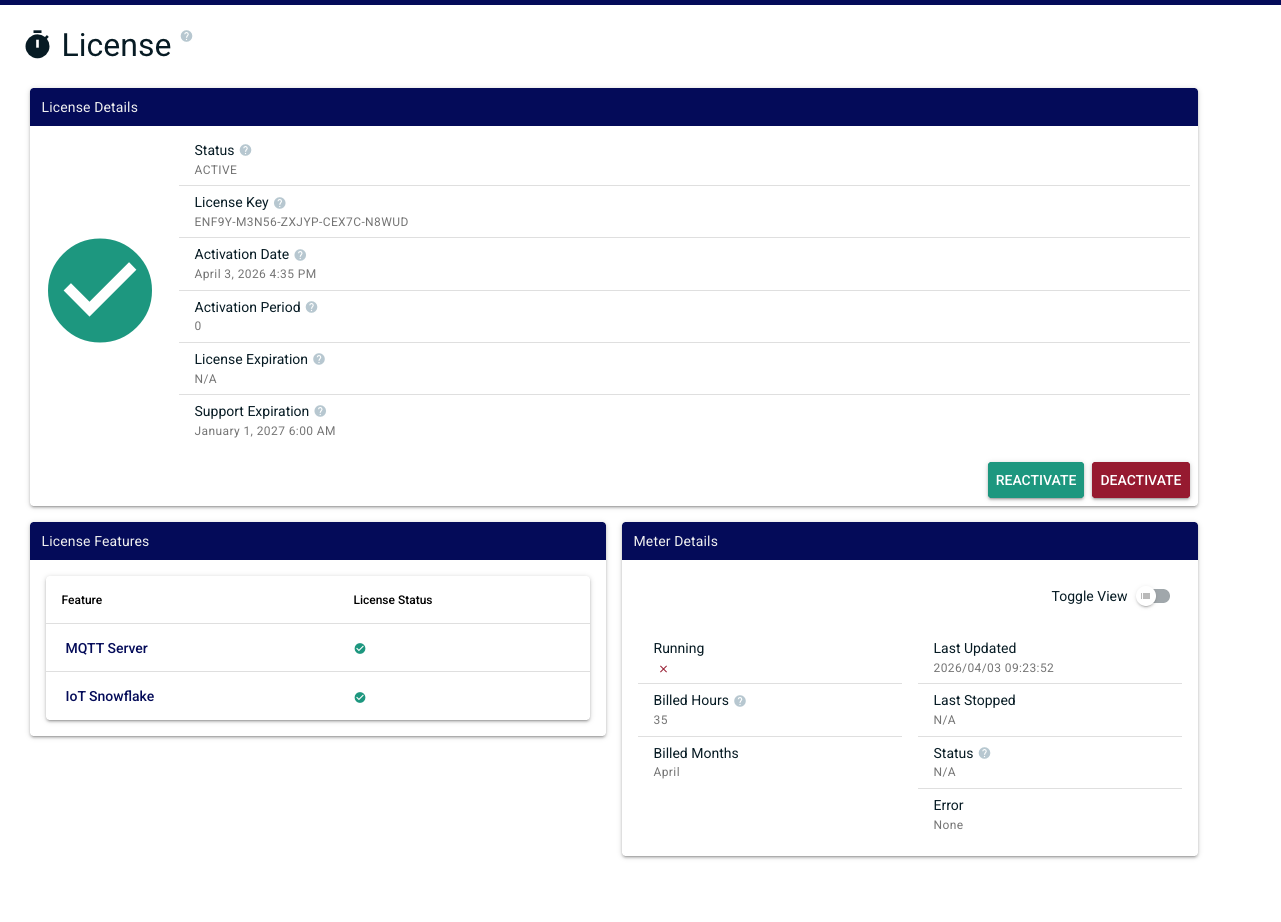
A successful activation will lead you to the license status. This will show you the state of your license, activated features and other details associated with licensing
| Anchor | ||||
|---|---|---|---|---|
|
In order to deactivate the license online, log into the Chariot MQTT Server Web UI and from the left hand menu bar select License as shown below.
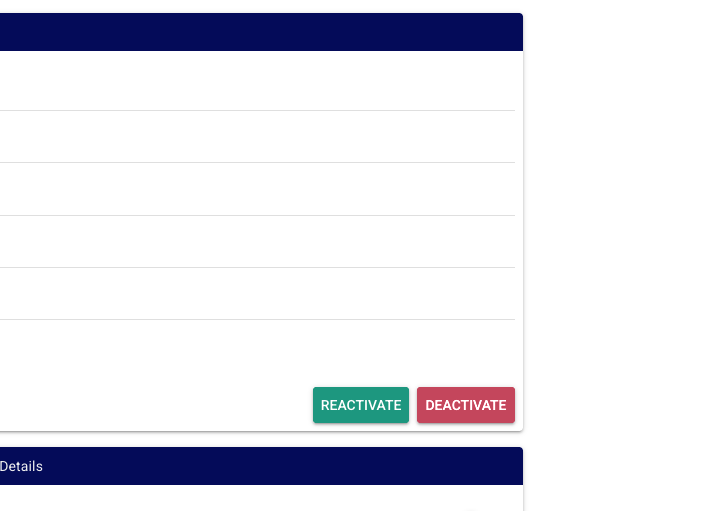
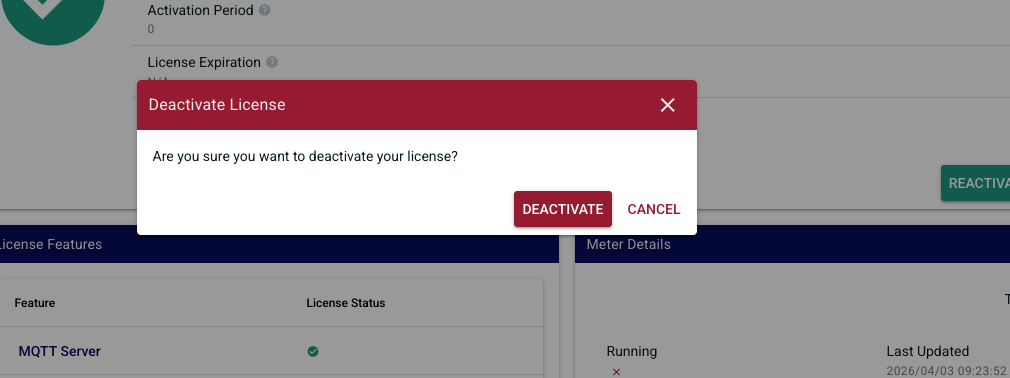
Select "Deactivate License" for the license to be remotely deactivated so that it can be potentially activated on another Chariot MQTT Server instance.
| Warning |
|---|
| If the server is terminated, deleted, or destroyed without deactivating the active Chariot License, that license will permanently lose one of its total number of activations |
...
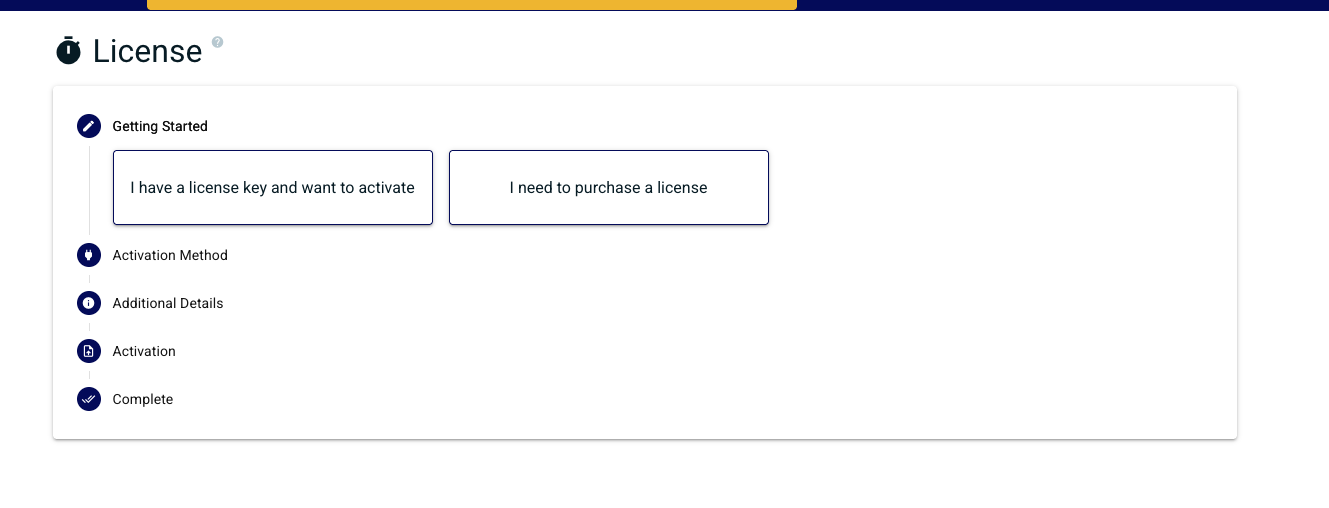
Once deactivation is successfully complete you will be returned back to the license activation wizard
...
For Chariot MQTT Server instances that do not have internet access, an offline action process is available.
Log into the Chariot MQTT Server Web UI and from the left hand menu bar select License as shown below:
Click on the "Online Activation" toggle to change it to "Offline Activation" mode, as shown below.
The text file containing the Chariot License can either be dragged/dropped in the "Upload License" area, or the area can be clicked to bring up an empty form and the license text can be copied/pasted into the form. A successfully added license will look like the following:
Click the OK button to finish uploading the Chariot License. The license will NOT activate and the page should look like the following:
Now click the "Generate Activation Request" to generate a new request.
| Warning |
|---|
| Only do this ONCE as each new Activation Request will invalidate the previous one. |
| Tip |
|---|
| Copy/paste the generated code to a text file and send the file to Cirrus Link Support along with the License ID in order to obtain an Activation Code. |
Once the Activation Code is obtained return to the License page in the Chariot MQTT Server Web UI and click on "Upload Activation Code" and copy/paste the Activation Code into the form.
Click OK and the license should be successfully activated.
| Anchor | ||||
|---|---|---|---|---|
|
In order to deactivate the license offline, log into the Chariot MQTT Server Web UI and from the left hand menu bar select License. Ensure that "Offline Activation" is toggled as shown belowSelect deactivation:
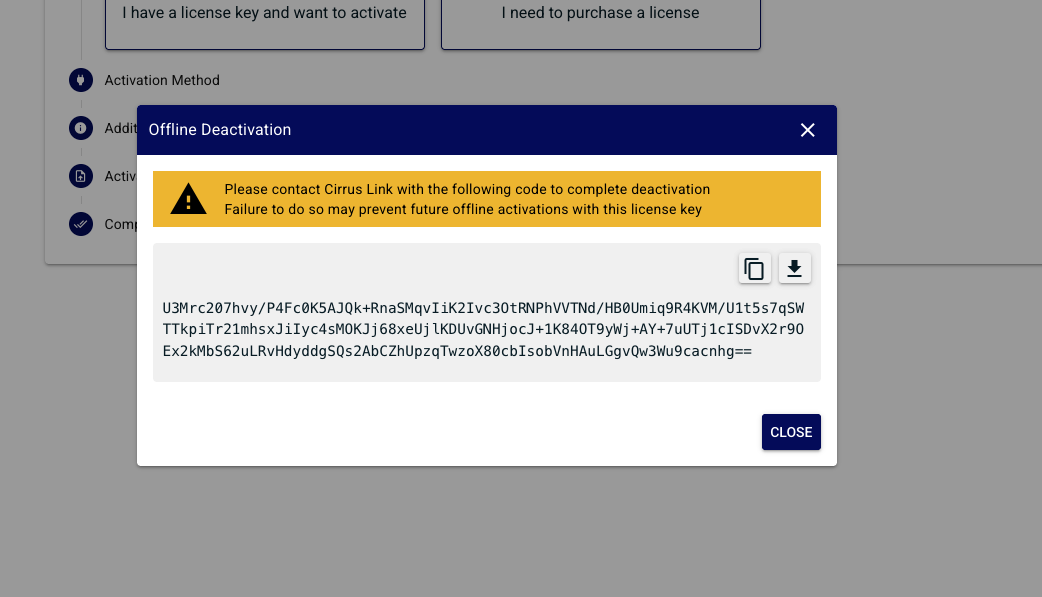
Select the "Deactivate and Generate Request".
| Tip |
|---|
| This will provide a Deactivation Request code that should be provided to Cirrus Link Support along with the License ID in order to free up the previous activation for use with another Chariot MQTT Server instance. |
| Anchor | ||||
|---|---|---|---|---|
|
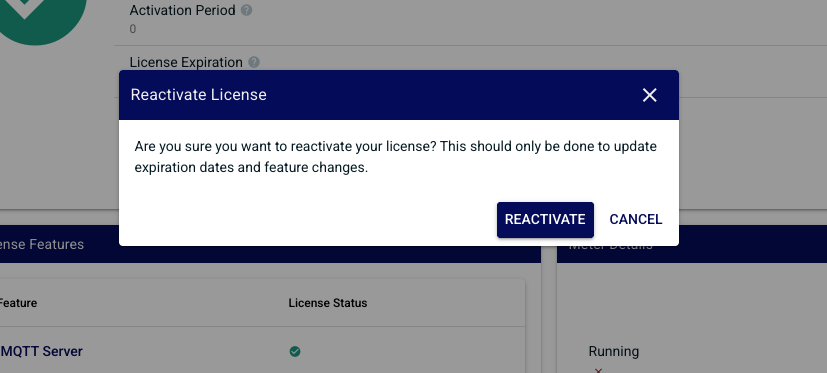
If at any point your online / floating license has a feature change, expiration date change, or any other information that requires an update.
...
Click the reactivate button to update your license information remotely. 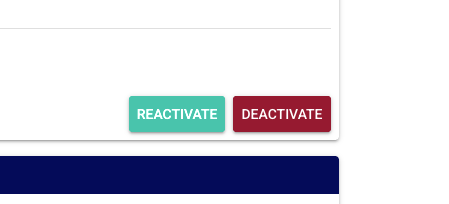
| Warning |
|---|
| This will not work with offline activated licenses. You will need to contact Cirrus Link Support for any changes. |
...
Overview
Content Tools