...
At this point, Ignition is running as a Docker container in Azure Edge. You should be able to browse to http://[ip_address_of_azure_edge]:8088. Replace [ip_address_of_azure_edge] with the IP address of your Azure Edge system. You should see something similar to the following.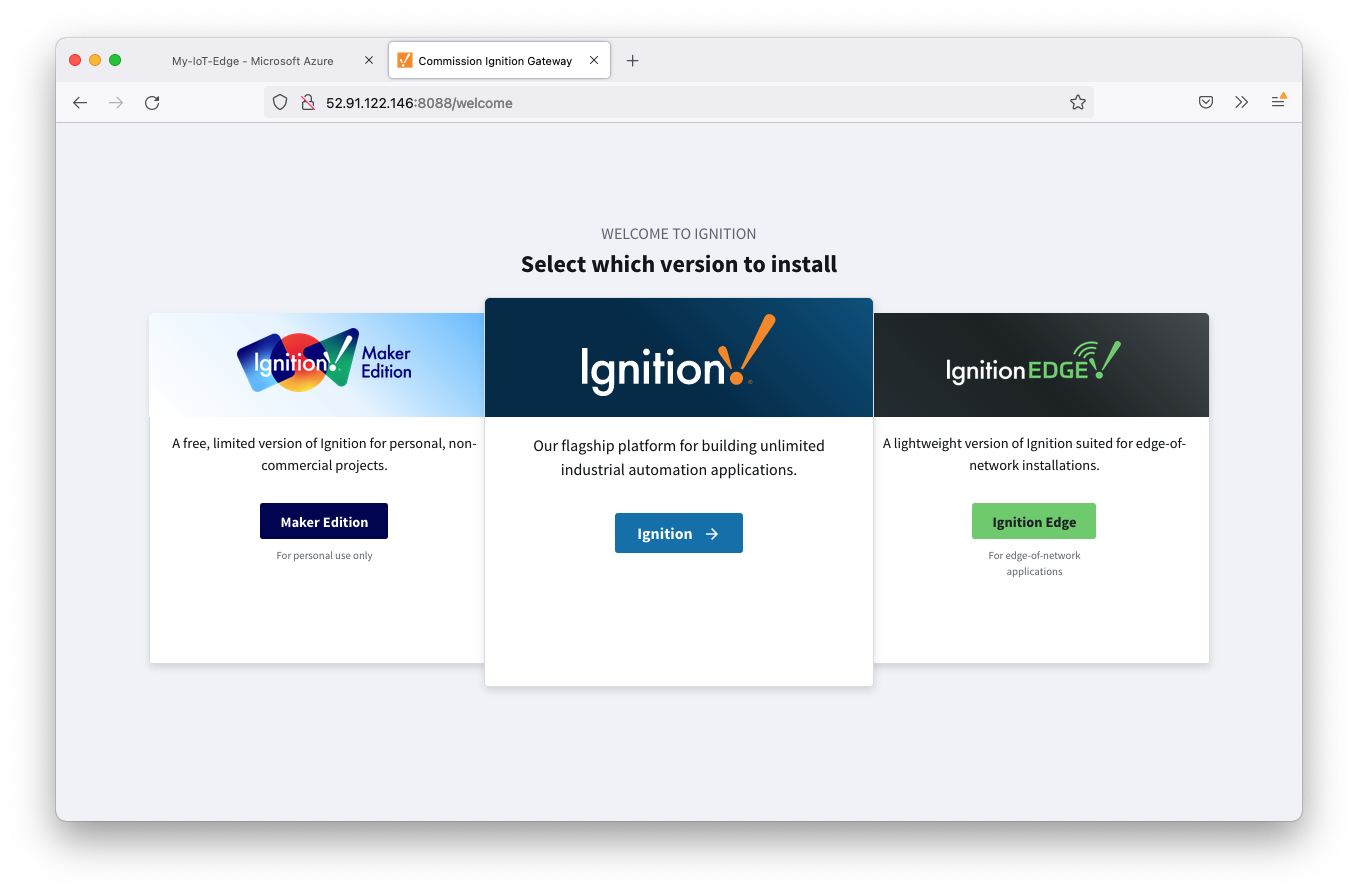 Image Removed
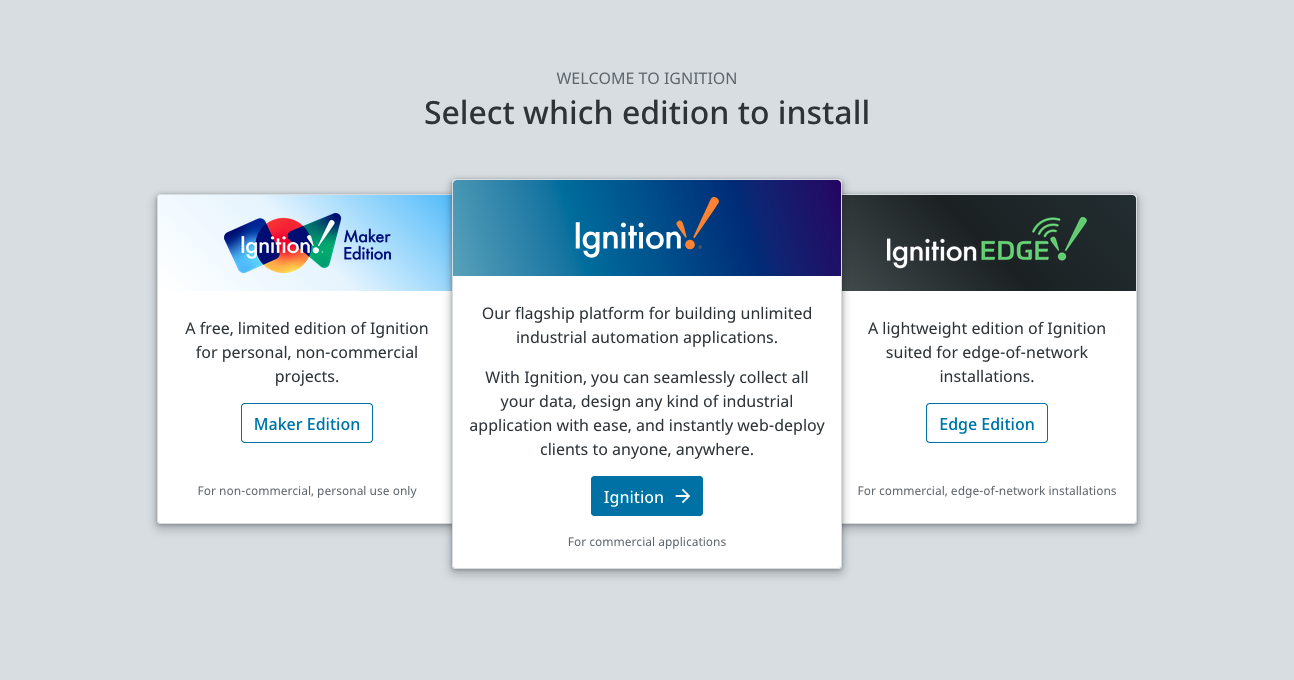 Image Added
Follow the steps in the Installing Ignition documentation and select either Ignition or Ignition Edge for this tutorial.
...
Now select 'Settings' under the Azure Injector section in the left navigation panel near the bottom. After doing so, you should see the following page.
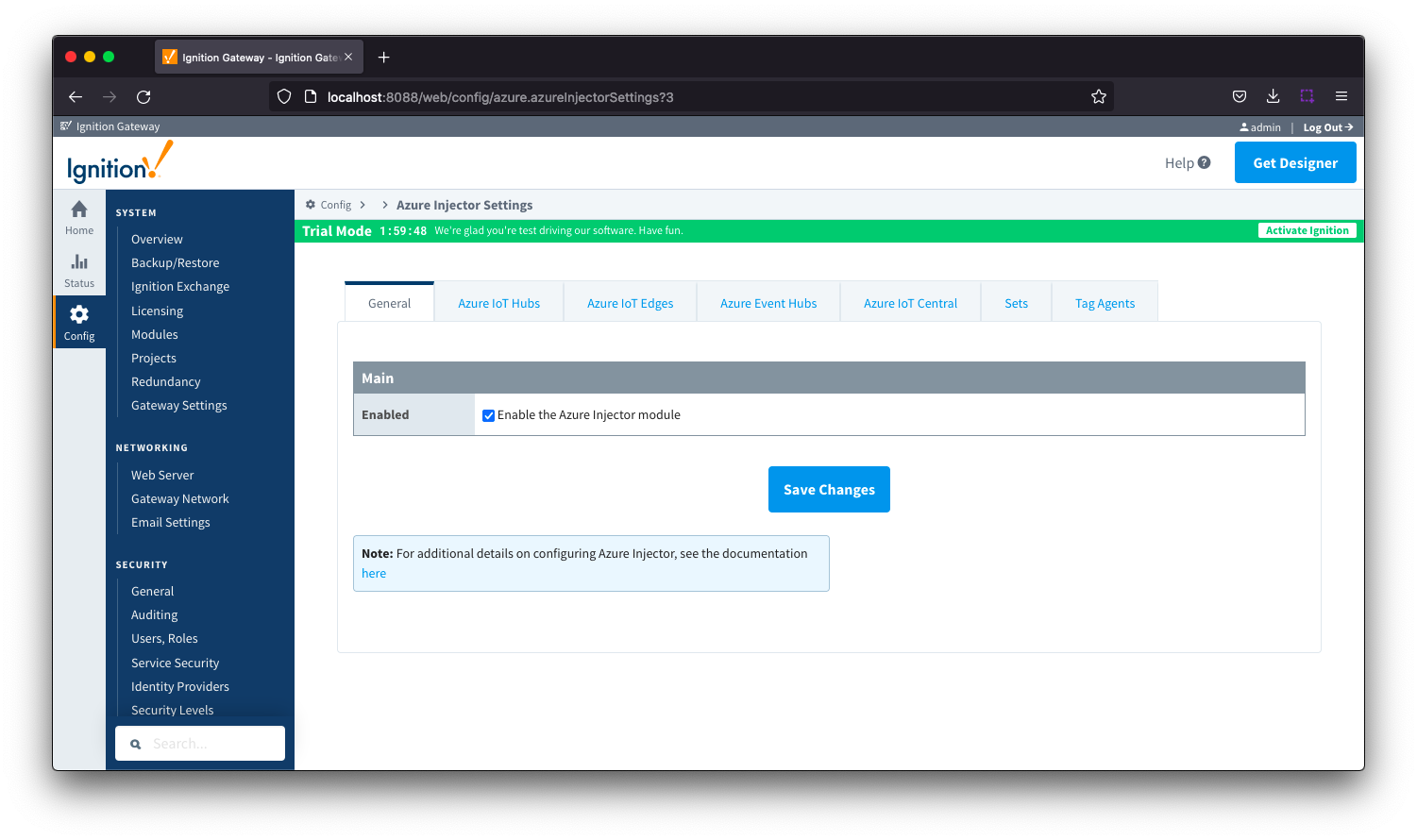 Image Removed
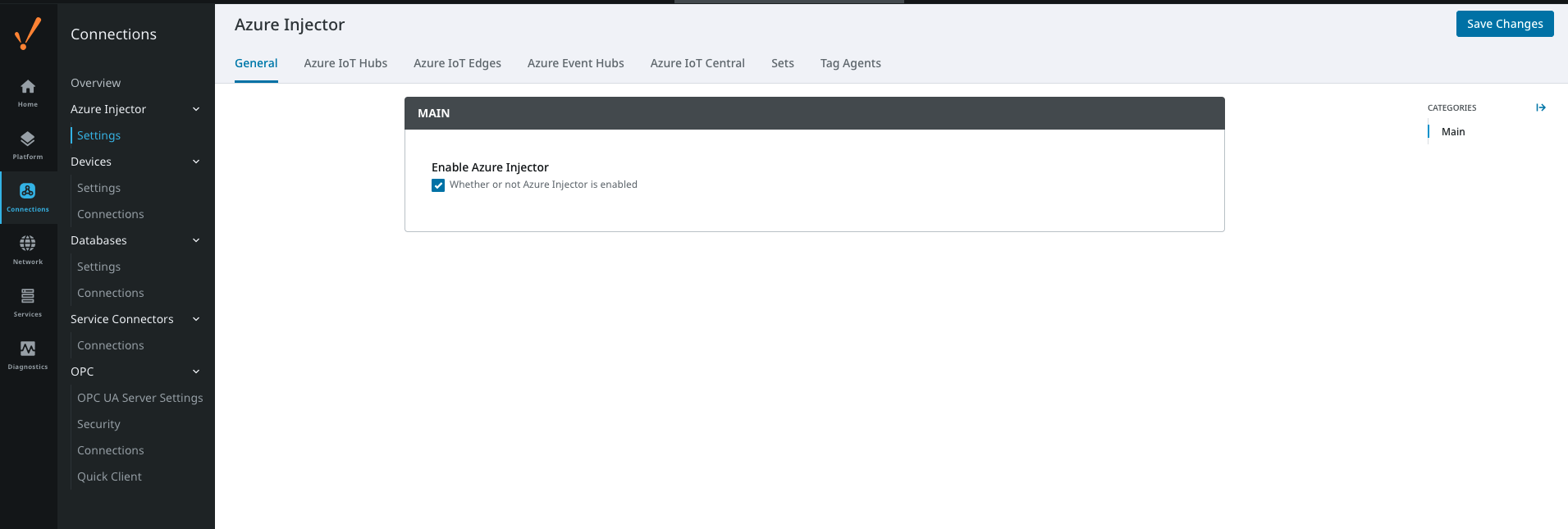 Image Added
Now select 'Azure IoT Edges' from the tabs near the top of the page. This will open the following page.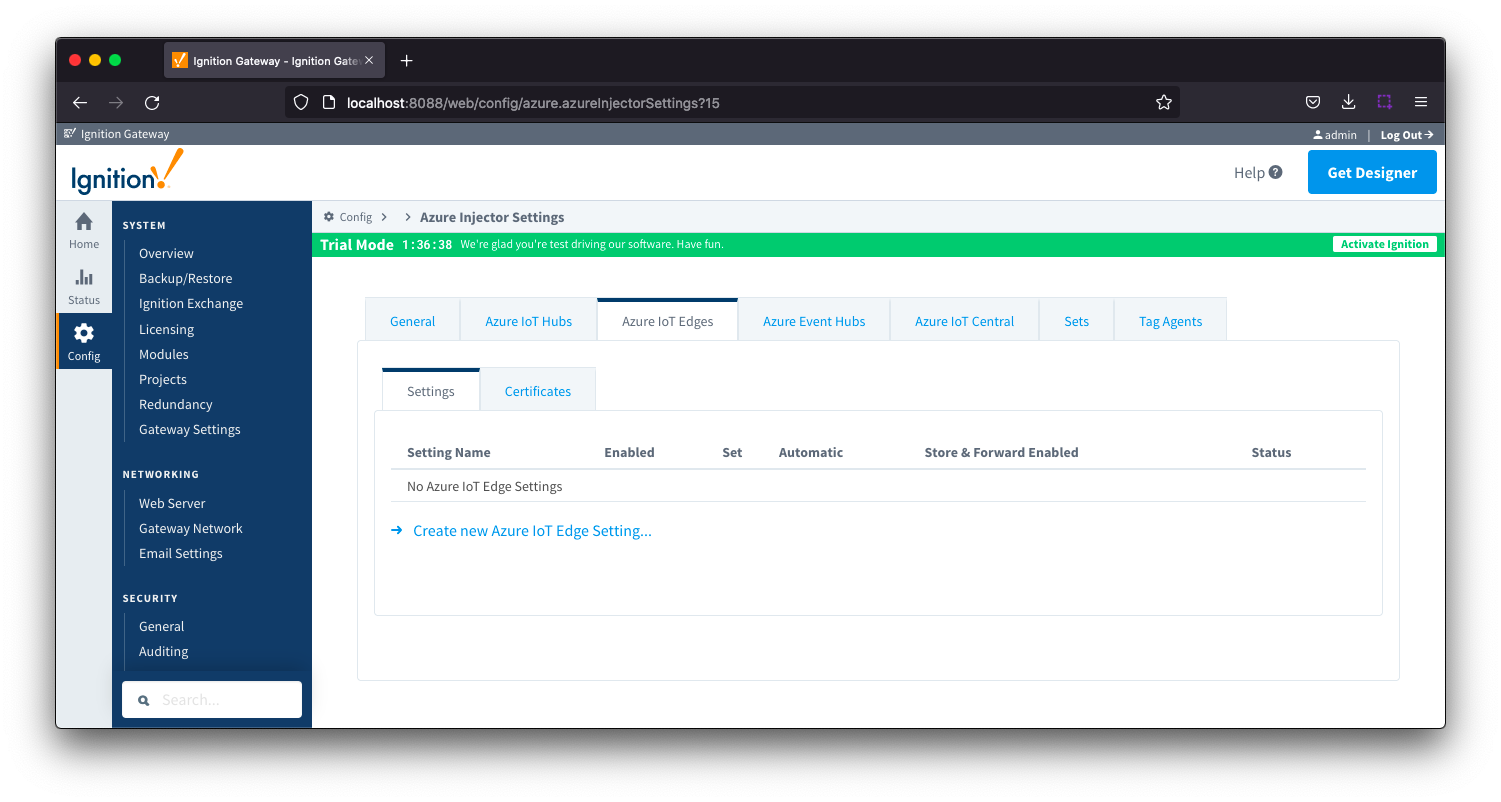 Image Removed
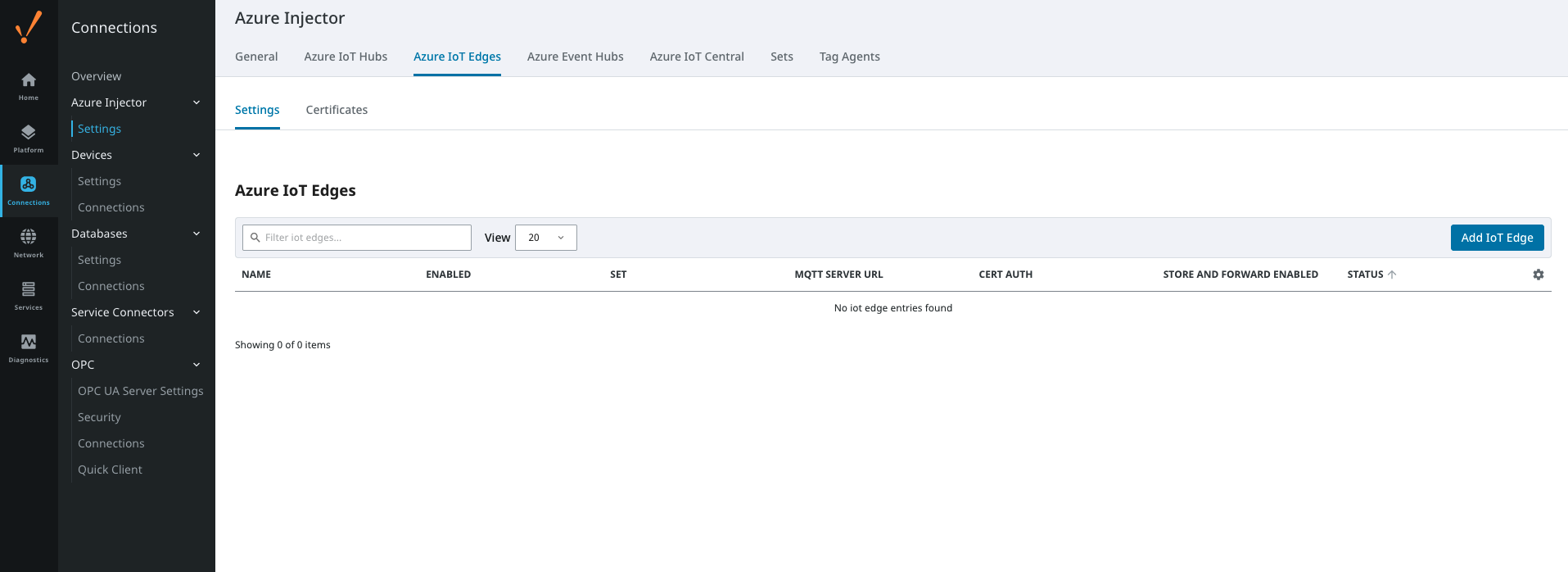 Image Added
Now select the 'Certificates' tab next to 'Settings'. This will show the following page.
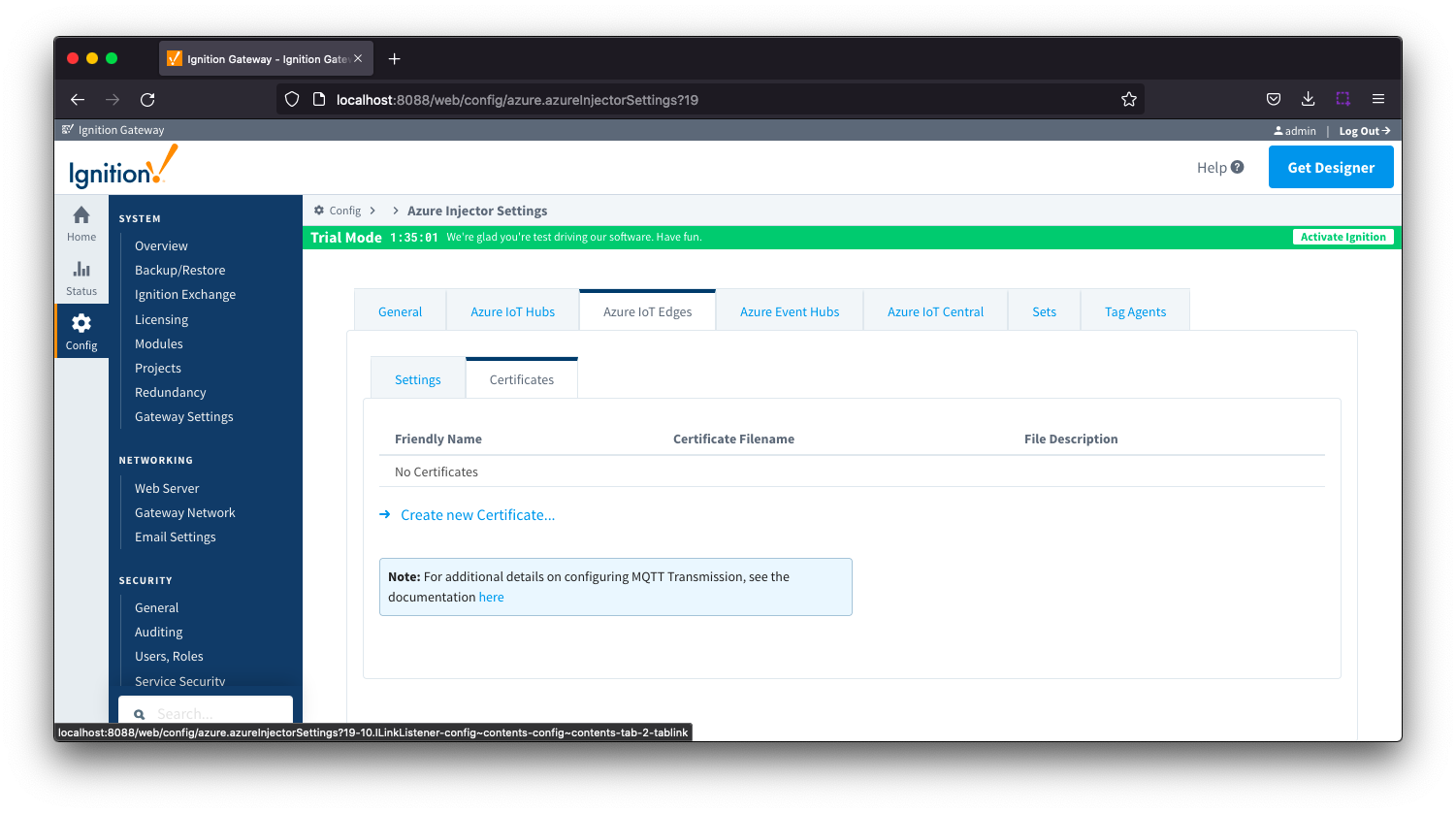 Image Removed
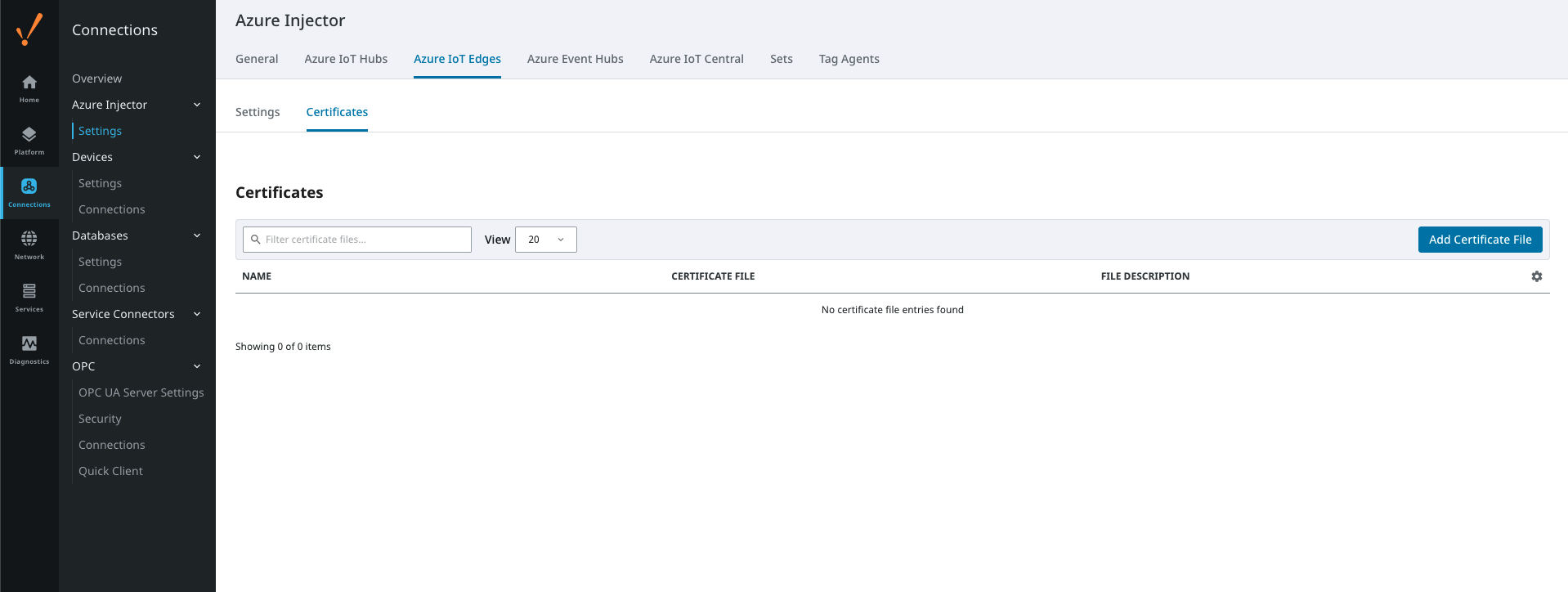 Image Added
Click 'Create new Certificate'. Then browse to the Azure IoT Edge Device Root CA that you provisioned during the installation and configuration of the Azure IoT Edge Device. Give it a friendly name as shown below.
...
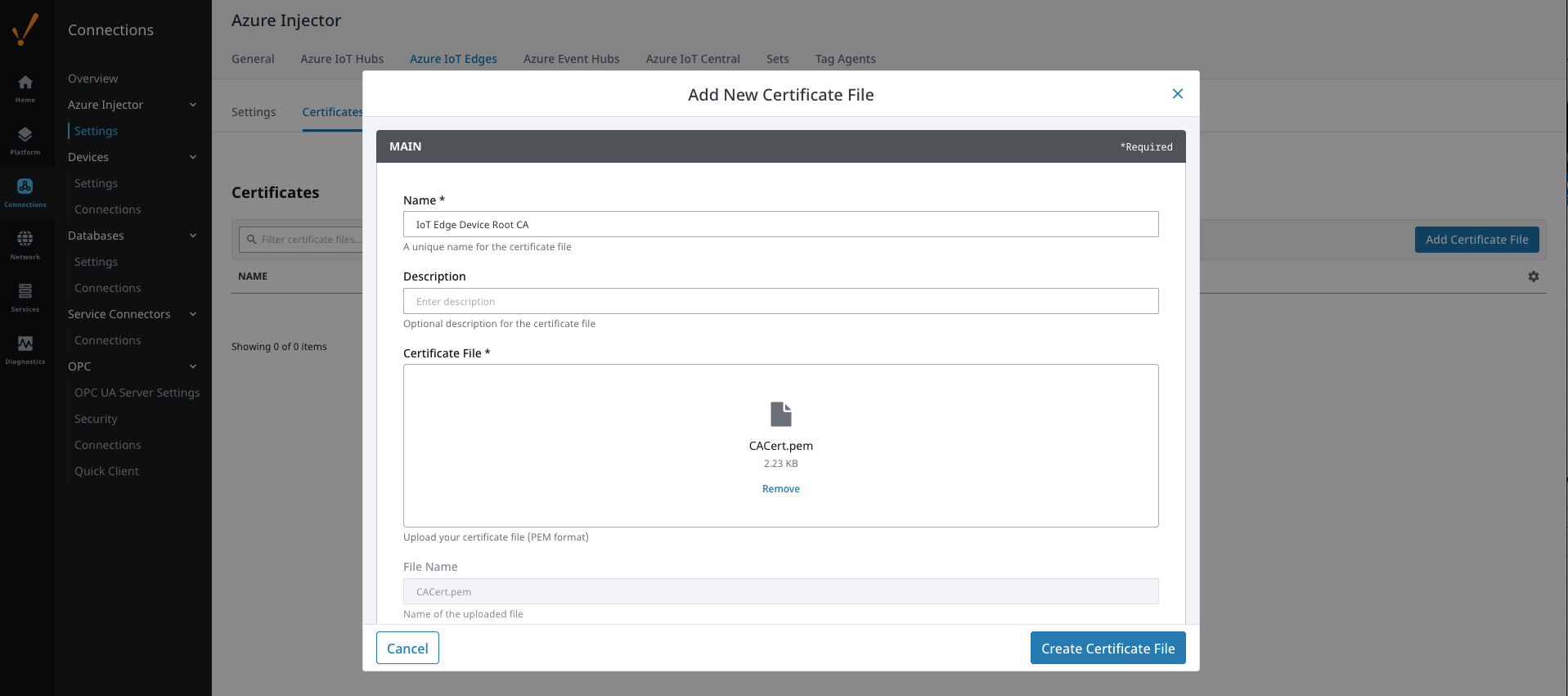 Image Added
Now click 'Create New Certificate File'. After doing so you should see something similar to the following.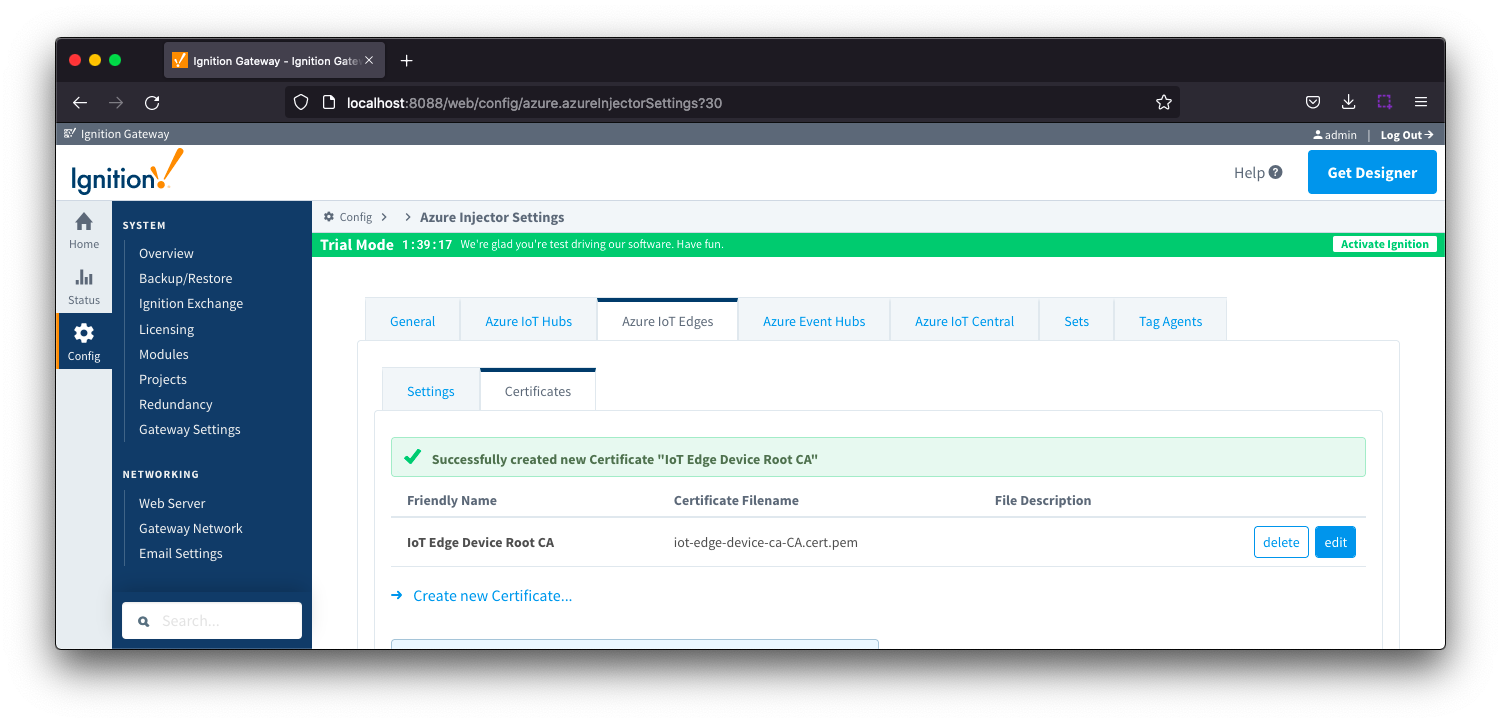 Image Removed
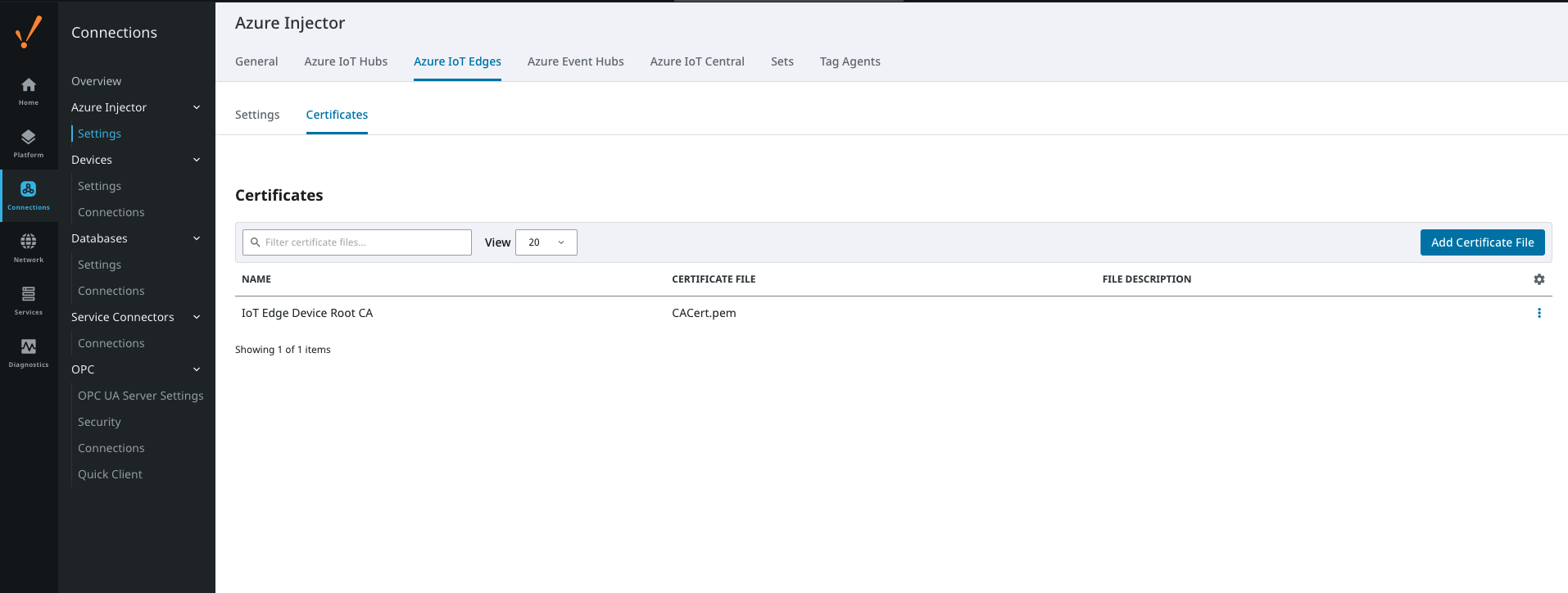 Image Added
Now select the 'Settings' tab directly to the left of the 'Certificates' tab. Then click the 'Create new Azure IoT Edge Setting...' link. This will open the following page.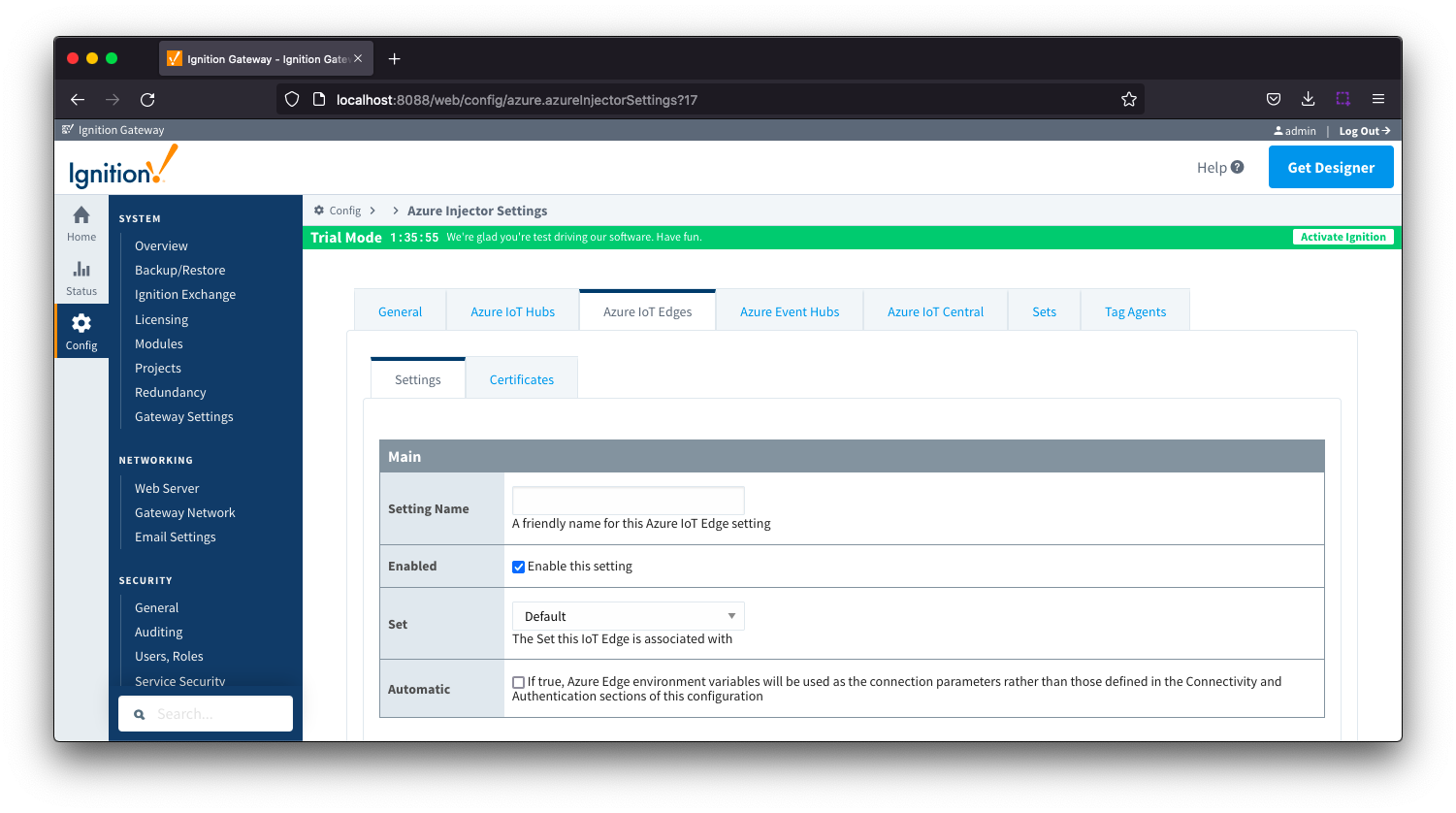 Image Removed
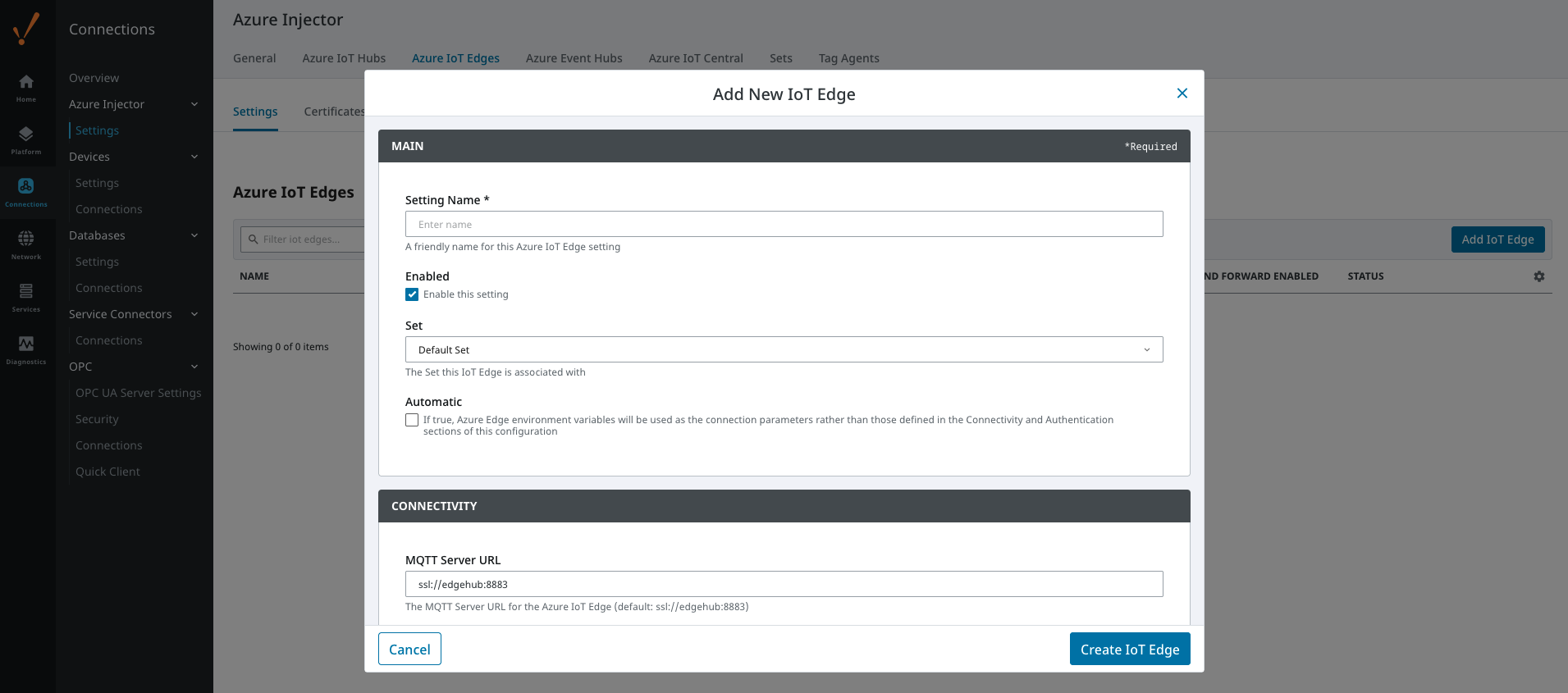 Image Added
Set the following parameters in the form (leave all others in their default state)
...
After the parameters are set, click the 'Save Changes' button at the bottom of the page. After doing so, you should see the following.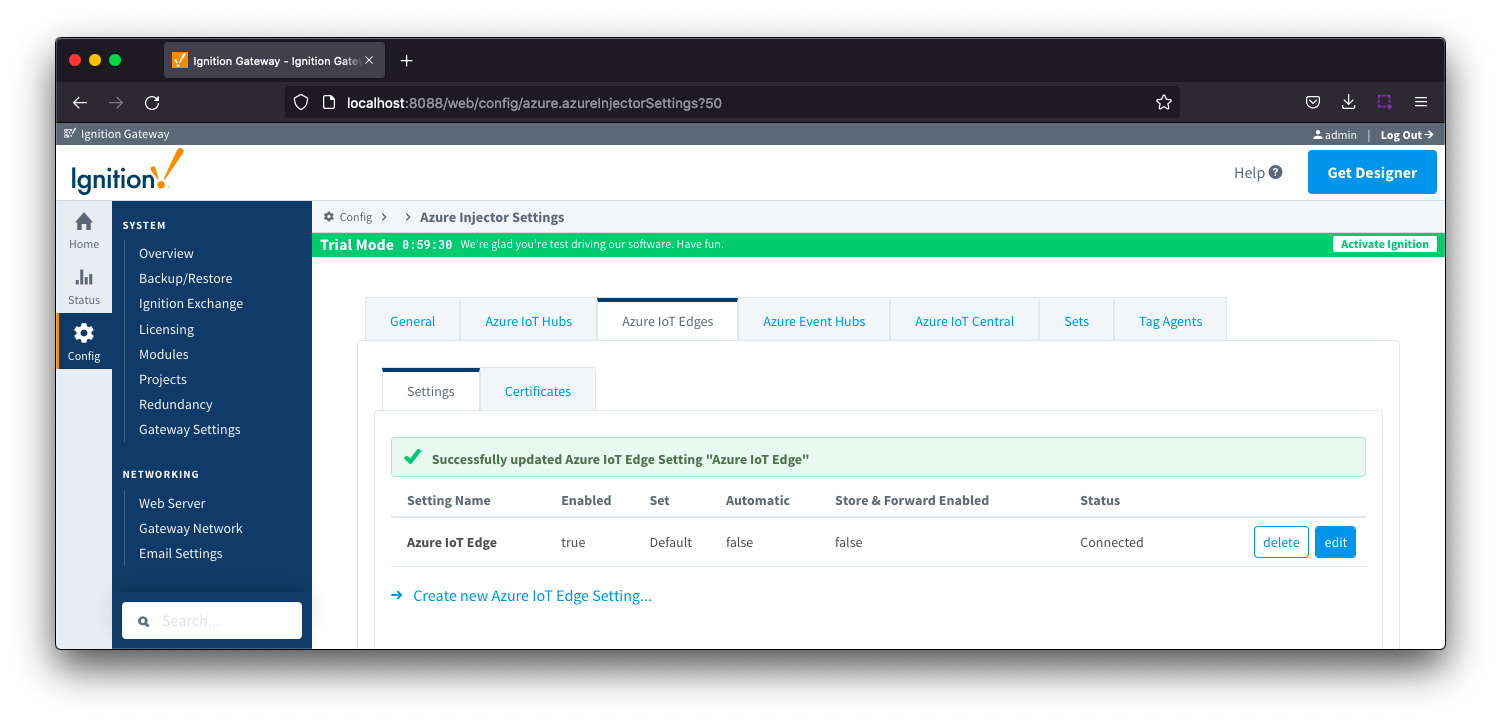 Image Removed
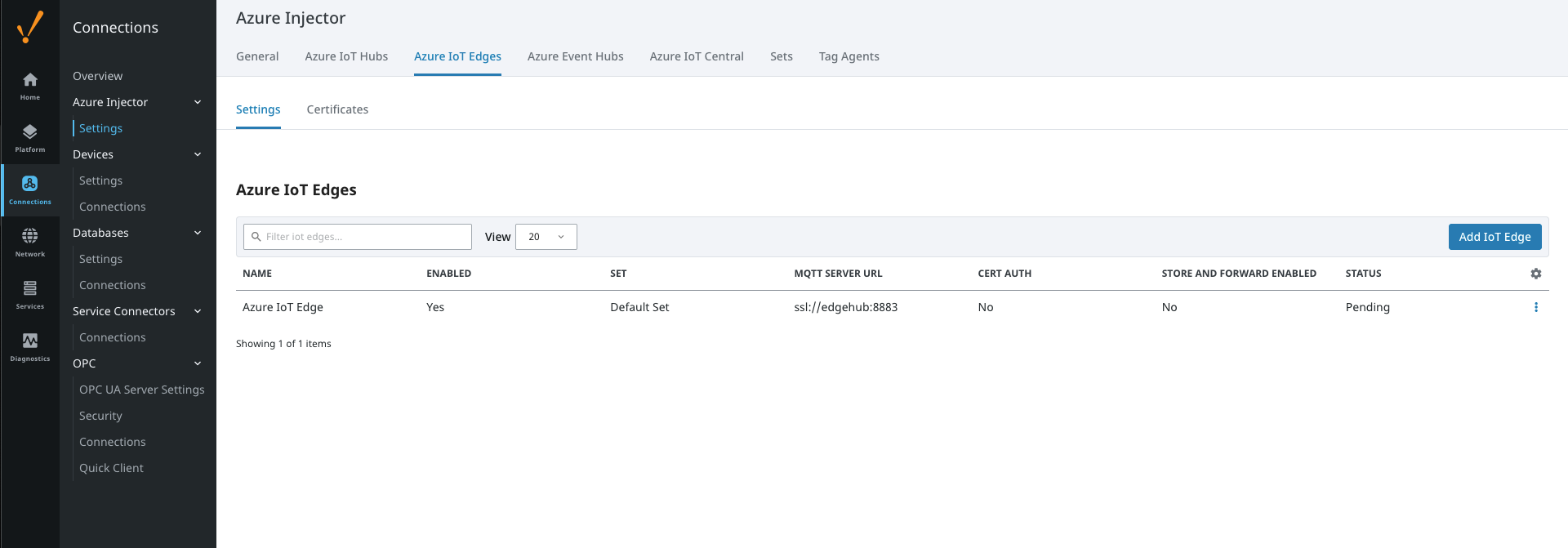 Image Added
If everything went well, you should also see 'Connected' under the Status column.
...